
Shopify x PingPong Checkout Credit Card Embedded Installation Guide (International Cards)
International Card Embedded Installation Guide
Step 1. Search APP
Click this link (https://apps.shopify.com/credit-card-1) to install the APP.
Note
Please install through the specified link, do not search directly in the Shopify app market.
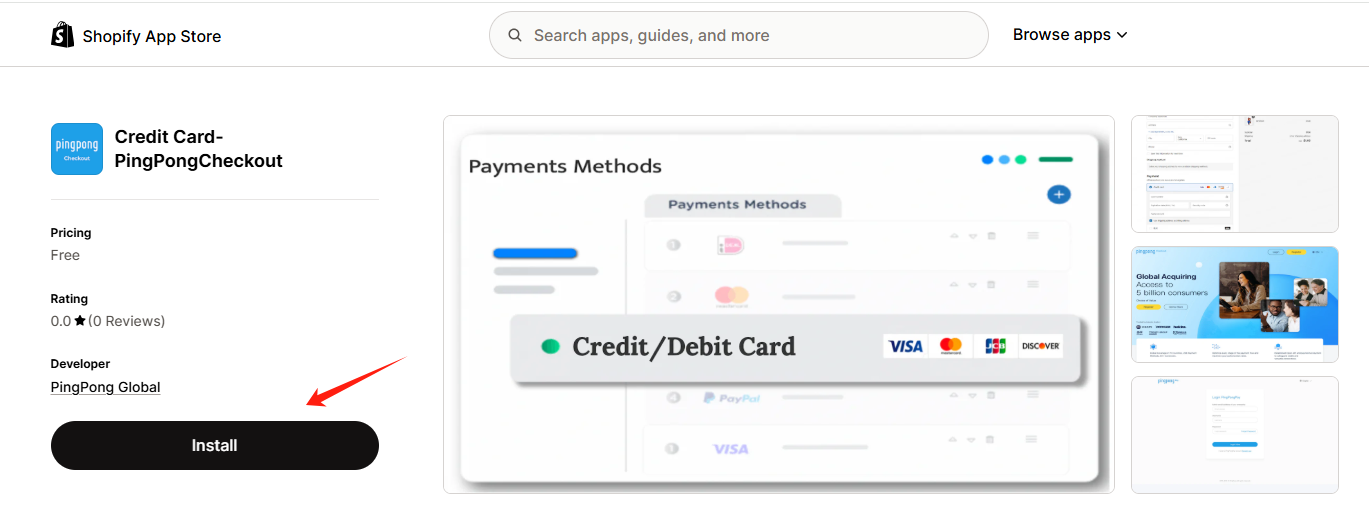
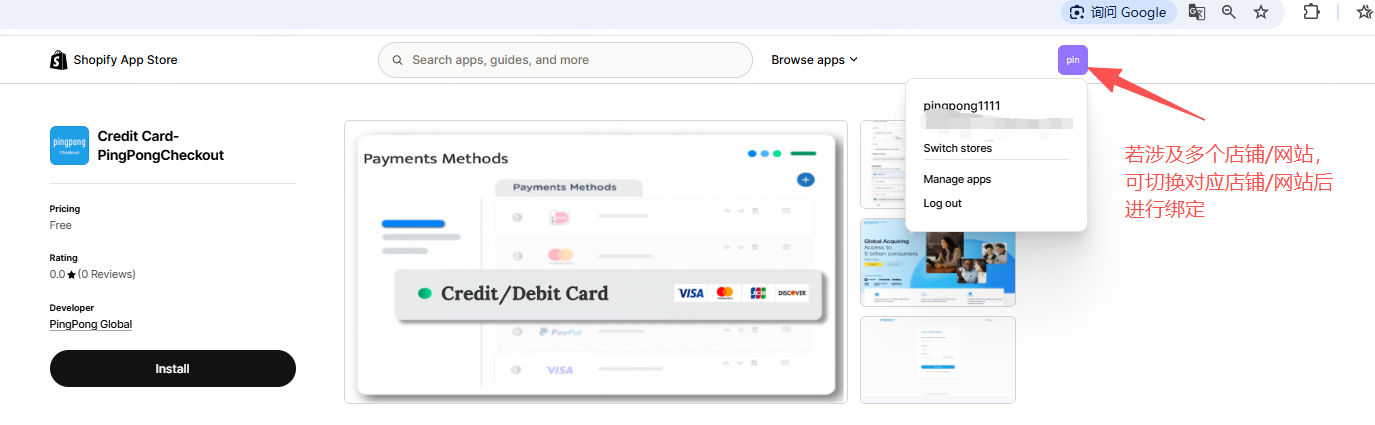
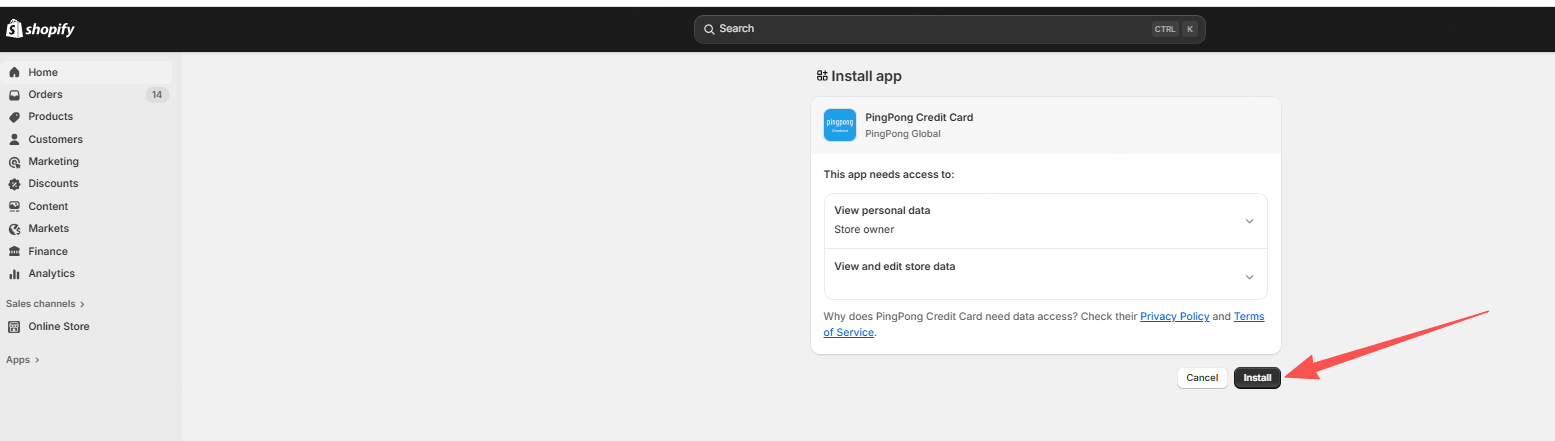
Step 2. Install APP
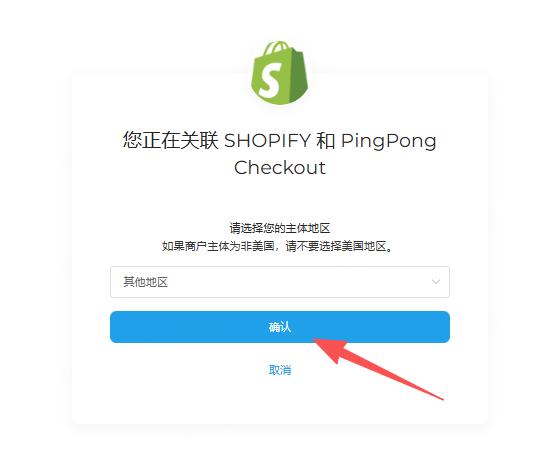
Click 【Install】-->【Link SHOPIFY and PingPong Checkout】-->Select 【Registration Entity】-->【Confirm】
Note
Please be sure to select the entity region according to the company entity registered in PingPong Checkout, otherwise it will affect the binding. Other entities refer to entities other than US entities that can be selected, such as HK/SG, etc.
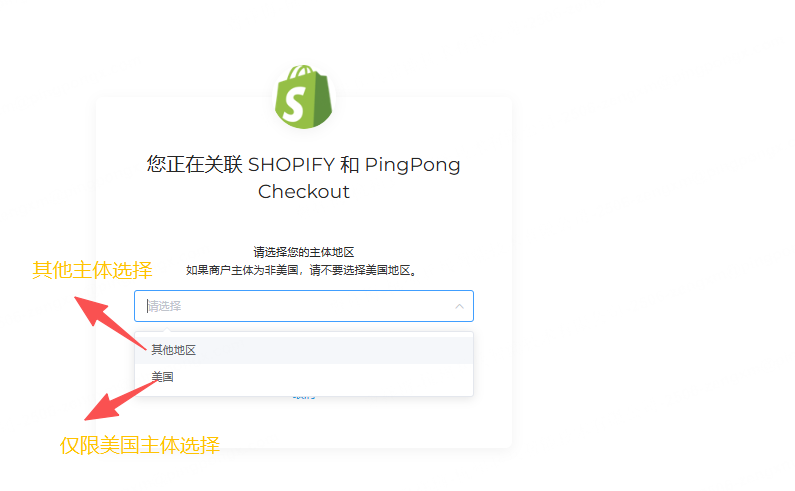
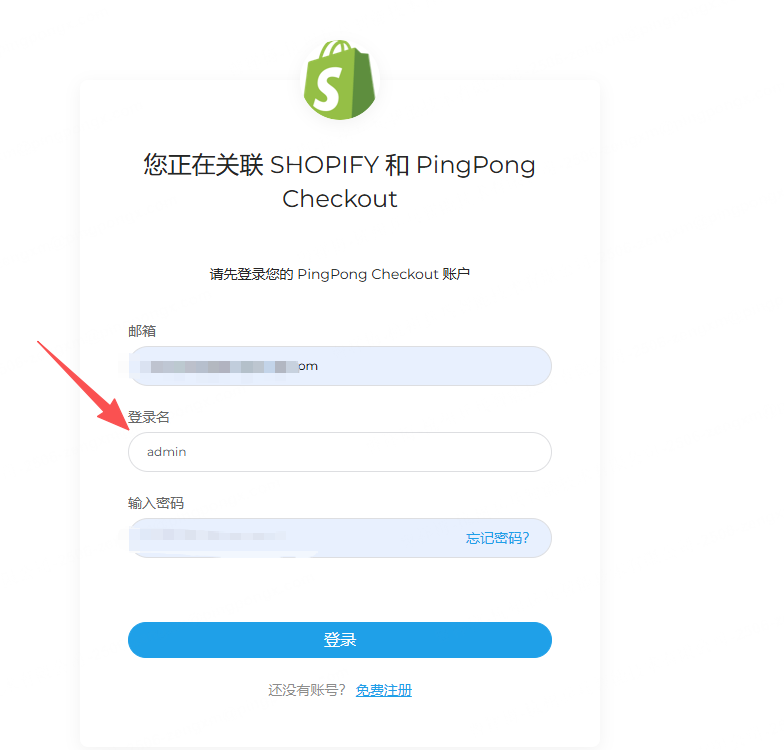
Please log in using your administrator email and password used during registration.
Default login name: admin
Step 3. Select Binding Website
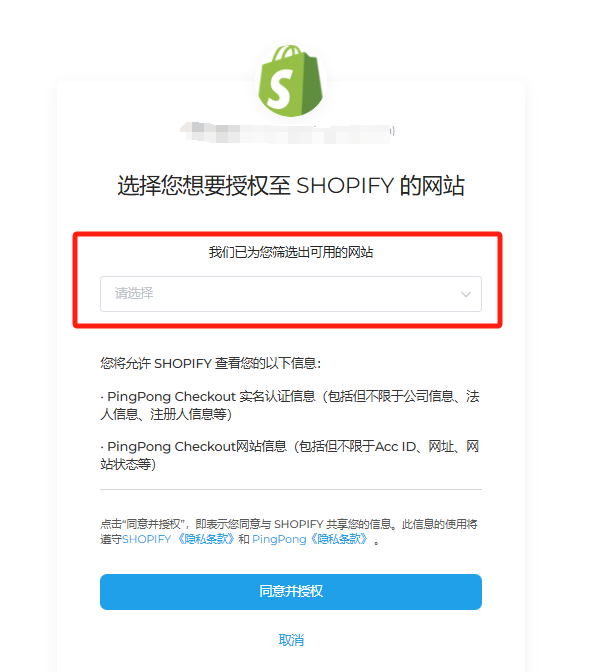
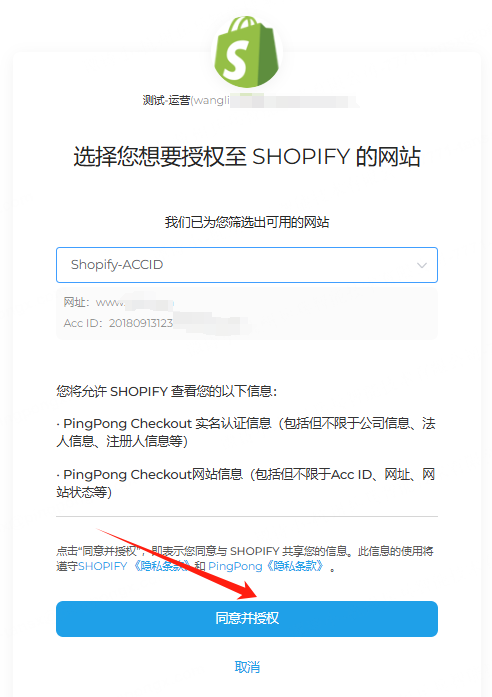
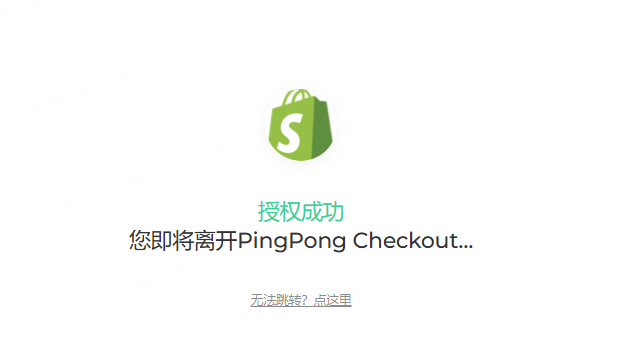
Select the website you want to bind-->click 【Agree and Authorize】, it will automatically redirect to the Shopify page.
Note
- Currently the system does not support batch binding of multiple websites, each needs to be operated individually
- This page only displays websites that have been approved
Step 4. Activate Payment Method
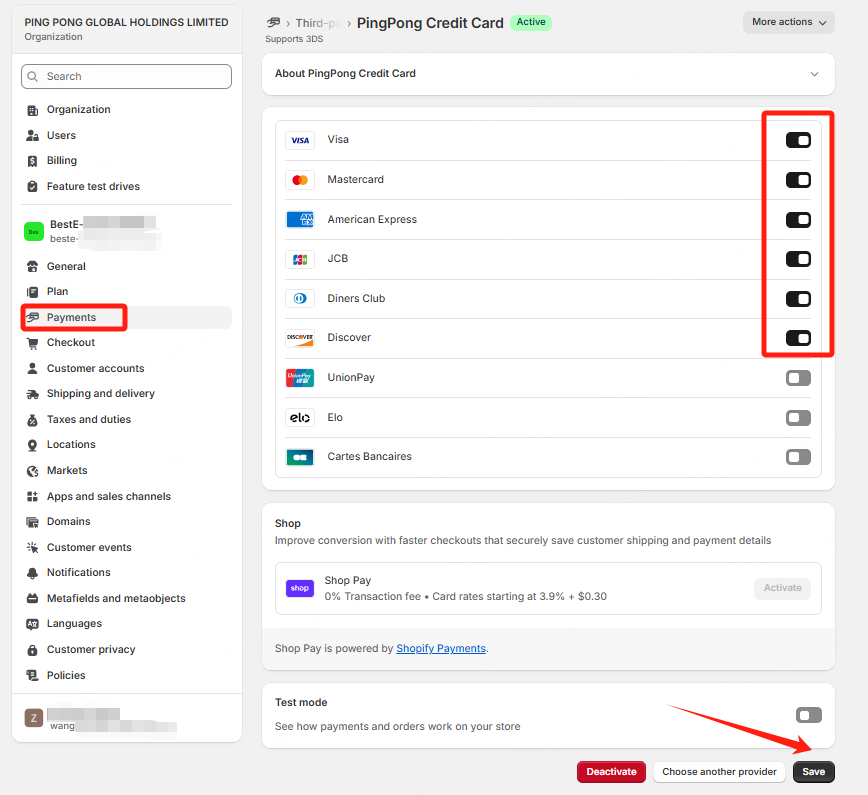
After completing the binding and redirecting back to the Shopify admin backend, check the required payment methods, click 【Activate】-->【Save】.
Note
Do not check Test mode, otherwise it will submit to the test environment.
Step 5. Set Required Fields
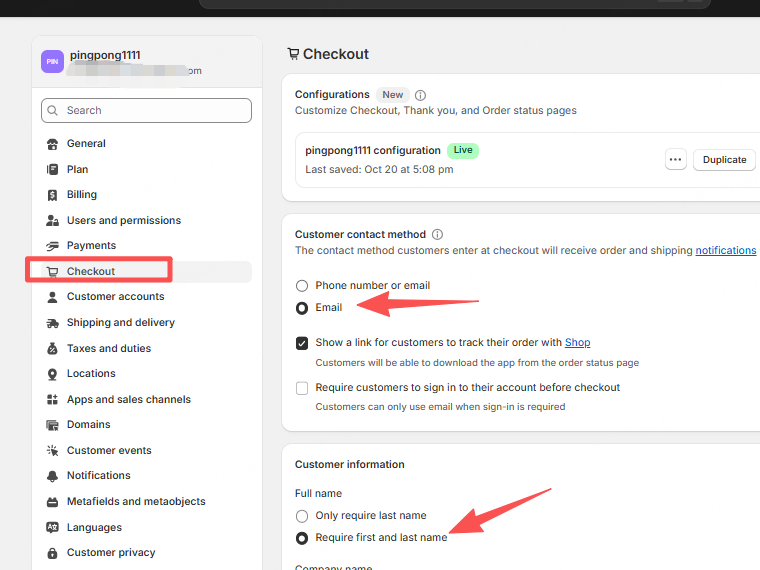
Set Email and name as required fields, otherwise it will affect transaction success, need to set according to the following screenshots.
Step 6. Installation Success
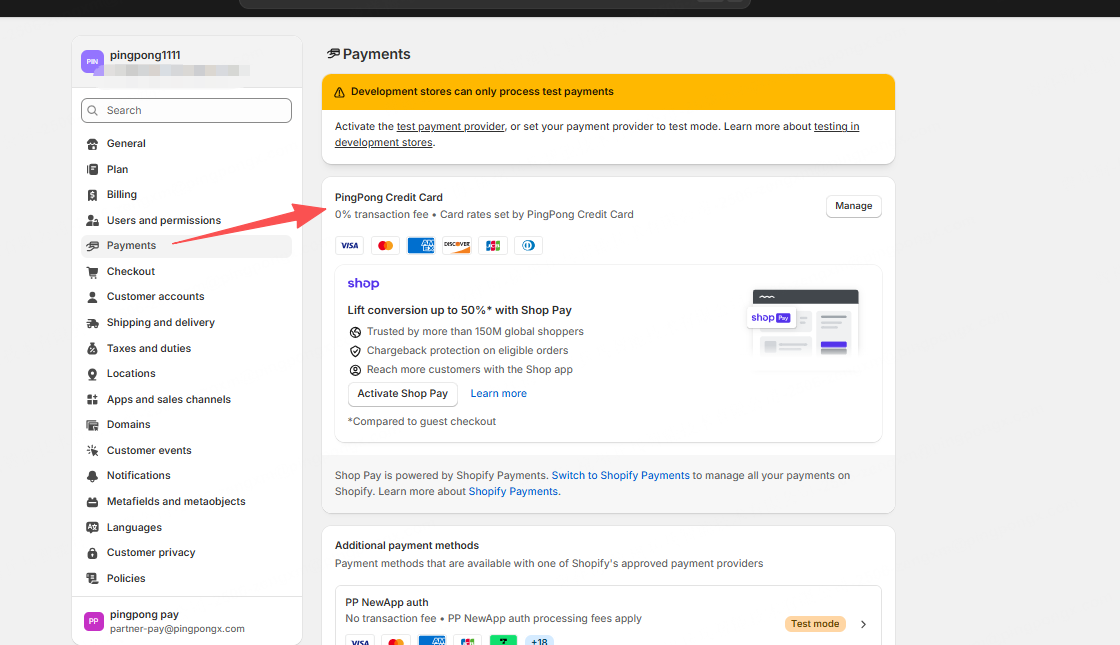
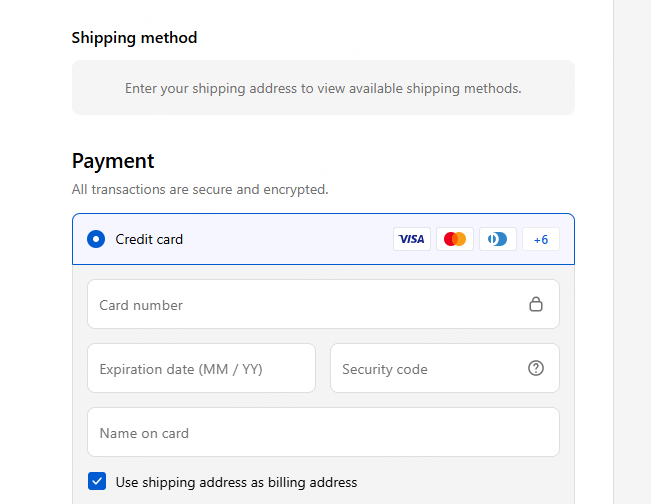
After successful installation, your merchant backend and checkout will display the corresponding payment icons/entry.
Step 7. Test Verification
After the APP is successfully installed, please set up a product link with an amount of 1 USD for the operations team to test, or the merchant can test a transaction themselves. After successful testing, it can be officially launched for use.
Step 8. Close or Uninstall Original Checkout
Tip
New merchants can ignore this step.
After the PingPong Checkout embedded checkout is successfully tested, the original collection checkout can be closed, the specific operation is as follows:
If only integrated international cards from PingPong Checkout
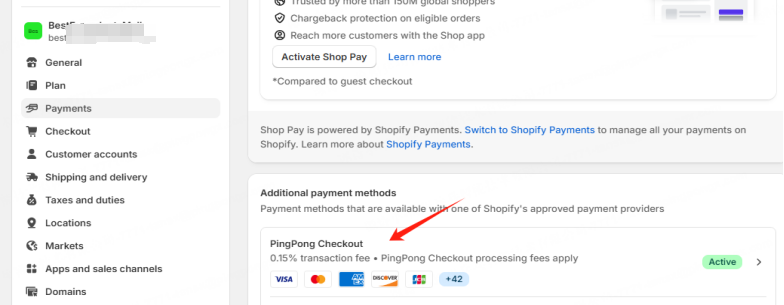
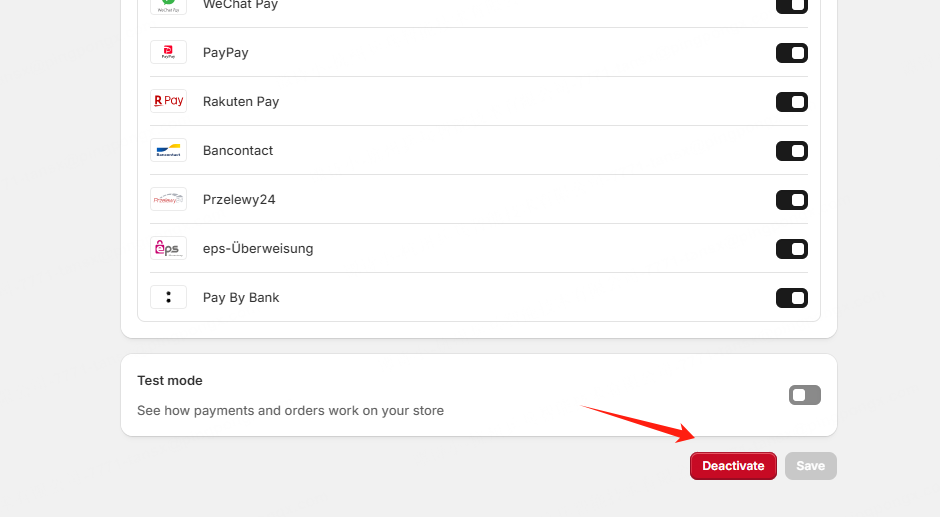
Enter the Shopify admin backend, select 【Settings】-【Payments】, click 【PingPong Checkout】to enter, scroll down and click 【Deactivate】directly.
If both international cards and local payment methods from PingPong Checkout are integrated
You can install local payment checkout according to the Local Payment Checkout Mode Integration, some local payment methods already support tiling, you can install the supported tiling payment methods according to the corresponding links.
Note
If you have previously installed credit card embedded APPs from other partners, you need to uninstall them before installing PingPong Checkout's credit card embedded.