
Shopify Logistics Binding
Background
According to relevant compliance requirements, order logistics information must be uploaded. To avoid affecting withdrawal review efficiency and RMB settlement limits, you need to bind the logistics app according to this method to enable automatic logistics capture subsequently.
Shopify Logistics Binding Steps
Step 1. Go to the logistics APP installation page
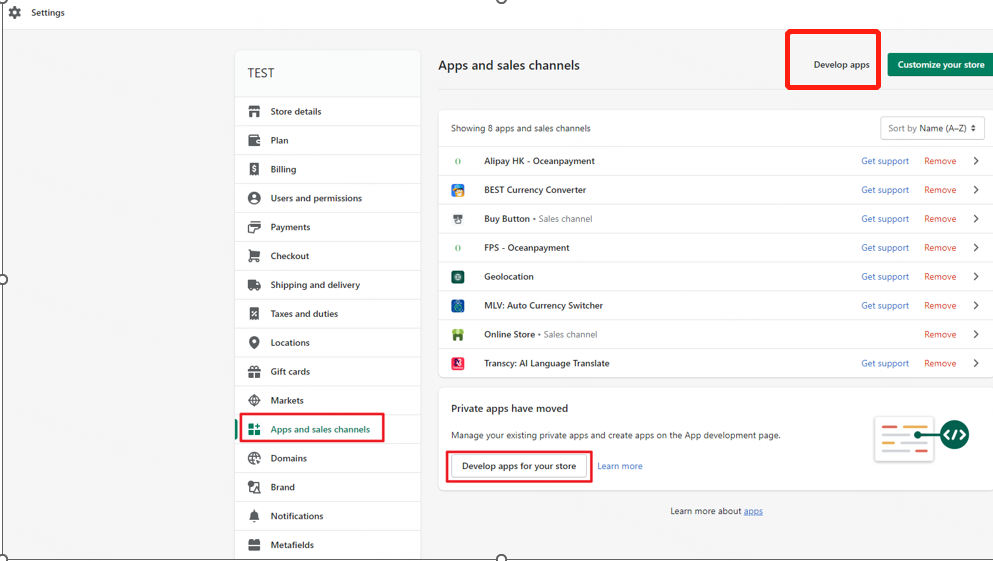
Click 【Settings】->【Apps and sales channels】->【develop apps for your store】 or click 【Develop apps】 in the upper right corner
Step 2. Allow custom app development
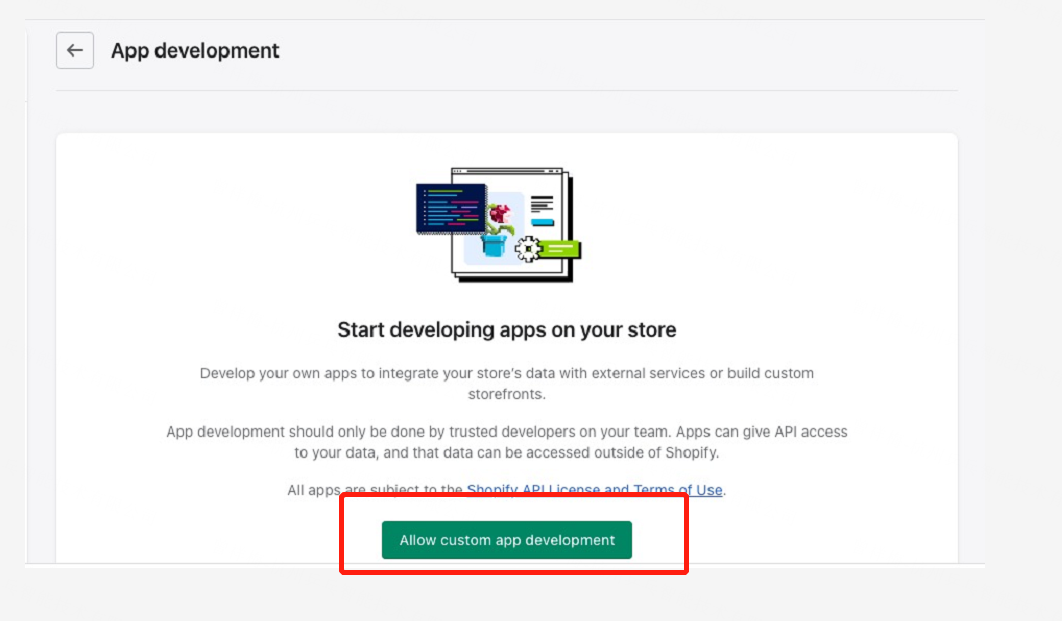
Click 【Develop apps】 to enter 【APP development】->【Allow custom app development】
Step 3. Create an app
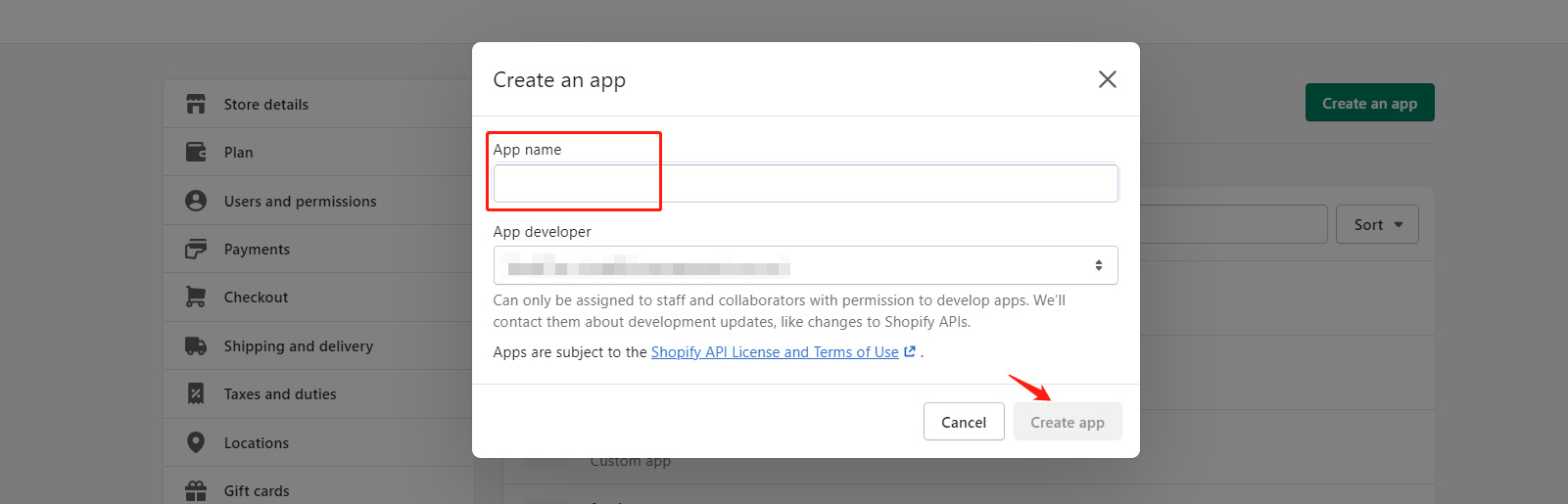
Select 【Create an app】

Step 4. Set App name
Customize App name->Create app
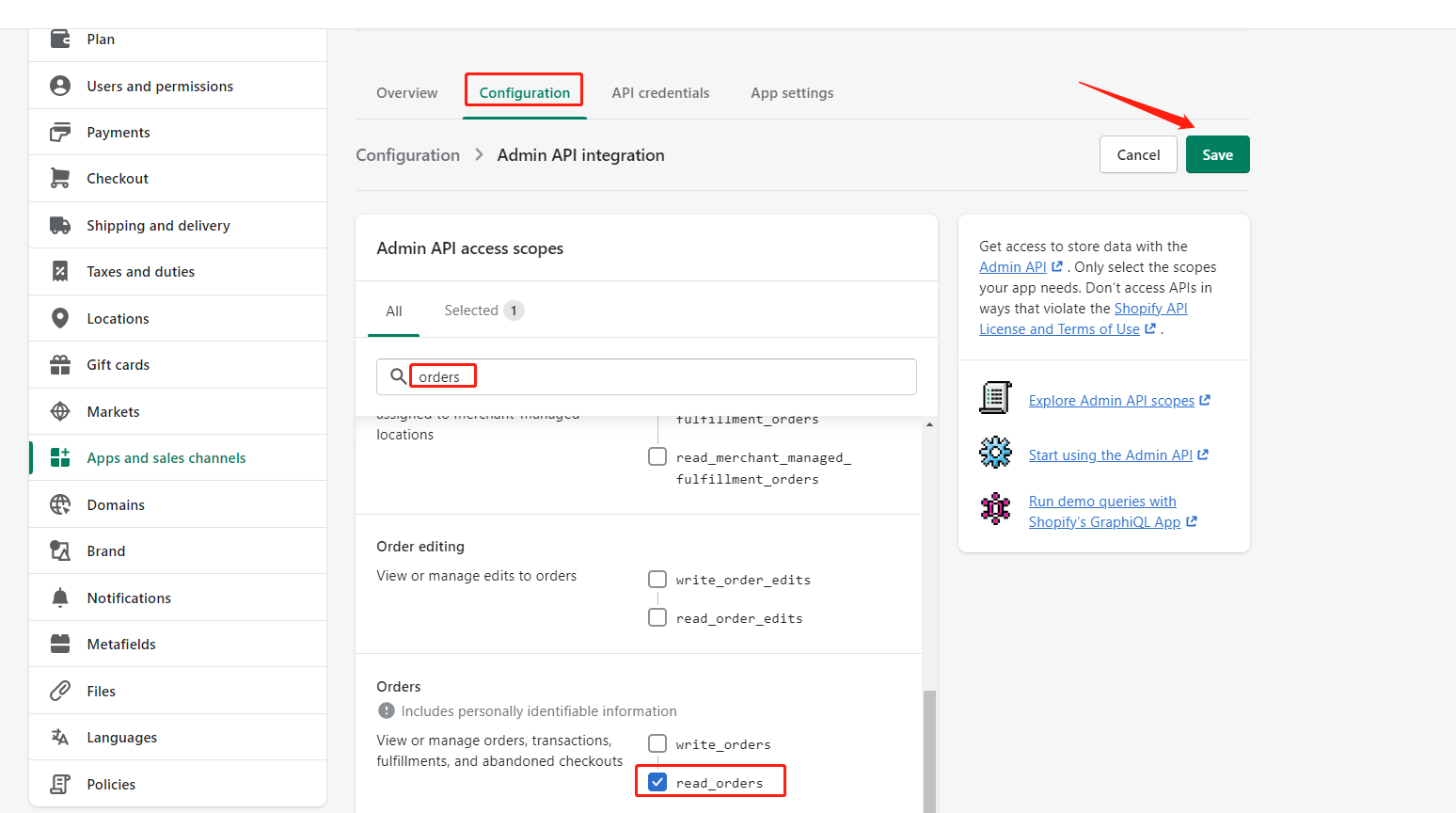
Step 5. Configure App
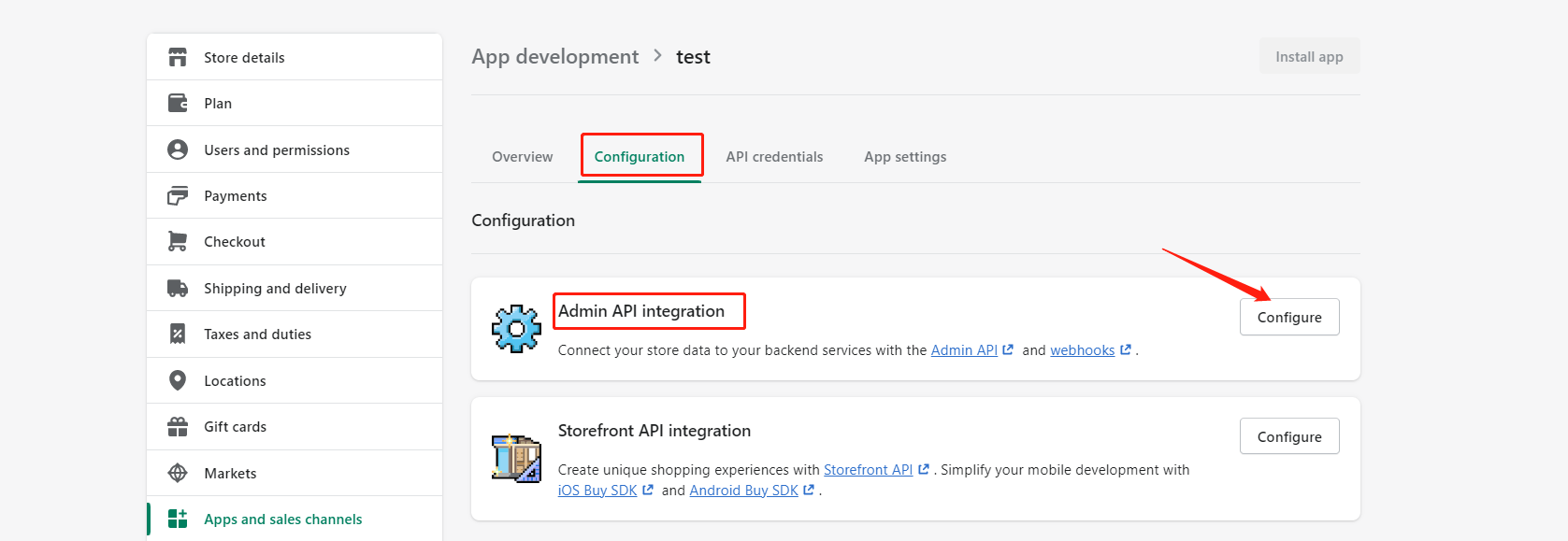
Select configuration->configure
Step 6. Save
Check reader_orders, save
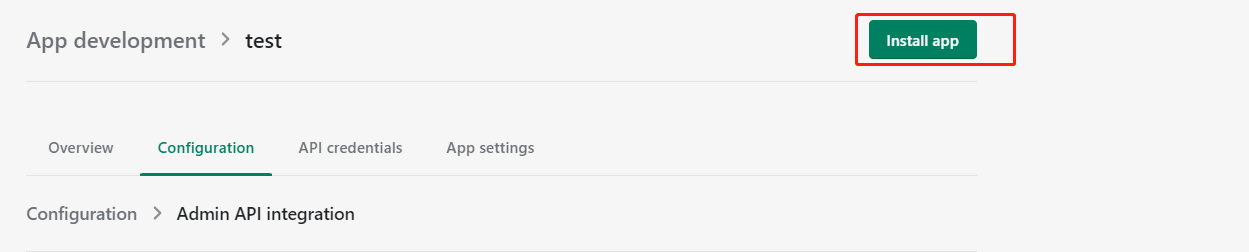
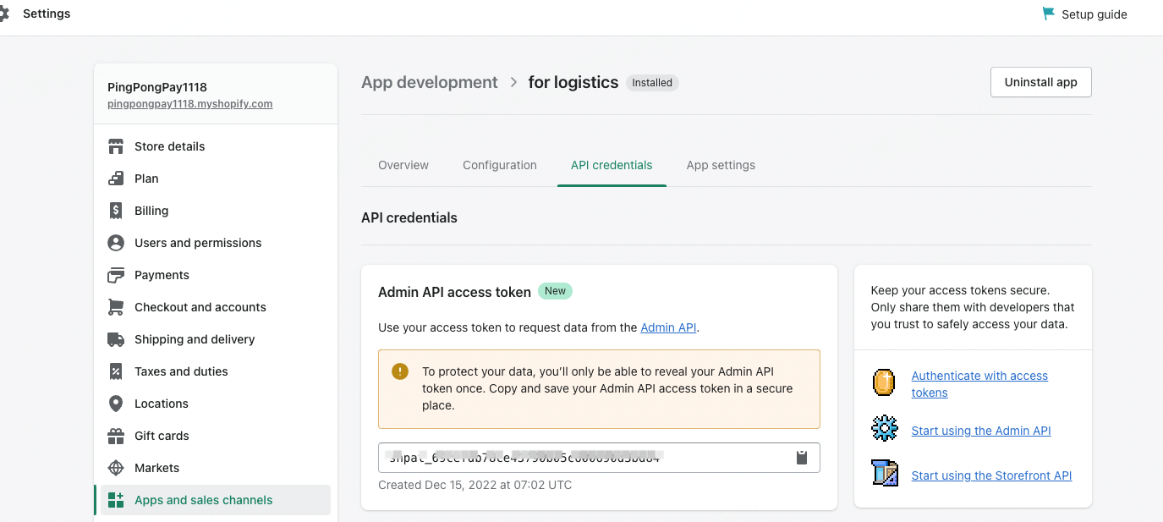
Step 7. Install app
Click Install app
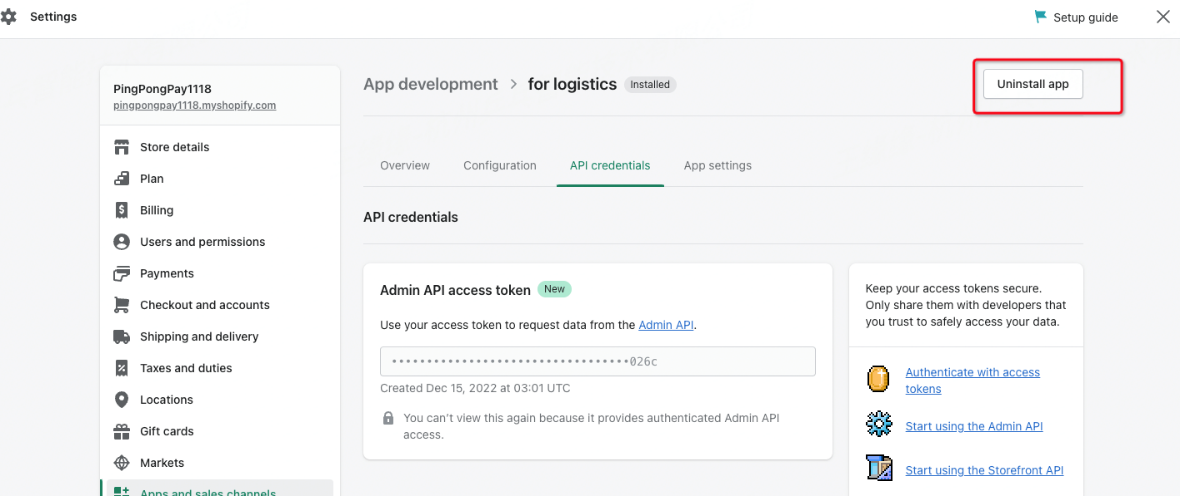
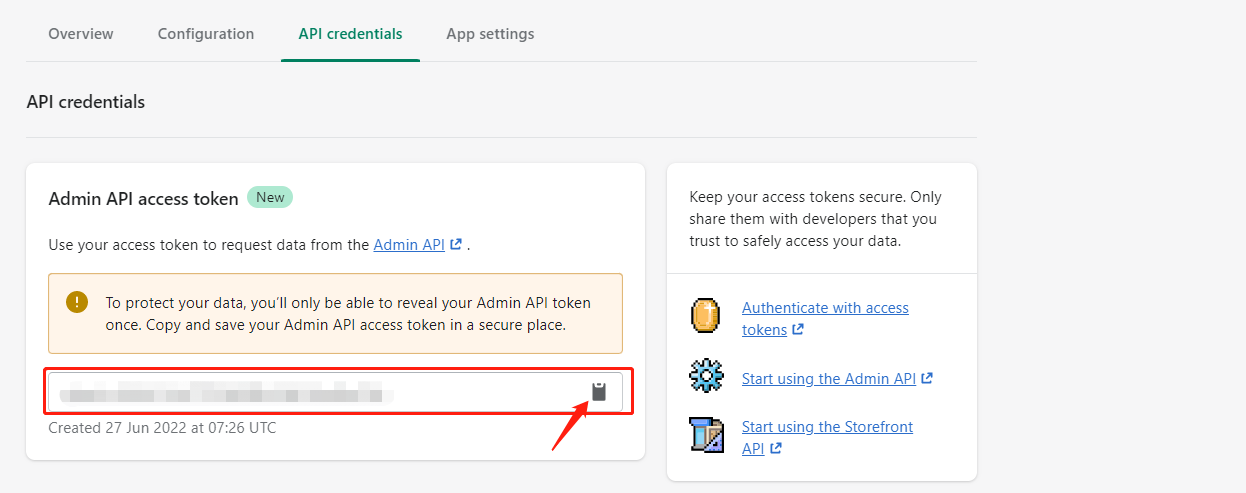
Step 8. Copy Token and save
- Token information can only be copied once, please keep it properly. If lost, click Uninstall app then Install app again to get a new Token
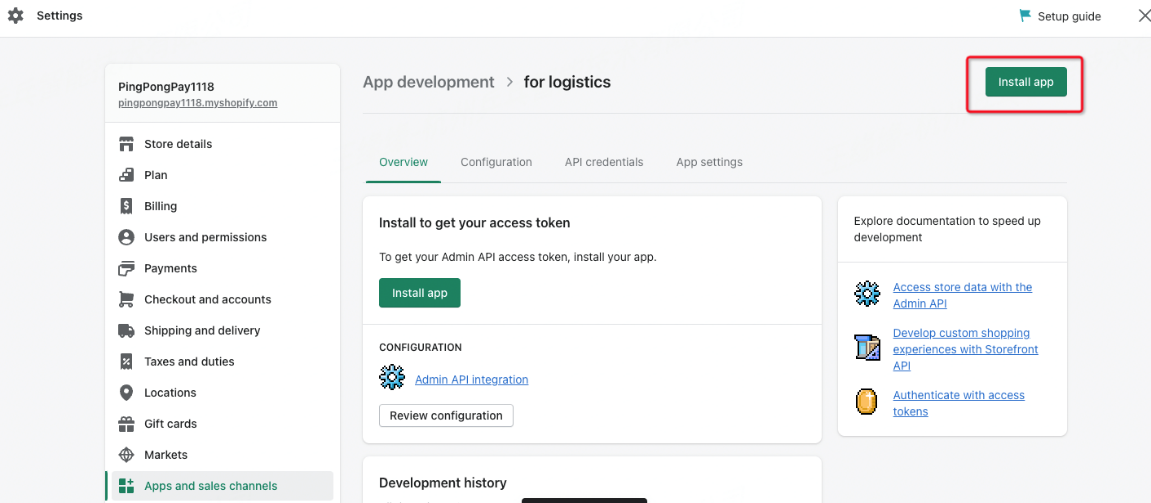
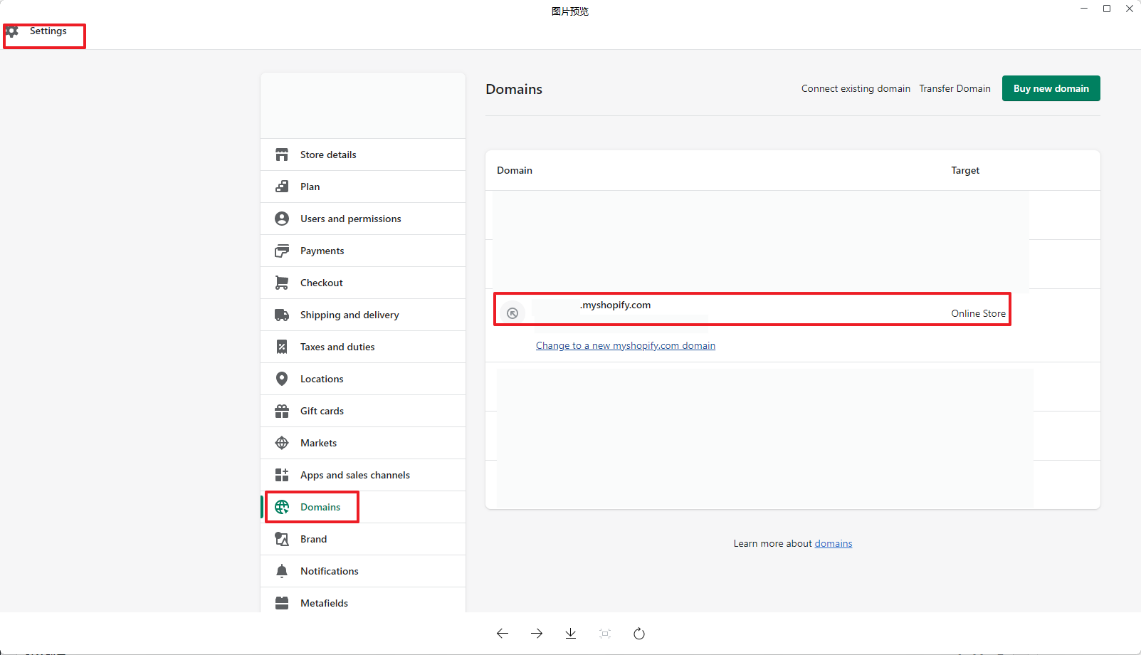
Step 9. Get store subdomain
Get store subdomain (xxx.myshopify.com) and save
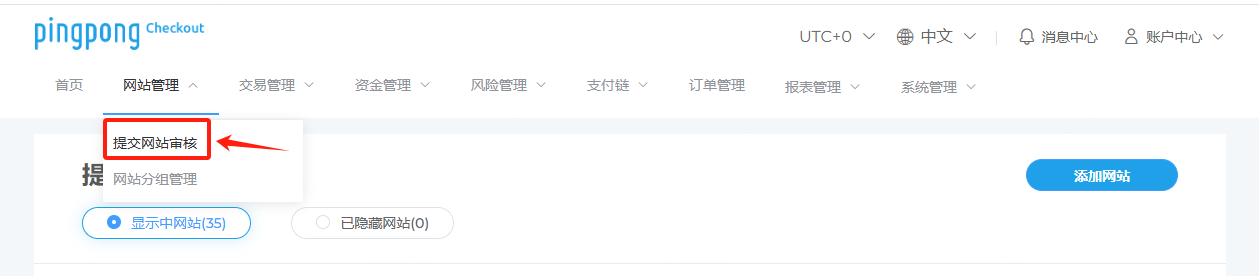
Step 10. Logistics binding
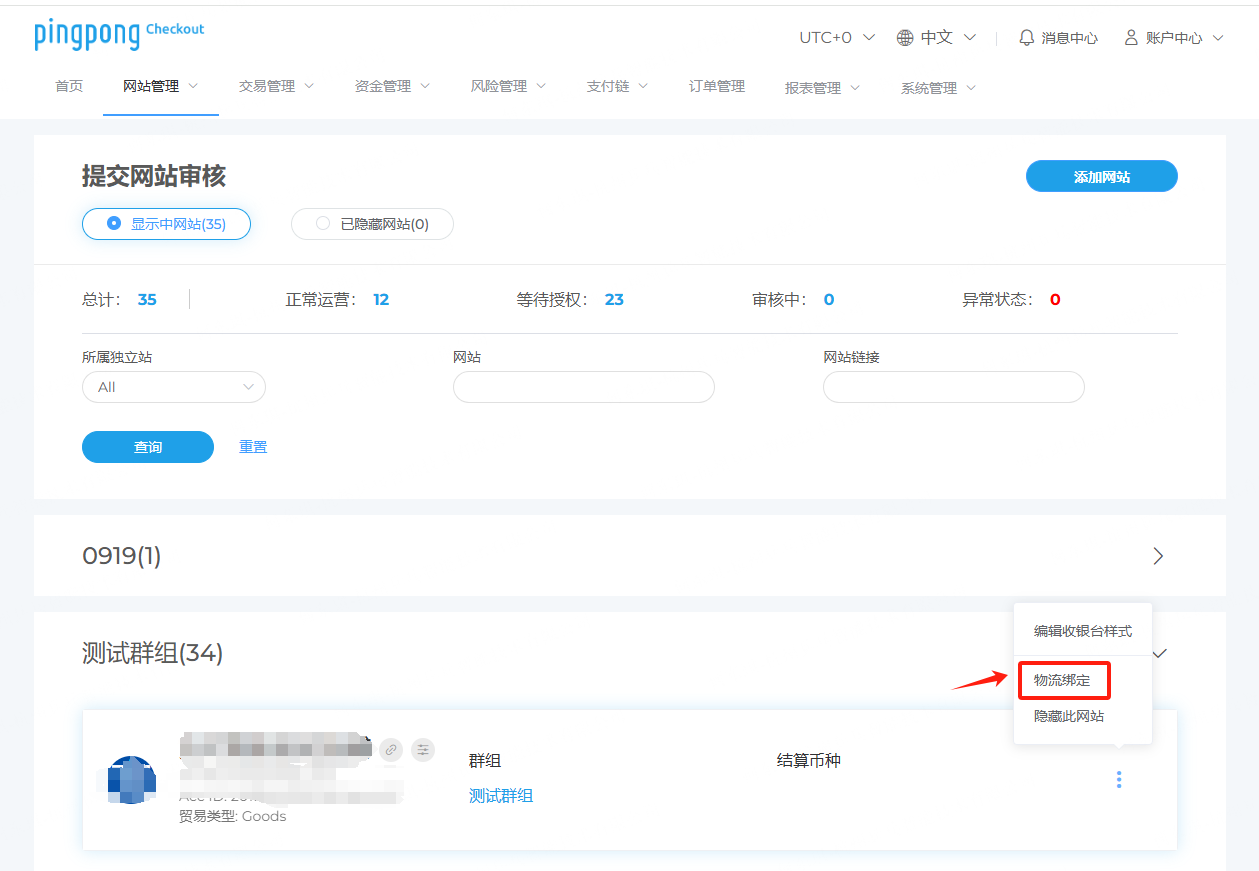
Login to pingpong checkout backend 【Website Management】->【Submit Website Review】->【Select corresponding store】->【Logistics Binding】
Step 11. Complete binding
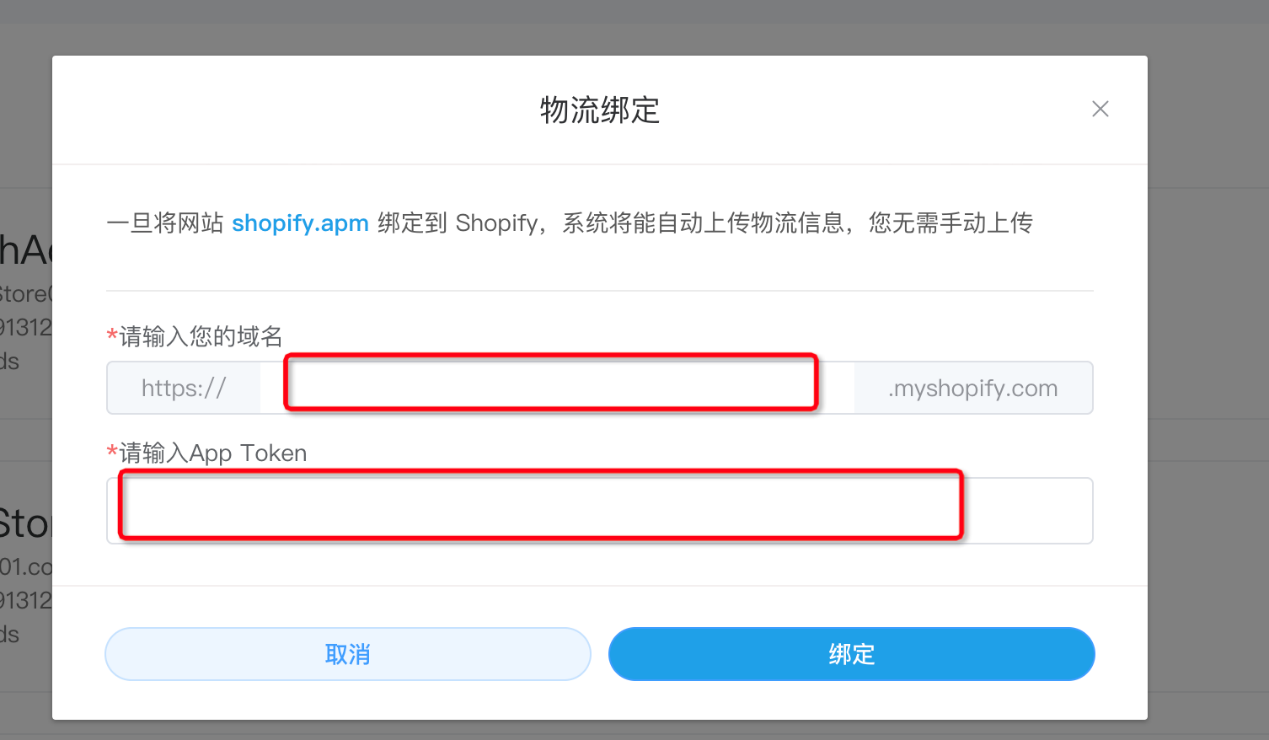
Enter the domain and token obtained from shopify to complete the binding.
- After successful binding, the "
 " under DEFAULT store changes from gray to blue "
  "
"
Note
- After logistics app binding, it will automatically fetch existing orders from the past two months. Subsequent orders will be automatically fetched, but orders older than two months need manual login to 【pingpongcheckout backend】->【Order Management】->filter status 【Not Uploaded】->【Export Current Results】, then complete the logistics information (query URL, tracking number, logistics company), product names, etc., and upload in bulk;
- After logistics app installation, logistics information fetching will be completed within approximately 24 hours. Please monitor the logistics fetching status during this time; if not fetched beyond this timeframe, contact pingpong payment operations for confirmation;
- Confirm whether the store is in closed status. If closed, contact pingpong payment operations in advance, otherwise logistics fetching will fail.