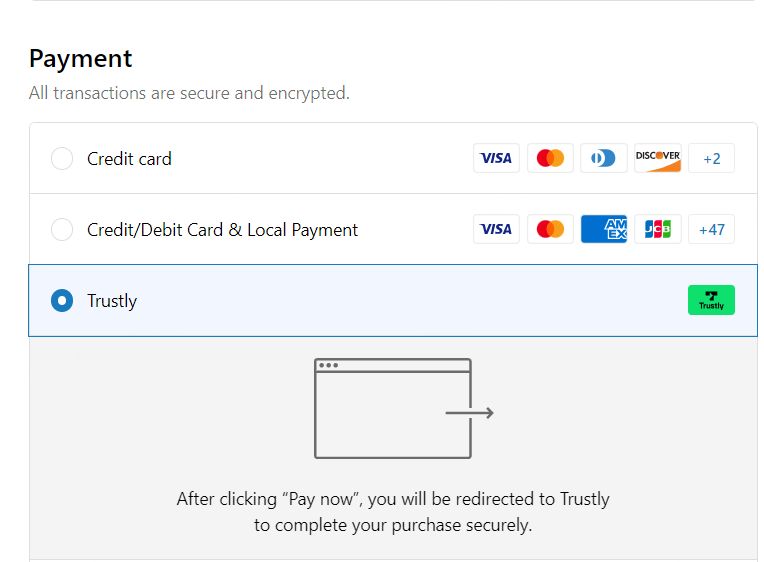
Trustly
Trustly Payment Method Installation Steps
Step 1. Currency Check
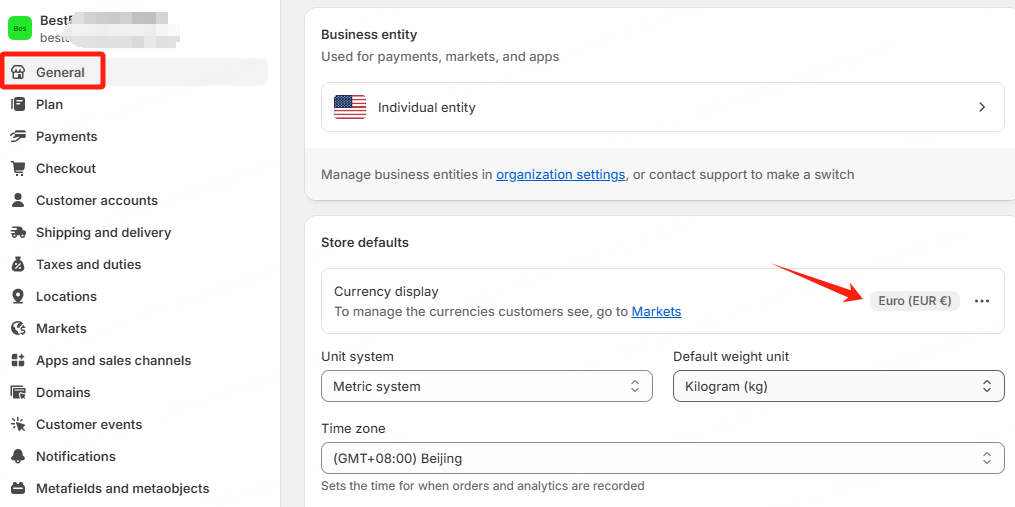
Check installation conditions, currency must be EUR.
Currency check path: 【Store details】-->【store currency】-->【EUR】
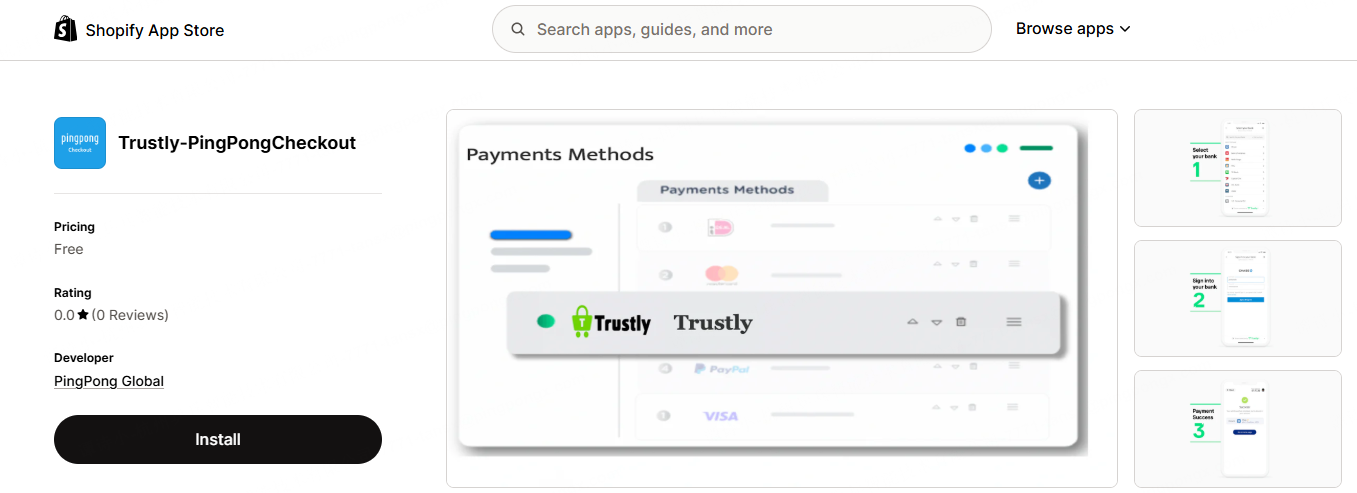
Step 2. Search APP
Click this link (https://apps.shopify.com/trustly-pingpongcheckout) to install the APP.
Note
Please install through the specified link, do not search directly in the Shopify App Store. If involving multiple websites/stores, you need to switch websites/stores at the top right corner before binding.
Step 3. Install APP
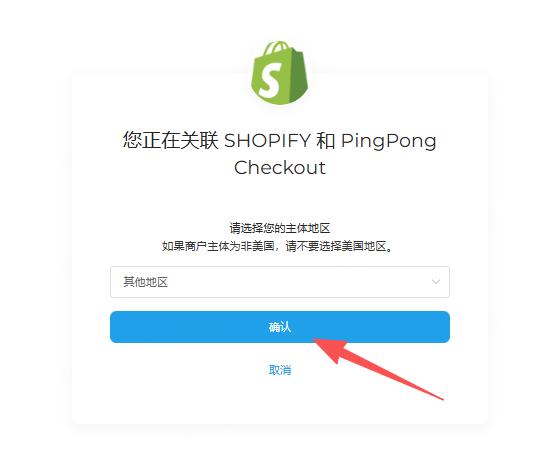
Click【Install】-->【Link SHOPIFY and PingPong Checkout】-->Select【Registration Entity】-->【Confirm】
Note
Please make sure to select the entity region according to the company entity registered in PingPong Checkout, otherwise it will affect the binding. Other entities refer to entities other than US entities, such as HK/SG, etc.
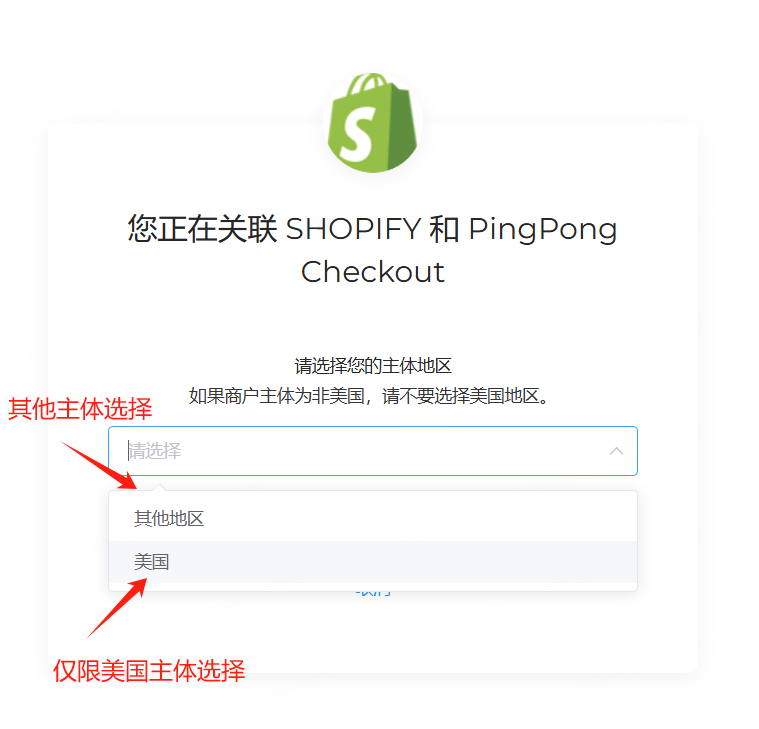
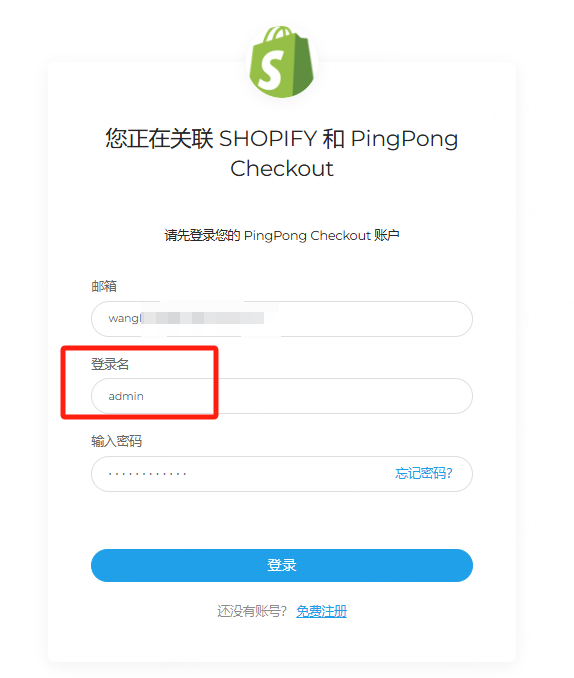
Please log in using your administrator email and password used during registration.
Default login name: admin
Step 4. Select Binding Website
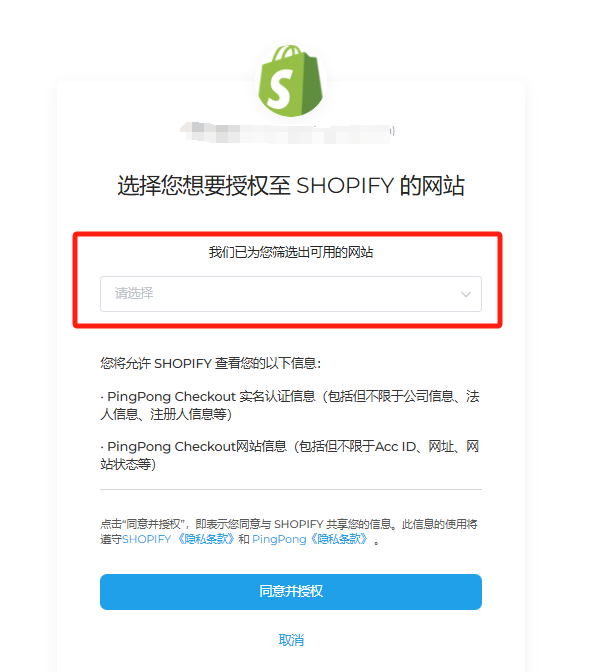
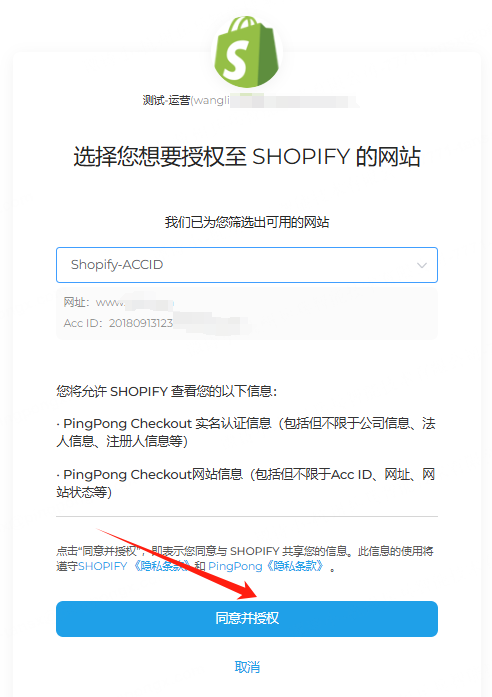
Select the website you want to bind-->click【Agree and Authorize】, it will automatically redirect to the Shopify page.
Note
- Currently the system does not support batch binding of multiple websites, each needs to be operated individually
- This page only displays websites that have been approved
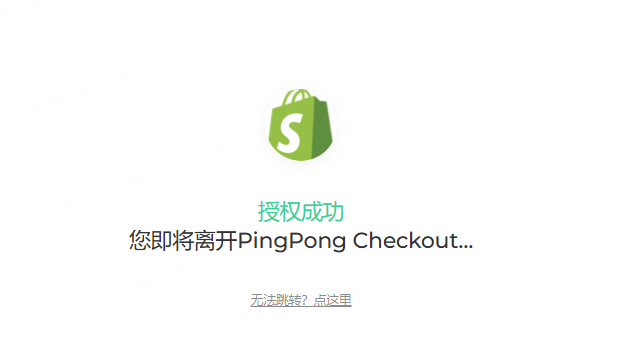
Step 5. Installation Success
After successful installation, this APP will appear in【Payments】in the Shopify backend, and this payment method will also appear at checkout.
Note
Do not check Test mode, otherwise it will submit to the test environment.
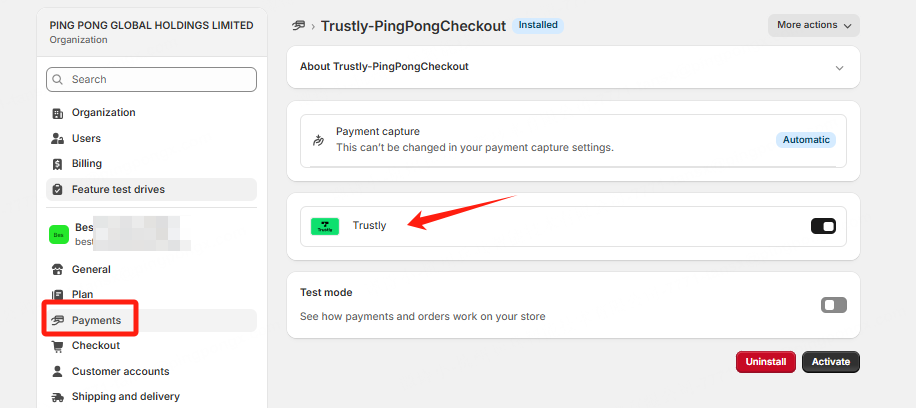
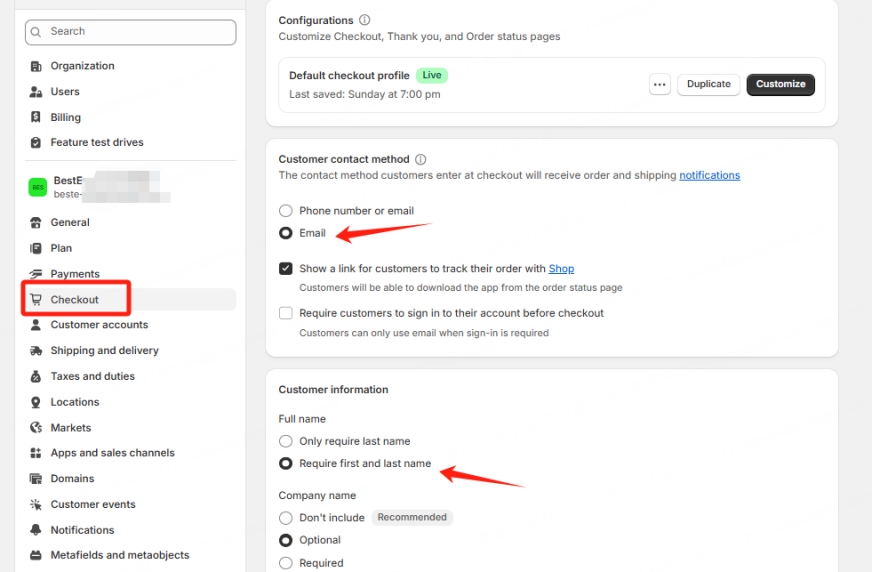
Step 6. Set Required Fields
Email and name need to be set as required fields, otherwise it will affect transaction success, need to set according to the following screenshot.
Step 7. Installation Success
After successful installation, your merchant backend and checkout will display the corresponding payment icon/entry.