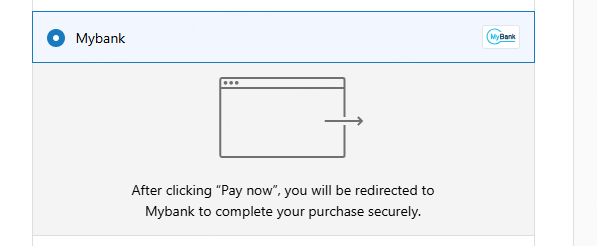
MyBank
MyBank Payment Method Installation Steps
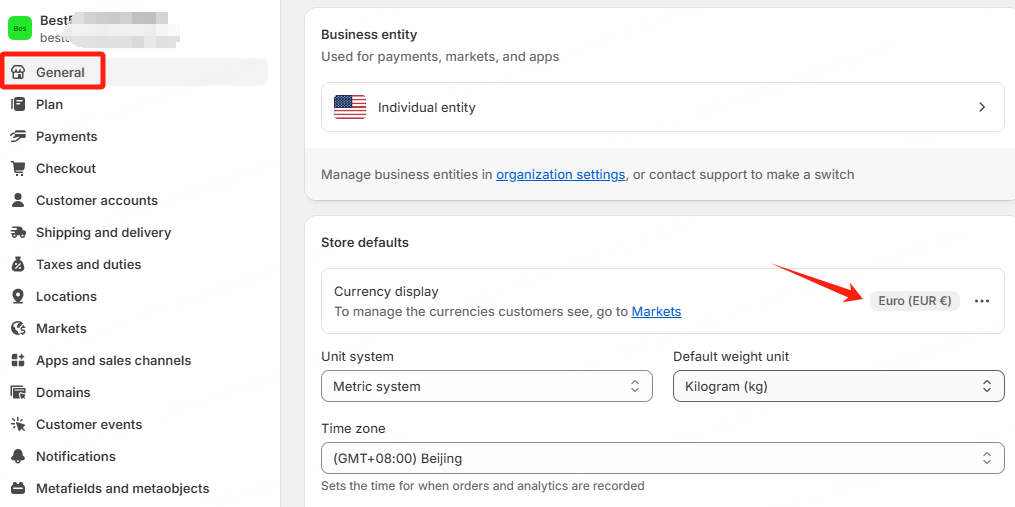
Step 1. Currency Check
Check installation conditions, currency must be EUR.
Currency check path: 【Store details】-->【store currency】-->【EUR】
Step 2. Search APP
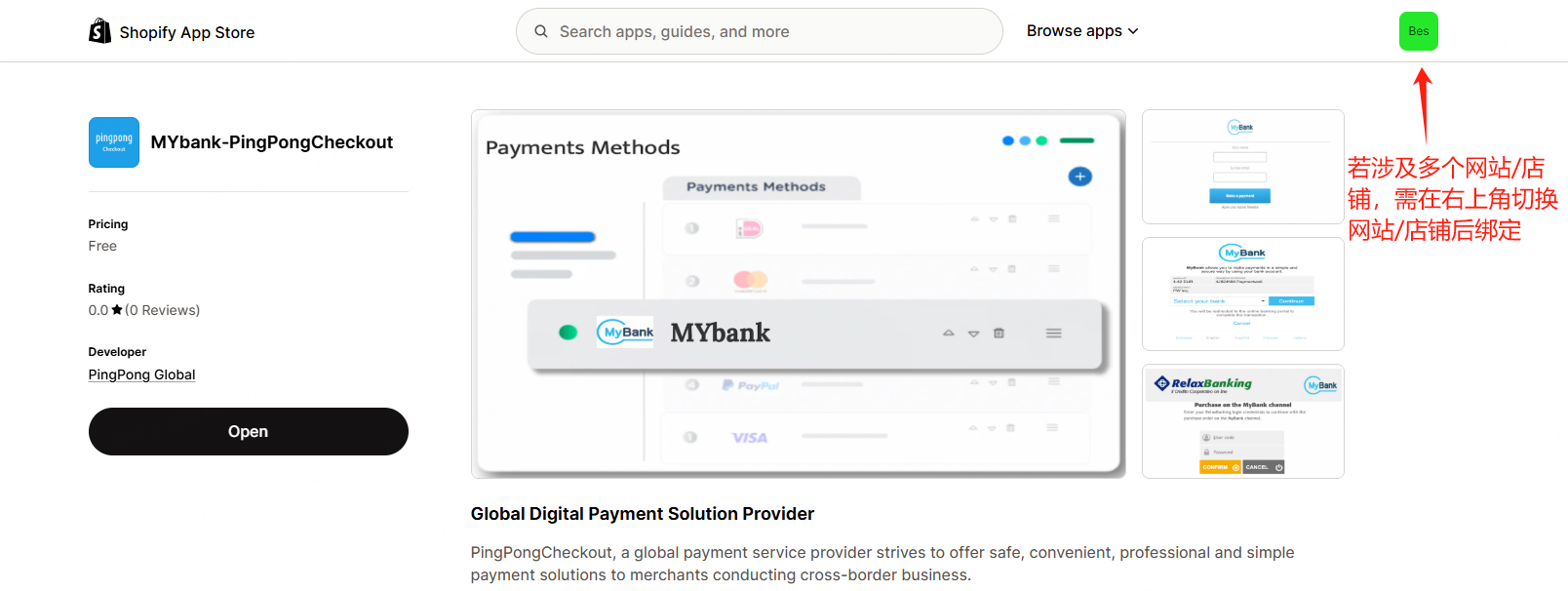
Click this link (https://apps.shopify.com/mybank-pingpongcheckout) to install the APP.
Note
Please install through the specified link, do not search directly in the Shopify App Store.
Step 3. Install APP
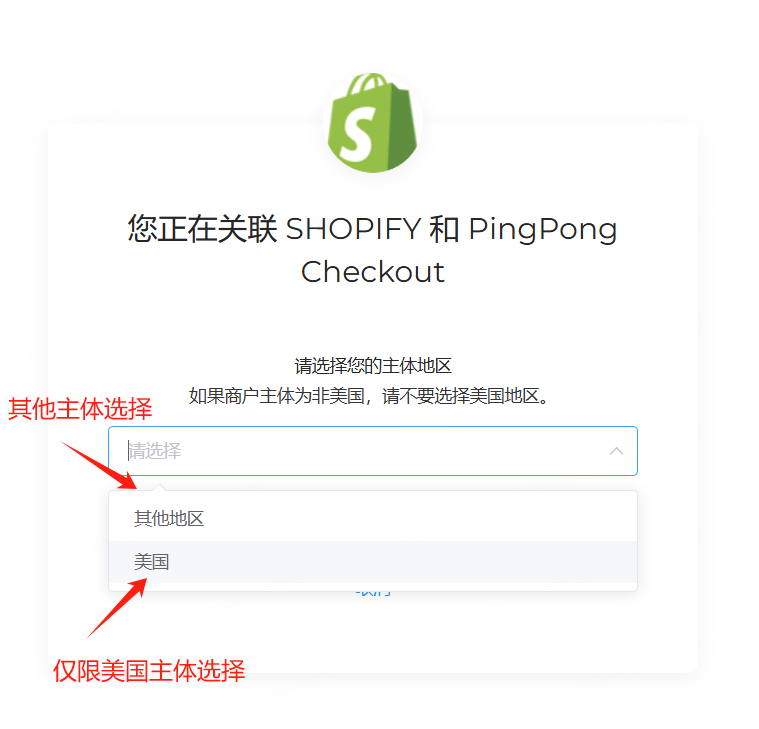
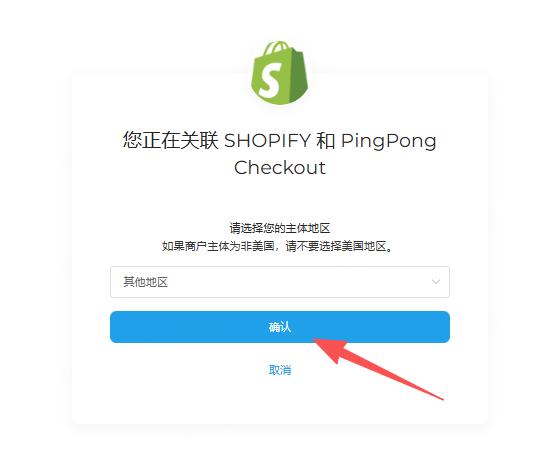
Click 【Install】-->【Link SHOPIFY and PingPong Checkout】--> Select 【Registration Entity】--> 【Confirm】
Note
Please select the entity region according to the **company entity registered in PingPong Checkout, otherwise it will affect binding. Other entities refer to entities other than US entities that can be selected, such as HK/SG, etc.
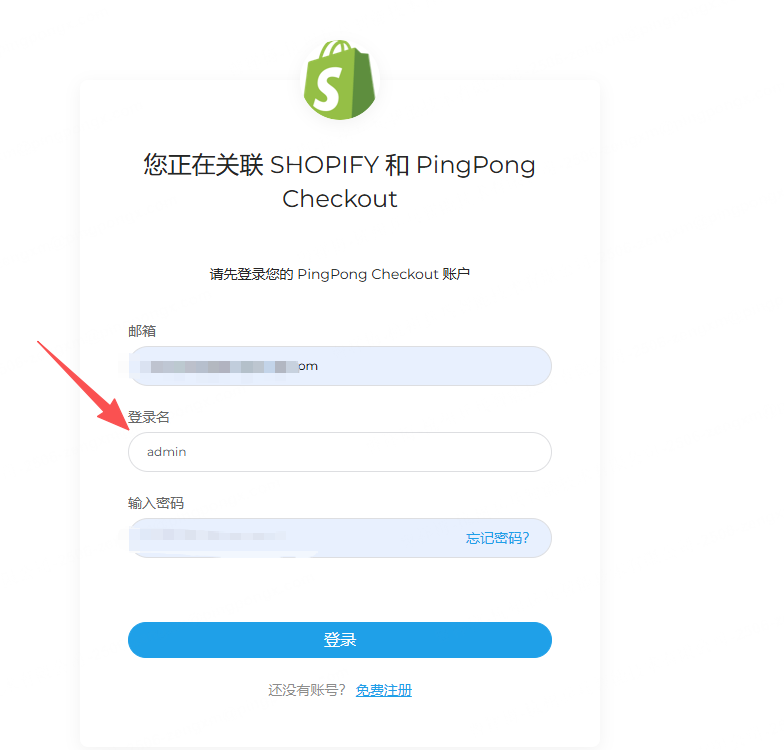
Please log in using your administrator email and password from registration.
Default login name: admin
Step 4. Select Binding Website
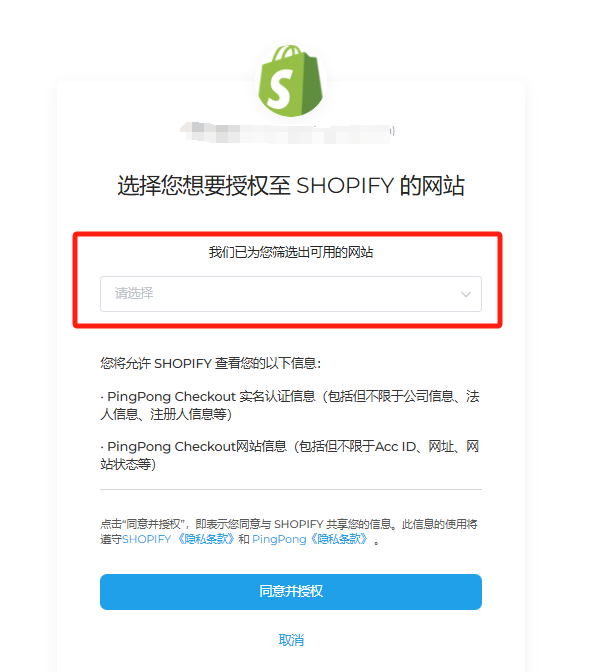
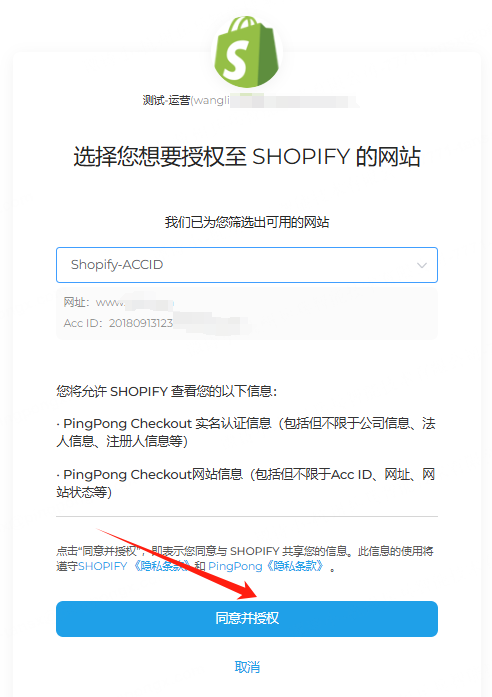
Select the website you want to bind --> click 【Agree and Authorize】, it will automatically redirect to the Shopify page.
Note
- Currently the system does not support batch binding of multiple websites, need to operate one by one
- This page only displays websites that have been approved
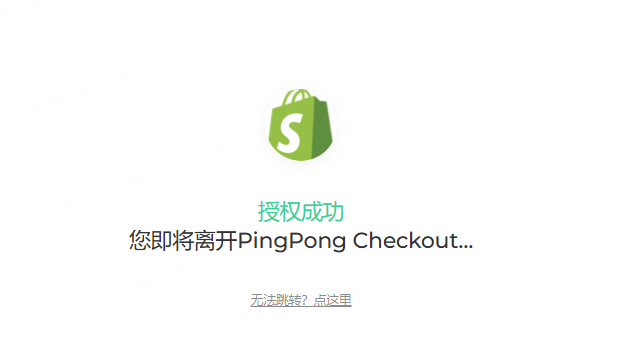
Step 5. Installation Success
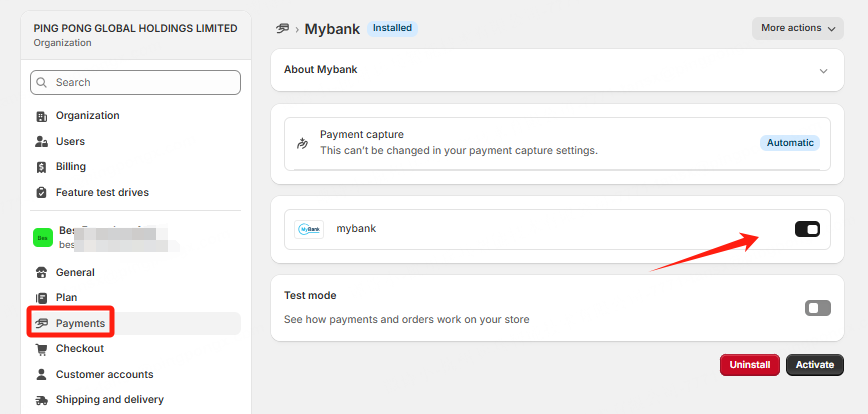
After successful installation, this APP will appear in 【Payments】in the Shopify backend, and the payment method will also appear at checkout.
Note
Do not check Test mode, otherwise it will submit to the test environment.
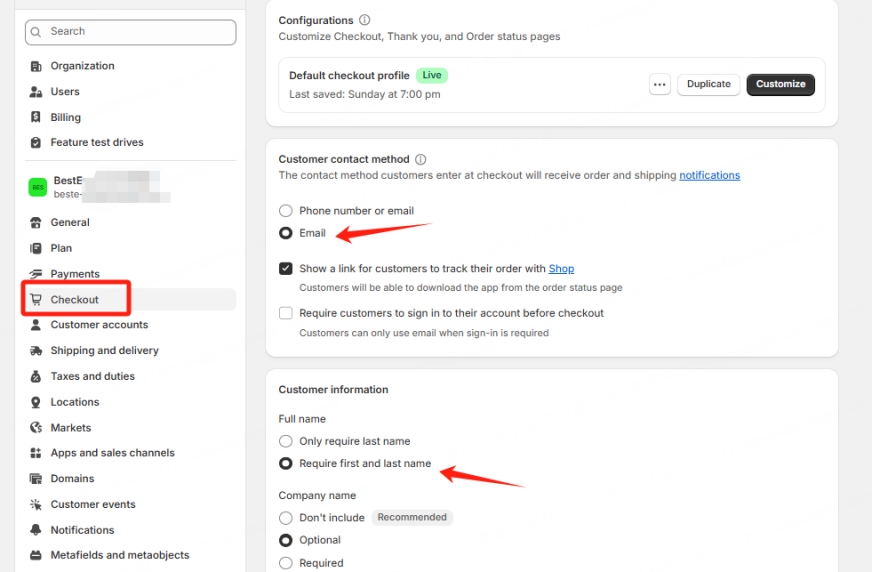
Step 6. Set Required Fields
Email and name need to be set as required fields, otherwise it will affect transaction success, need to set according to the following screenshot.
Step 7. Installation Complete
After successful installation, your merchant backend and checkout will display the corresponding payment icon/entry.