Prestashop-PPPay Plugin Installation
Installation Prerequisites
- Prestashop version = 1.7.6.6
- php version >= 5.6 && <= 7.3
- MySQL version 5.6, 5.7
- chmod 777 /webRoot/Prestashop/var/logs
The following are non-essential settings, if 504 errors occur, check the following options
Note
- Order numbers under the same accId cannot be duplicated and must be monotonically increasing, otherwise order status issues will occur;
- Orders from different databases cannot share the same accId;
- If transactions have already occurred under an accId, before installing the plugin, the id starting value should be set to greater than the current maximum order id;
- When resetting the database, store, or migrating accId to another store, check the maximum order number under the accId.
Plugin Download
Installation Process
- Login to website backend
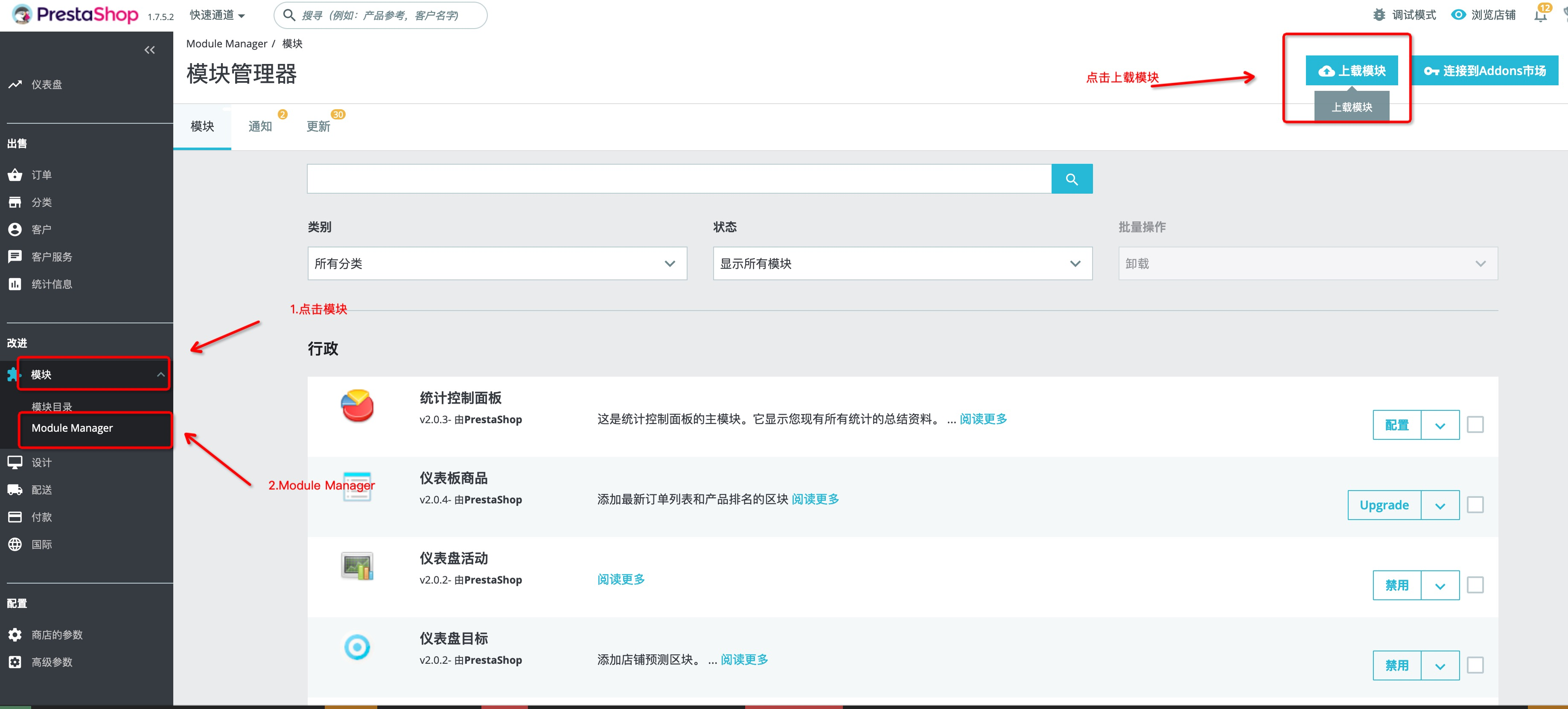
Select Modules -> Module Manager -> Upload Module
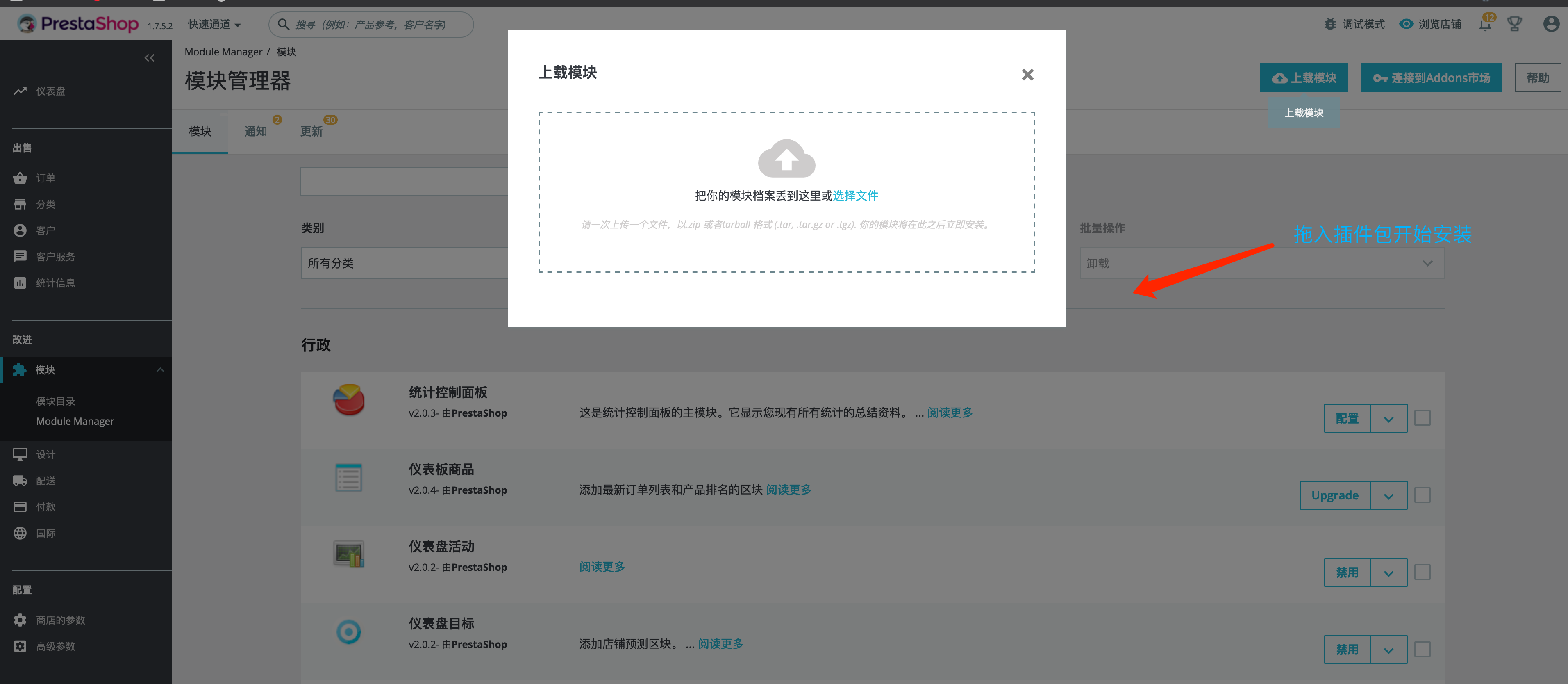
- Drag the plugin package into the upload dialog box and wait for unpacking and installation to complete
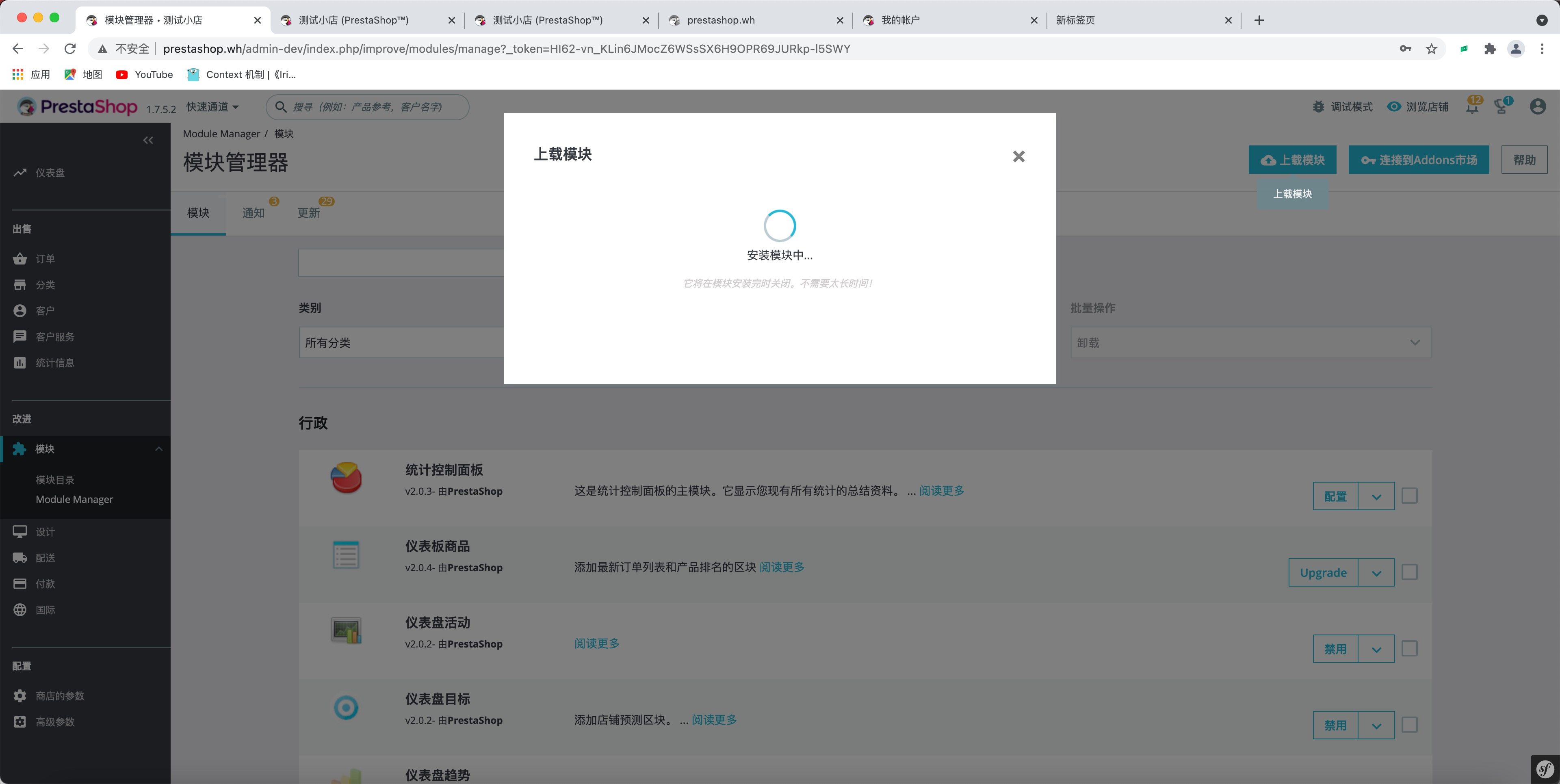
- Wait for installation to complete
After installation is complete, a configuration button appears. Click Configuration to start configuring merchant parameters
Merchant parameter configuration
# PingPong payment environment address
Sandbox environment    https://sandbox-acquirer-payment.pingpongx.com
Production environment    https://acquirer-payment.pingpongx.com

# Sandbox environment store parameters
clientId: 2018092714313010016
accId: 2018092714313010016291
salt: F78BC96A55548B2319EE68E0

# Sandbox environment test card numbers
Card number: 4200000000000000
Expiry: 12/22
cvv: 123
Others can be filled randomly, cvv must be 3-digit pure numbers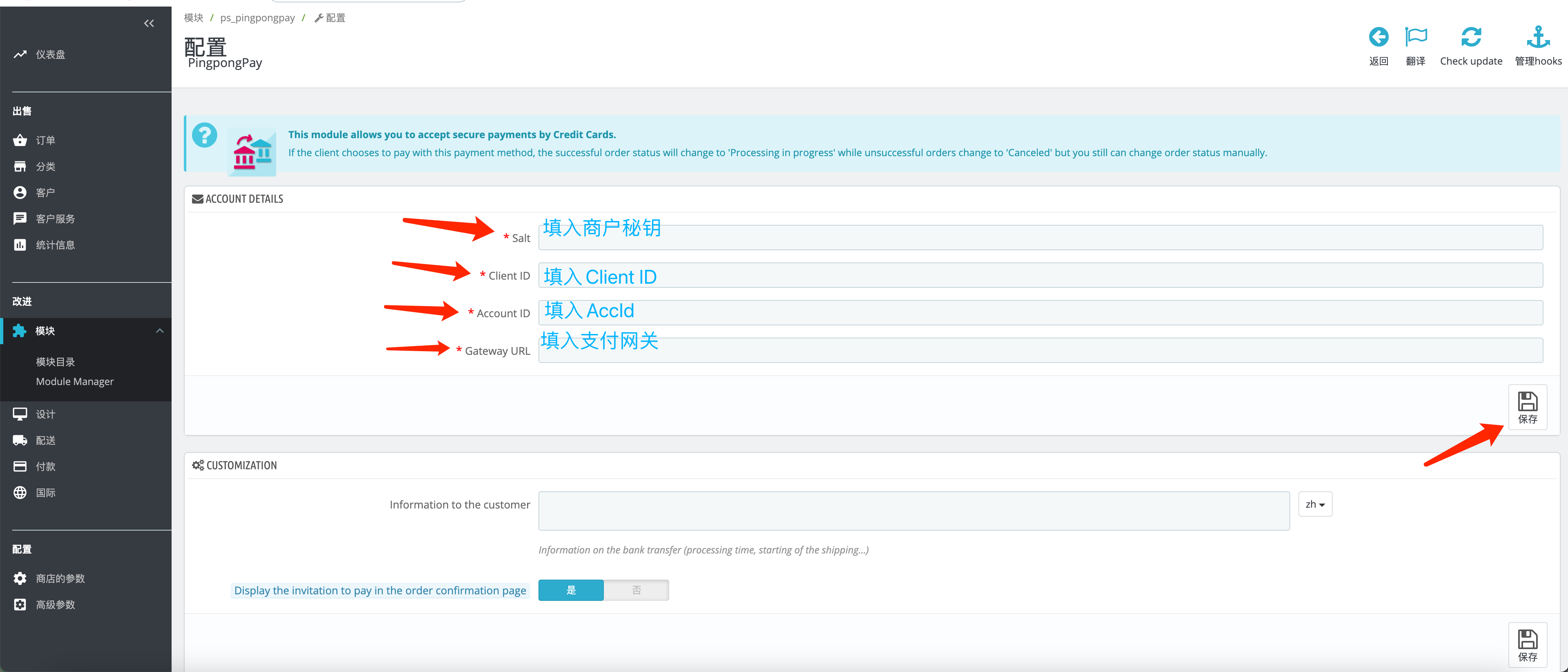
- Click Save to save merchant parameters. Installation is complete and payment process can be tested
Environment Parameters
Sandbox Environment Store Parameters
# PingPong sandbox environment store parameters
clientId: 2018092714313010016
accId: 2018092714313010016291
salt: F78BC96A55548B2319EE68E0
Sandbox Environment Test Card Numbers
# Standard test card number
Card number: 4200000000000000
Expiry: 12/22
cvv: 123
cvv must be 3-digit pure numbers

# 3DS transaction test card number
3DS transaction card: 4711100000000000
Environment Address
# Sandbox environment address
Sandbox environment    https://sandbox-acquirer-payment.pingpongx.com

# Production environment address
Production environment    https://acquirer-payment.pingpongx.com
Integration Process
Sandbox Environment Integration
- Install plugin according to file instructions.
- After plugin installation is complete, payment self-testing is required, and the following items must be completed:
If any issues arise during the installation process, you can seek technical support in the integration group.
Notes:
In sandbox environment, no actual deduction will be made from cardholders. Shipping after payment will cause losses, and not shipping may result in complaints from cardholders. Therefore, during integration, operations must be handled with caution. After integration testing is passed, the payment channel should be immediately closed and wait for production environment launch before opening.
Production Environment Integration
- After the plugin completes the first round of sandbox environment integration under technical support, it will enter the website information and account review stage. After passing the review, production environment parameters will be issued.
- After obtaining production parameters, complete the following items
- After completing the real transaction test, merchants need to initiate a refund to verify the refund process.
- After completing the above process, website integration ends, payment channel officially goes live, and payment becomes available.
Production Environment Configuration
Review Process
Receive notification from the integration group or business/customer that the review has passed.
Login to Merchant Backend
https://pay.pingpongx.com/aq/websiteListGo to Website List
As shown in the figure, go to Group Management -> View Details -> Website List
Group Management
- ⚫ Select [Website Management] - [Group Management] from the menu to enter the group management page
- ⚫ This function allows the current merchant to click "Create Group" to create a new group; the system will provide a default group by default
- ⚫ Websites are under groups.
- ⚫ Click "View Details" to enter the group details page, where you can modify the group name, view and copy the ID number, and view websites under the group.
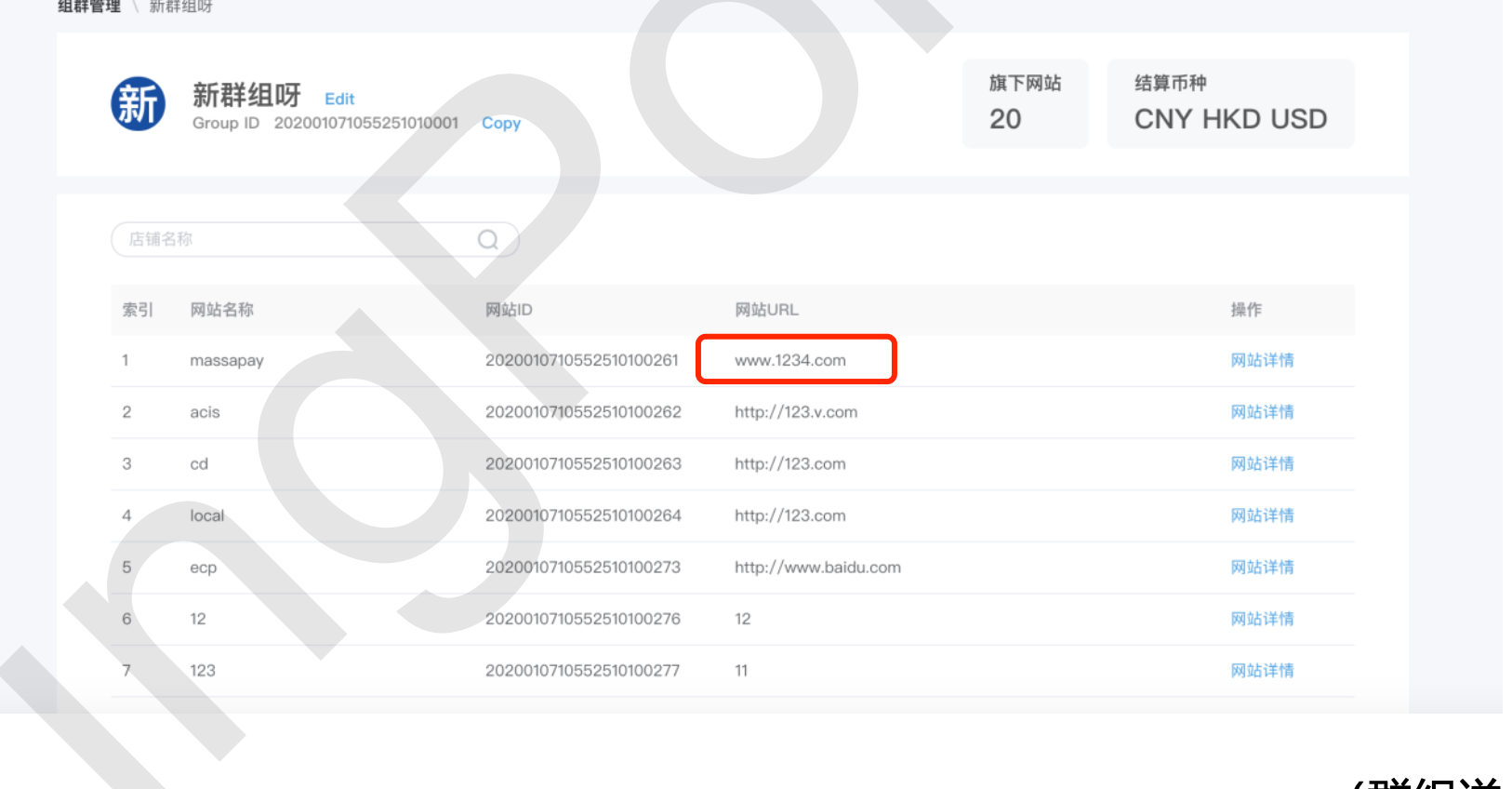
Select Website
Select the corresponding website from the list based on the domain name of the current integration website
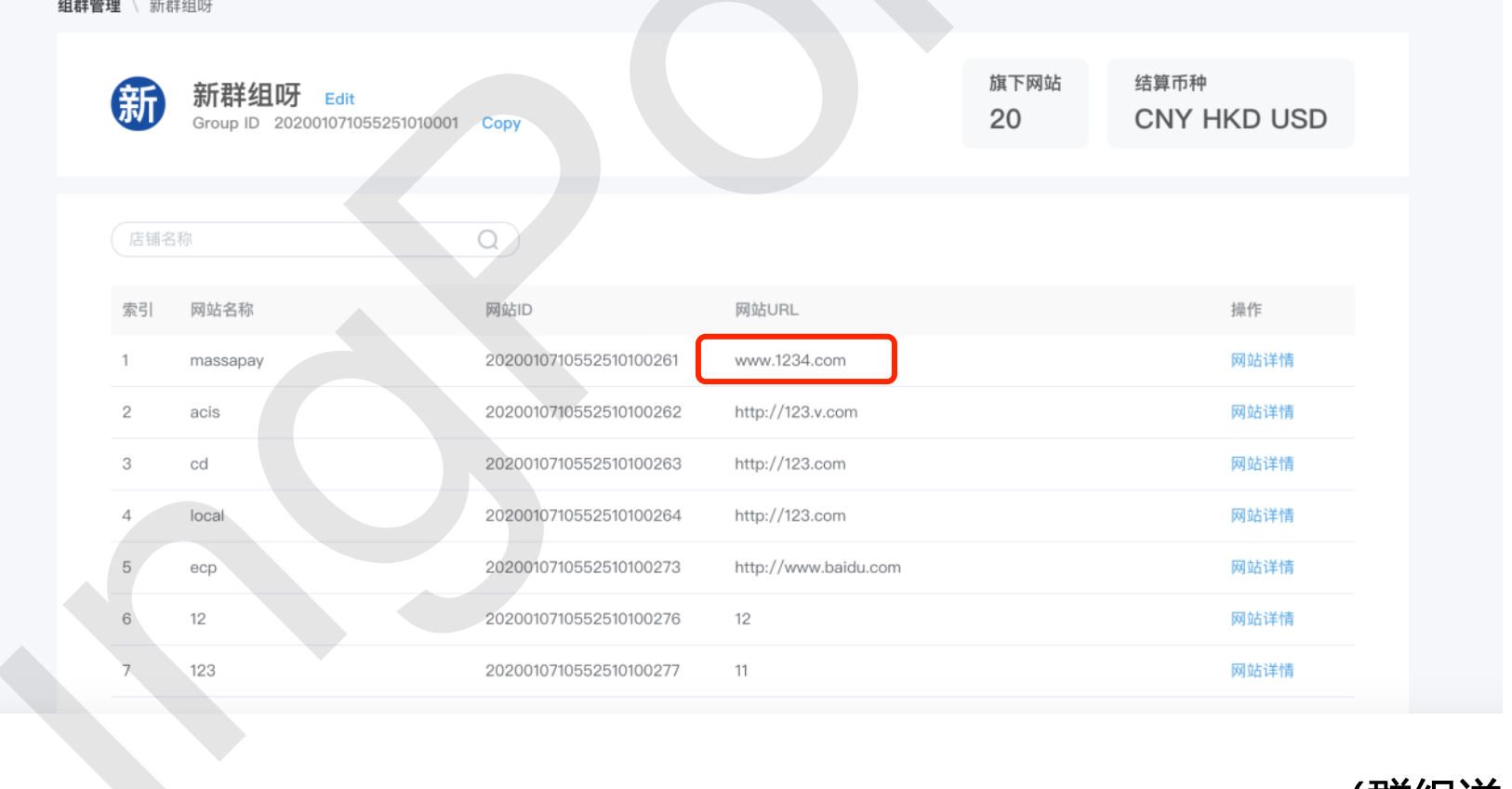
Get accId for the corresponding domain website
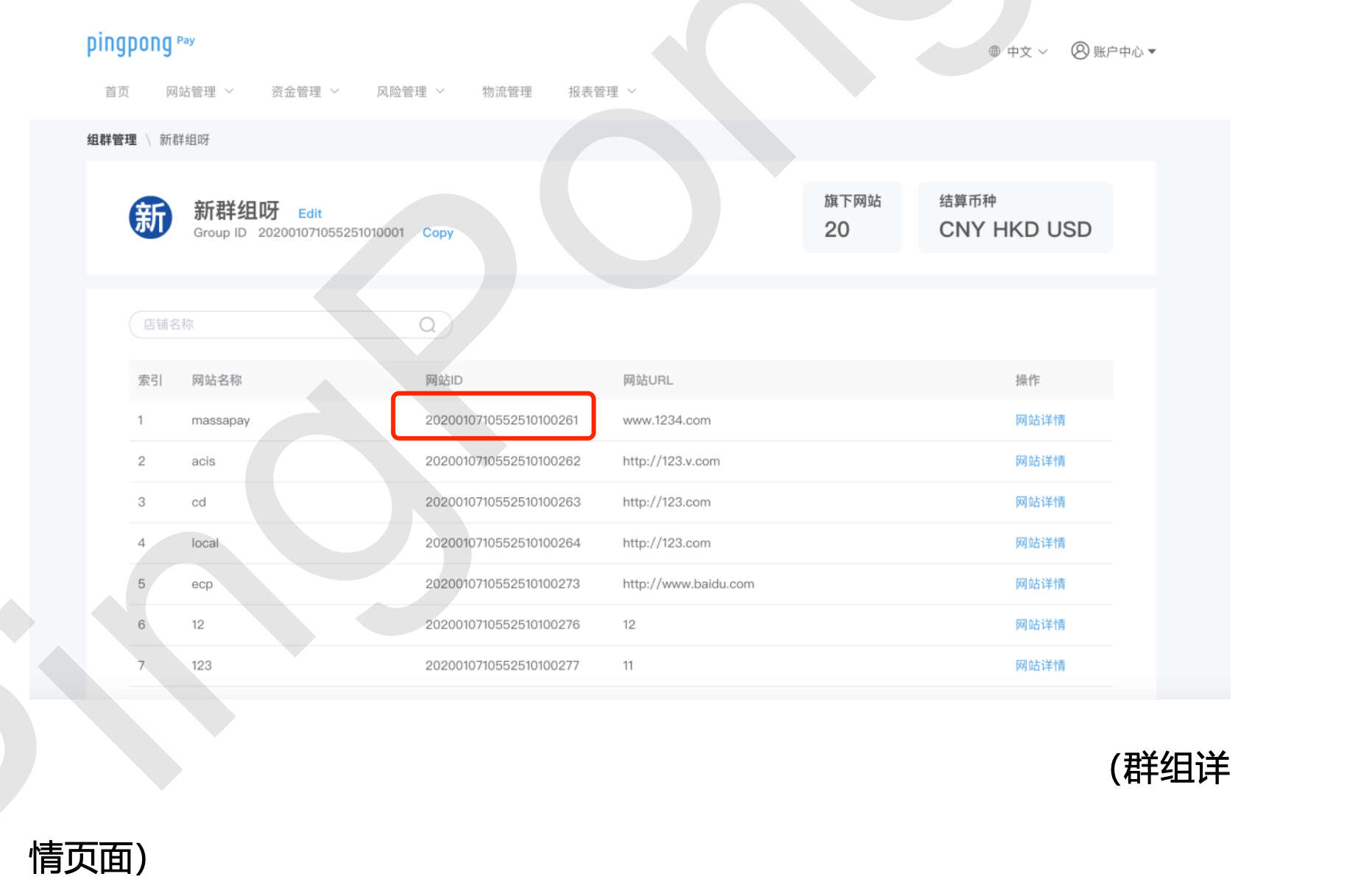
Get Secret Key
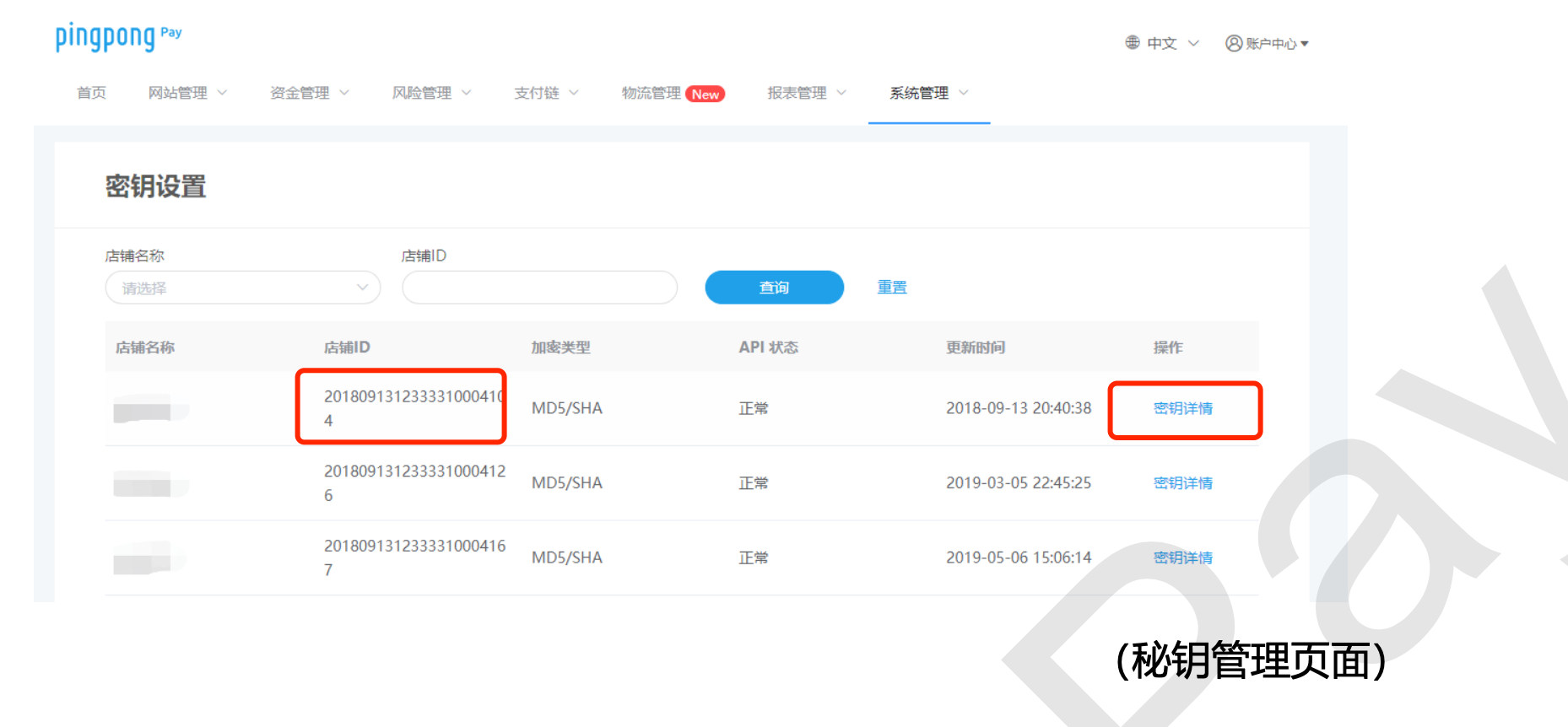
Select [System Management] - [Secret Key Management] from the menu. By default, it enters the secret key management page, where you can view the website secret key.
After entering secret key management, you can view the secret keys corresponding to all websites. Click "Secret Key Details" to view specific secret key fields. Secret keys with status "Normal" can be used. When the status is "Abnormal", they cannot be used and you can contact relevant business personnel for handling.