
Embedded SDK
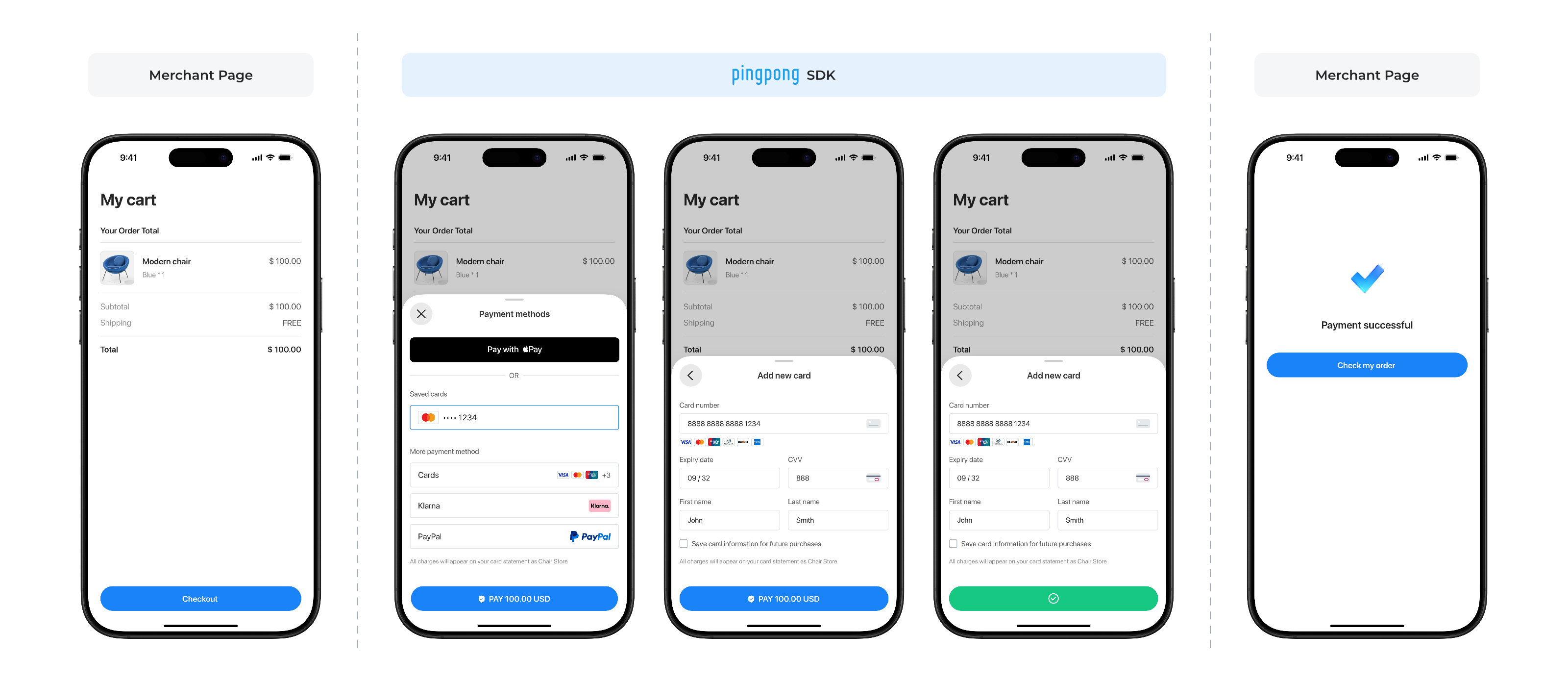
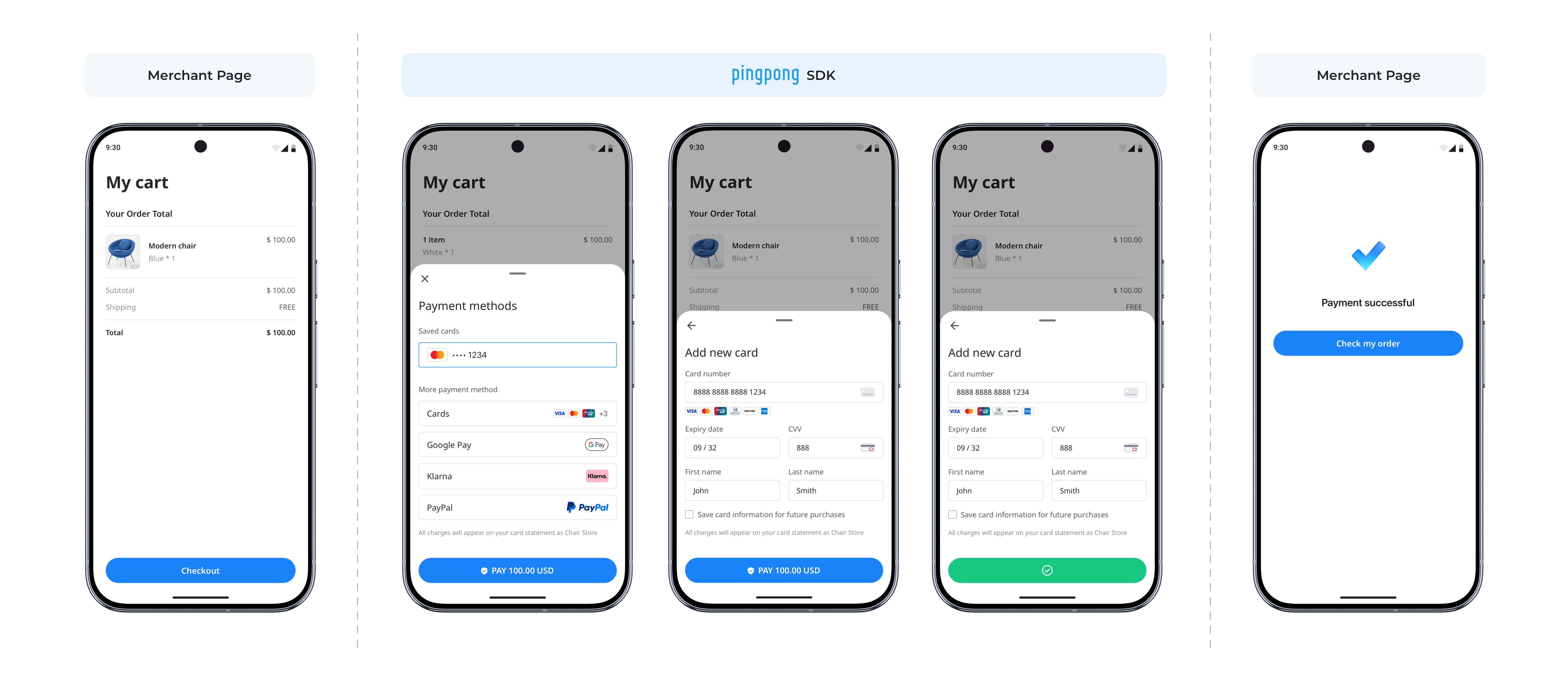
PingPong Checkout Embedded SDK is intended for teams that want shoppers to complete payment without leaving the merchant site or app. Use this page as the unified entry for Web / WAP embedded checkout and native app integrations.
Platform Coverage
| Platform | Entry | Description |
|---|---|---|
| Web / WAP | Current page | Integrate the JavaScript-based embedded checkout on your website or mobile web page |
| iOS App | iOS Integration Guide | Build the native bottom-sheet checkout experience for iOS |
| Android App | Android Integration Guide | Build the native bottom-sheet checkout experience for Android |
| App submission and privacy | App Submission & Compliance | Review App Store / Google Play submission and privacy requirements |
Recommendation
If your implementation includes app-side checkout, start with this page and switch between the Web / WAP, iOS, and Android tabs based on the platform you are integrating.
Integration Summary
Embedded SDK is a low-code checkout option for merchants that want to keep shoppers on the merchant site while still using PingPong Checkout components. Your server first creates the payment session through prePay, and your frontend then renders the checkout in-page through the JavaScript SDK.
Payment Experience
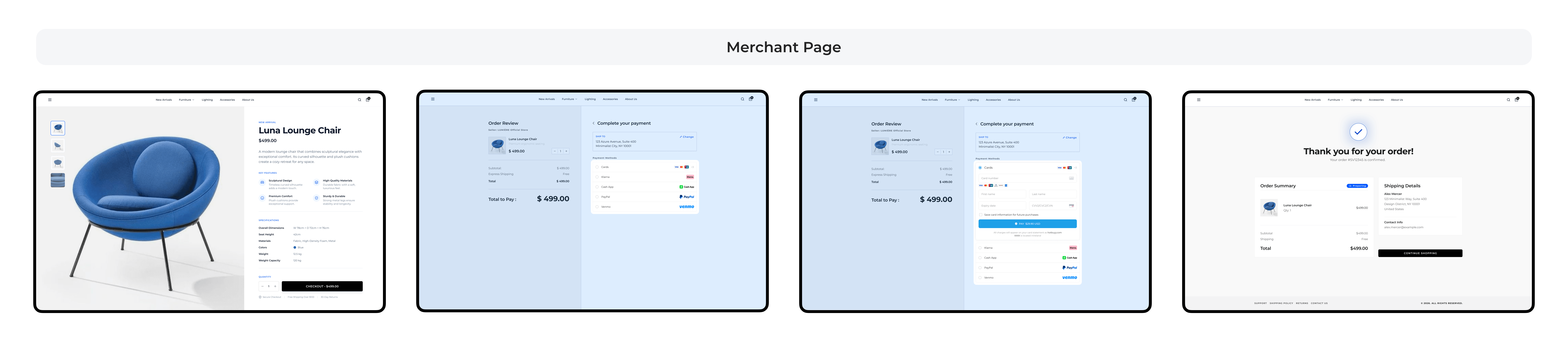
In the Embedded SDK model, you can place the checkout experience directly inside your own website. On desktop and standard web pages, the checkout is rendered within your site so shoppers can complete payment without being redirected to a separate hosted page.
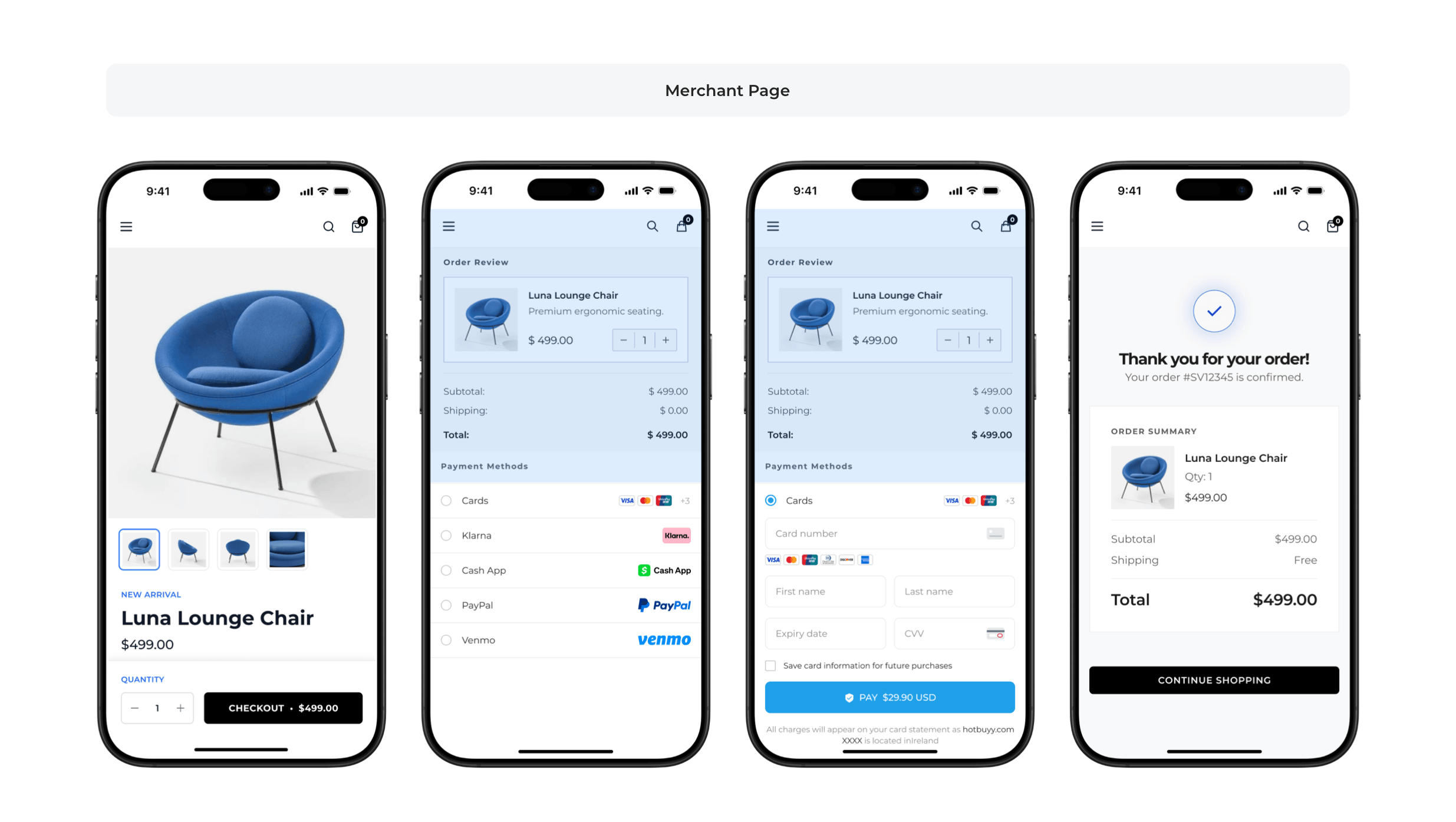
In the Embedded SDK model, you can also embed the checkout experience into your mobile web page or in-app web view. The UI is optimized for smaller screens so shoppers can complete payment in a more seamless mobile flow without leaving your page.
Payment Flow
1. Import Javascript-SDK
Copy the following code to import PingPongCheckout Javascript-SDK via CDN address
<script type="module" src="https://payssr-cdn.pingpongx.com/production-fra/acquirer-checkout-web/sandbox/pp-checkout.js"></script><script type="module" src="https://payssr-cdn.pingpongx.com/production-fra/acquirer-checkout-web/pp-checkout.js"></script><script type="module" src="https://acquirer-cdn.pingpongx.com/acquirer/checkout-web/production-sg/pp-checkout.js"></script><script type="module" src="https://acquirer-cdn.pingpongx.com/acquirer/checkout-web/production-us/pp-checkout.js"></script>Usage Method
Note
When switching from sandbox environment to production environment, please make sure to check and complete the following operations, otherwise the checkout page will not render properly.
- Switch the CDN address of the imported Javascript-SDK to the URL specified for the production environment
When you are debugging the sandbox environment, you need to import the PingPongCheckout Javascript-SDK address for the sandbox environment (remember to switch to the production environment address when deploying to production)
Insert the
pp-checkouttag into the html body<pp-checkout></pp-checkout>Pass in the
accessTokenobtained from pre-order, see Order Interface (Hosted Mode) API documentation forget accessToken<pp-checkout accessToken='{token}'></pp-checkout>You can pass the language to be displayed by the checkout page (default is English, see more languages in Locale) to
pp-checkoutthrough tag attributes, as follows:<pp-checkout locale='en'></pp-checkout>
Through the above three steps, you have successfully rendered the Javascript-SDK checkout page.
Global Variables and Hooks
Before using global variables, please ensure that the Javascript-SDK has loaded successfully.
customizeConfig Layout and Interface Configuration
Customize the layout and interface elements of the checkout page through PingPong.Checkout.customizeConfig:
| Configuration | Type | Default | Description |
|---|---|---|---|
layout | 'tab'|'accordion' | 'tab' | Page layout style. Options: "tab" (tab style), "accordion" (flat style) |
displayCheckoutHeader | boolean | true | Whether to display the checkout header |
originalPay | boolean | true | Whether to display the native payment button |
toPingPongResult | boolean | true | Whether to redirect to PingPong result page after payment. false means redirect directly to the merchant configured result page |
hideStoredCards | boolean | false | Whether to hide COF (Card On File) list |
onlyDisplaySavedCard | boolean | false | When set to true, the checkout only displays the stored card area (hides new card input). For the checkout repeat purchase (stored card + CVV) scenario |
disableCardRemoval | boolean | false | When set to true, prevents users from removing stored card information. For the checkout repeat purchase (stored card + CVV) scenario |
displayCardPrompt | boolean | true | Whether to display card payment prompt |
localizationErrorMsg | boolean | false | Whether to translate payment error messages |
displayCardsLogo | boolean | true | Whether to display card brand logo list |
isChallengeIframe | boolean | false | Whether to display the 3DS Challenge page in an iframe. When set to true, the Challenge flow is rendered in an iframe |
Note
toPingPongResult configuration needs to be set when creating payment session on server side. Client-side settings may be overridden by server-side configuration. To disable PingPong result page redirect, please ensure the server is configured correctly.
// [!code highlight:1] customizeConfig layout and interface configuration
PingPong.Checkout.customizeConfig = {
    layout: "accordion",              // Flat style
    displayCheckoutHeader: false,     // Hide header
    originalPay: false,               // Hide native payment button, requires custom button to trigger payment
    toPingPongResult: false,          // Do not redirect to PingPong result page after payment
    hideStoredCards: false,           // Show saved card list
    displayCardPrompt: true,          // Show card payment prompt
    localizationErrorMsg: false,      // Do not translate error messages
    displayCardsLogo: true,           // Show card brand logos
    isChallengeIframe: true           // Render the 3DS Challenge page in an iframe
};
Custom Payment Button (Optional)
Users can customize buttons and bind pingpong's payment functionality through click events.
// [!code highlight:2] Custom payment button configuration
PingPong.Checkout.customizeConfig = {
  originalPay: false
}

// When originalPay is false in initialization parameters, you need to customize the payment button click event
document.querySelector('#pay').onclick = function () {
    PingPong.Checkout.pay.run()
}
PingPong.Checkout.beforeCheckoutHook
type:
(() => void) | (() => Promise<void>)beforeCheckoutHook is used to set the hook function before initiating payment request.
When you need to execute your own business logic before the user clicks the payment button and initiates the payment request, such as: reporting tracking points, checking inventory, etc., you can set this hook function.
This function can return a Promise, and the subsequent payment process will wait for the Promise state to become Fulfilled before continuing execution. If you want to interrupt the payment process when the Promise state is Rejected or the asynchronous result does not meet your business conditions, you can throw an exception, and the SDK will interrupt the payment process after capturing the exception.
// Pre-payment hook: Check inventory
PingPong.Checkout.beforeCheckoutHook = () => {
    return fetch('/api/requestInventory').then(res => {

        const { inventoryQuantity } = res;

        if(inventoryQuantity <  MIN_QUANTITY) {
            throw new Error('Insufficient inventory, transaction needs to be interrupted')
        }
    }).catch((error) => {
        throw new Error('Interface exception, transaction needs to be interrupted')
    })
};
PingPong.Checkout.checkoutFailedHook
type:
(() => void) | (() => Promise<void>)checkoutFailedHook receives the following parameters:
(code: string, message: string) => void | Promise<void>;

// code: string - Error code
// message: string - Error message
checkoutFailedHook is used to customize error logic
When user payment fails, PingPong will pop up a dialog box to prompt the user of the failure reason by default. If you want to customize the dialog UI or text, you can set this hook function.
This function can return a Promise. If it returns a Promise, the subsequent process will wait for the Promise state to become Fulfilled before continuing execution
// Payment failure hook: Custom error prompt
PingPong.Checkout.checkoutFailedHook = (code: string, message: string) => {
    notification.open({
        message: 'Error title',
        description: `${code}: ${message}`
    })
};
Usage Examples
Native JavaScript Complete Example
The following example shows how to integrate the SDK in a native JavaScript project, including complete project structure, API calls, and error handling.
<!DOCTYPE html>
<html lang="zh-CN">
<head>
    <meta charset="UTF-8">
    <meta name="viewport" content="width=device-width, initial-scale=1.0">
    <title>PingPong Checkout SDK - Native JS Example</title>
    <!-- Import sandbox environment SDK -->
    <script type="module" src="https://payssr-cdn.pingpongx.com/production-fra/acquirer-checkout-web/sandbox/pp-checkout.js"></script>
    <link rel="stylesheet" href="./styles.css">
</head>
<body>
    <div class="container">
        <h1>PingPong Payment Checkout</h1>

        <!-- Loading status -->
        <div id="loading" class="loading">
            <div class="spinner"></div>
            <p>Initializing checkout...</p>
        </div>

        <!-- Error prompt -->
        <div id="error" class="error" style="display: none;">
            <p id="error-message"></p>
            <button onclick="location.reload()">Reload</button>
        </div>

        <!-- Checkout container -->
        <div id="checkout-wrap">
            <pp-checkout accessToken="" locale="zh"></pp-checkout>
        </div>
    </div>

    <script src="./config.js"></script>
    <script src="./api.js"></script>
    <script src="./main.js"></script>
</body>
</html>* {
margin: 0;
padding: 0;
box-sizing: border-box;
}
body {
font-family: -apple-system, BlinkMacSystemFont, 'Segoe UI', Roboto, 'Helvetica Neue', Arial, sans-serif;
background: #f5f5f5;
padding: 20px;
}
.container {
max-width: 1200px;
margin: 0 auto;
background: white;
padding: 30px;
border-radius: 8px;
box-shadow: 0 2px 8px rgba(0, 0, 0, 0.1);
}
h1 {
color: #333;
margin-bottom: 30px;
text-align: center;
}
.loading {
text-align: center;
padding: 40px;
}
.spinner {
width: 40px;
height: 40px;
margin: 0 auto 20px;
border: 4px solid #f3f3f3;
border-top: 4px solid #1890ff;
border-radius: 50%;
animation: spin 1s linear infinite;
}
@keyframes spin {
0% { transform: rotate(0deg); }
100% { transform: rotate(360deg); }
}
.error {
padding: 20px;
background: #fff2f0;
border: 1px solid #ffccc7;
border-radius: 4px;
color: #ff4d4f;
text-align: center;
}
.error button {
margin-top: 15px;
padding: 8px 20px;
background: #1890ff;
color: white;
border: none;
border-radius: 4px;
cursor: pointer;
}
.error button:hover {
background: #40a9ff;
}
#checkout-wrap {
display: none;
}// SDK Configuration
const CONFIG = {
// API endpoint configuration
apiEndpoint: '/api/reserve',
// SDK CDN address (switch based on environment)
sdkUrl: {
sandbox: 'https://payssr-cdn.pingpongx.com/production-fra/acquirer-checkout-web/sandbox/pp-checkout.js',
production: 'https://payssr-cdn.pingpongx.com/production-fra/acquirer-checkout-web/pp-checkout.js'
},
// Default language
defaultLocale: 'zh',
// Request timeout (milliseconds)
timeout: 30000,
// Minimum inventory quantity (for demonstrating beforeCheckoutHook)
minInventory: 1
};// API call encapsulation
const API = {
/**
* Get AccessToken
* @returns {Promise<string>} AccessToken
*/
async getAccessToken() {
try {
const response = await fetch(CONFIG.apiEndpoint, {
method: 'POST',
headers: {
'Content-Type': 'application/json'
},
body: JSON.stringify({
// Order information
amount: 100.00,
currency: 'USD',
// ... other necessary parameters
})
});
if (!response.ok) {
throw new Error(`HTTP ${response.status}: ${response.statusText}`);
}
const data = await response.json();
if (!data.accessToken) {
throw new Error('accessToken missing from response');
}
return data.accessToken;
} catch (error) {
console.error('Failed to get AccessToken:', error);
throw error;
}
},
/**
* Check inventory (example)
* @returns {Promise<{inventoryQuantity: number}>}
*/
async checkInventory() {
// Simulate API call
return new Promise((resolve) => {
setTimeout(() => {
resolve({ inventoryQuantity: 10 });
}, 500);
});
}
};// Initialize after page loads
document.addEventListener('DOMContentLoaded', async () => {
await initCheckout();
});
/**
* Initialize checkout
*/
async function initCheckout() {
const loadingEl = document.getElementById('loading');
const errorEl = document.getElementById('error');
const errorMessageEl = document.getElementById('error-message');
const checkoutWrap = document.getElementById('checkout-wrap');
const ppCheckout = document.querySelector('pp-checkout');
try {
// 1. Wait for SDK to load
await waitForSDK();
// 2. Configure SDK hooks
setupHooks();
// 3. Get AccessToken
const accessToken = await API.getAccessToken();
// 4. Set AccessToken to SDK
ppCheckout.setAttribute('accessToken', accessToken);
ppCheckout.setAttribute('locale', CONFIG.defaultLocale);
// 5. Show checkout
loadingEl.style.display = 'none';
checkoutWrap.style.display = 'block';
console.log('Checkout initialized successfully');
} catch (error) {
console.error('Initialization failed:', error);
loadingEl.style.display = 'none';
errorMessageEl.textContent = `Initialization failed: ${error.message}`;
errorEl.style.display = 'block';
}
}
/**
* Wait for SDK to load
*/
function waitForSDK() {
return new Promise((resolve, reject) => {
const timeout = setTimeout(() => {
reject(new Error('SDK loading timeout'));
}, CONFIG.timeout);
const checkSDK = () => {
if (window.PingPong && window.PingPong.Checkout) {
clearTimeout(timeout);
resolve();
} else {
setTimeout(checkSDK, 100);
}
};
checkSDK();
});
}
/**
* Configure SDK Hooks
*/
function setupHooks() {
// Pre-payment hook: Check inventory
PingPong.Checkout.beforeCheckoutHook = async () => {
try {
const { inventoryQuantity } = await API.checkInventory();
if (inventoryQuantity < CONFIG.minInventory) {
throw new Error('Insufficient inventory, cannot complete payment');
}
console.log('Inventory check passed, inventory quantity:', inventoryQuantity);
} catch (error) {
console.error('Inventory check failed:', error);
throw error;
}
};
// Payment failed hook: Custom error prompt
PingPong.Checkout.checkoutFailedHook = (code, message) => {
console.error('Payment failed:', { code, message });
// Custom error prompt
alert(`Payment failed\nError code: ${code}\nError message: ${message}`);
};
}Vue 3 Complete Example
The following example shows how to integrate the SDK in a Vue 3 project, using Composition API to implement reactive state management.
<template>
  <div class="checkout-container">
    <h1>PingPong Payment Checkout</h1>

    <!-- Loading status -->
    <div v-if="loading" class="loading">
      <div class="spinner"></div>
      <p>Initializing checkout...</p>
    </div>

    <!-- Error prompt -->
    <div v-if="error" class="error">
      <p>{{ error }}</p>
      <button @click="retry">Retry</button>
    </div>

    <!-- Checkout -->
    <div v-show="!loading && !error" id="checkout-wrap">
      <pp-checkout
        :accessToken="accessToken"
        :locale="locale">
      </pp-checkout>
    </div>
  </div>
</template>

<script setup>
import { ref, onMounted } from 'vue';
import { initSDK } from './composables/useCheckout';
import { getAccessToken } from './api/checkout';

// Reactive state
const accessToken = ref('');
const locale = ref('zh');
const loading = ref(true);
const error = ref('');

// Initialize checkout
async function initCheckout() {
  loading.value = true;
  error.value = '';

  try {
    // 1. Initialize SDK and configure hooks
    await initSDK();

    // 2. Get AccessToken
    const token = await getAccessToken();
    accessToken.value = token;

    console.log('Checkout initialized successfully');
  } catch (err) {
    console.error('Initialization failed:', err);
    error.value = err.message || 'Failed to initialize checkout, please retry';
  } finally {
    loading.value = false;
  }
}

// Retry
function retry() {
  initCheckout();
}

// Initialize after component mounts
onMounted(() => {
  initCheckout();
});
</script>

<style scoped>
.checkout-container {
  max-width: 1200px;
  margin: 0 auto;
  padding: 30px;
  background: white;
  border-radius: 8px;
  box-shadow: 0 2px 8px rgba(0, 0, 0, 0.1);
}

h1 {
  color: #333;
  margin-bottom: 30px;
  text-align: center;
}

.loading {
  text-align: center;
  padding: 40px;
}

.spinner {
  width: 40px;
  height: 40px;
  margin: 0 auto 20px;
  border: 4px solid #f3f3f3;
  border-top: 4px solid #1890ff;
  border-radius: 50%;
  animation: spin 1s linear infinite;
}

@keyframes spin {
  0% { transform: rotate(0deg); }
  100% { transform: rotate(360deg); }
}

.error {
  padding: 20px;
  background: #fff2f0;
  border: 1px solid #ffccc7;
  border-radius: 4px;
  color: #ff4d4f;
  text-align: center;
}

.error button {
  margin-top: 15px;
  padding: 8px 20px;
  background: #1890ff;
  color: white;
  border: none;
  border-radius: 4px;
  cursor: pointer;
  font-size: 14px;
}

.error button:hover {
  background: #40a9ff;
}
</style>import { CONFIG } from '../config';
/**
* Get AccessToken
* @returns {Promise<string>}
*/
export async function getAccessToken() {
try {
const response = await fetch(CONFIG.apiEndpoint, {
method: 'POST',
headers: {
'Content-Type': 'application/json'
},
body: JSON.stringify({
// Order information
amount: 100.00,
currency: 'USD',
// ... other necessary parameters
})
});
if (!response.ok) {
throw new Error(`HTTP ${response.status}: ${response.statusText}`);
}
const data = await response.json();
if (!data.accessToken) {
throw new Error('accessToken missing from response');
}
return data.accessToken;
} catch (error) {
console.error('Failed to get AccessToken:', error);
throw error;
}
}
/**
* Check inventory
* @returns {Promise<{inventoryQuantity: number}>}
*/
export async function checkInventory() {
// Simulate API call
return new Promise((resolve) => {
setTimeout(() => {
resolve({ inventoryQuantity: 10 });
}, 500);
});
}export const CONFIG = {
// API endpoint configuration
apiEndpoint: '/api/reserve',
// SDK CDN address
sdkUrl: {
sandbox: 'https://payssr-cdn.pingpongx.com/production-fra/acquirer-checkout-web/sandbox/pp-checkout.js',
production: 'https://payssr-cdn.pingpongx.com/production-fra/acquirer-checkout-web/pp-checkout.js'
},
// Default language
defaultLocale: 'zh',
// Request timeout (milliseconds)
timeout: 30000,
// Minimum inventory quantity
minInventory: 1
};import { CONFIG } from '../config';
import { checkInventory } from '../api/checkout';
/**
* Wait for SDK to load
*/
function waitForSDK() {
return new Promise((resolve, reject) => {
const timeout = setTimeout(() => {
reject(new Error('SDK loading timeout'));
}, CONFIG.timeout);
const checkSDK = () => {
if (window.PingPong && window.PingPong.Checkout) {
clearTimeout(timeout);
resolve();
} else {
setTimeout(checkSDK, 100);
}
};
checkSDK();
});
}
/**
* Configure SDK Hooks
*/
function setupHooks() {
// Pre-payment hook: Check inventory
window.PingPong.Checkout.beforeCheckoutHook = async () => {
try {
const { inventoryQuantity } = await checkInventory();
if (inventoryQuantity < CONFIG.minInventory) {
throw new Error('Insufficient inventory, cannot complete payment');
}
console.log('Inventory check passed, inventory quantity:', inventoryQuantity);
} catch (error) {
console.error('Inventory check failed:', error);
throw error;
}
};
// Payment failed hook: Custom error prompt
window.PingPong.Checkout.checkoutFailedHook = (code, message) => {
console.error('Payment failed:', { code, message });
// Can use UI library notification component
// Here using simple alert for demonstration
alert(`Payment failed\nError code: ${code}\nError message: ${message}`);
};
}
/**
* Initialize SDK
*/
export async function initSDK() {
await waitForSDK();
setupHooks();
}<!DOCTYPE html>
<html lang="zh-CN">
<head>
<meta charset="UTF-8">
<meta name="viewport" content="width=device-width, initial-scale=1.0">
<title>PingPong Checkout SDK - Vue 3 Example</title>
<!-- Import sandbox environment SDK -->
<script type="module" src="https://payssr-cdn.pingpongx.com/production-fra/acquirer-checkout-web/sandbox/pp-checkout.js"></script>
</head>
<body>
<div id="app"></div>
<script type="module" src="/src/main.js"></script>
</body>
</html>import { createApp } from 'vue';
import App from './App.vue';
const app = createApp(App);
app.mount('#app');Javascript-SDK Debugging Tool
You can experience the functionality of Javascript-SDK in the sandbox environment, please visit Javascript-SDK Debugging Tool.
Language Support
Note
When language is not passed in, the checkout page language defaults to en. If language is passed in, it will be based on the passed-in language. You can view specific enumeration values in Language List
Post-Payment Actions
The following post-payment actions apply to Web / WAP, iOS, and Android integration modes. These actions should always be handled by your server. Frontend result pages and SDK callbacks are only for shopper-facing display and interaction feedback; they must not be treated as the final source of truth for order success. Final order status should always be confirmed through Payment Notification(Open in new window) or Transaction Query.
Query Transaction
When the shopper returns from the result page, the app receives a payment-completed callback, the asynchronous notification is delayed or missing, or your system needs to run reconciliation or compensation tasks, call Transaction Query to retrieve the latest transaction status.
When querying, prioritize the merchantTransactionId stored on your side or the transactionId returned by PingPong. A successful query request only means the query API call itself succeeded; it does not mean the payment succeeded. Your order status must still be determined by the status value in the query response.
Refund
After a successful payment, if the shopper requests a refund, the merchant cancels a paid order, or you need to return part or all of the funds, call Refund Request against the original transaction.
Refund results can be received through Refund Notification. If the notification is delayed, not received, or you need to confirm the result again, call Refund Query.
Refund capabilities vary by payment method. Before going live, confirm whether the target payment method supports refunds, the refund validity period, partial refunds, and multiple partial refunds. For a more complete refund guide, refer to Refund.
Reconciliation
To understand statement generation rules and settlement cycles, refer to Settlement Cycle and Statement. To enable statement download, see How to Download Statement Files via SFTP.