
Magento2.3.5-PPPay Plugin Installation Guide
Installation Prerequisites
- magento version>=2.3.5
- php version >=7.1
- php extension:curl bcmath
- chmod 777 /magentoRoot/var/log
The following are non-essential settings, if 504 error occurs, you can check the following options
Note
- Order numbers under the same accId cannot be duplicated, must be monotonically increasing, otherwise order status issues will occur.
- Orders from different databases cannot share the same accId.
- If there have been transactions under accId, before installing the plugin, the id start value should be set to greater than the current maximum order id value.
- When resetting the database, store, or migrating accId to another store, you should check the maximum order number under accId.
Plugin Download
Installation Process
Magento Installation Path Rules
After decompressing the plugin package, we first check the registration.php file in the plugin package
// Register Magento plugin component
\Magento\Framework\Component\ComponentRegistrar::register(
    \Magento\Framework\Component\ComponentRegistrar::MODULE,
    'Pppay_Pppay', // Plugin package name
    __DIR__
);
Plugin package name is Pppay, plugin name is Pppay. So the installation directory is app/code/Pppay/Pppay/ Just decompress the plugin code into app/code/Pppay/Pppay/.
Log in to the server via FTP, after the plugin is installed, the plugin needs to be enabled, it is disabled by default. We SSH login to the server, cd to the Magento project root directory.
1. View Plugin List
php bin/magento module:statusThis command lists the plugin list, we find Pppay_Pppay at the end of the list, and find the following information:
...
List of disabled modules:[!code highlight]
Pppay_Pppay
The plugin is disabled. If you don't see your plugin, it means your plugin is not installed correctly, the installation directory is wrong, the system doesn't recognize it.
2. Enable Plugin and Install Plugin Data
php bin/magento module:enable --clear-static-content Pppay_Pppay[!code highlight]
php bin/magento setup:upgrade[!code highlight]
php bin/magento setup:di:compile[!code highlight]
3. deploy
If it's default mode or production mode, you need to deploy
php bin/magento cache:clean[!code highlight]
php bin/magento cache:flush[!code highlight]
php bin/magento setup:static-content:deploy -f[!code highlight]
4. RuntimeException
If still reporting [RuntimeException] errors, code has cache, need to execute system update
php bin/magento maintenance:enable[!code highlight]

rm -rf var/di/* && rm -rf var/generation/* && rm -rf var/cache/* && rm -rf var/page_cache/* && rm -rf var/view_preprocessed/* && rm -rf pub/static/* && rm -rf generated/* && mkdir var/di

php bin/magento setup:upgrade && php bin/magento setup:di:compile[!code highlight]

php bin/magento setup:static-content:deploy -f && php bin/magento indexer:reindex && php bin/magento maintenance:disable && php bin/magento cache:clean && php bin/magento cache:flush[!code highlight]
Configuration Process
- Login to website backend
- Select
STORES->Configuration->Sales->Payments Method->Ping Pong Pay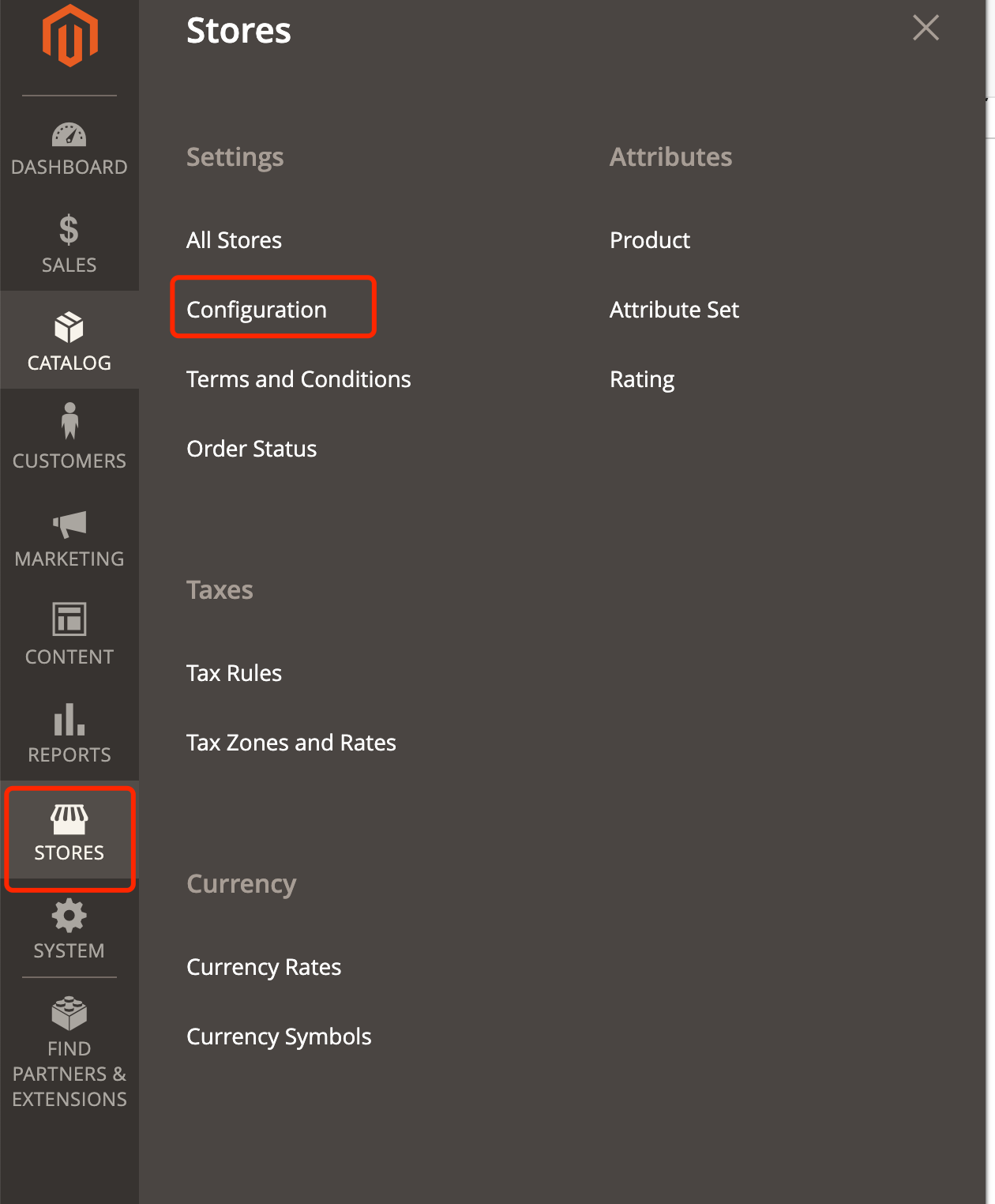
- Configure parameters as shown in the following figure! image.png(Open in new window)
Environment Parameters
Sandbox Environment Store Parameters
# PingPong Sandbox Environment Store Parameters
clientId: 2018092714313010016
accId: 2018092714313010016291
salt: F78BC96A55548B2319EE68E0
Sandbox Environment Test Card Numbers
# Standard Test Card Number
Card Number: 4200000000000000
Expiry: 12/22
cvv: 123
cvv must be 3-digit pure numbers

# 3DS Transaction Test Card Number
3DS Transaction Card: 4711100000000000
Environment Addresses
# Sandbox Environment Address
Sandbox Environment    https://sandbox-acquirer-payment.pingpongx.com

# Production Environment Address
Production Environment    https://acquirer-payment.pingpongx.com
Integration Process
Sandbox Environment Integration
- Install plugin according to file.
- After plugin installation is complete, payment self-test is required, and complete the following items:
During the installation process, if there are any issues, you can seek technical support in the integration group.
Precautions:
In sandbox environment, no deduction will be initiated from cardholders, shipping after payment will cause losses, not shipping may cause cardholders to file complaints. Therefore during integration, operations need to be cautious, after integration testing is passed, immediately close the payment channel, wait for production environment launch before opening.
Production Environment Integration
- After the plugin completes the first round of sandbox environment integration under technical support, it will enter the website information and account review stage, after passing, production environment parameters will be issued.
- After obtaining production parameters, complete the following items
- Send screenshots and product link, and notify technical support, the customer/technical support will initiate a real transaction test on this product link. To verify integration results and website payment availability.
- After completing real transaction testing, merchants need to initiate a refund to verify the refund process.
- After completing the above process, website integration ends, payment channel officially launches, payment available.
Production Environment Configuration
Review Process
Get notification from integration group or business/customer that review is passed. Login to Merchant Backend
Go to Website List
As shown in the figure, go to Group Management->View Details->Website List
Group Management
- ⚫ Select from menu bar 【Website Management】-【Group Management】to enter group management page
- ⚫ This function allows current merchant to click "Create Group" to create new group; system will default give a default group
- ⚫ Websites are under groups.
- ⚫ Click "View Details" to enter group details page, can modify group name, view copy ID number, view websites under group.
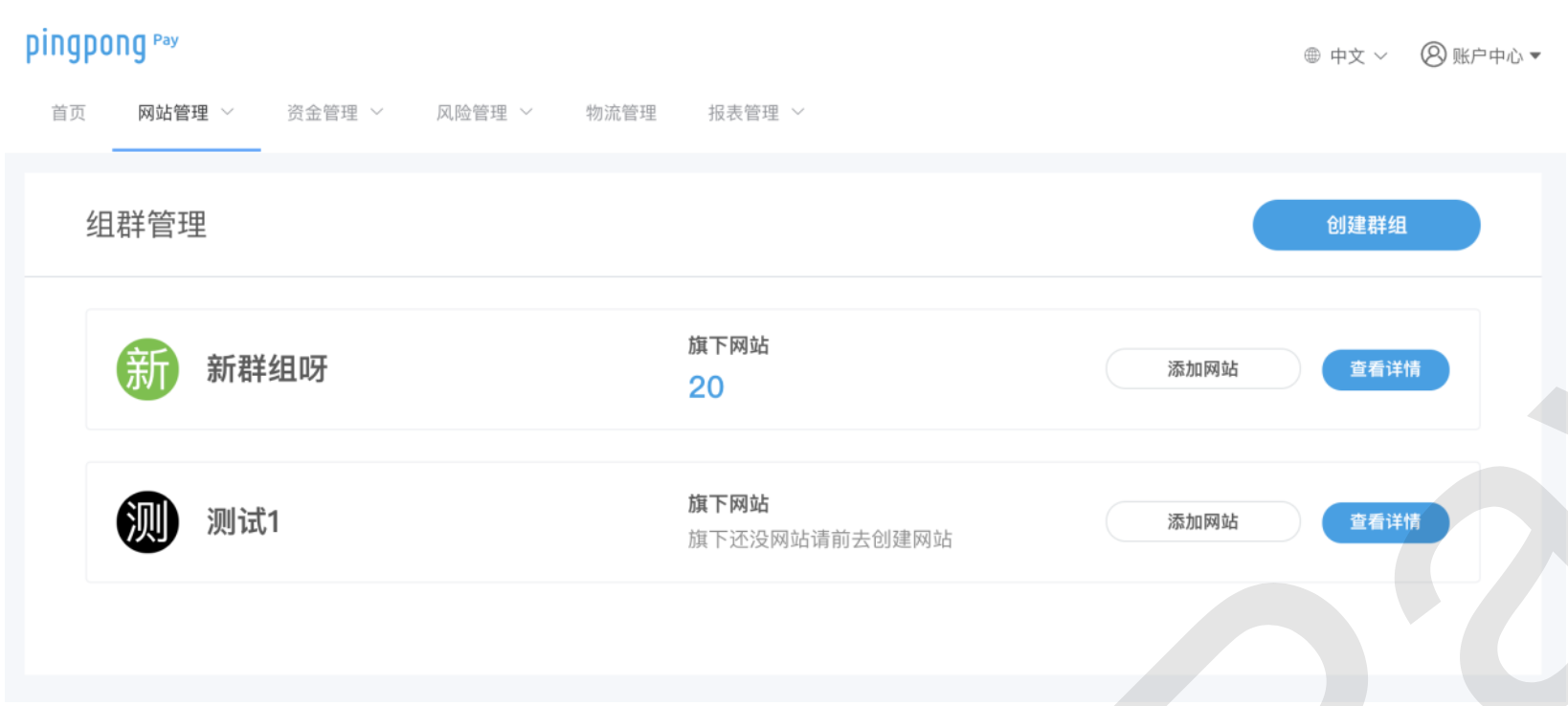
Select Website
Select the corresponding website from the list according to the current integration website domain name 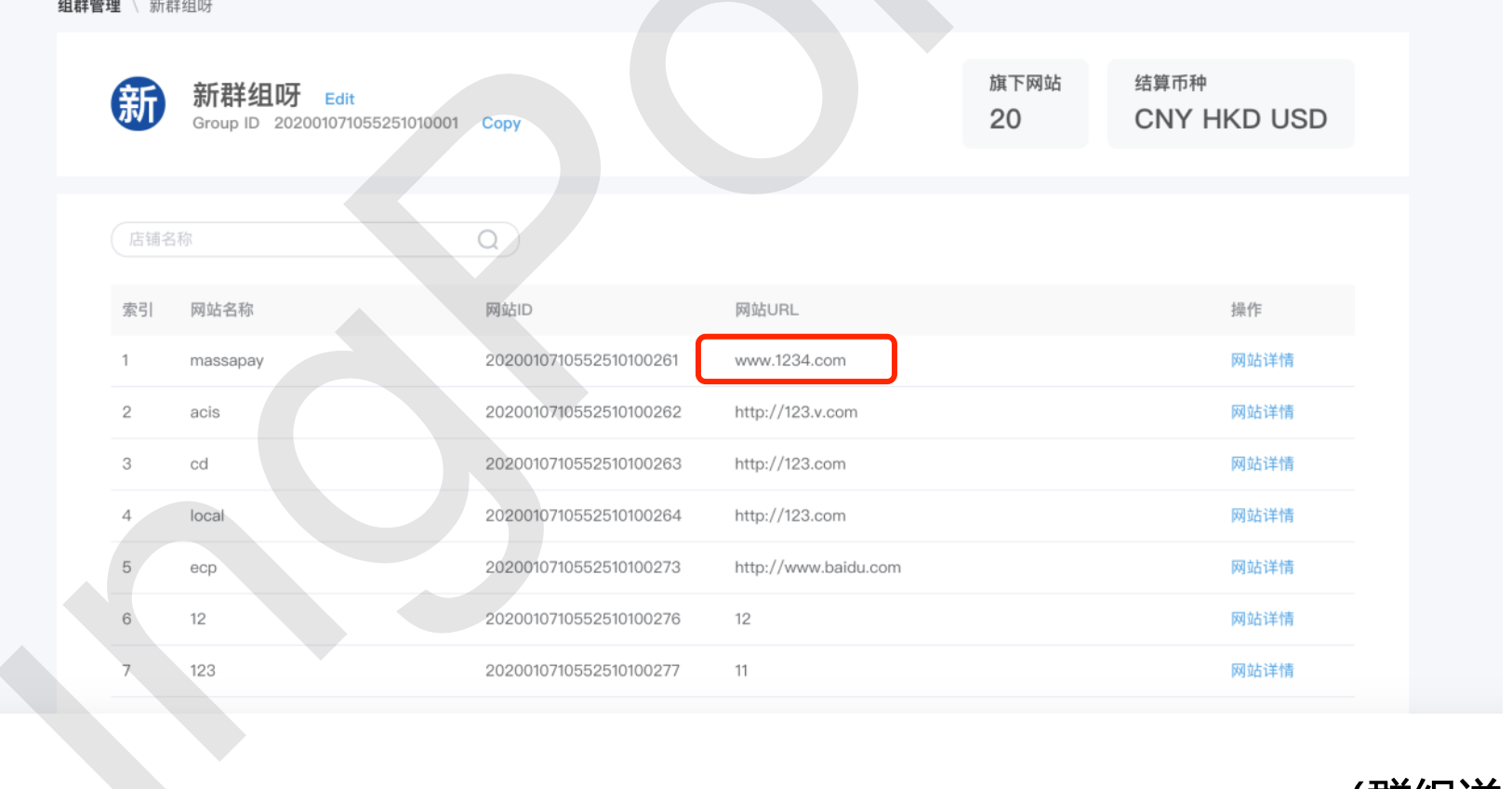
Get accId for corresponding domain website
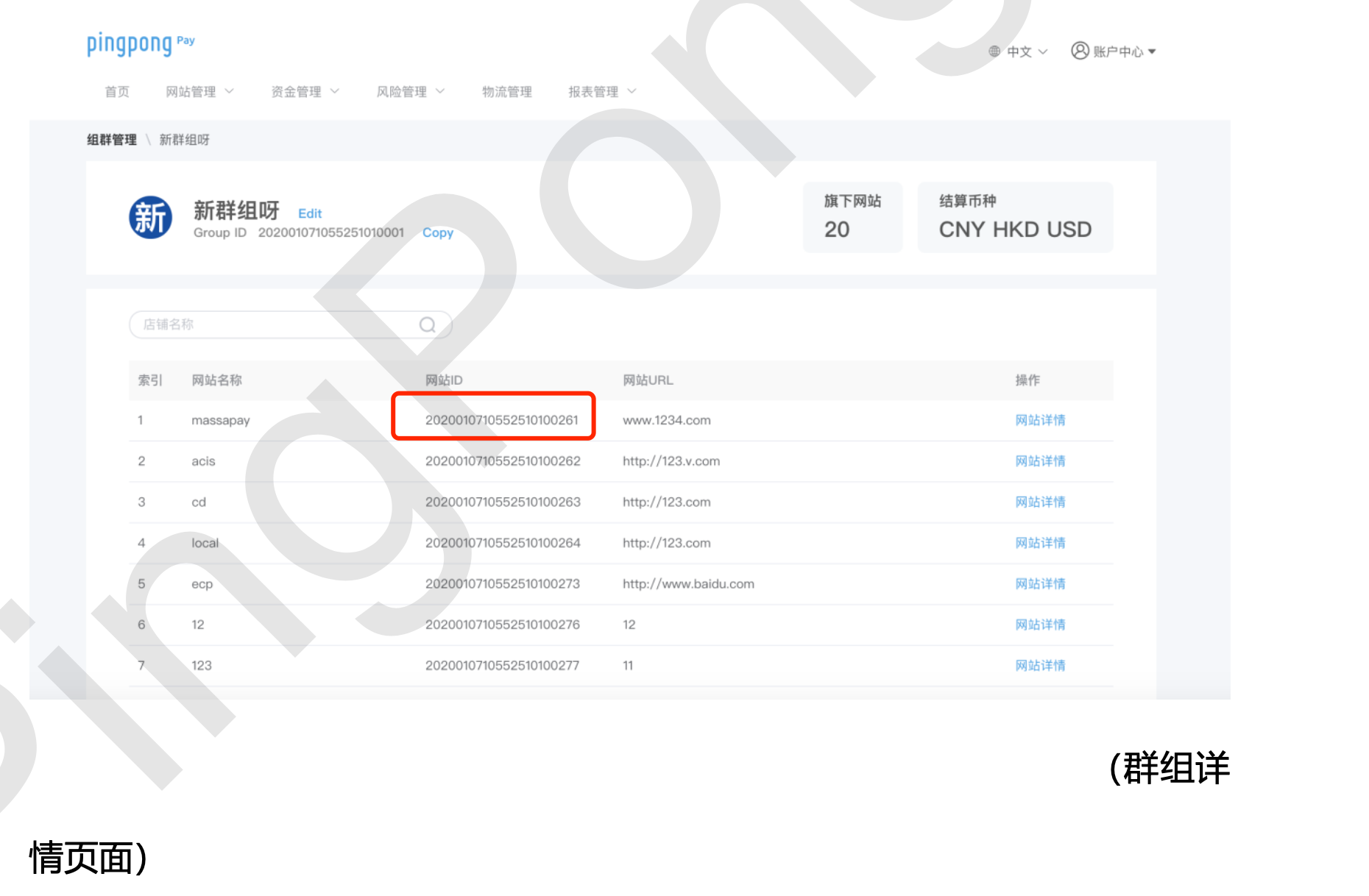
Get Secret Key
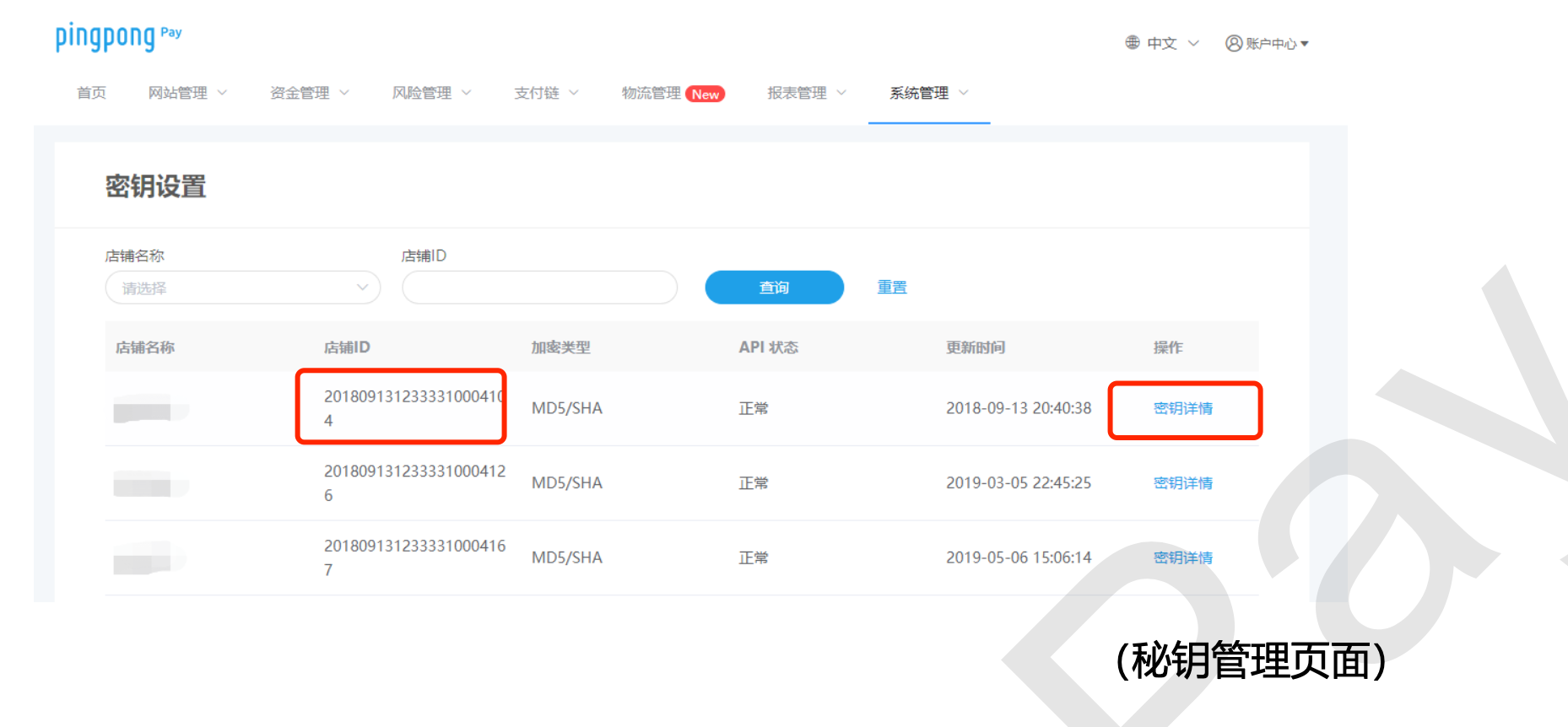
Select from menu bar 【System Management】-【Secret Key Management】default enters secret key management page, can view website secret key on this page. After entering secret key management, can view secret keys corresponding to all websites, click "Secret Key Details" to view specific secret key fields. Secret keys with status "Normal" can be used, when status is "Abnormal", will not be able to use, contact relevant business personnel for handling.
M2 Common Commands
Display Backend Administrator URI
php bin/magento info:adminuriUninstall Module
For example, plugin name is Pppay_Pppay
php bin/magento module:uninstall --clear-static-content Pppay_PppayEnable Module Plugin
For example, plugin name is Pppay_Pppay
php bin/magento module:enable --clear-static-content Pppay_PppayDisable Module Plugin
For example, plugin name is Pppay_Pppay
php bin/magento module:disable --clear-static-content Pppay_PppayPlugin List (Enabled and Disabled)
php bin/magento module:statusSwitch to Production Mode
php bin/magento deploy:mode:set productionSwitch to Development Mode
php bin/magento deploy:mode:set developerCode Compilation
Check if code has syntax errors, such as whether called classes exist, etc.
bin/magento setup:di:compile[!code highlight]Generate Static Files
Generate latest static files to pub/static. Default mode and generation mode must have these static files, otherwise will report errors.
bin/magento setup:static-content:deploy -f[!code highlight]Will automatically generate static files for default language (usually English). That means the above command only generates static files for en_US. If you want to generate both English and Chinese simultaneously, need to specify language pack name after, which is:
bin/magento setup:static-content:deploy en_US zh_Hans_CN -f[!code highlight]Update Magento Database Data
Custom tables in plugin/add product attributes/change a field, etc., any data related to database tables. Use this command to update to database.
php bin/magento setup:upgrade[!code highlight]