
Hosted-Embed Checkout via JS-SDK
Render Checkout
Obtain the following key response parameters from Order Creation
| Parameter Name | Description |
|---|---|
| innerJsUrl | JS-SDK loading address |
| token | Parameter required for SDK initialization |
Import JS-SDK
PingPongCheckout provides two ways to import the SDK
- Import JS in advance, copy the following code to import PingPongCheckout JS-SDK via CDN address
<script src="https://pay-cdn.pingpongx.com/production-fra/static/sdk-v3/ppPay.min.js"></script>- Import using the value of innerJsUrl field after order creation
SDK-config Schematic Diagram
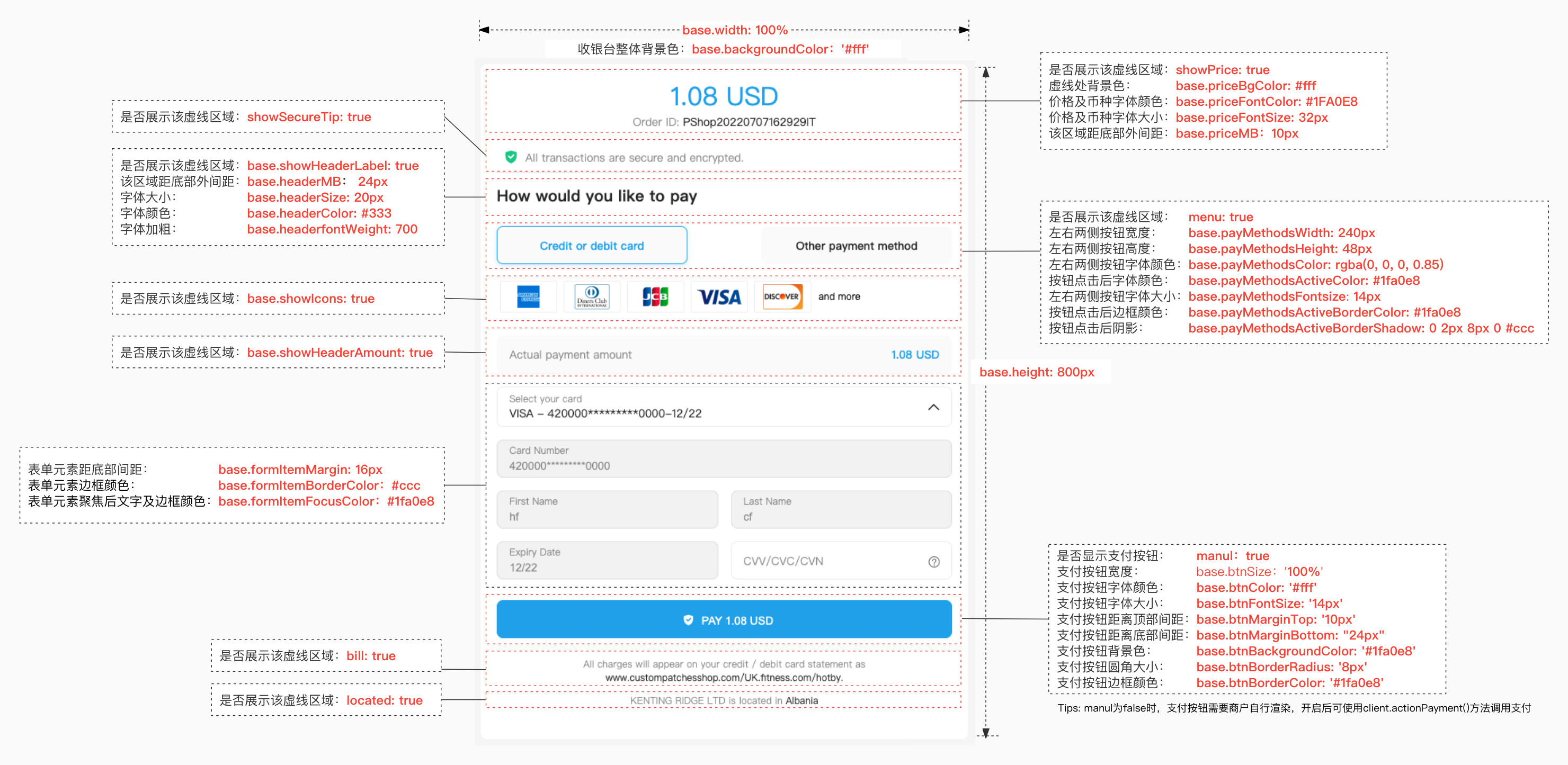
Note
In the above diagram, you can configure font styles, spacing, etc. more precisely. However, if you only want to change the theme color, please use the following parameters:
- themeColor: Checkout theme color, applied to loading animations, fonts, buttons, form focus border colors, etc.
- themeLightColor: Checkout light theme color, applied to some shadows, light background colors, etc. If you don't pass these parameters, Pingpong theme colors will be used by default.
JS-SDK Checkout Language Support
Note
Configure in SDK lang parameter, default English For more languages, see Locale
Initialize SDK Sample Code
When the client clicks the order button and submits the order, obtain order-related parameters (order object) from the server, after initializing PingPongCheckout JS-SDK, pass the order object to the createPayment method to start interacting with PingPongCheckout, after success, the PingPongCheckout checkout will be rendered
    window.addEventListener('load', loadHandle);
    function loadHandle() {
        const conf = {
            mode: 'sandbox', //sandbox/production (required parameter)
            lang: 'en', //  language, default English if not passed - de German en English es Spanish fr French it Italian ru Russian zh Chinese jp Japanese
            root: '#payment-wrap', //  Where PingPong checkout renders, must be an id (required)
            manul: false, // Manual mode. That is: payment button needs to be rendered by yourself, after enabling, can use client.actionPayment() method to call payment
            showPrice: true, // Whether to display price
            bill: true, // Whether to display bill
            located: true, // Whether to display located (default true)
            menu: true, //Whether to display payment method buttons
            base: {
                width: '100%', // Checkout width
                height: '800px', // Checkout height
                backgroundColor: '#fff', // Checkout overall background color
                // Top price and currency
                priceBgColor: '#fff', // Top price area background color
                priceFontColor: '#1fa0e8', // Top price font color
                priceFontSize: '32px', // Top price font size
                priceMB: '10px', // Top price area bottom margin

                // Guide title: "How would you like to pay"
                showHeaderLabel: true, // Whether to display guide title
                headerMB: '24px', // Guide title bottom margin
                headerSize: '20px', // Guide title font size
                headerColor: 'rgba(0, 0, 0, 0.85)', // Guide title font color
                headerfontWeight: 700, // Guide title bold

                // Payment methods
                payMethodsWidth: '240px', // Payment method button width
                payMethodsHeight: '48px', // Payment method button height
                payMethodsColor: 'rgba(0, 0, 0, 0.85)', // Payment method button font color
                payMethodsActiveColor: '#1fa0e8', // Payment method button font color after click
                payMethodsFontsize: '14px', // Payment method button font size
                payMethodsActiveBorderColor: '#1fa0e8', // Payment method button border color after click
                payMethodsActiveBorderShadow: '0 2px 8px 0 rgb(31 160 232 / 20%)', // Payment method button shadow after click
                showIcons: true, // Whether to display card icons
                showHeaderAmount: true, // Whether to display header payment amount
                // Form related
                formItemMargin: '16px', // Form bottom margin
                formItemBorderColor: 'rgba(0, 0, 0, 0.08)', // Form border color
                formItemFocusColor: '#1fa0e8', // Form focus prompt text and border color

                // Payment button
                btnSize: '100%', // Button width percentage or px
                btnColor: '#fff', // Button font color
                btnFontSize: '14px', // Button font size
                btnMarginTop: '10px', // Button top margin
                btnMarginBottom: "24px", // Button bottom margin
                btnBackgroundColor: '#1fa0e8', // Button background color
                btnBorderRadius: '8px', // Button border radius
                btnBorderColor: '#1fa0e8', // Can separately configure btn border color to override colors set in btnBorder
            }
        }


        let client = new ppPay(conf);

        // Pass in the token obtained from the interface here
        let token ="EU:Dt10Deb05qeI0HFWg0DU1NPcLE-dxCDiU40wyKBxHw1w1RDULBtXXtI2dsgSX8L7";
        //Using this method will create checkout
        client.createPayment(token);

        // manul mode Using this method will not show payment button, payment timing will depend on cardholder's call
        // client.actionPayment(callback)
    }
Caution
- Parameter mode must be filled correctly, use sandbox for development testing, use production after going live, please check parameter mode before going live;
- Checkout does not support disabling cookies.
Complete Payment
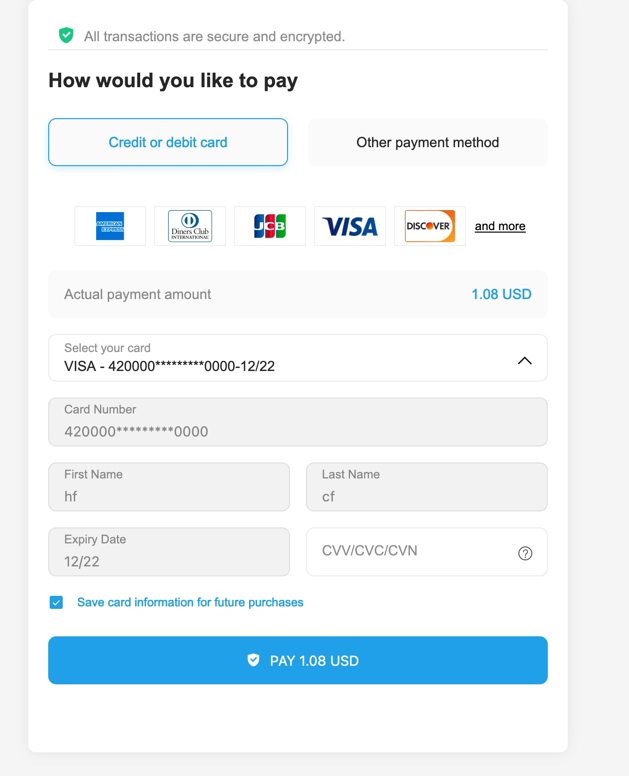
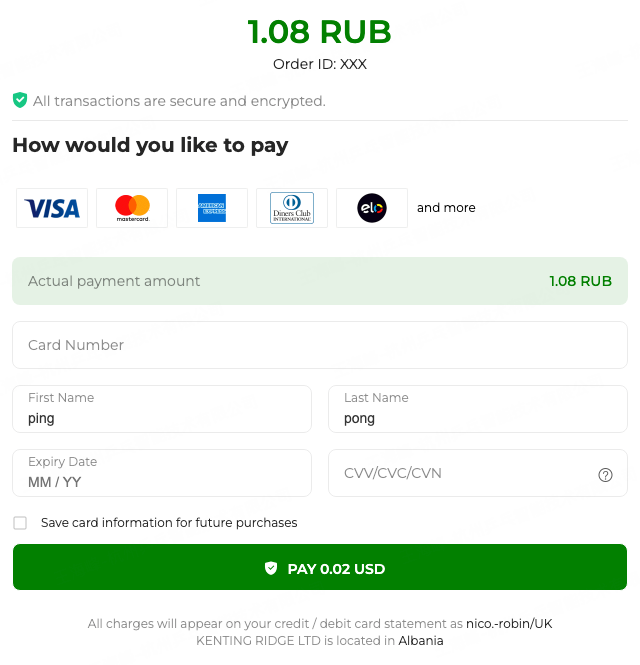
After correctly setting up as above, the checkout should render normally, correctly enter card number, expiration date and CVV information to complete the transaction.
The checkout in sandbox mode is shown below
Re-payment
If the checkout payment is not successful, you can manually open the URL again to initiate payment, a checkout URL is valid for 48 hours