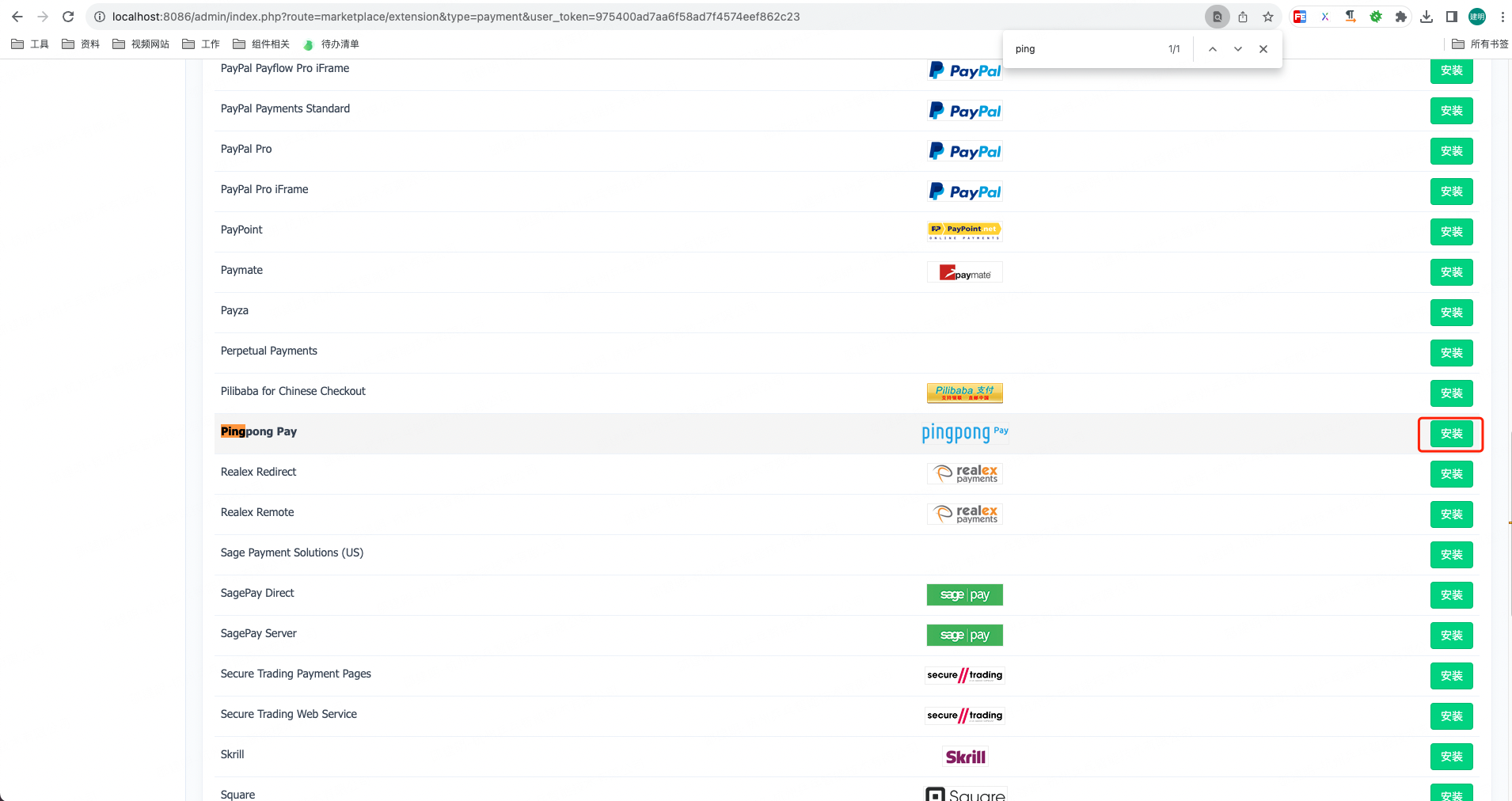
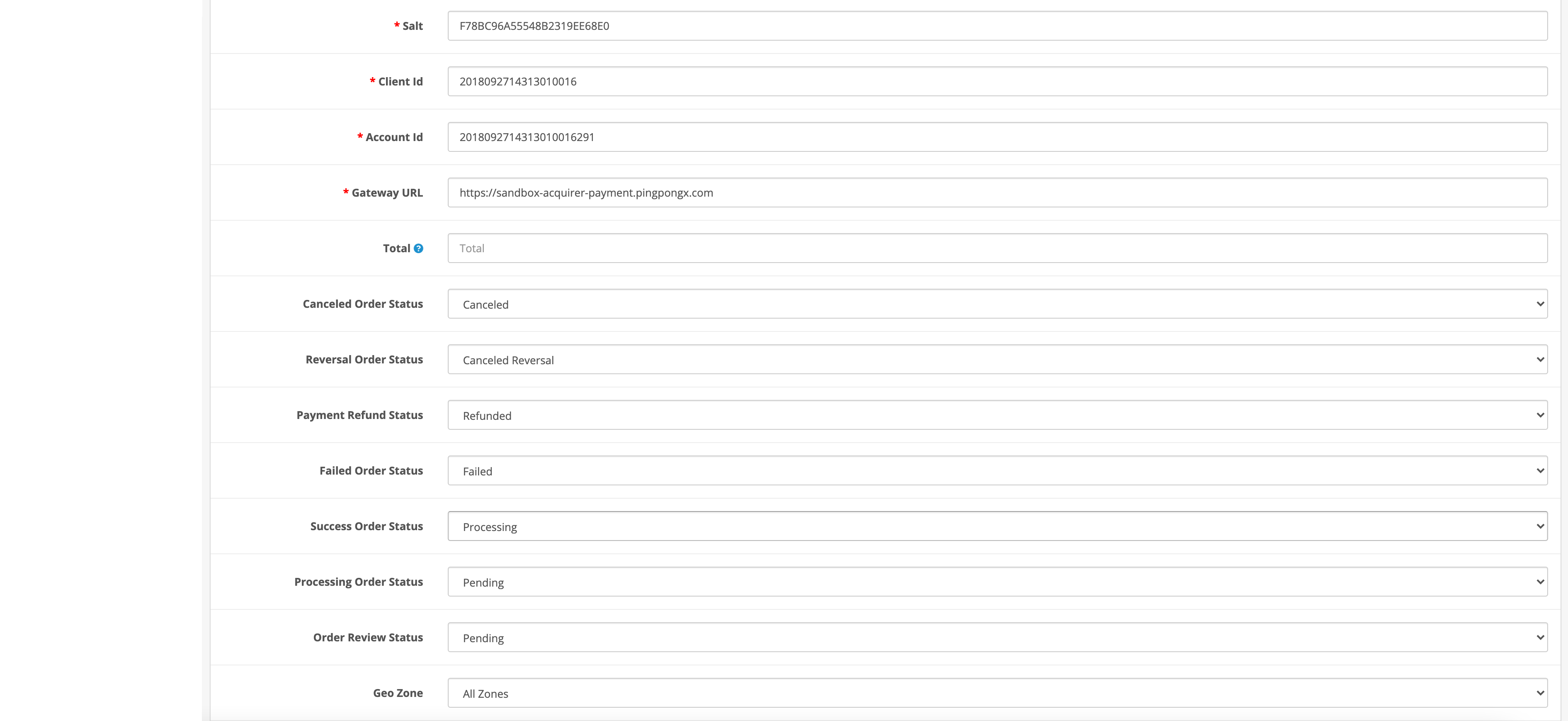
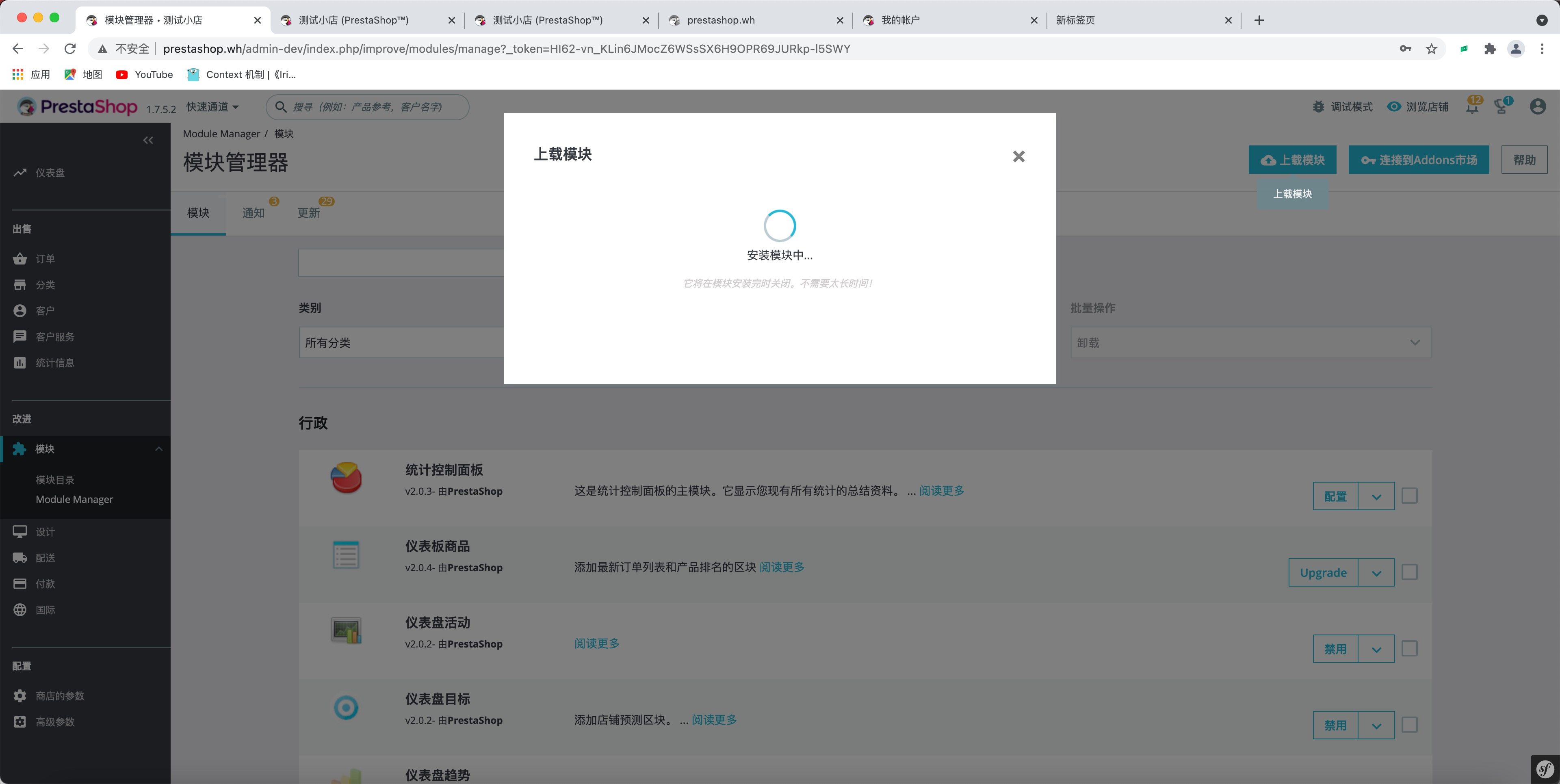
--- url: 'https://acquirer-api-docs-v4-en.pingpongx.com/en/article/079v1vx5/index.md' --- ## Heading 2 ### Heading 3 #### Heading 4 ##### Heading 5 ###### Heading 6 Bold: **Bold text** Italic: *Italic text* \~~Deleted text~~ Content ==Highlight== Mathematical expression: $-(2^{n-1})$ ~ $2^{n-1} -1$ $\frac {\partial^r} {\partial \omega^r} \left(\frac {y^{\omega}} {\omega}\right) \= \left(\frac {y^{\omega}} {\omega}\right) \left{(\log y)^r + \sum\_{i=1}^r \frac {(-1)^ Ir \cdots (r-i+1) (\log y)^{ri}} {\omega^i} \right}$ 19^th^ H~2~O ::: center content center ::: ::: right content right ::: * Unordered List 1 * Unordered List 2 * Unordered List 3 1. Ordered List 1 2. Ordered List 2 3. Ordered List 3 * \[ ] Task List 1 * \[ ] Task List 2 * \[x] Task List 3 * \[x] Task List 4 | Tables | Are | Cool | | ------------- |:-------------:| -----:| | col 3 is | right-aligned | $1600 | | col 2 is | centered | $12 | | zebra stripes | are neat | $1 | > quote content > > quote content [links](/) [outside links](https://github.com/pengzhanbo) **Badge:** **icons:** * home - * vscode - * twitter - **demo wrapper:** ::: window title="Demo" no-padding height="200px" ::: **code block:** ```js whitespace const a = 1 const b = 2 const c = a + b // [!code word:obj] const obj = { toLong: { deep: { deep: { deep: { value: 'this is to long text. this is to long text. this is to long text. this is to long text.', // [!code highlight] } } } } } ``` **code groups:** ::: code-tabs @tab tab1 ```js const a = 1 const b = 2 const c = a + b ``` @tab tab2 ```ts const a: number = 1 const b: number = 2 const c: number = a + b ``` ::: **code highlight:** ```ts function foo() { const a = 1 // [!code highlight] console.log(a) const b = 2 // [!code ++] const c = 3 // [!code --] console.log(a + b + c) // [!code error] console.log(a + b) // [!code warning] } ``` **code focus:** ```ts function foo() { const a = 1 // [!code focus] } ``` ::: note note content [link](https://github.com/pengzhanbo) `inline code` ```js const a = 1 const b = 2 const c = a + b ``` ::: ::: info content [link](https://github.com/pengzhanbo) `inline code` ```js const a = 1 const b = 2 const c = a + b ``` ::: ::: tip content [link](https://github.com/pengzhanbo) `inline code` ```js const a = 1 const b = 2 const c = a + b ``` ::: ::: warning content [link](https://github.com/pengzhanbo) `inline code` ```js const a = 1 const b = 2 const c = a + b ``` ::: ::: caution content [link](https://github.com/pengzhanbo) `inline code` ```js const a = 1 const b = 2 const c = a + b ``` ::: ::: important content [link](https://github.com/pengzhanbo) `inline code` ```js const a = 1 const b = 2 const c = a + b ``` ::: **GFM alert:** > \[!note] > note > \[!info] > info > \[!tip] > tip > \[!warning] > warning > \[!caution] > caution > \[!important] > important **code demo:** :::: demo title="Demo" desc="A normal demo" ::: code-tabs @tab HTML ```html

vuepress-theme-plume

``` @tab Javascript ```js const a = 'So Awesome!' const app = document.querySelector('#app') app.appendChild(window.document.createElement('small')).textContent = a ``` @tab CSS ```css #app { font-size: 2em; text-align: center; } ``` ::: :::: **tab card:** ::: tabs @tab title 1 content block @tab title 2 content block ::: :::: warning ::: tabs @tab title 1 content block @tab title 2 content block ::: :::: **footnote:** footnote 1 link\[^first]。 footnote 2 link\[^second]。 inline footnote ^\[^first] definition。 Repeated footnote definition\[^second]。 \[^first]: footnote **you can contain special mark** ``` also can contain paragraph ``` \[^second]: footnote content. --- --- url: 'https://acquirer-api-docs-v4-en.pingpongx.com/en/article/xwq2sj6e/index.md' --- # Custom Component --- --- url: 'https://acquirer-api-docs-v4-en.pingpongx.com/en/blog/gni6e10p/index.md' --- # Custom Component --- --- url: 'https://acquirer-api-docs-v4-en.pingpongx.com/en/blog/z8jr38qh/index.md' --- ## Heading 2 ### Heading 3 #### Heading 4 ##### Heading 5 ###### Heading 6 Bold: **Bold text** Italic: *Italic text* \~~Deleted text~~ Content ==Highlight== Mathematical expression: $-(2^{n-1})$ ~ $2^{n-1} -1$ $\frac {\partial^r} {\partial \omega^r} \left(\frac {y^{\omega}} {\omega}\right) \= \left(\frac {y^{\omega}} {\omega}\right) \left{(\log y)^r + \sum\_{i=1}^r \frac {(-1)^ Ir \cdots (r-i+1) (\log y)^{ri}} {\omega^i} \right}$ 19^th^ H~2~O ::: center content center ::: ::: right content right ::: * Unordered List 1 * Unordered List 2 * Unordered List 3 1. Ordered List 1 2. Ordered List 2 3. Ordered List 3 * \[ ] Task List 1 * \[ ] Task List 2 * \[x] Task List 3 * \[x] Task List 4 | Tables | Are | Cool | | ------------- |:-------------:| -----:| | col 3 is | right-aligned | $1600 | | col 2 is | centered | $12 | | zebra stripes | are neat | $1 | > quote content > > quote content [links](/) [outside links](https://github.com/pengzhanbo) **Badge:** **icons:** * home - * vscode - * twitter - **demo wrapper:** ::: window title="Demo" height="200px" ::: **code block:** ```js whitespace const a = 1 const b = 2 const c = a + b // [!code word:obj] const obj = { toLong: { deep: { deep: { deep: { value: 'this is to long text. this is to long text. this is to long text. this is to long text.', // [!code highlight] } } } } } ``` **code groups:** ::: code-tabs @tab tab1 ```js const a = 1 const b = 2 const c = a + b ``` @tab tab2 ```ts const a: number = 1 const b: number = 2 const c: number = a + b ``` ::: **code highlight:** ```ts function foo() { const a = 1 // [!code highlight] console.log(a) const b = 2 // [!code ++] const c = 3 // [!code --] console.log(a + b + c) // [!code error] console.log(a + b) // [!code warning] } ``` **code focus:** ```ts function foo() { const a = 1 // [!code focus] } ``` ::: note note content [link](https://github.com/pengzhanbo) `inline code` ```js const a = 1 const b = 2 const c = a + b ``` ::: ::: info content [link](https://github.com/pengzhanbo) `inline code` ```js const a = 1 const b = 2 const c = a + b ``` ::: ::: tip content [link](https://github.com/pengzhanbo) `inline code` ```js const a = 1 const b = 2 const c = a + b ``` ::: ::: warning content [link](https://github.com/pengzhanbo) `inline code` ```js const a = 1 const b = 2 const c = a + b ``` ::: ::: caution content [link](https://github.com/pengzhanbo) `inline code` ```js const a = 1 const b = 2 const c = a + b ``` ::: ::: important content [link](https://github.com/pengzhanbo) `inline code` ```js const a = 1 const b = 2 const c = a + b ``` ::: **GFM alert:** > \[!note] > note > \[!info] > info > \[!tip] > tip > \[!warning] > warning > \[!caution] > caution > \[!important] > important **code demo:** :::: demo title="Demo" desc="A normal demo" ::: code-tabs @tab HTML ```html

vuepress-theme-plume

``` @tab Javascript ```js const a = 'So Awesome!' const app = document.querySelector('#app') app.appendChild(window.document.createElement('small')).textContent = a ``` @tab CSS ```css #app { font-size: 2em; text-align: center; } ``` ::: :::: **tab card:** ::: tabs @tab title 1 content block @tab title 2 content block ::: :::: warning ::: tabs @tab title 1 content block @tab title 2 content block ::: :::: **footnote:** footnote 1 link\[^first]。 footnote 2 link\[^second]。 inline footnote ^\[^first] definition。 Repeated footnote definition\[^second]。 \[^first]: footnote **you can contain special mark** ``` also can contain paragraph ``` \[^second]: footnote content. --- --- url: 'https://acquirer-api-docs-v4-en.pingpongx.com/en/demo/index.md' --- # Demo * [bar](./bar.md) * [foo](./foo.md) --- --- url: 'https://acquirer-api-docs-v4-en.pingpongx.com/en/demo/40d40e2c/index.md' --- # foo [bar](./bar.md) --- --- url: 'https://acquirer-api-docs-v4-en.pingpongx.com/en/demo/mze6a2fk/index.md' --- # bar [foo](./foo.md) --- --- url: >- https://acquirer-api-docs-v4-en.pingpongx.com/en/notes/api/services/InPersonPayments/cancel/index.md description: >- Order Cancel API is used to cancel orders that have not yet been completed. Suitable for scenarios where customers need to cancel pending orders, supporting cancellation of orders in various states. --- # Order Cancel API ::: warning Deprecated This interface has been deprecated. Please stop integrating with it. ::: --- --- url: >- https://acquirer-api-docs-v4-en.pingpongx.com/en/notes/api/services/InPersonPayments/cmdDeclare/index.md description: >- POS Command Declare API is used to send functional commands to POS devices, supporting summary query, settlement execution, and printing the last transaction. Through this interface, merchants can remotely control POS devices to complete various daily operational functions. --- # POS Command Declare API --- --- url: >- https://acquirer-api-docs-v4-en.pingpongx.com/en/notes/api/services/InPersonPayments/gmc/heartbeat/index.md description: >- The GMC serial heartbeat interface is used to maintain the connection status between SAAS and POS devices. It is recommended to send a heartbeat packet every 30 seconds, and continuous 3 times of no response can determine that the device is offline. The bizContent field can be empty. --- # GMC Serial Heartbeat Interface --- --- url: >- https://acquirer-api-docs-v4-en.pingpongx.com/en/notes/api/services/InPersonPayments/gmc/pay/index.md description: >- The GMC serial payment interface is used to complete payment transactions by communicating with POS devices through serial ports. It supports creating orders and executing payments immediately, suitable for offline payment scenarios where SAAS cash register systems integrate with POS devices. It adopts serial communication protocols and SHA256 signatures to ensure data security, and supports passing customer information and product information. --- # GMC Serial Payment Interface --- --- url: >- https://acquirer-api-docs-v4-en.pingpongx.com/en/notes/api/services/InPersonPayments/gmc/payQuery/index.md description: >- The GMC serial pay query interface is used to query the status and details of payment transactions. It communicates with POS devices through serial ports and supports querying transaction status, amount, time and other details by merchant order number or PingPong transaction ID. It adopts SHA256 signature to ensure data security and is suitable for reconciliation, status confirmation and other scenarios. --- # GMC Serial Pay Query Interface --- --- url: >- https://acquirer-api-docs-v4-en.pingpongx.com/en/notes/api/services/InPersonPayments/gmc/query/index.md description: >- The GMC serial query interface is used to query the status and details of payment or refund transactions. Through serial port communication with POS devices, it supports querying transaction status, amount, time and other detailed information by merchant order number. It adopts SHA256 signature to ensure data security, suitable for scenarios such as reconciliation and status confirmation. --- # GMC Serial Query Interface ::: warning Deprecated This interface is deprecated, please use the following separate interfaces: * **Pay Query**: [GMC Serial Pay Query Interface](/en/notes/api/services/InPersonPayments/gmc/payQuery/) - For querying payment transaction status * **Refund Query**: [GMC Serial Refund Query Interface](/en/notes/api/services/InPersonPayments/gmc/refundQuery/) - For querying refund transaction status ::: --- --- url: >- https://acquirer-api-docs-v4-en.pingpongx.com/en/notes/api/services/InPersonPayments/gmc/refund/index.md description: >- The GMC serial port refund interface is used to initiate refund requests for completed payment transactions. Communicates with POS devices via serial port, supporting both full and partial refunds. Employs SHA256 signature to ensure data security, with refund processing time varying by payment method, typically 3-7 business days. --- # GMC Serial Port Refund Interface --- --- url: >- https://acquirer-api-docs-v4-en.pingpongx.com/en/notes/api/services/InPersonPayments/gmc/refundQuery/index.md description: >- The GMC serial refund query interface is used to query the status and details of refund transactions. It communicates with POS devices through serial ports and supports querying refund status, amount, time and other details by merchant refund ID or PingPong refund ID. It adopts SHA256 signature to ensure data security and is suitable for refund reconciliation, status confirmation and other scenarios. --- # GMC Serial Refund Query Interface --- --- url: >- https://acquirer-api-docs-v4-en.pingpongx.com/en/notes/api/services/InPersonPayments/gmc/reprint/index.md description: >- The GMC serial reprint interface is used to reprint the receipt voucher of the previous transaction. Communicates with POS devices via serial port, suitable for scenarios where receipt printing fails or vouchers need to be reprinted. The bizContent field can be empty, defaulting to print the last transaction. --- # GMC Serial Reprint Interface --- --- url: >- https://acquirer-api-docs-v4-en.pingpongx.com/en/notes/api/services/InPersonPayments/gmc/settlement/index.md description: >- The GMC serial settlement interface is used to trigger the POS device to perform batch settlement operations. It is typically called at the end of each business day to clear all transaction batches for the day. The bizContent field can be empty. After settlement, the POS device will print settlement vouchers. --- # GMC Serial Settlement Interface --- --- url: >- https://acquirer-api-docs-v4-en.pingpongx.com/en/notes/api/services/InPersonPayments/gmc/transactionCancel/index.md description: >- The GMC serial transaction cancel interface is used to cancel transactions in progress. It communicates with POS devices through serial ports and cancels transactions based on merchant transaction ID. It adopts SHA256 signature to ensure data security and is suitable for scenarios such as user cancellation of payment, transaction timeout, etc. --- # GMC Serial Transaction Cancel Interface --- --- url: >- https://acquirer-api-docs-v4-en.pingpongx.com/en/notes/api/services/InPersonPayments/paymentQuery/index.md description: >- The Single Transaction Query API is used to retrieve detailed information about a specific transaction. It is suitable for scenarios that require tracking or verifying the status of a particular payment, supporting calls through transaction ID. Main functions include returning key data such as transaction status, amount, and time. --- # Single Transaction Query --- --- url: >- https://acquirer-api-docs-v4-en.pingpongx.com/en/notes/api/services/InPersonPayments/refund/index.md description: >- The Request Refund API is used to process refund requests for paid orders in PingPongCheckout. It applies to scenarios requiring refund services for customers and supports multiple currencies across major global markets. Through this interface, developers can specify key parameters such as refund amount and reason to achieve fast and secure fund returns. --- # Request Refund --- --- url: >- https://acquirer-api-docs-v4-en.pingpongx.com/en/notes/api/services/InPersonPayments/refundQuery/index.md description: >- The refund query API allows merchants to retrieve the status and details of a specific refund request. Suitable for scenarios requiring tracking or verification of refund processing, supporting multiple global markets. By providing the refund ID as a key parameter, real-time information such as refund status, amount, and processing time can be obtained. --- # Refund Query --- --- url: >- https://acquirer-api-docs-v4-en.pingpongx.com/en/notes/api/services/InPersonPayments/unifiedPay/index.md description: >- The order creation and payment interface provides functions for creating orders and executing payments immediately. It is suitable for online business scenarios that require quick completion of the process from order placement to payment collection. It supports major global currencies and covers various payment methods including credit cards and local payment methods. Key parameters include merchant ID, order amount, product description, etc. Through this API, merchants can simplify the shopping process and enhance user experience. --- # Order Creation and Payment Interface --- --- url: >- https://acquirer-api-docs-v4-en.pingpongx.com/en/notes/api/services/marketplaces/mpCapture/index.md description: >- The CAPTURE - Pre-Authorization Confirmation API is used to formally charge the pre-authorized payment amount. Suitable for scenarios where merchants need to verify buyer payment capability before shipping, supporting major global markets. By calling this API, merchants can specify key parameters such as transaction ID and amount to complete the charging process. --- # Pre-Authorization Confirmation --- --- url: >- https://acquirer-api-docs-v4-en.pingpongx.com/en/notes/api/services/marketplaces/mpRefund/index.md description: >- The Request Refund API allows merchants to initiate refund requests. Suitable for scenarios requiring processing of consumer refund requests, supporting multiple global markets. Key features include specifying order ID, refund amount, and reason. Key parameters include order_id (order identifier), refund_amount (refund amount), and reason (refund reason). --- # Request Refund --- --- url: >- https://acquirer-api-docs-v4-en.pingpongx.com/en/notes/api/services/marketplaces/mpUniformly/index.md description: >- Marketplaces Direct API provides payment solutions in non-hosted mode. Suitable for e-commerce platforms that wish to directly manage payment processes, supports card payments and requires integration of risk control components to ensure transaction security. This API allows merchants to customize payment interfaces while strictly adhering to relevant security specifications. --- # Direct API ::: danger Card payments under Direct API mode must integrate risk control components ::: --- --- url: >- https://acquirer-api-docs-v4-en.pingpongx.com/en/notes/api/services/marketplaces/mpVoid/index.md description: >- The VOID-Preauthorization Cancellation API is used to cancel preauthorization transactions that have been created but not yet captured. It applies to merchants releasing customer funds when payment completion is not needed, reducing unnecessary financial processing. Key features include specifying transaction ID to perform cancellation operations, supporting multiple currency types worldwide. Key parameters involve transaction identifiers, cancellation reasons, etc., ensuring flexibility and security in fund management. --- # VOID-Preauthorization Cancellation --- --- url: >- https://acquirer-api-docs-v4-en.pingpongx.com/en/notes/api/services/marketplaces/submerchant/insertSubmerchant/index.md description: >- The Create Sub-Merchant API is used to create new sub-merchant accounts in the PingPongCheckout system. It is suitable for e-commerce platforms or enterprises that need to manage multiple sub-merchants. Main functions include submitting sub-merchant information and obtaining creation results. Key parameters include sub-merchant name, contact information, etc. --- # Create Sub-Merchant --- --- url: >- https://acquirer-api-docs-v4-en.pingpongx.com/en/notes/api/services/marketplaces/submerchant/updateSubmerchant/index.md description: >- The batch update sub-merchant API is used to update multiple sub-merchant information simultaneously. It is suitable for scenarios that require large-scale adjustment of sub-merchant data, supporting submission of multiple records in a single request to improve efficiency. Main functions include modifying sub-merchant name, status, and other key information. --- # Batch Update Sub-Merchant --- --- url: >- https://acquirer-api-docs-v4-en.pingpongx.com/en/notes/appendix/actionCode/index.md description: >- Issuer response codes list various response codes that may be encountered during payment processing, including response codes from Discover, Visa, and Mastercard. These codes are used to explain why transactions are accepted, rejected, or require further processing, helping merchants and technical personnel quickly identify issues and take appropriate actions. --- # Issuer Response Codes ## Issuer Response Codes ## Discover Response Codes ## References --- --- url: >- https://acquirer-api-docs-v4-en.pingpongx.com/en/notes/appendix/apm/hosted/americas/index.md description: >- Various payment methods available in the Americas region and their transaction currencies, covering Brazil, Chile, Argentina, Canada, Colombia, Dominican Republic, Mexico, Peru, United States, and Uruguay. Each payment method lists supported currency units and remarks, suitable for merchants and technical personnel who need to understand payment options in various countries and regions. --- # Americas-APM ### Brazil (BR) | Payment Method | Transaction Currency | Remarks | |:--------------|:-------------------|:--------| | Itau | BRL | | | Bradesco | BRL | | | Banco Brasil | BRL | | | Caixa | BRL | | | Santander | BRL | | | boleto | BRL | | | PIX | BRL | | | Bank Transfer | BRL | | | Skrill | EUR | | ### Chile (CL) | Payment Method | Transaction Currency | Remarks | |:-------------|:-------------------|:--------| | Multicaja | CLP | | | Sencillito | CLP | | | ServiPag | CLP | | | WebPay | CLP | | | ServiPag | COP | | | Skrill | EUR | | ### Argentina (AR) | Payment Method | Transaction Currency | Remarks | |:-------------|:-------------------|:--------| | Pago Fácil | ARS | | | Rapi Pago | ARS | | | Skrill | EUR | | ### Canada (CA) | Payment Method | Transaction Currency | Remarks | |:-------------|:-------------------|:--------| | Paysafecard | CAD | | | Skrill | EUR | | ### Colombia (CO) | Payment Method | Transaction Currency | Minimum Amount (INR) | Remarks | |:-------------|:-------------------|:--------------------|:--------| | ServiPag | COP | | | | PSE | COP | | | ### Dominican Republic (DO) | Payment Method | Transaction Currency | Minimum Amount (INR) | Remarks | |:-------------|:-------------------|:--------------------|:--------| | Skrill | EUR | | | ### Mexico (MX) | Payment Method | Transaction Currency | Remarks | |:--------------|:-------------------|:--------| | OXXO | MXN | | | SPEI | MXN | | | Bank Transfer | MXN | | | BBVA Bancomer | MXN | | | Banorte | MXN | | | Santander | MXN | | | Paysafecard | EUR | | ### Peru (PE) | Payment Method | Transaction Currency | Remarks | |:-------------|:-------------------|:--------| | Paysafecard | EUR | | ### United States (US) | Payment Method | Transaction Currency | Remarks | |:-------------|:-------------------|:--------| | Paysafecard | USD | | | Skrill | EUR | | ### Uruguay (UY) | Payment Method | Transaction Currency | Remarks | |:-------------|:-------------------|:--------| | Paysafecard | EUR | | --- --- url: >- https://acquirer-api-docs-v4-en.pingpongx.com/en/notes/appendix/apm/hosted/asia/index.md description: >- The Asia-APM document lists the main online payment methods in China, Japan, Philippines, and South Korea along with their supported transaction currencies. Suitable for merchants and technical personnel who need to understand or integrate local payment solutions in these countries. China supports Alipay and WeChat, covering multiple international currencies; Japan includes convenience store payments, Pay-easy, etc.; Philippines has Dragonpay; South Korea details multiple banks and credit cards --- # Asia-APM ### China(CN) | Payment Method | Transaction Currency | Notes | |:---------------|:----------------------------------------|:------| | Alipay | AUD, CAD, EUR, GBP, HKD, SGD, USD | | | WeChat | CNY,EUR | | ### Japan(JP) | Payment Method | Transaction Currency | Notes | |:---------------|:---------------------|:------| | Konbini | JPY | | | Pay-easy | JPY | | | PayPay | JPY | | | LINE Pay | JPY | | | Rakuten Pay | JPY | | ### Philippines(PH) | Payment Method | Transaction Currency | Notes | |:---------------|:---------------------|:------| | Dragonpay | COP | | ### South Korea(KR) | Payment Method | Transaction Currency | Notes | |:---------------------|:---------------------|:------| | KBCard | | | | HANACARD | | | | SAMSUNGCard | | | | SHINHANCard | | | | HYUNDAICard | | | | LOTTECard | | | | NONGHYUPCard | | | | HANACard | | | | CITYCard | | | | WOORICard | | | | SUHYUPCard | | | | JEJUCard | | | | JEONBUKCard | | | | KWANGJUCard | | | | KAKAOBank | | | | KBank | | | | MireaAssetDaewoo | | | | KonaCard | | | | IBK | | | | SC | | | | Suhyup | | | | Shinhan | | | | KB Kookmin | | | | KEB Hana | | | | Woori | | | | Busan | | | | Koreapost | | | | Gwangju | | | | Citi | | | | KDB | | | | Kyongnam | | | | Daegu | | | | Sinhyup | | | | KFCC | | | | Jeonbuk | | | | Jeju | | | | NCFC | | | | Miraeasset | | | | Shinhaninvest | | | | HMC | | | | Hanhwa | | | | Samsung | | | | Tongyang | | | | SK | | | | Daewoo | | | | Hyundai | | | | Wooriinvest | | | | Daishin | | | | Dongbu | | | | Hanadaetoo | | | | Koreaninvest | | | | Hiinvest | | | | Meritz | | | | Shinyoung | | | | Eugeneinvest | | | | Kakaopay | | | | TOSS | | | | PAYCO | | | ### India(IN) | Payment Method | Transaction Currency | Notes | |:---------------------|:---------------------|:------| | UPI | INR | | | Permata VA | IDR | | | Mandiri VA | IDR | | | BNI VA | IDR | | | BRI VA | IDR | | | CIMB VA | IDR | | | BCA VA | IDR | | | DOKU VA (Artajasa) | IDR | | | OVO Open API | IDR | | | ShopeePay | IDR | | | Indomaret | IDR | | | AkuLaku | IDR | | ### Thailand(TH) | Payment Method | Transaction Currency | Notes | |:---------------------|:---------------------|:------| | BangKok Bank | THB | | | Krung Tha Bank | THB | | | Krungsri | THB | | | Siam Commercial Bank | THB | | | Tesco Lotus | THB | | | Line Pay | THB | | | True Money | THB | | | GrabPay | THB | | | ShopeePay | THB | | | Prompt Pay | THB | | ### Singapore(SG) | Payment Method | Transaction Currency | Notes | |:---------------|:---------------------|:------| | eNETS | SGD | | | GrabPay | SGD | | ### Indonesia(ID) | Payment Method | Transaction Currency | Notes | |:---------------|:---------------------|:------| | Doku | IDR | | ### Israel(IL) | Payment Method | Transaction Currency | Notes | |:---------------|:---------------------|:------| | Skrill | EUR | | --- --- url: >- https://acquirer-api-docs-v4-en.pingpongx.com/en/notes/appendix/apm/hosted/europe/index.md description: >- Europe-APM documentation lists available payment methods and their transaction currencies for countries such as Andorra, Austria, Belgium, Bulgaria, Switzerland, Cyprus, and Czech Republic. It covers multiple payment options including SEPA Direct Debit, Trustly, Klarna Pay later, Paysafecard, suitable for businesses and individuals who need to understand payment methods and supported currencies by country. --- # Europe-APM ### Andorra (AD) | Payment Method | Transaction Currency | Notes | |:------------------|:-------------------|:------| | SEPA Direct Debit | EUR | | ### Austria (AT) | Payment Method | Transaction Currency | Notes | |:------------------|:---------------------------|:------| | Trustly | EUR | | | Klarna Pay later | EUR | | | Klarna Slice it | EUR | | | Klarna Pay now | EUR | | | SEPA Direct Debit | EUR | | | Paysafecard | EUR | | | EPS | EUR | | | Skrill | EUR | | | Trustly sale | EUR,GBP,PLN,HUF,CZK,DKK,SEK | | ### Belgium (BE) | Payment Method | Transaction Currency | Notes | |:------------------|:---------------------------|:------| | SEPA Direct Debit | EUR | | | Paysafecard | EUR | | | Bancontact | EUR | | | Skrill | EUR | | | Trustly sale | EUR,GBP,PLN,HUF,CZK,DKK,SEK | | ### Bulgaria (BG) | Payment Method | Transaction Currency | Notes | |:------------------|:-------------------|:------| | SEPA Direct Debit | EUR | | | Paysafecard | EUR | | ### Switzerland (CH) | Payment Method | Transaction Currency | Notes | |:------------------|:-------------------|:------| | SEPA Direct Debit | EUR | | | Paysafecard | CHF | | ### Cyprus (CY) | Payment Method | Transaction Currency | Notes | |:------------------|:-------------------|:------| | SEPA Direct Debit | EUR | | | Paysafecard | EUR | | | Skrill | EUR | | ### Czech Republic (CZ) | Transaction Currency | Payment Method | Notes | |:-------------------|:-----------------------------|:------| | EUR | SEPA Direct Debit | | | Paysafecard | EUR | | | Skrill | EUR | | | Trustly sale | EUR,GBP,PLN,HUF,CZK,DKK,SEK | | ### Denmark (DK) | Payment Method | Transaction Currency | Notes | |:------------------|:---------------------------|:------| | Trustly | EUR/DKK | | | Klarna Pay later | DKK | | | Klarna Slice it | DKK | | | SEPA Direct Debit | EUR | | | Paysafecard | EUR | | | Skrill | EUR | | | Trustly sale | EUR,GBP,PLN,HUF,CZK,DKK,SEK | | ### Estonia (EE) | Payment Method | Transaction Currency | Notes | |:------------------|:---------------------------|:------| | Trustly | EUR | | | Paysera | EUR | | | SEPA Direct Debit | EUR | | | Skrill | EUR | | | Trustly sale | EUR,GBP,PLN,HUF,CZK,DKK,SEK | | ### Spain (ES) | Payment Method | Transaction Currency | Notes | |:------------------|:-------------------|:------| | SEPA Direct Debit | EUR | | | Paysafecard | EUR | | | Mybank | EUR | | | Skrill | EUR | | | Trustly sale | EUR,GBP,PLN,HUF,CZK,DKK,SEK | | ### Finland (FI) | Payment Method | Transaction Currency | Notes | |:------------------|:---------------------------|:------| | Trustly | EUR | | | Klarna Pay later | EUR | | | Klarna Slice it | EUR | | | SEPA Direct Debit | EUR | | | Paysafecard | EUR | | | Skrill | EUR | | | Trustly sale | EUR,GBP,PLN,HUF,CZK,DKK,SEK | | ### France (FR) | Payment Method | Transaction Currency | Notes | |:------------------|:-------------------|:------| | SEPA Direct Debit | EUR | | | Paysafecard | EUR | | | Skrill | EUR | | ### Germany (DE) | Payment Method | Transaction Currency | Notes | |:------------------|:---------------------------|:------| | Trustly | EUR | | | Klarna Pay later | EUR | | | Klarna Slice it | EUR | | | Klarna Pay now | EUR | | | SEPA Direct Debit | EUR | | | Paysafecard | EUR | | | Giropay | EUR | | | Skrill | EUR | | | Trustly sale | EUR,GBP,PLN,HUF,CZK,DKK,SEK | | ### Russia (RU) | Payment Method | Transaction Currency | Minimum Amount (INR) | Notes | |:-------------|:-------------------|:-------------------|:------| | Paysera | EUR | | | | Skrill | EUR | | | ### Serbia (RS) | Payment Method | Transaction Currency | Minimum Amount (INR) | Notes | |:-------------|:-------------------|:-------------------|:------| | Skrill | EUR | | | ### Latvia (LV) | Payment Method | Transaction Currency | Notes | |:------------------|:---------------------------|:------| | Trustly | EUR | | | Paysera | EUR | | | SEPA Direct Debit | EUR | | | Skrill | EUR | | | Trustly sale | EUR,GBP,PLN,HUF,CZK,DKK,SEK | | ### Lithuania (LT) | Payment Method | Transaction Currency | Notes | |:------------------|:---------------------------|:------| | Trustly | EUR | | | Paysera | EUR | | | SEPA Direct Debit | EUR | | | Paysafecard | EUR | | | Trustly sale | EUR,GBP,PLN,HUF,CZK,DKK,SEK | | ### Netherlands (NL) | Payment Method | Transaction Currency | Notes | |:------------------|:---------------------------|:------| | Trustly | EUR | | | Klarna Pay later | EUR | | | Klarna Pay now | EUR | | | SEPA Direct Debit | EUR | | | Paysafecard | EUR | | | iDEAL | EUR | | | Skrill | EUR | | | Trustly sale | EUR,GBP,PLN,HUF,CZK,DKK,SEK | | ### Norway (NO) | Payment Method | Transaction Currency | Notes | |:-----------------|:---------------------------|:------| | Trustly | EUR/NOK | | | Klarna Pay later | EUR | | | Klarna Slice it | NOK | | | SEPA Direct Debit | EUR | | | Paysafecard | NOK | | | Trustly sale | EUR,GBP,PLN,HUF,CZK,DKK,SEK | | ### Poland (PL) | Payment Method | Transaction Currency | Notes | |:------------------|:---------------------------|:------| | Trustly | EUR/PLN | | | BLIK | PLN | | | SEPA Direct Debit | EUR | | | Paysafecard | PLN | | | P24 | EUR/PLN | | | Skrill | EUR | | | Trustly sale | EUR,GBP,PLN,HUF,CZK,DKK,SEK | | ### Portugal (PT) | Payment Method | Transaction Currency | Notes | |:------------------|:-------------------|:------| | SEPA Direct Debit | EUR | | | Paysafecard | EUR | | | Multibanco | EUR | | | Skrill | EUR | | ### Croatia (HR) | Payment Method | Transaction Currency | Notes | |:------------------|:-------------------|:------| | SEPA Direct Debit | EUR | | | Paysafecard | EUR | | | Skrill | EUR | | ### Hungary (HU) | Payment Method | Transaction Currency | Notes | |:------------------|:-------------------|:------| | SEPA Direct Debit | EUR | | | Paysafecard | EUR | | | Skrill | EUR | | ### Ireland (IE) | Payment Method | Transaction Currency | Notes | |:------------------|:-------------------|:------| | SEPA Direct Debit | EUR | | | Paysafecard | EUR | | | Skrill | EUR | | ### Iceland (IS) | Payment Method | Transaction Currency | Notes | |:------------------|:-------------------|:------| | SEPA Direct Debit | EUR | | ### Italy (IT) | Payment Method | Transaction Currency | Notes | |:------------------|:-------------------|:------| | SEPA Direct Debit | EUR | | | Paysafecard | EUR | | | Mybank | EUR | | | Skrill | EUR | | ### Italy (IT) | Payment Method | Transaction Currency | Notes | |:------------------|:-------------------|:------| | SEPA Direct Debit | EUR | | ### Liechtenstein (LI) | Payment Method | Transaction Currency | Notes | |:------------------|:-------------------|:------| | SEPA Direct Debit | EUR | | | Paysafecard | EUR | | ### Luxembourg (LU) | Payment Method | Transaction Currency | Notes | |:------------------|:-------------------|:------| | SEPA Direct Debit | EUR | | | Paysafecard | EUR | | ### Monaco (MC) | Payment Method | Transaction Currency | Notes | |:------------------|:-------------------|:------| | SEPA Direct Debit | EUR | | ### Moldova (MD) | Payment Method | Transaction Currency | Notes | |:-------------|:-------------------|:------| | Skrill | EUR | | ### Malta (MT) | Payment Method | Transaction Currency | Notes | |:------------------|:-------------------|:------| | SEPA Direct Debit | EUR | | | Paysafecard | EUR | | ### United Kingdom (GB) | Payment Method | Transaction Currency | Notes | |:------------------|:---------------------------|:------| | Trustly | GBP | | | Klarna Slice it | GBP | | | SEPA Direct Debit | EUR | | | Paysafecard | GBP | | | Skrill | EUR | | | Trustly sale | EUR,GBP,PLN,HUF,CZK,DKK,SEK | | ### Greece (GR) | Payment Method | Transaction Currency | Notes | |:------------------|:-------------------|:------| | SEPA Direct Debit | EUR | | | Paysafecard | EUR | | | Mybank | EUR | | | Skrill | EUR | | ### Georgia (GE) | Payment Method | Transaction Currency | Notes | |:------------------|:-------------------|:------| | Paysafecard | EUR | | ### Gibraltar (GI) | Payment Method | Transaction Currency | Notes | |:------------------|:-------------------|:------| | Paysafecard | EUR | | ### Romania (RO) | Payment Method | Transaction Currency | Notes | |:------------------|:-------------------|:------| | SEPA Direct Debit | EUR | | | Paysafecard | RON | | | Skrill | EUR | | ### Sweden (SE) | Payment Method | Transaction Currency | Notes | |:------------------|:-------------------|:------| | Trustly | EUR | | | Klarna Slice it | SEK | | | Klarna Pay now | SEK | | | SEPA Direct Debit | EUR | | | Paysafecard | SEK | | | Skrill | EUR | | ### Slovenia (SI) | Payment Method | Transaction Currency | Notes | |:------------------|:-------------------|:------| | SEPA Direct Debit | EUR | | | Paysafecard | EUR | | | Skrill | EUR | | ### San Marino (SM) | Payment Method | Transaction Currency | Notes | |:------------------|:-------------------|:------| | SEPA Direct Debit | EUR | | ### Slovakia (SK) | Payment Method | Transaction Currency | Notes | |:------------------|:---------------------------|:------| | SEPA Direct Debit | EUR | | | Paysafecard | EUR | | | Skrill | EUR | | | Trustly sale | EUR,GBP,PLN,HUF,CZK,DKK,SEK | | ### Holy See (VA) | Payment Method | Transaction Currency | Notes | |:------------------|:-------------------|:------| | SEPA Direct Debit | EUR | | ### Turkey (TR) | Payment Method | Transaction Currency | Notes | |:-------------|:-------------------|:------| | Skrill | EUR | | | ### Ukraine (UA) | Payment Method | Transaction Currency | Notes | |:-------------|:-------------------|:------| | Skrill | EUR | | | --- --- url: >- https://acquirer-api-docs-v4-en.pingpongx.com/en/notes/appendix/apm/hosted/oceania/index.md description: >- Oceania APM payment methods guide, covering Paysafecard and Skrill payment options for Australia and New Zealand. Supports AUD and EUR transaction currencies, suitable for merchants requiring diverse payment solutions in this region. --- # Oceania-APM ### Australia(AU) | Payment Method | Transaction Currency | Notes | |:------------|:-----|:----| | Paysafecard | AUD | | | Skrill | EUR | | ### New Zealand(NZ) | Payment Method | Transaction Currency | Notes | |:------------|:-----|:----| | Paysafecard | EUR | | | Skrill | EUR | | --- --- url: >- https://acquirer-api-docs-v4-en.pingpongx.com/en/notes/appendix/apm/nonHosted/asia/index.md description: >- This document lists non-hosted alternative payment methods (APM) supported in South Korea, Vietnam, and Thailand, including local mainstream bank cards, e-wallets, and bank transfer services. Suitable for merchants or developers who want to understand available payment methods in specific Asian markets. --- # Non-hosted Supported APM ## South Korea | Payment Method | Transaction Currency | Notes | |:-------------|:-----|:----| | Korean Cards | | | | BankPay APP | | | | Kakaopay | | | ## Vietnam | Payment Method | Transaction Currency | Notes | |:----------------------|:-----|:----| | VTC Pay | | | | MPay | | | | ZaloPay | | | | MoMo Wallet | | | | VINID | | | | Shopeepay Wallet | | | | Agribank | | | | BIDV Bank | | | | DongA Bank | | | | HD Bank | | | | MSB Bank | | | | MB BANK | | | | Nam A Bank | | | | National Citizen Bank | | | | OCB Bank | | | | Ocean Bank | | | | PVCombank | | | | Sacombank | | | | Seabank | | | | SHB Bank | | | | Techcombank | | | | Tien Phong Bank | | | | VIB Bank | | | | VietA Bank | | | | Vietcombank | | | | Viettin Bank | | | | VPB Bank | | | | ViettelMoney | | | | Prompt Pay QR | | | | GrabPay TH QR | | | | AirPay QR | | | ## Thailand | Payment Method | Transaction Currency | Notes | |:----------------------|:-----|:----| | Line Pay | | | | True Money | | | --- --- url: >- https://acquirer-api-docs-v4-en.pingpongx.com/en/notes/appendix/APMList/index.md description: >- The payment methods list details various payment means and their characteristics, suitable for developers and merchants who need to integrate or select payment solutions. The content covers global mainstream payment methods such as credit cards, debit cards, and multiple e-wallets, with particular emphasis on the availability of each payment method in different regions and transaction processing features. --- # Payment Methods List --- --- url: >- https://acquirer-api-docs-v4-en.pingpongx.com/en/notes/appendix/Arbitration/index.md description: >- Arbitration is the final stage of credit card transaction dispute handling. When pre-arbitration fails to resolve disputes, both parties can submit the dispute to credit card organizations (such as Visa or Mastercard) for formal adjudication. During the arbitration process, both parties must submit relevant evidence and documents, and the credit card organization makes a final binding decision after evaluation, based on which funds are processed. --- # Arbitration Arbitration is the final stage in the credit card transaction dispute resolution process. When the pre-arbitration stage fails to resolve disputes, both parties can submit the dispute to credit card organizations (such as Visa or Mastercard) for formal arbitration. The arbitration decision is final and binding. ## Detailed Arbitration Process 1. Initiate Arbitration: If consensus cannot be reached during the pre-arbitration stage, merchants or issuing banks can decide to submit the dispute to the credit card organization for arbitration. 2. Submit Evidence: During the arbitration stage, both parties need to submit all relevant evidence and documents to support their respective positions. Merchants need to provide detailed transaction records, signed receipts from cardholders, proof of delivery of goods or services, communication records with cardholders, etc. 3. Credit Card Organization Evaluation: Credit card organizations (such as Visa or Mastercard) will evaluate and review the evidence submitted by both parties to determine the factual circumstances of the dispute. 4. Adjudication Result: The credit card organization will make a final decision based on the evaluation results. The decision may include supporting the issuing bank's chargeback request, or supporting the validity of the merchant's transaction. Once the decision is made, it is final and binding, and both parties must accept it. 5. Fund Processing: Based on the arbitration decision, corresponding fund processing will follow. If the decision supports the merchant, the disputed amount will be restored to the merchant's account. If the decision supports the issuing bank, the disputed amount will be refunded to the cardholder. --- --- url: >- https://acquirer-api-docs-v4-en.pingpongx.com/en/notes/appendix/chargebackReasonCode/index.md description: >- Lists enumerations related to dispute handling, including chargebackStatus, CBReasonCodeEnum, CBDocTypeCodeEnum, and CBRequirementLevelEnum. These enumeration values define different states, reasons, required supporting material types, and their mandatory attributes for disputes, applicable in payment dispute management and handling processes, helping developers accurately --- # disputes API Enumerations Description ## chargebackStatus Enumeration Description | Code | Description | |-----------|---------------------------------------------------------------------------------------------------------| | PENDING | Pending | | PROCESSED | (1)Not submitted(channel)「Merchant does not initiate chargeback appeal」;(2)Processed/Submitted 「Merchant initiated chargeback appeal and submitted appeal documents」Both situations will enter this status | | REFUNDED | Refunded | | REVOKED | Revoked | | ACCEPTED | Abandoned appeal | | EXPIRED | Expired | | WON | Appeal successful | | LOST | Appeal failed | ## CBReasonCodeEnum Chargeback Type Enumeration Description | Code | Description | |-------------|---------------| | DUTY | Liability type | | NO\_RECEIVED | Item not received | | WRONG\_GOODS | Item not as described | | OTHERS | Other type | ## CBDocTypeCodeEnum Chargeback Evidence Type Enumeration Description | Code | Description | |----------------------|-------------------------------------------| | TIDorInvoice | Transaction information screenshot | | LogisticInfo | Shipping information screenshot | | GoodsWereAsDescribed | Clear product images and details | | ImageofGoodDeliverd | Actual shipped product images | | CardholderSignLetter | Cardholder signed dispute withdrawal or refund proof | | CustomerContactInfo | Communication records with buyer, if available | | CancelRefundPolicy | Cancellation or refund policy | | DefendMaterial | Generated complete report | ## CBRequirementLevelEnum Mandatory Level Enumeration Description | Code | Description | |-------------|-----------------| | Conditional | Fill under certain conditions | | Optional | Optional | | Mandatory | Required | ## Exception Code Details | errorCode | errorMessage | Chinese Description | |--------------------------|-----------------------------------------------|---------------------------------------| | AccIdError | Request accid error | Merchant shop unique ID cannot be empty | | QueryTimeError | Request event query time error | Query event start and end time cannot be empty | | ChargebackIdError | Request disputePspReference error | Chargeback ID cannot be empty | | ChargebackStatusError | Request chargebackStatus invalid | chargebackStatus parameter is invalid | | QueryPageError | Request query pageSize,pageNum error | Query page number and row count cannot be empty | | QueryPageMaxError | Request query pageSize min or max error | Query row count exceeds maximum or minimum limit | | UploadFileNameError | Request upload file name invalid | File name cannot be empty | | UploadFileTypeError | Request upload file type invalid | File type parameter is invalid | | CBNonExist | Invalid disputePspReference provided | Chargeback ID not found or does not belong to this Accid | | UploadFileError | Failed to store defense documents | Chargeback file upload failed | | UploadFileNumMaxError | Request upload file number max error | Files exceed maximum quantity, maximum 6 files allowed | | ContentCodeError | No content type of defense document specified | Appeal material type parameter is invalid | | DefendDisputeStatusError | Dispute is not defendable | Does not meet conditions for submitting appeal | | DefendEnded | Dispute defense period has ended | Chargeback expired, deadline for appeal submission passed | | DefendExist | Dispute already defended | Appeal already submitted/abandoned appeal | | SystemError | System error | System exception | | OtherError | Other error | Other exception | ## chargebackReasonCode Card Network Chargeback Reason Codes Description | Card Network | disputeType | Code(chargebackReasonCode) | Reason Description (English) | Reason Description (Chinese) | |--------------|-----------------------|--------------------------|------------------------------------------------------------------------------------------------------|---------------------------------------------------| | VISA | Liability Type(DUTY) | 10.1 | EMV-Liability Shift Counterfeit Fraud | Liability shift counterfeit fraud | | VISA | Liability Type(DUTY) | 10.2 | EMV-Liability Shift Counterfeit Non-Fraud | Liability shift counterfeit non-fraud | | VISA | Liability Type(DUTY) | 10.3 | Other Fraud Card-Present Environment | Fraud-Card present environment | | VISA | Liability Type(DUTY) | 10.4 | Other Fraud Card-Absent Environment | Fraud-Card absent environment | | VISA | Liability Type(DUTY) | 10.5 | Visa Fraud Monitoring Program | Visa fraud monitoring program | | VISA | Liability Type(DUTY) | 11.1 | Card Recovery Bulletin | Lost card | | VISA | Liability Type(DUTY) | 11.2 | Decline Authorization | Authorization declined | | VISA | Liability Type(DUTY) | 11.3 | No Authorization | No authorization | | VISA | Others(OTHERS) | 12.1 | Late Presentment | Late presentment | | VISA | Others(OTHERS) | 12.2 | Incorrect Transaction Code | Incorrect transaction code | | VISA | Others(OTHERS) | 12.3 | Incorrect Currency | Incorrect currency | | VISA | Others(OTHERS) | 12.4 | Incorrect Account Number | Incorrect account number | | VISA | Others(OTHERS) | 12.5 | Incorrect Amount | Incorrect amount | | VISA | Others(OTHERS) | 12.6 | Duplicate Processing | Duplicate processing | | VISA | Others(OTHERS) | 12.7 | Invalid Data | Invalid data | | VISA | Others(OTHERS) | 13.2 | Cancelled Recurring | Cancelled recurring | | VISA | Others(OTHERS) | 13.4 | Counterfeit Merchandise | Counterfeit merchandise | | VISA | Others(OTHERS) | 13.5 | Misrepresentation | Misrepresentation | | VISA | Others(OTHERS) | 13.6 | Credit Not Processed | Credit not processed | | VISA | Others(OTHERS) | 13.7 | Cancelled Merchandise/Services | Cancelled merchandise/services | | VISA | Others(OTHERS) | 13.8 | Original credit transaction not accepted | Original credit transaction not accepted | | VISA | Others(OTHERS) | 13.9 | Non-receipt of cash or load transaction value | Non-receipt of cash or load transaction value | | VISA | Item Not Received(NO\_RECEIVED) | 13.1 | "Merchandise/Services Not Received" | "Merchandise/Services not received" | | VISA | Item Not As Described(WRONG\_GOODS) | 13.3 | Not as described or defective merchandise/ | Defective/damaged goods/not as described | | MC | Liability Type(DUTY) | 4807 | Warning Bulletin | Blacklist | | MC | Liability Type(DUTY) | 4808 | Authorization-related Chargeback | Unauthorized | | MC | Liability Type(DUTY) | 4812 | Account number not on file | Account number not in file | | MC | Liability Type(DUTY) | 4837 | No cardholder authorization | Cardholder unauthorized | | MC | Liability Type(DUTY) | 4840 | Fraudulent processing of transaction | Fraudulent transaction processing | | MC | Liability Type(DUTY) | 4849 | Questionable merchant activity | Questionable merchant activity | | MC | Liability Type(DUTY) | 4870 | Chip Liability Shift | Chip liability shift | | MC | Liability Type(DUTY) | 4871 | Chip/PIN Liability Shift - NRI Fraud | Chip liability shift - NRI fraud | | MC | Liability Type(DUTY) | 4863 | Cardholder Does Not Recognize—Potential Fraud | Cardholder does not recognize—potential fraud | | MC | Others(OTHERS) | 4802 | Requested/Required Information Illegible or Missing | Information illegible or missing | | MC | Others(OTHERS) | 4831 | Transaction amount differs | Transaction amount differs | | MC | Others(OTHERS) | 4834 | Duplicate processing | Duplicate processing | | MC | Others(OTHERS) | 4842 | Late presentment | Late presentment | | MC | Others(OTHERS) | 4846 | Correct transaction currency code was not provided | Correct transaction currency code not provided | | MC | Others(OTHERS) | 4850 | Installment Billing Dispute | Installment billing dispute | | MC | Others(OTHERS) | 4841 | Cancelled Recurring or digital goods Transaction | Cancelled recurring or digital goods transaction | | MC | Others(OTHERS) | 4854 | Cardholder dispute not elsewhere classified (U.S. only) | Cardholder dispute not elsewhere classified (US only) | | MC | Others(OTHERS) | 4859 | Addendum, No-show, or ATM Dispute | Addendum, No-show, or ATM dispute | | MC | Others(OTHERS) | 4860 | Credit not processed | Credit not processed | | MC | Others(OTHERS) | 6305 | Cardholder does not agree with billed amount | Cardholder disagrees with billed amount | | MC | Others(OTHERS) | 6321 | Cardholder does not recognize transaction | Cardholder does not recognize transaction | | MC | Others(OTHERS) | 6322 | Transaction Certificate (ICC Transaction) | Cardholder requests transaction certificate | | MC | Others(OTHERS) | 6323 | Transaction Information Document needed for cardholder's personal records expense reporting | Transaction information document needed for personal records expense reporting | | MC | Others(OTHERS) | 6341 | Fraud investigation | Fraud investigation | | MC | Others(OTHERS) | 6342 | Potential chargeback or compliance | Potential chargeback or compliance | | MC | Others(OTHERS) | 6343 | Real-time Substantiation Audit Request(IIAS) | Real-time audit request | | MC | Item Not Received(NO\_RECEIVED) | 4855 | Goods or Services Not Provided | Goods/Services not provided | | MC | Item Not As Described(WRONG\_GOODS) | 4853 | Defective/Not as described | Defective/Not as described | | DC | Liability Type(DUTY) | A02 | Authorization Processing Errors | Pre-authorization processing errors | | DC | Liability Type(DUTY) | A06 | Unissued Account Number | Unissued account number | | DC | Liability Type(DUTY) | C41 | Fraud - Card Present Transaction | Fraud—Card present transaction | | DC | Liability Type(DUTY) | C42 | Fraud - Card Not Present Transaction | Fraud—Card not present transaction | | DC | Liability Type(DUTY) | C46 | Multiple Charges at Service Establishment Fraudulent Transaction | Multiple fraudulent charges at platform | | DC | Liability Type(DUTY) | C50 | Suspect Service Establishment – No Response to the Suspected Fraudulent Service Establishment Report | Suspect service establishment—No response to suspected fraudulent service establishment report | | DC | Liability Type(DUTY) | C51 | Suspect Service Establishment – Terminated Service Establishment | Suspect service establishment—Terminated service | | DC | Liability Type(DUTY) | C53 | Fraud – Chip Card Counterfeit Transaction | Fraud—Chip card counterfeit transaction | | DC | Liability Type(DUTY) | C54 | Fraud – Lost or Stolen Chip and PIN Card Transaction | Fraud—Lost or stolen chip and PIN card transaction | | DC | Others(OTHERS) | B24 | Late Presentation | Late presentation | | DC | Others(OTHERS) | B25 | Duplicate Charge | Duplicate charge | | DC | Others(OTHERS) | B26 | Alternate Settlement Currency Incorrect Exchange Rates | Alternative settlement currency incorrect exchange rates | | DC | Others(OTHERS) | B27 | Incorrect Currency | Unsupported currency | | DC | Others(OTHERS) | D61 | Altered Amount | Altered amount | | DC | Others(OTHERS) | D65 | Incorrect Transaction Type | Incorrect transaction type | | DC | Others(OTHERS) | D66 | Credit not Processed | Credit not processed | | DC | Others(OTHERS) | D67 | Cardmember Paid by Other Means | Paid by other means | | DC | Others(OTHERS) | D69 | Canceled Recurring Transactions | Canceled recurring transactions | | DC | Others(OTHERS) | D70 | Cardmember Does Not Recognize | Cardmember does not recognize transaction | | DC | Others(OTHERS) | D71 | Non–receipt of Cash (ATM) | Non-receipt of cash receipt | | DC | Item Not Received(NO\_RECEIVED) | D62 | Non-Receipt of Goods or Services | Non-receipt of goods or services | | AE | Liability Type(DUTY) | 4526 | Missing signature | Missing signature | | AE | Liability Type(DUTY) | 4527 | Missing imprint | Card information leak | | AE | Liability Type(DUTY) | 4540 | Card not present | Not cardholder present transaction | | AE | Liability Type(DUTY) | 4758 | Expired/ not yet valid card | Invalid/Expired card | | AE | Liability Type(DUTY) | 4763 | Fraud full recourse | Determined fraudulent transaction | | AE | Liability Type(DUTY) | 4798 | Fraud liability shift – counterfeit | Liability shift counterfeit fraud | | AE | Liability Type(DUTY) | 4799 | Fraud liability shift – lost/ stolen | Liability shift lost/stolen card | | AE | Liability Type(DUTY) | 4521 | Invalid authorisation | Invalid authorization | | AE | Liability Type(DUTY) | 4754 | Local regulatory/legal dispute | Local regulatory/legal dispute | | AE | Liability Type(DUTY) | 4755 | No valid authorisation | Invalid authorization | | AE | Others(OTHERS) | 4512 | Multiple processing | Multiple processing | | AE | Others(OTHERS) | 4507 | Incorrect transaction amount or primary account number presented | Account or amount inaccurate | | AE | Others(OTHERS) | 4536 | Late presentment | Late presentment | | AE | Others(OTHERS) | 4523 | Unassigned Cardmember account number | Unassigned card number | | AE | Others(OTHERS) | 4752 | Credit/debit presentment error | Debit/Credit card processing error | | AE | Others(OTHERS) | 4513 | Credit not presented | Cancelled transaction, no refund received | | AE | Others(OTHERS) | 4515 | Paid through other means | Paid through other means | | AE | Others(OTHERS) | 4516 | No reply to disputes enquiry letter | No reply to dispute inquiry letter | | AE | Others(OTHERS) | 4517 | Insufficient or unclear reply to disputes enquiry letter | Insufficient or unclear reply to dispute inquiry letter | | AE | Others(OTHERS) | 4530 | Currency discrepancy | Currency discrepancy dispute | | AE | Others(OTHERS) | 4534 | Multiple ROCs | Dispute over additional charges | | AE | Others(OTHERS) | 4544 | Cancellation of recurring goods/services | Still receiving bills for cancelled goods/services | | AE | Others(OTHERS) | 4750 | Car rental charge non-qualified/unsubstantiated | Car rental charge unreasonable | | AE | Item Not Received(NO\_RECEIVED) | 4554 | Goods/ services ordered but not received | Goods/Services not received | | AE | Item Not As Described(WRONG\_GOODS) | 4553 | Not as described | Not as described | ## Retrieval Request Reason Codes Description | Card Network | Code(chargebackReasonCode) | Reason Description (English) | Reason Description (Chinese) | |--------------|--------------------------|------------------------------------------------------------------|----------------| | AE | 6003 | Chargeback documentation needed | Need chargeback documents | | AE | 6006 | Card Member claims fraud | Cardholder claims fraud | | AE | 6008 | Card Member requests proof of transaction | Cardholder requests transaction proof | | AE | 6013 | Documentation previously sent is illegible/ incomplete | Previously sent documents illegible/incomplete | | AE | 6014 | Card Member does not recognise Transaction or Transaction Amount | Cardholder does not recognize transaction or amount | | AE | 6016 | Card Member needs documentation for personal records | Cardholder needs documents for personal records | > Additional Note: The codes listed here are for retrieval requests, other codes that duplicate chargeback notifications are not listed. ## Fraud Alert Notification Reason Codes Description | Card Network | Code(chargebackReasonCode) | Reason Description (English) | Reason Description (Chinese) | |--------------|--------------------------|----------------------------------|----------| | VISA | 0 | Card reported lost | Reported lost card | | VISA | 1 | Stolen | Stolen | | VISA | 2 | Not received as issued (NRI) | Not received as issued | | VISA | 3 | Fraudulent application | Fraudulent application | | VISA | 4 | Issuer counterfeit | Issuer counterfeit | | VISA | 5 | Miscellaneous | Miscellaneous | | VISA | 6 | Fraudulent use of account number | Fraudulent use of account number | | VISA | 9 | Acquirer counterfeit | Acquirer counterfeit | | VISA | A | Incorrect processing | Incorrect processing | | VISA | B | Account or credentials takeover | Account or credentials takeover | | Mastercard | 0 | Card reported lost | Reported lost card | | Mastercard | 1 | Stolen | Stolen | | Mastercard | 2 | Never received issue | Never received issue | | Mastercard | 3 | Fraudulent application | Fraudulent application | | Mastercard | 4 | Counterfeit card fraud | Counterfeit card fraud | | Mastercard | 5 | Account takeover fraud | Account takeover fraud | | Mastercard | 6 | Card not present fraud | Card not present fraud | | Mastercard | 7 | Multiple imprint fraud | Multiple imprint fraud | | Mastercard | 51 | Acquirer fraud | Acquirer fraud | ## Other Chargeback Reason Codes Description | disputeType | Code(chargebackReasonCode) | Reason Description (English) | Reason Description (Chinese) | |-------------------------|--------------------------|-------------------------------------------------------------------------|-------------------------------| | Liability Class (DUTY) | CO01 | Fraud | Fraud | | Product/Service Not Received (NO\_RECEIVED) | CO02 | The product / service is not provided | Product/Service not received | | Product Not as Described (WRONG\_GOODS) | CO06 | Defective goods/Merchandise or service not as described | Defective/Not as described | | Liability Class (DUTY) | CO08 | Unauthorized | Unauthorized | | Others (OTHERS) | CO03 | Credit not Processed | Credit not processed | | Others (OTHERS) | CO04 | Unsuccessful operation | Unsuccessful operation | | Others (OTHERS) | CO05 | Paid in another way | Paid by other means | | Others (OTHERS) | CO07 | Order or Subscription Canceled | Order/Subscription canceled | | Others (OTHERS) | CO09 | Duplicate transactions | Duplicate transactions | | Others (OTHERS) | CO10 | Incorrect amount | Incorrect amount | | Others (OTHERS) | CO11 | Other | Other | ## Klarna Chargeback Reason Codes Description | disputeType | Code(chargebackReasonCode) | Reason Description (English) | Reason Description (Chinese) | |-------------------------|--------------------------|--------------------------------------|---------------------------------| | Others (OTHERS) | KL01 | Returns | Returned but not refunded | | Product/Service Not Received (NO\_RECEIVED) | KL02 | Goods not received | Goods/Services not received | | Others (OTHERS) | KL03 | Incorrect Invoice | Disagreement with invoice amount | | Product Not as Described (WRONG\_GOODS) | KL04 | Faulty goods | Defective/Not as described goods | | Others (OTHERS) | KL05 | Already paid | Duplicate payment | | Liability Class (DUTY) | KL06 | Unauthorized purchases | Unauthorized transaction | | Liability Class (DUTY) | KL07 | High-risk order | High-risk order | ## Alipay Chargeback Reason Codes Description | disputeType | Code(chargebackReasonCode) | Reason Description (English) | Reason Description (Chinese) | |-------------------------|--------------------------|--------------------------------------------------------------------------|---------------------------| | Liability Class (DUTY) | 6801 | Risk related Request | Risk related request | | Others (OTHERS) | 6802 | Non-risk related Request | Non-risk related request | | Liability Class (DUTY) | 7803 | User denied participating in a Transaction | User denied transaction | | Product/Service Not Received (NO\_RECEIVED) | 78011 | Merchandise/Service Not Received | Merchandise/Service not received | | Product Not as Described (WRONG\_GOODS) | 78012 | Not as Described | Not as described | | Others (OTHERS) | 78013 | Refund not Processed | Refund not processed | | Others (OTHERS) | 78021 | Amount Differs | Amount differs | | Others (OTHERS) | 78022 | Duplicate Processed | Duplicate processed | | Others (OTHERS) | 78023 | Paid by Other Means | Paid by other means | --- --- url: >- https://acquirer-api-docs-v4-en.pingpongx.com/en/notes/appendix/codeGrant/index.md description: >- CodeGrant is a local payment Tokenization solution that authorizes payments through user identity verification, widely used in e-commerce and mobile payments. It is suitable for supporting e-wallet binding and subsequent payment operations, ensuring secure and convenient transactions. --- # CodeGrant CodeGrant is a Tokenization solution for local payments, where users must authorize payments through some form of identity verification. This payment method is very common in modern e-commerce and mobile payments, especially with the popularity of smartphones and online payment technologies. ## Supported E-wallets ## Binding Operation Steps ## Post-binding Payment Operation Steps The post-binding payment operation steps are as follows: --- --- url: >- https://acquirer-api-docs-v4-en.pingpongx.com/en/notes/appendix/countryCode/index.md description: >- The country or region code list provides two-letter codes for countries worldwide. It is suitable for scenarios requiring standardized country identifiers, such as international payments, logistics, and data exchange. The list covers multiple countries and regions from Afghanistan to the Central African Republic, ensuring accurate use of country codes in cross-border business. --- # Country Codes ## Country or Region Code List | Country/Region | country/region | Two-letter Code | | --------------- | ---------------- | ---- | | Afghanistan | Afghanistan | AF | | Åland Islands | Åland Islands | AX | | Albania | Albania | AL | | Algeria | Algeria | DZ | | American Samoa | American Samoa | AS | | Andorra | Andorra | AD | | Angola | Angola | AO | | Anguilla | Anguilla | AI | | Antarctica | Antarctica | AQ | | Antigua and Barbuda | Antigua and Barbuda | AG | | Argentina | Argentina | AR | | Armenia | Armenia | AM | | Aruba | Aruba | AW | | Australia | Australia | AU | | Austria | Austria | AT | | Azerbaijan | Azerbaijan | AZ | | Bahamas | Bahamas | BS | | Bahrain | Bahrain | BH | | Bangladesh | Bangladesh | BD | | Barbados | Barbados | BB | | Belarus | Belarus | BY | | Belgium | Belgium | BE | | Belize | Belize | BZ | | Benin | Benin | BJ | | Bermuda | Bermuda | BM | | Bhutan | Bhutan | BT | | Bolivia | Bolivia (Plurinational State of) | BO | | Bonaire, Sint Eustatius and Saba | Bonaire, Sint Eustatius and Saba | BQ | | Bosnia and Herzegovina | Bosnia and Herzegovina | BA | | Botswana | Botswana | BW | | Bouvet Island | Bouvet Island | BV | | Brazil | Brazil | BR | | British Indian Ocean Territory | British Indian Ocean Territory | IO | | Brunei Darussalam | Brunei Darussalam | BN | | Bulgaria | Bulgaria | BG | | Burkina Faso | Burkina Faso | BF | | Burundi | Burundi | BI | | Cabo Verde | Cabo Verde | CV | | Cambodia | Cambodia | KH | | Cameroon | Cameroon | CM | | Canada | Canada | CA | | Cayman Islands | Cayman Islands | KY | | Central African Republic | Central African Republic | CF | | Chad | Chad | TD | | Chile | Chile | CL | | China | China | CN | | Christmas Island | Christmas Island | CX | | Cocos (Keeling) Islands | Cocos (Keeling) Islands | CC | | Colombia | Colombia | CO | | Comoros | Comoros | KM | | Congo | Congo | CG | | Congo (Democratic Republic of the) | Congo (Democratic Republic of the) | CD | | Cook Islands | Cook Islands | CK | | Costa Rica | Costa Rica | CR | | Côte d'Ivoire | Côte d'Ivoire | CI | | Croatia | Croatia | HR | | Cuba | Cuba | CU | | Curaçao | Curaçao | CW | | Cyprus | Cyprus | CY | | Czechia | Czechia | CZ | | Denmark | Denmark | DK | | Djibouti | Djibouti | DJ | | Dominica | Dominica | DM | | Dominican Republic | Dominican Republic | DO | | Ecuador | Ecuador | EC | | Egypt | Egypt | EG | | El Salvador | El Salvador | SV | | Equatorial Guinea | Equatorial Guinea | GQ | | Eritrea | Eritrea | ER | | Estonia | Estonia | EE | | Ethiopia | Ethiopia | ET | | Falkland Islands (Malvinas) | Falkland Islands (Malvinas) | FK | | Faroe Islands | Faroe Islands | FO | | Fiji | Fiji | FJ | | Finland | Finland | FI | | France | France | FR | | French Guiana | French Guiana | GF | | French Polynesia | French Polynesia | PF | | French Southern Territories | French Southern Territories | TF | | Gabon | Gabon | GA | | Gambia | Gambia | GM | | Georgia | Georgia | GE | | Germany | Germany | DE | | Ghana | Ghana | GH | | Gibraltar | Gibraltar | GI | | Greece | Greece | GR | | Greenland | Greenland | GL | | Grenada | Grenada | GD | | Guadeloupe | Guadeloupe | GP | | Guam | Guam | GU | | Guatemala | Guatemala | GT | | Guernsey | Guernsey | GG | | Guinea | Guinea | GN | | Guinea-Bissau | Guinea-Bissau | GW | | Guyana | Guyana | GY | | Haiti | Haiti | HT | | Heard Island and McDonald Islands | Heard Island and McDonald Islands | HM | | Holy See | Holy See | VA | | Honduras | Honduras | HN | | Hong Kong | Hong Kong | HK | | Hungary | Hungary | HU | | Iceland | Iceland | IS | | India | India | IN | | Indonesia | Indonesia | ID | | Iran (Islamic Republic of) | Iran (Islamic Republic of) | IR | | Iraq | Iraq | IQ | | Ireland | Ireland | IE | | Isle of Man | Isle of Man | IM | | Israel | Israel | IL | | Italy | Italy | IT | | Jamaica | Jamaica | JM | | Japan | Japan | JP | | Jersey | Jersey | JE | | Jordan | Jordan | JO | | Kazakhstan | Kazakhstan | KZ | | Kenya | Kenya | KE | | Kiribati | Kiribati | KI | | Korea (Democratic People's Republic of) | Korea (Democratic People's Republic of) | KP | | Korea (Republic of) | Korea (Republic of) | KR | | Kuwait | Kuwait | KW | | Kyrgyzstan | Kyrgyzstan | KG | | Lao People's Democratic Republic | Lao People's Democratic Republic | LA | | Latvia | Latvia | LV | | Lebanon | Lebanon | LB | | Lesotho | Lesotho | LS | | Liberia | Liberia | LR | | Libya | Libya | LY | | Liechtenstein | Liechtenstein | LI | | Lithuania | Lithuania | LT | | Luxembourg | Luxembourg | LU | | Macao | Macao | MO | | Macedonia (the former Yugoslav Republic of) | Macedonia (the former Yugoslav Republic of) | MK | | Madagascar | Madagascar | MG | | Malawi | Malawi | MW | | Malaysia | Malaysia | MY | | Maldives | Maldives | MV | | Mali | Mali | ML | | Malta | Malta | MT | | Marshall Islands | Marshall Islands | MH | | Martinique | Martinique | MQ | | Mauritania | Mauritania | MR | | Mauritius | Mauritius | MU | | Mayotte | Mayotte | YT | | Mexico | Mexico | MX | | Micronesia (Federated States of) | Micronesia (Federated States of) | FM | | Moldova (Republic of) | Moldova (Republic of) | MD | | Monaco | Monaco | MC | | Mongolia | Mongolia | MN | | Montenegro | Montenegro | ME | | Montserrat | Montserrat | MS | | Morocco | Morocco | MA | | Mozambique | Mozambique | MZ | | Myanmar | Myanmar | MM | | Namibia | Namibia | NA | | Nauru | Nauru | NR | | Nepal | Nepal | NP | | Netherlands | Netherlands | NL | | New Caledonia | New Caledonia | NC | | New Zealand | New Zealand | NZ | | Nicaragua | Nicaragua | NI | | Niger | Niger | NE | | Nigeria | Nigeria | NG | | Niue | Niue | NU | | Norfolk Island | Norfolk Island | NF | | Northern Mariana Islands | Northern Mariana Islands | MP | | Norway | Norway | NO | | Oman | Oman | OM | | Pakistan | Pakistan | PK | | Palau | Palau | PW | | Palestine, State of | Palestine, State of | PS | | Panama | Panama | PA | | Papua New Guinea | Papua New Guinea | PG | | Paraguay | Paraguay | PY | | Peru | Peru | PE | | Philippines | Philippines | PH | | Pitcairn | Pitcairn | PN | | Poland | Poland | PL | | Portugal | Portugal | PT | | Puerto Rico | Puerto Rico | PR | | Qatar | Qatar | QA | | Réunion | Réunion | RE | | Romania | Romania | RO | | Russian Federation | Russian Federation | RU | | Rwanda | Rwanda | RW | | Saint Barthélemy | Saint Barthélemy | BL | | Saint Helena, Ascension and Tristan da Cunha | Saint Helena, Ascension and Tristan da Cunha | SH | | Saint Kitts and Nevis | Saint Kitts and Nevis | KN | | Saint Lucia | Saint Lucia | LC | | Saint Martin (French part) | Saint Martin (French part) | MF | | Saint Pierre and Miquelon | Saint Pierre and Miquelon | PM | | Saint Vincent and the Grenadines | Saint Vincent and the Grenadines | VC | | Samoa | Samoa | WS | | San Marino | San Marino | SM | | Sao Tome and Principe | Sao Tome and Principe | ST | | Saudi Arabia | Saudi Arabia | SA | | Senegal | Senegal | SN | | Serbia | Serbia | RS | | Seychelles | Seychelles | SC | | Sierra Leone | Sierra Leone | SL | | Singapore | Singapore | SG | | Sint Maarten (Dutch part) | Sint Maarten (Dutch part) | SX | | Slovakia | Slovakia | SK | | Slovenia | Slovenia | SI | | Solomon Islands | Solomon Islands | SB | | Somalia | Somalia | SO | | South Africa | South Africa | ZA | | South Georgia and the South Sandwich Islands | South Georgia and the South Sandwich Islands | GS | | South Sudan | South Sudan | SS | | Spain | Spain | ES | | Sri Lanka | Sri Lanka | LK | | Sudan | Sudan | SD | | Suriname | Suriname | SR | | Svalbard and Jan Mayen | Svalbard and Jan Mayen | SJ | | Swaziland | Swaziland | SZ | | Sweden | Sweden | SE | | Switzerland | Switzerland | CH | | Syrian Arab Republic | Syrian Arab Republic | SY | | Taiwan, province of China | Taiwan, province of China | TW | | Tajikistan | Tajikistan | TJ | | Tanzania, United Republic of | Tanzania, United Republic of | TZ | | Thailand | Thailand | TH | | Timor-Leste | Timor-Leste | TL | | Togo | Togo | TG | | Tokelau | Tokelau | TK | | Tonga | Tonga | TO | | Trinidad and Tobago | Trinidad and Tobago | TT | | Tunisia | Tunisia | TN | | Turkey | Turkey | TR | | Turkmenistan | Turkmenistan | TM | | Turks and Caicos Islands | Turks and Caicos Islands | TC | | Tuvalu | Tuvalu | TV | | Uganda | Uganda | UG | | Ukraine | Ukraine | UA | | United Arab Emirates | United Arab Emirates | AE | | United Kingdom of Great Britain and Northern Ireland | United Kingdom of Great Britain and Northern Ireland | GB | | United States of America | United States of America | US | | United States Minor Outlying Islands | United States Minor Outlying Islands | UM | | Uruguay | Uruguay | UY | | Uzbekistan | Uzbekistan | UZ | | Vanuatu | Vanuatu | VU | | Venezuela (Bolivarian Republic of) | Venezuela (Bolivarian Republic of) | VE | | Viet Nam | Viet Nam | VN | | Virgin Islands (British) | Virgin Islands (British) | VG | | Virgin Islands (U.S.) | Virgin Islands (U.S.) | VI | | Wallis and Futuna | Wallis and Futuna | WF | | Western Sahara | Western Sahara | EH | | Yemen | Yemen | YE | | Zambia | Zambia | ZM | | Zimbabwe | Zimbabwe | ZW | ## Countries or Regions Requiring Mandatory State Parameter ```json [ "CA", "US" ] ``` --- --- url: >- https://acquirer-api-docs-v4-en.pingpongx.com/en/notes/appendix/creditCardList/index.md description: >- CreditCard lists supported credit card types and their detailed information. Applicable to online payment scenarios worldwide, covering major international card organizations such as Visa, MasterCard, etc. Each card type includes specific codes and enumeration values for easy system integration and identification. --- # CreditCard --- --- url: >- https://acquirer-api-docs-v4-en.pingpongx.com/en/notes/appendix/currencyExchange/index.md description: >- The currency exchange table lists multiple source currencies and their supported target currencies for exchange. Suitable for scenarios requiring currency conversion, such as international payments and cross-border transactions. Key features include extensive coverage of currencies from multiple global regions, such as US Dollar (USD), Euro (EUR), Chinese Yuan (CNY), etc., and support for conversion from common currencies to niche currencies. --- # Currency Exchange | Source Currency | Supported Exchange Currencies | |:----:|:------:| | USD | LYD | | USD | LAK | | USD | BDT | | USD | LKR | | USD | PEN | | USD | DZD | | USD | COP | | USD | CLP | | USD | IDR | | USD | ILS | | USD | PKR | | USD | MMK | | USD | THB | | SEK | CNH | | USD | BHD | | USD | KRW | | USD | EGP | | USD | CHF | | USD | CZK | | USD | BRL | | USD | TND | | USD | PHP | | EUR | BHD | | EUR | EGP | | EUR | CHF | | EUR | CZK | | EUR | CRC | | EUR | TND | | USD | CRC | | USD | CNH | | USD | JPY | | HKD | JPY | | GBP | JPY | | CNH | JPY | | CAD | JPY | | USD | INR | | HKD | INR | | GBP | INR | | CNH | INR | | CAD | INR | | USD | HKD | | HKD | CNH | | GBP | USD | | GBP | HKD | | GBP | CNH | | EUR | BRL | | EUR | THB | | EUR | PHP | | EUR | VND | | EUR | USD | | EUR | KRW | | EUR | JPY | | EUR | INR | | EUR | HKD | | EUR | GBP | | EUR | CNH | | USD | CNY | | HKD | CNY | | GBP | CNY | | EUR | CNY | | CAD | CNY | | USD | CAD | | CAD | HKD | | GBP | CAD | | EUR | CAD | | CAD | CNH | | AUD | USD | | AUD | HKD | | GBP | AUD | | EUR | AUD | | AUD | CNH | | AUD | CAD | | USD | AED | | HKD | AED | | GBP | AED | | EUR | AED | | CNH | AED | | CAD | AED | | USD | ZAR | | HKD | ZAR | | GBP | ZAR | | EUR | ZAR | | CNH | ZAR | | CAD | ZAR | | USD | UAH | | HKD | UAH | | GBP | UAH | | EUR | UAH | | CNH | UAH | | CAD | UAH | | USD | TRY | | HKD | TRY | | GBP | TRY | | EUR | TRY | | CNH | TRY | | CAD | TRY | | USD | SAR | | HKD | SAR | | GBP | SAR | | EUR | SAR | | CNH | SAR | | USD | RON | | HKD | RON | | GBP | RON | | EUR | RON | | CNH | RON | | CAD | RON | | USD | QAR | | HKD | QAR | | GBP | QAR | | EUR | QAR | | CNH | QAR | | CAD | QAR | | USD | OMR | | HKD | OMR | | GBP | OMR | | EUR | OMR | | CNH | OMR | | CAD | OMR | | USD | NOK | | HKD | NOK | | GBP | NOK | | EUR | NOK | | CNH | NOK | | CAD | NOK | | USD | MYR | | HKD | MYR | | GBP | MYR | | EUR | MYR | | CNH | MYR | | CAD | MYR | | USD | KZT | | HKD | KZT | | GBP | KZT | | EUR | KZT | | CNH | KZT | | CAD | KZT | | USD | KWD | | HKD | KWD | | GBP | KWD | | EUR | KWD | | CNH | KWD | | CAD | KWD | | USD | JOD | | HKD | JOD | | GBP | JOD | | EUR | JOD | | CNH | JOD | | CAD | JOD | | USD | HUF | | HKD | HUF | | GBP | HUF | | EUR | HUF | | CNH | HUF | | CAD | HUF | | NZD | HKD | | GBP | NZD | | EUR | NZD | | NZD | CNH | | NZD | CAD | | USD | DKK | | HKD | DKK | | GBP | DKK | | EUR | DKK | | CNH | DKK | | CAD | DKK | | USD | PLN | | HKD | PLN | | GBP | PLN | | EUR | PLN | | CNH | PLN | | CAD | PLN | | USD | SEK | | HKD | SEK | | GBP | SEK | | EUR | SEK | | CAD | SEK | | USD | TWD | | HKD | TWD | | GBP | TWD | | EUR | TWD | | CNH | TWD | | CAD | TWD | | USD | SGD | | SGD | HKD | | GBP | SGD | | EUR | SGD | | SGD | CNH | | CAD | SGD | | USD | MXN | | HKD | MXN | | GBP | MXN | | EUR | MXN | | CNH | MXN | | CAD | MXN | | NZD | USD | | LYD | USD | | LAK | USD | | BDT | USD | | LKR | USD | | PEN | USD | | DZD | USD | | COP | USD | | CLP | USD | | IDR | USD | | ILS | USD | | PKR | USD | | MMK | USD | | THB | USD | | CNH | SEK | | BHD | USD | | KRW | USD | | EGP | USD | | CHF | USD | | CZK | USD | | BRL | USD | | TND | USD | | PHP | USD | | BHD | EUR | | EGP | EUR | | CHF | EUR | | CZK | EUR | | CRC | EUR | | TND | EUR | | CRC | USD | | CNH | USD | | JPY | USD | | JPY | HKD | | JPY | GBP | | JPY | CNH | | JPY | CAD | | INR | USD | | INR | HKD | | INR | GBP | | INR | CNH | | INR | CAD | | HKD | USD | | CNH | HKD | | USD | GBP | | HKD | GBP | | CNH | GBP | | BRL | EUR | | THB | EUR | | PHP | EUR | | VND | EUR | | USD | EUR | | KRW | EUR | | JPY | EUR | | INR | EUR | | HKD | EUR | | GBP | EUR | | CNH | EUR | | CNY | USD | | CNY | HKD | | CNY | GBP | | CNY | EUR | | CNY | CAD | | CAD | USD | | HKD | CAD | | CAD | GBP | | CAD | EUR | | CNH | CAD | | USD | AUD | | HKD | AUD | | AUD | GBP | | AUD | EUR | | CNH | AUD | | CAD | AUD | | AED | USD | | AED | HKD | | AED | GBP | | AED | EUR | | AED | CNH | | AED | CAD | | ZAR | USD | | ZAR | HKD | | ZAR | GBP | | ZAR | EUR | | ZAR | CNH | | ZAR | CAD | | UAH | USD | | UAH | HKD | | UAH | GBP | | UAH | EUR | | UAH | CNH | | UAH | CAD | | TRY | USD | | TRY | HKD | | TRY | GBP | | TRY | EUR | | TRY | CNH | | TRY | CAD | | SAR | USD | | SAR | HKD | | SAR | GBP | | SAR | EUR | | SAR | CNH | | RON | USD | | RON | HKD | | RON | GBP | | RON | EUR | | RON | CNH | | RON | CAD | | QAR | USD | | QAR | HKD | | QAR | GBP | | QAR | EUR | | QAR | CNH | | QAR | CAD | | OMR | USD | | OMR | HKD | | OMR | GBP | | OMR | EUR | | OMR | CNH | | OMR | CAD | | NOK | USD | | NOK | HKD | | NOK | GBP | | NOK | EUR | | NOK | CNH | | NOK | CAD | | MYR | USD | | MYR | HKD | | MYR | GBP | | MYR | EUR | | MYR | CNH | | MYR | CAD | | KZT | USD | | KZT | HKD | | KZT | GBP | | KZT | EUR | | KZT | CNH | | KZT | CAD | | KWD | USD | | KWD | HKD | | KWD | GBP | | KWD | EUR | | KWD | CNH | | KWD | CAD | | JOD | USD | | JOD | HKD | | JOD | GBP | | JOD | EUR | | JOD | CNH | | JOD | CAD | | HUF | USD | | HUF | HKD | | HUF | GBP | | HUF | EUR | | HUF | CNH | | HUF | CAD | | HKD | NZD | | NZD | GBP | | NZD | EUR | | CNH | NZD | | CAD | NZD | | DKK | USD | | DKK | HKD | | DKK | GBP | | DKK | EUR | | DKK | CNH | | DKK | CAD | | PLN | USD | | PLN | HKD | | PLN | GBP | | PLN | EUR | | PLN | CNH | | PLN | CAD | | SEK | USD | | SEK | HKD | | SEK | GBP | | SEK | EUR | | SEK | CAD | | TWD | USD | | TWD | HKD | | TWD | GBP | | TWD | EUR | | TWD | CNH | | TWD | CAD | | SGD | USD | | HKD | SGD | | SGD | GBP | | SGD | EUR | | CNH | SGD | | SGD | CAD | | MXN | USD | | MXN | HKD | | MXN | GBP | | MXN | EUR | | MXN | CNH | | MXN | CAD | | USD | NZD | --- --- url: >- https://acquirer-api-docs-v4-en.pingpongx.com/en/notes/appendix/docUpdateRecord/index.md description: >- The document update record lists the payment API and SDK updates for each month of 2025, including new API endpoint addresses, optimized unified order and face-to-face payment interface parameters, additional WeChat Mini Program payment response parameters, and enhanced embedded SDK functionality. --- # Document Update Record ## January 2025 | Release Date | Release Item | Description | |-------------|--------------------|---------------------------------------------------------------------------------------------------------------------------------------------------------------------------------------------------------------------------------------------------------------------------------------------------------------------------------------------------------------------------------------------------------------------------------------------------------------------------------------------------------------------------------------------------------------------| | January 5, 2025 | Element SDK Documentation Refactoring | **Documentation Refactoring**: Updated Element SDK integration guide to version 2.0**Architecture Upgrade**:New modular architecture design (PingPongSDK, sdkController, registry, paymentService, EventHub)Supports two business models: payment (order creation and payment) and codeGrant (wallet binding)Unified event model: All payment elements support the same event types (ready, success, error, cancel, click)**New Features**:Support for three payment methods: Apple Pay, Google Pay, PayPalSupport for marketing campaign configuration (payDiscount parameter)Complete initialization flow and payment flow sequence diagrams**Documentation Optimization**:Added complete code examples (HTML/CSS/JavaScript)Detailed API parameter descriptions10 frequently asked questionsVersion history**Documentation Path**: `/en/notes/integrate/sdk-elements/` | | January 6, 2025 | SDK v4.2 Interface Parameter Optimization | **Parameter Adjustment**: Optimized PingPong.Checkout.create interface parameters**Removed Parameters**:Removed `goodsName` - Product nameRemoved `goodsDesc` - Product description**New Parameters**:Added `goods` - Product list array, containing fields such as description, imgUrl, name, number, sku, unitPrice, virtualProduct**Feature Enhancement**:`updateCheckoutHook` supports updating goods parametersAdded dynamic product information update example**Documentation Optimization**:Unified code example style, removed special markingsUpdated complete example code configuration**Documentation Path**: `/en/notes/integrate/sdk-v4-2/` | ## October 2025 | Release Date | Release Item | Description | |-------------|--------------------|-----------------------------------------------------------------------------------------------------------------------------------------------------------------------------------------------------------------------------------------------------------------------------------------------------| | October 31, 2025 | New API Endpoint Address Documentation | **New Documentation**: Added "API Endpoint Addresses" documentation in development guide**Main Content**:Site architecture explanation (Online Business/Terminal Business/Merchant Backend)Three major site domain configurations (FRA/SG/US)Site selection principles (based on merchant entity registration location)Site data interoperability explanation (FRA↔SG interoperable, US independent)**Documentation Path**: `/en/notes/guide/endpoint/` | | October 13, 2025 | Unified Order Interface Parameter Optimization | **Customer Information Field Extension**: Added payment-related fields in customer object**Included Fields**:`accountNumber` - Bank account number`domesticCardNumber` - Domestic card number`domesticCardIssuingDate` - Domestic card issuing date`domesticCardExpireMonth` - Domestic card expiry month`domesticCardExpireYear` - Domestic card expiry year**Field Optimization**: Removed duplicate merchantUserId field, simplified field descriptions | | October 13, 2025 | Face-to-Face Payment Interface Parameter Optimization | **Payment Method Clarification**: Updated paymentMethod field description**Supported Methods**:`Card Purchase` - Card swipe payment`QR-POSScan` - B-scans-C payment`QR Payment` - C-scans-B payment`Octopus` - Octopus card swipe payment (Hong Kong) | ## September 2025 | Release Date | Release Item | Description | |-------------|--------------------|---------------------------------------------------------| | September 11, 2025 | /v4/payment/unifiedPay interface response parameter addition | **New Field**: Added extraParam response parameter for WeChat Mini Program payment**Included Parameters**:`wxTimeStamp``wxNonceStr``wxPackage``wxSignType``wxPaySign` | | September 11, 2025 | Embedded SDK Function Enhancement | **New Parameters**:`useTabMode` - Can hide option box when merchant only has card payment**New Events**:`ready` - Initialization success event`error` - Initialization failure event | ## August 2025 | Release Date | Release Item | Description | |-------------|--------------------|---------------------------------------------------------| | August 28, 2025 | WeChat Mini Program Payment Feature Launch | **New Payment Method**: Officially launched WeChat Mini Program payment feature**Feature Characteristics**:Supports payment scenarios within WeChat Mini ProgramsComplete payment process and parameter examplesDedicated technical documentation and integration guide | ## June 2024 (Professional API Documentation Launch) | Release Date | Release Item | Description | |-----------|--------|-----------------------------------------------------------| | June 8, 2024 | New Version Documentation Release | The new version documentation provides more precise categorization of document product functions and optimizes document content for easier developer access. Subsequent version updates will be based on the new version documentation | ## December 2023 | Release Date | Release Item | Description | |-------------|-----------------------|------------------------------------| | December 1, 2023 | Dispute Process Flowchart Update | Replaced the flowchart | | December 12, 2023 | 3DS Enumeration Value Change in Asynchronous Notifications and Transaction Query Interfaces | 3DS enumeration value change in asynchronous notifications and transaction query interfaces, enumeration values changed from numbers to uppercase letters | | December 13, 2023 | New JS-SDK-2.0 Documentation | / | | December 14, 2023 | New JS-SDK-2.0 Debugging Tool | / | | December 15, 2023 | Adjusted Country Code/Transaction Currency List, Added Chinese Translation Column | / | | December 21, 2023 | Dispute Added Exception Code | UploadFileNumMaxError, indicating `file exceeds maximum quantity` | ## November 2023 | Release Date | Release Item | Description | |-------------|-------------------------------|--------------------------------------------| | November 16, 2023 | Dispute Active Retrieval of Chargeback Details and Dispute Details Return Processing Deadline Format Adjustment | Format updated from YYYY/MM/DD to yyyy-MM-dd HH:mm:ss | | November 22, 2023 | Risk Management Section Adjustment | (1) Dispute section integrated into risk management section; (2) Added SecureShieldJs component to risk control components | ## October 2023 | Release Date | Release Item | Description | |-------------|-----------|-------------------------------| | October 12, 2023 | New Error Codes | Added error codes: 301021, 301022, see Appendix Status Code Table for details | | October 23, 2023 | Transaction Reconciliation Interface Removal | Added SFTP reconciliation service | ## September 2023 | Release Date | Release Item | Description | |------------|------------------|----------------------------------------------------------------------------| | September 5, 2023 | New Product Documentation | Added offline barcode payment product documentation, documentation URL: https://acquirer-api-docs-v4.pingpongx.com/en/notes/onlinePayment/offlineBarcodePayment/ | | September 5, 2023 | New Chargeback Notification reasonCode | Documentation URL: https://acquirer-api-docs-v4.pingpongx.com/en/notes/appendix/chargebackReasonCode/, see chargeback reason code description section | | September 6, 2023 | New Error Codes | Error code: 108003, refund failed (insufficient refund balance) | | September 8, 2023 | New Asynchronous Notification | Added asynchronous notification: fraud alert notification, eventCode: NOTIFICATION\_OF\_FRAUD | | September 12, 2023 | New Interface | Added interface: one-click payment query interface, interface name: /v4/authorization/list | | September 14, 2023 | Asynchronous Notification Retry Rule Adjustment | After update, retry intervals are 5s/5s/3m/10m/20m/30m/30m/30m/60m/3h/3h/3h | | September 20, 2023 | New Error Codes | Error code: 107101, The transaction is closed before completing it. Transaction failed (transaction closed) | --- --- url: >- https://acquirer-api-docs-v4-en.pingpongx.com/en/notes/appendix/exchange/index.md description: >- Currency exchange support lists the available currency pairs for conversion. This table applies to scenarios requiring international currency exchange, covering conversions between various major currencies from AED to JPY, helping users understand supported currency types and exchange directions, facilitating cross-border transactions and fund management. --- # Currency Exchange Support ## Currency Exchange | Currency From | Currency To | |---------------|-------------| | AED | CAD | | AED | CNH | | AED | EUR | | AED | GBP | | AED | HKD | | AED | USD | | AUD | CAD | | AUD | CNH | | AUD | EUR | | AUD | GBP | | AUD | HKD | | AUD | USD | | CAD | CNH | | CAD | EUR | | CAD | GBP | | CAD | HKD | | CAD | USD | | CNY | CAD | | CNY | CNH | | CNY | EUR | | CNY | GBP | | CNY | HKD | | CNY | USD | | EUR | AED | | EUR | AUD | | EUR | CAD | | EUR | CNH | | EUR | CNY | | EUR | GBP | | EUR | HKD | | EUR | INR | | EUR | JPY | | EUR | KRW | | EUR | MXN | | EUR | SGD | | EUR | USD | | EUR | SEK | | EUR | VND | | EUR | PHP | | EUR | THB | | EUR | DKK | | EUR | BRL | | EUR | NZD | | GBP | CAD | | GBP | CNH | | GBP | EUR | | GBP | HKD | | GBP | USD | | HKD | CAD | | HKD | CNH | | HKD | EUR | | HKD | GBP | | HKD | USD | | INR | CAD | | INR | CNH | | INR | EUR | | INR | GBP | | INR | HKD | | INR | USD | | JPY | CAD | | JPY | CNH | | JPY | EUR | | JPY | GBP | | JPY | HKD | | JPY | USD | | MXN | CAD | | MXN | CNH | | MXN | EUR | | MXN | GBP | | MXN | HKD | | MXN | USD | | SGD | CAD | | SGD | CNH | | SGD | EUR | | SGD | GBP | | SGD | HKD | | SGD | USD | | USD | CAD | | USD | CNH | | USD | EUR | | USD | GBP | | USD | HKD | | SEK | CAD | | SEK | CNH | | SEK | EUR | | SEK | GBP | | SEK | HKD | | SEK | USD | | DKK | CAD | | DKK | CNH | | DKK | EUR | | DKK | GBP | | DKK | HKD | | DKK | USD | | NZD | CAD | | NZD | CNH | | NZD | EUR | | NZD | GBP | | NZD | HKD | | NZD | USD | | MYR | CAD | | MYR | CNH | | MYR | EUR | | MYR | GBP | | MYR | HKD | | MYR | USD | | SAR | USD | | KWD | USD | | QAR | USD | | BHD | USD | | JOD | USD | | OMR | USD | | TWD | USD | | KRW | USD | | USD | KRW | | EGP | USD | | RUB | USD | | CHF | USD | | CZK | USD | | PLN | USD | | HUF | USD | | ZAR | USD | | RON | USD | | TRY | USD | | UAH | USD | | CRC | USD | | BRL | USD | | CNH | USD | | TND | USD | | NOK | USD | | KZT | USD | | PHP | USD | | CRC | EUR | | BRL | EUR | | CNH | EUR | | TND | EUR | | NOK | EUR | | KZT | EUR | | PHP | EUR | | IDR | USD | | BDT | USD | | CLP | USD | | COP | USD | | DZD | USD | | LAK | USD | | LKR | USD | | LYD | USD | | PEN | USD | | THB | USD | | USD | RUB | | CNY | RUB | | VND | USD | | USD | VND | | EUR | NOK | | EUR | CZK | | EUR | PLN | | EUR | RON | | EUR | CHF | | COP | HKD | | HKD | COP | | USD | TRY | | NGN | USD | | BYN | USD | | ALL | USD | | GEL | USD | | PKR | USD | | USD | NGN | | MZN | USD | | JMD | USD | | EUR | CZK | | USD | JMD | | USD | MZN | | RUB | CNH | | CNH | RUB | | COP | USD | | USD | COP | | KRW | HKD | | THB | HKD | | USD | DOP | | DOP | USD | | USD | CNY | | USD | BBD | | BBD | USD | | USD | PHP | | USD | JPY | | USD | SGD | | HKD | KRW | | HKD | SGD | | USD | THB | | USD | IDR | | HKD | THB | | HKD | JPY | --- --- url: 'https://acquirer-api-docs-v4-en.pingpongx.com/en/notes/appendix/faq/index.md' description: >- Document update records summarize the release items and content descriptions for each month of 2023, including chargeback flowchart updates, 3DS enumeration value changes in asynchronous notifications and transaction query APIs, new JS-SDK-2.0 documentation and its debugging tools, adjustments to country code/transaction currency lists, new error codes, removal of transaction reconciliation API, new offline barcode payment product documentation, etc. --- # Document Update Records ## December 2023 | Release Date | Release Item | Content Description | |-------------|-----------------------|------------------------------------| | December 1, 2023 | Chargeback flowchart update | Replaced the flowchart | | December 12, 2023 | 3DS enumeration value changes in asynchronous notifications and transaction query APIs | 3DS enumeration value changes in asynchronous notifications and transaction query APIs, enumeration values changed from numbers to uppercase letters | | December 13, 2023 | New JS-SDK-2.0 documentation | / | | December 14, 2023 | New JS-SDK-2.0 debugging tool | / | | December 15, 2023 | Adjust country code/transaction currency list, add Chinese translation column | / | | December 21, 2023 | New chargeback exception code | UploadFileNumMaxError, indicates `file exceeds maximum number` | ## November 2023 | Release Date | Release Item | Content Description | |-------------|-------------------------------|--------------------------------------------| | November 16, 2023 | Adjustment of active chargeback document request details and chargeback details return processing deadline format | Format updated from YYYY/MM/DD to yyyy-MM-dd HH:mm:ss | | November 22, 2023 | Risk management section adjustment | (1) Chargeback section integrated into risk management section; (2) Risk control components added SecureShieldJs component | ## October 2023 | Release Date | Release Item | Content Description | |-------------|-----------|-------------------------------| | October 12, 2023 | New error codes | New error codes: 301021, 301022, see Appendix Status Code Table for details | | October 23, 2023 | Transaction reconciliation API removal | New SFTP reconciliation service added | ## September 2023 | Release Date | Release Item | Content Description | |------------|------------------|----------------------------------------------------------------------------| | September 5, 2023 | New product documentation | New offline barcode payment product documentation, documentation URL: https://acquirer-api-docs-v4.pingpongx.com/en/notes/onlinePayment/offlineBarcodePayment/ | | September 5, 2023 | New document request notification reasonCode | Documentation URL: https://acquirer-api-docs-v4.pingpongx.com/en/notes/appendix/chargebackReasonCode/, see document request reason code description section | | September 6, 2023 | New error code | Error code: 108003, refund failed (insufficient refund balance) | | September 8, 2023 | New asynchronous notification | New asynchronous notification: fraud alert notification, eventCode: NOTIFICATION\_OF\_FRAUD | | September 12, 2023 | New API | New API: one-click payment query API added, API name: /v4/authorization/list | | September 14, 2023 | Asynchronous notification retry rule adjustment | After update, retry intervals are 5s/5s/3m/10m/20m/30m/30m/30m/60m/3h/3h/3h | | September 20, 2023 | New error code | Error code: 107101, The transaction is closed before completing it. Transaction failed (transaction closed) | --- --- url: >- https://acquirer-api-docs-v4-en.pingpongx.com/en/notes/appendix/GpayBankCode/index.md description: >- GpayBankCode provides a code table of major Vietnamese banks, including bank names, bank codes, and Pin Bank codes. Suitable for scenarios that require identifying or validating Vietnamese bank information in payment systems. --- # GpayBankCode | Bank Name | Bank code | Pin Bank code | |-------------------------------------------------------------|-----------|---------------| | Vietcombank | VCB | 970436 | | International Commercial Joint Stock Bank | VIB | 970441 | | Military Commercial Joint Stock Bank | MB | 970422 | | Vietnam Joint Stock Commercial Bank for Industry and Trade | CTG | 970415 | | Ho Chi Minh City Development Joint Stock Commercial Bank | HDB | 970437 | | National Citizen Joint Stock Commercial Bank | NVB | 970419 | | Maritime Joint Stock Commercial Bank | MSB | 970426 | | Viet A Joint Stock Commercial Bank | VAB | 970427 | | Global PetroVietnam One Member Limited Liability Company | GPB | 970408 | | Ocean Commercial Joint Stock Bank | OJB | 970414 | | Bac A Commercial Joint Stock Bank | NASB | 970409 | | Dong A Commercial Joint Stock Bank | DAB | 970406 | | An Binh Commercial Joint Stock Bank | ABB | 970425 | | Vietnam Joint Stock Commercial Bank for Investment and Development | BIDV | 970418 | | Saigon-Hanoi Commercial Joint Stock Bank | SHB | 970443 | | Bao Viet Commercial Joint Stock Bank | BVB | 970438 | | Lien Viet Post Joint Stock Commercial Bank | LPB | 970449 | | Tien Phong Commercial Joint Stock Bank | TPB | 970423 | | Vietnam Bank for Agriculture and Rural Development | VARB | 970405 | | Saigon Commercial Joint Stock Bank | SCB | 970429 | | Kien Long Commercial Joint Stock Bank | KLB | 970452 | | South East Asia Commercial Joint Stock Bank | Seab | 970440 | | Viet Russia Joint Venture Bank | VRB | 970421 | | Public Vietnam One Member Limited Liability Company | PBVN | 970439 | | Nam A Commercial Joint Stock Bank | NAB | 970428 | | Vietnam Public Commercial Joint Stock Bank | PVCB | 970412 | | Saigon Thuong Tin Commercial Joint Stock Bank | SGB | 970400 | | Vietnam Technological and Commercial Joint Stock Bank | TCB | 970407 | | Vietnam Export Import Commercial Joint Stock Bank | EIB | 970431 | | Asia Commercial Joint Stock Bank | ACB | 970416 | | Saigon Thuong Tin Commercial Joint Stock Bank | STB | 970403 | | Vietnam Prosperity Commercial Joint Stock Bank | VPB | 970432 | | Orient Commercial Joint Stock Bank | OCB | 970448 | | Petrolimex Petroleum One Member Limited Liability Company | PGB | 970430 | | United Overseas Bank (Vietnam) One Member Limited Liability Company | UOB | 970458 | | Indovina Limited Liability Company | IVB | 970434 | | Woori Bank Limited Liability Company | WOO | 970457 | | Shinhan Bank (Vietnam) One Member Limited Liability Company | SVB | 970424 | | Vietnam Thuong Tin Commercial Joint Stock Bank | VB | 970433 | | Ban Viet Commercial Joint Stock Bank | VCCB | 970454 | | Hong Leong Vietnam One Member Limited Liability Company | HLB | 970442 | | Standard Chartered (Vietnam) One Member Limited Liability Company | SCBank | 970410 | | Vietnam Construction Joint Stock Commercial Bank | CBB | 970444 | | Vietnam Cooperative Bank | COOPBANK | 970446 | | CAKE Digital Bank by VPBank | CAKE | 546034 | | HSBC (Vietnam) One Member Limited Liability Company | HSBC | 458761 | --- --- url: 'https://acquirer-api-docs-v4-en.pingpongx.com/en/notes/appendix/lang/index.md' description: >- Locale defines supported languages and region codes, applicable to application scenarios requiring multi-language support. The table lists locale identifiers and API transmission values for major languages and their variants, such as de for German and en-US for American English. --- # Locale | Locale | Language Name | API Transmission Value | |:------------------------------------------------------------------------------------------------------------------------------------------------------------------------------------------------------------------------------------------------------------------------------------------------|:---------------------------------------------------------------------------------------------------------------------------------------------------------------------------------------------------------------------------------------------------------------------------------------------------------------------------------------------------------------------------|:--------| | dede-DEde-CHde-ATde-LUde-LI | GermanGerman (Germany)German (Switzerland)German (Austria)German (Luxembourg)German (Liechtenstein) | de | | enen-USen-EGen-AUen-GBen-CAen-NZen-IEen-ZAen-JMen-BZen-TTen-SG | EnglishEnglish (United States)English (Egypt)English (Australia)English (United Kingdom)English (Canada)English (New Zealand)English (Ireland)English (South Africa)English (Jamaica)English (Belize)English (Trinidad and Tobago)English (Singapore) | en | | eses-ARes-GT es-CR es-PA es-DO es-MX es-VEes-CO es-PE es-EC es-CL es-UY es-PY es-BO es-SV es-HN es-NI es-PR | SpanishSpanish (Argentina)Spanish (Guatemala)Spanish (Costa Rica)Spanish (Panama)Spanish (Dominican Republic)Spanish (Mexico)Spanish (Venezuela)Spanish (Colombia)Spanish (Peru)Spanish (Ecuador)Spanish (Chile)Spanish (Uruguay)Spanish (Paraguay)Spanish (Bolivia)Spanish (El Salvador)Spanish (Honduras)Spanish (Nicaragua)Spanish (Puerto Rico) | es | | frfr-FRfr-BEfr-CAfr-CHfr-LU | FrenchFrench (France)French (Belgium)French (Canada)French (Switzerland)French (Luxembourg) | fr | | itit-CH | ItalianItalian (Switzerland) | it | | jaja-JP | JapaneseJapanese | ja | | ru-Latnru-MI | Russian (Moscow)Russian | ru | | zh-CN | Chinese (Simplified) | zh | | et-EE | Estonian | et | | pt-BR | Portuguese (Brazil) | pt-BR | | bg-BG | Bulgarian (Bulgaria) | bg | | pl-PL | Polish (Poland) | pl | | da-DK | Danish (Denmark) | da | | fi-FI | Finnish (Finland) | fi | | zh-HKzh-MO | Chinese (Traditional, Hong Kong Special Administrative Region)Chinese (Traditional, Macao Special Administrative Region) | zh-HK | | kk-KZ | Kazakh (Kazakhstan) | kz | | ko-KR | Korean (South Korea) | ko-KR | | nl-NLnl-BEfy-NL | Dutch (Netherlands)Dutch (Belgium)Frisian (Netherlands) | nl | | cs-CZ | Czech (Czech Republic) | cs | | hr-HR | Croatian (Croatia) | cy | | lv-LV | Latvian (Latvia) | lv | | lt-LT | Lithuanian (Lithuania) | lt | | ro-RO | Romanian (Romania) | ro | | nonnsma-NOnn-NO | Lule Sami (Norway)Norwegian (Nynorsk)Southern Sami (Norway)sma-NO | no | | pt-PT | Portuguese (Portugal) | pt | | sv-SE se-SEsmj-SEsma-SE | Swedish (Sweden)Northern Sami (Sweden)Lule Sami (Sweden)Southern Sami (Sweden) | se | | srsh | SerbianSerbo-Croatian | sp | | sk-SK | Slovak (Slovakia) | sk | | sl-SI | Slovenian (Slovenia) | si | | zh-TW | Chinese (Traditional, Taiwan) | zh-TW | | th-TH | Thai (Thailand) | th | | tr-TR | Turkish (Turkey) | tr | | uk-UA | Ukrainian (Ukraine) | ua | | uz | Uzbek | uz | | vi-VIE | Vietnamese (Vietnam) | vi | | el-GR | Greek (Greece) | el | | hu-HU | Hungarian (Hungary) | hu | | id-ID | Indonesian (Indonesia) | id | --- --- url: >- https://acquirer-api-docs-v4-en.pingpongx.com/en/notes/appendix/languageCode/index.md description: >- The language code list provides multiple languages and their corresponding regional locale identifiers and API transmission values, used to unify language settings in multilingual environments. The table lists regional variants of major languages including German, English, Spanish, French, Italian, and Japanese, along with their corresponding API parameter values, making it convenient for developers to select appropriate language versions based on user location. --- # Language Codes ## Language Code List | Locale | Language Name | API Transmission Value | |---------|------------------------|----------------------| | ar | Arabic | ar | | bg-BG | Bulgarian(Bulgaria) | bg | | cs-CZ | Czech(Czech Republic) | cs | | da-DK | Danish(Denmark) | da | | de-DE | German(Germany) | de | | de-AT | German(Austria) | de | | de-CH | German(Switzerland) | de | | el-GR | Greek(Greece) | el | | en-US | English(United States) | en | | en-GB | English(United Kingdom)| en | | en-CA | English(Canada) | en | | en-AU | English(Australia) | en | | en-IE | English(Ireland) | en | | en-NZ | English(New Zealand) | en | | en-ZA | English(South Africa) | en | | en-SG | English(Singapore) | en | | es-ES | Spanish(Spain) | es | | es-MX | Spanish(Mexico) | es | | es-AR | Spanish(Argentina) | es | | es-CO | Spanish(Colombia) | es | | et-EE | Estonian | et | | fi-FI | Finnish(Finland) | fi | | fr-FR | French(France) | fr | | fr-CA | French(Canada) | fr | | fr-BE | French(Belgium) | fr | | fr-CH | French(Switzerland) | fr | | hr-HR | Croatian(Croatia) | hr | | hu-HU | Hungarian(Hungary) | hu | | id-ID | Indonesian(Indonesia) | id | | it-IT | Italian(Italy) | it | | it-CH | Italian(Switzerland) | it | | ja-JP | Japanese | ja | | ko-KR | Korean(South Korea) | ko | | lt-LT | Lithuanian(Lithuania) | lt | | lv-LV | Latvian(Latvia) | lv | | nl-NL | Dutch(Netherlands) | nl | | nl-BE | Dutch(Belgium) | nl | | no | Norwegian | no | | pl-PL | Polish(Poland) | pl | | pt-PT | Portuguese(Portugal) | pt | | pt-BR | Portuguese(Brazil) | pt\_BR | | ro-RO | Romanian(Romania) | ro | | ru-RU | Russian(Russia) | ru | | sk-SK | Slovak(Slovakia) | sk | | sl-SI | Slovenian(Slovenia) | sl | | sr | Serbian | sr | | sv-SE | Swedish(Sweden) | sv | | th-TH | Thai(Thailand) | th | | tr-TR | Turkish(Turkey) | tr | | uk-UA | Ukrainian(Ukraine) | uk | | uz | Uzbek | uz | | vi-VN | Vietnamese(Vietnam) | vi | | zh-CN | Chinese(Simplified) | zh\_CN | | zh-HK | Chinese(Traditional, Hong Kong SAR) | zh\_HK | | zh-TW | Chinese(Traditional, Taiwan) | zh\_TW | --- --- url: >- https://acquirer-api-docs-v4-en.pingpongx.com/en/notes/appendix/merchantTransactionId/index.md description: >- merchantTransactionId is a merchant transaction identifier used to uniquely identify each transaction of the merchant. In e-commerce and payment systems, merchants can accurately track order status and processing situations by generating unique merchantTransactionIds. This identifier is usually associated with the transactionId generated by the payment service provider to ensure effective management and tracking of transactions --- # merchantTransactionId ## merchantTransactionId Parameter Description merchantTransactionId usually refers to the merchant transaction identifier, which is a string or number used to uniquely identify the merchant's transactions. In many systems and scenarios, merchantTransactionId can also be called merchant order number, merchant transaction number, etc. Similar to transactionId, the role of merchantTransactionId is to ensure that each merchant transaction has a unique identifier so that the system can accurately track and manage each transaction. On e-commerce websites, when merchants receive customer orders, they can choose their own way to generate unique merchantTransactionIds. This way, merchants can use merchantTransactionId to track order status and ensure correct order processing. In payment systems, merchants often need to provide their merchantTransactionId to payment service providers to process payments. This identifier is usually associated with the transactionId generated by the payment service provider and can help merchants track and confirm payment status. --- --- url: >- https://acquirer-api-docs-v4-en.pingpongx.com/en/notes/appendix/paymentMethods/index.md description: >- The payment methods list covers various international and local payment options, including credit cards (such as VISA, Mastercard, American Express), debit cards (such as JCB, DinersClub, Discover) and specific regional payment tools (such as Giropay, iDeal, Trustpay, My Bank, SEPA, Kakaopay), applicable --- # Payment Methods For more payment methods, please download Payment Methods.xlsx | Payment Method | Remarks | |:---------------|:-----------------------------| | VISA | VISA Card | | Mastercard | Mastercard Card | | American | Express American Express Card| | JCB | JCB Card | | DinersClub | DinersClub Card | | Discover | Discover Card | | Giropay | Giropay | | iDeal | iDeal | | Trustpay | Trustpay | | My Bank | My Bank | | SEPA | SEPA | | Kakaopay | Kakaopay | --- --- url: >- https://acquirer-api-docs-v4-en.pingpongx.com/en/notes/appendix/register/index.md description: >- Introduces the process for merchants to register and login through the PingPongCheckout official website. Suitable for global merchants to quickly create acquiring accounts and use services. New users need to fill in basic information to complete registration, and must change the password when logging in for the first time; supports both Simplified Chinese and English interface, Chrome browser is recommended for access. --- # Merchant Registration Process ## System Registration Merchants can click on the PingPongCheckout official website to register and create an acquiring account. Fill in the name, email, phone number according to the page prompts, enter the verification code to register. After registration, an initial password email will be received in the application email, and you can log in with this password. ## System Login Registered merchants can directly perform login operations. Enter https://checkout.pingpongx.com/ in the browser address bar to access the merchant service platform login page. (Chrome browser is recommended) Enter the enterprise admin email address, login name, and password on the login page to complete the login. Each user needs to change the password when logging in for the first time. The system supports both Simplified Chinese and English languages, and you can choose the corresponding language to login according to your needs. --- --- url: >- https://acquirer-api-docs-v4-en.pingpongx.com/en/notes/appendix/sanctionedCountries/index.md description: >- The sanctioned countries list provides information about countries and regions under international sanctions, including Chinese names and two-letter country codes. It is applicable to payment, trade, and other business scenarios that need to comply with international sanctions regulations. Please note that the regions of Crimea, Donetsk, and Luhansk, although part of Ukraine, are sometimes mentioned separately. --- # Sanctioned Countries List ::: note Note * The item "Crimea, Donetsk, Luhansk, Kherson, Zaporizhzhia regions of Ukraine" does not have a country code because these regions are part of Ukraine, but may be mentioned separately in specific international contexts. * The item "Gaza Strip" does not have a country code because it is part of Palestine territory, but may be mentioned separately in specific international contexts. ::: --- --- url: >- https://acquirer-api-docs-v4-en.pingpongx.com/en/notes/appendix/stateCode/index.md description: >- This document provides Chinese names, English names, and corresponding codes for states and regions in the United States and Canada. It is applicable to scenarios requiring identification or validation of these regional information in payment systems, such as address entry, logistics delivery, etc. --- # State Code Table for United States and Canada Regions ## Canadian Provinces |Chinese Name|English Name|Code| |:---:|:---:|:----:| |Ontario Province|Ontario| ON| |Quebec Province|Quebec|QC| |Nova Scotia Province| Nova Scotia|NS| |New Brunswick Province| New Brunswick| NB| |Manitoba Province| Manitoba|MB| |British Columbia Province| British Columbia | BC | |Prince Edward Island Province| Prince Edward Island| PE | |Alberta Province | Alberta | AB | |Saskatchewan Province| Saskatchewan | SK | |Northwest Territories| Northwest Territories | NT | |Nunavut Territory| Nunavut | NU | |Newfoundland and Labrador Province | Newfoundland and Labrador | NL | |Yukon|Yukon|YT| ## U.S. States |State Name| English| Abbreviation| |:---:|:---:|:----:| |Alabama|Alabama|AL| |Alaska|Alaska|AK| |Arizona|Arizona|AZ| |Arkansas|Arkansas|AR| |California|California|CA| |Colorado|Colorado|CO| |Connecticut|Connecticut|CT| |Delaware|Delaware|DE| |Florida|Florida|FL| |Georgia|Georgia|GA| |Hawaii|Hawaii|HI| |Idaho|Idaho|ID| |Illinois|Illinois|IL| |Indiana|Indiana|IN| |Iowa|Iowa|IA| |Kansas|Kansas|KS| |Kentucky|Kentucky|KY| |Louisiana|Louisiana|LA| |Maine|Maine|ME| |Maryland|Maryland|MD| |Massachusetts|Massachusetts|MA| |Michigan|Michigan|MI| |Minnesota|Minnesota|MN| |Mississippi|Mississippi|MS| |Missouri|Missouri|MO| |Montana|Montana|MT| |Nebraska|Nebraska|NE| |Nevada|Nevada|NV| |New Hampshire|New Hampshire|NH| |New Jersey|New Jersey|NJ| |New Mexico|New Mexico|NM| |New York|New York|NY| |North Carolina|North Carolina|NC| |North Dakota|North Dakota|ND| |Ohio|Ohio|OH| |Oklahoma|Oklahoma|OK| |Oregon|Oregon|OR| |Pennsylvania|Pennsylvania|PA| |Rhode Island|Rhode Island|RI| |South Carolina|South Carolina|SC| |South Dakota|South Dakota|SD| |Tennessee|Tennessee|TN| |Texas|Texas|TX| |Utah|Utah|UT| |Vermont|Vermont|VT| |Virginia|Virginia|VA| |Washington|Washington|WA| |West Virginia|West Virginia|WV| |Wisconsin|Wisconsin|WI| |Wyoming|Wyoming|WY| |American Samoa|American Samoa|AS| |District of Columbia|District of Columbia|DC| |Northern Mariana Islands|Northern Mariana Islands|MP| |Federated States of Micronesia|Federated States of Micronesia|FM| |Guam|Guam|GU| |Palau|Palau|PW| |Puerto Rico|Puerto|PR| |Marshall Islands|Marshall Islands|MH| |Virgin Islands|Virgin Islands|VI| --- --- url: >- https://acquirer-api-docs-v4-en.pingpongx.com/en/notes/appendix/successCodeList/index.md description: >- The status code documentation lists return codes and their descriptions for various operations in the payment system, applicable to scenarios such as request processing, transaction status, and configuration validation. Success statuses include transaction success (000000) and request success (001000), while exceptions include merchant disabled (101000), parameter errors (102000), etc., helping developers quickly identify issues and optimize integration. --- # Status Codes ## Request Success or Transaction Success | Return Code | Description | Details | |:-------|:------|:-----------------------| | 000000 | Transaction Succeeded | Transaction succeeded | | 001000 | Request Succeeded | Successful request | | 002000 | Transaction Processing | Transaction processing | ## Configuration Validation Exceptions | Return Code | Description | Details | |:-------|:---------|:-------------------------| | 101000 | Merchant Disabled | Merchant is disabled | | 101001 | Merchant Configuration Error | Error on merchant config | | 101002 | 3DS Configuration Error | Error on 3DS config | ## Basic Validation Exceptions | Return Code | Description | Details | |:-------|:--------------------|:------------------------------------------------------------------------| | 102000 | Invalid Request Parameter | Invalid or missing parameter | | 102001 | Transaction Cancelled | transaction is cancelled | | 102100 | Request Parameter Error | Request param error | | 102102 | Invalid Card Number Format | CardNumber invalid format | | 102103 | Invalid Phone Number Format | MobilePhone invalid format | | 102104 | Invalid Payment Token Cryptogram Format | TokenCryptogram invalid format | | 102105 | Invalid Cardholder Name Format | CardInfo.holderName invalid format | | 102106 | Invalid Card Expiry Date Format | ExpiryDate invalid format | | 102107 | Invalid CVC Format | CVC invalid format | | 102108 | Invalid Phone Number, Please Enter Correct Phone Number and Retry | Invalid phone number, please input correct phone number and try again.. | | 102109 | Phone Number Required, Please Enter Phone Number | Phone number is required, please input phone number | | 103000 | Invalid Authorization Parameter | Invalid authentication | | 104000 | Signature Mismatch | Invalid signature | | 105000 | Invalid Transaction or Expired Transaction | Invalid or expired transaction | | 105001 | Duplicate Transaction | Duplicate transaction | | 105002 | Temporarily Unavailable, Please Try Again Later | Cannot approve at this time, please try again later | ## Business Validation Exceptions | Return Code | Description | Details | |:-------|:--------------------------|:-------------------------------------------------------------------------| | 106000 | Invalid Transaction Currency | Invalid transaction currency | | 106001 | Invalid Card Brand | Invalid card scheme | | 106002 | Invalid Country | Invalid country | | 106003 | Invalid Language | Invalid language | | 107000 | Transaction Failed (Duplicate Transaction) | Transaction failed (duplicated Transaction) | | 107001 | Transaction Failed (Transaction Does Not Exist) | Transaction failed (transaction does not exist) | | 107002 | Refund, Pre-Authorization Confirmation, Pre-Authorization Cancellation Failed (Original Transaction Does Not Exist) | Transaction failed (original transaction does not exist) | | 107003 | Refund, Pre-Authorization Confirmation, Pre-Authorization Cancellation Failed (Original Transaction Type Mismatch) | Transaction failed (original transaction transactionType not match) | | 107004 | Refund, Pre-Authorization Confirmation, Pre-Authorization Cancellation Failed (Original Transaction Status Mismatch) | Transaction failed (original transaction transaction status not match) | | 107005 | Refund, Pre-Authorization Confirmation, Pre-Authorization Cancellation Failed (Original Transaction Currency Mismatch) | Transaction failed (original transaction transaction currency not match) | | 107100 | Transaction Failed (User Cancelled) | Transaction failed (User Cancel) | | 107101 | Transaction Failed (Transaction Closed) | The transaction is closed before completing it | | 108000 | Refund Failed (Insufficient Refundable Amount) | Refund failed (refund amount exceeded original transaction) | | 108001 | Refund Failed (Exceeded Refund Time Limit) | Refund failed (out of the range) | | 108002 | Refund Failed (Disputed Transaction Cannot Be Refunded) | Refund failed (already chargeBacked) | | 108003 | Refund Failed (Insufficient Refund Balance) | Refund failed (refund amount exceeded refund balance) | | 109000 | Pre-Authorization Confirmation Failed (Original Transaction Cancelled) | Capture failed(original transaction was reverse) | | 109001 | Pre-Authorization Confirmation Failed (Current Confirmation Amount Exceeds Original Transaction Amount) | Capture failed (capture amount exceeded original transaction) | | 109002 | Pre-Authorization Cancellation Failed (Original Transaction Already Captured) | Reverse failed (original transaction was captured) | | 109003 | Pre-Authorization Cancellation Failed (Amount Inconsistent with Original Transaction) | Reverse failed (inconsistent with the original transaction amount) | ## Risk Control Exceptions | Return Code | Description | Details | |:-------|:-------|:----------------------------------------| | 200000 | High Risk Intercept | Transaction reject(high risk) | | 201000 | Suspected Fraud | Transaction reject(suspected fraud) | | 202000 | Expired Card | Transaction reject(expired card) | | 202001 | Lost/Stolen Card | Transaction reject(stolen or lost card) | | 203000 | Risk System Exception | Error on the risk system | ## Bank Return Exceptions | Return Code | Description | Details | |:-------|:-------------------------------|:-------------------------------------------------------------------------------------------------------| | 300000 | Transaction Declined (Invalid Card) | Transaction declined (invalid card) | | 300001 | Transaction Declined (Invalid Verification Code) | Transaction declined (invalid CVV) | | 300002 | Transaction Declined (Wrong Expiry Date) | Transaction declined (wrong expiry date) | | 300003 | Transaction Declined (Cardholder Error) | Transaction declined (account holder not valid) | | 300004 | Cardholder Not Permitted for This Transaction | Transaction not permitted to cardholder | | 300005 | Restricted or Invalid Card | Restricked or invalid card | | 300006 | Blocked or First Used | Blocked or first used | | 300007 | Invalid Issuer | Invalid issuer | | 300008 | Invalid PIN | Invalid PIN | | 300009 | Incorrect PIN | Incorrect PIN | | 300010 | Invalid Security Code | Invalid security code | | 301001 | Transaction Declined (Parameter Format Error) | Transaction declined (format error) | | 301002 | Transaction Failed, Please Contact Issuing Bank | Transaction failed, please contact issuer | | 301003 | Transaction Declined (Limit Exceeded) | Transaction declined (limit exceeded) | | 301004 | Transaction Declined (Too Many Attempts) | Transaction declined (too many invalid tries) | | 301005 | Transaction Declined (Maximum Frequency Exceeded) | Transaction declined (maximum transaction frequency exceeded) | | 301006 | Transaction Declined (Merchant Limit Exceeded) | Transaction declined (merchants limit exceeded) | | 301007 | Transaction Declined (Restricted Card) | Transaction declined (restricted card) | | 301008 | Transaction Declined (Expired Card) | Transaction declined (expired card) | | 301009 | Transaction Declined (Card Locked or Lost) | Transaction declined (card lost) | | 301101 | Issuing Bank Rejected, Please Contact Issuing Bank | Card Issuer reject,please contact card issuer | | 301010 | Transaction Declined (Incorrect Personal Identification Number) | Transaction declined (Incorrect personal identification number) | | 301011 | Transaction Declined (Cardholder 3DS Verification Failed) | Transaction declined (cardholder authentication verification failure) | | 301012 | Transaction Declined (Invalid Amount) | Transaction declined (invalid amount) | | 301013 | Transaction Declined (Duplicate Transaction) | Transaction declined (duplicate transaction) | | 301015 | Transaction Declined (Please Retry Using Authentication) | Transaction declined (Retry using authentication,such as EMV 3DS) | | 301021 | Transaction Declined (Incorrect Personal Name) | Transaction declined (Incorrect personal name, please correct it and retry) | | 301022 | Transaction Declined (Personal Information Mismatch) | Transaction declined (personal information not match, please correct it and retry) | | 301099 | Transaction Declined (Other Reason) | Transaction declined (other reason) | | 301100 | Card BIN Not Supported | Unsupported card BIN | | 301101 | Issuing Bank Rejected, Please Contact Issuing Bank | Card Issuer reject,please contact card issuer. | | 301103 | Violation of Relevant Laws | Violation of law | | 301104 | Invalid Transaction | Invalid Transaction | | 301105 | Transaction Closure Failed | Transaction closure failed | | 302000 | Transaction Declined (High Risk Transaction) | Transaction declined (High risk transaction) | | 302001 | Transaction Declined (Due to Risk Policy). Please Try Another Payment Method or Contact Merchant Support | Acquirer transaction Refuse(due to risk policy).Try another payment method or contact merchant support | | 303000 | Refund Failed (Insufficient Refundable Amount, Original Transaction Cancelled or Being Refunded) | Refund failed(refund volume exceeded or tx reversed or invalid workflow) | | 304000 | Recurring Transaction Failed (Original Transaction Does Not Exist) | Recurring failed (original transaction does not exist) | | 305001 | ISP Authentication Information Does Not Exist | ISP authentication information does not exist | | 305002 | ISP Authentication Failed | ISP authentication failed | ## 3DS Verification Exceptions | Return Code | Description | Details | |:-------|:----------------------|:-------------------------------------------------------------------| | 400000 | 3DS Authentication Failed | Transaction failed (3DS validation failed) | | 400001 | Cardholder Not Enrolled in 3DS Transaction | Transaction failed(customer not participating in 3DSecure program) | | 400002 | 3DS Authentication Failed (Consumer Authentication Failed) | Transaction failed (3DS\_CONSUMER\_AUTHENTICATION\_FAILED) | | 400003 | 3DS Authentication Failed (Payee Authentication Failed) | Transaction failed (3DS\_AUTHENTICATION\_FAILED) | | 400004 | 3DS Authentication Failed (Payee Authentication Failed) | Transaction failed (3DS\_MISSING\_FIELD) | | 400005 | 3DS Authentication Failed (Payee Authentication Failed) | Transaction failed (3DS\_INVALID\_DATA) | ## Marketing System Exceptions | Return Code | Description | Details | |:-------|:---------|:------------------------------------------------------------| | 131000 | Marketing Budget Limit Reached | Marketing budget has reached its limit. | | 132000 | Marketing Transaction Limit Reached | The number of marketing transactions has reached its limit. | | 133000 | Marketing Rule Error | Marketing rule error. | ## System Exceptions | Return Code | Description | Details | |:-------|:-------------------------|:---------------------------------------------------------------------------------------| | 500000 | Internal Gateway Exception | Error on the internal gateway | | 500001 | Internal Gateway Exception (Internal Service Call Exception) | Error on the internal gateway(invoke internal service error) | | 500002 | Internal Gateway Exception (State Machine Exception) | Error on the internal gateway(state machine error) | | 500003 | Internal Gateway Exception (Workflow Data Does Not Exist) | Error on the internal gateway(invalid workflow | | 500004 | Internal Gateway Exception (Workflow Terminated) | Error on the internal gateway(workflow was terminated) | | 500005 | Internal Gateway Exception (3DS Transaction Exception) | Error on the internal gateway(threeDSecure transaction error) | | 500006 | Internal Gateway Exception (Response Processing Exception) | Error on the internal gateway(analysis response error) | | 500008 | Internal Gateway Exception (Channel Routing Error, No Available Payment Channel) | Error on the internal gateway (Channel Route Error - there is no available subChannel) | | 500009 | Channel Routing Error, No Available merchantId | Channel Route Error - there is no available merchantId | | 500010 | Issuing Party System or Payment Network Temporarily Unresponsive | Issuer unavailable or switch inoperative | | 600000 | External System Exception, Please Retry Later | Error on the external system - Please try again later | | 600001 | External System Request Failed | Request the external gateway error | | 600002 | External System Response Timeout | Received external gateway response timeout | | 600003 | Issuing Institution System Exception | System malfunction(Card Issuer) | ## Payment Response Code Modification Reference Table | Return Code | Description Before Modification | Description After Modification | |--------|-------------------------------------------------------------------------------------------------------------------------------------------|---------------------------------------------------------------------------------------------------------------------------------------------| | 102105 | HolderName invalid format Invalid cardholder name format | CardInfo.holderName invalid formatInvalid cardholder name format | | 301002 | Transaction declined (Do not honor,Please contact the issuing bank to confirm the bank card payment limit)Transaction declined (Do not honor, please contact issuing bank to confirm card payment limit) | Transaction failed, please contact issuerTransaction failed, please contact issuer | | 301105 | Transaction cancellation failedTransaction cancellation failed | Transaction closure failedTransaction closure failed | | 302001 | Transaction reject(PP risk control) Transaction declined (PP risk control) | Acquirer transaction Refuse(due to risk policy).Try another payment method or contact merchant support Transaction declined (due to risk policy). Please try another payment method or contact merchant support | --- --- url: >- https://acquirer-api-docs-v4-en.pingpongx.com/en/notes/appendix/transactionCurrency/index.md description: >- The transaction currency list provides detailed information about multiple global currencies, including currency names, three-letter codes, and decimal places for minimum units. Suitable for payment systems or financial applications that need to handle multi-currency transactions, ensuring accurate representation of currency amounts in international payments. --- # Transaction Currency ## Transaction Currency | Currency | Currency Name | Code | Minimum Unit (Decimal Places) | |:---------|:--------------|:-----|:-----------------------------| | Afghani | Afghani | AFN | 2 | | Algerian Dinar | Algerian Dinar | DZD | 2 | | Argentine Peso | Argentine Peso | ARS | 2 | | Armenian Dram | Armenian Dram | AMD | 2 | | Aruban Florin | Aruban Florin | AWG | 2 | | Australian Dollar | Australian Dollar | AUD | 2 | | Azerbaijanian Manat | Azerbaijanian Manat | AZN | 2 | | Bahamian Dollar | Bahamian Dollar | BSD | 2 | | Bahraini Dinar | Bahraini Dinar | BHD | 3 | | Baht | Baht | THB | 2 | | Balboa | Balboa | PAB | 2 | | Barbados Dollar | Barbados Dollar | BBD | 2 | | Belarusian Ruble | Belarusian Ruble | BYN | 2 | | Belize Dollar | Belize Dollar | BZD | 2 | | Bermudian Dollar | Bermudian Dollar | BMD | 2 | | Bolívar | Bolívar | VEF | 2 | | Boliviano | Boliviano | BOB | 2 | | Brazilian Real | Brazilian Real | BRL | 2 | | Brunei Dollar | Brunei Dollar | BND | 2 | | Bulgarian Lev | Bulgarian Lev | BGN | 2 | | Burundi Franc | Burundi Franc | BIF | 0 | | Cabo Verde Escudo | Cabo Verde Escudo | CVE | 2 | | Canadian Dollar | Canadian Dollar | CAD | 2 | | Cayman Islands Dollar | Cayman Islands Dollar | KYD | 2 | | CFA Franc BCEAO | CFA Franc BCEAO | XOF | 0 | | CFA Franc BEAC | CFA Franc BEAC | XAF | 0 | | CFP Franc | CFP Franc | XPF | 0 | | Chilean Peso | Chilean Peso | CLP | 0 | | Colombian Peso | Colombian Peso | COP | 2 | | Comoro Franc | Comoro Franc | KMF | 0 | | Congolese Franc | Congolese Franc | CDF | 2 | | Convertible Mark | Convertible Mark | BAM | 2 | | Cordoba Oro | Cordoba Oro | NIO | 2 | | Costa Rican Colon | Costa Rican Colon | CRC | 2 | | Cuban Peso | Cuban Peso | CUP | 2 | | Czech Koruna | Czech Koruna | CZK | 2 | | Dalasi | Dalasi | GMD | 2 | | Danish Krone | Danish Krone | DKK | 2 | | Denar | Denar | MKD | 2 | | Djibouti Franc | Djibouti Franc | DJF | 0 | | Dobra | Dobra | STD | 2 | | Dominican Peso | Dominican Peso | DOP | 2 | | Dong | Dong | VND | 0 | | East Caribbean Dollar | East Caribbean Dollar | XCD | 2 | | Egyptian Pound | Egyptian Pound | EGP | 2 | | El Salvador Colon | El Salvador Colon | SVC | 2 | | Ethiopian Birr | Ethiopian Birr | ETB | 2 | | Euro | Euro | EUR | 2 | | Falkland Islands Pound | Falkland Islands Pound | FKP | 2 | | Fiji Dollar | Fiji Dollar | FJD | 2 | | Forint | Forint | HUF | 0 | | Ghana Cedi | Ghana Cedi | GHS | 2 | | Gibraltar Pound | Gibraltar Pound | GIP | 2 | | Gourde | Gourde | HTG | 2 | | Guarani | Guarani | PYG | 0 | | Guinea Franc | Guinea Franc | GNF | 0 | | Guyana Dollar | Guyana Dollar | GYD | 2 | | Hong Kong Dollar | Hong Kong Dollar | HKD | 2 | | Hryvnia | Hryvnia | UAH | 2 | | Iceland Krona | Iceland Krona | ISK | 0 | | Indian Rupee | Indian Rupee | INR | 2 | | Iranian Rial | Iranian Rial | IRR | 2 | | Iraqi Dinar | Iraqi Dinar | IQD | 3 | | Jamaican Dollar | Jamaican Dollar | JMD | 2 | | Jordanian Dinar | Jordanian Dinar | JOD | 3 | | Kenyan Shilling | Kenyan Shilling | KES | 2 | | Kina | Kina | PGK | 2 | | Kip | Kip | LAK | 2 | | Kuna | Kuna | HRK | 2 | | Kuwaiti Dinar | Kuwaiti Dinar | KWD | 3 | | Kwanza | Kwanza | AOA | 2 | | Kyat | Kyat | MMK | 2 | | Lari | Lari | GEL | 2 | | Lebanese Pound | Lebanese Pound | LBP | 2 | | Lek | Lek | ALL | 2 | | Lempira | Lempira | HNL | 2 | | Leone | Leone | SLL | 2 | | Liberian Dollar | Liberian Dollar | LRD | 2 | | Libyan Dinar | Libyan Dinar | LYD | 3 | | Lilangeni | Lilangeni | SZL | 2 | | Loti | Loti | LSL | 2 | | Malagasy Ariary | Malagasy Ariary | MGA | 2 | | Malawi Kwacha | Malawi Kwacha | MWK | 2 | | Malaysian Ringgit | Malaysian Ringgit | MYR | 2 | | Mauritius Rupee | Mauritius Rupee | MUR | 2 | | Mexican Peso | Mexican Peso | MXN | 2 | | Mexican Unidad de Inversion (UDI) | Mexican Unidad de Inversion (UDI) | MXV | 2 | | Moldovan Leu | Moldovan Leu | MDL | 2 | | Moroccan Dirham | Moroccan Dirham | MAD | 2 | | Mozambique Metical | Mozambique Metical | MZN | 2 | | Mvdol | Mvdol | BOV | 2 | | Naira | Naira | NGN | 2 | | Nakfa | Nakfa | ERN | 2 | | Namibia Dollar | Namibia Dollar | NAD | 2 | | Nepalese Rupee | Nepalese Rupee | NPR | 2 | | Netherlands Antillean Guilder | Netherlands Antillean Guilder | ANG | 2 | | New Israeli Sheqel | New Israeli Sheqel | ILS | 2 | | New Taiwan Dollar | New Taiwan Dollar | TWD | 2 | | New Zealand Dollar | New Zealand Dollar | NZD | 2 | | Ngultrum | Ngultrum | BTN | 2 | | North Korean Won | North Korean Won | KPW | 2 | | Norwegian Krone | Norwegian Krone | NOK | 2 | | Ouguiya | Ouguiya | MRO | 2 | | Pa'anga | Pa'anga | TOP | 2 | | Pakistan Rupee | Pakistan Rupee | PKR | 2 | | Pataca | Pataca | MOP | 2 | | Peso Convertible | Peso Convertible | CUC | 2 | | Peso Uruguayo | Peso Uruguayo | UYU | 2 | | Philippine Peso | Philippine Peso | PHP | 2 | | Pound Sterling | Pound Sterling | GBP | 2 | | Pula | Pula | BWP | 2 | | Qatari Rial | Qatari Rial | QAR | 2 | | Quetzal | Quetzal | GTQ | 2 | | Rand | Rand | ZAR | 2 | | Rial Omani | Rial Omani | OMR | 3 | | Riel | Riel | KHR | 2 | | Romanian Leu | Romanian Leu | RON | 2 | | Rufiyaa | Rufiyaa | MVR | 2 | | Rupiah | Rupiah | IDR | 0 | | Russian Ruble | Russian Ruble | RUB | 2 | | Rwanda Franc | Rwanda Franc | RWF | 0 | | Saint Helena Pound | Saint Helena Pound | SHP | 2 | | Saudi Riyal | Saudi Riyal | SAR | 2 | | Serbian Dinar | Serbian Dinar | RSD | 2 | | Seychelles Rupee | Seychelles Rupee | SCR | 2 | | Singapore Dollar | Singapore Dollar | SGD | 2 | | Sol | Sol | PEN | 2 | | Solomon Islands Dollar | Solomon Islands Dollar | SBD | 2 | | Som | Som | KGS | 2 | | Somali Shilling | Somali Shilling | SOS | 2 | | Somoni | Somoni | TJS | 2 | | South Sudanese Pound | South Sudanese Pound | SSP | 2 | | Sri Lanka Rupee | Sri Lanka Rupee | LKR | 2 | | Sudanese Pound | Sudanese Pound | SDG | 2 | | Surinam Dollar | Surinam Dollar | SRD | 2 | | Swedish Krona | Swedish Krona | SEK | 2 | | Swiss Franc | Swiss Franc | CHF | 2 | | Syrian Pound | Syrian Pound | SYP | 2 | | Taka | Taka | BDT | 2 | | Tala | Tala | WST | 2 | | Tanzanian Shilling | Tanzanian Shilling | TZS | 2 | | Tenge | Tenge | KZT | 2 | | Trinidad and Tobago Dollar | Trinidad and Tobago Dollar | TTD | 2 | | Tugrik | Tugrik | MNT | 2 | | Tunisian Dinar | Tunisian Dinar | TND | 3 | | Turkish Lira | Turkish Lira | TRY | 2 | | Turkmenistan New Manat | Turkmenistan New Manat | TMT | 2 | | UAE Dirham | UAE Dirham | AED | 2 | | Uganda Shilling | Uganda Shilling | UGX | 0 | | Unidad de Fomento | Unidad de Fomento | CLF | 4 | | Unidad de Valor Real | Unidad de Valor Real | COU | 2 | | Uruguay Peso en Unidades Indexadas (URUIURUI) | Uruguay Peso en Unidades Indexadas (URUIURUI) | UYI | 0 | | US Dollar | US Dollar | USD | 2 | | US Dollar (Next day) | US Dollar (Next day) | USN | 2 | | Uzbekistan Sum | Uzbekistan Sum | UZS | 2 | | Vatu | Vatu | VUV | 0 | | WIR Euro | WIR Euro | CHE | 2 | | WIR Franc | WIR Franc | CHW | 2 | | Won | Won | KRW | 0 | | Yemeni Rial | Yemeni Rial | YER | 2 | | Yen | Yen | JPY | 0 | | Yuan Renminbi | Yuan Renminbi | CNY | 2 | | Zambian Kwacha | Zambian Kwacha | ZMW | 2 | | Zimbabwe Dollar | Zimbabwe Dollar | ZWL | 2 | | Zloty | Zloty | PLN | 2 | --- --- url: >- https://acquirer-api-docs-v4-en.pingpongx.com/en/notes/appendix/XenditRefundBankList/index.md description: >- The Thailand Refund Bank List provides bank codes and names that support refund services in Thailand. It is applicable for processing refund transactions in the Thailand region, covering major commercial banks and some international bank branches, ensuring accurate bank information in the refund process. --- # Thailand Refund Bank List | Code | Bank Name | |-------------|---------------------------------------------| | TH\_ANZ | ANZ Bank (Thai) Public Company Limited | | TH\_BBL | Bangkok Bank Public Company Limited | | TH\_BAA | Bank for Agriculture and Agricultural | | TH\_BOA | Bank of America National Association | | TH\_BAY | Bank of Ayudhya Public Company Limited | | TH\_BOC | Bank of China (Thai) Public Company Limited | | TH\_BT | Bank of Thailand | | TH\_BNP | BNP Paribas Bank | | TH\_CIMB | CIMB Thai Bank Public Company Limited | | TH\_CITI | Citibank N.A. | | TH\_DEUTSCHE | Deutsche Bank Aktiengesellschaft | | TH\_GHB | Government Housing Bank | | TH\_GSB | Government Saving Bank | | TH\_HKS | Hong Kong & Shanghai Corporation Limited | | TH\_ICBC | ICBC Thai Commercial Bank | | TH\_IBT | Islamic Bank of Thailand | | TH\_JPM | JP Morgan Chase Bank | | TH\_KKB | Kasikornbank Public Company Limited | | TH\_KNB | Kiatnakin Bank Public Company Limited | | TH\_KTB | Krung Thai Bank Public Company Limited | | TH\_LHB | Land and Houses Bank Public Company Limited | | TH\_MICB | Mega International Commercial Bank PCL | | TH\_MIZUHO | Mizuho Corporate Bank Limited | | TH\_SCB | Siam Commercial Bank Public Company Limited | | TH\_SC | Standard Chartered Bank (Thai) Public | | TH\_SMBC | Sumitomo Mitsui Banking Corporation | | TH\_RBS | The Royal Bank of Scotland N.V. | | TH\_TTCR | The Thai Credit Retail Bank Public Company | | TH\_TISCO | Tisco Bank Public Company Limited | | TH\_TTB | TTB Bank | | TH\_UOB | United Overseas Bank (Thai) PCL | --- --- url: >- https://acquirer-api-docs-v4-en.pingpongx.com/en/notes/checkout/api/close/index.md description: >- The request order closure API is used by merchants to actively close incomplete payment orders. It applies to scenarios such as user purchase cancellation or payment timeout. Through this API, order status can be updated in time to reduce fund freezing duration. Main parameters include order number, closure reason, etc., supporting online payment transactions worldwide. --- # Request Order Closure --- --- url: >- https://acquirer-api-docs-v4-en.pingpongx.com/en/notes/checkout/api/getAccessToken/index.md description: >- Obtain sdkAccessToken to verify merchant identity during the checkout process. Suitable for online stores or applications that need to integrate payment functionality, supporting global payment processing. Main features include generating temporary access tokens, with key parameters such as merchantId and apiKey, ensuring a secure and reliable payment experience. --- # Get sdkAccessToken --- --- url: >- https://acquirer-api-docs-v4-en.pingpongx.com/en/notes/checkout/api/getCapture/index.md description: >- The pre-authorization confirmation query API is used to obtain the confirmation status of payment pre-authorization. It is suitable for scenarios that need to verify whether the pre-authorization was successful, supporting payment methods worldwide. When calling, attention should be paid to performing it after synchronous return to avoid query exceptions. Request responses use JSON format, containing key parameters such as transaction ID, ensuring accurate tracking of each transaction's status. --- # Pre-authorization Confirmation Query ::: danger Note Please call the query API after the synchronous return, otherwise query exceptions may occur ::: --- --- url: >- https://acquirer-api-docs-v4-en.pingpongx.com/en/notes/checkout/api/getOne/index.md description: >- The transaction query API is used to retrieve detailed information about a specific transaction. It applies to scenarios that require status tracking and management of completed or ongoing transactions. Main functions include obtaining transaction details through transaction ID, with the key parameter being transaction_id. --- # Transaction Query --- --- url: >- https://acquirer-api-docs-v4-en.pingpongx.com/en/notes/checkout/api/getRefund/index.md description: >- getRefund The interface is used to query the status of initiated refund requests. It is suitable for scenarios that need to confirm whether the refund was successful. Please ensure the refund synchronous return is completed before calling to avoid query exceptions. Main functions include obtaining refund details through order number or refund number, with key parameters order_id and refund_id. --- # Refund Query ::: danger Note Please call the query interface after the refund synchronous return, otherwise query exceptions may occur ::: --- --- url: >- https://acquirer-api-docs-v4-en.pingpongx.com/en/notes/checkout/api/getVoid/index.md description: >- getVoid API is used to query the pre-authorization void status. Applicable to scenarios where the void result needs to be confirmed after completing the pre-authorization transaction, ensuring it is called after the synchronous return to avoid query exceptions. Main functions include verifying whether the void was successful and returning relevant status information. --- # Pre-Authorization Void Query ::: danger Note Please call the query API after the synchronous return, otherwise query exceptions may occur ::: --- --- url: >- https://acquirer-api-docs-v4-en.pingpongx.com/en/notes/checkout/api/LogisticsUpload/index.md description: >- The LogisticsUpload API is used to upload order logistics information. It is suitable for scenarios where merchants need to update order logistics status after users complete payment on e-commerce platforms. Key features include adding or updating logistics details, with main parameters including order ID, logistics company, and tracking number. --- # LogisticsUpload --- --- url: >- https://acquirer-api-docs-v4-en.pingpongx.com/en/notes/checkout/api/modifications/capture/index.md description: >- The pre-authorization confirmation API is used by merchants to complete the final transaction amount deduction after obtaining customer payment card information. It applies to scenarios such as online shopping and hotel reservations that require fund freezing before actual payment. Key functions include executing deduction operations based on pre-authorization ID and supporting adjustment of deduction amounts. Main parameters include pre-authorization ID, deduction amount, and currency type. --- # Pre-Authorization Confirmation --- --- url: >- https://acquirer-api-docs-v4-en.pingpongx.com/en/notes/checkout/api/modifications/close/index.md description: >- The close payment session API is used to end the current payment process. It is suitable for scenarios that require terminating incomplete payment operations, such as user order cancellation or payment timeout. Main functions include sending close requests and receiving confirmation responses. Key parameters include session_id and merchant_order_no. --- # close --- --- url: >- https://acquirer-api-docs-v4-en.pingpongx.com/en/notes/checkout/api/modifications/refund/index.md description: >- The refund request interface is used to handle user refund requests after payment. It applies to scenarios requiring refund operations and supports both instant and delayed refunds. Main functions include submitting refund applications, querying refund status, etc. Key parameters include order number, refund amount, and refund reason. --- # Request Refund --- --- url: >- https://acquirer-api-docs-v4-en.pingpongx.com/en/notes/checkout/api/modifications/void/index.md description: >- The pre-authorization cancellation API is used to cancel pre-authorization transactions that have been executed but not yet completed settlement. It applies to situations requiring immediate stoppage of pre-authorized charges, such as order cancellation or payment method changes. Key functions include canceling specified pre-authorizations and providing real-time cancellation status feedback. Key parameters include the pre-authorization ID and merchant order number. --- # VOID - Pre-Authorization Cancellation --- --- url: >- https://acquirer-api-docs-v4-en.pingpongx.com/en/notes/checkout/api/reserve/index.md description: >- The payment order interface is used to create payment orders in Hosted mode. It is suitable for scenarios that require hosting the payment process with a payment service provider. Key features include uniquely identifying a transaction through merchantTransactionId, where parameters corresponding to this ID cannot be changed once created; if parameter modifications are needed, a new merchantTransactionId must be used to re-initiate the request. --- # Payment Order Interface ::: danger Note Modifying input parameters for the same payment order (merchantTransactionId) and initiating a new payment request will still use the parameters from the first request. If you need to change the input parameters, you must modify the merchantTransactionId and re-initiate the payment request. ::: --- --- url: >- https://acquirer-api-docs-v4-en.pingpongx.com/en/notes/checkout/api/uniformly/index.md description: >- Direct API (Non-Hosted Mode) is used to implement order creation and payment functions in the checkout module. Suitable for scenarios that require direct integration of payment processes, supporting multiple payment methods. When using this mode, please note that card payments in non-hosted mode must integrate risk control components to ensure transaction security. Main parameters include order information and payment method configuration. --- # Order Creation and Payment ::: danger Card payments in Non-Hosted mode must integrate risk control components ::: --- --- url: >- https://acquirer-api-docs-v4-en.pingpongx.com/en/notes/covers/americas/AR/index.md description: >- Argentina's payment methods encompass both traditional and digital approaches, with credit cards accounting for 35% of transaction volume and cash still representing 25%. The e-commerce market is growing rapidly, with increased usage of digital wallets and installment payments popular due to high inflation. Merchants need to provide multiple payment options including major credit cards, local payment methods such as Rapi pago, and digital wallets, while considering exchange rate risk management. --- # Coverage Areas --- --- url: >- https://acquirer-api-docs-v4-en.pingpongx.com/en/notes/covers/americas/BR/index.md description: >- Payment methods covering Brazil. Credit cards account for 30% of total transaction volume, Boleto Bancário accounts for 25%. The e-commerce market is developing rapidly, with increased usage of mobile payments and digital wallets. PIX has gained rapid popularity since its launch in 2020. Merchants need to provide multiple payment options, including international credit cards, local payment methods such as Boleto and PIX, and installment payments. --- # Coverage Areas --- --- url: >- https://acquirer-api-docs-v4-en.pingpongx.com/en/notes/covers/americas/CA/index.md description: >- Introduces the characteristics of Canada's payment market, including preferences for card payments and the popularity of digital wallets. Debit and credit cards account for 70% of total transaction volume, with Klarna being a commonly used digital wallet. Mobile payments are growing rapidly, while cash remains important in specific scenarios. Merchants need to support both international and local payment methods and provide bilingual interfaces to meet market demands. --- # Coverage Areas --- --- url: >- https://acquirer-api-docs-v4-en.pingpongx.com/en/notes/covers/americas/CL/index.md description: >- Payment methods covering the Chilean market. Credit cards and debit cards are the primary payment methods, accounting for 40% and 25% of total transaction volume respectively, with bank transfers accounting for 20%. Digital wallet usage is rising, and cash remains important in certain small transactions. Merchants should offer multiple payment options including credit cards, debit cards, bank transfers (such as Servipag), and installment payments, while optimizing online banking payment experiences to adapt to high bank account penetration rates. --- # Coverage Areas --- --- url: >- https://acquirer-api-docs-v4-en.pingpongx.com/en/notes/covers/americas/CO/index.md description: >- The coverage areas module introduces the characteristics of Colombia's payment market. Cash payments still dominate in this country, but credit card and digital wallet usage continues to grow. Main payment methods include credit cards, PSE system, cash payment networks (such as Efecty), and installment payment options. Merchants need to provide diverse payment options to adapt to consumer preferences in different regions. --- # Coverage Areas --- --- url: >- https://acquirer-api-docs-v4-en.pingpongx.com/en/notes/covers/americas/GT/index.md description: >- Guatemala's payment landscape is diverse, with cash dominating the market at 50%, credit cards and debit cards accounting for 20% and 15% respectively, and bank transfers taking 10%. E-commerce is gradually growing in urban areas and among younger demographics. VisaNet is an important local payment network, and digital wallets like Tigo Money are increasing but still in early stages. Merchants need to provide multiple payment options including cash, major bank cards, bank transfers, and emerging digital payments --- # Coverage Areas --- --- url: >- https://acquirer-api-docs-v4-en.pingpongx.com/en/notes/covers/americas/HN/index.md description: >- Honduras' payment market is cash-dominated, accounting for 55% of total transaction volume, with credit and debit card usage growing slowly at 15% each. Bank transfers account for 10%. E-commerce is in its early stages, with Tigo Money being an important mobile payment platform. Merchants need to provide multiple payment options including cash, major bank cards, bank transfers, and emerging digital payment methods. Considering the needs of unbanked consumers, flexible payment options such as installment payments are also required --- # Coverage Areas --- --- url: >- https://acquirer-api-docs-v4-en.pingpongx.com/en/notes/covers/americas/MX/index.md description: >- Payment methods covering the Mexico region. The Mexican market is cash-dominated, but credit cards, debit cards, and digital payments are growing rapidly. OXXO convenience store payments provide an online shopping option for consumers without bank accounts. Merchants need to support multiple payment options, including major bank cards, local payments such as OXXO and SPEI, and installment payments. --- # Coverage Areas --- --- url: >- https://acquirer-api-docs-v4-en.pingpongx.com/en/notes/covers/americas/PE/index.md description: >- Peru's payment market is cash-dominated, but digital payments are growing. Main payment methods include cash (40%), debit cards (20%), credit cards (15%), and bank transfers (15%). PagoEfectivo is a local unique payment solution that supports cash and online banking payments, suitable for consumers without bank accounts or credit cards. Merchants need to provide diverse payment options such as mainstream card types, bank transfers, digital wallets, and --- # Coverage Areas --- --- url: >- https://acquirer-api-docs-v4-en.pingpongx.com/en/notes/covers/americas/SR/index.md description: >- Suriname's payment market is cash-dominated, accounting for 55% of transaction volume, with debit cards and credit cards accounting for 20% and 15% respectively, and bank transfers accounting for 7%. E-commerce is developing, with local banks such as DSB Bank and Hakrinbank playing important roles. Mobile payments and digital wallets are increasing but have low penetration. Merchants need to provide multiple payment options, including cash, major bank cards, bank transfers and emerging digital payment methods, and consider installment payments and --- # Coverage Areas --- --- url: >- https://acquirer-api-docs-v4-en.pingpongx.com/en/notes/covers/americas/SV/index.md description: >- Covers the payment market in El Salvador, introducing the payment methods and characteristics of the region. Cash remains the primary payment method at 45%; credit cards, debit cards, and digital wallets account for 20%, 15%, and 15% respectively, with digital wallets growing rapidly. El Salvador is the first country to adopt Bitcoin as legal tender, and the Chivo wallet supports both Bitcoin and USD transactions. Merchants need to provide multiple payment options, including cash, mainstream bank cards, digital wallets (such as Chi --- # Coverage Areas --- --- url: >- https://acquirer-api-docs-v4-en.pingpongx.com/en/notes/covers/americas/US/index.md description: >- Payment preferences for the United States region, where credit cards are the most popular payment method accounting for 40% of total transaction volume, and digital wallets such as PayPal and Apple Pay are growing rapidly in e-commerce. Debit cards remain an important payment method, especially for daily small transactions. Mobile payment adoption continues to rise, but cash remains important in certain scenarios. Merchants need to provide multiple payment options to meet market demands. --- # Coverage Areas --- --- url: >- https://acquirer-api-docs-v4-en.pingpongx.com/en/notes/covers/asiaPacific/HK/index.md description: >- Describes the coverage of Hong Kong's payment market. Supports QR code payments (such as AlipayHK, WeChat Pay HK), e-wallets (Octopus, PayMe, etc.), credit and debit cards, and cash payments. Mobile payment adoption rate is high, and the market is characterized by diversification, high security, and technological innovation. --- # Coverage Areas --- --- url: >- https://acquirer-api-docs-v4-en.pingpongx.com/en/notes/covers/asiaPacific/ID/index.md description: >- Describes the rapid development of e-commerce and mobile payments in Indonesia. The country has a young population of 271 million, with significant growth in the digital economy, especially in e-commerce and digital wallets. 60% of internet users access the internet through smartphones, and mobile wallets such as Dana, PayPal, and DOKU are rapidly gaining popularity. Despite only 50% of the population being online and card penetration being below 20%, the development potential is enormous. --- # Coverage Areas --- --- url: >- https://acquirer-api-docs-v4-en.pingpongx.com/en/notes/covers/asiaPacific/IN/index.md description: >- Coverage area documentation introduces the rapid growth of India's internet and e-commerce market and its payment characteristics. India has 390 million internet users, with 160 million shopping online, showing huge market potential. Despite digital transformation facing challenges such as urban-rural differences and unequal internet access by gender, payment methods are diverse: bank cards are popular with over 900 million debit and credit cards; local and international payment systems coexist, including RuPay; emerging payment methods such as online banking --- # Coverage Areas --- --- url: >- https://acquirer-api-docs-v4-en.pingpongx.com/en/notes/covers/asiaPacific/JP/index.md description: >- Coverage area documentation introduces Japan's unique payment market, where despite being the world's third largest economy, cash payments account for 82%. Convenience store payments (Konbini) account for 10% of total purchases, becoming the second most common payment method. Due to Japan's low cross-border shopping rate, localization strategy is crucial for entering this market. --- # Coverage Area --- --- url: >- https://acquirer-api-docs-v4-en.pingpongx.com/en/notes/covers/asiaPacific/MY/index.md description: >- Coverage area documentation introduces the characteristics of Malaysia's payment market. The country has a population of 32 million, diverse cultures, and stable economic growth. 70% of residents support the transition to a cashless society, 40% of the population uses digital wallets, and the government provides financial incentives to promote financial inclusion. Online banking accounts for 50% of transaction volume in the market for major payment service provider Adyen, demonstrating high consumer trust in online financial services. --- # Coverage Areas --- --- url: >- https://acquirer-api-docs-v4-en.pingpongx.com/en/notes/covers/asiaPacific/PH/index.md description: >- Covers the e-commerce and payment market characteristics of the Philippines. This region is one of the fastest-growing e-commerce markets in Southeast Asia, with a growth rate of 25% annually, primarily driven by high internet usage and mobile device penetration. Despite low credit card adoption, digital wallets such as GCash are rapidly developing, reaching 30 million users. --- # Coverage Areas --- --- url: >- https://acquirer-api-docs-v4-en.pingpongx.com/en/notes/covers/asiaPacific/SG/index.md description: >- Introduces the characteristics of Singapore's payment market, including its role as a global financial hub, thriving e-commerce, high mobile adoption, and diverse payment methods. Singapore is one of the world's largest financial centers, with an extremely business-friendly environment and extensive international connections, 55% of transactions are cross-border, smartphone penetration is about 90%, and cards are the most popular payment method with 77 million cards in circulation. --- # Coverage Areas --- --- url: >- https://acquirer-api-docs-v4-en.pingpongx.com/en/notes/covers/asiaPacific/southKorea/index.md description: >- South Korea, as one of the world's leading e-commerce markets, is expected to see continued growth in retail e-commerce transaction volume. Credit card usage is extremely high in this region, with an average of 6.7 cards per person, accounting for 70% of all payment methods, including locally issued single-brand cards and dual-brand cards that partner with international payment systems. Additionally, online banking and e-wallets such as KakaoPay are also popular in e-commerce. --- # Coverage Areas --- --- url: >- https://acquirer-api-docs-v4-en.pingpongx.com/en/notes/covers/asiaPacific/TH/index.md description: >- Introduces the characteristics of digital transformation in Thailand's payment market. Digital payments are growing rapidly, with government promotion of electronic payment systems and increased usage of mobile payments and e-wallets such as TrueMoney, Rabbit LINE Pay, and AirPay. QR code payments are popularized, with the PromptPay standard promoting digitization of small-value payments. Major banks have launched mobile banking applications providing comprehensive digital financial services including transfers, payments, and investments. --- # Coverage Areas --- --- url: >- https://acquirer-api-docs-v4-en.pingpongx.com/en/notes/covers/asiaPacific/VN/index.md description: >- Vietnam's payment market is experiencing high growth, with young demographics driving technology adoption. Cash and digital payments coexist, local companies dominate the market, and the government supports cashless policies. The market is highly competitive, with low financial service coverage in rural areas offering significant development potential. --- # Coverage Areas --- --- url: >- https://acquirer-api-docs-v4-en.pingpongx.com/en/notes/covers/europe/AT/index.md description: >- This document describes the characteristics of the Austrian payment market, covering both traditional and innovative payment methods. Cash and debit cards are still widely used, but digital payments, contactless payments, and mobile payments are growing rapidly. Local EPS and international payment platforms are popular, online payments are diverse, and cross-border e-commerce demand is increasing. The regulatory environment complies with PSD2, focusing on security and data protection. The number of fintech companies is increasing, and traditional banks are actively transforming. --- # Coverage Areas --- --- url: >- https://acquirer-api-docs-v4-en.pingpongx.com/en/notes/covers/europe/BE/index.md description: >- Covers the payment market characteristics of Belgium, including widely used bank cards, Bancontact system dominance in local payments, rising mobile payment and digital wallet adoption, contactless payment popularity, diverse online payment options, and widespread use of international payment platforms. Mobile payment solutions like Payconiq are popular, with efficient inter-bank transfer systems. Complies with EU PSD2 regulations, focusing on payment security and consumer protection. Cash usage is declining. --- # Coverage Areas --- --- url: >- https://acquirer-api-docs-v4-en.pingpongx.com/en/notes/covers/europe/BG/index.md description: >- Coverage area documentation introduces the characteristics of Bulgaria's payment market, including rapid growth of digital payments, widespread cash usage, diversified e-commerce development, and the introduction of innovative payment technologies such as contactless payments and mobile payments. Local payment preferences favor bank transfers, the regulatory environment complies with EU PSD2 standards, the government promotes digital payments to improve financial inclusion, and fintech accelerates innovation. --- # Coverage Areas --- --- url: >- https://acquirer-api-docs-v4-en.pingpongx.com/en/notes/covers/europe/CH/index.md description: >- Describes the characteristics of the Swiss payment market, including a highly developed financial system, diverse payment methods, and growing trends in digital payments. Mobile payments and digital wallet usage are rising, contactless payments are widespread, e-commerce is developing rapidly with strong demand for cross-border payments. Although cash usage remains important, international payment platforms such as Apple Pay are also widely used. The regulatory environment is strict with emphasis on payment security, maintaining consistency with EU payment regulations. --- # Coverage Countries --- --- url: >- https://acquirer-api-docs-v4-en.pingpongx.com/en/notes/covers/europe/CY/index.md description: >- The coverage areas module introduces the characteristics of Cyprus's payment market, including digital payment growth, cash usage, e-commerce development, and the application of innovative payment technologies. Bank card usage, especially debit cards, is rising, while mobile payments and digital wallets are gradually becoming popular. Despite widespread cash usage, online payment solutions are diversifying and international payment platforms are increasingly used. Contactless payments are widely adopted in retail, and mobile payments such as Apple --- # Coverage Areas --- --- url: >- https://acquirer-api-docs-v4-en.pingpongx.com/en/notes/covers/europe/CZ/index.md description: >- Covers the payment market characteristics of the Czech Republic, including digital payment growth, reduced cash usage, e-commerce development, innovative payment technologies, and regulatory environment. Details the popularity of bank cards and mobile payments, diversification of online payment solutions, application of contactless payments, and compliance with EU PSD2 directive requirements. --- # Coverage Areas --- --- url: >- https://acquirer-api-docs-v4-en.pingpongx.com/en/notes/covers/europe/DE/index.md description: >- Describes the characteristics of the German payment market, including a diversified payment ecosystem, robust banking infrastructure, rapid growth in digital payments, and thriving e-commerce. It particularly emphasizes cross-border payments facilitated by SEPA standards, strict regulatory environment, and applications of innovative payment technologies such as biometrics and blockchain. --- # Coverage Areas --- --- url: >- https://acquirer-api-docs-v4-en.pingpongx.com/en/notes/covers/europe/DK/index.md description: >- Denmark's payment market is highly digitalized, approaching a cashless society with digital payments dominant. Online and mobile banking have high adoption rates, with electronic invoicing and automatic payments widely used. Contactless payments are popular in retail, and new technologies like biometric payments are gradually being introduced. Online payment solutions are diverse with growing cross-border e-commerce payment needs. The regulatory environment complies with the EU Payment Services Directive (PSD2) and the government actively promotes digital payments. --- # Coverage Areas --- --- url: >- https://acquirer-api-docs-v4-en.pingpongx.com/en/notes/covers/europe/EE/index.md description: >- Estonia's payment market is highly digitalized with widespread use of mobile payments and digital wallets, supported by the e-ID system providing a secure foundation. E-commerce is developing rapidly with strong demand for cross-border payments. Fintech companies are active with ongoing exploration of blockchain technology applications. Compliant with EU PSD2 directive and government support for innovation. The country approaches a cashless society where most transactions are completed digitally. --- # Coverage Areas --- --- url: >- https://acquirer-api-docs-v4-en.pingpongx.com/en/notes/covers/europe/ES/index.md description: >- Spain's payment market is characterized by rapid growth in digital payments, widespread use of bank cards especially debit cards, and increasing adoption of mobile payments and digital wallets. Cash usage frequency is declining, with small payments shifting to digital methods. E-commerce is developing rapidly with diversified online payment methods and widespread application of international payment platforms. The banking sector is actively promoting digital transformation with popularized online and mobile banking services. The regulatory environment complies with EU PSD2 directive, focusing on payment security and consumer protection --- # Coverage Areas --- --- url: >- https://acquirer-api-docs-v4-en.pingpongx.com/en/notes/covers/europe/FI/index.md description: >- The coverage areas module describes the characteristics of Finland's payment market, including high digitalization, low cash usage, and high mobile payment adoption. Debit cards are the primary payment method, with contactless payments being widespread. E-commerce is diverse with growing cross-border payment needs. PSD2 drives open banking ecosystems, with close collaboration between fintech and traditional banks. The regulatory environment is strict, focusing on payment security and data protection. International payment platforms like Apple Pay are popular, with local solutions expanding in --- # Coverage Areas --- --- url: >- https://acquirer-api-docs-v4-en.pingpongx.com/en/notes/covers/europe/FR/index.md description: >- Coverage country documentation introduces the characteristics of the French payment market, including widely used bank cards (such as Carte Bancaire), rapidly growing mobile payments and digital wallets, strong banking infrastructure, and diverse online payment solutions. France complies with EU PSD2 directive, focuses on payment security and consumer protection, fintech companies are developing rapidly, and cash usage is decreasing year by year. --- # Coverage Countries --- --- url: >- https://acquirer-api-docs-v4-en.pingpongx.com/en/notes/covers/europe/GB/index.md description: >- The UK payment market is highly digitalized with non-cash payments dominant, mobile payments and digital wallets widely adopted. Credit cards, debit cards and bank transfers are extensively used, fintech companies and digital banks are thriving. E-commerce ecosystem is well-developed with rich online payment solutions and high demand for cross-border e-commerce payments. Strictly regulated by the Financial Conduct Authority (FCA) to ensure payment security and consumer protection. --- # Coverage Areas --- --- url: >- https://acquirer-api-docs-v4-en.pingpongx.com/en/notes/covers/europe/GR/index.md description: >- Describes the characteristics of the Greek payment market, including rapidly growing digital payments, rising card usage, increasing adoption of mobile payments and digital wallets, widespread cash usage that is gradually decreasing. E-commerce is developing rapidly, international payment platforms are being used more, and contactless payments and mobile payment applications such as Viva Wallet are popular. Compliant with EU PSD2 regulations, government supports digital payments to improve tax transparency, fintech accelerates innovation, traditional banks increase --- # Coverage Areas --- --- url: >- https://acquirer-api-docs-v4-en.pingpongx.com/en/notes/covers/europe/HR/index.md description: >- Croatia's payment market characteristics include rising bank card usage, mobile payment and digital wallet adoption, joining the Eurozone in 2023 to promote payment system modernization and accelerate payment integration with other Eurozone countries. Reduced cash usage, e-commerce development driving diversification of online payment solutions and increased use of international payment platforms. Innovative payment technologies such as contactless payments are popular in retail, and mobile payment applications are gradually being introduced. The regulatory environment complies with EU PSD2 --- # Coverage Areas --- --- url: >- https://acquirer-api-docs-v4-en.pingpongx.com/en/notes/covers/europe/HU/index.md description: >- Hungarian payment market characteristics include rising card usage, increased adoption of mobile payments and digital wallets, and reduced cash usage. The government promotes cashless payments, instant payment systems (AFR), and local mobile payment solutions such as Satispay are popular. E-commerce is developing rapidly with diversified online payment methods and increased use of international payment platforms. Contactless payments are widespread in retail, and emerging payment methods such as QR code payments are gradually being introduced. --- # Coverage Areas --- --- url: >- https://acquirer-api-docs-v4-en.pingpongx.com/en/notes/covers/europe/IE/index.md description: >- Coverage area documentation details the characteristics of Ireland's payment market. This market is characterized by rapidly growing digital payments, including widely used bank cards, mobile payments, and digital wallets; reduced cash usage with small payments shifting to digital methods; popular contactless payments and innovative mobile payment applications like Revolut; diverse online payment methods for e-commerce and widespread use of international payment platforms; PSD2 driving financial innovation, and increased collaboration between fintech companies and traditional --- # Coverage Areas --- --- url: >- https://acquirer-api-docs-v4-en.pingpongx.com/en/notes/covers/europe/IT/index.md description: >- Introduces the characteristics of the Italian payment market, including the widespread use of cash but rapid growth of digital payments, the popularity of debit and credit cards, the increasing popularity of contactless payments, and the rapid development of mobile payments and e-commerce. Local payment innovations such as the PagoPA system simplify public service payments, comply with EU PSD2 regulatory requirements, accelerate fintech development, and traditional banks increase their digital transformation efforts. --- # Coverage Areas --- --- url: >- https://acquirer-api-docs-v4-en.pingpongx.com/en/notes/covers/europe/LT/index.md description: >- Lithuania's payment market characteristics include: high bank card usage rate, rapid adoption of mobile payments and digital wallets; as one of Europe's fintech hubs, home to numerous innovative payment companies; reduced cash usage with digital payments dominating daily transactions; e-commerce development driving diverse online payment solutions; widespread adoption of contactless payments and instant payment systems; compliance with EU PSD2 regulatory requirements, favorable financial innovation environment; strong cross-border payment demand with high integration with EU countries' payment systems --- # Coverage Areas --- --- url: >- https://acquirer-api-docs-v4-en.pingpongx.com/en/notes/covers/europe/LU/index.md description: >- Describes the characteristics of Luxembourg's payment market, including a highly developed financial system, widespread digital payments, strong cross-border payment demand, and application of innovative payment technologies. The region supports multi-currency payment solutions, e-commerce develops rapidly, regulatory environment complies with EU PSD2 standards, focusing on payment security and consumer protection. --- # Coverage Areas --- --- url: >- https://acquirer-api-docs-v4-en.pingpongx.com/en/notes/covers/europe/LV/index.md description: >- Coverage area documentation describes the payment market characteristics of Latvia, including rising bank card usage, increased adoption of mobile payments and digital wallets, reduced cash usage, and other trends. E-commerce is developing rapidly, international payment platforms are increasing, contactless payments and local mobile payment solutions such as Satispay are gradually becoming popular. The region complies with the EU Payment Services Directive (PSD2), focusing on payment security and consumer protection, financial technology innovation especially in mobile payments --- # Coverage Areas --- --- url: >- https://acquirer-api-docs-v4-en.pingpongx.com/en/notes/covers/europe/MT/index.md description: >- Malta's payment market is experiencing growth in digital payments, with rising adoption of card payments and mobile payments. As a fintech hub in the Mediterranean region, it has attracted numerous payment and blockchain companies. Although cash is still widely accepted, usage frequency is declining, with small payments shifting to digital methods. Online payment solutions are diversified, with increased use of international payment platforms. Contactless payments are popular in retail, and mobile payment applications such as Apple Pa --- # Coverage Areas --- --- url: >- https://acquirer-api-docs-v4-en.pingpongx.com/en/notes/covers/europe/NL/index.md description: >- Describes the characteristics of the Dutch payment market, including high digitization, popular local payment methods such as iDEAL and debit cards, innovative payment technologies like contactless payments and Tikkie app, open banking ecosystem, e-commerce development, and reduced cash usage. The Netherlands has an efficient interbank clearing system and high payment security standards. --- # Coverage Area --- --- url: >- https://acquirer-api-docs-v4-en.pingpongx.com/en/notes/covers/europe/NO/index.md description: >- Norway's payment market is dominated by digital payments with minimal cash usage. Mobile payments and digital wallets are widespread, electronic banking is advanced, online and mobile banking have high adoption rates, and automatic payments are widely used. Contactless payments are common, and new technologies such as biometric payments are gradually being introduced. Online payment methods are diverse, with growing demand for cross-border e-commerce payments. Despite not being an EU member, Norway's payment regulations align with EU standards, emphasizing payment security and consumer protection. --- # Coverage Areas --- --- url: >- https://acquirer-api-docs-v4-en.pingpongx.com/en/notes/covers/europe/PL/index.md description: >- Poland's payment market is rapidly digitizing, with reduced cash usage and rapid growth in digital and mobile payments. The BLIK payment system is widely used, and inter-bank transfers are efficient and convenient. Debit cards and contactless payments are popular, e-commerce is diverse, and online payment platforms like Przelewy24 are favored. Fintech startups are increasing, and traditional banks are accelerating digital transformation. Compliant with EU PSD2 regulations, the government promotes cashless payments. International trends are evident, --- # Coverage Areas --- --- url: >- https://acquirer-api-docs-v4-en.pingpongx.com/en/notes/covers/europe/PT/index.md description: >- Portugal's payment market is experiencing rapid growth in digital payments, with increased card usage especially debit cards, and growing adoption of mobile payments and digital wallets. The Multibanco system and MB WAY application dominate local payments. While cash remains widely accepted, small-value payments are gradually shifting to digital methods. Online payment solutions are diversified with increased use of international payment platforms. Emerging technologies such as contactless payments and QR code payments are being progressively introduced. --- # Coverage Areas --- --- url: >- https://acquirer-api-docs-v4-en.pingpongx.com/en/notes/covers/europe/RO/index.md description: >- Covers the Romanian payment market, introducing the payment characteristics of this region. Digital payments are growing rapidly, card usage is rising, and mobile payments and digital wallets are becoming popular; cash usage remains common but is gradually decreasing. E-commerce is developing rapidly, online payment methods are diversifying, and international payment platforms are increasingly used. Innovative payment technologies such as contactless payments and mobile payment applications are gradually being introduced. Local payment preferences include bank transfers and RoPayments. The regulatory environment complies with EU --- # Coverage Areas --- --- url: >- https://acquirer-api-docs-v4-en.pingpongx.com/en/notes/covers/europe/SE/index.md description: >- Sweden's payment market is close to a cashless society, with digital payments dominant and many merchants no longer accepting cash. Innovative payment technologies such as biometric and contactless payments are popular, the open banking ecosystem is active, and traditional banks are actively digitizing. E-commerce is developing rapidly, online payment solutions are diverse, and cross-border e-commerce payment demand is growing. The regulatory environment complies with EU PSD2 directive, focusing on payment security and consumer protection. Internationalization trends are obvious, --- # Coverage Areas --- --- url: >- https://acquirer-api-docs-v4-en.pingpongx.com/en/notes/covers/europe/SI/index.md description: >- Introduces the characteristics of Slovenia's payment market, including high bank card usage, widespread adoption of mobile payments and digital wallets, reduced cash usage, diverse online payment solutions, and increased use of international payment platforms. It particularly emphasizes the popular trends of contactless payments and mobile payment applications such as Google Pay and Apple Pay, along with a regulatory environment compliant with EU PSD2 regulations, accelerated fintech innovation, and traditional banks' digital transformation --- # Coverage Areas --- --- url: >- https://acquirer-api-docs-v4-en.pingpongx.com/en/notes/covers/europe/SK/index.md description: >- Slovak payment market characteristics include: rising card usage, increased adoption of mobile payments and digital wallets, reduced cash usage, rapid e-commerce development, and growing popularity of contactless payments and mobile payment applications such as Google Pay and Apple Pay. Bank transfers hold an important position in online payments, with local payment methods like TatraPay being popular. The regulatory environment complies with EU PSD2 standards, focusing on payment security and consumer --- # Coverage Areas --- --- url: 'https://acquirer-api-docs-v4-en.pingpongx.com/en/notes/covers/Global/index.md' description: >- The coverage regions module introduces global payment methods supported by PingPongCheckout, enabling businesses to accept e-wallet and credit card payments from around the world through a single integration, expanding international business reach. --- # Coverage Regions --- --- url: >- https://acquirer-api-docs-v4-en.pingpongx.com/en/notes/dispute/apis/chargeback/index.md description: >- The Query Chargeback Records API is used to retrieve chargeback information based on specified conditions. Supports filtering through parameters such as merchant ID, time range, chargeback type, and status. Returns results including detailed chargeback status and processing information. Suitable for merchants who need to monitor and manage chargeback processes. Key parameters include accId, startDate, endDate, chargebackType, and chargebackStatus --- # Query Chargeback Records Chargeback is the reversal of a transaction, typically initiated by the cardholder (cardholder) when they dispute a transaction on their credit card. ## Chargeback Types |chargebackType|desc| |:-------|:------| |retrieval|Retrieval Request| |1st\_chargeback|First Chargeback| |chargeback\_reversal|Chargeback Reversal| |pre\_arbitration|Pre-Arbitration| |arbitration|Arbitration| ## Chargeback Status 1 is the initial state; 3, 4, 5 are intermediate states; 6, 7, 8, 9 are final states | No. | chargebackStatus | desc | Status Description | |:----|:-----------------|:----------------------------|:-----| | 1 | PENDING | Merchant has not yet processed chargeback/retrieval | Initial State | | 3 | PROCESSED | Merchant has submitted materials | Intermediate State | | 4 | EXPIRED | Merchant failed to process within deadline | Intermediate State | | 5 | ACCEPTED | Merchant clicked to abandon appeal or chargeback generated due to no response to retrieval | Intermediate State | | 6 | REVOKED | Acquiring channel chargeback file, chargeback reversal | Final State | | 7 | WON | Received channel file, appeal successful | Final State | | 8 | LOST | Received channel file, appeal failed | Final State | | 9 | REFUNDED | Merchant has fully refunded during chargeback/retrieval entry | Final State | ## Request URL ```text https://{host}/v2/chargeback ``` ## Request Parameters | Parameter Field | Parameter Type | Attribute | Description | |:-----------------|:------------|:-----|:------------------------------------| | accId | String(64) | M | PingPong Merchant Shop ID | | queryType | String(64) | M | NEW/UPDATE \[New/Update] | | startDate | String(64) | C | Chargeback creation time/update time dimension, query start time, format yyyy-mm-dd | | endDate | String(64) | C | Chargeback creation time/update time dimension, query end time, format yyyy-mm-dd | | chargebackType | String(64) | O | Chargeback type, see chargeback type table | | chargebackStatus | String(64) | O | Chargeback status, see chargeback status table, default to query all types | | page | Integer | O | Page number, default 1 | | pagesize | Integer | O | Records per page, default 100, maximum 1000 | | signType | String(32) | M | Signature type, supports MD5, SHA256, see "Signature Convention" section | | sign | String(256) | M | Signature content, see "Signature Convention" section | | version | String(64) | M | Currently fixed at 1.0, may adjust with future interface changes | ## Response Parameters | Parameter Field | Attribute | Description | |:----------|:-----|:------------------| | clientId | M | PingPong Merchant ID | | totalSize | M | Total record count | | data | M | \[data] below are single record details (multiple groups) | ### data\[i] : |Parameter Field| Description| |:-----|:------| |accId |PingPong |Merchant shop ID| |chargebackId| PingPong |Chargeback ID, changes with chargeback type| |chargebackType|Chargeback type, enumeration value, see chargeback type table| |chargebackStatus |Chargeback status, enumeration value, see chargeback status table| |chargebackAmount |Chargeback amount| |chargebackCurrency |Chargeback currency| |reasonType |Chargeback category, enumeration value| |reasonCode |Chargeback reason| |reasonDescription| Description corresponding to chargeback reason| |createDate |Chargeback creation time| |updateDate |Chargeback update time| |appealDate |Latest processing time| |cardNo |Card number, masked, only shows first 6 and last 4 digits| |cardScheme |Card scheme| |cardholderName |Cardholder name| |transactionTime| Original transaction time| |transactionId |Original transaction PingPongCheckout serial number| |merchantTransactionId |Original transaction merchant website serial number| |amount |Original transaction amount| |currency| Original transaction currency| |registerUserEmail |Cardholder email| |shippingphoneNo |Recipient contact phone| |shippingLastName |Recipient last name| |shippingFirstName |Recipient first name| |storeUrl |Store address| |goodsName| Product name| --- --- url: >- https://acquirer-api-docs-v4-en.pingpongx.com/en/notes/dispute/apis/chargebackTrace/index.md description: >- The Query Chargeback Operation Records API is used to retrieve the chargeback processing history for specific transactions. By providing required parameters such as PingPong merchant store number and transaction order number, you can query detailed information including chargeback type, status, and change time. Supports MD5 or SHA256 signature methods to ensure data security. --- # Query Chargeback Operation Records ## Request URL ::: code-tabs @tab 🧪 Sandbox Environment ```http https://sandbox-acquirer-payment.pingpongx.com/v2/chargeback/trace ``` @tab 🏭 Production Environment ```http https://acquirer-payment.pingpongx.com/v2/chargeback/trace ``` ::: ## Request Parameters | Parameter | Type | Attribute | Description | |:--------------|:------------|:----------|:----------------------------------------------------------------------------------------------| | accId | String(64) | M | PingPong merchant store number | | transactionId | String(64) | M | PingPong merchant store number | | signType | String(32) | M | Signature specification, supports MD5, SHA256, see Signature Specification section for details | | sign | String(128) | M | Signature, see Signature Specification section for details, all parameters participate in signature | | version | String(10) | M | Currently fixed as 1.0, may be adjusted with subsequent interface changes | ## Response Parameters The following are data\[i] single record details (multiple groups) | Parameter | Description | |:--------------|:--------------------------------| | transactionId | PingPong original transaction order number | | id | Chargeback status change record ID | | chargebackId | PingPong chargeback ID, changes with chargeback type | | chargebackType| Chargeback type, see chargeback type table | | chargebackStatus | Chargeback status, see chargeback status table, defaults to query all types | | createDate | Chargeback status time YYYY-MM-DD hhmmss | | updateDate | Chargeback status update time YYYY-MM-DD hhmmss | | creator | Record creator | ## Chargeback Types | chargebackType | desc | |:---------------|:-----| | retrieval | Retrieval Request | | 1st\_chargeback | First Chargeback | | chargeback\_reversal | Chargeback Reversal | | pre\_arbitration | Pre-Arbitration | | arbitration | Arbitration | ## Chargeback Status 1 is initial state; 3, 4, 5 are intermediate states; 6, 7, 8, 9 are final states | No. | chargebackStatus | desc | Status Description | |:----|:-----------------|:----------------------------|:-------------------| | 1 | PENDING | Merchant has not processed chargeback/retrieval | Initial State | | 3 | PROCESSED | Merchant has submitted materials | Intermediate State | | 4 | EXPIRED | Merchant overdue without processing | Intermediate State | | 5 | ACCEPTED | Merchant clicked abandon appeal button or chargeback generated due to no appeal on retrieval | Intermediate State | | 6 | REVOKED | Acquirer channel chargeback document, chargeback revoked | Final State | | 7 | WON | Received channel document, appeal successful | Final State | | 8 | LOST | Received channel document, appeal failed | Final State | | 9 | REFUNDED | Merchant has fully refunded during chargeback/retrieval entry | Final State | --- --- url: >- https://acquirer-api-docs-v4-en.pingpongx.com/en/notes/dispute/v4-apis/acceptDispute/index.md description: >- The Accept Dispute API is used when merchants decide not to dispute a specific chargeback. This is applicable when merchants assess that continuing the dispute is not beneficial or when they wish to quickly resolve the chargeback situation. Through this API, the current dispute process can be terminated, requiring the transaction identifier as a key parameter. --- # Accept Dispute --- --- url: >- https://acquirer-api-docs-v4-en.pingpongx.com/en/notes/dispute/v4-apis/chargeback/index.md description: >- The Query Chargeback Records API is used to retrieve chargeback information within a specific time period. It supports filtering by chargeback type and status, covering various chargeback types from retrieval requests to arbitration and different processing stage statuses. Key parameters include merchant ID, query type, time range, etc., with detailed chargeback record information included in the response. --- # Query Chargeback Records Chargeback is the reversal of a transaction, typically initiated by the cardholder (cardholder) when they dispute a transaction on their credit card. ## Chargeback Types |chargebackType|desc| |:-------|:------| |retrieval|Retrieval Request| |1st\_chargeback|First Chargeback| |chargeback\_reversal|Chargeback Reversal| |pre\_arbitration|Pre-Arbitration| |arbitration|Arbitration| ## Chargeback Status 1 is initial state; 3, 4, 5 are intermediate states; 6, 7, 8, 9 are final states | No. | chargebackStatus | desc | Status Description | |:----|:-----------------|:----------------------------|:-----| | 1 | PENDING | Merchant has not processed chargeback/retrieval | Initial State | | 3 | PROCESSED | Merchant has submitted materials | Intermediate State | | 4 | EXPIRED | Merchant failed to process within deadline | Intermediate State | | 5 | ACCEPTED | Merchant clicked to abandon appeal or chargeback generated due to no appeal on retrieval | Intermediate State | | 6 | REVOKED | Acquiring channel chargeback file, chargeback reversal | Final State | | 7 | WON | Received channel file, appeal successful | Final State | | 8 | LOST | Received channel file, appeal failed | Final State | | 9 | REFUNDED | Merchant has fully refunded during chargeback/retrieval entry | Final State | ## Request URL ```text https://{host}/v2/chargeback ``` ## Request Parameters | Parameter Field | Parameter Type | Attribute | Description | |:-----------------|:------------|:-----|:------------------------------------| | accId | String(64) | M | PingPong merchant shop ID | | queryType | String(64) | M | NEW/UPDATE \[New/Update] | | startDate | String(64) | C | Chargeback creation time/update time dimension, query start time, format yyyy-mm-dd | | endDate | String(64) | C | Chargeback creation time/update time dimension, query end time, format yyyy-mm-dd | | chargebackType | String(64) | O | Chargeback type, see chargeback type table | | chargebackStatus | String(64) | O | Chargeback status, see chargeback status table, default to query all types | | page | Integer | O | Page number, default 1 | | pagesize | Integer | O | Records per page, default 100, maximum support 1000 | | signType | String(32) | M | Signature type, supports MD5, SHA256, see "Signature Convention" section | | sign | String(256) | M | Signature content, see "Signature Convention" section | | version | String(64) | M | Currently fixed at 1.0, may adjust with future interface changes | ## Response Parameters | Parameter Field | Attribute | Description | |:----------|:-----|:------------------| | clientId | M | PingPong merchant ID | | totalSize | M | Total record count | | data | M | \[data] below for single record details (multiple groups) | ### data\[i] : |Parameter Field| Description| |:-----|:------| |accId |PingPong |Merchant shop ID| |chargebackId| PingPong |Chargeback ID, changes with chargeback type| |chargebackType|Chargeback type, enum value, see chargeback type table| |chargebackStatus |Chargeback status, enum value, see chargeback status table| |chargebackAmount |Chargeback amount| |chargebackCurrency |Chargeback currency| |reasonType |Chargeback category, enum value| |reasonCode |Chargeback reason| |reasonDescription| Description corresponding to chargeback reason| |createDate |Chargeback creation time| |updateDate |Chargeback update time| |appealDate |Latest processing time| |cardNo |Card number, masked, only showing first 6 and last 4 digits| |cardScheme |Card scheme| |cardholderName |Cardholder name| |transactionTime| Original transaction time| |transactionId |Original transaction PingPongCheckout serial number| |merchantTransactionId |Original transaction merchant website serial number| |amount |Original transaction amount| |currency| Original transaction currency| |registerUserEmail |Cardholder email| |shippingphoneNo |Recipient contact phone| |shippingLastName |Recipient last name| |shippingFirstName |Recipient first name| |storeUrl |Store URL| |goodsName| Product name| --- --- url: >- https://acquirer-api-docs-v4-en.pingpongx.com/en/notes/dispute/v4-apis/chargebackTrace/index.md description: >- The Query Chargeback Operation Records API is used to retrieve the chargeback processing history for specified transactions. By passing required parameters such as merchant shop ID and transaction order number, you can obtain detailed information including chargeback status change flow ID, chargeback type, and status. Supports MD5 or SHA256 signature methods to ensure data security. --- # Query Chargeback Operation Records ## Request Address ```bash https://sandbox-acquirer-payment.pingpongx.com/v2/chargeback/trace ``` ```bash https://acquirer-payment.pingpongx.com/v2/chargeback/trace ``` ## Request Parameters | Parameter Field | Parameter Type | Parameter Attribute | Parameter Description| |:--------------|:-------------|:-----|:------| | accId | String(64) | M | PingPong merchant shop ID| | transactionId | String(64)| M |PingPong merchant shop ID| | signType | String(32) | M | Signature specification, supports MD5, SHA256, see Signature Specification section for details | | sign | String(128) | M | Signature, see Signature Specification section for details, all parameters participate in signature | | version | String(10) | M | Currently fixed as 1.0, may be adjusted with subsequent interface changes | ## Response Parameters The following are data\[i] single item details (multiple groups) |Parameter Field| Parameter Description| |:-----|:------| |transactionId |PingPong original transaction order number| |id |Chargeback status change flow ID| |chargebackId| PingPong chargeback ID, changes with chargeback type changes| |chargebackType|Chargeback type see chargeback type table for details| |chargebackStatus|Chargeback status see chargeback status table for details, defaults to query all types| |createDate |Chargeback status time YYYY-MM-DD hhmmss| |updateDate |Chargeback status update time YYYY-MM-DD hhmmss| |creator |Flow record creator| ## Chargeback Types |chargebackType|desc| |:-------|:------| |retrieval|Document request| |1st\_chargeback|First chargeback| |chargeback\_reversal|Chargeback reversal| |pre\_arbitration|Pre-arbitration| |arbitration|Arbitration| ## Chargeback Status 1 is initial state; 3, 4, 5 are intermediate states; 6, 7, 8, 9 are final states | No. | chargebackStatus | desc | Status Description | |:----|:-----------------|:----------------------------|:-----| | 1 | PENDING | Merchant has not processed chargeback/document request | Initial State | | 3 | PROCESSED | Merchant has submitted materials | Intermediate State | | 4 | EXPIRED | Merchant overdue without processing | Intermediate State | | 5 | ACCEPTED | Merchant clicked abandon appeal button or chargeback generated due to no appeal on document request | Intermediate State | | 6 | REVOKED | Acquirer channel chargeback file, chargeback reversal | Final State | | 7 | WON | Received channel file, appeal successful | Final State | | 8 | LOST | Received channel file, appeal failed | Final State | | 9 | REFUNDED | Merchant has fully refunded during chargeback/document request entry | Final State | --- --- url: >- https://acquirer-api-docs-v4-en.pingpongx.com/en/notes/dispute/v4-apis/defendDispute/index.md description: >- The Submit Materials and Defend Dispute API allows merchants to dispute chargebacks. It applies when merchants receive chargebacks initiated by customers through banks and need to provide evidence supporting the legitimacy of their transactions. Key features include uploading supporting documents, filling in dispute reasons, etc. Main parameters include disputeId, evidenceType, and evidenceContent. --- # Submit Materials and Defend Dispute --- --- url: >- https://acquirer-api-docs-v4-en.pingpongx.com/en/notes/dispute/v4-apis/deleteDefenseDocument/index.md description: >- The delete dispute evidence API allows merchants to remove uploaded dispute-related files. It is suitable for scenarios that require updating or cleaning up existing evidence materials. By specifying dispute_id and document_id as key parameters, the target file can be accurately located and deleted. This feature helps maintain the accuracy and timeliness of information during the dispute handling process. --- # Delete Dispute Evidence --- --- url: >- https://acquirer-api-docs-v4-en.pingpongx.com/en/notes/dispute/v4-apis/disputeUploadFile/index.md description: >- The upload file API is used to submit relevant evidence files to the system during the dispute resolution process. It is applicable for situations where supporting materials need to be provided for specific transactions or service disputes, supporting multiple file type uploads. Key parameters include file path, file type, and association identifier with specific dispute cases. --- # Upload File --- --- url: >- https://acquirer-api-docs-v4-en.pingpongx.com/en/notes/dispute/v4-apis/getDefenseReasons/index.md description: >- The Query Dispute Defense Materials API is used to obtain defense reasons and related information required for handling disputes. It is applicable when merchants need to prepare corresponding defense materials to争取 fund returns after receiving dispute requests initiated by consumers through banks. Main functions include listing all available defense reasons and their corresponding status codes, with key parameters being dispute_id and reason_code. --- # Query Dispute Defense Materials --- --- url: >- https://acquirer-api-docs-v4-en.pingpongx.com/en/notes/dispute/v4-apis/getDisputeInfo/index.md description: >- The Proactively Retrieve Chargeback/Dispute Details API is used to query detailed information about specific chargeback or dispute cases. It is suitable for merchants who need to understand the reasons, status, and handling recommendations of chargebacks or disputes. Main functions include obtaining relevant information through a specified case ID, with key supported parameters including dispute_id. --- # Proactively Retrieve Chargeback/Dispute Details --- --- url: >- https://acquirer-api-docs-v4-en.pingpongx.com/en/notes/dispute/v4-apis/getRetrievalDispute/index.md description: >- The Actively Retrieve Retrieval Details API is used to query detailed information of specific chargeback cases. It is suitable for scenarios that require detailed understanding of chargeback reasons and processing status. The main function includes obtaining detailed retrieval data by specifying the case ID, with key parameters such as disputeId. --- # Actively Retrieve Retrieval Details --- --- url: >- https://acquirer-api-docs-v4-en.pingpongx.com/en/notes/dispute/v4-apis/supplyDefenseDocument/index.md description: >- The Upload Dispute Evidence API is used to submit defense documents from merchants regarding disputes. It is applicable when merchants encounter credit card transaction disputes and need to provide relevant evidence supporting their position to the payment platform through this interface. Key parameters include case ID, document type, and file content. --- # Upload Dispute Evidence --- --- url: 'https://acquirer-api-docs-v4-en.pingpongx.com/en/notes/guide/APIUsage/index.md' description: >- The basic rules for API usage introduce the usage specifications of PingPongCheckout payment API V4, suitable for developers who need to integrate payment functionality. All requests must be sent via HTTPS and use JSON format. Key features include: support for UTF-8 character set, good parameter compatibility, and inclusion of necessary public request and response parameters such as accId, clientId, etc., ensuring security and data integrity --- # Basic Rules for API Usage ## Basic Information * All API requests must use HTTPS. * When making requests, do not ignore server certificate validation errors to avoid malicious hijacking. ## Data Format All API requests must use HTTPS. PingPongCheckout payment API V4 uses JSON as the data exchange format for message bodies. Requests must set HTTP headers (except for image upload APIs): ```text:line-numbers title="📡 HTTP Headers" Content-Type: application/json Accept: application/json ``` ::: note Note Data in API responses may contain data passed by merchants, which could be unchecked user input content. To prevent XSS (Cross-site scripting) attacks, please perform appropriate escaping or filtering on response data based on the scenario before using it. ::: ## Parameter Compatibility * PingPongCheckout payment API V4 new API versions may add new parameters or JSON key-value pairs in requests or responses * PingPongCheckout payment API V4 new API versions will not remove existing required parameters or JSON key-value pairs from requests and responses * PingPongCheckout payment API V4 when the value of a JSON key-value pair in requests or responses is empty (null), it can be omitted ## Character Set PingPongCheckout payment API V4 supports UTF-8 character set. ## Public Request Parameters | Parameter Field | Parameter Type | Parameter Attribute | Parameter Description | |:-----------|:------------|:-----|:---------------------| | accId | String(64) | M | PingPong merchant store number | | clientId | String(64) | M | PingPong merchant number | | signType | String(32) | M | Signature specification, supports MD5, SHA256, see Signature Specification section in this document | | sign | String(128) | M | Signature, see Signature Specification section in this document, all parameters participate in signature | | version | String(10) | M | Currently fixed at 1.0, may be adjusted with subsequent interface changes | | bizContent | String | M | Collection of request parameters, unlimited maximum length, all request parameters except public parameters must be passed in this parameter, format: JSON string | ::: note Note * PingPongCheckout payment API V4 when making requests, request parameters must include public parameters, business parameters need to be passed in `bizContent`. * When making requests, the `sign` parameter must be carried, `accId`, `clientId`, `signType`, `version`, `bizContent` all participate in signature ::: ## Public Response Parameters | Parameter Field | Parameter Attribute | Parameter Description | |:------------|:-------|:----------------------| | accId | M | PingPong store number | | clientId | M | PingPong merchant number | | code | M | Status code | | description | M | Description | | signType | M | Signature specification, supports MD5, SHA256, see Signature Specification section in this document | | sign | M | Signature, see Signature Specification section in this document, all parameters participate in signature | | bizContent | String | Business response parameters passed as a whole, unlimited length | ::: note Note * PingPongCheckout payment API V4 response parameters include public response parameters, business parameters are passed in `bizContent`. ::: ## Region and Country Format PingPongCheckout payment API V4 country or region formats must comply with ISO 3166-1 standard. Please refer to ISO 3166-1 Country Codes section. For US and Canada state codes, please refer to US and Canada State Codes section. ## API Status Codes Please refer to API Status Codes section. ## Amount Format Amount parameters use decimal format, the non-zero digits after the decimal point cannot exceed the decimal places of the corresponding currency. For example, USD currency has a maximum of two decimal places. Examples: 12.34, 12.1, 12.10, 12, 12.120000, 12.0000; Counter examples: 12.121, 12.0008, 12.00100. See details in Transaction Currency Note that the current decimal places for currencies follow JDK8's built-in rules. For currencies of certain countries where units have changed in recent years, custom adjustments may be needed, which should be noted during integration. ## Signature Rules All message fields participate in signature (except the sign field). Fields are concatenated according to ASCII code ascending order (alphabetical ascending order). If encountering identical characters, sort by the second character's key-value ASCII code ascending order, and so on. After sorting, parameters and their corresponding values are combined into the format Parameter=ParameterValue, and these parameters are connected with & characters. The resulting string is the string to be signed. Request parameters, synchronous return parameters, and asynchronous notifications all use full-message signatures. See details in Signature Specification ## Zero Amount Payment Zero amount payments are not allowed and are restricted by the system, but zero amount card binding is permitted. --- --- url: >- https://acquirer-api-docs-v4-en.pingpongx.com/en/notes/guide/bestPractices/apmDemo/index.md description: >- Introduces best practices for APM integration methods, suitable for developers who need to integrate local payment methods such as Klarna. The content covers methods for simulating payment effects, emphasizing that checkout page product information is independent from actual payment request parameters, facilitating flexible testing and development. --- # APM Integration Practice ::: note Note This solution only simulates the payment effect of APM (such as klarna). The product information on the checkout page is for display purposes only. The payment request parameters are independent of the product information display data, allowing request parameters to be modified to simulate order placement. ::: --- --- url: >- https://acquirer-api-docs-v4-en.pingpongx.com/en/notes/guide/bestPractices/apmDemoResult/index.md description: >- apmDemoResult Introduces best practices for using APIs to query payment results. Suitable for scenarios requiring real-time payment status retrieval, supporting multiple payment methods such as credit cards, debit cards, etc. Key features include transaction ID validation and status update notifications, ensuring data security and accuracy. --- # apmDemoResult --- --- url: >- https://acquirer-api-docs-v4-en.pingpongx.com/en/notes/guide/bestPractices/currencyExchange/index.md description: >- The Currency Exchange Guide introduces the specifications for handling transactions in different currencies in PingPongCheckout. When the displayed currency differs from the actual payment currency, a currency exchange operation is required. The document provides currency exchange request parameter examples, credit card and APM display examples, and explains key parameters in asynchronous notifications such as `currency` and `exchangedCurrency`. Developers are reminded that exchange rate fluctuations may cause amount discrepancies. --- # Currency Exchange Guide ## Background PingPongCheckout supports different transaction currencies for different payment methods. When the displayed transaction currency differs from the actual transaction currency, we need to perform a currency exchange operation. ## Terminology 1. Display amount, currency: The transaction currency requested in the order interface, as shown in the "Currency Exchange Request Parameters" image 2. Actual amount, currency: The transaction currency actually supported by PingPongCheckout under the current payment method, which is the amount and currency the user actually needs to pay ## Currency Exchange Request Parameter Example For example, the pricing currency displayed on the merchant website is USD, but the user's actual payment currency is HKD. The interface parameters are as shown in the image. ## Credit Card Display Example ## APM Display Example ## Asynchronous Return Example As shown in the asynchronous notification image, the `currency` parameter represents the display amount and currency, while the `exchangedCurrency` parameter represents the currency after exchange. For more details, please visit Asynchronous Notification API. ::: note Note It should be noted that if payment is not completed for a long time, there may be situations where the displayed amount differs from the actual payment amount due to exchange rate fluctuations. We currently provide the following currency exchange pairs. If business requirements need to configure exchange rules beyond the list, please consult technical support staff. ::: --- --- url: >- https://acquirer-api-docs-v4-en.pingpongx.com/en/notes/guide/bestPractices/fetchStatus/index.md description: >- The payment callback and order status inquiry implementation guide introduces two methods for synchronizing transaction status in PingPongCheckout V4: asynchronous notifications and transaction queries. To ensure accurate order status updates, merchants are advised to redirect users to the payment result page via frontend redirection and call the order inquiry API to confirm status, while the backend should effectively handle asynchronous notifications and proactively initiate transaction queries when notifications are not received. Additionally, for orders that remain unpaid for extended periods, the system will automatically close the order and notify through designated channels. --- # Payment Callback and Order Status Inquiry Implementation Guide ## Background PingPongCheckout V4 provides two ways to synchronize the state between merchant server and PingPongCheckout server: 1. Asynchronous Notification 2. Transaction Query If relying solely on asynchronous notifications, due to network exceptions or system fluctuations, it may cause situations where user payments succeed but merchants fail to successfully receive payment result notifications, resulting in displaying orders as unpaid. Untimely updates of order status on the merchant side can easily lead to customer complaints. ## Solution ```mermaid %%{init: { 'theme': 'base', 'themeVariables': { 'primaryColor': '#2196F3', 'primaryTextColor': '#FFFFFF', 'primaryBorderColor': '#1976D2', 'lineColor': '#1565C0', 'secondaryColor': '#E3F2FD', 'tertiaryColor': '#BBDEFB', 'background': '#F8FBFF', 'mainBkg': '#E3F2FD', 'nodeBorder': '#1976D2', 'clusterBkg': '#F5F5F5', 'clusterBorder': '#1976D2', 'titleColor': '#0D47A1' } }}%% flowchart TB subgraph AutoCapture["📦 Automatic Capture (captureDelayHours=0)"] direction TB A1([🚀 Create Order]) --> A2[INIT
Initialize] A2 -->|Payment Request| A3[PROCESSING
Processing] A3 -->|Transaction Failed| A4[FAILED
Payment Failed] A3 -->|Transaction Success| A5[SUCCESS
Payment Success] A3 -->|Timeout Close| A6[CLOSED
Order Closed] A2 -->|Timeout Close| A6 end subgraph ManualCapture["🔧 Manual Capture (captureDelayHours=1)"] direction TB B1([🚀 Create Order]) --> B2[INIT
Initialize] B2 -->|Payment Request| B3[PROCESSING
Processing] B3 -->|Auth Success| B4{Auth
Success?} B4 -->|Yes| B5[AUTH_SUCCESS
Pre-auth Success] B4 -->|No| B6[FAILED
Payment Failed] B5 -->|Request VOID| B7[CANCEL
Pre-auth Cancelled] B5 -->|Capture| B8{Capture} B8 -->|Capture Success| B9[SUCCESS
Payment Success] B8 -->|Capture Failed| B10[Capture Failed] B10 -->|Request Refund
Cannot Request| B11[Refund Success/Failed
Transaction Cannot Recover] B2 -->|Timeout Close| B12[CLOSED
Order Closed] end style A1 fill:#2196F3,stroke:#1976D2,color:#FFFFFF style A5 fill:#4CAF50,stroke:#388E3C,color:#FFFFFF style A4 fill:#F44336,stroke:#D32F2F,color:#FFFFFF style A6 fill:#9E9E9E,stroke:#757575,color:#FFFFFF style B1 fill:#2196F3,stroke:#1976D2,color:#FFFFFF style B5 fill:#4CAF50,stroke:#388E3C,color:#FFFFFF style B9 fill:#4CAF50,stroke:#388E3C,color:#FFFFFF style B6 fill:#F44336,stroke:#D32F2F,color:#FFFFFF style B7 fill:#FF9800,stroke:#F57C00,color:#FFFFFF style B12 fill:#9E9E9E,stroke:#757575,color:#FFFFFF ``` 1. Merchant frontend page redirects to payResultUrl page, merchant needs to call merchant order inquiry API to confirm order status, and display query results to user. 2. Merchant backend needs to accurately and efficiently process asynchronous payment result notifications sent by PingPongCheckout V4, and return processing results according to interface specifications. 3. When merchant backend does not receive asynchronous payment result notification, merchant should proactively call Transaction Query to synchronize order status. ::: note Note The above solution best fits the checkout integration method. If integrating in Non-hosted mode, you can directly obtain order status from the synchronous return result of Place Order and Pay. If the obtained result is not a final state, you can execute according to the above process. ::: ## Order Closure Initiated by PingPongCheckout For orders where users have not paid for an extended period, PingPongCheckout V4 will perform order closure processing. After closing the order, users cannot continue to make payments, and merchants can obtain the `CLOSED` status through query interfaces or asynchronous notifications. ::: note Note If a custom order closure notification address `closeNotificationUrl` was provided, an order closure notification will be sent when the order reaches the `CLOSED` status. ::: --- --- url: >- https://acquirer-api-docs-v4-en.pingpongx.com/en/notes/guide/bestPractices/rescue/index.md description: >- Transaction recovery guide introduces how to handle failed transactions due to reasons such as insufficient account funds. PingPongCheckout provides automatic retries or short-term retry windows for rejected payments that have a chance of success, to improve payment success rates. Merchants can avoid duplicate payments by setting the same requestId (Non-Hosted mode only). For transactions outside the retry window, it is recommended to add a suffix to the order number --- # Transaction Recovery ## Transaction Recovery Failed transactions in certain cases, such as when shoppers have insufficient account funds, may succeed if the payment is resubmitted at a later time. In other cases, such as when shoppers' accounts are already closed, payments will be permanently rejected. PingPongCheckout will arrange automatic retries for rejected payments that have a chance of success, or provide a short-term retry window for transactions that cannot succeed. Recovering a payment may require multiple retry attempts. These attempts are scheduled by you within a short time window. ## Transaction Retry Window * For the same payment order, additional payment requests can be initiated before successful payment completion (one payment order corresponds to multiple payment requests) * If merchants do not want multiple payment requests for the same payment order, they can pass the same requestId for the same payment order in the payment interface to allow only one payment request (Non-Hosted mode only) * Because of requestId idempotency, before an order is successfully paid, if merchants pass different requestIds (or use checkout mode) and initiate payment requests simultaneously, there is a possibility of duplicate payments, which would then require manual refund operations in the backend ```mermaid %%{init: { 'theme': 'base', 'themeVariables': { 'primaryColor': '#2196F3', 'primaryTextColor': '#FFFFFF', 'primaryBorderColor': '#1976D2', 'lineColor': '#1565C0', 'secondaryColor': '#E3F2FD', 'tertiaryColor': '#BBDEFB', 'background': '#F8FBFF', 'mainBkg': '#E3F2FD', 'nodeBorder': '#1976D2', 'clusterBkg': '#F5F5F5', 'clusterBorder': '#1976D2', 'titleColor': '#0D47A1' } }}%% flowchart LR subgraph CheckOut["🔄 CheckOut"] direction TB subgraph Hosted["📦 Hosted Mode"] direction TB H1[INIT] -->|Various reasons for
payment failure| H2[PROCESSING/FAILED] H2 -->|PROCESSING can
retry payment| H2 H1 --> H3[SUCCESS] H3 -->|Cannot retry
payment| H3 H1 --> H4[PROCESSING] H4 -->|Payment not yet
successful| H5[FAILED] H5 --> H6[Retry payment
within window] end subgraph NonHosted["🔧 Non-Hosted Mode"] direction TB N1[Same requestId] --> N2[PROCESSING/FAILED] N2 -->|Various reasons,
can change card to retry| N3[SUCCESS] N1 --> N4[SUCCESS] N4 -->|Cannot retry
payment| N4 N5[Different requestId] --> N6[PROCESSING/FAILED] N6 -->|Cannot retry
payment| N6 N5 --> N7[SUCCESS] N7 -->|Cannot retry
payment| N7 N8[Local Payment] --> N9[SUCCESS] N9 -->|Cannot retry
payment| N9 end end style H3 fill:#4CAF50,stroke:#388E3C,color:#FFFFFF style H5 fill:#F44336,stroke:#D32F2F,color:#FFFFFF style N3 fill:#4CAF50,stroke:#388E3C,color:#FFFFFF style N4 fill:#4CAF50,stroke:#388E3C,color:#FFFFFF style N7 fill:#4CAF50,stroke:#388E3C,color:#FFFFFF style N9 fill:#4CAF50,stroke:#388E3C,color:#FFFFFF ``` ::: note Note For cases outside the retry window, it is recommended to add a suffix after the order number to initiate a new transaction. When performing reconciliation or observing success rate statistics, you can match them as the same order based on the suffix rules. ::: --- --- url: >- https://acquirer-api-docs-v4-en.pingpongx.com/en/notes/guide/bestPractices/specialRefund/index.md description: >- Special payment methods refund instructions introduce how to perform refund operations for specific payment methods, including VNM QR, promptPay and VA, etc. Each payment method's refund request must follow specific parameter requirements such as account number, mobile phone number or email address, and some parameters are mandatory. Please confirm with technical support before integration. --- # Special Payment Methods Refund Instructions ## Background Apply Refund API is applicable for initiating refunds for payment methods that support refund functionality. Currently, there are some payment methods that require special parameters according to channel requirements when initiating refund requests. See the following instructions for details. ::: note Note Please confirm with technical support before integration. ::: ## VNM QR | Parameter Name | Required | Parameter Description | |---------------|----------|---------------------------------------------------------------------------------------------------------------------------------------------| | accountNumber | M | Account number for receiving refund, supported account types: account number, card number. Merchants need to provide this information after consulting with customers. | | channelCode | C | Bank code, this field is required if the refund account number type is account number. Currently this interface supports transfers to accounts of 46 Vietnamese banks. Supported bank list see Appendix | ## promptPay | Parameter Name | Required | Parameter Description | Remarks | |------------------|----------|-------------------|-----------------------------------------------------------------| | phone | C | Mobile phone number | One of bank account/ID number/mobile phone number must be filled, otherwise error occurs | | identificationId | C | ID number | One of bank account/ID number/mobile phone number must be filled, otherwise error occurs | | accountNumber | C | Bank account number | One of bank account/ID number/mobile phone number must be filled, otherwise error occurs | | channelCode | M | Bank name | Supported bank list see Appendix | | customer.name | M | Name under user's bank account | / | ## VA * BCA * Mandiri * Bank Syariah Indonesia * DOKU VA * BRI * CIMB * Permata * BNI | Parameter Name | Required | Parameter Description | Remarks | |---------------|----------|-------------------|--------------------------| | phone | C | Mobile phone number | One of phone/email must be filled, otherwise error occurs | | email | C | Email address | One of phone/email must be filled, otherwise error occurs | | customer.name | M | Name under user's bank account | / | --- --- url: 'https://acquirer-api-docs-v4-en.pingpongx.com/en/notes/guide/endpoint/index.md' description: >- API endpoint address documentation introduces the online, terminal, and merchant backend API access domains provided by PingPongCheckout. Choose the corresponding site (FRA, SG, US) based on business scenarios and registration location, supporting sandbox and production environments, providing detailed API domain configuration and JS-SDK integration instructions. --- # API Endpoint Addresses This document explains the API endpoint address configurations for various sites provided by PingPongCheckout. Choose the corresponding API domain for integration based on your business scenario and integration method. ## Site Architecture Overview PingPongCheckout provides three types of site services: * **Online Business**: For online payment scenarios, supporting checkout and S2S modes * **Terminal Business**: For terminal payment scenarios, supporting offline payment device integration * **Merchant Backend**: For merchant management, order queries, data statistics, and other backend operations ## Site Distribution PingPongCheckout has deployed three main sites globally, with merchants choosing the corresponding site based on their entity registration location: | Site Code | Site Name | Location | Merchant Entity Registration Location | |---------|--------|--------|------------| | **FRA** | Frankfurt Site | Europe-Germany | European and other region registered merchants | | **SG** | Singapore Site | Asia-Pacific-Singapore | Asia-Pacific region registered merchants | | **US** | United States Site | North America-US | North America region registered merchants | ## 1. Online Acquiring API Domain Online acquiring API is used for online payment scenarios, including checkout mode and server-to-server mode (S2S). ### Sandbox Environment Used for development and testing phases, all sites share a unified sandbox environment. ```text:line-numbers title="🧪 Sandbox Environment API" https://sandbox-acquirer-payment.pingpongx.com ``` ### Production Environment Choose the corresponding production environment domain based on merchant entity registration location: | Site | API Domain | Merchant Entity Registration Location | |-----|---------|------------| | **FRA Site** | `https://acquirer-payment.pingpongx.com` | European and other region registered merchants | | **SG Site** | `https://acquirer-payment-checkout-sg.pingpongx.com` | Asia-Pacific region registered merchants | | **US Site** | `https://acquirer-payment-checkout-us.pingpongx.com` | North America region registered merchants | ### JS-SDK Domain JavaScript SDK also follows the partitioning principle and must use the same site as the API. The SDK is used for front-end page integration of checkout components. #### Sandbox Environment ```html:line-numbers title="🧪 Sandbox Environment JS-SDK" // [!code focus] ``` #### Production Environment | Site | JS-SDK CDN Address | Merchant Entity Registration Location | |-----|---------------|------------| | **FRA Site** | `https://pay-cdn.pingpongx.com/production-fra/static/pp-checkout/pp-checkout.js` | European and other region registered merchants | | **SG Site** | `https://pay-cdn.pingpongx.com/production-sg/static/pp-checkout/pp-checkout.js` | Asia-Pacific region registered merchants | ### Usage Instructions ::: tip Site Selection Principle Merchants should choose the corresponding site based on **entity registration location**: * **European registered merchants**: Use FRA site * **Asia-Pacific registered merchants**: Use SG site * **North American registered merchants**: Use US site * **Other region registered merchants**: Use FRA site ::: ### Integration Examples #### API Integration Example ```javascript:line-numbers title="config/api-endpoints.js" // [!code highlight] Configure API domain based on merchant region const API_BASE_URLS = { sandbox: 'https://sandbox-acquirer-payment.pingpongx.com', 'prod-fra': 'https://acquirer-payment.pingpongx.com', 'prod-sg': 'https://acquirer-payment-checkout-sg.pingpongx.com', 'prod-us': 'https://acquirer-payment-checkout-us.pingpongx.com' }; // [!code highlight] Select corresponding environment const environment = 'prod-fra'; // or 'prod-sg', 'prod-us' const baseURL = API_BASE_URLS[environment]; // API request example const apiUrl = `${baseURL}/v4/payment/prePay`; ``` #### JS-SDK Integration Example ```javascript:line-numbers title="sdk/dynamic-loader.js" // [!code highlight] Configure JS-SDK CDN address based on merchant region const SDK_URLS = { sandbox: 'https://pay-cdn.pingpongx.com/production-fra/static/pp-checkout/sandbox/pp-checkout.js', 'prod-fra': 'https://pay-cdn.pingpongx.com/production-fra/static/pp-checkout/pp-checkout.js', 'prod-sg': 'https://pay-cdn.pingpongx.com/production-sg/static/pp-checkout/pp-checkout.js' }; // [!code highlight] Dynamically load SDK for corresponding site const environment = 'prod-fra'; // Choose based on merchant entity registration location const sdkURL = SDK_URLS[environment]; // Dynamically create script tag to load SDK const script = document.createElement('script'); script.type = 'module'; script.src = sdkURL; document.head.appendChild(script); // [!code highlight] Use SDK after loading script.onload = function() { // SDK loaded, can initialize checkout component const checkout = document.createElement('pp-checkout'); checkout.setAttribute('locale', 'zh'); document.body.appendChild(checkout); }; ``` #### Complete Integration Example ```javascript:line-numbers title="src/env.js" // [!code highlight] Configuration class - Unified management of API and SDK configuration class PaymentConfig { constructor(region = 'fra', environment = 'production') { this.region = region; // 'fra', 'sg', 'us' this.environment = environment; // 'production', 'sandbox' } // Get API base URL getAPIBaseURL() { if (this.environment === 'sandbox') { return 'https://sandbox-acquirer-payment.pingpongx.com'; } const urls = { 'fra': 'https://acquirer-payment.pingpongx.com', 'sg': 'https://acquirer-payment-checkout-sg.pingpongx.com', 'us': 'https://acquirer-payment-checkout-us.pingpongx.com' }; return urls[this.region]; } // Get JS-SDK URL getSDKURL() { if (this.environment === 'sandbox') { return 'https://pay-cdn.pingpongx.com/production-fra/static/pp-checkout/sandbox/pp-checkout.js'; } const urls = { 'fra': 'https://pay-cdn.pingpongx.com/production-fra/static/pp-checkout/pp-checkout.js', 'sg': 'https://pay-cdn.pingpongx.com/production-sg/static/pp-checkout/pp-checkout.js' }; return urls[this.region]; } } // [!code highlight] Usage example const config = new PaymentConfig('sg', 'production'); // Asia-Pacific region production environment const apiURL = config.getAPIBaseURL(); const sdkURL = config.getSDKURL(); console.log('API URL:', apiURL); console.log('SDK URL:', sdkURL); ``` ## 2. Offline Acquiring API Domain Offline acquiring API is used for terminal payment scenarios, such as offline stores, POS machines, payment terminals, and other device integrations. ### Sandbox Environment ```text:line-numbers title="🧪 Sandbox Environment API" https://sandbox-acquirer-payment.pingpongx.com ``` ### Production Environment | Site | API Domain | Merchant Entity Registration Location | |-----|---------|------------| | **FRA Site** | `https://acquirer-payment-instore.pingpongx.com` | European and other region registered merchants | | **SG Site** | `https://acquirer-payment-instore-sg.pingpongx.com` | Asia-Pacific region registered merchants | | **US Site** | `https://acquirer-payment-instore-us.pingpongx.com` | North America region registered merchants | ### Usage Instructions ::: tip Offline Acquiring Features * Optimized specifically for offline payment devices and terminals * Supports fast response and high concurrent processing * Provides terminal device management and configuration functions ::: ### Integration Examples ```javascript:line-numbers title="src/instore-config.js" // [!code highlight] Offline acquiring API domain configuration const INSTORE_API_BASE_URLS = { sandbox: 'https://sandbox-acquirer-payment.pingpongx.com', 'prod-fra': 'https://acquirer-payment-instore.pingpongx.com', 'prod-sg': 'https://acquirer-payment-instore-sg.pingpongx.com', 'prod-us': 'https://acquirer-payment-instore-us.pingpongx.com' }; // [!code highlight] Terminal devices choose corresponding domain based on deployment region const environment = 'prod-fra'; const instoreBaseURL = INSTORE_API_BASE_URLS[environment]; ``` ## 3. Merchant Backend Address The merchant backend is used for merchant management, order queries, financial reconciliation, data reports, and other backend operations. | Site | Merchant Backend Address | Merchant Entity Registration Location | |-----|------------|------------| | **FRA Site** | `https://checkout.pingpongx.com` | European and other region registered merchants | | **SG Site** | Same as FRA Site | Asia-Pacific region registered merchants (shared FRA backend) | | **US Site** | `https://checkout-us.pingpongx.com` | North America region registered merchants | ::: info Notes * SG site merchant backend is shared with FRA site, access address is `https://checkout.pingpongx.com` * US site merchants need to access the independent US backend `https://checkout-us.pingpongx.com` * Merchant backend does not involve API integration, only used for management and query operations ::: ## 4. API Version Information This document applies to **PingPongCheckout API V4** version. ### API Path Structure ```text:line-numbers title="🔗 API Path Format" {base_url}/v4/{module}/{endpoint} ``` **Examples:** * Pre-payment interface: `/v4/payment/prePay` * Query order: `/v4/payment/query` * Refund interface: `/v4/payment/refund` * Capture interface: `/v4/payment/capture` ## 5. Integration Process ::: steps 1. **Select Site** Choose the corresponding site based on merchant entity registration location: * European registered merchants → FRA site * Asia-Pacific registered merchants → SG site * North American registered merchants → US site * Other region registered merchants → FRA site 2. **Obtain Credentials** Apply for API credentials in the merchant backend of the corresponding site: * **Merchant ID** * **API Key** * **Secret Key** 3. **Configure Domain** Configure the API domain for the corresponding site in your system ```javascript:line-numbers title="config/merchant.js" // Configuration example const config = { baseURL: 'https://acquirer-payment.pingpongx.com', // [!code focus] merchantId: 'YOUR_MERCHANT_ID', // [!code focus] apiKey: 'YOUR_API_KEY', // [!code focus] secretKey: 'YOUR_SECRET_KEY' // [!code focus] }; ``` 4. **Sandbox Testing** First perform integration testing in the sandbox environment: * Use sandbox domain: `https://sandbox-acquirer-payment.pingpongx.com` * Use test card numbers to verify payment process * Verify asynchronous notification callback function * Test order query, refund operations 5. **Production Launch** After testing is passed, switch to production environment: * Replace with production environment domain * Use production environment credentials * Start processing real transactions ::: ### JS-SDK Partition Information ::: tip Important Reminder JavaScript SDK also follows the partitioning principle, **must use the same site as API**. Incorrect SDK and API combinations will cause functional abnormalities. ::: #### Partition Rules * **Sandbox Environment**: All sites share the same SDK address * **Production Environment**: Each site has an independent SDK CDN address * **Must be Consistent**: API and SDK must use addresses from the same site #### Common Error Examples ❌ **Incorrect Practice**: ```javascript:line-numbers title="examples/incorrect-configuration.js" // [!code highlight] API uses SG site, but SDK uses FRA site const apiURL = 'https://acquirer-payment-checkout-sg.pingpongx.com'; const sdkURL = 'https://pay-cdn.pingpongx.com/production-fra/static/pp-checkout/pp-checkout.js'; ``` ✅ **Correct Practice**: ```javascript:line-numbers title="examples/correct-configuration.js" // [!code highlight] Both API and SDK use SG site const apiURL = 'https://acquirer-payment-checkout-sg.pingpongx.com'; const sdkURL = 'https://pay-cdn.pingpongx.com/production-sg/static/pp-checkout/pp-checkout.js'; ``` ## 6. Frequently Asked Questions ### Q1: How do I determine which site to use? **A:** Site selection is based on merchant entity registration location: * European region registered merchants → FRA site * Asia-Pacific region registered merchants → SG site * North American region registered merchants → US site * Other region registered merchants → FRA site ::: warning Important Note Site selection is based on **merchant entity registration location**, not transaction country or consumer location. For example, a merchant registered in Singapore that primarily serves European customers should still use the SG site. ::: ### Q2: Must JS-SDK and API use the same site? **A:** Yes, **must use the same site**. This is a mandatory partitioning rule: * API uses FRA site → JS-SDK must use FRA site address * API uses SG site → JS-SDK must use SG site address * API uses US site → JS-SDK must use US site address ::: danger Note If JS-SDK and API use different sites, it will cause: * Payment request failure * Order status abnormalities * Asynchronous notifications cannot be received * Cross-origin access errors ::: ### Q3: Can multiple sites be used simultaneously? **A:** Yes. If your business covers merchant entities in multiple regions, you can register separately in different sites. For example: * Subsidiary registered in Europe uses FRA site * Subsidiary registered in the US uses US site Note: FRA and SG site data are interoperable, using the same credentials; US site data is independent and requires separate registration and management. ### Q4: Is data interoperable between different sites? **A:** Site data interoperability is as follows: * **FRA Site ↔ SG Site**: Data interoperable * Order data and transaction records are shared between two sites * Use the same merchant credentials * Orders can be queried and managed from either site * **US Site**: Data independent * US site data is not interoperable with FRA/SG sites * Requires separate merchant credentials * Order and financial data managed independently * **Sandbox Environment**: Data independent * Sandbox environment completely isolated from all production environments * Only for development and testing, using test data and test card numbers * Sandbox credentials independent from production credentials, cannot be mixed ::: warning Notes * If business covers both European/Asian and North American regions, separate registration is needed in FRA/SG and US sites * Orders from US site cannot be queried in FRA/SG site backend, vice versa * Reconciliation and settlement are also conducted independently * Sandbox environment test data will not sync to production environment ::: ### Q5: Does switching sites require code modifications? **A:** Only need to modify API domain and SDK CDN address configurations. API interface paths and parameters remain consistent across all sites. It is recommended to manage through configuration classes or environment variables for easy switching. ### Q6: How to ensure JS-SDK and API use the correct site? **A:** It is recommended to use unified configuration management: ```javascript:line-numbers title="src/env.js" // [!code highlight] Recommended configuration management approach class PaymentConfig { constructor(region = 'fra', environment = 'production') { this.region = region; // 'fra', 'sg', 'us' this.environment = environment; // 'production', 'sandbox' // [!code highlight] Validate region parameter if (!['fra', 'sg', 'us'].includes(region)) { throw new Error(`Invalid region: ${region}. Must be 'fra', 'sg', or 'us'`); } } getAPIBaseURL() { if (this.environment === 'sandbox') { return 'https://sandbox-acquirer-payment.pingpongx.com'; } const urls = { 'fra': 'https://acquirer-payment.pingpongx.com', 'sg': 'https://acquirer-payment-checkout-sg.pingpongx.com', 'us': 'https://acquirer-payment-checkout-us.pingpongx.com' }; return urls[this.region]; } getSDKURL() { if (this.environment === 'sandbox') { return 'https://pay-cdn.pingpongx.com/production-fra/static/pp-checkout/sandbox/pp-checkout.js'; } const urls = { 'fra': 'https://pay-cdn.pingpongx.com/production-fra/static/pp-checkout/pp-checkout.js', 'sg': 'https://pay-cdn.pingpongx.com/production-sg/static/pp-checkout/pp-checkout.js' }; return urls[this.region]; } } // [!code highlight] Usage example - Ensure site consistency const config = new PaymentConfig('sg', 'production'); console.log('API:', config.getAPIBaseURL()); // SG site API console.log('SDK:', config.getSDKURL()); // SG site SDK ``` --- --- url: >- https://acquirer-api-docs-v4-en.pingpongx.com/en/notes/guide/FAQ/integration/index.md description: >- This document provides solutions for common issues during payment integration, including iframe failing to load checkout page, inability to redirect to APM payment page and issues encountered during APM payment. It emphasizes the importance of same-origin policy restrictions, points out the impact of correct request parameter and device type configuration on successful redirection, and provides solutions for specific payment methods in South Korea. --- # Integration Issues ## Unable to load checkout in iframe The checkout cannot be loaded in an iframe because the page in the iframe and the checkout page are not in the same domain. This is a security restriction in browsers, for details please check Same-origin policy ::: danger Note Please do not use iframe to load checkout page, as it may fail to load the checkout page due to same-origin policy. ::: ## Cannot redirect to APM payment page? 1. First, please confirm that your request parameters are correct and you have obtained the correct payment page URL through API. 2. Please confirm your transmitted `device_type` parameter, some wallets choose the redirect payment page or launch APP payment based on the device information you transmit. 3. If it's launching APP payment, please confirm that your phone has installed the corresponding wallet APP. 4. Sandbox environment may not be able to redirect to APP payment, as wallet APPs are generally in production environment, and wallet sandbox environment cannot redirect properly. 5. If your issue still cannot be resolved, please contact PingPong technical support. ## Payment issues when redirecting to APM payment page If you redirect to the APM payment page and the page displays blank, or cannot complete payment: 1. Some Korean payment methods (bankTransfer) require loading third-party security controls due to security reasons, please check the following situations: * Security controls cannot load or run normally * Input boxes cannot get focus * Keyboard input is intercepted by game engine * Security certificate verification failed * You are using an emulator * If it's on PC, please check built-in browser permission settings. 2. Please do not manually append parameters to the payment page URL, otherwise it may cause parameter loss, unable to redirect, payment failure and other issues. 3. Please do not disable browser Javascript, otherwise the payment page cannot function properly. 4. If you cannot troubleshoot the issue, you can try launching external browser, you can use launching external browser as a fallback solution. 5. If your issue still cannot be resolved, please contact PingPong technical support. --- --- url: >- https://acquirer-api-docs-v4-en.pingpongx.com/en/notes/guide/llms-integration/index.md description: >- This document explains how to enable AI tools (Cursor, Windsurf, Claude) to automatically fetch PingPongCheckout API documentation through the llms.txt protocol for intelligent code completion and API call assistance. --- # LLM Documentation Integration PingPongCheckout documentation supports the [llms.txt protocol](https://llmstxt.org/), allowing AI coding tools to directly access API documentation for more accurate code suggestions and API call assistance. ## What is llms.txt llms.txt is a documentation standard designed for LLMs (Large Language Models), providing structured document indexes that enable AI tools to: * Quickly discover documentation structure * Get detailed descriptions of specific APIs * Understand parameter definitions and response formats ## File Locations | File | Path | Description | |------|------|-------------| | llms.txt | `/llms.txt` | Language index entry for discovery files | | Chinese llms.txt | `/zh/llms.txt` | Chinese documentation directory index (concise) | | English llms.txt | `/en/llms.txt` | English documentation directory index (concise) | | llms-full.txt | `/llms-full.txt` | Full-content language index entry | | Chinese llms-full.txt | `/zh/llms-full.txt` | Full Chinese documentation content | | English llms-full.txt | `/en/llms-full.txt` | Full English documentation content | | OpenAPI Spec | `/api/openapi.json` | OpenAPI 3.1.0 specification | | API Index | `/api/index.json` | All API endpoints index | ## AI Tool Integration ### Cursor Create a `.cursorrules` file in your project root: ```text When calling PingPongCheckout APIs, refer to the following documentation: - English Documentation Index: https://acquirer-api-docs-v4-en.pingpongx.com/en/llms.txt - OpenAPI Specification: https://acquirer-api-docs-v4-en.pingpongx.com/api/openapi.json ``` ### Windsurf Add to `.windsurfrules`: ```text PingPongCheckout API Documentation: - https://acquirer-api-docs-v4-en.pingpongx.com/en/llms.txt - https://acquirer-api-docs-v4-en.pingpongx.com/api/openapi.json ``` ### Claude Code Configure in `CLAUDE.md`: ```markdown ## API Documentation Reference When consulting PingPongCheckout API: 1. Prefer /en/llms.txt for the English documentation directory 2. Read /api/openapi.json for API specification 3. Follow .md links in the directory for detailed documentation ``` ### Generic HTTP Access Any AI tool supporting HTTP requests can directly fetch: ```bash # Get language index curl https://acquirer-api-docs-v4-en.pingpongx.com/llms.txt # Get English documentation directory curl https://acquirer-api-docs-v4-en.pingpongx.com/en/llms.txt # Get OpenAPI specification curl https://acquirer-api-docs-v4-en.pingpongx.com/api/openapi.json # Get API index curl https://acquirer-api-docs-v4-en.pingpongx.com/api/index.json ``` ## API Specification Files ### OpenAPI Specification `/api/openapi.json` contains the complete OpenAPI 3.1.0 specification: * All API endpoint definitions * Request parameters and response formats * Authentication methods * Error code definitions ### API Index `/api/index.json` provides a quick API endpoint index: ```json { "version": "1.0.0", "count": 37, "apis": [ { "id": "en-v4-payment-prePay", "name": "Checkout Pre-order (Hosted Mode)", "path": "/v4/payment/prePay", "method": "POST", "jsonUrl": "/api/en/en-v4-payment-prePay.json", "mdUrl": "/api/en/en-v4-payment-prePay.md" } ] } ``` ## Best Practices 1. **Prefer OpenAPI Specification** - Get complete type definitions and parameter constraints 2. **Prefer Locale-specific llms.txt** - Use `/en/llms.txt` or `/zh/llms.txt` to avoid an extra language-index hop 3. **Cache Documentation Content** - Avoid repeated requests and improve response speed ## Supported AI Tools | Tool | Integration Method | Support Level | |------|-------------------|---------------| | Cursor | .cursorrules | ✅ Fully Supported | | Windsurf | .windsurfrules | ✅ Fully Supported | | Claude Code | CLAUDE.md | ✅ Fully Supported | | Cline | .clinerules | ✅ Fully Supported | | GitHub Copilot | - | ⚠️ Manual Configuration Required | --- --- url: >- https://acquirer-api-docs-v4-en.pingpongx.com/en/notes/guide/nounContract/index.md description: >- The noun convention document defines PingPongCheckout related terms and their meanings, applicable for developers to understand key concepts in API interface calls. The document covers explanations of important nouns such as merchant backend, website backend, clientId (merchant number), accId (store number), secret (key), methods to obtain this information, and introduces transactionId and merc --- # Noun Convention ### Merchant Backend The merchant backend generally refers to the backend management interface of PingPongCheckout PingPongCheckout Login ```text:line-numbers title="urls/checkout-login.txt" https://checkout.pingpongx.com/ ``` ### Website Backend The website backend generally refers to the backend management interface of the merchant website ### clientId PingPong merchant number, the unique identifier of the merchant in PingPongCheckout ### accId PingPong merchant store number, the unique identifier of the merchant store in PingPongCheckout ### secret/Secret Key The secret key of PingPong merchant, the credential for PingPongCheckout API calls, must be properly saved and prevent leakage. ### How to Obtain the Above Information #### accId & secret acquisition: ![img.png](/AccId.png) #### clientId Remove the last 3 digits from accId ### transactionId Refers to the unique transaction identifier returned by PingPongCheckout ### merchantTransactionId Refers to the unique transaction identifier of the merchant website Parameter required attribute description: Required (M), Optional (O), Conditionally Required (C). ### Credit Card Payment Refers to international credit card payment (International credit card payment) hereinafter referred to as `Credit Card`, such as VISA/Master and other card brands --- --- url: >- https://acquirer-api-docs-v4-en.pingpongx.com/en/notes/guide/paymentNotify/index.md description: >- The payment notification integration guide introduces how to configure and receive asynchronous notifications from PingPongCheckOut. Developers need to provide a web service that supports HTTP POST, set an effective `notificationUrl` to receive JSON formatted notification data, and return HTTP status codes according to the agreement. The document also provides key details such as IP information for callback notification servers and retry mechanisms. --- # Payment Notification Integration Guide ## Asynchronous Notification Overview * First, the merchant configures the asynchronous callback notification `notificationUrl` address. * Whenever transaction-related events occur (such as successful transactions), the PingPongCheckOut notification service will create a JSON object containing event-related data and other information. * Then, the PingPongCheckOut notification service sends the JSON object to the developer-configured callback notification `notificationUrl` via HTTP POST request. After receiving the callback notification, the merchant can perform subsequent business processing based on the asynchronous notification message. The process is described as follows: ```mermaid sequenceDiagram participant Buyer as 🛒 Buyer participant MerchantFrontend as 💻 Merchant Frontend participant MerchantBusinessSystem as 🏪 Merchant Business System participant PingPong as 🔄 PingPongCheckOut Buyer->>MerchantFrontend: 1. Select products and checkout activate MerchantFrontend MerchantFrontend->>MerchantBusinessSystem: 2. Request to create order activate MerchantBusinessSystem MerchantBusinessSystem->>PingPong: 3. Create payment order (POST /orders) activate PingPong PingPong-->>MerchantBusinessSystem: 4. Return payment order information (including checkoutUrl) deactivate PingPong MerchantBusinessSystem-->>MerchantFrontend: 5. Return payment link deactivate MerchantBusinessSystem MerchantFrontend->>Buyer: 6. Display payment options MerchantFrontend->>Buyer: 7. Redirect to payment page (checkoutUrl) deactivate MerchantFrontend Buyer->>PingPong: 8. Complete payment on payment page activate PingPong PingPong->>MerchantBusinessSystem: 9. 📡 Asynchronous notification of payment result activate MerchantBusinessSystem Note over PingPong,MerchantBusinessSystem: 🔁 Supports retry mechanism (see retry flowchart for details) MerchantBusinessSystem-->>PingPong: 10. 🟢 Confirm receipt of notification deactivate MerchantBusinessSystem PingPong->>Buyer: 11. Display payment result deactivate PingPong opt Actively query payment result MerchantBusinessSystem->>PingPong: 12. Query order status activate PingPong PingPong-->>MerchantBusinessSystem: 13. Return latest order status deactivate PingPong end ``` [//]: # "" ## Receiving Asynchronous Notifications ### Prepare a web service that supports HTTP POST The PingPongCheckOut notification service will push JSON formatted data in HTTP POST manner, so the web service provided by developers needs to be able to receive and parse JSON data from HTTP POST requests and return corresponding HTTP status codes. ### Set callback notification URL Developers can configure the callback notification URL through the `notificationUrl` parameter in each interface input parameters. * The notificationUrl needs to fill in the real address of the merchant's own system, do not fill in the example addresses on the interface documentation or demo. * The notificationUrl must be a complete full path address starting with https:// or http://, and ensure that the domain name and IP in the URL are accessible from the public network, do not fill in localhost, 127.0.0.1, 192.168.x.x and other local or intranet IPs. * The notificationUrl cannot carry parameters. ### Receive and Respond For merchant transaction notification responses, follow these agreements: | Reception Result | HTTP Code Agreement | Response Message Format Agreement | |------|--------------------------------------------------------------------------------------------------------|-------------------------------------------------| | Reception Success | 200 <= `httpcode` < 300, such as: 200, 201, 204 | No response message required (returning has no effect) | | Reception Failure | `httpcode` > 300 or `httpcode` < 200 200 <= `httpcode` < 300, such as: 200, 201, 204 | Any response body content Need to return response message 'FAIL' | :::note Tip Retry mechanism: In case of reception failure, the retry mechanism will be triggered. PingPongCheckout will resend with incremental time intervals within a period of time, with intervals of `5s/5s/3m/10m/20m/30m/30m/30m/60m/3h/3h/3h` (if intermediate retry notifications succeed, they will be interrupted and no further retries will continue). ::: ```mermaid sequenceDiagram participant Merchant as 🏪 Merchant Business System participant NotificationService as 📡 PingPongCheckOut Notification Service Note over NotificationService: 📢 Initial notification NotificationService->>Merchant: 1. Send JSON notification via HTTP POST activate Merchant Merchant-->>NotificationService: 2. Respond to notification (success or failure) deactivate Merchant alt Reception Success (200 <= HTTP Code < 300 and does not return "FAIL") Note over NotificationService: ✅ Notification process ends else Reception Failure Note over NotificationService: 🔁 Trigger retry mechanism Note over NotificationService: ⏱️ Wait 5 seconds then Note over NotificationService: 🔄 1st retry NotificationService->>Merchant: 3. Retry notification 1 activate Merchant Merchant-->>NotificationService: 4. Respond to notification (success or failure) deactivate Merchant alt Reception Success Note over NotificationService: ⏹️ Interrupt retry, process ends else Reception Failure Note over NotificationService: ⏱️ Wait 5 seconds then Note over NotificationService: 🔄 2nd retry NotificationService->>Merchant: 5. Retry notification 2 activate Merchant Merchant-->>NotificationService: 6. Respond to notification (success or failure) deactivate Merchant alt Reception Success Note over NotificationService: ⏹️ Interrupt retry, process ends else Reception Failure Note over NotificationService: ⏱️ Continue retrying with incremental time intervals Note over NotificationService: Intervals are 3 minutes/10 minutes/20 minutes/30 minutes/30 minutes/30 minutes/60 minutes/3 hours/3 hours/3 hours Note over Merchant,NotificationService: 🔄 Each retry repeats the same request-response pattern Note over Merchant,NotificationService: ✅ Any successful reception will interrupt subsequent retries end end end ``` :::warning Note 1. Merchants should not rely solely on asynchronous notifications. If transaction results are not received for a long time, merchants should actively initiate transaction queries to PingPongCheckout to check the corresponding transaction results. 2. Do not append query-type parameters after `notificationUrl`, to avoid losing them. If you must carry parameters, please use pathInfo URL mode. 3. The processing logic of asynchronous notification code should not perform login state verification. ::: ## PingPongCheckout Callback Notification Server Information If the merchant side requires firewall configuration before allowing PingPongCheckout message notification service to push data, please set up the firewall according to the following information and add the IP to the whitelist: ### Production Environment | Region | IP Address | |:-------|:-----------| | EU | 3.125.243.2 | | EU | 3.126.196.22 | | EU | 18.195.199.34 | | SG | 188.239.12.25 | | US | 52.40.91.195 | | US | 44.253.41.116 | | US | 54.187.20.194 | ### Sandbox Environment | IP Address | |:-----------| | 52.76.198.228 | ## Notification Messages Transaction Asynchronous Notification Refund Asynchronous Notification Pre-Authorization Confirmation Notification Pre-Authorization Cancellation Notification --- --- url: >- https://acquirer-api-docs-v4-en.pingpongx.com/en/notes/guide/paystatus/index.md description: >- Introduces transaction idempotency patterns and status management. Supports two idempotency modes: non-failure final state and failure final state, covering different transaction states for automatic Capture and manual Capture. The document details state transition rules during the order lifecycle, including asynchronous notification mechanisms and order closure handling. Additionally, it emphasizes the global uniqueness requirement of merchantTransactionId and the use of retry windows. --- # Transaction Idempotency ## Idempotency Modes There are two supported idempotency modes, you can choose the appropriate idempotency mode from below: 1. Non-Failure Final State (default) 2. Failure Final State ## Transaction Status List The following are possible transaction statuses that may be returned in different scenarios: ### Automatic Capture | Status | Description | |:-----------------------------------------------------------------|:-----------------------------------------------| | `SUCCESS` | Payment successful, transaction successful | | `CLOSED` | Transaction result due to timeout/closure | | `FAILED` | Payment failed, user can retry payment | | `CANCEL` | Risk control review rejected, final state | | `PROCESSING` | Intermediate state, merchant should wait for PingPongCheckout asynchronous result before business processing. | | `INIT` | Order initialization | ### Manual Capture | Status | Description | |:----------------------------------------------------------------------|:---------------------------------------------------------------| | `SUCCESS` | Final CAPTURE successful | | `AUTH_SUCCESS` | AUTH operation successful, still need to initiate CAPTURE operation | | `CLOSED` | Transaction result due to timeout/closure | | `FAILED` | Payment failed, user can retry payment | | `CANCEL` | AUTH operation successful, calling VOID pre-authorization cancellation | | `PROCESSING` | Intermediate state, cannot initiate CAPTURE operation, merchant should wait for PingPongCheckout asynchronous result before business processing. | | `INIT` | Order initialization | ## Order Lifecycle ```mermaid %%{init: { 'theme': 'base', 'themeVariables': { 'primaryColor': '#2196F3', 'primaryTextColor': '#FFFFFF', 'primaryBorderColor': '#1976D2', 'lineColor': '#1565C0', 'secondaryColor': '#E3F2FD', 'tertiaryColor': '#BBDEFB', 'background': '#F8FBFF', 'mainBkg': '#E3F2FD', 'nodeBorder': '#1976D2', 'clusterBkg': '#F5F5F5', 'clusterBorder': '#1976D2', 'titleColor': '#0D47A1' } }}%% flowchart TB subgraph AutoCapture["📦 Automatic Capture (captureDelayHours=0)"] direction TB A1([🚀 Create Order]) --> A2[INIT
Initialize] A2 -->|Payment Request| A3[PROCESSING
Processing] A3 -->|Transaction Failed| A4[FAILED
Payment Failed] A3 -->|Transaction Success| A5[SUCCESS
Payment Success] A3 -->|Timeout Close| A6[CLOSED
Order Closed] A2 -->|Timeout Close| A6 end subgraph ManualCapture["🔧 Manual Capture (captureDelayHours=1)"] direction TB B1([🚀 Create Order]) --> B2[INIT
Initialize] B2 -->|Payment Request| B3[PROCESSING
Processing] B3 -->|Auth Success| B4{Auth
Success?} B4 -->|Yes| B5[AUTH_SUCCESS
Pre-auth Success] B4 -->|No| B6[FAILED
Payment Failed] B5 -->|Request VOID| B7[CANCEL
Pre-auth Cancelled] B5 -->|Capture| B8{Capture} B8 -->|Capture Success| B9[SUCCESS
Payment Success] B8 -->|Capture Failed| B10[Capture Failed] B10 -->|Request Refund
Cannot Request| B11[Refund Success/Failed
Transaction Cannot Recover] B2 -->|Timeout Close| B12[CLOSED
Order Closed] end style A1 fill:#2196F3,stroke:#1976D2,color:#FFFFFF style A5 fill:#4CAF50,stroke:#388E3C,color:#FFFFFF style A4 fill:#F44336,stroke:#D32F2F,color:#FFFFFF style A6 fill:#9E9E9E,stroke:#757575,color:#FFFFFF style B1 fill:#2196F3,stroke:#1976D2,color:#FFFFFF style B5 fill:#4CAF50,stroke:#388E3C,color:#FFFFFF style B9 fill:#4CAF50,stroke:#388E3C,color:#FFFFFF style B6 fill:#F44336,stroke:#D32F2F,color:#FFFFFF style B7 fill:#FF9800,stroke:#F57C00,color:#FFFFFF style B12 fill:#9E9E9E,stroke:#757575,color:#FFFFFF ``` Status Transition Description * The following statuses will send transaction asynchronous notifications: * `SUCCESS` * `FAILED` * `CANCEL` * For scenarios where transaction status is not in the above status list, the order API or query interface will synchronously respond with `PROCESSING`, merchants should wait for PingPongCheckout asynchronous result before business processing. * When the merchant sends the order closure notification URL (closeNotificationUrl) in the order placement interface, an order closure asynchronous notification will be sent after the order is closed: * `CLOSED` * This status is the order's final state. This notification is associated with merchantTransactionId (merchant transaction ID) to ensure accurate tracking and identification of specific orders. ## Order Association Relationship ```mermaid %%{init: { 'theme': 'base', 'themeVariables': { 'primaryColor': '#2196F3', 'primaryTextColor': '#FFFFFF', 'primaryBorderColor': '#1976D2', 'lineColor': '#1565C0', 'secondaryColor': '#E3F2FD', 'tertiaryColor': '#BBDEFB', 'background': '#F8FBFF', 'mainBkg': '#E3F2FD', 'nodeBorder': '#1976D2' } }}%% erDiagram PAYMENT_ORDER ||--o{ PAYMENT_REQUEST : "1:N" PAYMENT_ORDER ||--o{ REFUND_ORDER : "1:N" PAYMENT_REQUEST ||--o| VOID_REQUEST : "1:1" PAYMENT_REQUEST ||--o{ CAPTURE_REQUEST : "1:N" PAYMENT_REQUEST ||--o{ REFUND_REQUEST : "1:N" PAYMENT_ORDER { string merchantTransactionId PK "Payment Order ID" string status "Order Status" } PAYMENT_REQUEST { string requestId PK "Payment Request ID" string status "Request Status" } REFUND_ORDER { string refundId PK "Refund Order ID" string status "Refund Status" } VOID_REQUEST { string voidId PK "Void Request ID" string status "Void Status" } CAPTURE_REQUEST { string captureId PK "Capture Request ID" string status "Capture Status" } REFUND_REQUEST { string refundRequestId PK "Refund Request ID" string status "Refund Status" } ``` ## Transaction Idempotency Rules * Payment orders require merchantTransactionId (merchant website order number) to be globally unique; if duplicate orders are placed, the system will idempotently return the payment order information. (Cashier Mode) * Payment requests are uniquely identified by merchantTransactionId + requestId; if duplicate payment requests are made, the system will idempotently return the payment request status information (S2S Mode) Based on the above idempotency rules, we provide some retry windows (see detailed Transaction Recovery) --- --- url: >- https://acquirer-api-docs-v4-en.pingpongx.com/en/notes/guide/sign-dispute/index.md description: >- Signature Convention - Dispute introduces how to verify the authenticity and data integrity of requests through MD5 or SHA256 algorithms. It applies to merchants ensuring communication security when processing disputes, with key parameters including accId and signType. Follows dictionary order assembly of signature strings and uses private keys for signing. --- # Signature Convention The dispute API ensures request authenticity and data integrity by verifying signatures. ## Signature Types | Signature Type | Description | |:---------------|:------------| | MD5 | Indicates selection of MD5 algorithm, merchants use Salt to perform message digest signing and verification | | SHA256 | Indicates selection of SHA256 algorithm, merchants use Salt to perform message digest signing and verification | ## Request Signature Merchants need to sign combinations of key data in the message body using their own private key. Requests without signatures or with failed signature verification will not be executed and will return errors. The following is the list of request signature parameters agreed upon between the dispute API and the caller | Parameter Name | Description | |:---------------|:------------| | accId | PingPong merchant store number | | signType | Signature type | ## Response Signature For requests with successful signature verification, the dispute API will sign the response. To ensure security, signature verification should be performed on the response. ## Asynchronous Notification Signature Signature scope and method are the same as request signature ## Signature String Assembly Dictionary order: Sort by first letter; queryString: Use '=' to concatenate parameter names and parameter values (trimmed values), use '&' to concatenate multiple parameters, i.e., key1=val1\&key2=val2\&key3=val3 * After sorting parameter names in dictionary order, assemble according to queryString format. * The position of the signature key (salt) in the signature string is: at the beginning of the signature string, i.e., {salt}key1=val2\&key2=val2\&key3=val3 ## Calculate Signature String > Recommended to use SHA256 signature method, which has higher security than MD5 ## Signature Utility Class ```java:line-numbers title="dispute/Sign.java" import com.google.common.collect.Maps; import lombok.extern.slf4j.Slf4j; import org.apache.commons.codec.digest.DigestUtils; import org.apache.commons.lang3.StringUtils; import java.security.MessageDigest; import java.util.Map; import java.util.TreeMap; @Slf4j public class Sign { /** * Partial parameter signature, fields participating in signature */ // [!code focus] private static final String[] includeFields = {"accId", "signType"}; /** * Signature key */ private String salt = null; // [!code highlight:3] public Sign(String salt) { this.salt = salt; } /** * Execute signature * * @param signType Signature type * @param signMap Signature string to be processed */ // [!code highlight:13] public String signature(String signType, TreeMap signMap) { String signContent = getPartSignParams(signMap); // [!code focus] log.debug("signContent:{}", signContent); if (StringUtils.equalsIgnoreCase("MD5",signType)) { return md5Sign(salt, signContent); // [!code focus] } else if (StringUtils.equalsIgnoreCase("SHA256",signType)) { return sha256(signContent, salt); // [!code focus] } return null; } /** * Get signature string (partial field signature) */ // [!code highlight:11] private static String getPartSignParams(TreeMap signMap) { //Add fields that need to be signed TreeMap resultMap = Maps.newTreeMap(); for (String param : includeFields) { // [!code focus] String value = (String) signMap.get(param); if (StringUtils.isNotBlank(value)) { resultMap.put(param, value); // [!code focus] } } return getSignParams(resultMap); } /** * Get signature string */ private static String getSignParams(TreeMap resultMap) { StringBuilder stringBuilder = new StringBuilder(); int paramNum = 0; for (Map.Entry signEntry : resultMap.entrySet()) { paramNum++; stringBuilder.append(signEntry.getKey()); stringBuilder.append("="); stringBuilder.append(signEntry.getValue()); if (paramNum < resultMap.size()) { stringBuilder.append("&"); } } log.debug("content:【{}】", stringBuilder); return stringBuilder.toString(); } // [!code highlight:12] private static String md5Sign(String salt, String content) { try { MessageDigest md = MessageDigest.getInstance("MD5"); // [!code focus] md.update(salt.getBytes()); // [!code focus] md.update(content.getBytes()); // [!code focus] byte[] digest = md.digest(); return byteToHexString(digest); // [!code focus] } catch (Exception e) { log.error("md5 signature failed", e); // [!code error] } return null; } // [!code highlight:11] private static String sha256(String content, String salt) { try { if (StringUtils.isBlank(salt)) { throw new RuntimeException("salt is null"); // [!code error] } String contentStr = salt.concat(content); // [!code focus] return DigestUtils.sha256Hex(contentStr.getBytes("UTF-8")).toUpperCase(); // [!code focus] } catch (Exception e) { log.error("sha256", e); // [!code error] } return null; } public static String byteToHexString(byte[] b) { StringBuilder hexString = new StringBuilder(); for (int i = 0; i < b.length; i++) { String hex = Integer.toHexString(b[i] & 0xFF); if (hex.length() == 1) { hex = '0' + hex; } hexString.append(hex.toUpperCase()); } return hexString.toString(); } } ``` --- --- url: 'https://acquirer-api-docs-v4-en.pingpongx.com/en/notes/guide/sign/index.md' description: >- The signature convention defines the request signature generation and verification rules for PingPongCheckout API v4 to ensure data security. Applicable to all scenarios using this API for payment processing. Supports both MD5 and SHA256 signature algorithms, with the more secure SHA256 recommended. Details the assembly of the string to be signed, signature value calculation steps, and provides example code for signature utility classes. --- # Signature Convention PingPongCheckout API v4 ensures the authenticity of requests and integrity of data by verifying signatures. ::: warning In PingPongCheckout API v4, `accId`, `clientId`, `signType`, `version`, and `bizContent` all participate in the signature. If you were previously integrating with v2 or v3 versions and need to upgrade to v4, you must integrate according to the new signature rules. ::: ## Signature Types | Signature Type | Description | |:---------------|:------------| | MD5 | Indicates selection of MD5 algorithm, merchants use Salt to perform message digest signing and verification | | SHA256 | Indicates selection of SHA256 algorithm, merchants use Salt to perform message digest signing and verification | ## Assembly of String to be Signed 1. Obtain all POST request content, excluding the sign field; 2. Sort by the first character's key ASCII code in ascending order (alphabetical ascending order); 3. Combine the sorted parameters with their corresponding values in the format Parameter=ParameterValue, then connect these parameters with & characters, and place the signature secret (salt) at the beginning of the string to be signed, i.e., signContent = {salt}key1=val2\&key2=val2\&key3=val3, at which point the complete string to be signed is obtained; ::: warning Important Notice **Please avoid passing special characters in request parameters** The current system will trigger XSS protection interception for requests containing `<` and `>`, causing the request to be rejected. Additionally, although the system does not actively intercept the following special characters, considering that upstream channels, card organizations, and banks may have different risk control rules, **it is strongly recommended to avoid using these characters in business**: `\` `"` `'` `{` `}` `[` `]` `:` `,` `<` `>` `&` `/` `(` `)` `;` `=` `%` `+` `\n` `\r` To ensure transaction success rate and stability, please ensure that the merchant system validates and cleans parameter values at the **business layer** before initiating requests, avoiding including the above special characters. ::: ## Calculating Signature Value > It is recommended to use SHA256 signature method, which has higher security than MD5 The signature process generates a signature value based on the data in the request body and adds it to the request body. The signature value is a string calculated using salt, request parameters, and signature method, depending on the specific signature method (MD5 or SHA256). The signature value will be used to verify the source and integrity of the request. ## Signature Utility Class # Code Examples ::: code-tabs @tab ☕ JAVA ```java:line-numbers import com.alibaba.fastjson.JSONObject; import org.apache.commons.codec.digest.DigestUtils; import org.apache.commons.lang3.StringUtils; import java.security.MessageDigest; import java.util.ArrayList; import java.util.Collections; import java.util.List; /** * This class is used to sign request content to ensure request security. */ public class PingPongCheckoutClient { private final String salt; // Salt value, used to increase signature complexity private final SignAlgorithm signAlgorithm; // Signature algorithm enumeration /** * Constructor, used to initialize salt value and signature algorithm. * * @param salt Salt value * @param signAlgorithm Signature algorithm */ // [!code highlight:4] public PingPongCheckoutClient(String salt, SignAlgorithm signAlgorithm) { this.salt = salt; this.signAlgorithm = signAlgorithm; } /** * Signs the request content and adds the signature result to the request parameters. * * @param requestBody Request content * @return Request parameters with added signature result */ // [!code highlight:5] public JSONObject signRequest(JSONObject requestBody) { String sign = getSign(salt, signAlgorithm, requestBody); // [!code focus] requestBody.put("sign", sign); // [!code focus] return requestBody; } /** * Gets the signature result of the request content. * * @param salt Salt value * @param signAlgorithm Signature algorithm * @param requestBody Request content * @return Signature result of the request content */ public static String getSign(String salt, SignAlgorithm signAlgorithm, JSONObject requestBody) { StringBuilder stringBuilder = new StringBuilder(); List keys = new ArrayList<>(requestBody.keySet()); Collections.sort(keys); // Sort request parameter keys in ascending order for (String key : keys) { Object valueObject = requestBody.get(key); // Exclude null values if (valueObject == null) { continue; } // Exclude non-string type values if (!(valueObject instanceof String)) { throw new IllegalArgumentException("request body illegal"); } String value = (String) valueObject; if (StringUtils.isNotBlank(value)) { stringBuilder.append(key).append("=").append(value).append("&"); // Concatenate request parameter key and value into string } } String needSignStr = stringBuilder.toString(); if (needSignStr.endsWith("&")) { needSignStr = needSignStr.substring(0, needSignStr.length() - 1); // Remove last & symbol } String sign = null; // [!code highlight:7] if (signAlgorithm == SignAlgorithm.MD5) { sign = md5Sign(salt, needSignStr); // [!code focus] } else if (signAlgorithm == SignAlgorithm.SHA256) { sign = sha256(salt, needSignStr); // [!code focus] } else { throw new IllegalArgumentException("Signature algorithm not supported"); // [!code error] } return sign; // [!code focus] } /** * Performs MD5 signature on request content. * * @param salt Salt value * @param content Request content * @return MD5 signature result of request content */ // [!code highlight:11] public static String md5Sign(String salt, String content) { try { MessageDigest md = MessageDigest.getInstance("MD5"); // [!code focus] md.update(salt.getBytes()); // [!code focus] md.update(content.getBytes()); // [!code focus] byte[] digest = md.digest(); return byteToHexString(digest); // [!code focus] } catch (Exception e) { throw new RuntimeException("md5 signature failed", e); // [!code error] } } /** * Converts byte array to hexadecimal string. * * @param bytes Byte array * @return Hexadecimal string */ public static String byteToHexString(byte[] bytes) { StringBuilder hexString = new StringBuilder(); for (int i = 0; i < bytes.length; i++) { String hex = Integer.toHexString(bytes[i] & 0xFF); if (hex.length() == 1) { hex = '0' + hex; } hexString.append(hex.toUpperCase()); // Concatenate converted hexadecimal strings } return hexString.toString(); // Return converted hexadecimal string } /** * Performs SHA256 signature on request content. * * @param salt Salt value * @param content Request content * @return SHA256 signature result of request content */ // [!code highlight:7] public static String sha256(String salt, String content) { try { String contentStr = salt.concat(content); // [!code focus] return DigestUtils.sha256Hex(contentStr.getBytes("UTF-8")).toUpperCase(); // [!code focus] } catch (Exception e) { throw new RuntimeException("sha256 signature failed", e); // [!code error] } } /** * Signature algorithm enumeration class. */ public enum SignAlgorithm { MD5, SHA256 } } ``` @tab 🐘 PHP ```php:line-numbers validate($requestBody); // Concatenate request parameters $signContent = $this->signContent($salt, $requestBody); // [!code focus] $sign = $this->getSign($signContent, $requestBody); // [!code focus] $requestBody['sign'] = strtoupper($sign); // [!code focus] if (is_array($requestBody['bizContent'])) { $requestBody['bizContent'] = json_encode($requestBody['bizContent'], JSON_UNESCAPED_SLASHES); } return $requestBody; } /** * Concatenate request parameters * * @param string $salt * @param array $requestBody * @return array|string */ public function signContent(string $salt, array $requestBody) { unset($requestBody['sign']); if (is_array($requestBody['bizContent'])) { $requestBody['bizContent'] = json_encode($requestBody['bizContent'],JSON_UNESCAPED_SLASHES); } // Sort by key ksort($requestBody); $signContent = urldecode(http_build_query($requestBody)); $signContent = $salt . $signContent; return $signContent; } /** * Gets the signature result of the request content. * * @param string $signContent * @param array $requestBody * @return array|string */ public function getSign(string $signContent, array $requestBody) { switch ($requestBody['signType']) { case "MD5": $sign = $this->md5Sign($signContent); break; case "SHA256": $sign = $this->sha256($signContent); break; } return $sign; } /** * md5 encryption * * @param string $signContent * @return string */ // [!code highlight:4] public function md5Sign(string $signContent) { return md5($signContent); // [!code focus] } /** * sha256 encryption * * @param string $signContent * @return string */ // [!code highlight:4] public function sha256(string $signContent) { return hash("sha256", $signContent); // [!code focus] } /** * Validates the signature parameters involved * * @param array $requestBody * @return true * @throws \Exception */ public function validate(array $requestBody) { $keys = ['accId', 'clientId', 'signType', 'version', 'bizContent']; foreach ($keys as $key) { if (!isset($requestBody[$key]) || empty($requestBody[$key])) { throw new \Exception('invalid -' . $key); } } if (!in_array($requestBody['signType'], self::SignAlgorithm)) { throw new \Exception('invalid - signType' ); } if (!is_array($requestBody['bizContent']) && !is_string($requestBody['bizContent'])) { throw new \Exception('invalid - bizContent' ); } return true; } } ``` ::: ## Signature Verification Utility Class ```php:line-numbers title="Service/PingPongCheckoutDecrypt.php" signContent($salt, $requestBody); // [!code focus] $sign = $this->getSign($signData['signContent'], $signData['data']); // [!code focus] if ($signData['sign'] == strtoupper($sign)) { // [!code focus] return true; } else { return false; } } /** * Concatenate request parameters * * @param string $salt * @param array $requestBody * @return array|string */ // [!code highlight:26] public function signContent(string $salt, string $requestBody) { // Replace special characters $requestBody = str_replace("\\n", '\\\\n', $requestBody); $requestBody = str_replace("\\r", '\\\\r', $requestBody); $requestBody = str_replace("\\f", '\\\\f', $requestBody); $requestBody = str_replace("\\t", '\\\\t', $requestBody); $requestBody = str_replace("\\v", '\\\\v', $requestBody); $requestBody = str_replace('\\\\"', '\\\\\\"', $requestBody); $data = json_decode($requestBody,true); // [!code focus] if (!$data) { if (function_exists('json_last_error') && json_last_error() != 0) { $error = json_last_error_msg(); } else { $error = 'data does not meet the requirements'; } throw new \Exception($error); // [!code error] } $sign = $data['sign']; unset($data['sign']); // [!code focus] // Sort by key ksort($data); // [!code focus] $signContent = urldecode(http_build_query($data)); $signContent = $salt . $signContent; // [!code focus] return ['sign' => $sign, 'data' => $data, 'signContent' => $signContent]; } /** * Gets the signature result of the request content. * * @param string $signContent * @param array $requestBody * @return array|string */ public function getSign(string $signContent, array $requestBody) { switch ($requestBody['signType']) { case "MD5": $sign = $this->md5Sign($signContent); break; case "SHA256": $sign = $this->sha256($signContent); break; } return $sign; } /** * md5 encryption * * @param string $signContent * @return string */ public function md5Sign(string $signContent) { return md5($signContent); } /** * sha256 encryption * * @param string $signContent * @return string */ public function sha256(string $signContent) { return hash("sha256", $signContent); } } ``` --- --- url: 'https://acquirer-api-docs-v4-en.pingpongx.com/en/notes/guide/testCase/index.md' description: >- The acceptance test scenarios documentation introduces use cases and precautions for testing payment functions using PingPongCheckout API. Suitable for developers to test transaction types such as order placement, refunds, pre-authorization in sandbox environments, ensuring key parameters are correct to improve transaction success rates. It particularly emphasizes the importance of testing in USD currency environment and how to simulate specific situations such as 3D security verification. --- # Acceptance Test Scenarios ::: danger Note 1. The sandbox environment does not validate whether parameters have been transmitted; 2. Please ensure all required parameters marked in the documentation are filled out completely, otherwise it will affect transaction success rate; 3. Going live with missing critical parameters may cause batch transaction failures!!! ::: ## Test Cases ### Order Placement Test Cases > Please use USD transactions in the sandbox environment, as other currencies may not be configured and could result in transaction failures. | No. | Test Scenario | Description | Operation | |:----|:--------------|:------------------------------------------|:-------------------------------------------------------------------| | A | Decimal amount scenario | Basic test | Set test product amount with decimals | | B | US or Canada region order test | Basic test | Set shipping address to US or Canada | | C | 3D order verification | If risk control plugin is integrated | Set accId and salt to `sandbox accId-B (for 3DS testing)`, set order amount to `3USD`, then place order - if normal, a 3D challenge page should appear | | D | Full refund test | When refund service is integrated | Perform full refund | | E | Partial refund test | When refund service is integrated | Perform partial refund, refund the same order twice | | F | Pre-authorization transaction | If merchant integrates pre-authorization mode | Set paymentType to AUTH, record transaction information after successful transaction | | G | Pre-authorization confirmation | If merchant integrates pre-authorization mode | Set paymentType to CAPTURE, and perform pre-authorization confirmation transaction using the order from test case G, record transaction information after successful transaction | ## Get Test Report Template Get PingPongCheckout Merchant Integration Technical Test Report Template --- --- url: >- https://acquirer-api-docs-v4-en.pingpongx.com/en/notes/InPersonPayments/gmcSerialPort/index.md description: >- The GMC serial port MIS integration solution is suitable for SAAS cash register manufacturers, communicating with POS devices through serial ports to achieve payment, refund, query, heartbeat and other business functions. This solution adopts a custom serial communication protocol, supports serial communication with a baud rate of 115200, uses SHA256 signature to ensure data security, and is suitable for rapid integration in offline cash register scenarios. --- # GMC Serial Port MIS Integration ## Overview ![GMC Serial Payment System Architecture](/InPersonPayments/gmc/GMC_flow.png) The GMC serial port MIS integration solution provides an efficient payment integration method for SAAS cash register manufacturers, directly communicating with POS devices through serial ports to complete payment transactions without network connection. ### Application Scenarios * Offline retail cash register systems * SAAS cash register manufacturers * POS device integration * Offline/semi-offline payment scenarios ### Core Functions ::: info Supported Features * **Order Payment** - Create orders and complete payments * **Transaction Refund** - Refund completed transactions * **Transaction Query** - Query transaction status and details * **Heartbeat Detection** - Maintain device connection status * **Reprint** - Reprint transaction receipts * **Settlement** - Batch settlement function ::: ## Prerequisites Before starting the integration, please ensure the following conditions are met: 1. **POS Device Requirements** * POS device has integrated GMC serial communication protocol * Supports standard serial communication (RS-232/USB to serial) 2. **Technical Capability Requirements** * SAAS system has serial communication capability * Supports serial libraries for Java/Python/C++ and other languages * Has SHA256 signature implementation capability, see [Signature Specification](/en/notes/guide/sign/) 3. **Merchant Qualifications** * Have obtained merchant's `accId` and `clientId` in the PingPong system * Have completed merchant onboarding process :::warning Important Notes Please properly safeguard merchant credential information to avoid security risks caused by leaks. ::: ## Serial Communication Protocol ### Communication Parameter Configuration Serial communication requires consistent parameter configuration agreed upon with the POS device: | Parameter | Default Value | Description | |:----|:------|:----| | **Baud Rate** | 115200 | Communication speed | | **Data Bits** | 8 | Number of data bits | | **Stop Bits** | 1 | Number of stop bits (1=1 bit, 2=2 bits) | | **Parity** | 0 | Parity type (0=None, 1=Odd, 2=Even) | ### Message Frame Structure Serial communication adopts a custom frame structure with the following format: ```plaintext [Frame Header(2B)] + [Data Length(2B)] + [Data Message] + [Checksum(1B)] + [Frame Tail(2B)] ``` | Field Name | Length(Bytes) | Value Rules | |:--------|:----------|:--------| | **Frame Header** | 2 | Fixed as `0xAA 0x55` | | **Data Length** | 2 | 0~65535, indicates number of bytes in data message, stored in big-endian mode | | **Data Message** | 0~65535 | Upper layer business data JSON string | | **Checksum** | 1 | XOR result of all bytes in data message | | **Frame Tail** | 2 | Fixed as `0x55 0xAA` | ### Message Examples Here is a hexadecimal serial message example for refund request: ```plaintext AA 55 01 A4 7B 22 61 63 63 49 64 22 3A 22 31 30 30 30 30 31 22 ... 33 55 AA ``` Parsed JSON data: ```json { "accId": "100001", "clientId": "POS_12345", "event": "REFUND", "signType": "SHA256", "version": "1.0", "requestTime": "1760754805426", "sign": "BAEA4D56D885D6BD449BFFA2D9F117ECEDA662C85197A19050CA0C18CC64B871", "bizContent": "{...}" } ``` > \[!TIP] > 📌 The `sign` field is the request signature, calculation rules see [Signature Specification](/en/notes/guide/sign/) :::tip Frame Construction Tips 1. First convert JSON data to UTF-8 byte array 2. Calculate byte array length, convert to 2-byte big-endian format 3. Calculate XOR value of all data bytes as checksum 4. Concatenate complete message in frame structure order ::: ## Interaction Flow ```mermaid %%{init: { 'theme': 'base', 'themeVariables': { 'primaryColor': '#E3F2FD', 'primaryTextColor': '#0D47A1', 'primaryBorderColor': '#1976D2', 'lineColor': '#1565C0', 'secondaryColor': '#BBDEFB', 'tertiaryColor': '#90CAF9', 'background': '#F8FBFF', 'mainBkg': '#E3F2FD', 'secondBkg': '#BBDEFB', 'tertiaryBkg': '#90CAF9', 'actorBkg': '#2196F3', 'actorBorder': '#1976D2', 'actorTextColor': '#FFFFFF', 'actorLineColor': '#1565C0', 'signalColor': '#0D47A1', 'signalTextColor': '#0D47A1', 'c0': '#E8F4FD', 'c1': '#D1E7DD', 'c2': '#B3D9FF', 'c3': '#81C784', 'noteBkgColor': '#E1F5FE', 'noteTextColor': '#01579B', 'noteBorderColor': '#0288D1', 'loopTextColor': '#0D47A1', 'activationBkgColor': '#B3E5FC', 'activationBorderColor': '#0277BD' } }}%% sequenceDiagram participant SAAS participant POS participant PPSERVE SAAS->>POS: 1. Payment/Refund Request
(Serial Communication, SHA256 Signature) POS->>POS: 2. Message Processing POS->>PPSERVE: 3. Payment/Refund Request PPSERVE->>PPSERVE: 4. Payment/Refund Request Processing PPSERVE->>POS: 5. Payment/Refund Request POS->>POS: 6. Transaction/Refund Processing POS->>PPSERVE: 7. Payment Result Note over SAAS: Payment/Refund Result Query SAAS->>POS: 8. Payment Result Query POS->>SAAS: 9. Payment Result Return ``` ### Payment Process Steps :::: steps 1. SAAS initiates payment request SAAS cash register system sends payment request to POS device via serial port, request message needs to use SHA256 signature to ensure data security ([Signature Specification](/en/notes/guide/sign/)). API call: [GMC Serial Payment Interface](/en/notes/api/services/InPersonPayments/gmc/pay/) 2. POS message processing POS device receives serial data, parses message and verifies signature, extracts business parameters. 3. POS forwards payment request POS device forwards payment request to PingPong server for processing. 4. PingPong processes payment request PingPong server validates merchant information, processes payment routing, executes risk control checks. 5. POS executes transaction POS device performs swipe, insert or scan transactions according to PingPong server instructions. 6. POS reports payment result After transaction completion, POS device reports payment result to PingPong server. 7. SAAS queries payment result SAAS cash register system queries payment result from POS device via serial port to obtain transaction status and details. API call: [GMC Serial Query Interface](/en/notes/api/services/InPersonPayments/gmc/query/) :::: ### Refund Process Steps :::: steps 1. SAAS initiates refund request SAAS cash register system sends refund request to POS device via serial port, needs to provide original payment order number and refund amount. API call: [GMC Serial Refund Interface](/en/notes/api/services/InPersonPayments/gmc/refund/) 2. POS message processing POS device receives serial data, parses message and verifies signature, validates refund parameters. 3. POS forwards refund request POS device forwards refund request to PingPong server for processing. 4. PingPong processes refund request PingPong server validates original order information, checks refundable amount, executes refund processing. 5. POS executes refund POS device performs refund operation according to PingPong server instructions. 6. POS reports refund result After refund completion, POS device reports refund result to PingPong server. 7. SAAS queries refund result SAAS cash register system queries refund result from POS device via serial port to confirm refund status. API call: [GMC Serial Query Interface](/en/notes/api/services/InPersonPayments/gmc/query/) :::: ## Related Interfaces | Interface Name | EVENT | Description | Link | |:--------|:------|:-----|:-----| | GMC Serial Heartbeat Interface | `HEARTBEAT` | Maintain SAAS and POS device connection status | [View Documentation](/en/notes/api/services/InPersonPayments/gmc/heartbeat/) | | GMC Serial Payment Interface | `PAY` | Create payment order and complete transaction | [View Documentation](/en/notes/api/services/InPersonPayments/gmc/pay/) | | GMC Serial Pay Query Interface | `PAY_QUERY` | Query payment transaction status and details | [View Documentation](/en/notes/api/services/InPersonPayments/gmc/payQuery/) | | GMC Serial Refund Interface | `REFUND` | Initiate refund for completed transactions | [View Documentation](/en/notes/api/services/InPersonPayments/gmc/refund/) | | GMC Serial Refund Query Interface | `REFUND_QUERY` | Query refund transaction status and details | [View Documentation](/en/notes/api/services/InPersonPayments/gmc/refundQuery/) | | GMC Serial Transaction Cancel Interface | `TRANSACTION_CANCEL` | Cancel transactions in progress | [View Documentation](/en/notes/api/services/InPersonPayments/gmc/transactionCancel/) | | GMC Serial Reprint Interface | `REPRINT` | Reprint transaction receipt vouchers | [View Documentation](/en/notes/api/services/InPersonPayments/gmc/reprint/) | | GMC Serial Settlement Interface | `CALCULATE` | Trigger POS device batch settlement | [View Documentation](/en/notes/api/services/InPersonPayments/gmc/settlement/) | ### Interface Usage Instructions #### Heartbeat Detection (HEARTBEAT) * Recommend sending heartbeat packet every **30 seconds** * Continuous 3 no-response can determine device offline * `bizContent` field can be empty #### Pay Query (PAY\_QUERY) * Used to query payment transaction status and details * Supports querying by `merchantTransactionId` or `transactionId`, choose one of the two * Returns transaction amount, status, time and card payment information details #### Refund Query (REFUND\_QUERY) * Used to query refund transaction status and details * Supports querying by `merchantRefundId` or `transactionRefundId`, choose one of the two * Returns refund amount, status, time and card payment information details #### Transaction Cancel (TRANSACTION\_CANCEL) * Used to cancel transactions in progress * Requires `merchantTransactionId` merchant transaction ID * Only effective for transactions in specific states #### Reprint (REPRINT) * Used to reprint previous transaction receipt * `bizContent` field can be empty, defaults to print last transaction * If specifying transaction, pass transaction ID in `bizContent` #### Settlement (CALCULATE) * Used to trigger POS device batch settlement, usually executed at end of day * `bizContent` field can be empty * After settlement completion, POS device will print settlement voucher --- --- url: >- https://acquirer-api-docs-v4-en.pingpongx.com/en/notes/InPersonPayments/offlineCardPayment/index.md description: >- The offline card payment solution enables payment, query, and refund functions through cloud communication between SAAS cash registers and POS devices. Using REST API methods, key parameters include deviceSn, deviceModel, and cashierDeviceId to ensure transaction requests are accurately routed to designated POS terminals. Covers scenarios including instant payments and refund processing in physical stores, supporting both card swipe and NFC payment methods. --- # Offline Card Payment ## Main Participants PingPongCheckout's offline card payment solution integration enables communication between SAAS cash registers and POS devices through cloud services to complete payment, query, refund, and other transaction processes. This solution uses REST API methods and ensures transaction requests are accurately routed to designated POS terminals through clear device identification mechanisms. * SAAS Cash Register: Initiates transaction requests and receives transaction results * PingPong Acquiring Service: Acts as middleware, handling request routing and response forwarding * POS Device: Executes actual payment operations and processes card transactions ## API List 1. Payment API 2. Single Transaction Query API 3. Refund Application API 4. Refund Query API ## Payment Process ```mermaid %%{init: { 'theme': 'base', 'themeVariables': { 'primaryColor': '#E3F2FD', 'primaryTextColor': '#0D47A1', 'primaryBorderColor': '#1976D2', 'lineColor': '#1565C0', 'secondaryColor': '#BBDEFB', 'tertiaryColor': '#90CAF9', 'background': '#F8FBFF', 'mainBkg': '#E3F2FD', 'secondBkg': '#BBDEFB', 'tertiaryBkg': '#90CAF9', 'actorBkg': '#2196F3', 'actorBorder': '#1976D2', 'actorTextColor': '#FFFFFF', 'actorLineColor': '#1565C0', 'signalColor': '#0D47A1', 'signalTextColor': '#0D47A1', 'c0': '#E8F4FD', 'c1': '#D1E7DD', 'c2': '#B3D9FF', 'c3': '#81C784', 'noteBkgColor': '#E1F5FE', 'noteTextColor': '#01579B', 'noteBorderColor': '#0288D1', 'loopTextColor': '#0D47A1', 'activationBkgColor': '#B3E5FC', 'activationBorderColor': '#0277BD' } }}%% sequenceDiagram participant SAAS as 💳 SAAS Cash Register participant PP as 🔄 PingPong Acquiring Service participant POS as 📱 POS Device Note over SAAS, POS: 💰 Card Payment Process Note over SAAS, PP: 📋 Request Parameters:• deviceSn, deviceModel, cashierDeviceId• paymentMethod=card payment method SAAS->>+PP: 1. Payment request (unifiedPay) PP->>PP: 2. Verify request signature and parameters PP->>+POS: 3. Forward payment request to designated POS device POS->>POS: 4. Execute card swipe/NFC payment operation Note over PP, POS: ✅ Payment Response:• Contains card transaction information (cardTransinfo)• transactionId, merchantTransactionId• status=SUCCESS/FAILED POS-->>-PP: 5. Return payment processing result PP-->>-SAAS: 6. Return payment result opt 🔍 [Query order details] Note over SAAS, PP: 🔎 Query parameters:• transactionId or merchantTransactionId SAAS->>+PP: 7. Order result query (query) PP->>PP: 8. Query order status Note over PP, POS: 📊 Order details response:• Complete cardTransinfo information• Acquiring bank, card number, cardholder information, etc. PP-->>-SAAS: 9. Return order details end Note over SAAS, POS: 🎉 Payment process completed ``` ### Initiate Payment Request The SAAS cash register sends a unified payment request (unifiedPay) to the PingPong acquiring service The request contains `deviceSn` and `deviceModel` parameters to clearly specify the target POS device Also includes `cashierDeviceId` to identify the cash register itself ::: note Note The `deviceSn`, `cashierDeviceId`, and `deviceModel` parameters ensure payment requests are correctly routed to the designated POS device. Please ensure parameters are filled correctly, otherwise it may cause payment failure or requests to be routed to the wrong POS device ::: ### Request Routing The PingPong acquiring service receives the request and verifies the signature Routes the payment request to the designated POS device based on `deviceSn` and `deviceModel` ### Payment Processing The POS device receives the request and executes the payment operation (such as card swipe, NFC payment, etc.) After processing is complete, the POS device returns the result to the acquiring service ### Result Return The acquiring service returns the payment result to the SAAS cash register. The synchronous response result may be `PROCESSING` status, and the payment result needs to be obtained through the query API, The SAAS cash register receives the result and performs subsequent processing (such as printing receipts, updating order status, etc.) ## Refund Process ```mermaid %%{init: { 'theme': 'base', 'themeVariables': { 'primaryColor': '#E3F2FD', 'primaryTextColor': '#0D47A1', 'primaryBorderColor': '#1976D2', 'lineColor': '#1565C0', 'secondaryColor': '#BBDEFB', 'tertiaryColor': '#90CAF9', 'background': '#F8FBFF', 'mainBkg': '#E3F2FD', 'secondBkg': '#BBDEFB', 'tertiaryBkg': '#90CAF9', 'actorBkg': '#2196F3', 'actorBorder': '#1976D2', 'actorTextColor': '#FFFFFF', 'actorLineColor': '#1565C0', 'signalColor': '#0D47A1', 'signalTextColor': '#0D47A1', 'c0': '#E8F4FD', 'c1': '#D1E7DD', 'c2': '#B3D9FF', 'c3': '#81C784', 'noteBkgColor': '#E1F5FE', 'noteTextColor': '#01579B', 'noteBorderColor': '#0288D1', 'loopTextColor': '#0D47A1', 'activationBkgColor': '#B3E5FC', 'activationBorderColor': '#0277BD' } }}%% sequenceDiagram participant SAAS as 💳 SAAS Cash Register participant PP as 🔄 PingPong Acquiring Service participant POS as 📱 POS Device Note over SAAS, POS: 💰 Card Payment Refund Process Note over SAAS, PP: 📋 Refund Request Parameters:• merchantTransactionId, merchantRefundId• deviceSn, deviceModel (required for POS refund) SAAS->>+PP: 1. Refund request (refund) PP->>PP: 2. Verify request signature and parameters PP->>+POS: 3. Forward refund request to designated POS device POS->>POS: 4. Execute refund operation Note over PP, POS: ✅ Refund Response:• transactionRefundId, merchantRefundId• status = ACCEPT_SUCCESS/PROCESSING/SUCCESS/FAILED POS-->>-PP: 5. Return refund processing result PP-->>-SAAS: 6. Return refund acceptance result opt 🔍 [Query refund status - Optional] Note over SAAS, PP: 🔎 Query parameters:• refundId or merchantRefundId• merchantTransactionId SAAS->>+PP: 7. Refund result query (refund/query) PP->>PP: 8. Query refund status from database Note over PP, POS: 📊 Refund status response:• status = PROCESSING/SUCCESS/FAILED• Refund amount, currency, time, etc. PP-->>-SAAS: 9. Return refund status information end Note over SAAS, POS: 🎉 Refund process completed ``` ### Initiate Refund Request The SAAS cash register sends a refund request (refund) to the acquiring service For POS transaction refunds, `deviceSn` and `deviceModel` parameters must be included The request contains original transaction information and refund amount ### Refund Routing The acquiring service verifies the request and routes it to the designated POS device The POS device executes the refund operation ### Result Return The POS device returns the refund result to the acquiring service. The synchronous response result may be `PROCESSING` status, and the payment result needs to be obtained through the query API, The acquiring service returns the refund acceptance result to the cash register --- --- url: >- https://acquirer-api-docs-v4-en.pingpongx.com/en/notes/InPersonPayments/offlineQRCodePayment/index.md description: >- The offline QR code payment solution enables communication between SaaS cash registers and POS devices through cloud services for payments, queries, and refunds. Using REST API methods, it supports mobile payment tools such as Alipay and WeChat. Key APIs include order creation, transaction query, refund application, and refund query. Suitable for retail scenarios, QR code validity can be customized, with a recommended setting of 5 minutes to optimize user experience. --- # Offline QR Code Payment ## Main Participants PingPongCheckout's offline QR code payment solution enables communication between SaaS cash registers and POS devices through cloud services to complete payment, query, and refund transactions. This solution uses REST API methods to generate QR codes for consumers to complete payments using mobile payment tools. * SaaS Cash Register: Initiates transaction requests, displays QR codes, receives transaction results * PingPong Acquiring Service: Processes requests, generates QR codes, notifies transaction results * Consumer Mobile Device: Scans QR code to complete payment ## API List 1. Order Creation API 2. Single Transaction Query API 3. Refund Application API 4. Refund Query API ## Payment Process ```mermaid %%{init: { 'theme': 'base', 'themeVariables': { 'primaryColor': '#E3F2FD', 'primaryTextColor': '#0D47A1', 'primaryBorderColor': '#1976D2', 'lineColor': '#1565C0', 'secondaryColor': '#BBDEFB', 'tertiaryColor': '#90CAF9', 'background': '#F8FBFF', 'mainBkg': '#E3F2FD', 'secondBkg': '#BBDEFB', 'tertiaryBkg': '#90CAF9', 'actorBkg': '#2196F3', 'actorBorder': '#1976D2', 'actorTextColor': '#FFFFFF', 'actorLineColor': '#1565C0', 'signalColor': '#0D47A1', 'signalTextColor': '#0D47A1', 'c0': '#E8F4FD', 'c1': '#D1E7DD', 'c2': '#B3D9FF', 'c3': '#81C784', 'noteBkgColor': '#E1F5FE', 'noteTextColor': '#01579B', 'noteBorderColor': '#0288D1', 'loopTextColor': '#0D47A1', 'activationBkgColor': '#B3E5FC', 'activationBorderColor': '#0277BD' } }}%% sequenceDiagram participant SAAS as 💳 SaaS Cash Register participant PP as 🔄 PingPong Acquiring Service participant Consumer as 📱 Consumer Mobile Device Note over SAAS,Consumer: 🧾 QR Code Payment Process Note over SAAS, PP: 📋 Request Parameters:• cashierDeviceId• paymentMethod=QR Code Payment Method• timeExpire (QR Code Validity Period) SAAS->>+PP: 1. Order Creation and Payment Request (unifiedPay) PP->>PP: 2. Verify Request Signature and Parameters Note over PP,Consumer: ✅ QR Code Response:• qrCode, qrUrl, qrCodeExpired• status=PROCESSING PP-->>-SAAS: 3. Return QR Code Information SAAS->>Consumer: 4. Display QR Code to Consumer Consumer->>Consumer: 5. Scan QR Code Consumer->>Consumer: 6. Confirm Payment Consumer->>PP: 7. Payment Processing opt 🔁 [Poll Order Status - Until Final State] Note over SAAS, PP: 🔎 Query Parameters:• transactionId or merchantTransactionId SAAS->>+PP: 8. Order Result Query (query) PP->>PP: 9. Query Order Status Note over PP,Consumer: 📊 Order Status Response:• status=PROCESSING/SUCCESS/FAILED PP-->>-SAAS: 10. 🔟 Return Order Status Information end Note over SAAS,Consumer: 🎉 QR Code Payment Completed ``` ### Initiate Payment Request The SaaS cash register sends a unified order payment request (unifiedPay) to the PingPong acquiring service The request must contain the `cashierDeviceId` parameter to identify the cash register itself Specify the `paymentMethod` parameter as the corresponding QR code payment method ::: note Note The `timeExpire` parameter in the request indicates the QR code validity period, which can be set from 1 minute to 3 days. If not set, the default is 3 days. To improve user experience, it is recommended to set a reasonable QR code timeout, typically 5 minutes for retail scenarios. ::: ### Generate QR Code The PingPong acquiring service receives the request and verifies the signature Generates the payment QR code, returns `qrCode` and `qrUrl` parameters Also returns the `qrCodeExpired` parameter indicating the QR code expiration time ### Display QR Code The SaaS cash register receives the response and displays the QR code to the consumer The consumer uses mobile payment tools (such as Alipay, WeChat, etc.) to scan the QR code to complete the payment ### Payment Result Query The initial response status is usually `PROCESSING` The SaaS cash register needs to poll the order status through the query API (query) Or wait for the PingPong acquiring service to push payment results via `notificationUrl` ::: warning Important Notice The initial status returned by the acquiring service is `PROCESSING`, which only indicates that the QR code generation was successful, not that the payment was completed. The SaaS cash register should implement a polling mechanism, with a suggested interval of 3-5 seconds per query, until the final payment result is obtained. ::: ## Refund Process ```mermaid %%{init: { 'theme': 'base', 'themeVariables': { 'primaryColor': '#E3F2FD', 'primaryTextColor': '#0D47A1', 'primaryBorderColor': '#1976D2', 'lineColor': '#1565C0', 'secondaryColor': '#BBDEFB', 'tertiaryColor': '#90CAF9', 'background': '#F8FBFF', 'mainBkg': '#E3F2FD', 'secondBkg': '#BBDEFB', 'tertiaryBkg': '#90CAF9', 'actorBkg': '#2196F3', 'actorBorder': '#1976D2', 'actorTextColor': '#FFFFFF', 'actorLineColor': '#1565C0', 'signalColor': '#0D47A1', 'signalTextColor': '#0D47A1', 'c0': '#E8F4FD', 'c1': '#D1E7DD', 'c2': '#B3D9FF', 'c3': '#81C784', 'noteBkgColor': '#E1F5FE', 'noteTextColor': '#01579B', 'noteBorderColor': '#0288D1', 'loopTextColor': '#0D47A1', 'activationBkgColor': '#B3E5FC', 'activationBorderColor': '#0277BD' } }}%% sequenceDiagram participant SAAS as 💳 SaaS Cash Register participant PP as 🔄 PingPong Acquiring Service Note over SAAS,PP: 💰 QR Code Payment Refund Process Note over SAAS, PP: 📋 Refund Request Parameters:• merchantTransactionId, merchantRefundId• cashierDeviceId SAAS->>+PP: 1. Refund Request (refund) PP->>PP: 2. Verify Request Signature and Parameters PP->>PP: 3. Process Refund Request Note over SAAS,PP: ✅ Refund Response:• transactionRefundId, merchantRefundId• status=ACCEPT_SUCCESS/PROCESSING PP-->>-SAAS: 4. Return Refund Acceptance Result opt 🔁 [Query Refund Result - Until Final State] Note over SAAS, PP: 🔎 Query Parameters:• refundId or merchantRefundId• merchantTransactionId SAAS->>+PP: 5. Refund Result Query (refund/query) PP->>PP: 6. Query Refund Status Note over SAAS,PP: 📊 Refund Status Response:• status=PROCESSING/SUCCESS/FAILED• Refund amount, currency, time and other information PP-->>-SAAS: 7. Return Refund Status Information end Note over SAAS,PP: 🎉 QR Code Refund Completed ``` ### Initiate Refund Request The SaaS cash register sends a refund request (refund) to the acquiring service The request contains original transaction information and refund amount Must include the `cashierDeviceId` parameter to identify the cash register itself ### Refund Processing The acquiring service verifies the request and processes the refund operation The refund result may not be returned immediately, initially may be `ACCEPT_SUCCESS` or `PROCESSING` status ### Result Query The SaaS cash register obtains the final refund result through the refund query API (refund/query) Polls for queries until the refund status becomes `SUCCESS` or `FAILED` ::: tip Refund Recommendation For QR code payment refunds, it is recommended to retain the original transaction's `merchantTransactionId` in the system to quickly associate the original transaction during refund processing. ::: --- --- url: >- https://acquirer-api-docs-v4-en.pingpongx.com/en/notes/InPersonPayments/overview/index.md description: >- PingPongCheckout's in-person payment solution supports building feature-rich point-of-sale integration systems, providing global multi-language support, diverse payment methods (such as credit cards and QR code payments), flexible network architecture, and unique shopping experiences. Easily manage payment terminals and transaction records through a unified management platform. Suitable for merchants who need localized payment experiences and customized terminal interfaces. --- # Accept in-person payments with Terminal ## In-person payments With PingPongCheckout's in-person payment solution, you can build feature-rich point-of-sale integration systems with the following characteristics: • Global multi-language support - Provide multi-language support services worldwide • Diverse payment methods - Support various global and local payment methods to meet different customer needs • Flexible network architecture - Choose suitable network architecture solutions based on your business needs • Unique shopping experience - Create unique shopping experiences for customers, seamlessly integrating offline and online payments • Unified management platform - Easily manage your payment terminals and transaction records through a unified merchant backend ## Creating Unique Experiences for Customers ### Localized Payment Experience Provide shoppers with local currency payment options and tax-free shopping benefits for overseas tourists, enhancing shopping convenience. Personalized shopping experience ### Customized Terminal Interface Develop fully customizable user interfaces for payment terminals, supporting: * Brand customization - Incorporate your brand elements * Language customization - Support multiple languages * Feature extension - Support multiple payment methods ## How It Works ## Supported Payment Methods PingPongCheckout's in-person payment solution supports the following payment methods: * Credit card payment Cash register processes credit card payments directly through physical POS devices, supporting multiple card types. * QR code payment When your cash register has a rear screen that can display QR codes, payments can be completed by scanning codes. ### Credit Card Payment 1. **Interaction mode**: * One request for both order creation and payment * Customer swipes card directly on POS device * Payment result returns to cash register system 2. **Device dependency**: * Strongly dependent on physical POS devices * Must pass device identification parameters: `deviceSn`, `deviceModel`, `cashierDeviceId` * Payment requests are forwarded to specified POS device for execution 3. **Data characteristics**: * Returns detailed card transaction information (`cardTransinfo`) * Includes acquiring bank information, card number (usually masked), cardholder information, etc. * Supports queries to obtain more complete transaction details 4. **Refund characteristics**: * Refunds must be executed through the original POS device * Refund requests must include device information * Refund process is relatively synchronous, but still requires queries to confirm final status ### QR Code Payment 1. **Interaction mode**: * Asynchronous processing flow, divided into two phases: QR code acquisition and payment confirmation * System generates QR code, customer uses mobile device to scan and pay * Payment result requires waiting for user to complete payment operation 2. **Device dependency**: * Not dependent on POS hardware devices * Only requires cash register terminal to display QR code * Payment completed on user's mobile device 3. **Data characteristics**: * Returns QR code information: `qrCode`, `qrUrl`, `qrCodeExpired` * Does not include card transaction information * Data structure is relatively simple ## Status Flow ```mermaid %%{init: { 'theme': 'base', 'themeVariables': { 'primaryColor': '#E8F4FD', 'primaryTextColor': '#0D47A1', 'primaryBorderColor': '#1976D2', 'lineColor': '#1565C0', 'secondaryColor': '#BBDEFB', 'tertiaryColor': '#90CAF9', 'background': '#F8FBFF', 'mainBkg': '#E8F4FD', 'secondBkg': '#BBDEFB', 'tertiaryBkg': '#90CAF9' } }}%% stateDiagram-v2 [*] --> INIT : Create order and pay INIT --> PROCESSING : Initiate payment request INIT --> CLOSED : Timeout PROCESSING --> SUCCESS : Success receipt PROCESSING --> CANCEL : Order cancellation receipt PROCESSING --> FAILED : Failure receipt PROCESSING --> CLOSED : Timeout close/timeout receipt SUCCESS --> [*] CANCEL --> [*] FAILED --> [*] CLOSED --> [*] note right of INIT Initial state INIT end note note right of PROCESSING Processing PROCESSING end note note right of SUCCESS Success SUCCESS end note note right of CANCEL Cancel CANCEL end note note right of FAILED Failed FAILED end note note right of CLOSED Closed CLOSED end note ``` --- --- url: >- https://acquirer-api-docs-v4-en.pingpongx.com/en/notes/integrate/hosted/index.md description: >- This document introduces payment integration methods and configurations, including re-payment, card saving features, and embedded SDK characteristics. It is suitable for optimizing user payment experience, supporting re-payment of orders that failed to pay within 48 hours, and providing card saving to simplify the next payment process. The embedded SDK is based on Web Component technology and ES2021 standards, lightweight and fast, compatible with modern mainstream browsers, customizable skin, and payment settings --- # Overview ## Re-payment If the checkout was not successfully paid, you can manually open the URL to initiate payment again. A checkout URL is valid for 48 hours. ## Remember Card Number Feature On the checkout page, if the user checks the option to save the card number, the previous card information will be automatically displayed for the next payment. If there are multiple cards, a list of saved cards will be displayed. After selecting a card number, the card information will be automatically filled in, optimizing the cardholder's checkout experience. ## Embedded SDK Features 1. Based on Web Component technology and ES2021 standard, natively supported by browsers, with obvious advantages 2. More lightweight, fast response, the entire checkout package size is approximately 59 kb after Gzip 3. Simple integration method, flexible access, in line with modern checkout web app standards 4. Compatible with high versions in modern mainstream browsers 5. Supports custom SDK checkout skin 6. Supports setting hook functions before initiating payment requests ### Minimum Browser Version Requirements ## Demo Display --- --- url: 'https://acquirer-api-docs-v4-en.pingpongx.com/en/notes/integrate/link/index.md' description: >- Redirect to Checkout is a payment integration method that completes payment by redirecting to the checkout page after obtaining the paymentUrl from the order response. Supports multi-language settings, defaulting to English; if other languages are specified, the passed values will be used. Suitable for scenarios requiring quick payment function integration, ensuring users can smoothly complete the payment process in a familiar language environment. --- # Redirect to Checkout ## Redirect to Checkout Obtain the `paymentUrl` from the order creation response and redirect. ## Redirect to Checkout Language Support ::: note Note When language is not passed, the checkout language defaults to en. If language is passed, it will be used as the reference. You can view specific enumeration values in the language list ::: ## Redirect to Checkout Mode System Interaction Flow ```mermaid %%{init: { 'theme': 'base', 'themeVariables': { 'primaryColor': '#E3F2FD', 'primaryTextColor': '#0D47A1', 'primaryBorderColor': '#1976D2', 'lineColor': '#1565C0', 'secondaryColor': '#BBDEFB', 'tertiaryColor': '#90CAF9', 'background': '#F8FBFF', 'mainBkg': '#E3F2FD', 'secondBkg': '#BBDEFB', 'tertiaryBkg': '#90CAF9', 'actorBkg': '#2196F3', 'actorBorder': '#1976D2', 'actorTextColor': '#FFFFFF', 'actorLineColor': '#1565C0', 'signalColor': '#0D47A1', 'signalTextColor': '#0D47A1', 'c0': '#E8F4FD', 'c1': '#D1E7DD', 'c2': '#B3D9FF', 'c3': '#81C784', 'noteBkgColor': '#E1F5FE', 'noteTextColor': '#01579B', 'noteBorderColor': '#0288D1', 'loopTextColor': '#0D47A1', 'activationBkgColor': '#B3E5FC', 'activationBorderColor': '#0277BD' } }}%% sequenceDiagram participant Client as 💻 Client participant Merchant as 🏪 Merchant Server participant PP as 🔄 PingPong Server participant Checkout as 🛒 PingPong Checkout participant Bank as 🏦 Issuing Bank Note over Client, Bank: 🔗 Redirect to Checkout Interaction Flow Note over Client, Merchant: 📦 Order Creation Phase:
• Cart checkout
• Select redirect payment Client->>+Merchant: 1. Client submits order Note right of Merchant: Collect order information:
• Product list
• Amount currency
• Language preference Merchant->>+PP: 2. Order API request (reserve) Note right of PP: Order parameters:
• Product information
• Payment configuration
• Callback URLs
• language parameter PP->>PP: 3. Create payment session Note right of PP: • Order validation
• Generate session ID
• Prepare checkout PP-->>-Merchant: 4. Return paymentUrl and session information Note right of Merchant: Response includes:
• paymentUrl (redirect link)
• sessionToken
• Expiration time Merchant-->>-Client: 5. Redirect to paymentUrl Note over Client, Bank: 🛒 Checkout Processing Phase Client->>+Checkout: 6. Redirect to PingPong checkout Note right of Checkout: Display corresponding language interface
based on language parameter Checkout->>+PP: 7. Initialize checkout session PP->>PP: 8. Verify session validity PP-->>-Checkout: 9. Return payment methods and configuration Checkout-->>-Client: 10. Render checkout page Note over Client: Display payment methods:
• International credit cards
• Local payment methods
• Digital wallets etc. Client->>+Checkout: 11. User selects payment method and fills information Note right of Checkout: User interaction:
• Select payment method
• Fill payment information
• Confirm payment Checkout->>+PP: 12. Submit payment request Note right of PP: Payment processing:
• Data validation
• Risk control check
• Routing selection PP->>PP: 13. Process payment logic Note right of PP: • PCI compliance processing
• Risk assessment
• 3DS decision alt 🟢 Payment Success - No 3D Required PP-->>Checkout: 14. 🎉 Payment Success Checkout-->>Client: 15. Display payment success page opt 🔄 Return to Merchant Note over Client: Can choose to return to merchant website
or stay on result page Client->>Merchant: 16. User clicks return button end else 🔐 3D Verification Required PP->>+Bank: 17. 3D Secure verification Note right of Bank: Challenge process:
• OTP verification
• Fingerprint/face recognition
• Other verification methods Bank->>Client: 18. Redirect to 3D verification page Client->>Bank: 19. Complete 3D verification Bank->>Bank: 20. Process verification result Bank-->>-PP: 21. Return verification result PP->>PP: 22. Process final payment result PP-->>Checkout: 23. Final payment status Checkout-->>Client: 24. Display final result page else ❌ Payment Failed PP-->>Checkout: 25. ❌ Payment Failed Checkout-->>Client: 26. Display payment failure page opt 🔄 Retry Payment Client->>Checkout: 27. User chooses to retry Note over Checkout: Return to payment method selection
Allow re-payment end end PP-->>-PP: 28. Payment processing completed Checkout-->>-Client: 29. Final page display Note over Merchant, PP: 📡 Asynchronous Notification Phase PP->>+Merchant: 30. Asynchronous notification of payment result Note right of Merchant: Webhook notification:
• Final payment status
• Transaction details
• Signature verification Merchant->>Merchant: 31. Process order status Note right of Merchant: • Update order status
• Trigger business process
• User notification Merchant-->>-PP: 32. HTTP 200 confirm receipt Note over Client, Bank: 🎯 Redirect to Checkout flow completed ``` --- --- url: >- https://acquirer-api-docs-v4-en.pingpongx.com/en/notes/integrate/magento235/index.md description: >- Magento2.3.5-PPPay Plugin installation guide covers installation prerequisites, precautions, and detailed steps. Applicable for Magento version ≥2.3.5 and PHP version ≥7.1 environment, supporting curl and bcmath extensions. The document emphasizes the importance of monotonically increasing order numbers, and provides sandbox and production environment configuration parameters and command-line operation guide. --- # Magento2.3.5-PPPay Plugin Installation Guide ## Installation Prerequisites > * magento version>=2.3.5 > * php version >=7.1 > * php extension:curl bcmath > * chmod 777 /magentoRoot/var/log *** The following are non-essential settings, if 504 error occurs, you can check the following options * \[ ] php ini execution timeout * \[ ] nginx or apache execution timeout settings *** ::: danger Note 1. Order numbers under the same accId cannot be duplicated, must be monotonically increasing, otherwise order status issues will occur. 2. Orders from different databases cannot share the same accId. 3. If there have been transactions under accId, before installing the plugin, the id start value should be set to greater than the current maximum order id value. 4. When resetting the database, store, or migrating accId to another store, you should check the maximum order number under accId. ::: ### Plugin Download Pppay.zip ## Installation Process ### Magento Installation Path Rules After decompressing the plugin package, we first check the registration.php file in the plugin package ```php title="registration.php" line-numbersConfiguration->Sales->Payments Method->Ping Pong Pay` ![image.png](/magento235/1629294143209-dcc8a72d-8755-4f26-a375-98f613267516.png) 3. Configure parameters as shown in the following figure! [image.png](/magento235/1629294335798-7a795d99-5669-4423-ba7c-6fd1d3226dee.png) *** ## Environment Parameters ### Sandbox Environment Store Parameters ```text title="Sandbox Environment Store Parameters" line-numbers # [!code highlight] PingPong Sandbox Environment Store Parameters clientId: 2018092714313010016 accId: 2018092714313010016291 salt: F78BC96A55548B2319EE68E0 ``` ### Sandbox Environment Test Card Numbers ```text title="Sandbox Environment Test Card Numbers" line-numbers # [!code highlight] Standard Test Card Number Card Number: 4200000000000000 Expiry: 12/22 cvv: 123 cvv must be 3-digit pure numbers # [!code highlight] 3DS Transaction Test Card Number 3DS Transaction Card: 4711100000000000 ``` ### Environment Addresses ```text title="PingPong Payment Environment Addresses" line-numbers # [!code highlight] Sandbox Environment Address Sandbox Environment https://sandbox-acquirer-payment.pingpongx.com # [!code highlight] Production Environment Address Production Environment https://acquirer-payment.pingpongx.com ``` *** ### Integration Process #### Sandbox Environment Integration 1. Install plugin according to file. 2. After plugin installation is complete, payment self-test is required, and complete the following items: * \[ ] Screenshot the page for entering card number * \[ ] Screenshot the final redirect page after payment completion * \[ ] Send screenshots to the integration group and notify technical support During the installation process, if there are any issues, you can seek technical support in the integration group. *** Precautions: > In sandbox environment, no deduction will be initiated from cardholders, shipping after payment will cause losses, not shipping may cause cardholders to file complaints. Therefore during integration, operations need to be cautious, after integration testing is passed, immediately close the payment channel, wait for production environment launch before opening. *** ## Production Environment Integration 1. After the plugin completes the first round of sandbox environment integration under technical support, it will enter the website information and account review stage, after passing, production environment parameters will be issued. 2. After obtaining production parameters, complete the following items * \[ ] Replace sandbox environment parameters with production parameters. * \[ ] Self-test payment and complete screenshots * \[ ] Prepare a $1 product link. 3. Send screenshots and product link, and notify technical support, the customer/technical support will initiate a real transaction test on this product link. To verify integration results and website payment availability. 4. After completing real transaction testing, merchants need to initiate a refund to verify the refund process. 5. After completing the above process, website integration ends, payment channel officially launches, payment available. ## Production Environment Configuration ### Review Process Get notification from integration group or business/customer that review is passed. Login to [Merchant Backend](https://pay.pingpongx.com/aq/websiteList) ```text title="Merchant Backend Address"https://pay.pingpongx.com/aq/websiteList ``` #### Go to Website List As shown in the figure, go to Group Management->View Details->Website List #### Group Management > * ⚫ Select from menu bar 【Website Management】-【Group Management】to enter group management page > * ⚫ This function allows current merchant to click "Create Group" to create new group; system will default give a default group > * ⚫ Websites are under groups. > * ⚫ Click "View Details" to enter group details page, can modify group name, view copy ID number, view websites under group. ![image.png](/magento235/1629468866673-c4edef47-9708-4141-959c-feab1b3f6c26-20210821002721004.png) #### Select Website Select the corresponding website from the list according to the current integration website domain name ![image.png](/magento235/1629468928427-be88d189-e850-4479-a279-f853446fc371-20210821002730498.png) #### Get accId for corresponding domain website ![image.png](/magento235/1629468994781-7e5ba639-38ca-4593-a6cb-a3d213d71bb0-20210821002739821.png) #### Get Secret Key > Select from menu bar 【System Management】-【Secret Key Management】default enters secret key management page, can view website secret key on this page. > After entering secret key management, can view secret keys corresponding to all websites, click "Secret Key Details" to view specific secret key fields. > Secret keys with status "Normal" can be used, when status is "Abnormal", will not be able to use, contact relevant business personnel for handling. ![image.png](/magento235/1629469253929-79e2ba85-c8c9-460f-bb79-e6b9301ae557-20210821002748739.png) *** ### M2 Common Commands #### Display Backend Administrator URI ```shell title="Display Backend Administrator URI" line-numbers php bin/magento info:adminuri ``` #### Uninstall Module For example, plugin name is Pppay\_Pppay ```shell title="Uninstall Module" line-numbers php bin/magento module:uninstall --clear-static-content Pppay_Pppay ``` #### Enable Module Plugin For example, plugin name is Pppay\_Pppay ```shell title="Enable Module Plugin" line-numbers php bin/magento module:enable --clear-static-content Pppay_Pppay ``` #### Disable Module Plugin For example, plugin name is Pppay\_Pppay ```shell title="Disable Module Plugin" line-numbers php bin/magento module:disable --clear-static-content Pppay_Pppay ``` #### Plugin List (Enabled and Disabled) ```shell title="Plugin List" line-numbers php bin/magento module:status ``` #### Switch to Production Mode ```shell title="Switch to Production Mode" line-numbers php bin/magento deploy:mode:set production ``` #### Switch to Development Mode ```bash title="Switch to Development Mode" line-numbers php bin/magento deploy:mode:set developer ``` #### Code Compilation Check if code has syntax errors, such as whether called classes exist, etc. ```shell title="Code Compilation" line-numbers bin/magento setup:di:compile[!code highlight] ``` #### Generate Static Files Generate latest static files to pub/static. Default mode and generation mode must have these static files, otherwise will report errors. ```shell title="Generate Static Files" line-numbers bin/magento setup:static-content:deploy -f[!code highlight] ``` Will automatically generate static files for default language (usually English). That means the above command only generates static files for en\_US. If you want to generate both English and Chinese simultaneously, need to specify language pack name after, which is: ```shell title="Generate Multi-language Static Files" line-numbers bin/magento setup:static-content:deploy en_US zh_Hans_CN -f[!code highlight] ``` #### Update Magento Database Data Custom tables in plugin/add product attributes/change a field, etc., any data related to database tables. Use this command to update to database. ```shell title="Update Magento Database Data" line-numbers php bin/magento setup:upgrade[!code highlight] ``` --- --- url: >- https://acquirer-api-docs-v4-en.pingpongx.com/en/notes/integrate/native-sdk-android/index.md description: >- Complete guide for integrating PingPong Checkout Native SDK on Android, covering environment requirements, import instructions, SDK configuration, and key integration steps. --- # Android Integration Guide ::: tip Prerequisites Before starting Android integration, make sure you have completed the preparation process and server-side integration in the [Native SDK Overview](native-sdk/). ::: ## Environment Requirements | Item | Requirement | |------|-------------| | Android Gradle Plugin (AGP) | 8.13.2 | | Java | 17 | | Android SDK | compileSdk 36, targetSdk 36, minSdk 24 | | OkHttp | 4.12.0 | | Gson | 2.11.0 | | Retrofit | 2.11.0 | ## Import Instructions ### Manual Integration 1. Download the Android SDK AAR file. Please contact PingPong technical support to obtain the download URL. 2. Import dependency into Android Studio project. Copy the aar file to the module's libs directory, add dependency in module's gradle file: ```groovy:line-numbers title="build.gradle" dependencies { implementation files('libs/payment-android-sdk-1.0.0.aar') } ``` ## Core Concepts and Interaction Sequence ```mermaid %%{init: { 'theme': 'base', 'themeVariables': { 'primaryColor': '#E3F2FD', 'primaryTextColor': '#0D47A1', 'primaryBorderColor': '#1976D2', 'lineColor': '#1565C0', 'secondaryColor': '#BBDEFB', 'tertiaryColor': '#90CAF9', 'background': '#F8FBFF', 'mainBkg': '#E3F2FD', 'secondBkg': '#BBDEFB', 'tertiaryBkg': '#90CAF9', 'actorBkg': '#2196F3', 'actorBorder': '#1976D2', 'actorTextColor': '#FFFFFF', 'actorLineColor': '#1565C0', 'signalColor': '#0D47A1', 'signalTextColor': '#0D47A1', 'noteBkgColor': '#E1F5FE', 'noteTextColor': '#01579B', 'noteBorderColor': '#0288D1', 'loopTextColor': '#0D47A1', 'activationBkgColor': '#B3E5FC', 'activationBorderColor': '#0277BD' } }}%% sequenceDiagram participant App as 💻 Merchant App participant SDK as 📱 PingPong Native SDK participant Server as 🏪 Merchant Server participant PP as 🔄 PingPong Server participant Bank as 🏦 Card Issuer/Payment Channel Note over App, Bank: 🚀 Android Interaction Sequence App->>+SDK: 1. Create PPPayment instance SDK->>+PP: 2. Validate Token PP-->>-SDK: 3. Return payment method list SDK-->>-App: 4. Display bottom-sheet checkout Note over App, Bank: 💳 Payment Process alt ✅ User completes payment App->>SDK: 5. User selects payment method SDK->>+PP: 6. Submit payment request PP->>+Bank: 7. Route to bank/payment channel for processing Bank-->>-PP: 8. Return processing result PP-->>-SDK: 9. Return payment information SDK-->>App: 10. Callback completed/failure App->>+Server: 11. Long polling query for payment result Server-->>-App: 12. Return final payment status else ❌ User taps close button App->>SDK: 13. Tap close SDK-->>App: 14. Callback cancel end Note over App, Bank: 📡 Webhook Notification Note over PP, Server: PingPong sends asynchronous notifications via webhook Note over App, Bank: 🎯 Flow Ends ``` ## SDK Configuration and Key Objects ### Key Objects Description | Class Name | Description | |------------|-------------| | PPPayment | SDK main entry class | | PaymentConfig | SDK configuration class | | PaymentResult | Payment result callback (Sealed Class) | | Environment | Environment enumeration (SANDBOX/ONLINE/ONLINE\_US) | ### Environment Configuration **Environment Enumeration**: ```kotlin:line-numbers title="Environment.kt" enum class Environment { SANDBOX, // Sandbox environment ONLINE, // Production environment - Europe ONLINE_US // Production environment - US } ``` | Enumeration Value | Description | API Endpoint | |-------------------|-------------|--------------| | SANDBOX | Sandbox Environment | `https://sandbox-acquirer-payment.pingpongx.com` | | ONLINE | Production Environment - Europe | `https://acquirer-payment.pingpongx.com` | | ONLINE\_US | Production Environment - US | `https://acquirer-payment-checkout-us.pingpongx.com` | **Cross-Platform Mapping**: | Android | iOS Equivalent | Description | |---------|----------------|-------------| | `SANDBOX` | `PPCDEnvironmentTypeSandBox` | Sandbox environment | | `ONLINE` | `PPCDEnvironmentTypeRelease` | Production Europe | | `ONLINE_US` | `PPCDEnvironmentTypeReleaseUS` | Production US | **Configuration Example**: ```kotlin:line-numbers title="PaymentConfig Initialization" val config = PaymentConfig( environment = Environment.SANDBOX, // Sandbox // environment = Environment.ONLINE, // Production Europe // environment = Environment.ONLINE_US // Production US logEnabled = true, cardBinLength = true ) ``` ## Key Integration Steps ### Step 1: Initialize SDK ```kotlin:line-numbers title="PaymentConfig.kt" val config = PaymentConfig( environment = Environment.SANDBOX, // Control environment switch logEnabled = true, // Enable/disable SDK logging cardBinLength = true // Set card BIN digit length ) ``` ### Step 2: Launch Checkout ```kotlin:line-numbers title="PaymentActivity.kt" // 1. Create payment instance val payment = PPPayment(activity, PaymentResultCallback { result -> when (result) { is PaymentResult.Completed -> { // Payment information submitted successfully. This does NOT indicate payment success. // Verify final status via server-side confirmation. } is PaymentResult.Canceled -> { // User canceled } is PaymentResult.Failed -> { // Payment flow failed or was interrupted. // Always verify final status via server-side confirmation. } } }) // 2. Launch the checkout payment.presentPayment( token = "your_token", config = config ) ``` --- --- url: >- https://acquirer-api-docs-v4-en.pingpongx.com/en/notes/integrate/native-sdk-compliance/appstore/index.md description: >- PPCashDeskSDK compliance impact on iOS App Store submission, including Privacy Manifest requirements and merchant actions. --- # iOS App Store Compliance This page describes the compliance impact of integrating PPCashDeskSDK on iOS App Store review, and the actions merchants need to take. ## Privacy Manifest Requirements ### Privacy Manifest Included in the SDK ::: tip SDK includes Privacy Manifest PPCashDeskSDK ships with a `PrivacyInfo.xcprivacy` file covering all built-in modules, including the Risk Device Fingerprint Module. Xcode automatically merges the SDK's Privacy Manifest with the app's Privacy Manifest at build time — no manual copying is required. ::: Apple states: > Any version of a listed SDK, as well as any SDKs that repackage those on the list, are included in the requirement. This means that as long as the SDK itself has correctly declared its API usage, the app does not need to re-declare the APIs used internally by the SDK. ### What Merchants Need to Do 1. **Verify the integration method**: Integrate PPCashDeskSDK via CocoaPods or Swift Package Manager and confirm that the SDK's `PrivacyInfo.xcprivacy` file is included in the App Bundle. 2. **Check the Xcode merge result**: After building, review the Privacy Manifest merge log in Xcode's **Report Navigator** and confirm there are no errors. 3. **Declare app-level data separately**: If the app itself (outside the SDK) collects additional data, declare it in the app's own `PrivacyInfo.xcprivacy`. ### Required Reason API Declarations PPCashDeskSDK declares the following Required Reason APIs in its Privacy Manifest: | API Category | Reason Code | Purpose | |-------------|------------|---------| | UserDefaults | CA92.1 | Stores SDK runtime configuration and session state | | File Timestamp | C617.1 | Risk Device Fingerprint Module reads file timestamps for device characteristic collection | | Disk Space | E174.1 | Risk Device Fingerprint Module reads disk space information for device characteristic collection | ::: warning Note These APIs are used internally by the SDK. Merchants do not need to re-declare these entries in their own Privacy Manifest unless the app code independently uses the same APIs. ::: ## App Store Connect Compliance Configuration The following configurations are required in App Store Connect due to SDK integration: | Item | Guideline | Merchant Action | |------|-----------|----------------| | App Privacy Labels include SDK data collection items | 5.1.1 | Refer to the [Compliance Overview](./overview.md) data collection tables and accurately fill in SDK data types in Privacy Labels | | Privacy Policy discloses use of PPCashDeskSDK | 5.1.2 | Describe the SDK's data types and purposes in the privacy policy, including the Risk Device Fingerprint Module | | Review Notes explain that the SDK includes a Risk Device Fingerprint Module | 2.3.1 | Proactively disclose this to prevent reviewers from flagging it | ## Changelog | Date | Change | |------|--------| | 2026-04-15 | Initial version | ## References * [Third-party SDK requirements](https://developer.apple.com/support/third-party-SDK-requirements/) * [Privacy manifest files](https://developer.apple.com/documentation/bundleresources/privacy-manifest-files) * [App Store Review Guidelines](https://developer.apple.com/app-store/review/guidelines/) --- --- url: >- https://acquirer-api-docs-v4-en.pingpongx.com/en/notes/integrate/native-sdk-compliance/google-play/index.md description: >- PPCashDeskSDK compliance impact on Android Google Play submission, including Data Safety declaration and permission requirements. --- # Android Google Play Compliance This page describes the compliance impact of integrating PPCashDeskSDK on Google Play review, and the actions merchants need to take. ::: warning Note This page is derived from general SDK behavior. Some Android-specific configuration items are pending final confirmation from the Android SDK team. Items marked "pending confirmation" should be verified against the SDK release notes. ::: ## Data Safety Declaration Google Play requires all apps to accurately declare data collection practices in the Data Safety form in Play Console. The following items need to be declared due to PPCashDeskSDK integration. ### SDK Data Type Mapping | SDK Collected Data | Data Safety Category | Purpose | Optional | |---|---|---|---| | Payment info (card number, CVV) | Financial info > Credit/debit card info | App functionality | No | | Billing address | Personal info > Address | App functionality | No | | Device identifier | Device or other IDs | App functionality | No | | Sensor data (accelerometer, gyroscope) | App activity > Other actions | Fraud prevention, Security | Yes (configurable) | | Behavioral biometrics (touch patterns) | App activity > Other actions | Fraud prevention, Security | Yes (configurable) | ::: tip SDK Data Sharing Statement All data collected by PPCashDeskSDK is transmitted to the payment gateway via encrypted channels. No data is shared with any third-party advertising platforms or data brokers. For all data types in the Data Safety form, the "Is this data shared with third parties?" option should be set to **No**. ::: ## Permission Requirements ### Android Permissions Used by the SDK | Permission | Type | Purpose | |---|---|---| | `android.permission.INTERNET` | Normal permission | Initiate payment network requests | | `android.permission.ACCESS_NETWORK_STATE` | Normal permission | Detect network connectivity | These are Normal Permissions, granted automatically by the system without requiring user prompts. ### Permissions NOT Used by the SDK The following sensitive permissions are **not requested or used by PPCashDeskSDK**: `CAMERA`, `READ_CONTACTS`, `ACCESS_FINE_LOCATION` / `ACCESS_COARSE_LOCATION` (unless the merchant explicitly enables location features), `READ_PHONE_STATE`. ### What Merchants Need to Do 1. Confirm that only actually used permissions are declared in `AndroidManifest.xml` 2. In Play Console under **App content > Permissions**, provide a usage description for SDK-related permissions ## Changelog | Date | Notes | |------|-------| | 2026-04-15 | Initial version, derived from general SDK behavior | ## References * [Google Play Data Safety](https://support.google.com/googleplay/android-developer/answer/10787469) * [Google Play Policy Center](https://play.google.com/about/developer-content-policy/) --- --- url: >- https://acquirer-api-docs-v4-en.pingpongx.com/en/notes/integrate/native-sdk-compliance/overview/index.md description: >- PPCashDeskSDK Native SDK compliance guide. Describes the SDK's impact on store compliance and the actions merchants need to take. --- # Compliance Overview Integrating PPCashDeskSDK affects your App's privacy declarations and review configurations on the App Store and Google Play. The SDK has fulfilled its own compliance requirements (Privacy Manifest, data encryption, etc.). The following describes what merchants need to know and do. ## SDK Data Collection ### Data Collected Directly by the SDK | Data Type | Details | Purpose | Storage | |-----------|---------|---------|---------| | Payment Information | Card number, CVV, expiry date | Complete payment authorization | Encrypted via RSA-OAEP for transmission; no plaintext stored | | Billing Address | Name, street, city, state/province, postal code, country, email, phone | Payment verification and risk control | Not persisted locally | | Device Identifier | IDFV (iOS only) | Unique device identification; not an advertising identifier | Not persisted locally | | Usage Data | App version, device type (iOS/Android) | Compatibility and feature support | Not persisted locally | | Diagnostics | Request ID (random UUID), error logs | Request tracing and troubleshooting | Not persisted locally | | Language Preference | Current language setting | SDK UI localization | Not persisted locally | ### Data Collected Indirectly via the Risk Device Fingerprint Module | Data Type | Default State | Purpose | Configurable | |-----------|--------------|---------|-------------| | Sensor Data (accelerometer, gyroscope) | **Enabled** | Device environment profiling | Can be disabled via configuration | | Behavioral Biometrics (touch patterns, interaction behavior) | **Enabled** | Fraud behavior detection | Can be disabled via configuration | | System Boot Time | **Enabled** | Anti-tampering / timestamp verification | Not configurable | | File Timestamps | **Enabled** | File integrity check | Not configurable | | Disk Space | **Enabled** | Device environment profiling | Not configurable | | Precise Location | **Disabled** | High-precision geolocation risk control | Can be enabled via configuration | | Coarse Location | **Disabled** | Region-level geolocation risk control | Can be enabled via configuration | ::: tip Configuration For items marked "Can be disabled/enabled via configuration", refer to the [iOS Integration Guide](../native-sdk-ios.md) or [Android Integration Guide](../native-sdk-android.md) for details. ::: ## Impact on Store Review The data collection described above requires merchants to complete platform-specific privacy declaration configurations before submission: **iOS App Store** — Verify Privacy Manifest integration, complete App Privacy Labels, and disclose SDK information in Review Notes. See [iOS App Store Compliance](./appstore.md). **Android Google Play** — Complete Data Safety declaration and verify permission declarations. See [Android Google Play Compliance](./google-play.md). **Privacy Policy (both platforms)** — Disclose the use of PPCashDeskSDK for payment processing in your App's privacy policy, including the Risk Device Fingerprint Module's data collection behavior. ::: tip Compliance Inquiries For further questions about data collection and privacy compliance, please contact your PingPong account manager or legal team. ::: ## References * [App Store Review Guidelines](https://developer.apple.com/app-store/review/guidelines/) * [Privacy Manifest Files](https://developer.apple.com/documentation/bundleresources/privacy_manifest_files) * [App Privacy Details on the App Store](https://developer.apple.com/app-store/app-privacy-details/) * [Google Play Data Safety](https://support.google.com/googleplay/android-developer/answer/10787469) * [Google Play Developer Policy Center](https://play.google.com/about/developer-content-policy/) --- --- url: >- https://acquirer-api-docs-v4-en.pingpongx.com/en/notes/integrate/native-sdk-ios/index.md description: >- Complete guide for integrating PingPong Checkout Native SDK on iOS, covering environment requirements, import instructions, SDK configuration, key integration steps, and Apple Pay configuration. --- # iOS Integration Guide ::: tip Prerequisites Before starting iOS integration, make sure you have completed the preparation process and server-side integration in the [Native SDK Overview](native-sdk/). ::: ## Environment Requirements | Item | Requirement | |------|-------------| | iOS Version | 15.6+ | ## Import Instructions ### Manual Integration 1. Download the SDK's `.framework` and `PPCashDeskSDKBundle.bundle` resource files 2. Drag both files into your project path ### Dependencies Ensure the following dependencies are included in your Podfile: | Dependency | Version | Description | |------------|---------|-------------| | AFNetworking | 4.x | Network requests | | SDWebImage | 5.x | Image loading and caching | | MJExtension | 3.x | JSON and model conversion | | MJRefresh | 3.x | Pull-to-refresh and infinite scroll | | Masonry | 1.x | Auto layout | | MBProgressHUD | 1.x | Loading indicators | | Bugly | - | Error monitoring | ## Core Concepts and Interaction Sequence ```mermaid %%{init: { 'theme': 'base', 'themeVariables': { 'primaryColor': '#E3F2FD', 'primaryTextColor': '#0D47A1', 'primaryBorderColor': '#1976D2', 'lineColor': '#1565C0', 'secondaryColor': '#BBDEFB', 'tertiaryColor': '#90CAF9', 'background': '#F8FBFF', 'mainBkg': '#E3F2FD', 'secondBkg': '#BBDEFB', 'tertiaryBkg': '#90CAF9', 'actorBkg': '#2196F3', 'actorBorder': '#1976D2', 'actorTextColor': '#FFFFFF', 'actorLineColor': '#1565C0', 'signalColor': '#0D47A1', 'signalTextColor': '#0D47A1', 'noteBkgColor': '#E1F5FE', 'noteTextColor': '#01579B', 'noteBorderColor': '#0288D1', 'loopTextColor': '#0D47A1', 'activationBkgColor': '#B3E5FC', 'activationBorderColor': '#0277BD' } }}%% sequenceDiagram participant App as 💻 Merchant App participant SDK as 📱 PingPong Native SDK participant Server as 🏪 Merchant Server participant PP as 🔄 PingPong Server participant Bank as 🏦 Card Issuer/Payment Channel Note over App, Bank: 🚀 iOS Interaction Sequence App->>+SDK: 1. initWithToken SDK->>+PP: 2. Validate Token PP-->>-SDK: 3. Return payment method list SDK-->>-App: 4. Display bottom-sheet checkout Note over App, Bank: 💳 Payment Process alt ✅ User completes payment App->>SDK: 5. User selects payment method SDK->>+PP: 6. Submit payment request PP->>+Bank: 7. Route to bank/payment channel for processing Bank-->>-PP: 8. Return processing result PP-->>-SDK: 9. Return payment information SDK-->>App: 10. Callback completed/failure App->>+Server: 11. Long polling query for payment result Server-->>-App: 12. Return final payment status else ❌ User taps close button App->>SDK: 13. Tap close SDK-->>App: 14. Callback cancel end Note over App, Bank: 📡 Webhook Notification Note over PP, Server: PingPong sends asynchronous notifications via webhook Note over App, Bank: 🎯 Flow Ends ``` ## SDK Configuration and Key Objects ### Key Objects Description | Class Name | Description | |------------|-------------| | PPCDManager | SDK main entry class, singleton pattern | | PPCDConfig | SDK configuration class | | PPPaymentRequest | Payment request parameters | | PPPaymentResult | Payment result callback | ### Environment Configuration **Environment Enumeration**: ```objc:line-numbers title="PPCDEnvironmentType.h" typedef NS_ENUM(NSInteger, PPCDEnvironmentType) { PPCDEnvironmentTypeRelease = 1, // Production Europe PPCDEnvironmentTypeSandBox = 4, // Sandbox PPCDEnvironmentTypeReleaseUS = 6 // Production US }; ``` | Enumeration Value | Value | Description | API Endpoint | |-------------------|-------|-------------|--------------| | PPCDEnvironmentTypeSandBox | 4 | Sandbox Environment | `https://sandbox-acquirer-payment.pingpongx.com` | | PPCDEnvironmentTypeRelease | 1 | Production Environment - Europe | `https://acquirer-payment.pingpongx.com` | | PPCDEnvironmentTypeReleaseUS | 6 | Production Environment - US | `https://acquirer-payment-checkout-us.pingpongx.com` | **Configuration Example**: ```objc:line-numbers title="PPCDConfig Initialization" PPCDConfig *config = [[PPCDConfig alloc] init]; config.environmentType = PPCDEnvironmentTypeSandBox; // Sandbox // config.environmentType = PPCDEnvironmentTypeRelease; // Production Europe // config.environmentType = PPCDEnvironmentTypeReleaseUS; // Production US ``` ## Key Integration Steps ### Step 1: Initialize SDK ```objc:line-numbers title="AppDelegate.m" #import // Get SDK instance PPCDManager *manager = [PPCDManager sharedInstance]; // Configure SDK PPCDConfig *config = [[PPCDConfig alloc] init]; config.environmentType = PPCDEnvironmentTypeRelease; // Set network environment config.shouldStartRecLog = YES; // Enable logging config.cardBinLengthValue = 11; // Set card BIN digit length config.applePayMerchantId = @""; // Set ApplePay MerchantId, requires user to apply and configure manager.config = config; ``` **Configuration Parameters Description**: | Parameter | Type | Description | |-----------|------|-------------| | environmentType | enum | PPCDEnvironmentTypeSandBox / PPCDEnvironmentTypeRelease | | shouldStartRecLog | BOOL | Enable logging | | cardBinLengthValue | int | Set card BIN digit length | | applePayMerchantId | String | Set ApplePay MerchantId, requires user to apply and configure | ### Step 2: Launch Checkout ```objc:line-numbers title="PaymentViewController.m" [manager initWithToken:@"your_token" completed:^(NSString *code) { // Payment information submitted successfully. This does NOT indicate payment success. // Verify final status via server-side confirmation. } failure:^(NSError *error) { // Payment flow failed or was interrupted. // Always verify final status via server-side confirmation. } cancel:^{ // User canceled }]; ``` ## Apple Pay Configuration ### Configure Developer Account 1. **Create Merchant Identifier**: * Log in to Apple Developer Center, select "Merchant IDs" * Enter a unique identifier (format: `merchant.com.{app_name}`) 2. **Generate Payment Processing Certificate**: * In Developer Center, select the corresponding merchant identifier, click "Create Certificate" * Download CSR file (generated via Xcode or terminal), upload to obtain `.cer` certificate file 3. **Pass Merchant ID**: ```objc:line-numbers title="ApplePay Merchant ID Configuration" PPCDConfig *config = [[PPCDConfig alloc] init]; config.applePayMerchantId = @"merchant.com.yourapp"; manager.config = config; ``` --- --- url: >- https://acquirer-api-docs-v4-en.pingpongx.com/en/notes/integrate/native-sdk/index.md description: >- PingPong Checkout Native SDK is a native checkout SDK for mobile applications, providing a bottom-sheet payment experience. Supports iOS and Android platforms with credit/debit card payments, Apple Pay, Google Pay, and more. --- # PingPong Checkout Native SDK Integration Guide ## Product Overview ### Product Introduction PingPong Checkout Native SDK is a native checkout SDK for mobile applications, providing a complete payment solution that supports multiple payment methods including credit/debit card payments, Apple Pay, and Google Pay. This SDK aims to simplify the complexity of payment integration for developers, delivering a unified, secure, and seamless payment experience. **Core Value Proposition**: * One-time integration for global mainstream payment methods * Bottom-sheet checkout experience without leaving the current page * PCI DSS compliant, reducing compliance costs * Intelligent 3D Secure verification balancing security and conversion rates ### Bottom-Sheet Checkout Experience **What is bottom-sheet checkout**: A checkout interface that slides up from the bottom of the screen, allowing users to complete payment operations while maintaining the context of the current page. **Comparison with Traditional Full-Screen Checkout**: | Feature | Bottom-sheet checkout | Traditional Full-Screen Checkout | |---------|---------------------|--------------------------------| | Context Retention | Preserves original page | Complete redirect | | Operation Convenience | Tap to close | Tap to return | | User Experience | Lightweight overlay | Page transition | | Conversion Rate | 15-20% improvement | Relatively lower | | Integration Complexity | Low (20 lines of code) | Medium | **Design Highlights**: * Dynamic Height: Checkout height automatically adjusts based on payment methods * Smooth Animations: Fluid slide-in/slide-out transitions ### Supported Payment Methods | Payment Method | iOS | Android | Description | |----------------|-----|---------|-------------| | Apple Pay | ✅ | - | | | Google Pay | - | ✅ | | | Credit/Debit Card | ✅ | ✅ | Supports Visa, Mastercard, Amex, etc. | | 3D Secure | ✅ | ✅ | Automatic verification flow trigger | ### Integration Process Overview ```mermaid %%{init: { 'theme': 'base', 'themeVariables': { 'primaryColor': '#E3F2FD', 'primaryTextColor': '#0D47A1', 'primaryBorderColor': '#1976D2', 'lineColor': '#1565C0', 'secondaryColor': '#BBDEFB', 'tertiaryColor': '#90CAF9', 'background': '#F8FBFF', 'mainBkg': '#E3F2FD', 'secondBkg': '#BBDEFB', 'tertiaryBkg': '#90CAF9', 'actorBkg': '#2196F3', 'actorBorder': '#1976D2', 'actorTextColor': '#FFFFFF', 'actorLineColor': '#1565C0', 'signalColor': '#0D47A1', 'signalTextColor': '#0D47A1', 'noteBkgColor': '#E1F5FE', 'noteTextColor': '#01579B', 'noteBorderColor': '#0288D1', 'loopTextColor': '#0D47A1', 'activationBkgColor': '#B3E5FC', 'activationBorderColor': '#0277BD' } }}%% flowchart LR A[Merchant Account Registration] --> B[Obtain API Credentials] B --> C[Server-Side Integration] C --> D[Client-Side Integration] D --> E[Testing and Go-Live] style A fill:#2196F3,stroke:#1976D2,color:#fff,stroke-width:2px style B fill:#2196F3,stroke:#1976D2,color:#fff,stroke-width:2px style C fill:#FF7043,stroke:#E64A19,color:#fff,stroke-width:2px style D fill:#FF7043,stroke:#E64A19,color:#fff,stroke-width:2px style E fill:#4CAF50,stroke:#388E3C,color:#fff,stroke-width:2px ``` **Overall Sequence Overview**: 1. **Create Session**: Server-side calls `/v4/payment/prePay` to create a payment session 2. **Retrieve Token**: Server extracts the token from `bizContent.token` in the response 3. **Initialize and Launch**: Client initializes the SDK and launches the checkout using the token 4. **Return Result**: SDK notifies payment flow status via callbacks (completed/failure/cancel) ::: tip Platform Selection * For iOS integration, see the [iOS Integration Guide](native-sdk-ios/) * For Android integration, see the [Android Integration Guide](native-sdk-android/) ::: *** ## Prerequisites Before starting integration, please complete the following preparations: 1. **Open Sandbox Account**: See [Getting Started - Sandbox Account](/en/notes/start/step/) 2. **Obtain API Credentials**: Contact technical support for `accId`, `clientId`, `salt`. See [API Usage Rules](/en/notes/guide/APIUsage/) ::: warning Security Notice * Salt must be stored server-side only; never expose to client-side * Sandbox and production environments use different credentials ::: *** ## Quick Start ### Overall Integration Flow ```mermaid %%{init: { 'theme': 'base', 'themeVariables': { 'primaryColor': '#E3F2FD', 'primaryTextColor': '#0D47A1', 'primaryBorderColor': '#1976D2', 'lineColor': '#1565C0', 'secondaryColor': '#BBDEFB', 'tertiaryColor': '#90CAF9', 'background': '#F8FBFF', 'mainBkg': '#E3F2FD', 'secondBkg': '#BBDEFB', 'tertiaryBkg': '#90CAF9', 'actorBkg': '#2196F3', 'actorBorder': '#1976D2', 'actorTextColor': '#FFFFFF', 'actorLineColor': '#1565C0', 'signalColor': '#0D47A1', 'signalTextColor': '#0D47A1', 'noteBkgColor': '#E1F5FE', 'noteTextColor': '#01579B', 'noteBorderColor': '#0288D1', 'loopTextColor': '#0D47A1', 'activationBkgColor': '#B3E5FC', 'activationBorderColor': '#0277BD' } }}%% sequenceDiagram participant U as 👤 User participant App as 💻 Merchant App participant Server as 🏪 Merchant Server participant SDK as 📱 PingPong SDK participant PP as 🔄 PingPong Server participant Bank as 🏦 Bank/Payment Channel Note over U, Bank: 🚀 Complete Integration Flow U->>App: 1. Confirm order, tap pay App->>Server: 2. Request payment creation Server->>Server: 3. Construct parameters and sign Server->>+PP: 4. POST /v4/payment/prePay PP-->>-Server: 5. Return bizContent.token Server-->>App: 6. Return token App->>+SDK: 7. Initialize SDK and launch checkout (pass token) SDK->>+PP: 8. Validate Token, retrieve payment methods PP-->>-SDK: 9. Return payment method list SDK-->>-App: 10. Display bottom-sheet checkout U->>SDK: 11. Select payment method / enter card number SDK->>+PP: 12. Submit payment request PP->>+Bank: 13. Route to bank for processing Bank-->>-PP: 14. Return processing result PP-->>-SDK: 15. Return payment status SDK-->>App: 16. Callback (completed/failure/cancel) App->>Server: 17. Query payment result for confirmation Note over PP, Server: 📡 Webhook asynchronous notification Server-->>App: 18. Return final payment status SDK->>U: 19. Close checkout, display result Note over U, Bank: 🎯 Flow Ends ``` ### Server-Side: Create Payment Session #### API Description | Item | Content | |------|---------| | Request Method | POST | | Sandbox Environment | `https://sandbox-acquirer-payment.pingpongx.com/v4/payment/prePay` | | Production Environment - Europe | `https://acquirer-payment.pingpongx.com/v4/payment/prePay` | | Production Environment - US | `https://acquirer-payment-checkout-us.pingpongx.com/v4/payment/prePay` | | Content-Type | application/json | ::: note For complete parameter descriptions, please refer to the Create Payment Session API. ::: #### Request Parameters **Common Request Parameters** Common request parameters (`accId`, `clientId`, `signType`, `sign`, `version`, `bizContent`) are described in [API Usage Rules](/en/notes/guide/APIUsage/). **Signature** Native SDK server-side APIs follow the PingPongCheckout unified signature specification. Supported signature types: MD5 and SHA256 (recommended). For detailed signature algorithm steps and code examples, please refer to [Signature Rules](/en/notes/guide/sign/). **Business Request Parameters (bizContent)** | Parameter | Type | Required | Description | |-----------|------|----------|-------------| | merchantTransactionId | String(64) | M | Merchant order number, globally unique | | amount | String(12) | M | Transaction amount | | currency | String(3) | M | Transaction currency, ISO 4217 | | notificationUrl | String(255) | O | Webhook notification URL | | goods | Array | M | Product information list | | billingAddress | Object | M | Billing address | #### curl Request Example ```bash:line-numbers title="curl - Create Payment Session" curl -X POST https://sandbox-acquirer-payment.pingpongx.com/v4/payment/prePay \ -H "Content-Type: application/json" \ -d '{ "accId": "2018092714313010016291", "clientId": "2018092714313010016", "signType": "SHA256", "sign": "28178F3C0B0AF10343F715211B9C7791AB4CF091EB4580505E053318E8F37B85", "version": "1.0", "bizContent": "{\"merchantTransactionId\":\"ORDER_123456\",\"amount\":\"100.00\",\"currency\":\"USD\",\"goods\":[{\"name\":\"Product A\",\"sku\":\"SKU001\",\"unitPrice\":\"100.00\",\"number\":\"1\"}],\"customer\":{\"firstName\":\"James\",\"lastName\":\"LeBron\",\"email\":\"123456@gmail.com\",\"phone\":\"3055787343\"},\"billingAddress\":{\"street\":\"1986 Broad Street\",\"city\":\"Birmingham\",\"state\":\"AL\",\"country\":\"US\",\"postcode\":\"35222\"}}" }' ``` #### Response Example ```json:line-numbers title="POST /v4/payment/prePay Response" { "code": "000000", "description": "Transaction succeeded", "accId": "2018092714313010016291", "clientId": "2018092714313010016", "signType": "SHA256", "sign": "337DE4525BECC73D56E262E04CCCC210C7BA70C78D48DA3BB128E4FEC6D01561", "bizContent": { "transactionId": "2023092050004591", "merchantTransactionId": "ORDER_123456", "token": "EU:vr_YVR8u7rn7C1gG97DOg9_-Y66ubtNtoayJ_wiEEzdCnxCHYIk0pXordJYBjq1g", "paymentUrl": "https://sandbox-acquirer-payment-ssr.pingpongx.com/v3/checkout?token=xxx", "innerJsUrl": "https://paycdn.pingpongx.com/production/static/sdk/ppPay.min.js?token=xxx", "amount": "100.00", "currency": "USD" } } ``` ::: tip Extracting the Token Extract the token from the response field `bizContent.token` and pass it to the SDK for initialization. ::: ### Client-Side: Launch Payment ::: code-tabs @tab iOS ```objc:line-numbers title="ViewController.m" #import // Configure SDK PPCDManager *manager = [PPCDManager sharedInstance]; PPCDConfig *config = [[PPCDConfig alloc] init]; config.environmentType = PPCDEnvironmentTypeSandBox; // Sandbox environment config.shouldStartRecLog = YES; manager.config = config; // Initialize and launch the checkout [manager initWithToken:@"your_token" completed:^(NSString *code) { // Payment information submitted successfully. This does NOT indicate payment success. // Verify final status via server-side confirmation. NSLog(@"Payment info submitted: %@", code); } failure:^(NSError *error) { // Payment flow failed or was interrupted. // Always verify final status via server-side confirmation. NSLog(@"Payment flow failed: %@", error.localizedDescription); } cancel:^{ // User canceled NSLog(@"User canceled payment"); }]; ``` @tab Android ```kotlin:line-numbers title="PaymentActivity.kt" // 1. Create payment instance val payment = PPPayment(activity) { result -> when (result) { is PaymentResult.Completed -> { // Payment information submitted successfully. This does NOT indicate payment success. // Verify final status via server-side confirmation. Log.d("Payment", "Payment info submitted") } is PaymentResult.Canceled -> { // User canceled Log.d("Payment", "User canceled") } is PaymentResult.Failed -> { // Payment flow failed or was interrupted. // Always verify final status via server-side confirmation. Log.e("Payment", "Payment flow failed: ${result.error}") } } } // 2. Configure parameters val config = PaymentConfig( environment = Environment.SANDBOX, // Test environment logEnabled = true, // Enable/disable SDK logging cardBinLength = true // Set card BIN digit length ) // 3. Launch the checkout payment.presentPayment( token = "your_token", config = config ) ``` ::: ### Verify Payment Result **Dual Verification Mechanism**: 1. **Client Callback**: SDK notifies interaction status via callbacks (completed/failure/cancel), which does not represent the payment result 2. **Server Confirmation**: Obtain final payment status via Webhook or query interface (used for order status updates) ::: warning Important Notice Client callbacks are for reference only; always rely on server-side query results as the source of truth. ::: *** ## Payment Result Handling ### Client-side Status Handling **SDK Callback Trigger Timing and Processing Logic**: | Scenario | Triggered Callback | Processing Recommendation | |----------|-------------------|---------------------------| | User taps pay button, payment interface returns success | iOS: `completed` Android: `Completed` | Display processing prompt, **long polling** server for final payment result | | User taps bottom-sheet close button | iOS: `cancel` Android: `Canceled` | Return to order page, can prompt user "Payment canceled" | | Payment flow failed or was interrupted | iOS: `failure` Android: `Failed` | Display error message, prompt user to retry payment | ::: warning Important Notice * **iOS: `completed` (Android: `Completed`) callback only indicates payment information was submitted successfully, NOT payment success** * At this point, payment may still be processing (bank processing / risk control review, etc.) * **Must obtain final payment status via long polling from server** ::: ### Server-side Status Handling The merchant server must obtain the final payment result through the following methods: | Method | Description | Priority | |--------|-------------|----------| | **Webhook Callback** | PingPong actively pushes payment results | Recommended | | **Active Query** | Call query interface to get order status | Fallback | ::: note For Webhook asynchronous notification details, see the Async Notification documentation. ::: **Processing Flow**: ```mermaid %%{init: { 'theme': 'base', 'themeVariables': { 'primaryColor': '#E3F2FD', 'primaryTextColor': '#0D47A1', 'primaryBorderColor': '#1976D2', 'lineColor': '#1565C0', 'secondaryColor': '#BBDEFB', 'tertiaryColor': '#90CAF9', 'background': '#F8FBFF', 'mainBkg': '#2196F3', 'secondBkg': '#BBDEFB' } }}%% flowchart LR A[Receive Webhook] --> B{Signature verified?} B -->|No| C[Discard message] B -->|Yes| D[Idempotency check] D -->|Already processed| E[Return 200] D -->|Not processed| F[Update order status] F --> G[Return 200] style A fill:#2196F3,stroke:#1976D2,color:#fff,stroke-width:2px style C fill:#FF5252,stroke:#D32F2F,color:#fff,stroke-width:2px style E fill:#4CAF50,stroke:#388E3C,color:#fff,stroke-width:2px style G fill:#4CAF50,stroke:#388E3C,color:#fff,stroke-width:2px ``` **Notes**: * Webhook and active query results require idempotency control (recommend using `transactionId` + `status`) * Return HTTP 200 after receiving Webhook, otherwise retry will be triggered * Retry intervals: `5s/5s/3m/10m/20m/30m/30m/30m/60m/3h/3h/3h` **Webhook Notification Payload Example**: ```json:line-numbers title="Webhook Notification Payload" { "clientId": "2023101115545610265", "code": "000000", "bizContent": { "transactionId": "2024050650046448", "merchantTransactionId": "PMT-K52GNL5ZY21714991465240", "status": "SUCCESS", "amount": "100.00", "currency": "USD" }, "sign": "...", "signType": "SHA256" } ``` > For Webhook callback receiving methods, retry mechanism, and signature verification requirements, see [Async Notification](/en/notes/notify/). **Active Query API** | Item | Content | |------|---------| | Request Method | POST | | API Path | `/v4/payment/query` | | Content-Type | application/json | **Query Request Parameters (bizContent)** | Parameter | Type | Required | Description | |-----------|------|----------|-------------| | transactionId | String | C | PingPong transaction ID | | merchantTransactionId | String | C | Merchant order number | ::: note At least one must be provided. ::: --- --- url: >- https://acquirer-api-docs-v4-en.pingpongx.com/en/notes/integrate/non-hosted-apm/index.md description: >- Non-hosted local payment provides a payment integration solution that does not require redirection to third-party pages, suitable for merchants who want to complete transaction processes on their own platform. It mainly creates orders by calling the order creation and payment API, and decides whether to display QR codes or redirect links based on parameters in the returned action object to guide users to complete payments. Supports asynchronous notification mechanism to ensure transaction status synchronization, covering extensive regions including but not limited to Asia --- # Non-hosted Local Payment ## Interaction Flow ```mermaid %%{init: { 'theme': 'base', 'themeVariables': { 'primaryColor': '#E3F2FD', 'primaryTextColor': '#0D47A1', 'primaryBorderColor': '#1976D2', 'lineColor': '#1565C0', 'secondaryColor': '#BBDEFB', 'tertiaryColor': '#90CAF9', 'background': '#F8FBFF', 'mainBkg': '#E3F2FD', 'secondBkg': '#BBDEFB', 'tertiaryBkg': '#90CAF9', 'actorBkg': '#2196F3', 'actorBorder': '#1976D2', 'actorTextColor': '#FFFFFF', 'actorLineColor': '#1565C0', 'signalColor': '#0D47A1', 'signalTextColor': '#0D47A1', 'noteBkgColor': '#E1F5FE', 'noteTextColor': '#01579B', 'noteBorderColor': '#0288D1', 'loopTextColor': '#0D47A1', 'activationBkgColor': '#B3E5FC', 'activationBorderColor': '#0277BD' } }}%% sequenceDiagram participant Cardholder as 💳 Cardholder participant UserTerminal as 📱 User Terminal participant MerchantPlatform as 🏪 Merchant Platform participant PingPong as 🔄 PingPongCheckout participant APM as 💰 APM Channel Note over Cardholder,APM: 📋 Order Creation Phase Cardholder->>UserTerminal: 1. Initiate checkout activate UserTerminal UserTerminal->>+MerchantPlatform: 2. Submit order MerchantPlatform->>+PingPong: 3. Request order and payment interface PingPong-->>-MerchantPlatform: 4. Return action object
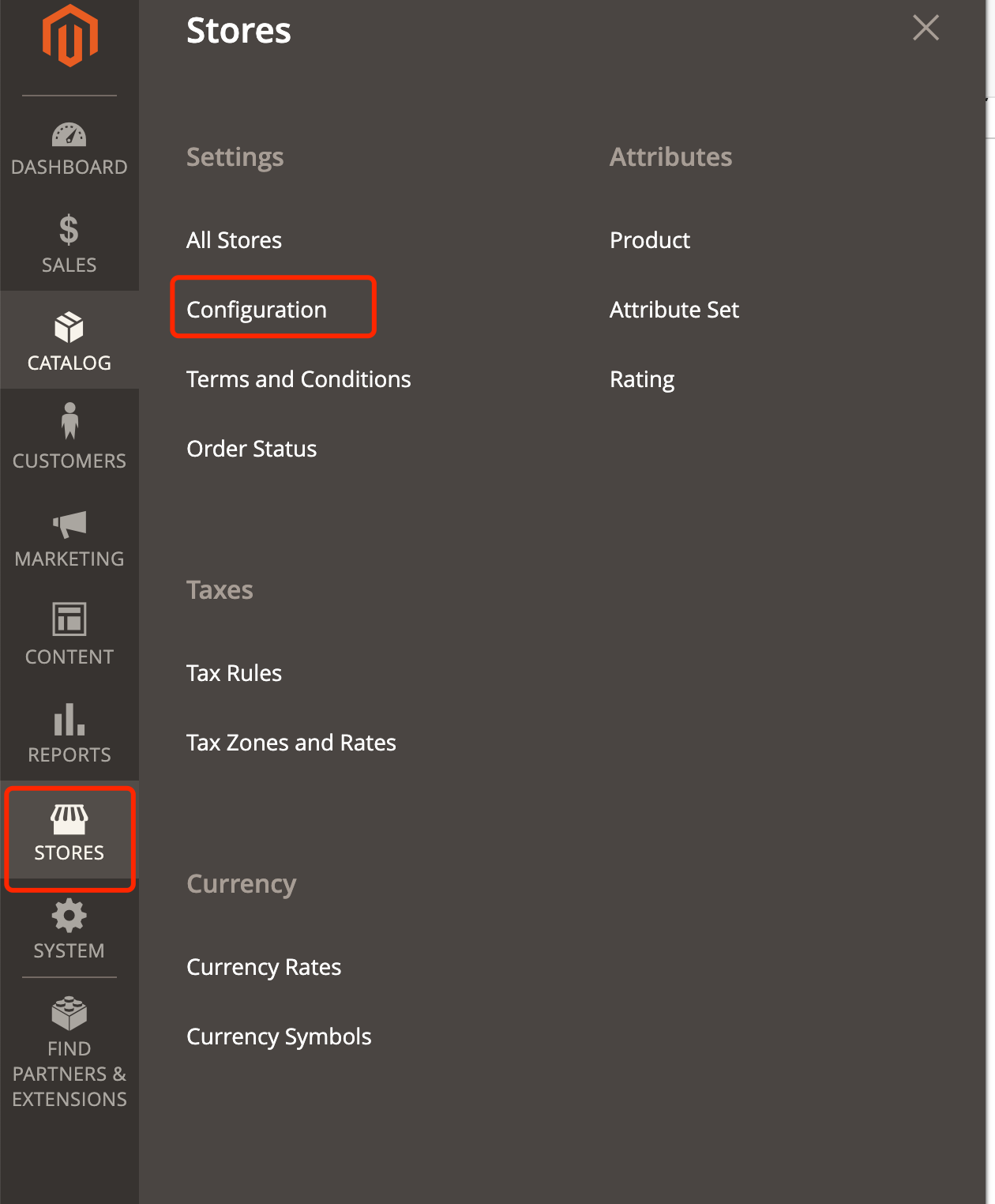
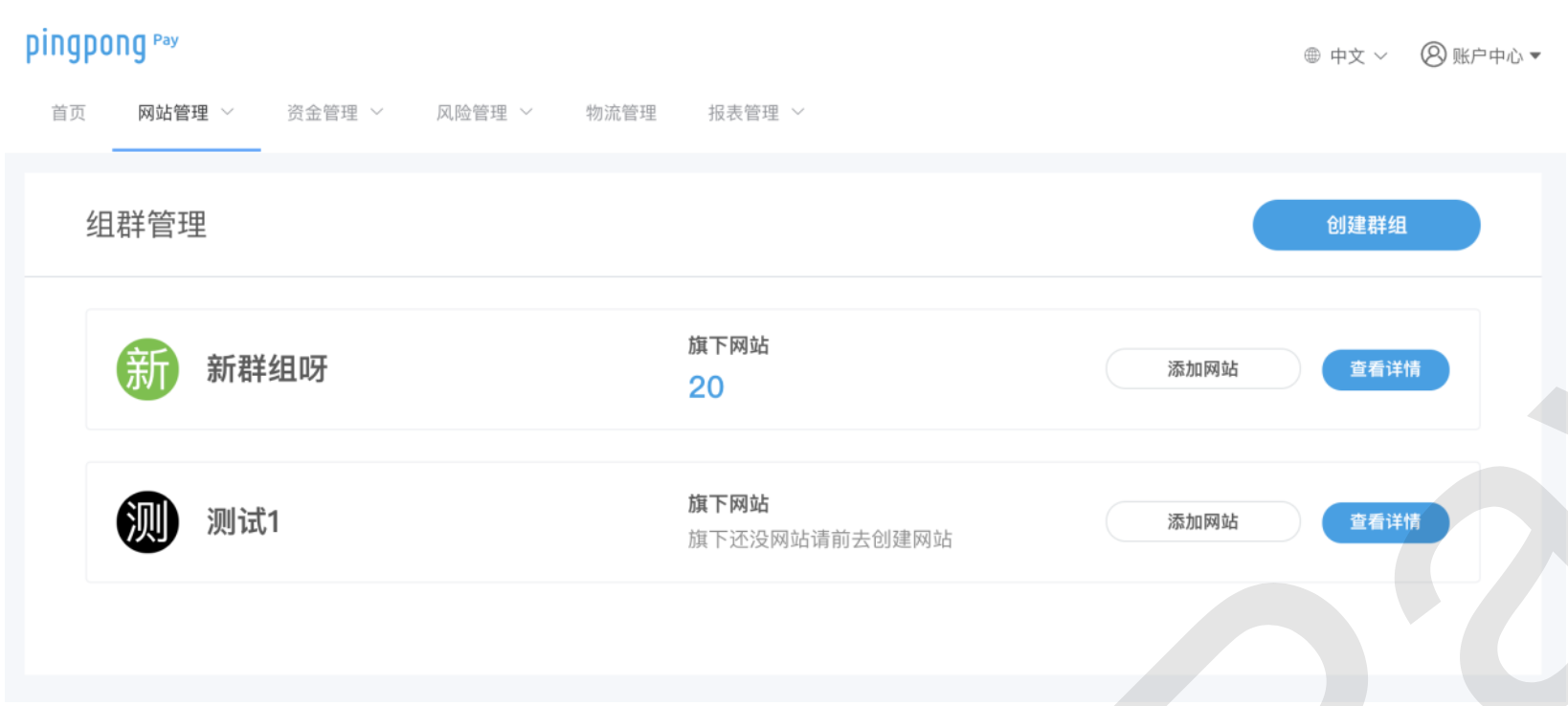
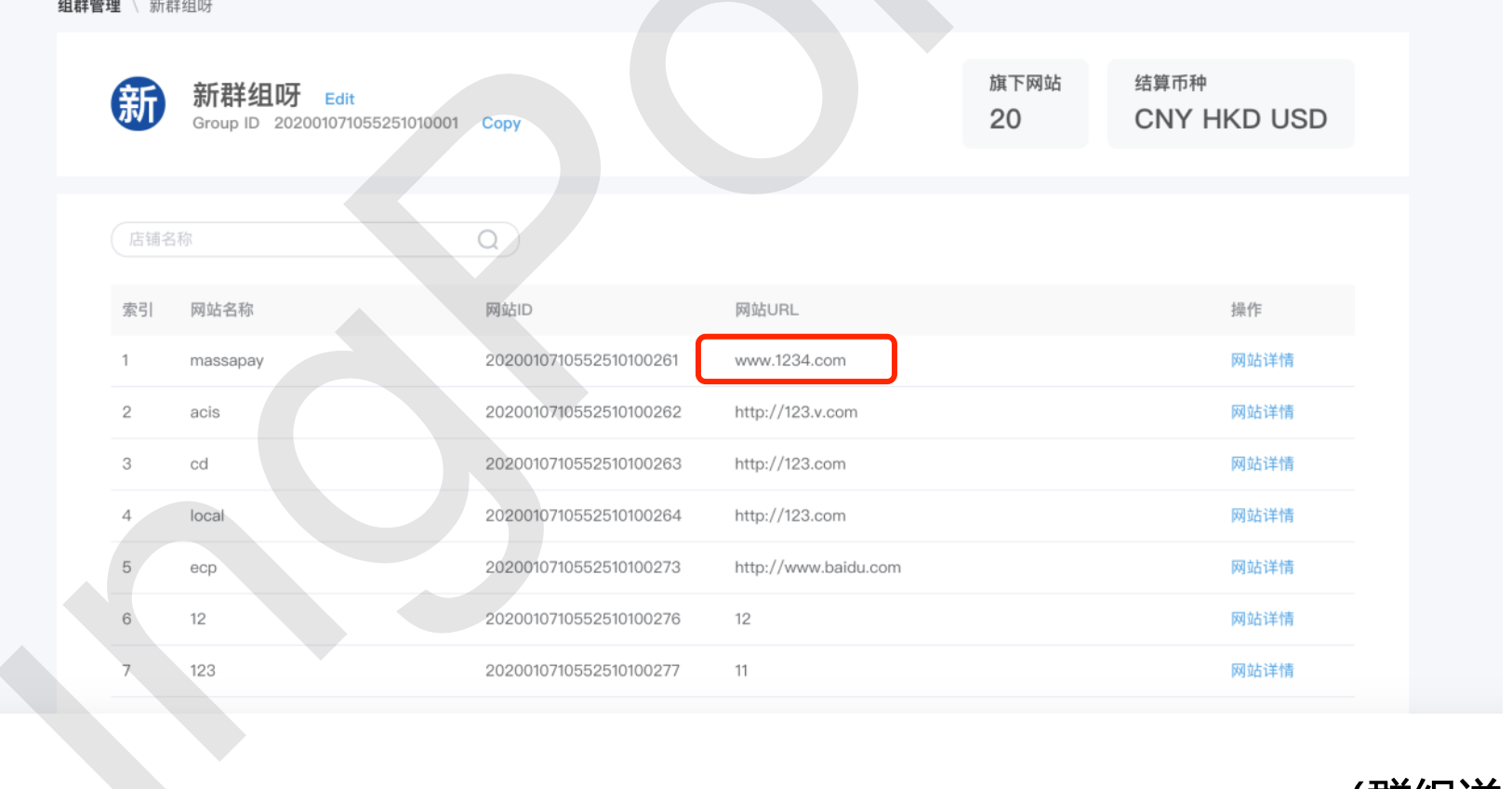
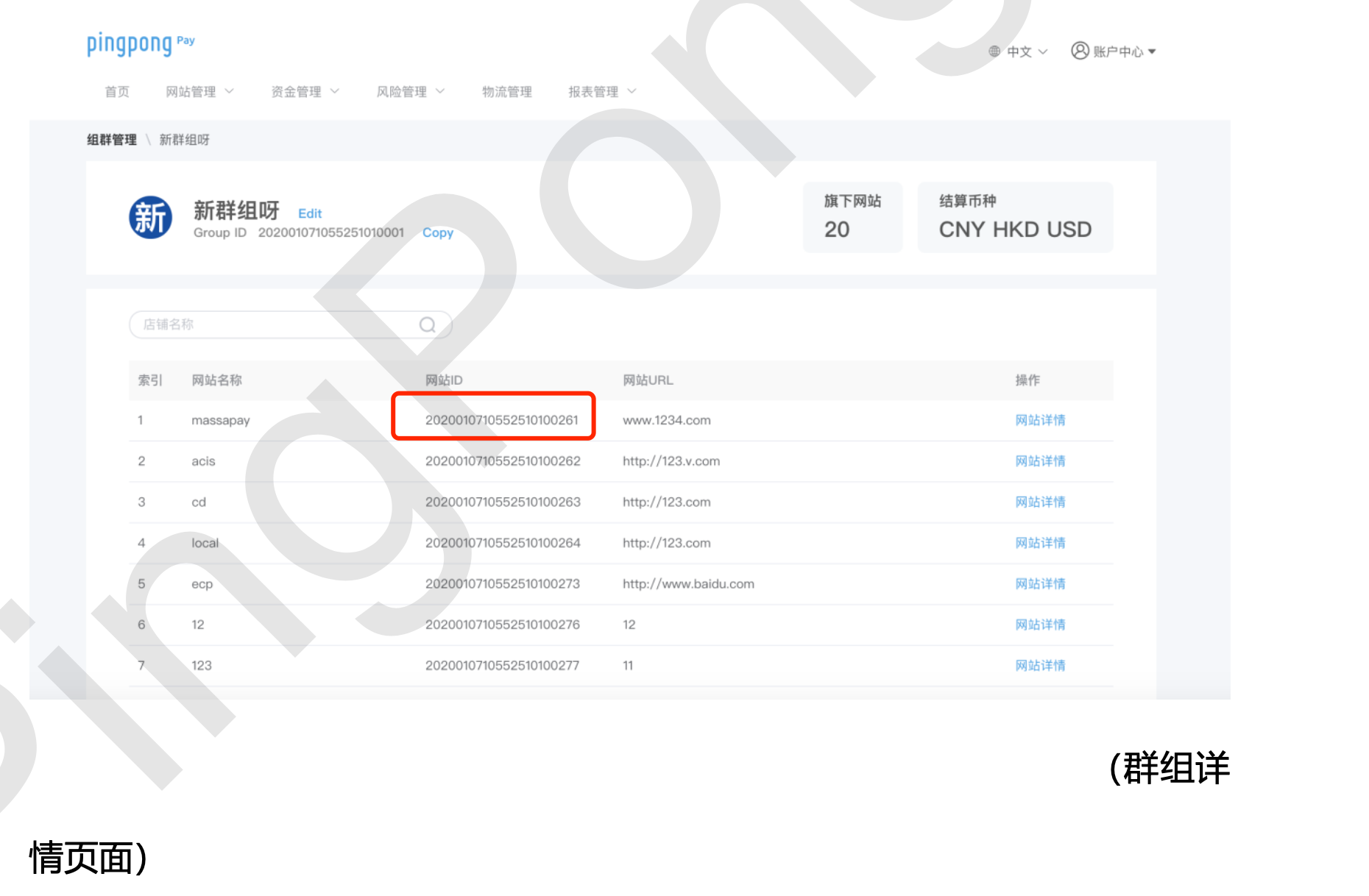
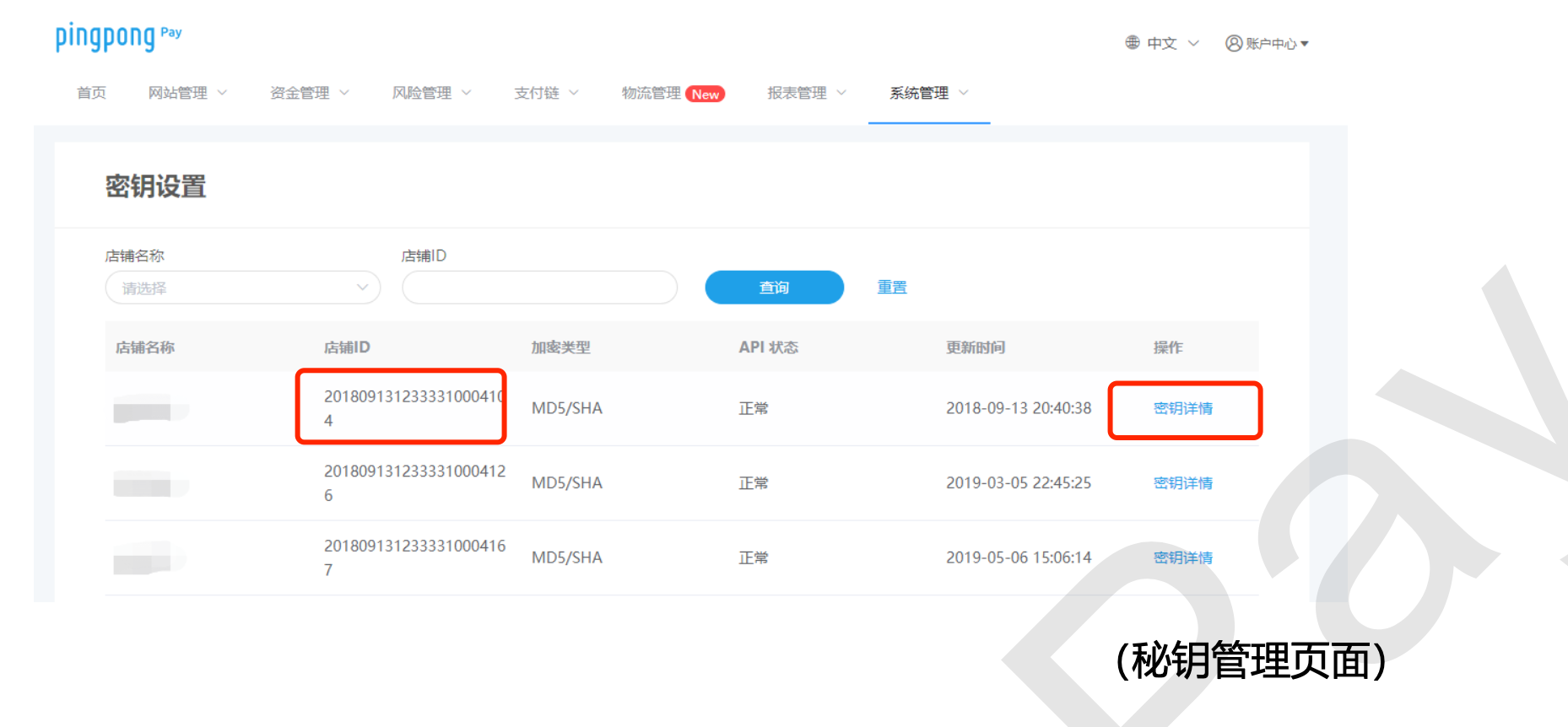
(QR_URL or PAYMENT_REDIRECT_URL) MerchantPlatform-->>-UserTerminal: 5. Return payment info Note over UserTerminal,APM: 💳 Payment Phase alt 📱 QR Code Payment UserTerminal-->>Cardholder: 6. Display QR code Cardholder->>APM: 7. Scan QR code to pay else 🔗 Redirect Payment UserTerminal->>APM: 8. Redirect to APM payment page Cardholder->>APM: 9. Complete payment end APM->>PingPong: 10. Return payment result deactivate UserTerminal Note over MerchantPlatform,PingPong: 📡 Asynchronous Notification Phase PingPong--)MerchantPlatform: 5️⃣ 📡 Asynchronous notification MerchantPlatform-->>PingPong: 11. 🟢 Response 200 ``` ::: steps 1. Client Order Creation Customer initiates order creation on merchant platform 2. Merchant Server Requests Order Creation and Payment Merchant backend calls [Order Creation and Payment](/en/notes/checkout/api/uniformly/) interface 3. PingPongCheckout Responds with Results If request is successful, PingPongCheckout will return one of the following two possible results: * QR Code: Follow prompts to scan code for payment * url: Redirect to APM payment channel provider 4. Complete Payment on Designated APM Channel Page User completes payment operation according to guidance on payment page 5. PingPongCheckout Server Pushes Payment Results After payment completion, system sends asynchronous notification, see details in [Asynchronous Notification](/en/notes/notify/) 6. Merchant Receives Notification and Returns Confirmation After merchant receives notification, should return `code 200` as confirmation ::: ## API List ## Server-side Integration Request Order Creation and Payment to create order and obtain APM payment key information `action` object. Local Payment - `action.type` values: | Parameter | Description | |:---------------------|:-------------------------------| | `QR_URL` | QR code image url, can be displayed directly | | `PAYMENT_REDIRECT_URL` | Redirect link | ## Client-side Integration After server-side order creation succeeds, perform different operations based on response parameters from Order Creation and Payment | Parameter | Description | |:---------------------|:-------------------------------| | `paymentQrCode` | Display QR code to complete payment | | `paymentRedirectUrl` | Direct redirect | --- --- url: >- https://acquirer-api-docs-v4-en.pingpongx.com/en/notes/integrate/non-hosted-card/index.md description: >- Non-hosted international credit card payment solution is suitable for merchants with PCI-DSS certification who can develop and process cardholder information independently. This solution collects risk control parameters through SafePayGuardJs and SecureShieldJs plugins, and submits them to PingPongCheckout server for processing after the user clicks payment. Supports credit card payments worldwide and provides 3D security --- # Non-hosted International Credit Card Payment ## Prerequisites 1. Merchant has PCI qualification and has been verified by PingPongCheckout. (For PCI-DSS, please send email attachments to `acquire-risk@pingpongx.com` and CC `gig-tech-acq@pingpongx.com`) 2. Merchant has the capability to develop their own checkout page. :::danger Note This solution requires the merchant's server to save and process the cardholder's credit card information, so it is mandatory that the merchant has PCI-DSS certification. ::: ## Interaction Flow ```mermaid %%{init: { 'theme': 'base', 'themeVariables': { 'primaryColor': '#E3F2FD', 'primaryTextColor': '#0D47A1', 'primaryBorderColor': '#1976D2', 'lineColor': '#1565C0', 'secondaryColor': '#BBDEFB', 'tertiaryColor': '#90CAF9', 'background': '#F8FBFF', 'mainBkg': '#E3F2FD', 'secondBkg': '#BBDEFB', 'tertiaryBkg': '#90CAF9', 'actorBkg': '#2196F3', 'actorBorder': '#1976D2', 'actorTextColor': '#FFFFFF', 'actorLineColor': '#1565C0', 'signalColor': '#0D47A1', 'signalTextColor': '#0D47A1', 'noteBkgColor': '#E1F5FE', 'noteTextColor': '#01579B', 'noteBorderColor': '#0288D1', 'loopTextColor': '#0D47A1', 'activationBkgColor': '#B3E5FC', 'activationBorderColor': '#0277BD' } }}%% sequenceDiagram participant Cardholder as 💳 Cardholder participant UserTerminal as 📱 User Terminal participant MerchantPlatform as 🏪 Merchant Platform participant PingPong as 🔄 PingPongCheckout participant ISSUER as 🏦 ISSUER Note over Cardholder,ISSUER: 📋 Order Creation Phase Cardholder->>UserTerminal: 1. Initiate checkout activate UserTerminal UserTerminal->>+MerchantPlatform: 2. Submit order MerchantPlatform->>+PingPong: 3. Request order interface PingPong-->>-MerchantPlatform: 4. Return checkout URL (contains JS URL) MerchantPlatform-->>-UserTerminal: 5. Return checkout info Note over UserTerminal,PingPong: 🎨 JS-SDK Rendering Phase UserTerminal->>+PingPong: 6. Render via JS-SDK PingPong-->>-UserTerminal: 7. Render checkout page UserTerminal-->>Cardholder: 8. Display checkout page Note over Cardholder,ISSUER: 💳 Payment Phase Cardholder->>UserTerminal: 9. Select payment method and fill card info UserTerminal->>+PingPong: 10. Confirm payment PingPong->>+ISSUER: 11. Request payment ISSUER-->>-PingPong: 12. Return result alt 🔒 3D Process PingPong-->>UserTerminal: 13. Redirect to 3D verification page UserTerminal->>Cardholder: 14. 8.1.1 Fill verification code Cardholder->>UserTerminal: 15. Submit verification UserTerminal->>+ISSUER: 16. 8.1.2 issuer verifies data ISSUER-->>-UserTerminal: 17. 8.1.3 Return verification result page UserTerminal->>UserTerminal: 18. 8.1.4 Fill required info to complete payment
Redirect to payResultUrl Note over MerchantPlatform: Process business logic based
on verification result else ✅ Non-3D Process PingPong-->>UserTerminal: 19. Return payment result page UserTerminal->>UserTerminal: 20. 8.2.1 Fill required info to complete payment
Redirect to payResultUrl Note over MerchantPlatform: Process business logic based
on verification result end deactivate UserTerminal Note over MerchantPlatform,PingPong: 📡 Asynchronous Notification Phase PingPong--)MerchantPlatform: 9.1 📡 Asynchronous notification MerchantPlatform-->>PingPong: 21. 🟢 Response 200 ``` ::: steps 1. After entering the merchant's checkout page, initialize SafePayGuardJs and SecureShieldJs plugins Initialize risk control plugins to prepare for subsequent operations 2. Listen to the card number input box, cardholder fills in the card number When the card number changes or the input box loses focus, trigger the triggerThreeDsInit event in SecureShieldJs. The risk control plugin interacts with PingPongCheckout server and returns partial jsGeneratedData and browserInfo parameters 3. User clicks payment Call the getGeneratedData method in SafePayGuardJs and SecureShieldJs to obtain risk control parameters 4. Client submits order information [Create order and pay](/en/notes/checkout/api/uniformly/), submit jsGeneratedData, browserInfo and other parameters collected from SafePayGuardJs and SecureShieldJs plugins together 5. PingPongCheckout server requests issuing bank interface Send payment information to the issuing bank for processing 6. Issuing bank returns payment result to PingPongCheckout Return result after processing payment request 7. PingPongCheckout server synchronizes request result Receive and process the result returned by the issuing bank 8. Merchant client decides subsequent process based on returned result Decide whether to enter 3D process based on bizContent.threeDContinue: * No 3D verification required: Merchant can execute custom logic and display payment result * Need to redirect to 3D verification: Redirect to 3D challenge page according to bizContent.threeDUnionParams.threeDRedirectUrl, after completion of verification PingPongCheckout will redirect to payResultUrl ::: ## API List ## Client Integration ### Integrate Risk Control Plugins End-to-end integration requires risk control JS to collect necessary information for transaction decision-making. After the cardholder completes card number input, the risk control plugin will call PingPongCheckoutServer API to send card number data for validation, See detailed 3DS Integration Guide ## Server Integration ### Create Order and Pay Request Create Order and Pay ### Process Response After requesting the transaction interface, PingPongCheckout responds based on request parameters. The merchant should handle the transaction according to the response. The processing result may be intermediate state, requiring asynchronous notification integration to handle transaction status. Please go to Asynchronous Notification --- --- url: >- https://acquirer-api-docs-v4-en.pingpongx.com/en/notes/integrate/non-hosted/index.md description: >- Non-hosted payment methods introduce integration approaches for international credit cards and local payments. Suitable for merchants with PCI qualifications who can develop their own checkout systems, supporting credit card payments globally and local payments in specific regions. Key features include risk control plugin integration, 3D verification processes, and transaction processing through the order and pay API. --- # Non-hosted > International credit cards are hereinafter referred to as Credit Card > > Local payments are hereinafter referred to as APM ## International Credit Card Payment ### Prerequisites 1. Merchant has PCI qualification and has been verified by PingPongCheckout. (For PCI-DSS, please send email attachments to `acquire-risk@pingpongx.com` and CC `gig-tech-acq@pingpongx.com`) 2. Merchant has the capability to develop their own checkout system. :::danger Note This solution requires the merchant server to store and process cardholder credit card information, therefore it is mandatory that the merchant has PCI-DSS certification. ::: ### Interaction Flow ```mermaid %%{init: { 'theme': 'base', 'themeVariables': { 'primaryColor': '#E3F2FD', 'primaryTextColor': '#0D47A1', 'primaryBorderColor': '#1976D2', 'lineColor': '#1565C0', 'secondaryColor': '#BBDEFB', 'tertiaryColor': '#90CAF9', 'background': '#F8FBFF', 'mainBkg': '#E3F2FD', 'secondBkg': '#BBDEFB', 'tertiaryBkg': '#90CAF9', 'actorBkg': '#2196F3', 'actorBorder': '#1976D2', 'actorTextColor': '#FFFFFF', 'actorLineColor': '#1565C0', 'signalColor': '#0D47A1', 'signalTextColor': '#0D47A1', 'c0': '#E8F4FD', 'c1': '#D1E7DD', 'c2': '#B3D9FF', 'c3': '#81C784', 'noteBkgColor': '#E1F5FE', 'noteTextColor': '#01579B', 'noteBorderColor': '#0288D1', 'loopTextColor': '#0D47A1', 'activationBkgColor': '#B3E5FC', 'activationBorderColor': '#0277BD' } }}%% sequenceDiagram participant Client as 💻 Client participant Merchant as 🏪 Merchant Server participant Risk as 🔒 Risk Control Plugin participant PP as 🔄 PingPong Server participant Bank as 🏦 Issuing Bank Note over Client, Bank: 💳 Card Payment Interaction Flow Note over Client, Risk: 🛡️ Risk Control Initialization Phase:• PCI-DSS certification requirement• Cardholder card information processing Client->>Risk: 1. Enter checkout page, initialize risk control plugin Risk-->>Client: 2. Risk control plugin initialization completed Client->>Client: 3. Cardholder fills card number information Note right of Client: Listen to card number input
Card number change or lose focus Client->>Risk: 4. Trigger complexInit event Risk->>PP: 5. Risk control plugin interacts with server Note right of PP: Risk control data collection
Card number verification processing PP-->>Risk: 6. Return jsGeneratedData parameter Risk-->>Client: 7. Risk control data collection completed Client->>Merchant: 8. Submit order and jsGeneratedData Note right of Merchant: Order information
+ Risk control data Merchant->>PP: 9. Order and pay request (uniformly) Note right of PP: Include jsGeneratedData
and order parameters PP->>PP: 10. Process payment request and risk control verification Note right of PP: • Risk assessment• 3DS decision• Payment routing alt 🟢 [No 3D verification required] PP-->>Merchant: 11. 🎉 Payment success response Merchant-->>Client: 12. Display payment result Note over Client: Merchant custom logic
Payment completion page PP->>Merchant: 13. Asynchronous notification of payment result Note right of Merchant: Order status update
Business logic processing else 🔐 [3D verification required] PP-->>Merchant: 14. 🔒 3D verification required response Merchant-->>Client: 15. Trigger 3D verification process Note over Client, Bank: 🔐 3D Secure Verification Process Client->>Risk: 16. Trigger risk control plugin 3D verification event Risk->>Client: 17. Redirect to 3D challenge page Client->>Bank: 18. Cardholder fills 3D verification information Bank->>Bank: 19. Verify 3D information Note right of Bank: • OTP verification• Biometric• Other challenges Bank->>PP: 20. 3D verification result PP->>PP: 21. Process 3D verification result PP-->>Bank: 22. Confirm receipt PP->>Client: 23. Redirect to payment result page PP->>Merchant: 24. Asynchronous notification of final payment result Note right of Merchant: Update order status
based on 3D result end Note over Client, Bank: 🎯 Card payment process completed ``` ****The following provides a brief explanation of the main steps**** :::: steps 1. Step 1 Initialize the risk control plugin after entering the merchant's checkout page 2. Step 2 Listen to the card number input box, cardholder fills the card number, when the card number changes or the card number input box loses focus, trigger the initialization event - complexInit 3. Step 3 In the complexInit event, the risk control plugin interacts with the PingPongCheckout server, returning the jsGeneratedData parameter 4. Step 4 Client submits the order and jsGeneratedData parameter to the merchant server 5. Step 5 Merchant server requests [Order and Pay](/en/notes/checkout/api/uniformly/), submitting jsGeneratedData and other parameters together 6. Step 6 PingPongCheckout server responds to the request result, deciding whether to enter the 3D process based on the return result 7. Step 7 No 3D verification required, merchant can execute custom logic, display payment result 8. Step 8 3D verification required 1. Trigger the 3D verification event of the risk control plugin, the page will be redirected to the 3D challenge page, the cardholder needs to fill in 3D verification information 2. Issuing bank verifies 3D information 3. Issuing bank responds verification result to PingPongCheckout server 4. Page is redirected to the payment result page filled in by the merchant 9. Step 9 PingPongCheckout server pushes payment result, for how to obtain asynchronous notification messages, see [Asynchronous Notification](/en/notes/notify/) :::: ### API List ### Client Integration #### Integrate Risk Control Plugin End-to-end integration requires risk control JS to collect necessary information for transaction decision-making. When the cardholder completes entering the card number, the risk control plugin will call the PingPongCheckoutServer API to send card number data for verification, See 3DS Integration Guide for details ### Server Integration #### Create Order and Pay Request Order and Pay #### Process Response After requesting the transaction interface, PingPongCheckout responds based on request parameters, the merchant should handle the transaction according to the response. The processing result may be an intermediate state, requiring asynchronous notification integration to handle transaction status. Please go to Asynchronous Notification ## Local Payment ### Interaction Flow ```mermaid %%{init: { 'theme': 'base', 'themeVariables': { 'primaryColor': '#E3F2FD', 'primaryTextColor': '#0D47A1', 'primaryBorderColor': '#1976D2', 'lineColor': '#1565C0', 'secondaryColor': '#BBDEFB', 'tertiaryColor': '#90CAF9', 'background': '#F8FBFF', 'mainBkg': '#E3F2FD', 'secondBkg': '#BBDEFB', 'tertiaryBkg': '#90CAF9', 'actorBkg': '#2196F3', 'actorBorder': '#1976D2', 'actorTextColor': '#FFFFFF', 'actorLineColor': '#1565C0', 'signalColor': '#0D47A1', 'signalTextColor': '#0D47A1', 'c0': '#E8F4FD', 'c1': '#D1E7DD', 'c2': '#B3D9FF', 'c3': '#81C784', 'noteBkgColor': '#E1F5FE', 'noteTextColor': '#01579B', 'noteBorderColor': '#0288D1', 'loopTextColor': '#0D47A1', 'activationBkgColor': '#B3E5FC', 'activationBorderColor': '#0277BD' } }}%% sequenceDiagram participant Client as 💻 Client participant Merchant as 🏪 Merchant Server participant PP as 🔄 PingPong Server participant APM as 💳 Local Payment Provider Note over Client, APM: 🌍 Local Payment Interaction Flow Note over Client, Merchant: 📱 Order Creation Phase:• User selects local payment method• Merchant collects order information Client->>Merchant: 1. Client places order Note right of Merchant: User selects:• Payment method (APM)• Order amount• Delivery information Merchant->>PP: 2. Order and pay request (uniformly) Note right of PP: Request includes:• paymentMethod=APM type• Order details• Callback URL PP->>PP: 3. Process payment request Note right of PP: • Verify merchant information• Select payment routing• Generate payment session alt 🔗 [Redirect type APM] PP-->>Merchant: 4. 📋 Return redirect URL and payment parameters Note right of PP: redirectUrl:
Payment page user needs to jump to Merchant-->>Client: 5. Redirect to payment page Note over Client, APM: 🔄 External payment processing flow Client->>APM: 6. Redirect to local payment page Note right of APM: For example:• Alipay• WeChat Pay• PayPal, etc. APM->>APM: 7. User completes payment operation Note right of APM: • Login verification• Payment confirmation• Security verification APM->>PP: 8. Payment result callback PP->>PP: 9. Process payment result PP-->>APM: 10. Confirm receipt of result APM->>Client: 11. Redirect back to merchant page else 📊 [API type APM] PP->>APM: 12. Directly call APM interface Note right of APM: Server to server
API call APM->>APM: 13. Process payment request APM-->>PP: 14. Return payment result PP-->>Merchant: 15. 📋 Return payment result Merchant-->>Client: 16. Display payment status end Note over Merchant, PP: 📡 Asynchronous notification phase PP->>Merchant: 17. Asynchronous notification of final payment result Note right of Merchant: Webhook notification:• Payment status• Transaction ID• Amount confirmation Merchant->>Merchant: 18. Process payment result Note right of Merchant: • Order status update• Shipping processing• User notification Merchant-->>PP: 19. Confirm receipt of notification opt 🔍 [Status query - Optional] Note over Merchant, PP: 🔎 Actively query payment status Merchant->>PP: 20. Query payment status API PP-->>Merchant: 21. Return latest payment status end Note over Client, APM: 🎉 Local payment process completed ``` ****The following provides a brief explanation of the main steps**** :::: steps 1. Step 1 Client places order 2. Step 2 Merchant server requests [Order and Pay](/en/notes/checkout/api/uniformly/) 3. Step 3 If the request is successful, PingPongCheckout's response result has 2 possibilities: * QR code: Follow the prompt, scan to pay * url: Jump to APM payment channel provider 4. Step 4 Complete payment on the page specified by the APM channel 5. Step 5 PingPongCheckout server pushes payment result, for how to obtain asynchronous notification messages, see [Asynchronous Notification](/en/notes/notify/) 6. Step 6 After the merchant receives the notification, should return `code 200` :::: ### API List ### Server Integration #### Create Order and Pay Request Order and Pay ### Client Integration After successful server order placement, perform different operations based on the Order and Pay response parameters | Parameter | Description | |:-------------------|:----------| | paymentQrCode | Display QR code to complete payment | | paymentRedirectUrl | Direct redirect | --- --- url: >- https://acquirer-api-docs-v4-en.pingpongx.com/en/notes/integrate/opencart/index.md description: >- Introduction to installing and configuring the PPPay plugin in OpenCart 3.8, including environment requirements, installation steps, and production environment integration process. Suitable for merchants who need to integrate payment functions, supports PHP 7.3 and above, pay special attention to order number uniqueness and monotonic increment rules to avoid status issues. --- # OpenCart-PPPay Plugin Installation Guide ## Prerequisites > * opencart version 3.8 > * php version >=7.3 > * php Extensions:curl > * chmod 777 /opencart\_root/storage/logs *** *** The following settings are not mandatory, if a 504 error occurs, check the following options * \[ ] php ini execution timeout * \[ ] nginx or apache set execution timeout *** ::: danger 1. Order numbers under the same accId cannot be duplicated and must be monotonically increasing, otherwise it will cause order status problems; 2. Orders from different databases cannot share the same accId; 3. If there have been transactions under accId, before installing the plugin, the id starting value should be set to a value greater than the current maximum order id; 4. After resetting the database, store, or migrating accId to another store, you should check the maximum order number under accId. ::: ### Plugin Download opencart-ppay.ocmod.zip *** ## Installation Process ### Login to Website Backend Select `Extension Management->Plugin Installation` Click `Upload` Plugin. ![image.png](/opencart/1629292078166-eb3edab4-8341-4667-8917-66c8477b671d-9476173.png) ### Install Plugin ![image.png](/opencart/681700126850_.pic.jpg) ### Configure Plugin ![image.png](/opencart/1629292956885-29af1e9c-f5b8-4aa2-8560-970951bb1ebe.png) ### Enable Plugin ![image.png](/opencart/1629292978126-c636fdf9-4ba1-4b71-bfc3-506d2da128f5.png) ## Environment Parameters ### Sandbox Environment Store Parameters ```text title="Sandbox Environment Store Parameters" line-numbers # [!code highlight] PingPong Sandbox Environment Store Parameters clientId: 2018092714313010016 accId: 2018092714313010016291 salt: F78BC96A55548B2319EE68E0 ``` ### Sandbox Environment Test Card Numbers ```text title="Sandbox Environment Test Card Numbers" line-numbers # [!code highlight] Standard Test Card Number Card Number: 4200000000000000 Expiry Date: 12/22 cvv: 123 cvv must be 3-digit pure numbers # [!code highlight] 3DS Transaction Test Card Number 3DS Transaction Card: 4711100000000000 ``` ### Environment Addresses ```text title="PingPong Payment Environment Addresses" line-numbers # [!code highlight] Sandbox Environment Address Sandbox Environment https://sandbox-acquirer-payment.pingpongx.com # [!code highlight] Production Environment Address Production Environment https://acquirer-payment.pingpongx.com ``` ## Integration Process ### Sandbox Environment Integration 1. Install the plugin according to the file instructions. 2. After the plugin installation is completed, self-testing of payment is required, and the following items need to be completed: * \[ ] Screenshot of card number input page * \[ ] Screenshot of final redirect page after payment completion * \[ ] Send screenshots to the integration group and notify technical support If there are any questions during the installation process, you can seek technical support in the integration group. *** Notes: > In the sandbox environment, no deduction will be made from the cardholder, shipping after payment will cause losses, and not shipping may result in complaints from cardholders. Therefore, during integration, operations need to be performed carefully, and after successful integration testing, the payment channel should be immediately closed and wait for the production environment to go online before opening. *** ### Production Environment Integration 1. After the plugin completes the first round of sandbox environment integration with technical support, it will enter the website information and account review stage. After passing the review, production environment parameters will be issued. 2. After obtaining the production parameters, complete the following items * \[ ] Replace sandbox environment parameters with production parameters. * \[ ] Self-test payment and complete screenshots * \[ ] Prepare a $1 product link. 3. Send screenshots and product link, and notify technical support. The customer/technical support will initiate a real transaction test on this product link to verify the integration results and website payment availability. 4. After completing the real transaction test, the merchant needs to initiate a refund to verify the refund process. 5. After completing the above process, website integration ends, the payment channel officially goes live, and payment becomes available. ## Production Environment Configuration ### Review Process Get notification of approval from the integration group or business/customer. Login to [Merchant Backend](https://pay.pingpongx.com/aq/websiteList) ```text:line-numbers title="urls/merchant-backend.txt" https://pay.pingpongx.com/aq/websiteList ``` ### Go to Website List As shown in the figure, go to Group Management->View Details->Website List ### Group Management > * ⚫ Select 【Website Management】-【Group Management】from the menu bar to enter the group management page > * ⚫ This function allows the current merchant to click "Create Group" to create a new group; the system will provide a default group by default > * ⚫ Websites are hung under groups. > * ⚫ Click "View Details" to enter the group details page, where you can modify the group name, view and copy the ID number, and view websites under the group. ![image.png](/opencart/1629468866673-c4edef47-9708-4141-959c-feab1b3f6c26-9476076.png) ### Select Website Select the corresponding website from the list based on the domain name of the current integration website ![image.png](/opencart/1629468928427-be88d189-e850-4479-a279-f853446fc371-20210821001452517-9476096.png) ### Get accId for the corresponding domain website ![image.png](/opencart/1629468994781-7e5ba639-38ca-4593-a6cb-a3d213d71bb0-20210821001511062-9476120.png) ### Get Secret Key > Select 【System Management】-【Secret Key Management】from the menu bar, which will default to the secret key management page, where you can view the website secret key. After entering secret key management, you can view the secret keys corresponding to all websites, click "Secret Key Details" to view specific secret key fields. > Secret keys with status "Normal" can be used. When the status is "Abnormal", they cannot be used and you can contact relevant business personnel for handling. ![image.png](/opencart/1629469253929-79e2ba85-c8c9-460f-bb79-e6b9301ae557-20210821001534679.png) --- --- url: >- https://acquirer-api-docs-v4-en.pingpongx.com/en/notes/integrate/operation/index.md description: >- This document describes how to configure payment link information in the PingPongCheckOut backend, including steps such as login, maintaining brand information, adding payment link details, etc. It is suitable for merchants who need to customize payment email templates and control payment link validity periods. Pay special attention to the uniqueness and length limit (64 characters) of business order numbers. --- # Operation Manual ### 1. Login to Merchant Backend Log in to your account and password to access the PingPongCheckOut backend. Please click here to log in. ### 2. Maintain Payment Link Brand Information The payment link brand information function configures the display of email Logo, website and other information in the payment email received by users, and also includes the configuration of payment link validity period. (1) Function menu location (2) Function display Define email template ### 3. Add Payment Link Information The payment link function is used to maintain payment information, including recipient's email address, phone number, purchased product information, brand information. Through this function, you can maintain the specific payment information to be sent to the recipient. (1) Function menu location (2) Add payment link interface display :::note Note The business order number in the payment link product information is generally used as the website order number for merchant-side transactions. Please pay attention to the uniqueness and total character length limit (64 characters). ::: ### 4. User receives payment link email and makes payment Email content reference: Order confirmation page: Payment page: Cashier page: Payment completion page: ### 5. Merchant backend order page display --- --- url: >- https://acquirer-api-docs-v4-en.pingpongx.com/en/notes/integrate/overview/index.md description: >- Introduction to selecting and configuring integration methods for online payment products. Covers multiple solutions from pre-built integrations to custom checkout experiences, suitable for merchants with different technical levels and requirements. Recommended integration methods include redirect checkout, embedded SDK, and S2S, which are respectively suitable for low technical investment, light customization, and fully custom scenarios. Additionally, provides no-code integration options such as Payment Link, as well as compatibility support with various platforms and plugins. --- # Overview ## Integration Overview Before starting to use online payment products, you can review the online payment API documentation to get a preliminary understanding of our integration process. After onboarding is completed, you can begin the integration. You can integrate our API interfaces in multiple ways. These range from using pre-built integrations to building your own checkout interface to completely control your checkout experience. We recommend that you make your choice based on your needs and capabilities. ```mermaid %%{init: { 'theme': 'base', 'themeVariables': { 'primaryColor': '#2196F3', 'primaryTextColor': '#FFFFFF', 'primaryBorderColor': '#1976D2', 'lineColor': '#1565C0', 'secondaryColor': '#E3F2FD', 'tertiaryColor': '#BBDEFB', 'background': '#F8FBFF', 'mainBkg': '#E3F2FD', 'nodeBorder': '#1976D2', 'clusterBkg': '#F5F5F5', 'clusterBorder': '#1976D2', 'titleColor': '#0D47A1' } }}%% flowchart TB subgraph Checkout["🔄 Checkout"] direction TB Hosted["📦 Hosted"] NonHosted["🔧 Non-Hosted"] Platform["🏢 Platform"] Plugin["🔌 Plugin"] end subgraph HostedOptions["Hosted Options"] EmbeddedSDK["💻 Embedded SDK"] NativeSDK["📱 Native SDK"] RedirectPage["🔗 Redirect Page"] end Checkout --> Hosted Checkout --> NonHosted Checkout --> Platform Checkout --> Plugin Hosted --> EmbeddedSDK Hosted --> NativeSDK Hosted --> RedirectPage style Checkout fill:#2196F3,stroke:#1976D2,color:#FFFFFF style Hosted fill:#E3F2FD,stroke:#1976D2,color:#0D47A1 style NonHosted fill:#E3F2FD,stroke:#1976D2,color:#0D47A1 style Platform fill:#E3F2FD,stroke:#1976D2,color:#0D47A1 style Plugin fill:#E3F2FD,stroke:#1976D2,color:#0D47A1 style EmbeddedSDK fill:#BBDEFB,stroke:#1976D2,color:#0D47A1 style NativeSDK fill:#BBDEFB,stroke:#1976D2,color:#0D47A1 style RedirectPage fill:#BBDEFB,stroke:#1976D2,color:#0D47A1 ``` ## Recommended Integrations ### Checkout - Redirect Checkout If you want to spend minimal technical effort running checkout pages on your website, try redirecting customers to the PingPongCheckout hosted page so you can focus on what matters to you. We handle the entire payment process. ### Checkout - Embedded SDK If you want to display a unified list of payment methods to customers during checkout while still wanting to customize certain page appearances, try integrating the js sdk without extensive frontend development work. ### Checkout - Native SDK If you are a mobile app developer looking to integrate a bottom-sheet payment experience in your iOS/Android application, try Native SDK. Complete integration in approximately 20 lines of code, allowing users to complete payments without leaving the current page. See details in Native SDK ### S2S If you want complete control over the appearance of checkout pages and want your customers to pay through your user interface, try handling transactions by building directly with our API on the backend. Please note that this option requires more time and development resources to implement and maintain. ## No-Code Integration ### Payment Link Embed or share a link to the PingPongCheckout payment page to accept payments without a website. See details in Payment Link ## Platform or Plugin Integration ### Platforms For more platform support, see SaaS Website Building Platforms ### Plugins For more plugin support, see Plugins --- --- url: >- https://acquirer-api-docs-v4-en.pingpongx.com/en/notes/integrate/payByLink/index.md description: >- Pay by Link is a quick payment solution provided by PingPong for merchants, suitable for scenarios that do not require website integration. By adding payment information in the PingPongCheckout backend, a link is generated and sent to the user's email. Users click the link to enter the payment page and complete the transaction. It supports global payments with main features including simple operation and fast integration. Contact operations to enable permissions before use. --- # Pay by Link ## Pay by Link Pay by Link is a product provided by PingPong for merchants to perform quick payment collection operations without requiring merchant website integration. After adding Pay by Link information in the PingPongCheckout merchant backend, a payment link will be sent to the user's email. Users can access the payment link to make payments through the PingPongCheckout payment checkout, and after payment completion, merchants can log into the merchant backend to view orders. :::note Note Pay by Link is only available to certain merchants. If you need to enable it, please contact operations to activate the relevant permissions first ::: For specific instructions on how to enable Pay by Link, click to view the Operation Manual. --- --- url: >- https://acquirer-api-docs-v4-en.pingpongx.com/en/notes/integrate/plugin/index.md description: >- The plugin module introduces a series of integration solutions designed for open-source e-commerce platforms, aimed at optimizing the checkout process. These plugins support PingPongCheckout payment functionality, are easy to install and simply configured, suitable for merchants looking to enhance customer payment experiences. --- # Plugins We provide a range of plugins for mainstream open-source E-Commerce solutions to deliver the best checkout experience for your shoppers. Our plugins are easy to integrate and come with out-of-the-box PingPongCheckout payment platform functionality. ## Supported Plugins --- --- url: >- https://acquirer-api-docs-v4-en.pingpongx.com/en/notes/integrate/prestashop/index.md description: >- This document introduces the installation steps for the Prestashop-PPPay plugin, suitable for Prestashop stores version 1.7.6.6 and above. It covers installation prerequisites, specific installation process, and methods for configuring merchant parameters. It also provides integration processes for sandbox and production environments, including test card numbers, screenshot verification, and other key steps to ensure payment functionality is correctly integrated into the store. --- # Prestashop-PPPay Plugin Installation ## Installation Prerequisites > * Prestashop version = 1.7.6.6 > * php version >= 5.6 && <= 7.3 > * MySQL version 5.6, 5.7 > * chmod 777 /webRoot/Prestashop/var/logs The following are non-essential settings, if 504 errors occur, check the following options * \[ ] php ini execution timeout * \[ ] nginx or apache execution timeout settings payResultUrl *** ::: danger Note 1. Order numbers under the same accId cannot be duplicated and must be monotonically increasing, otherwise order status issues will occur; 2. Orders from different databases cannot share the same accId; 3. If transactions have already occurred under an accId, before installing the plugin, the id starting value should be set to greater than the current maximum order id; 4. When resetting the database, store, or migrating accId to another store, check the maximum order number under the accId. ::: ### Plugin Download ps\_pingpongpay.zip *** ## Installation Process 1. Login to website backend `Select Modules -> Module Manager -> Upload Module ` ![image.png](/prestashop/image-10.png) 3. Drag the plugin package into the upload dialog box and wait for unpacking and installation to complete ![image.png](/prestashop/image-11.png) 4. Wait for installation to complete ![image.png](/prestashop/image-12.png) 5. After installation is complete, a configuration button appears. Click Configuration to start configuring merchant parameters 6. Merchant parameter configuration ```text title="Merchant Environment Configuration Parameters" line-numbers # [!code highlight] PingPong payment environment address Sandbox environment https://sandbox-acquirer-payment.pingpongx.com Production environment https://acquirer-payment.pingpongx.com # [!code highlight] Sandbox environment store parameters clientId: 2018092714313010016 accId: 2018092714313010016291 salt: F78BC96A55548B2319EE68E0 # [!code highlight] Sandbox environment test card numbers Card number: 4200000000000000 Expiry: 12/22 cvv: 123 Others can be filled randomly, cvv must be 3-digit pure numbers ``` ![image.png](/prestashop/image-14.png) 7. Click Save to save merchant parameters. Installation is complete and payment process can be tested ## Environment Parameters ### Sandbox Environment Store Parameters ```text title="Sandbox Environment Store Parameters" line-numbers # [!code highlight] PingPong sandbox environment store parameters clientId: 2018092714313010016 accId: 2018092714313010016291 salt: F78BC96A55548B2319EE68E0 ``` ### Sandbox Environment Test Card Numbers ```text title="Sandbox Environment Test Card Numbers" line-numbers # [!code highlight] Standard test card number Card number: 4200000000000000 Expiry: 12/22 cvv: 123 cvv must be 3-digit pure numbers # [!code highlight] 3DS transaction test card number 3DS transaction card: 4711100000000000 ``` ### Environment Address ```text title="PingPong Payment Environment Address" line-numbers # [!code highlight] Sandbox environment address Sandbox environment https://sandbox-acquirer-payment.pingpongx.com # [!code highlight] Production environment address Production environment https://acquirer-payment.pingpongx.com ``` ## Integration Process ### Sandbox Environment Integration 1. Install plugin according to file instructions. 2. After plugin installation is complete, payment self-testing is required, and the following items must be completed: * \[ ] Screenshot the card number input page * \[ ] Screenshot the final redirect page after payment completion * \[ ] Send screenshots to the integration group and notify technical support If any issues arise during the installation process, you can seek technical support in the integration group. *** Notes: > In sandbox environment, no actual deduction will be made from cardholders. Shipping after payment will cause losses, and not shipping may result in complaints from cardholders. Therefore, during integration, operations must be handled with caution. After integration testing is passed, the payment channel should be immediately closed and wait for production environment launch before opening. *** ### Production Environment Integration * After the plugin completes the first round of sandbox environment integration under technical support, it will enter the website information and account review stage. After passing the review, production environment parameters will be issued. * After obtaining production parameters, complete the following items * \[ ] Replace sandbox environment parameters with production parameters. * \[ ] Self-test payment and complete screenshots * \[ ] Prepare a $1 product link. Send screenshots and product link, and notify technical support. The customer/technical support will initiate a real transaction test on this product link to verify the integration results and website payment availability. * After completing the real transaction test, merchants need to initiate a refund to verify the refund process. * After completing the above process, website integration ends, payment channel officially goes live, and payment becomes available. ### Production Environment Configuration ### Review Process Receive notification from the integration group or business/customer that the review has passed.Login to [Merchant Backend](https://pay.pingpongx.com/aq/websiteList) ```text:line-numbers title="urls/merchant-backend.txt" https://pay.pingpongx.com/aq/websiteList ``` ### Go to Website List As shown in the figure, go to Group Management -> View Details -> Website List ### Group Management > * ⚫ Select \[Website Management] - \[Group Management] from the menu to enter the group management page > * ⚫ This function allows the current merchant to click "Create Group" to create a new group; the system will provide a default group by default > * ⚫ Websites are under groups. > * ⚫ Click "View Details" to enter the group details page, where you can modify the group name, view and copy the ID number, and view websites under the group. ![image.png](/prestashop/1629468928427-be88d189-e850-4479-a279-f853446fc371-20210821000959569.png) ### Select Website Select the corresponding website from the list based on the domain name of the current integration website ![image.png](/prestashop/1629468928427-be88d189-e850-4479-a279-f853446fc371-9475791.png) ### Get accId for the corresponding domain website ![image.png](/prestashop/1629468994781-7e5ba639-38ca-4593-a6cb-a3d213d71bb0.png) ### Get Secret Key > Select \[System Management] - \[Secret Key Management] from the menu. By default, it enters the secret key management page, where you can view the website secret key.After entering secret key management, you can view the secret keys corresponding to all websites. Click "Secret Key Details" to view specific secret key fields. > Secret keys with status "Normal" can be used. When the status is "Abnormal", they cannot be used and you can contact relevant business personnel for handling. ![](/prestashop/1629469253929-79e2ba85-c8c9-460f-bb79-e6b9301ae557-9475769.png) --- --- url: 'https://acquirer-api-docs-v4-en.pingpongx.com/en/notes/integrate/sass/index.md' description: >- Introduces how to integrate PingPongCheckout payments on mainstream SaaS website building platforms, suitable for merchants who want to quickly access payment solutions without additional development. With simple configuration, supports platforms like Shopify, Magento, etc., covering major global markets and providing secure and convenient payment experiences. --- # SaaS Website Building Platform PingPongCheckout has established partnerships with mainstream SaaS website building service providers. Your store on the platform requires no development investment - simply follow our guidance and perform some basic settings to integrate PingPongCheckout payments. ## Supported Website Building Platforms --- --- url: >- https://acquirer-api-docs-v4-en.pingpongx.com/en/notes/integrate/sdk-elements/index.md description: >- PingPong Element SDK supports diverse payment scenarios such as order placement and payment, wallet binding. Adopting a new architecture design, it provides unified API interfaces, flexible event models, and extensible payment components. The integration process includes importing SDK scripts, initialization configuration, creating payment elements, event listening and handling, and provides marketing campaign integration functionality. --- # PingPong Element SDK Integration Guide ## SDK Integration Process ```mermaid %%{init: { 'theme': 'base', 'themeVariables': { 'primaryColor': '#E3F2FD', 'primaryTextColor': '#0D47A1', 'primaryBorderColor': '#1976D2', 'lineColor': '#1565C0', 'secondaryColor': '#BBDEFB', 'tertiaryColor': '#90CAF9', 'background': '#F8FBFF', 'mainBkg': '#E3F2FD', 'secondBkg': '#BBDEFB', 'tertiaryBkg': '#90CAF9', 'actorBkg': '#2196F3', 'actorBorder': '#1976D2', 'actorTextColor': '#FFFFFF', 'actorLineColor': '#1565C0', 'signalColor': '#0D47A1', 'signalTextColor': '#0D47A1', 'c0': '#E8F4FD', 'c1': '#D1E7DD', 'c2': '#B3D9FF', 'c3': '#81C784', 'noteBkgColor': '#E1F5FE', 'noteTextColor': '#01579B', 'noteBorderColor': '#0288D1', 'loopTextColor': '#0D47A1', 'activationBkgColor': '#B3E5FC', 'activationBorderColor': '#0277BD' } }}%% sequenceDiagram participant User as 👤 User participant Browser as 🌐 Browser participant Frontend as 💻 Merchant Frontend participant Backend as 🏪 Merchant Backend participant SDK as 📦 Element SDK participant PP as 🔄 PingPong Server Note over User, PP: 🚀 Element SDK Complete Integration Process User->>Browser: 1. Select product Browser->>Frontend: 2. Open payment page Note over Frontend, Backend: 📋 Initialization Phase Frontend->>+Backend: 3. Request initialization sdkAccessToken Backend->>+PP: 4. Request initialization sdkAccessToken PP-->>-Backend: 5. Return initialization sdkAccessToken Backend-->>-Frontend: 6. Return initialization sdkAccessToken Frontend->>+SDK: 7. Initialize SDK with sdkAccessToken Note right of SDK: PingPongSDK.init() SDK->>+PP: 8. Query shop configuration PP-->>-SDK: 9. Return shop configuration SDK-->>-Frontend: 10. SDK initialization complete SDK->>Frontend: 11. Trigger ready event Frontend->>SDK: 12. Create payment element Note right of SDK: createElement() SDK-->>Frontend: 13. Payment element ready Frontend->>Browser: 14. Render payment button in payment page Note over User, PP: 💳 Payment process starts Frontend->>User: 15. Display payment button User->>Frontend: 16. Click payment button Frontend->>+SDK: 17. Trigger payment process SDK->>+Frontend: 18. Call createOrder() activate Frontend Note over Frontend: Validate billing, shipping, coupons Frontend->>+Backend: 19. Send order details Backend->>+PP: 20. Place order (original V4 order interface) PP-->>-Backend: 21. Return transaction token Backend-->>-Frontend: 22. Return transaction token Frontend-->>-SDK: 23. Return token from createOrder deactivate Frontend SDK->>+PP: 24. Request payment (payment info + token) PP->>PP: 25. Process payment Note right of PP: • Risk control check
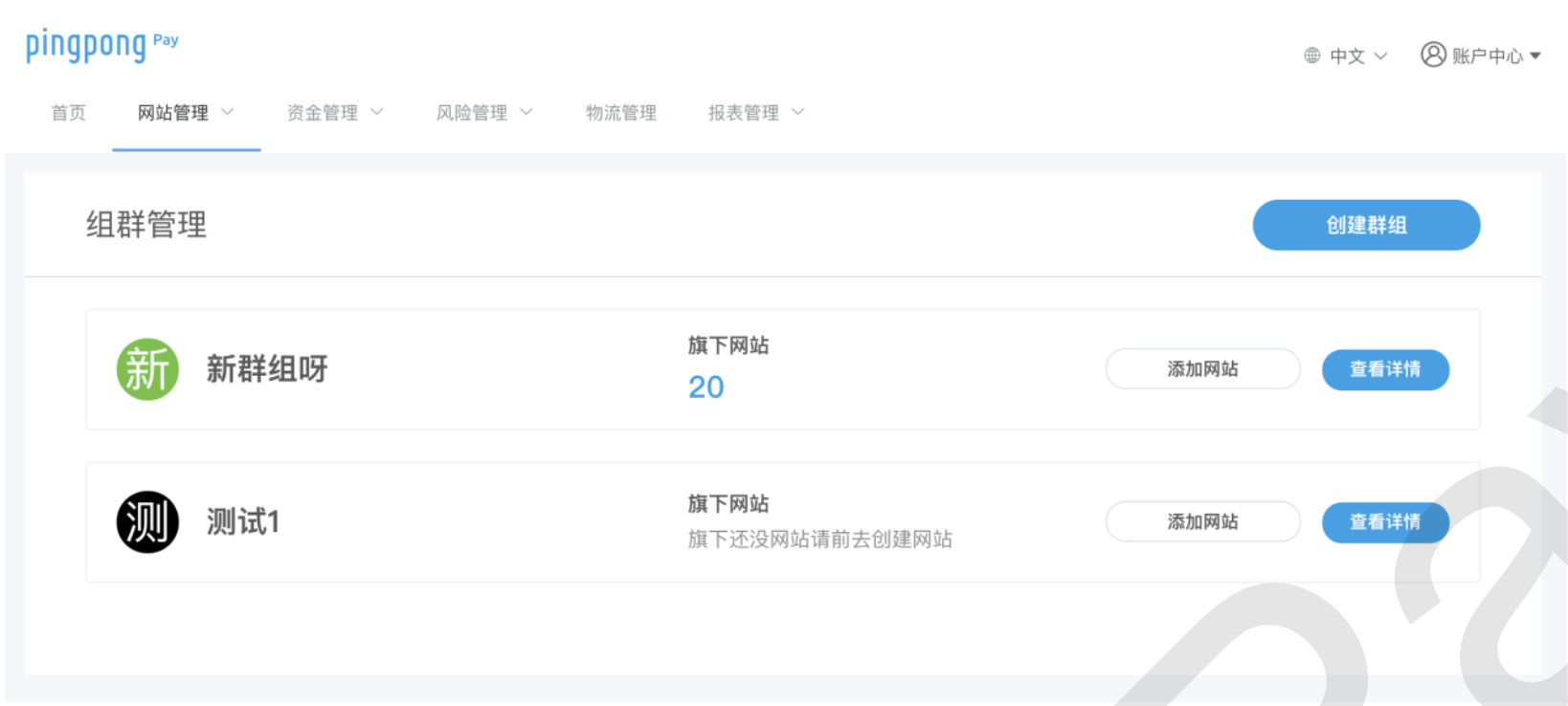
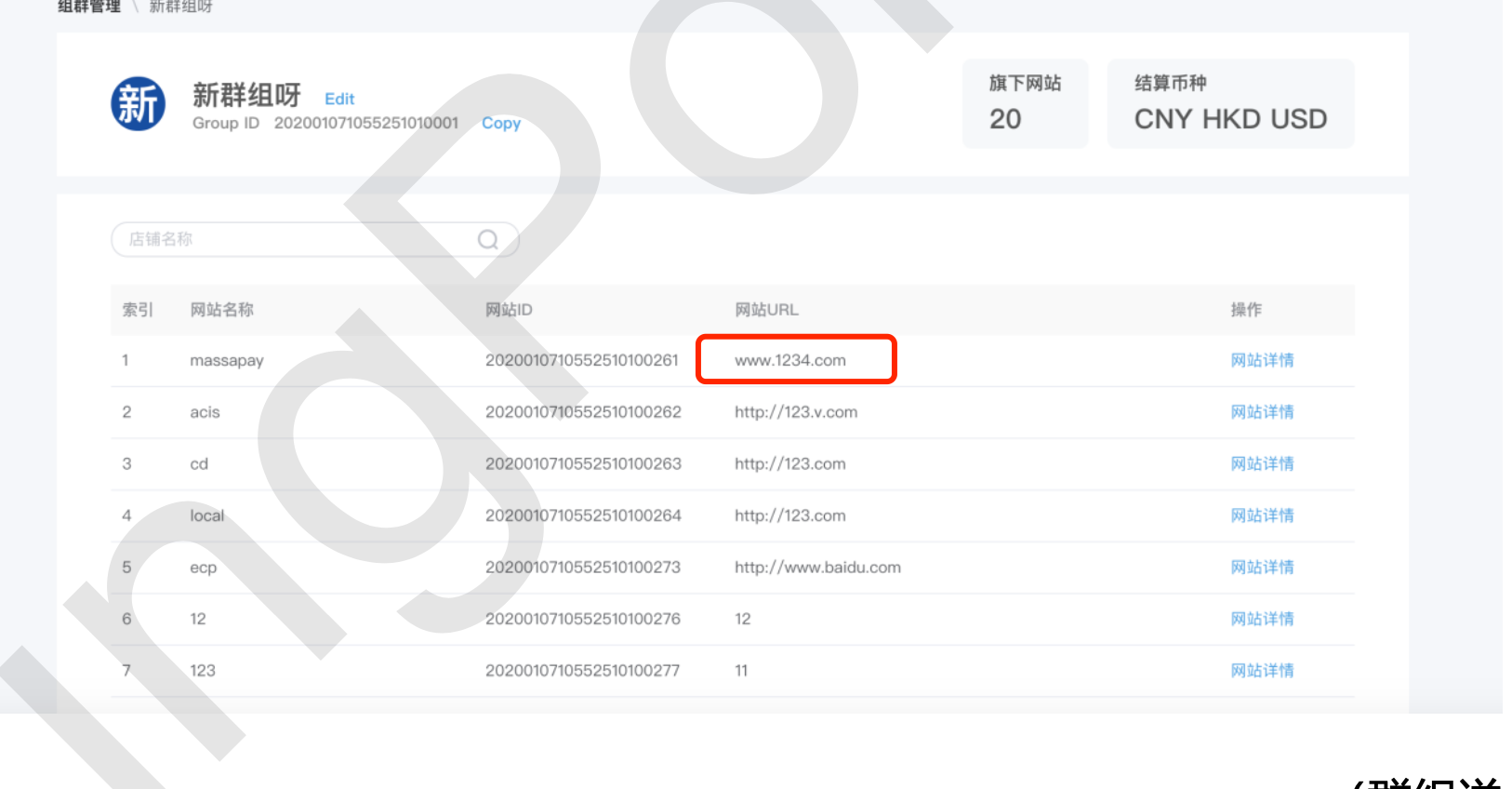
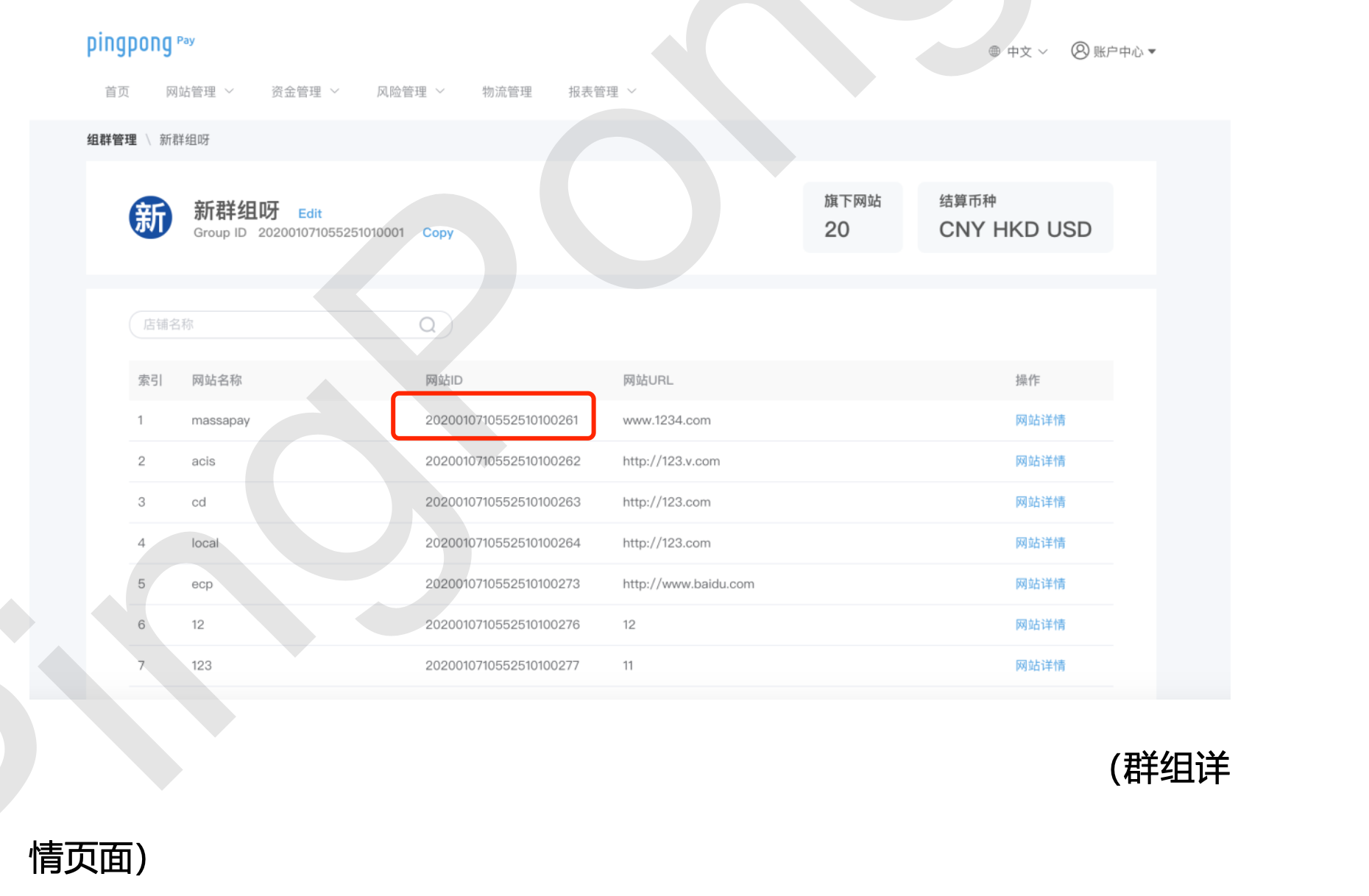
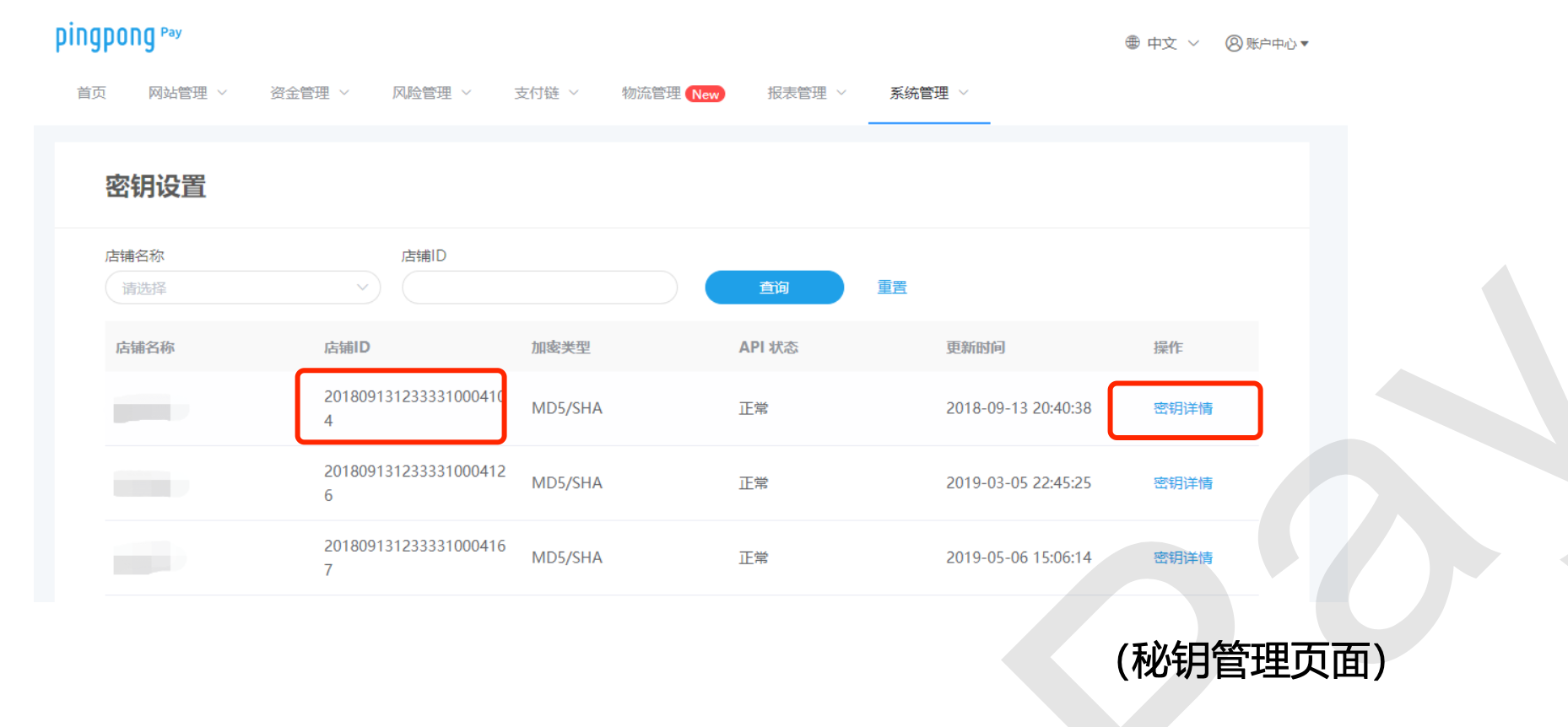
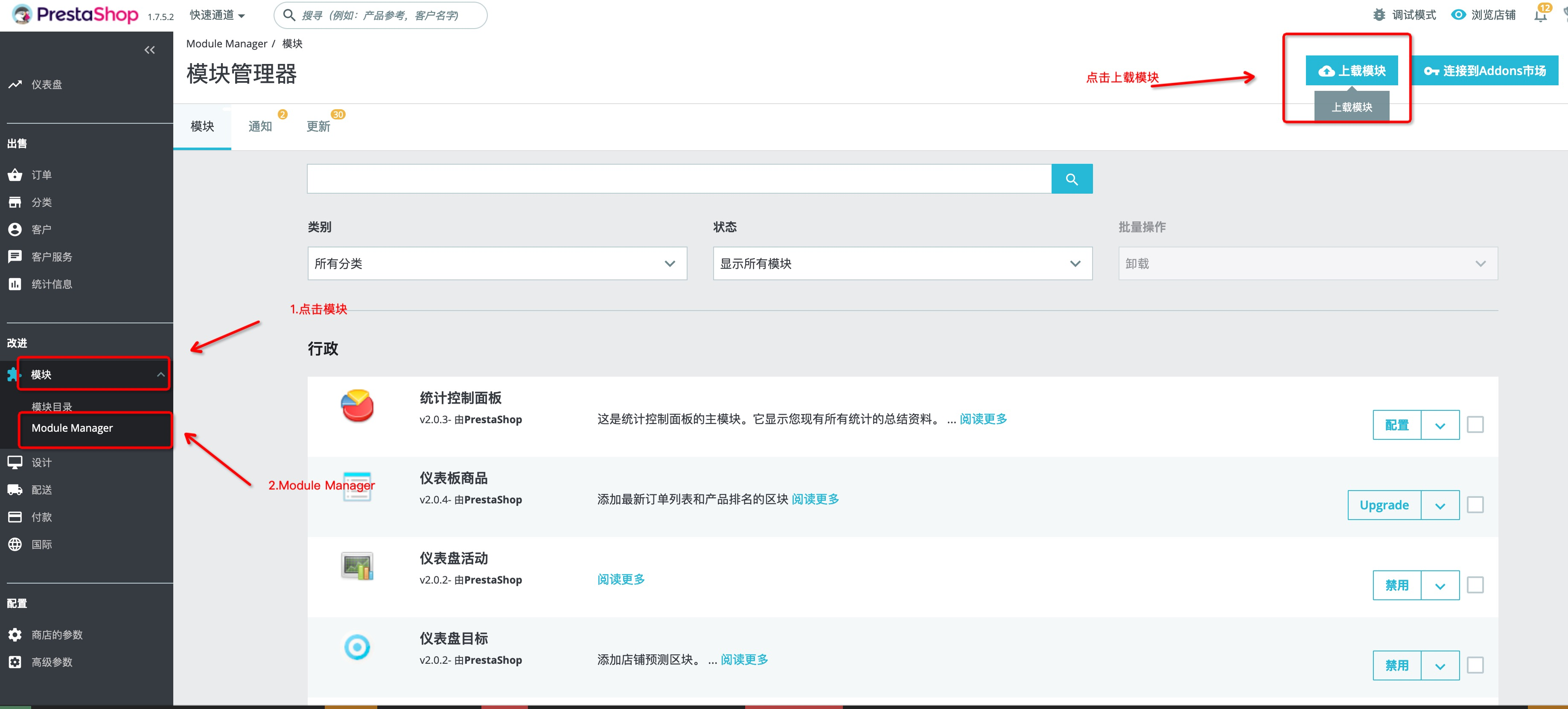
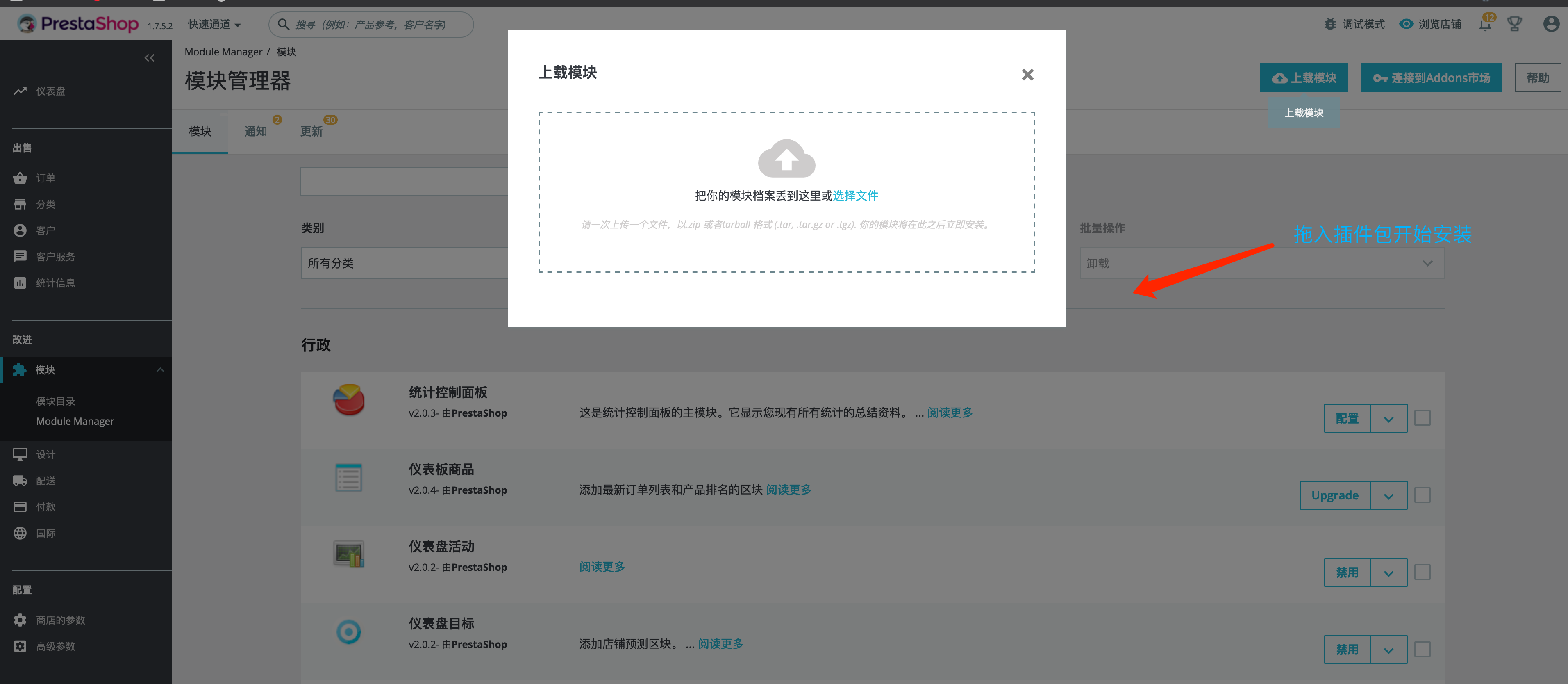
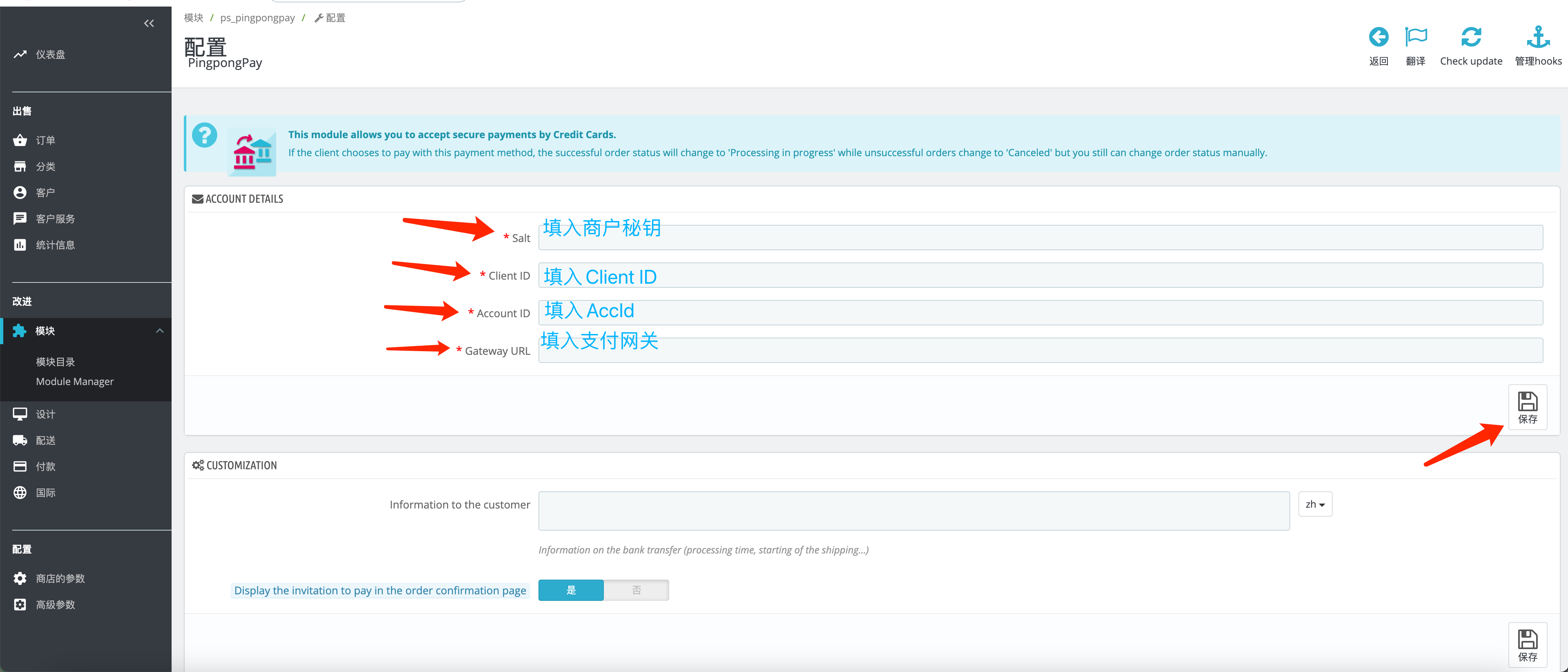
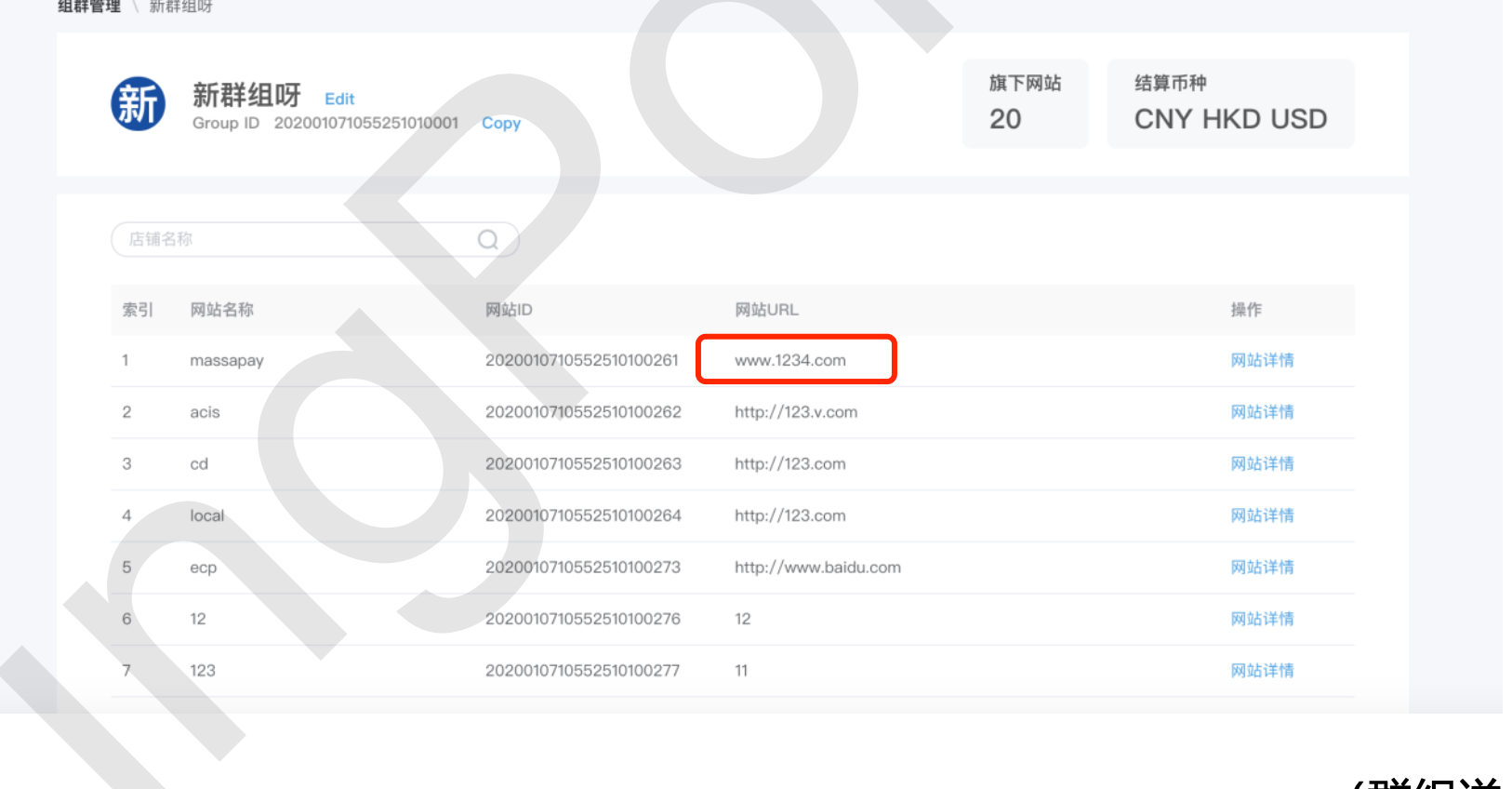
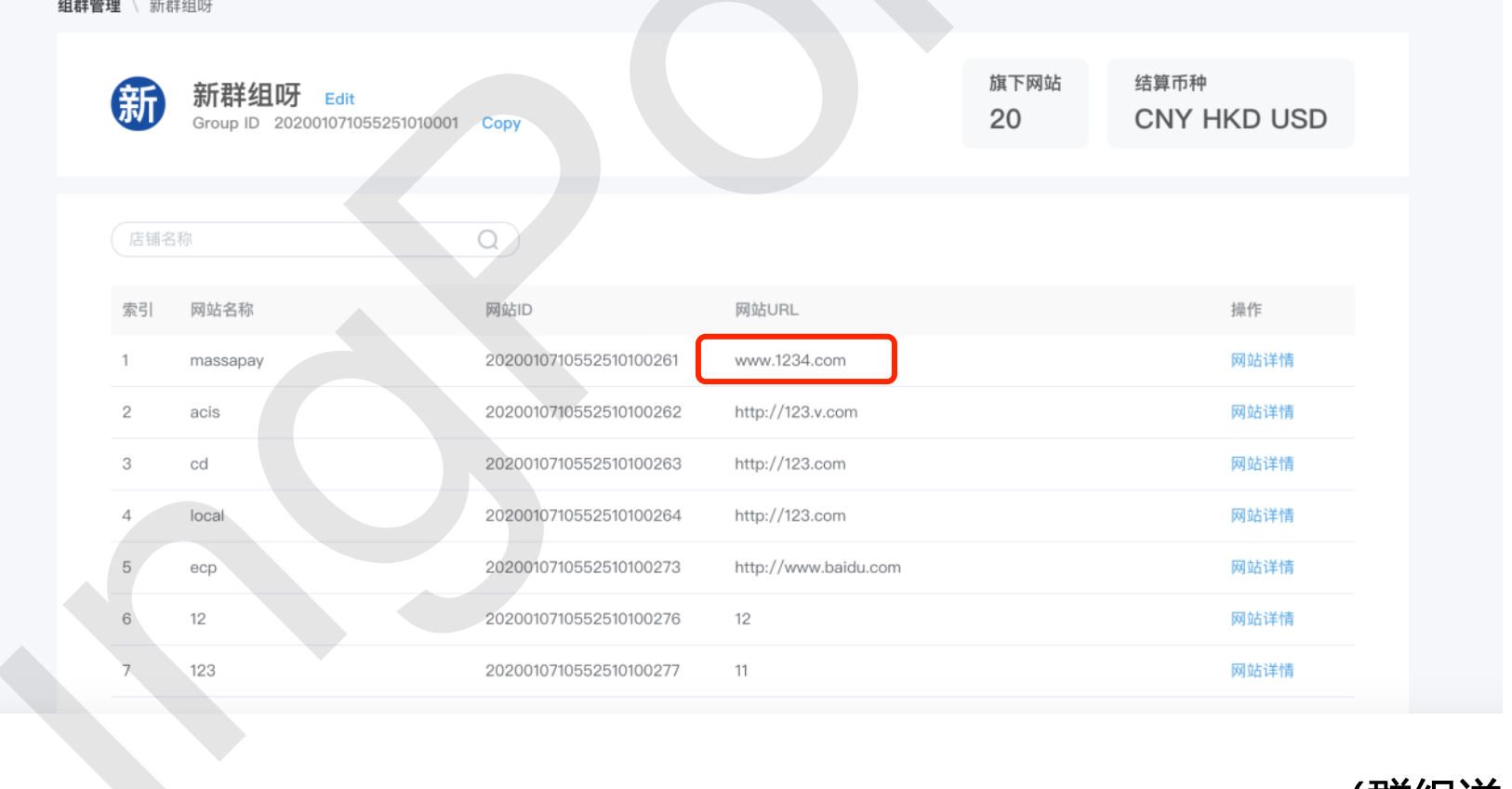
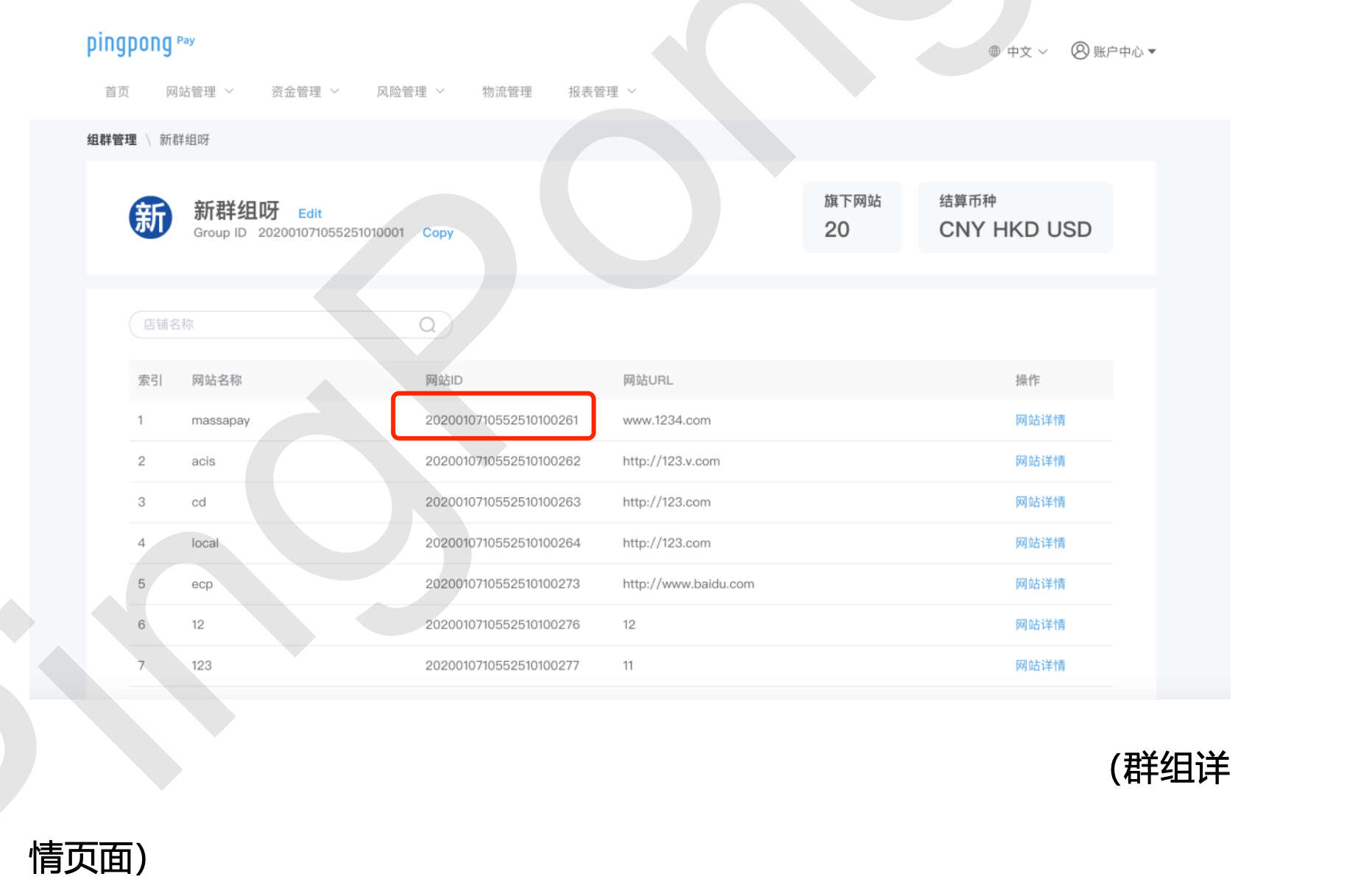
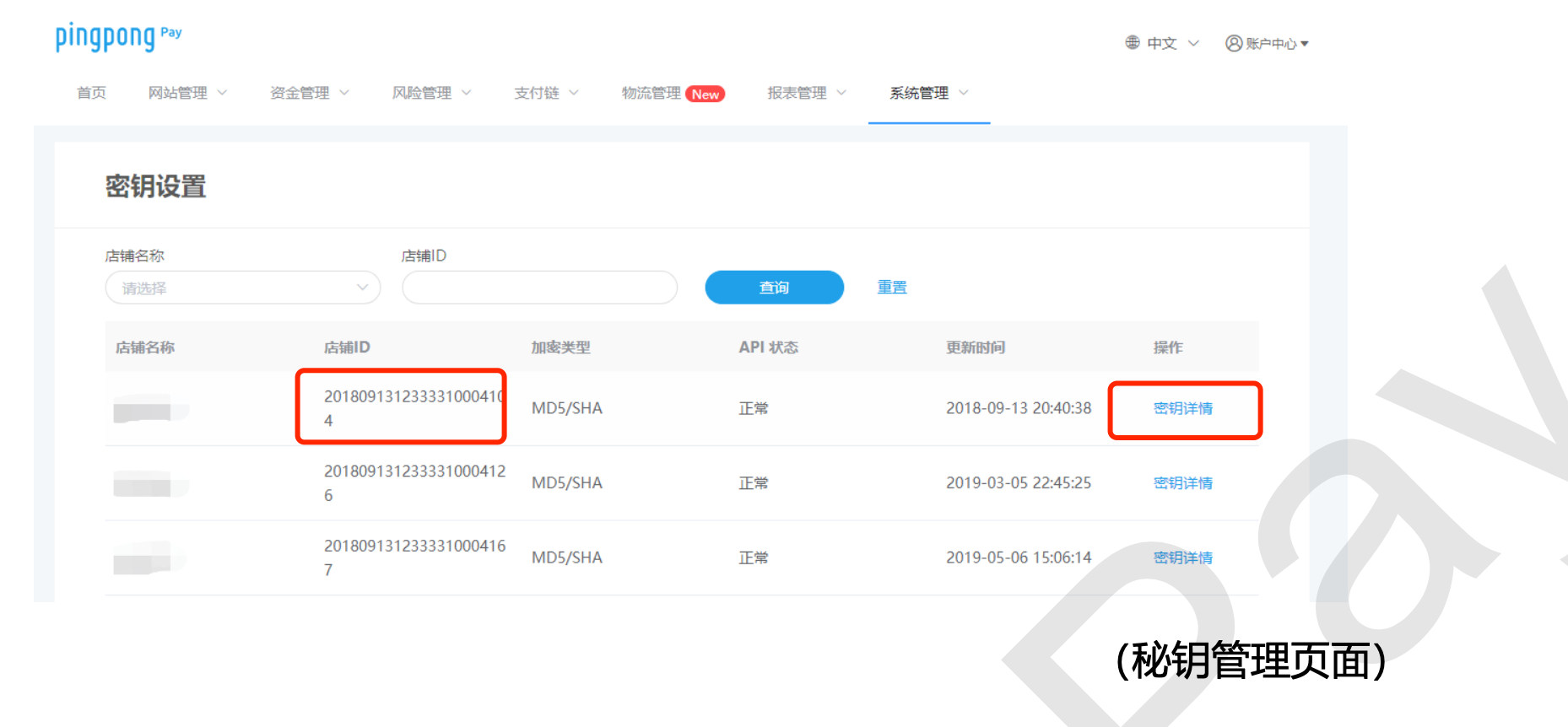
• Payment routing
• Third-party calls PP-->>-SDK: 26. Payment response alt ❌ Payment failed SDK->>Frontend: 27. Call error(code, msg) activate Frontend Note over Frontend: Handle payment failure logic deactivate Frontend else ✅ Payment success or processing SDK->>Browser: 28. Redirect to payment result page Note right of Browser: merchantResultUrl else 🔒 3DS verification required SDK->>Browser: 29. Redirect to 3DS verification page end Note over User, PP: 🎯 Payment process ends ``` ## Architecture Design ### Core Modules | Module | Responsibility | | --- | --- | | **PingPongSDK** | SDK's only entry point, exposes init / createElement methods | | **PingPongElement** | Base class for all payment buttons, provides .on() / .off() event mechanism | ### Payment Modes SDK supports two main modes: * **payment**: Order placement and payment mode, suitable for standard payment processes * **codeGrant**: Wallet binding mode, currently only supports PayPal standalone signing ## Integration Process ### 1. Obtain sdkAccessToken The merchant backend system obtains the access credential by calling the get sdkAccessToken interface. **Payment scenario:** * Call `/v4/session/init` interface to get sdkAccessToken **Signing scenario:** * POST call existing signing interface to get sdkAccessToken and JS URL ### 2. Import Element SDK Based on your business environment, choose the appropriate SDK version to import: :::: code-tabs @tab 🧪 Sandbox Environment ```html ``` @tab 🇪🇺 FRA Production Environment ```html ``` @tab 🇸🇬 SG Production Environment ```html ``` :::: ### 3. Initialize SDK #### Parameter Description ::::: field-group :::: field name="mode" type="string" required Business mode `payment`(payment) or `codeGrant`(bind wallet) :::: :::: field name="env" type="string" required Runtime environment `sandbox`(sandbox) or `production`(production) :::: :::: field name="amount" type="string" required Transaction amount For cashier display :::: :::: field name="currency" type="string" required Transaction currency :::: :::: field name="accId" type="string" required Merchant account ID :::: :::: field name="locale" type="string" required Interface language `en`, `zh-CN`, etc. :::: :::: field name="region" type="string" optional default="fra" Region `sg` or `fra` :::: :::: field name="sdkAccessToken" type="string" required SDK access credential :::: :::: field name="merchantResultUrl" type="string" required Redirect URL after payment completion :::: :::: field name="createOrder" type="Function" optional Order creation function Required when mode is `payment` :::: :::: field name="goodsName" type="string" optional Product name Required for ApplePay/signing :::: :::: field name="goodsDesc" type="string" optional Product description Required for ApplePay/signing :::: :::: field name="recurringInfoDTO" type="Object" optional Recurring configuration, required for ApplePay signing :::: ::::: #### Initialization Example ```javascript:line-numbers title="src/sdk-init.js" await PingPongSDK.init({ mode: 'payment', // Business mode: payment or codeGrant env: 'sandbox', // Runtime environment amount: '19.99', // Transaction amount currency: 'USD', // Transaction currency accId: 'ACC_123', // Merchant account ID locale: 'en', // Language setting region: 'fra', // Region: sg or fra sdkAccessToken: 'your_sdk_token', // SDK access token merchantResultUrl: 'https://merchant-result.com', // Payment completion redirect URL // Required when mode is payment createOrder: async () => { // Call merchant backend order interface const response = await fetch('/xx/xx', { method: 'POST', headers: { 'Content-Type': 'application/json' }, body: JSON.stringify({ xx: 'xx' }) }); const result = await response.json(); return result.token; // Return order token }, // Required for ApplePay signing goodsName: 'Product Name', goodsDesc: 'Product Description', recurringInfoDTO: { recurringPaymentStartDate: '2024-06-01 00:00:00', recurringPaymentIntervalUnit: 'month', recurringPaymentIntervalCount: '6', recurringPaymentEndDate: '2024-12-01 00:00:00' } }); ``` ### 4. Create Payment Elements #### 4.1 Apple Pay Button ```javascript:line-numbers title="src/apple-pay.js" const applePay = await PingPongSDK.createElement('applePayButton', { buttonType: 'buy', // Button type: buy | plain buttonColor: 'black', // Button color: black | white | white-outline style: { width: '100%', height: '40px', borderRadius: '4px' }, payDiscount: { // Marketing campaign configuration (optional) activityNo: 'EEE', costAmount: '19.99', // Original amount discountAmount: '2.00' // Discount amount } }); ``` #### 4.2 Google Pay Button ```javascript:line-numbers title="src/google-pay.js" const googlePay = await PingPongSDK.createElement('googlePayButton', { buttonType: 'buy', // Button type: buy | subscribe buttonColor: 'black', // Button color: black | white style: { width: '100%', height: '40px', borderRadius: '4px' }, payDiscount: { activityNo: 'EEE', costAmount: '19.99', discountAmount: '2.00' } }); ``` #### 4.3 PayPal Button ```javascript:line-numbers title="src/paypal.js" const paypal = await PingPongSDK.createElement('paypalButton', { buttonType: 'buttons', // buttons | marks | card-fields | funding-eligibility style: { borderRadius: 4, color: 'gold', // gold | blue | silver | white | black height: 40, label: 'paypal', // paypal | checkout | buynow | pay | installment | subscribe | donate layout: 'vertical', // vertical | horizontal shape: 'rect' // rect | pill | sharp } }); // PayPal does not need to listen for completed event // When payment is complete, SDK will initiate redirect to merchantResultUrl ``` ### 5. Event Listening All payment elements support a unified event model: ```javascript:line-numbers title="src/event-listeners.js" // Listen for ready event applePay.on('ready', () => { console.log('Apple Pay rendered'); }); // Listen for success event applePay.on('success', (event) => { console.log('Apple Pay payment complete', event.detail); // event.detail contains transactionId and other information }); // Listen for error event applePay.on('error', (event) => { console.error('Apple Pay error', event.detail); // event.detail contains code and message }); // Listen for cancel event applePay.on('cancel', () => { console.log('Apple Pay user cancelled'); }); ``` ### 6. Mount and Unmount ```javascript:line-numbers title="src/lifecycle.js" // Mount to specified container applePay.mount('#apple-pay-container'); // Unmount element applePay.unmount(); ``` ## API Reference ### PingPongSDK.init() Initialize SDK configuration. **Parameters:** ::::: field-group :::: field name="mode" type="string" required `payment` or `codeGrant` :::: :::: field name="env" type="string" required `sandbox` or `production` :::: :::: field name="amount" type="string" required Transaction amount :::: :::: field name="currency" type="string" required Transaction currency :::: :::: field name="accId" type="string" required Merchant account ID :::: :::: field name="locale" type="string" required Interface language :::: :::: field name="region" type="string" optional default="fra" `sg` or `fra` :::: :::: field name="sdkAccessToken" type="string" required SDK access credential :::: :::: field name="merchantResultUrl" type="string" required Payment completion redirect URL :::: :::: field name="createOrder" type="Function" optional Required when mode is `payment` :::: :::: field name="goodsName" type="string" optional Required for ApplePay/signing :::: :::: field name="goodsDesc" type="string" optional Required for ApplePay/signing :::: :::: field name="recurringInfoDTO" type="Object" optional Required for ApplePay signing :::: ::::: ### PingPongSDK.createElement() Create payment element instance. **Parameters:** ::::: field-group :::: field name="type" type="string" required `applePayButton`, `googlePayButton`, `paypalButton` :::: :::: field name="options" type="object" required Element configuration parameters :::: ::::: **Returns:** Promise\ ### element.on() Register event listener. **Supported events:** ::::: field-group :::: field name="ready" type="Event" Element initialization complete :::: :::: field name="success" type="Event" Payment success :::: :::: field name="error" type="Event" Payment failure :::: :::: field name="cancel" type="Event" User cancel :::: ::::: ### element.off() Remove event listener. ### element.mount() Mount payment element to DOM. **Parameters:** ::::: field-group :::: field name="selector" type="string" required CSS selector :::: ::::: ### element.unmount() Unmount element from DOM, release resources. --- --- url: >- https://acquirer-api-docs-v4-en.pingpongx.com/en/notes/integrate/sdk-v4-2/index.md description: >- This solution is specifically designed for merchants who have adopted the OnePage Checkout model, providing embeddable payment components that seamlessly integrate into your existing checkout page. Without changing the original checkout flow, you can quickly access PingPong payment capabilities, supporting multiple mainstream payment methods covering regions such as Europe and Singapore. --- ## What is OnePage Checkout? OnePage Checkout is a modern e-commerce checkout model that consolidates the traditional multi-page checkout process (such as: shopping cart → fill in delivery information → select payment method → confirm order) onto a single page. Users can complete all checkout steps within one page without page jumps, greatly simplifying the shopping process. ::: tip Design philosophy of this solution This SDK solution is specially designed to adapt to **OnePage Checkout pages**. If your e-commerce website has already adopted the one-page checkout model, this solution can seamlessly embed PingPong payment components into your existing checkout page, displaying alongside modules such as address filling and shipping selection, maintaining user experience consistency without requiring reconstruction of your checkout flow. ::: ### Main Advantages **Enhanced User Experience** * Reduces page loading and jumping, improving checkout efficiency * Users can view and modify order information in real-time * Clean and intuitive interface, reducing cart abandonment rate **Improved Conversion Rate** * Simplified process means fewer operational steps and potential drop-off points * Shorter and more direct path for users to complete purchases * Particularly suitable for mobile users with more friendly responsive design ### Core Function Modules Typical one-page checkout usually includes the following modules: * **Address Information**: Delivery address filling and selection * **Shipping Method**: Available shipping options and fees * **Payment Method**: Various payment options (credit card, PayPal, Alipay, etc.) * **Order Summary**: Product list, prices, totals, etc. * **Coupons/Discount Codes**: Input discount information ### Implementation Suggestions 1. **Progressive Design**: Use collapsible design, expand modules as needed 2. **Form Validation**: Real-time validation of user input, reducing errors 3. **Guest Checkout**: Allow users to purchase without registration 4. **Save Information**: Automatically save address and payment information for logged-in users 5. **Security Authentication**: Ensure PCI DSS compliance, display security indicators ### Applicable Scenarios * Mobile shopping platforms * E-commerce websites pursuing high conversion rates * Subscription services * Digital product sales ## SDK Integration Process ```mermaid %%{init: { 'theme': 'base', 'themeVariables': { 'primaryColor': '#E3F2FD', 'primaryTextColor': '#0D47A1', 'primaryBorderColor': '#1976D2', 'lineColor': '#1565C0', 'secondaryColor': '#BBDEFB', 'tertiaryColor': '#90CAF9', 'background': '#F8FBFF', 'mainBkg': '#E3F2FD', 'secondBkg': '#BBDEFB', 'tertiaryBkg': '#90CAF9', 'actorBkg': '#2196F3', 'actorBorder': '#1976D2', 'actorTextColor': '#FFFFFF', 'actorLineColor': '#1565C0', 'signalColor': '#0D47A1', 'signalTextColor': '#0D47A1', 'c0': '#E8F4FD', 'c1': '#D1E7DD', 'c2': '#B3D9FF', 'c3': '#81C784', 'noteBkgColor': '#E1F5FE', 'noteTextColor': '#01579B', 'noteBorderColor': '#0288D1', 'loopTextColor': '#0D47A1', 'activationBkgColor': '#B3E5FC', 'activationBorderColor': '#0277BD' } }}%% sequenceDiagram participant Merchant as 🏪 Merchant Backend participant Frontend as 💻 Merchant Frontend participant SDK as 📦 JS-SDK participant PP as 🔄 PingPong Server Note over Merchant, PP: 🚀 SDK Integration and Payment Process Note over Merchant, Frontend: 📋 Preparation Phase:• Get access credentials• Import SDK script Merchant->>+PP: 1. Get sdkAccessToken Note right of PP: Verify merchant identity
Generate access credentials PP-->>-Merchant: 2. Return sdkAccessToken Merchant->>Frontend: 3. Pass sdkAccessToken to frontend Frontend->>Frontend: 4. Import JS-SDK script Note right of Frontend: CDN loading:
Sandbox/Production environment Frontend->>+SDK: 5. Initialize cashier PingPong.Checkout.create() Note right of SDK: Parameters include:• amount, currency• tradeCountry• sdkAccessToken• paymentMethods SDK->>SDK: 6. Render cashier interface SDK-->>-Frontend: 7. Cashier ready opt 🔄 [Dynamic Update - Optional] Note over Frontend, SDK: 🔧 Update cashier elements:• Amount changes• Country changes Frontend->>+SDK: 8. updateCheckoutHook({amount, tradeCountry}) SDK->>SDK: 9. Update cashier display SDK-->>-Frontend: 10. Update completed end Note over Frontend, PP: 💳 Payment process begins Frontend->>+SDK: 11. User clicks payment button opt 🔍 [Pre-payment verification - Optional] SDK->>+Frontend: 12. Trigger beforeCheckoutHook Note right of Frontend: Business logic:• Inventory check• Event tracking• Order creation Frontend->>+Merchant: 13. Call merchant API Merchant-->>-Frontend: 14. Return order token Frontend-->>-SDK: 15. Return processing result end SDK->>+PP: 16. Initiate payment request Note right of PP: Call order placement API
Process payment logic PP->>PP: 17. Process payment Note right of PP: • Risk control check• Payment routing• Third-party calls alt ✅ [Payment Success] PP-->>SDK: 18. 🎉 Payment successful SDK-->>-Frontend: 19. Payment completion callback Note over Frontend: Page redirect
or display success message else ❌ [Payment Failed] PP-->>SDK: 20. ❌ Payment failed SDK->>+Frontend: 21. 🚨 Trigger checkoutFailedHook Note right of Frontend: Custom error handling:• Error alerts• Log recording• Retry logic Frontend-->>-SDK: 22. Error handling completed SDK-->>Frontend: 23. Display error message end Note over Merchant, PP: 🎯 SDK integration process completed ``` # Integration Process ## 1. Get sdkAccessToken API The merchant backend system obtains the JS-SDK access credential (token) through the Get sdkAccessToken API, which is used for the frontend JS-SDK initialization call. ## 2. Import Javascript-SDK Copy the following code to import the PingPongCheckout Javascript-SDK via CDN address ::: code-tabs @tab 🧪 Sandbox Environment ```html ``` @tab 🇪🇺 FRA Production Environment ```html ``` @tab 🇸🇬 SG Production Environment ```html ``` ::: ### 3. Initialize Cashier Insert the `pp-checkout` tag into the `html` `body` ```html:title="components/checkout.html" :line-numbers ``` Call `PingPong.Checkout.create` to complete initialization #### Parameters ::::: field-group :::: field name="amount" type="String" required Transaction amount This transaction is only for cashier display. Subsequent amount changes need to call the `updateCheckoutHook` function to update :::: :::: field name="currency" type="String" required Transaction currency :::: :::: field name="tradeCountry" type="String" required Used to specify the PingPong cashier country Subsequent country changes need to call the `updateCheckoutHook` function to update :::: :::: field name="sdkAccessToken" type="String" required JS-SDK access credential :::: :::: field name="originalPay" type="Boolean" optional default="true" Controls whether to use the default PingPong payment button If set to `false`, it means not using the built-in payment button. In this case, you need to call the `PingPong.Checkout.pay.run()` method in the custom payment button click event to trigger the payment process. :::: :::: field name="paymentMethods" type="String\[]" optional Specify payment method list, embedded cashier will display according to specified payment methods The passed payment methods will perform intersection operation with configured payment methods under this `accId`. The display order of payment methods will be arranged according to the order of the passed array. :::: :::: field name="useTabMode" type="Boolean" optional default="true" Controls whether to display payment method option box When set to `false`, if the merchant only has card payment configuration, the option box will not be displayed and the payment form will be directly shown. Suitable for scenarios to simplify user experience. :::: :::: field name="goods" type="Array" optional Product list, containing the following sub-fields :::: :::: field-group goods Sub-fields ::: field name="goods.description" type="String" optional Product description ::: ::: field name="goods.imgUrl" type="String" optional Product image URL ::: ::: field name="goods.name" type="String" required Product name ::: ::: field name="goods.number" type="String" required Product quantity ::: ::: field name="goods.sku" type="String" optional Product SKU code ::: ::: field name="goods.unitPrice" type="String" required Product unit price ::: ::: field name="goods.virtualProduct" type="String" optional default="N" Whether it's a virtual product `Y` - Virtual product, `N` - Physical product ::: :::: :::: field name="bizType" type="String" optional ApplePay card binding business parameter Required for ApplePay transactions, fixed value: `CodeGrant` :::: :::: field name="recurringInfoDTO" type="Object" optional Configure Recurring payment (required for ApplePay transactions), containing the following sub-fields :::: :::: field-group recurringInfoDTO Sub-fields ::: field name="recurringInfoDTO.recurringPaymentStartDate" type="Date" optional First payment date eg: `"2024-06-01 00:00:00"` ::: ::: field name="recurringInfoDTO.recurringPaymentIntervalUnit" type="String" optional Type representing calendar units such as year, month, day, hour, etc. enum: `year` / `month` / `day` / `hour` / `minute`, eg: `"month"` ::: ::: field name="recurringInfoDTO.recurringPaymentIntervalCount" type="String" optional Number of interval units constituting the total payment interval eg: `"6"` ::: ::: field name="recurringInfoDTO.recurringPaymentEndDate" type="Date" optional Last payment date eg: `"2024-12-01 00:00:00"` ::: :::: ::::: ```js:line-numbers // Create PingPong Cashier PingPong.Checkout.create({ amount: '1.08', // Transaction amount currency: 'USD', // Transaction currency tradeCountry: 'US', // Transaction country originalPay: true, useTabMode: false, // Hide option box when only card payment available sdkAccessToken, // SDK access token paymentMethods: ['VISA', 'Klarna'], goods: [{ description: 'short legs', imgUrl: 'http://pic.bizhi360.com/bpic/30/5230.jpg', name: '한국어/English', number: '1', sku: '20230524001', unitPrice: '1', virtualProduct: 'N' }], // ApplePay payment parameters bizType: 'CodeGrant', // Required for ApplePay transactions recurringInfoDTO: { recurringPaymentStartDate: "2024-06-01 00:00:00", recurringPaymentIntervalUnit: "month", recurringPaymentIntervalCount: "6", recurringPaymentEndDate: "2024-12-01 00:00:00" }, }) ``` #### Custom Payment Button (Optional) ```js:line-numbers title="src/config/payment.js" // Custom payment button configuration // When originalPay is false in initialization parameters, custom payment button click event is needed document.querySelector('#pay').onclick = function () { PingPong.Checkout.pay.run() // Manually trigger payment } ``` #### Event Listeners (Optional) SDK supports listening to ready and error events during initialization, facilitating external state management and error handling. ```js:line-numbers title="src/config/payment.js" // Listen to SDK initialization events // Listen to initialization success event document.querySelector('pp-checkout').addEventListener('ready', (e) => { console.log('SDK initialization successful'); // Initialization success callback // You can execute post-initialization logic here }); // Listen to initialization failure event document.querySelector('pp-checkout').addEventListener('error', (e) => { console.log('SDK initialization failed', e.detail); // Error information // You can execute error handling logic here, such as displaying error prompts, retrying, etc. }); ``` **Event Description:** * `ready`: Triggered when SDK initialization is successful, indicating cashier is ready * `error`: Triggered when SDK initialization fails, event details contained in `e.detail` ### 4. Modify Amount, Country and Products Before using global variables, please ensure the Javascript-SDK has loaded completely. #### updateCheckoutHook (Optional) `updateCheckoutHook` is used to update cashier elements. ##### ts types ```ts:line-numbers title="src/types/hooks.ts" // updateCheckoutHook type definition PingPong.Checkout.updateCheckoutHook: ({ amount?: string, tradeCountry?: string, goods?: Goods[] }) => void ``` ##### Usage Instructions > ⚠️ **Important**: This method uses a **partial update** mechanism. Only pass in the fields that have changed, no need to pass in other fields. | Scenario | Parameter | Example Code | |----------|-----------|--------------| | Country changes | `tradeCountry` | `PingPong.Checkout.updateCheckoutHook({ tradeCountry: newCountry });` | | Amount changes | `amount` | `PingPong.Checkout.updateCheckoutHook({ amount: newAmount });` | | Goods changes | `goods` | `PingPong.Checkout.updateCheckoutHook({ goods: newGoods });` | ##### Correct Examples ```js:line-numbers title="src/config/update.js" // Scenario 1: User switches country - only pass tradeCountry const newCountry = 'US'; PingPong.Checkout.updateCheckoutHook({ tradeCountry: newCountry }); // Scenario 2: Amount changes after user applies coupon - only pass amount const newAmount = '99.99'; PingPong.Checkout.updateCheckoutHook({ amount: newAmount }); // Scenario 3: Product information changes - only pass goods const newGoods = [{ description: 'updated description', imgUrl: 'http://pic.bizhi360.com/bpic/30/5230.jpg', name: 'Updated Product Name', number: '2', sku: '20230524001', unitPrice: '2', virtualProduct: 'N' }]; PingPong.Checkout.updateCheckoutHook({ goods: newGoods }); ``` ##### ❌ Incorrect Examples > The following approaches are **not recommended** - passing unnecessary fields or null values: ```js:line-numbers title="src/config/update-error.js" // ❌ Incorrect: No need to pass unchanged fields or null values PingPong.Checkout.updateCheckoutHook({ amount: newAmount ? newAmount : null, tradeCountry: newCountry ? newCountry : null, goods: newGoods ? newGoods : null }); // ❌ Incorrect: When updating amount only, no need to pass country and goods PingPong.Checkout.updateCheckoutHook({ amount: '99.99', tradeCountry: 'US', // Unchanged field, not needed goods: [] // Unchanged field, not needed }); ``` ### 5. Pre-order Verification #### beforeCheckoutHook (Optional) type: ```ts:line-numbers title="src/types/hooks.ts" // beforeCheckoutHook type definition (() => void) | (() => Promise) ``` `beforeCheckoutHook` is used to set the hook function before initiating payment request. When you need to execute your own business logic before the user clicks the payment button and initiates the payment request, such as reporting analytics, checking inventory, etc., you can set this hook function. This function can return a `Promise`, and subsequent payment processes will wait until the Promise status becomes Fulfilled before continuing execution. If you want to interrupt the payment process when the Promise status is Rejected or the asynchronous result doesn't meet your business conditions, you can throw an exception, and the SDK will interrupt the payment process after capturing the exception. ```js:line-numbers title="src/config/payment.js" PingPong.Checkout.beforeCheckoutHook = () => { return fetch('/api/requestInventory').then(res => { const {inventoryQuantity} = res; if (inventoryQuantity < MIN_QUANTITY) { throw new Error('Insufficient inventory, transaction needs to be interrupted') } }).catch((error) => { throw new Error('Interface exception, transaction needs to be interrupted') }) }; ``` ##### ts types ```ts:line-numbers title="src/types/hooks.ts" // beforeCheckoutHook return type definition PingPong.Checkout.beforeCheckoutHook: (() => string) | (() => Promise) ``` ### 6. Place Order After clicking the payment button, call the Place Order API to complete the payment ### 7. Error Handling #### checkoutFailedHook (Optional) type: ```ts:line-numbers title="src/types/hooks.ts" // checkoutFailedHook type definition (() => void) | (() => Promise) ``` checkoutFailedHook receives the following parameters: ```ts:line-numbers title="src/types/hooks.ts" // checkoutFailedHook parameter type definition (code: string, message: string) => void | Promise; // code: string - Error code // message: string - Error message ``` `checkoutFailedHook` is used to customize error logic When user payment fails, PingPong will default to showing a popup with the failure reason. If you want to customize the popup UI or text, you can set this hook function. This function can return a Promise. If returning Promise, subsequent processes will wait until the Promise status becomes Fulfilled before continuing execution ```js:line-numbers title="src/config/payment.js" PingPong.Checkout.checkoutFailedHook = (code: string, message: string) => { notification.open({ message: 'Error title', description: `${code}: ${message}` }) }; ``` ## Usage Example: ::: code-tree title="PingPong Checkout Integration Example" height="500px" ```html title="examples/onepage/pages/checkout.html" PingPong Checkout Demo

Billing Information

Shipping Information

``` ```css title="examples/onepage/assets/css/checkout.css" /** * PingPong Checkout Style File * Responsible for all style definitions of the checkout page */ /* ========== Variable Definitions ========== */ :root { --primary-color: #007bff; --primary-hover: #0056b3; --success-color: #28a745; --error-color: #dc3545; --warning-color: #ffc107; --border-color: #e1e5e9; --background-light: #f8f9fa; --text-primary: #333; --text-secondary: #666; --shadow-sm: 0 2px 4px rgba(0,0,0,0.1); --shadow-md: 0 2px 8px rgba(0,0,0,0.1); --shadow-lg: 0 4px 12px rgba(0,123,255,0.3); --border-radius: 8px; --border-radius-sm: 4px; --border-radius-lg: 12px; --transition: all 0.3s ease; } /* ========== Basic Style Reset ========== */ * { box-sizing: border-box; } body { margin: 0; padding: 20px; font-family: -apple-system, BlinkMacSystemFont, 'Segoe UI', Roboto, Oxygen, Ubuntu, Cantarell, sans-serif; background-color: var(--background-light); color: var(--text-primary); line-height: 1.6; } /* ========== Main Container ========== */ .checkout-container { max-width: 800px; margin: 0 auto; padding: 24px; background: white; border-radius: var(--border-radius); box-shadow: var(--shadow-md); } /* ========== Checkout Section ========== */ .checkout-section { margin-bottom: 32px; } .billing-form, .shipping-form { margin-bottom: 24px; } .billing-form h3, .shipping-form h3 { margin: 0 0 16px 0; color: var(--text-primary); font-size: 18px; font-weight: 600; } /* ========== Form Components ========== */ .form-group { margin-bottom: 16px; } .form-group label { display: block; margin-bottom: 6px; font-weight: 600; color: var(--text-primary); font-size: 14px; } .form-group input, .form-group select { width: 100%; max-width: 320px; padding: 10px 12px; border: 1px solid var(--border-color); border-radius: var(--border-radius-sm); font-size: 14px; transition: border-color 0.2s ease, box-shadow 0.2s ease; background: white; } .form-group input:focus, .form-group select:focus { outline: none; border-color: var(--primary-color); box-shadow: 0 0 0 3px rgba(0,123,255,0.1); } .form-group input::placeholder { color: #999; } /* ========== PingPong Cashier ========== */ .pingpong-checkout { margin: 24px 0; padding: 20px; background: white; border: 1px solid var(--border-color); border-radius: var(--border-radius); box-shadow: var(--shadow-sm); } /* ========== Payment Section ========== */ .payment-section { text-align: center; padding: 24px; background: linear-gradient(135deg, #f8f9ff 0%, #ffffff 100%); border-radius: var(--border-radius); border: 1px solid var(--border-color); } /* ========== Coupon Section ========== */ .coupon-section { margin-bottom: 20px; } .coupon-section label { display: block; margin-bottom: 8px; font-weight: 600; color: var(--text-primary); font-size: 14px; } .coupon-section input { width: 100%; max-width: 280px; padding: 12px 16px; border: 2px solid var(--border-color); border-radius: var(--border-radius); font-size: 14px; transition: var(--transition); background: white; } .coupon-section input:focus { outline: none; border-color: var(--primary-color); box-shadow: 0 0 0 3px rgba(0,123,255,0.1); } /* ========== Payment Button ========== */ .pay-button { background: linear-gradient(135deg, var(--primary-color) 0%, #0056b3 100%); color: white; border: none; padding: 16px 48px; border-radius: var(--border-radius); cursor: pointer; font-size: 16px; font-weight: 700; transition: var(--transition); min-width: 200px; position: relative; overflow: hidden; text-transform: uppercase; letter-spacing: 0.5px; } .pay-button:hover { transform: translateY(-2px); box-shadow: var(--shadow-lg); background: linear-gradient(135deg, #0056b3 0%, var(--primary-hover) 100%); } .pay-button:active { transform: translateY(0); box-shadow: var(--shadow-md); } .pay-button:disabled { background: #6c757d; cursor: not-allowed; transform: none; box-shadow: none; opacity: 0.7; } .pay-button.loading { color: transparent; pointer-events: none; } .pay-button.loading::after { content: ''; position: absolute; width: 20px; height: 20px; top: 50%; left: 50%; margin-left: -10px; margin-top: -10px; border: 2px solid white; border-radius: 50%; border-top-color: transparent; animation: spin 1s ease-in-out infinite; } /* ========== Message Prompts ========== */ .message { padding: 12px 16px; border-radius: var(--border-radius-sm); margin: 16px 0; font-size: 14px; font-weight: 500; border-left: 4px solid; } .message.error { background: #f8d7da; border-left-color: var(--error-color); color: #721c24; } .message.success { background: #d4edda; border-left-color: var(--success-color); color: #155724; } .message.warning { background: #fff3cd; border-left-color: var(--warning-color); color: #856404; } .message.info { background: #d1ecf1; border-left-color: var(--primary-color); color: #0c5460; } /* ========== Loading State ========== */ .loading-overlay { position: fixed; top: 0; left: 0; width: 100%; height: 100%; background: rgba(255,255,255,0.8); display: flex; align-items: center; justify-content: center; z-index: 9999; } .loading-overlay .spinner { width: 40px; height: 40px; border: 4px solid var(--border-color); border-top-color: var(--primary-color); border-radius: 50%; animation: spin 1s linear infinite; } /* ========== Animation Definitions ========== */ @keyframes spin { to { transform: rotate(360deg); } } @keyframes fadeIn { from { opacity: 0; transform: translateY(-10px); } to { opacity: 1; transform: translateY(0); } } @keyframes slideIn { from { transform: translateX(-100%); } to { transform: translateX(0); } } /* ========== Responsive Design ========== */ @media (max-width: 768px) { body { padding: 10px; } .checkout-container { padding: 16px; border-radius: var(--border-radius-sm); } .form-group input, .form-group select { max-width: 100%; } .coupon-section input { max-width: 100%; } .pay-button { width: 100%; min-width: unset; padding: 14px 24px; } .pingpong-checkout { padding: 16px; } } @media (max-width: 480px) { .checkout-container { padding: 12px; } .payment-section { padding: 20px 16px; } } /* ========== Print Styles ========== */ @media print { .pay-button, .loading-overlay { display: none !important; } .checkout-container { box-shadow: none; border: 1px solid #ddd; } } /* ========== Accessibility Enhancement ========== */ @media (prefers-reduced-motion: reduce) { * { animation-duration: 0.01ms !important; animation-iteration-count: 1 !important; transition-duration: 0.01ms !important; } } /* High contrast mode support */ @media (prefers-contrast: high) { :root { --border-color: #000; --text-primary: #000; --background-light: #fff; } } /* ========== Utility Classes ========== */ .sr-only { position: absolute; width: 1px; height: 1px; padding: 0; margin: -1px; overflow: hidden; clip: rect(0,0,0,0); white-space: nowrap; border: 0; } .text-center { text-align: center !important; } .text-left { text-align: left !important; } .text-right { text-align: right !important; } .mb-0 { margin-bottom: 0 !important; } .mb-1 { margin-bottom: 8px !important; } .mb-2 { margin-bottom: 16px !important; } .mb-3 { margin-bottom: 24px !important; } .mb-4 { margin-bottom: 32px !important; } ``` ```javascript title="examples/onepage/js/config/app-config.js" /** * Application Configuration File * Contains all application-level configuration constants */ /** * PingPong SDK Configuration */ export const PINGPONG_CONFIG = { // SDK basic configuration amount: '1.08', currency: 'USD', tradeCountry: 'US', originalPay: false, useTabMode: true, sdkAccessToken: 'your-sdk-access-token-here', paymentMethods: ['VISA', 'MasterCard', 'Klarna'], goods: [{ description: 'short legs', imgUrl: 'http://pic.bizhi360.com/bpic/30/5230.jpg', name: '한국어/English', number: '1', sku: '20230524001', unitPrice: '1', virtualProduct: 'N' }], // ApplePay configuration (optional) applePay: { bizType: 'CodeGrant', recurringInfoDTO: { recurringPaymentStartDate: '', recurringPaymentIntervalUnit: 'month', recurringPaymentIntervalCount: '', recurringPaymentEndDate: '' } } }; /** * API Endpoint Configuration */ export const API_ENDPOINTS = { // PingPong API getAccessToken: '/api/auth/sdk-token', createOrder: '/api/orders/create', validateInventory: '/api/inventory/validate', // Business API validateCoupon: '/api/coupons/validate', logError: '/api/logs/error', // Payment related paymentStatus: '/api/payments/status', refundPayment: '/api/payments/refund' }; /** * Country Currency Mapping Configuration */ export const COUNTRY_CURRENCY_MAP = { 'US': 'USD', 'GB': 'GBP', 'DE': 'EUR', 'FR': 'EUR', 'IT': 'EUR', 'ES': 'EUR', 'CA': 'CAD', 'AU': 'AUD', 'JP': 'JPY', 'CN': 'CNY' }; /** * Error Code Mapping Configuration */ export const ERROR_MESSAGES = { 'PAYMENT_DECLINED': 'Payment declined, please check card information or try another payment method', 'INSUFFICIENT_FUNDS': 'Insufficient funds, please use another payment method', 'INVALID_CARD': 'Invalid card information, please check and retry', 'CARD_EXPIRED': 'Card expired, please use another card', 'NETWORK_ERROR': 'Network connection abnormal, please check network and retry', 'TIMEOUT': 'Payment timeout, please retry', 'FRAUD_DETECTED': 'Security verification failed, please contact customer service', 'CURRENCY_NOT_SUPPORTED': 'Currency not supported, please choose another currency', 'AMOUNT_INVALID': 'Invalid payment amount', 'AMOUNT_TOO_LOW': 'Payment amount too low', 'AMOUNT_TOO_HIGH': 'Payment amount too high', 'MERCHANT_ERROR': 'Merchant system error, please contact customer service', 'SDK_TOKEN_EXPIRED': 'Access credential expired, please refresh page and retry', 'SDK_TOKEN_INVALID': 'Access credential invalid, please contact customer service' }; /** * Application Constants Configuration */ export const APP_CONSTANTS = { // Debounce delay time (milliseconds) DEBOUNCE_DELAY: { AMOUNT_INPUT: 500, COUNTRY_CHANGE: 0, COUPON_INPUT: 1000 }, // Validation rules VALIDATION: { MIN_AMOUNT: 0.01, MAX_AMOUNT: 999999.99, COUPON_LENGTH_MIN: 3, COUPON_LENGTH_MAX: 50 }, // Timeout configuration (milliseconds) TIMEOUTS: { PAYMENT: 300000, // 5 minutes API_CALL: 30000, // 30 ``` --- --- url: >- https://acquirer-api-docs-v4-en.pingpongx.com/en/notes/integrate/sdk-v4/index.md description: >- Embedded SDK (Pre-order) provides a method to quickly integrate payment functionality through JavaScript-SDK, suitable for scenarios that require directly embedding payment interface in web pages. Supports sandbox and multiple production environment deployments, allows custom payment buttons and language settings, and provides hook functions such as beforeCheckoutHook and checkoutFailedHook to meet specific business needs. --- # Embedded SDK (Pre-order) ## Embedded SDK Integration Process ```mermaid %%{init: { 'theme': 'base', 'themeVariables': { 'primaryColor': '#E3F2FD', 'primaryTextColor': '#0D47A1', 'primaryBorderColor': '#1976D2', 'lineColor': '#1565C0', 'secondaryColor': '#BBDEFB', 'tertiaryColor': '#90CAF9', 'background': '#F8FBFF', 'mainBkg': '#E3F2FD', 'secondBkg': '#BBDEFB', 'tertiaryBkg': '#90CAF9', 'actorBkg': '#2196F3', 'actorBorder': '#1976D2', 'actorTextColor': '#FFFFFF', 'actorLineColor': '#1565C0', 'signalColor': '#0D47A1', 'signalTextColor': '#0D47A1', 'noteBkgColor': '#E1F5FE', 'noteTextColor': '#01579B', 'noteBorderColor': '#0288D1', 'loopTextColor': '#0D47A1', 'activationBkgColor': '#B3E5FC', 'activationBorderColor': '#0277BD' } }}%% sequenceDiagram participant Cardholder as 💳 Cardholder participant UserTerminal as 📱 User Terminal participant MerchantPlatform as 🏪 Merchant Platform participant PingPong as 🔄 PingPongCheckout participant ISSUER as 🏦 ISSUER Note over Cardholder,ISSUER: 📋 Order Creation Phase Cardholder->>UserTerminal: 1. Initiate checkout activate UserTerminal UserTerminal->>+MerchantPlatform: 2. Submit order MerchantPlatform->>+PingPong: 3. Request order interface PingPong-->>-MerchantPlatform: 4. Return checkout URL (contains JS URL) MerchantPlatform-->>-UserTerminal: 5. Return checkout info Note over UserTerminal,PingPong: 🎨 JS-SDK Rendering Phase UserTerminal->>+PingPong: 6. Render via JS-SDK PingPong-->>-UserTerminal: 7. Render checkout page UserTerminal-->>Cardholder: 8. Display checkout page Note over Cardholder,ISSUER: 💳 Payment Phase Cardholder->>UserTerminal: 9. Select payment method and fill card info UserTerminal->>+PingPong: 10. Confirm payment PingPong->>+ISSUER: 11. Request payment ISSUER-->>-PingPong: 12. Return result alt 🔒 3D Process PingPong-->>UserTerminal: 13. Redirect to 3D verification page UserTerminal->>Cardholder: 14. 8.1.1 Fill verification code Cardholder->>UserTerminal: 15. Submit verification UserTerminal->>+ISSUER: 16. 8.1.2 issuer verifies data ISSUER-->>-UserTerminal: 17. 8.1.3 Return verification result page UserTerminal->>UserTerminal: 18. 8.1.4 Fill required info to complete payment
Redirect to payResultUrl Note over MerchantPlatform: Process business logic based
on verification result else ✅ Non-3D Process PingPong-->>UserTerminal: 19. Return payment result page UserTerminal->>UserTerminal: 20. 8.2.1 Fill required info to complete payment
Redirect to payResultUrl Note over MerchantPlatform: Process business logic based
on verification result end deactivate UserTerminal Note over MerchantPlatform,PingPong: 📡 Asynchronous Notification Phase PingPong--)MerchantPlatform: 9.1 📡 Asynchronous notification MerchantPlatform-->>PingPong: 21. 🟢 Response 200 ``` ### 1. Import Javascript-SDK Copy the following code to import PingPongCheckout Javascript-SDK via CDN address ::: code-tabs @tab 🧪 Sandbox Environment ```js ``` @tab 🇪🇺 FRA Production Environment ```js ``` @tab 🇸🇬 SG Production Environment ```js ``` @tab 🇺🇸 US Production Environment ```js ``` ::: ### Usage Method ::: note Note When switching from sandbox environment to production environment, please make sure to check and complete the following operations, otherwise the checkout page will not render properly. * Switch the CDN address of the imported Javascript-SDK to the URL specified for the production environment ::: 1. When you are debugging the **sandbox environment**, you need to import the PingPongCheckout Javascript-SDK address for the **sandbox environment** (remember to switch to the **production environment** address when deploying to production) 2. Insert the `pp-checkout` tag into the html body ```html:line-numbers title="index.html" ``` 3. Pass in the `accessToken` obtained from pre-order, see Order Interface (Hosted Mode) API documentation for `get accessToken` ```html:line-numbers title="index.html" ``` 4. You can pass the language to be displayed by the checkout page (default is English, see more languages in Locale) to `pp-checkout` through tag attributes, as follows: ```html:line-numbers title="index.html" ``` Through the above three steps, you have successfully rendered the Javascript-SDK checkout page. ### Global Variables and Hooks Before using global variables, please ensure that the Javascript-SDK has loaded successfully. #### customizeConfig Layout and Interface Configuration Customize the layout and interface elements of the checkout page through `PingPong.Checkout.customizeConfig`: | Configuration | Type | Default | Description | |-------|------|-------|------| | `layout` | `'tab'\|'accordion'` | `'tab'` | Page layout style. Options: `"tab"` (tab style), `"accordion"` (flat style) | | `displayCheckoutHeader` | `boolean` | `true` | Whether to display the checkout header | | `originalPay` | `boolean` | `true` | Whether to display the native payment button | | `toPingPongResult` | `boolean` | `true` | Whether to redirect to PingPong result page after payment. `false` means redirect directly to the merchant configured result page | | `hideStoredCards` | `boolean` | `false` | Whether to hide COF (Card On File) list | | `displayCardPrompt` | `boolean` | `true` | Whether to display card payment prompt | | `localizationErrorMsg` | `boolean` | `false` | Whether to translate payment error messages | | `displayCardsLogo` | `boolean` | `true` | Whether to display card brand logo list | ::: warning Note `toPingPongResult` configuration needs to be set when **creating payment session on server side**. Client-side settings may be overridden by server-side configuration. To disable PingPong result page redirect, please ensure the server is configured correctly. ::: ```js:line-numbers title="src/config/payment.js" // [!code highlight:1] customizeConfig layout and interface configuration PingPong.Checkout.customizeConfig = { // [!code focus] layout: "accordion", // Flat style displayCheckoutHeader: false, // Hide header originalPay: false, // Hide native payment button, requires custom button to trigger payment toPingPongResult: false, // Do not redirect to PingPong result page after payment hideStoredCards: false, // Show saved card list displayCardPrompt: true, // Show card payment prompt localizationErrorMsg: false, // Do not translate error messages displayCardsLogo: true // Show card brand logos }; ``` #### Custom Payment Button (Optional) Users can customize buttons and bind pingpong's payment functionality through click events. ```js:line-numbers title="src/config/payment.js" // [!code highlight:2] Custom payment button configuration PingPong.Checkout.customizeConfig = { originalPay: false // [!code focus] } // When originalPay is false in initialization parameters, you need to customize the payment button click event document.querySelector('#pay').onclick = function () { // [!code focus] PingPong.Checkout.pay.run() // [!code focus] } ``` #### PingPong.Checkout.beforeCheckoutHook type: ```js (() => void) | (() => Promise) ``` `beforeCheckoutHook` is used to set the hook function before initiating payment request. When you need to execute your own business logic before the user clicks the payment button and initiates the payment request, such as: reporting tracking points, checking inventory, etc., you can set this hook function. This function can return a `Promise`, and the subsequent payment process will wait for the Promise state to become Fulfilled before continuing execution. If you want to interrupt the payment process when the Promise state is Rejected or the asynchronous result does not meet your business conditions, you can throw an exception, and the SDK will interrupt the payment process after capturing the exception. ```js:line-numbers title="src/hooks/beforeCheckout.js" // [!code highlight] Pre-payment hook: Check inventory PingPong.Checkout.beforeCheckoutHook = () => { // [!code focus] return fetch('/api/requestInventory').then(res => { // [!code focus] const { inventoryQuantity } = res; if(inventoryQuantity < MIN_QUANTITY) { throw new Error('Insufficient inventory, transaction needs to be interrupted') // [!code error] } }).catch((error) => { throw new Error('Interface exception, transaction needs to be interrupted') // [!code error] }) }; ``` #### PingPong.Checkout.checkoutFailedHook type: ```js (() => void) | (() => Promise) ``` checkoutFailedHook receives the following parameters: ```js (code: string, message: string) => void | Promise; // code: string - Error code // message: string - Error message ``` `checkoutFailedHook` is used to customize error logic When user payment fails, PingPong will pop up a dialog box to prompt the user of the failure reason by default. If you want to customize the dialog UI or text, you can set this hook function. This function can return a Promise. If it returns a Promise, the subsequent process will wait for the Promise state to become Fulfilled before continuing execution ```js:line-numbers title="src/hooks/checkoutFailed.js" // [!code highlight] Payment failure hook: Custom error prompt PingPong.Checkout.checkoutFailedHook = (code: string, message: string) => { // [!code focus] notification.open({ // [!code focus] message: 'Error title', description: `${code}: ${message}` // [!code warning] }) }; ``` ### Usage Examples #### Native JavaScript Complete Example The following example shows how to integrate the SDK in a native JavaScript project, including complete project structure, API calls, and error handling. ::: code-tree title="Native JavaScript Integration Example" height="600px" entry="index.html" ```html:line-numbers title="index.html" :active PingPong Checkout SDK - Native JS Example

PingPong Payment Checkout

Initializing checkout...

``` ```css:line-numbers title="styles.css" * { margin: 0; padding: 0; box-sizing: border-box; } body { font-family: -apple-system, BlinkMacSystemFont, 'Segoe UI', Roboto, 'Helvetica Neue', Arial, sans-serif; background: #f5f5f5; padding: 20px; } .container { max-width: 1200px; margin: 0 auto; background: white; padding: 30px; border-radius: 8px; box-shadow: 0 2px 8px rgba(0, 0, 0, 0.1); } h1 { color: #333; margin-bottom: 30px; text-align: center; } .loading { text-align: center; padding: 40px; } .spinner { width: 40px; height: 40px; margin: 0 auto 20px; border: 4px solid #f3f3f3; border-top: 4px solid #1890ff; border-radius: 50%; animation: spin 1s linear infinite; } @keyframes spin { 0% { transform: rotate(0deg); } 100% { transform: rotate(360deg); } } .error { padding: 20px; background: #fff2f0; border: 1px solid #ffccc7; border-radius: 4px; color: #ff4d4f; text-align: center; } .error button { margin-top: 15px; padding: 8px 20px; background: #1890ff; color: white; border: none; border-radius: 4px; cursor: pointer; } .error button:hover { background: #40a9ff; } #checkout-wrap { display: none; } ``` ```js:line-numbers title="config.js" // SDK Configuration const CONFIG = { // API endpoint configuration apiEndpoint: '/api/reserve', // [!code focus] // SDK CDN address (switch based on environment) sdkUrl: { sandbox: 'https://payssr-cdn.pingpongx.com/production-fra/acquirer-checkout-web/sandbox/pp-checkout.js', production: 'https://payssr-cdn.pingpongx.com/production-fra/acquirer-checkout-web/pp-checkout.js' }, // Default language defaultLocale: 'zh', // [!code focus] // Request timeout (milliseconds) timeout: 30000, // Minimum inventory quantity (for demonstrating beforeCheckoutHook) minInventory: 1 }; ``` ```js:line-numbers title="api.js" // API call encapsulation const API = { /** * Get AccessToken * @returns {Promise} AccessToken */ async getAccessToken() { // [!code focus] try { const response = await fetch(CONFIG.apiEndpoint, { // [!code focus] method: 'POST', headers: { 'Content-Type': 'application/json' }, body: JSON.stringify({ // Order information amount: 100.00, currency: 'USD', // ... other necessary parameters }) }); if (!response.ok) { throw new Error(`HTTP ${response.status}: ${response.statusText}`); // [!code warning] } const data = await response.json(); if (!data.accessToken) { throw new Error('accessToken missing from response'); // [!code error] } return data.accessToken; // [!code focus] } catch (error) { console.error('Failed to get AccessToken:', error); throw error; } }, /** * Check inventory (example) * @returns {Promise<{inventoryQuantity: number}>} */ async checkInventory() { // Simulate API call return new Promise((resolve) => { setTimeout(() => { resolve({ inventoryQuantity: 10 }); }, 500); }); } }; ``` ```js:line-numbers title="main.js" // Initialize after page loads document.addEventListener('DOMContentLoaded', async () => { await initCheckout(); // [!code focus] }); /** * Initialize checkout */ async function initCheckout() { const loadingEl = document.getElementById('loading'); const errorEl = document.getElementById('error'); const errorMessageEl = document.getElementById('error-message'); const checkoutWrap = document.getElementById('checkout-wrap'); const ppCheckout = document.querySelector('pp-checkout'); try { // 1. Wait for SDK to load await waitForSDK(); // [!code focus] // 2. Configure SDK hooks setupHooks(); // [!code focus] // 3. Get AccessToken const accessToken = await API.getAccessToken(); // [!code focus] // 4. Set AccessToken to SDK ppCheckout.setAttribute('accessToken', accessToken); // [!code focus] ppCheckout.setAttribute('locale', CONFIG.defaultLocale); // 5. Show checkout loadingEl.style.display = 'none'; checkoutWrap.style.display = 'block'; console.log('Checkout initialized successfully'); } catch (error) { console.error('Initialization failed:', error); loadingEl.style.display = 'none'; errorMessageEl.textContent = `Initialization failed: ${error.message}`; errorEl.style.display = 'block'; } } /** * Wait for SDK to load */ function waitForSDK() { return new Promise((resolve, reject) => { const timeout = setTimeout(() => { reject(new Error('SDK loading timeout')); }, CONFIG.timeout); const checkSDK = () => { if (window.PingPong && window.PingPong.Checkout) { // [!code focus] clearTimeout(timeout); resolve(); } else { setTimeout(checkSDK, 100); } }; checkSDK(); }); } /** * Configure SDK Hooks */ function setupHooks() { // Pre-payment hook: Check inventory PingPong.Checkout.beforeCheckoutHook = async () => { // [!code focus] try { const { inventoryQuantity } = await API.checkInventory(); if (inventoryQuantity < CONFIG.minInventory) { throw new Error('Insufficient inventory, cannot complete payment'); // [!code error] } console.log('Inventory check passed, inventory quantity:', inventoryQuantity); } catch (error) { console.error('Inventory check failed:', error); throw error; } }; // Payment failed hook: Custom error prompt PingPong.Checkout.checkoutFailedHook = (code, message) => { // [!code focus] console.error('Payment failed:', { code, message }); // Custom error prompt alert(`Payment failed\nError code: ${code}\nError message: ${message}`); }; } ``` ::: #### Vue 3 Complete Example The following example shows how to integrate the SDK in a Vue 3 project, using Composition API to implement reactive state management. ::: code-tree title="Vue 3 Integration Example" height="600px" entry="App.vue" ```vue:line-numbers title="App.vue" :active ``` ```js:line-numbers title="api/checkout.js" import { CONFIG } from '../config'; /** * Get AccessToken * @returns {Promise} */ export async function getAccessToken() { // [!code focus] try { const response = await fetch(CONFIG.apiEndpoint, { // [!code focus] method: 'POST', headers: { 'Content-Type': 'application/json' }, body: JSON.stringify({ // Order information amount: 100.00, currency: 'USD', // ... other necessary parameters }) }); if (!response.ok) { throw new Error(`HTTP ${response.status}: ${response.statusText}`); // [!code warning] } const data = await response.json(); if (!data.accessToken) { throw new Error('accessToken missing from response'); // [!code error] } return data.accessToken; // [!code focus] } catch (error) { console.error('Failed to get AccessToken:', error); throw error; } } /** * Check inventory * @returns {Promise<{inventoryQuantity: number}>} */ export async function checkInventory() { // Simulate API call return new Promise((resolve) => { setTimeout(() => { resolve({ inventoryQuantity: 10 }); }, 500); }); } ``` ```js:line-numbers title="config/index.js" export const CONFIG = { // API endpoint configuration apiEndpoint: '/api/reserve', // [!code focus] // SDK CDN address sdkUrl: { sandbox: 'https://payssr-cdn.pingpongx.com/production-fra/acquirer-checkout-web/sandbox/pp-checkout.js', production: 'https://payssr-cdn.pingpongx.com/production-fra/acquirer-checkout-web/pp-checkout.js' }, // Default language defaultLocale: 'zh', // [!code focus] // Request timeout (milliseconds) timeout: 30000, // Minimum inventory quantity minInventory: 1 }; ``` ```js:line-numbers title="composables/useCheckout.js" import { CONFIG } from '../config'; import { checkInventory } from '../api/checkout'; /** * Wait for SDK to load */ function waitForSDK() { return new Promise((resolve, reject) => { const timeout = setTimeout(() => { reject(new Error('SDK loading timeout')); }, CONFIG.timeout); const checkSDK = () => { if (window.PingPong && window.PingPong.Checkout) { // [!code focus] clearTimeout(timeout); resolve(); } else { setTimeout(checkSDK, 100); } }; checkSDK(); }); } /** * Configure SDK Hooks */ function setupHooks() { // Pre-payment hook: Check inventory window.PingPong.Checkout.beforeCheckoutHook = async () => { // [!code focus] try { const { inventoryQuantity } = await checkInventory(); if (inventoryQuantity < CONFIG.minInventory) { throw new Error('Insufficient inventory, cannot complete payment'); // [!code error] } console.log('Inventory check passed, inventory quantity:', inventoryQuantity); } catch (error) { console.error('Inventory check failed:', error); throw error; } }; // Payment failed hook: Custom error prompt window.PingPong.Checkout.checkoutFailedHook = (code, message) => { // [!code focus] console.error('Payment failed:', { code, message }); // Can use UI library notification component // Here using simple alert for demonstration alert(`Payment failed\nError code: ${code}\nError message: ${message}`); }; } /** * Initialize SDK */ export async function initSDK() { // [!code focus] await waitForSDK(); // [!code focus] setupHooks(); // [!code focus] } ``` ```html:line-numbers title="index.html" PingPong Checkout SDK - Vue 3 Example
``` ```js:line-numbers title="main.js" import { createApp } from 'vue'; import App from './App.vue'; const app = createApp(App); app.mount('#app'); ``` ::: ## Javascript-SDK Debugging Tool You can experience the functionality of Javascript-SDK in the sandbox environment, please visit Javascript-SDK Debugging Tool. ## Language Support ::: note Note When language is not passed in, the checkout page language defaults to en. If language is passed in, it will be based on the passed-in language. You can view specific enumeration values in Language List ::: --- --- url: >- https://acquirer-api-docs-v4-en.pingpongx.com/en/notes/integrate/woocommerce/index.md description: >- This document introduces how to install and configure the PPPay plugin in WordPress, applicable to WooCommerce 3.x version. Requires PHP 7.3 or higher and curl extension, and ensures the log directory is writable. During installation, environment parameters need to be set, log paths configured, and sandbox and production environment testing performed. Important matters include monotonic increment of order numbers, using separate accId for different databases, etc. --- # wordpress-PPPay Plugin Installation Guide ## Installation Prerequisites > * wordpress version 3.x 5.6 5.7 > * php version >=7.3 > * php-Extensions:curl > * chmod 777 /webRoot/wordpress/wp-content/log *** The following are non-essential settings, if 504 error occurs, you can check the following options * \[ ] php ini execution timeout * \[ ] nginx or apache timeout settings *** ::: danger 1. Order numbers under the same accId cannot be duplicated, they must be monotonically increasing, otherwise order status issues will occur; 2. Orders from different databases cannot share the same accId; 3. If there have been transactions under accId, before installing the plugin, the id starting value should be set to be greater than the current maximum order id; 4. When resetting the database, store, or migrating accId to another store, you should check the maximum order number under accId. ::: ### Plugin Download woocommerce-pppay.zip ## Installation Process Login to website backend `Select Module-> Module Manager -> Upload Plugin ` After installation is complete, select `woocommerce->Settings->Payment`, enable the plugin switch as shown in the figure below. Click Management in the figure below to open the plugin parameter configuration page ![image-7](/wordpress/image-7.png) Configure runtime environment parameters (sandbox, production) as shown in the figure below, then click Save ![image-8](/wordpress/image-8.png) Configure plugin log directory (note that the directory must be writable) Login to the server via FTP to modify the code, find ABSPPATH in wp-config.php, define your plugin log directory on the line after ABSPPATH, the log directory permissions must be writable. ![image-9](/wordpress/image-9.png) ```php:line-numbers title="wp-config.php" /** Absolute path to the WordPress directory. */ if ( !defined('ABSPATH') ){ define('ABSPATH', dirname(__FILE__) . '/'); } define('WP_TEMP_DIR', ABSPATH . 'wp-content/tmp'); // [!code highlight] ``` ## Environment Parameters ### Sandbox Environment Store Parameters ```ini:line-numbers title="config/sandbox.ini" clientId: 2018092714313010016 # [!code focus] accId: 2018092714313010016291 # [!code focus] salt: F78BC96A55548B2319EE68E0 # [!code focus] ``` ### Sandbox Environment Test Card Numbers ```text:line-numbers title="config/test-cards.txt" Card Number: 4200000000000000 Expiry Date: 12/22 cvv: 123 cvv must be 3-digit pure numbers 3DS transaction card: 4711100000000000 ``` ### Environment URLs ```text:line-numbers title="config/environment-urls.txt" Sandbox Environment https://sandbox-acquirer-payment.pingpongx.com Production Environment https://acquirer-payment.pingpongx.com ``` ## Integration Process ### Sandbox Environment Integration 1. Install the plugin according to the file. 2. After plugin installation is complete, payment self-testing is required, and complete the following items: * \[ ] Screenshot the card number input page * \[ ] Screenshot the final redirect page after payment completion * \[ ] Send screenshots to the integration group and notify technical support If there are any issues during the installation process, you can request technical support in the integration group. *** Notes: > In sandbox environment, no deduction will be made from the cardholder, shipping after payment will cause losses, and not shipping may result in complaints from cardholders. Therefore, during integration, operations need to be performed carefully, after integration testing is passed, the payment channel should be immediately closed and wait for production environment launch before opening. *** ### Production Environment Integration 1. After the plugin completes the first round of sandbox environment integration under technical support, it will enter the website information and account review stage. After passing, production environment parameters will be issued. 2. After obtaining production parameters, complete the following items * \[ ] Replace sandbox environment parameters with production parameters. * \[ ] Self-test payment and complete screenshots * \[ ] Prepare a $1 product link. 3. Send screenshots and product link, and notify technical support. The customer/technical support will initiate a real transaction test on this product link to verify the integration results and website payment availability. 4. After completing the real transaction test, the merchant needs to initiate a refund to verify the refund process. 5. After completing the above process, website integration ends, the payment channel is officially launched, and payment becomes available. ## Production Environment Configuration ### Review Process Receive notification of approval from the integration group or business/customer. Login to [Merchant Backend](https://pay.pingpongx.com/aq/websiteList) ```text:line-numbers title="urls/merchant-backend.txt" https://pay.pingpongx.com/aq/websiteList ``` ### Go to Website List As shown in the figure, go to Group Management->View Details->Website List ### Group Management > * ⚫ Select \[Website Management]-\[Group Management] from the menu bar to enter the group management page > * ⚫ This function allows the current merchant to click "Create Group" to create a new group; the system will provide a default group by default > * ⚫ Websites are under groups. > * ⚫ Click "View Details" to enter the group details page, where you can modify the group name, view and copy the ID number, and view websites under the group. ![image-4](/wordpress/image-4.png) ### Select Website Select the corresponding website from the list according to the domain name of the current integration website ![image-5](/wordpress/image-5.png) ### Get accId for the corresponding domain website ![image-6](/wordpress/image-6.png) ### Get Secret Key > Select \[System Management]-\[Secret Key Management] from the menu bar, by default enter the secret key management page, where you can view the website secret key. > After entering secret key management, you can view the secret keys corresponding to all websites, click "Secret Key Details" to view specific > secret key fields. > Secret keys with status "Normal" can be used, when status is "Abnormal", they cannot be used and you can contact relevant business personnel for handling. ![image](/wordpress/image-9475334.png) --- --- url: >- https://acquirer-api-docs-v4-en.pingpongx.com/en/notes/integrate/zenCart/index.md description: >- ZenCart-PPPay Plugin Installation Guide provides detailed steps for integrating PPPay payment plugin on ZenCart platform. Compatible with ZenCart 1.7 and above versions, requires PHP 7.1 and its extensions. The document covers the entire process from file upload to environment parameter configuration, emphasizing the importance of order number uniqueness and monotonic increment. --- # ZenCart-PPPay Plugin Installation Guide ### Installation Prerequisites > * ZenCart version>=1.7 > * php version >=7.1 > * php Extensions:curl bcmath > * chmod 777 /zenCartRoot/logs *** The following are non-essential settings, if 504 error occurs, you can check the following options * \[ ] php ini execution timeout * \[ ] nginx or apache execution timeout settings *** ::: danger 1. Order numbers under the same accId cannot be duplicated, must be monotonically increasing, otherwise will cause order status issues; 2. Orders from different databases cannot share the same accId; 3. If there have been transactions under accId, before installing the plugin, the id start value should be set to greater than the current maximum order id; 4. After resetting database, store, or migrating accId to another store, you should check the maximum order number under accId. ::: ### ### ZenCart Installation Path Rules #### Extract Files After extraction, the directory structure is as follows. These four directories correspond to the directories under zenCart/inclues. ![image.png](/zencart/1629463595657-e90b21d9-ff38-4fe4-8a28-b1941f5be7df.png) ### Installation Process #### Login to FTP Use FTP tool to connect to server, upload plugin zip package. If no FTP tool available, you can use command line, use powershell under windows. SFTP command - connect to remote server: ```shell:line-numbers title="terminal" sftp username@ip # [!code focus] ``` #### File Upload If no FTP tool available, use SFTP command - upload files to server: ```shell:line-numbers title="terminal" put [local file path] [server file storage location] # [!code focus] ``` #### File Extraction Use unzip command ZenCart-PPPay comes with complete directory structure, the plugin after extraction contains inclues/ directory, after extracting in zenCart root directory, plugin files will automatically merge to existing files. ### Configuration Process #### Login to Website Backend Go to page `Modules->Payments->PingPongCheckout` ![image.png](/zencart/1629465534493-004c763c-8f10-4b14-b668-fb1ffcd7d3fa.png) #### Install and Enable Module Select module `PingPongCheckout`, and click install ![image.png](/zencart/1629465589636-05ede39b-fb30-4200-850c-042ce15b678f.png) #### Configure Environment Configure payment environment parameters as shown in the image below. ![image.png](/zencart/1629465797236-c80930dd-85e0-4550-9aed-e502bcb2e4c5.png) #### Save Configuration ![image.png](/zencart/1629465944926-5bb4e5c2-cfa4-4b82-8b72-656d4a963a86.png) ### Environment Parameters #### Sandbox Environment Store Parameters ```ini:line-numbers title="config/sandbox.ini" clientId: 2018092714313010016 # [!code focus] accId: 2018092714313010016291 # [!code focus] salt: F78BC96A55548B2319EE68E0 # [!code focus] ``` #### Sandbox Environment Test Card Numbers ```text:line-numbers title="config/test-cards.txt" Card Number: 4200000000000000 Expiry: 12/22 cvv: 123 cvv must be 3-digit pure numbers 3DS transaction card: 4711100000000000 ``` #### Environment URLs ```text:line-numbers title="config/environment-urls.txt" Sandbox Environment https://sandbox-acquirer-payment.pingpongx.com Production Environment https://acquirer-payment.pingpongx.com ``` ### Integration Process #### Sandbox Environment Integration 1. Install plugin according to file instructions. 2. After plugin installation is complete, payment self-testing is required, and complete the following items: * \[ ] Screenshot of card number input page * \[ ] Screenshot of final redirect page after payment completion * \[ ] Send screenshots to integration group and notify technical support If any issues occur during installation process, you can seek technical support in the integration group. *** Notes: > In sandbox environment, no deduction will be initiated from cardholders, shipping after payment will cause losses, not shipping may result in complaints from cardholders. Therefore during integration, operations need to be cautious, after integration testing is passed, immediately close payment channel, wait for production environment launch before opening. *** #### Production Environment Integration 1. After the plugin completes the first round of sandbox environment integration under technical support, it will enter the website information and account review stage, after passing, production environment parameters will be issued. 2. After obtaining production parameters, complete the following items * \[ ] Replace sandbox environment parameters with production parameters. * \[ ] Self-test payment and complete screenshots * \[ ] Prepare a $1 product link. 3. Send screenshots and product link, and notify technical support, customer/technical support will initiate real transaction test on this product link to verify integration results and website payment availability. 4. After completing real transaction test, merchant needs to initiate refund to verify refund process. 5. After completing above process, website integration ends, payment channel officially launches, payment becomes available. ### Production Environment Configuration #### Review Process Get notification from integration group or business/customer that review is passed. Login to [Merchant Backend](https://pay.pingpongx.com/aq/websiteList) ```text:line-numbers title="urls/merchant-backend.txt" https://pay.pingpongx.com/aq/websiteList ``` #### Go to Website List As shown in the figure, go to Group Management->View Details->Website List #### Group Management > * ⚫ Select from menu bar 【Website Management】-【Group Management】to enter group management page > * ⚫ This function allows current merchant to click "Create Group" to create new group; system will provide a default group by default > * ⚫ Websites are under groups. > * ⚫ Click "View Details" to enter group details page, can modify group name, view and copy ID number, view websites under group. ![image.png](/zencart/1629468866673-c4edef47-9708-4141-959c-feab1b3f6c26-20210821003240351.png) #### Select Website Based on current integration website domain name, select corresponding website from the list ![image.png](/zencart/1629468928427-be88d189-e850-4479-a279-f853446fc371-20210821003248766.png) #### Get accId for corresponding domain website ![image.png](/zencart/1629468994781-7e5ba639-38ca-4593-a6cb-a3d213d71bb0-20210821003259460.png) #### Get Secret Key > Select from menu bar 【System Management】-【Secret Key Management】to enter secret key management page by default, can view website secret key on this page. > After entering secret key management, can view secret keys corresponding to all websites, click "Secret Key Details" to view specific > secret key fields. > Secret keys with status "Normal" can be used, when status is "Abnormal", they cannot be used and can contact relevant business personnel for handling. ![image.png](/zencart/1629469253929-79e2ba85-c8c9-460f-bb79-e6b9301ae557-20210821003307842.png) --- --- url: >- https://acquirer-api-docs-v4-en.pingpongx.com/en/notes/marketplaces/createAccount/index.md description: >- The platform account registration documentation introduces the steps to register an account on the PingPongCheckout platform, including accessing the registration page, filling in personal information, email verification, and login. After successful registration, you need to select an account type and complete real-name authentication. Then you can create a store and view store information on the management page. --- # Platform Account Registration ## Platform Account Registration ### Account Registration Before using the platform's services, you need to register an account first. Please follow the steps below to register: 1. Visit [PingPongCheckout Register](https://checkout.pingpongx.com/aq/register) and open the registration page in your browser. 2. Enter your name, email address, mobile phone number and other information, then click the register button. 3. The system will send a verification email to your mailbox. Please click the link in the email to complete the registration. 4. After successful registration, you will be automatically logged into the platform homepage. See details in Registration Process ### Account Type Selection After successful login, as shown in the figure, select the account type ::: note Note * Please ensure your email address is valid to receive verification emails. * Please do not use overly simple passwords to protect your account security. * After successful registration, you can start using the services provided by the platform. ::: ## Real-name Authentication After creating an account, real-name authentication is required. Please follow the steps below for real-name authentication: 1. Log in to the platform's backend management system and enter the real-name authentication page. 2. On the real-name authentication page, fill in the information. ## Store Registration After successfully registering on the platform, you need to create a store. ## View Store After successfully creating a store, you can view store information on the store management page. --- --- url: >- https://acquirer-api-docs-v4-en.pingpongx.com/en/notes/marketplaces/createSubMerchant/index.md description: >- Sub-merchant registration functionality allows merchants to register on marketplace platforms, suitable for e-commerce platforms, service platforms, etc. Sub-merchants conduct transactions, receive payments, and withdraw funds through the platform. Registration information includes name, contact person, contact details, etc., and requires SafetyNet certification. Supports two registration methods: registration with transactions and registration through PingPongCheckout KYB API. --- # Sub-Merchant Registration ## Sub-Merchant A sub-merchant refers to a merchant registered on a marketplace platform. The marketplace can be an e-commerce platform, service platform, or other types of platforms. Sub-merchants can perform operations such as transactions, receiving payments, and withdrawals through the marketplace platform. The registration information for sub-merchants includes merchant name, merchant ID, contact person, contact phone number, email, address, etc. The marketplace platform needs to verify the sub-merchant's registration information to ensure the sub-merchant's SafetyNet certification. PingPong Marketplace supports two sub-merchant registration methods: * Register sub-merchant with transaction - Register sub-merchant through PingPongCheckout KYB API --- --- url: >- https://acquirer-api-docs-v4-en.pingpongx.com/en/notes/marketplaces/createSubMerchantWithKYB/index.md description: >- PingPongCheckout KYB API Used to create and manage sub-merchants, ensuring their legal compliance. Suitable for marketplace platforms, supporting batch addition and modification of sub-merchant information. Key parameters include sub-merchant ID, name, country, store URL, and MCC code. --- # Register Sub-Merchants via PingPongCheckout KYB API ## Register Sub-Merchants via PingPongCheckout KYB API The KYB API is an API interface provided by PingPongCheckout for creating sub-merchants. Through the KYB API, merchants can create sub-merchants. KYB is a process where payment institutions or banks verify merchant identity and assess risks to ensure merchant legitimacy and compliance. Similar to KYC (Know Your Customer) for individual users, but targeted at corporate customers. ## Add Sub-Merchant Interface Add Sub-Merchant can create multiple sub-merchants simultaneously by uploading the **sub-merchant information collection list - subMerchantList**. **Key Information for Adding Single subMerchant** | Field Name | Type | Required | Description | |--------------------------|-------------|----------|------------------------------------| | subMerchantId | String(64) | Yes | Sub-merchant ID on merchant platform | | subMerchantName | String(255) | Yes | Sub-merchant name | | businessIdentityNumber | String(64) | No | Sub-merchant organization code | | subMerchantStoreUrl | String(255) | Yes | Store URL | | subMerchantCountry | String(64) | Yes | Country of sub-merchant | | subMerchantAddress | String(255) | No | Sub-merchant address | | subMerchantMcc | String(64) | Yes | Merchant category, MCC code | | subMerchantBrand | String(64) | No | Merchant operating brand | ## Batch Modify Sub-Merchant Interface Batch Modify Sub-Merchant **Key Information for Modifying Single subMerchant** | Field Name | Type | Required | Description | |--------------------------|-------------|----------|------------------------------------| | subMerchantId | String(64) | Yes | Sub-merchant ID on merchant platform | | subMerchantName | String(255) | Yes | Sub-merchant name | | businessIdentityNumber | String(64) | No | Sub-merchant organization code | | subMerchantStoreUrl | String(255) | Yes | Store URL | | subMerchantCountry | String(64) | Yes | Country of sub-merchant | | subMerchantAddress | String(255) | No | Sub-merchant address | | subMerchantMcc | String(64) | Yes | Merchant category, MCC code | | subMerchantBrand | String(64) | No | Merchant operating brand | --- --- url: >- https://acquirer-api-docs-v4-en.pingpongx.com/en/notes/marketplaces/createSubMerchantWithTransactions/index.md description: >- The create sub-merchant with transaction feature allows attaching a sub-merchant information list subOrderList when creating a transaction, automatically creating sub-merchants after transaction completion. Suitable for marketplace scenarios, key parameters include sub-merchant ID, order amount, currency, store link, etc., as well as product details such as name, unit price, and quantity. --- # Create Sub-Merchant with Transaction ## Create Sub-Merchant with Transaction Creating a sub-merchant with transaction refers to attaching a sub-merchant information list `subOrderList` during transaction creation, automatically creating sub-merchants after transaction completion. See details in marketplaces place order and pay. **Sub-Merchant Information Collection List - subOrder** | Field Name | Type | Required | Description | |---------------------------|-------------|----------|---------------------------------------| | subMerchantId | String(64) | Yes | Sub-merchant number of merchant platform | | subMerchantTransactionId | String(64) | Yes | Sub-merchant order number, unique identifier for sub-order | | amount | String(12) | Yes | Sub-order amount | | currency | String(3) | Yes | Currency of sub-order amount | | subMerchantName | String(255) | No | Sub-merchant entity name | | businessIdentityNumber | String(64) | No | Sub-merchant business license number | | subMerchantStoreUrl | String(255) | Yes | Store link | | subMerchantCountry | String(64) | Yes | Country of sub-merchant entity | | subMerchantAddress | String(255) | No | Address of sub-merchant entity | | subMerchantMcc | String(4) | Yes | Merchant main category, MCC code | | subMerchantBrand | String(64) | No | Merchant operating brand | | goods | Array | Yes | Product information | | goods.name | String(128) | Yes | Product name | | goods.unitPrice | String(12) | Yes | Product unit price | | goods.currency | String(3) | Yes | Currency of product amount | | goods.quantity | String(12) | Yes | Product quantity | | goods.imgUrl | String(255) | No | Product main image link | | goods.mcc | String(4) | No | Product category, MCC code | | goods.virtualProduct | String(1) | No | Whether virtual product, virtual goods (Y/N) | :::note Note The total of all goods cannot exceed 1000 ::: ## Sub-Merchant Creation Workflow ### Card Payment - Sub-Merchant Creation Workflow ### APM Payment - Sub-Merchant Creation Workflow --- --- url: >- https://acquirer-api-docs-v4-en.pingpongx.com/en/notes/marketplaces/overview/index.md description: >- Marketplaces is a cross-border payment solution provided by PingPongCheckout for financial institutions and e-commerce SaaS platforms, supporting one-stop payment experiences in online marketplaces, e-commerce websites, and mobile applications. Through APIs, it enables sub-merchant registration, secure processing of global payments, fund splitting and management, risk control, and reporting reconciliation functions. --- # Overview ## Marketplaces Marketplaces is a one-stop cross-border payment solution provided by PingPongCheckout for platforms such as financial institutions and e-commerce SaaS services. Create seamless end-to-end payment experiences in your online marketplaces, e-commerce websites, or mobile applications. Enable your platform users to easily register, sell, and receive payments within a single solution. Through the Marketplaces API, you can: * Easily create and register sub-merchants - Automatically register sub-merchants to seamlessly connect your customers (sellers, service providers, or distributors) to your platform * Securely process payments - Accept secure payments from consumers worldwide through the PingPongCheckout payment network. * Fund splitting and fund management - Provide your sub-merchants with secure, compliant, and intelligent fund splitting and payment solutions * Manage risks: Identify fraudulent activities, block suspicious payments, and flag unusual user activities. * Reporting and reconciliation - Ensure accurate accounting of funds using PingPongCheckout generated billing and reconciliation processes. --- --- url: 'https://acquirer-api-docs-v4-en.pingpongx.com/en/notes/notify/index.md' description: >- The asynchronous notification interface is used to receive callback information for transaction-related events. It is suitable for scenarios that require real-time awareness of transaction status changes, such as transaction success, refunds, etc. Developers need to configure a publicly accessible `notificationUrl` address and ensure that the service supports receiving and parsing JSON data in HTTP POST requests. Key features include an automatic retry mechanism to handle network instability and clear HTTP response handling. --- # Asynchronous Notification ## Asynchronous Notification Overview * First, the merchant configures the asynchronous callback notification `notificationUrl` address. * Whenever a transaction-related event occurs (such as transaction success), the PingPongCheckOut notification service will create a JSON object containing event-related data and information. * Then, the PingPongCheckOut notification service sends the JSON object to the developer-configured callback notification `notificationUrl` via HTTP POST request. After receiving the callback notification, the merchant side can perform subsequent business processing based on the asynchronous notification message. The process is described as follows: ## Receiving Asynchronous Notifications ### Prepare a web service that supports HTTP POST PingPongCheckOut notification service will push JSON formatted data in HTTP POST manner, so the Web service provided by the developer needs to be able to receive and parse JSON data from HTTP POST requests and return the corresponding HTTP status code. ### Set callback notification address Developers can configure the callback notification URL address through the `notificationUrl` parameter in each interface input parameter. > Asynchronous notifications are affected by network connection status on both sides, please ensure the notification address is publicly accessible ### Receive and Respond For merchant transaction notification responses, follow these conventions: | Reception Result | HTTP Code Convention | Response Message Format Convention | |------------------|------------------------------------------------------------------------------------------------------------|---------------------------------------------------------| | Reception Success | 200 <= `httpcode` < 300, e.g.: 200, 201, 204 | No need to return response message | | Reception Failure | `httpcode` > 300 or `httpcode` < 200 200 <= `httpcode` < 300, e.g.: 200, 201, 204 | Any response body Need to return response message 'FAIL' | > Retry mechanism: In case of reception failure, the retry mechanism will be triggered. PingPongCheckout will re-send with increasing time intervals within a subsequent period of time, with intervals of `5s/5s/3m/10m/20m/30m/30m/30m/60m/3h/3h/3h` (if intermediate retry notifications succeed, the retry will be interrupted and no longer continue). ::: danger 1. Merchants cannot rely solely on asynchronous notifications. If transaction results are not received for a long time, merchants should actively initiate transaction queries to PingPongCheckout to check the corresponding transaction results; 2. Do not append query-type parameters after `notificationUrl` to avoid loss. If parameters must be carried, please use pathInfo URL mode; 3. The processing logic of asynchronous notification code cannot perform login state verification. ::: ## PingPongCheckout Callback Notification Server Information If the merchant side requires firewall configuration to allow PingPongCheckout message notification service to push data, please configure the firewall according to the information below and add the IP addresses to the whitelist: | Production Environment | Sandbox Environment | |:----------------------|:-------------------| | 3.125.243.2 | 52.76.198.228 | | 3.126.196.22 || | 18.195.199.34 || | 188.239.12.25 || ## Notification Messages Transaction Asynchronous Notification Refund Asynchronous Notification Pre-authorization Confirmation Notification Pre-authorization Cancellation Notification --- --- url: >- https://acquirer-api-docs-v4-en.pingpongx.com/en/notes/notify/bindNotify/APM/accTokenCancelMerchant/index.md description: >- The merchant unbinding notification interface is used to receive notifications when merchants cancel their payment service binding. It is suitable for scenarios that require real-time awareness of merchant status changes, supporting asynchronous notification reception. Key parameters include merchantId (merchant ID) and cancelTime (cancellation time). --- # Merchant Unbinding Notification --- --- url: >- https://acquirer-api-docs-v4-en.pingpongx.com/en/notes/notify/bindNotify/APM/accTokenCancelMerchantUser/index.md description: >- The user cancellation of subscription notification interface from wallet side is used to receive notifications when users cancel their subscription status with merchants. It is suitable for scenarios that require real-time updates of user subscription status, ensuring system data consistency. This interface sends notifications asynchronously, including key parameters such as user identifier and merchant number. --- # User Cancellation of Subscription Notification from Wallet Side --- --- url: >- https://acquirer-api-docs-v4-en.pingpongx.com/en/notes/notify/bindNotify/APM/accTokenCreation/index.md description: >- The contract success notification interface is used to send asynchronous notifications to the merchant system after the user completes the payment contract. It is suitable for scenarios that require real-time awareness of user contract status. This interface is called via POST method, and the returned key parameters include contract ID, merchant ID, and contract status information. --- # Contract Success Notification --- --- url: >- https://acquirer-api-docs-v4-en.pingpongx.com/en/notes/notify/bindNotify/cof/accTokenCancelMerchant/index.md description: >- The merchant unbinding notification interface is used to receive asynchronous notifications when merchants cancel their bindings. It is suitable for scenarios that require real-time awareness of merchant binding status changes, supporting key features including instant notification through callback URL, providing important information such as merchant ID and cancellation reasons, ensuring the platform can respond and handle related business changes in a timely manner. --- # Merchant Unbinding Notification --- --- url: >- https://acquirer-api-docs-v4-en.pingpongx.com/en/notes/notify/bindNotify/cof/accTokenCreation/index.md description: >- The contract success notification interface is used to send asynchronous notifications to the merchant system after the user completes payment account binding. It is suitable for scenarios that require real-time awareness of user payment account binding status, and supports payment service access worldwide. Key features include passing data through HTTPS POST method to ensure information transmission security; the message body contains important parameters such as contract results and user identification, facilitating subsequent processing by merchants. --- # Contract Success Notification --- --- url: >- https://acquirer-api-docs-v4-en.pingpongx.com/en/notes/notify/closeNotify/index.md description: >- The order closure notification interface is used to send asynchronous notifications to merchants when an order is automatically or manually closed by the system. It is suitable for scenarios that require real-time awareness of order status changes. Key features include support for multiple closure reason identifiers and provision of detailed order information, ensuring that merchants can respond promptly and handle related business logic. --- # Order Closure Notification --- --- url: >- https://acquirer-api-docs-v4-en.pingpongx.com/en/notes/notify/dispute/apis/eventCode/arbitiration/index.md description: >- The Arbitration Stage Entry Notification API is used to send asynchronous notifications to merchants when a payment dispute escalates to the arbitration stage. It is suitable for handling transaction situations involving complex disputes and supports global payment platforms. Key parameters include event code, order number, and arbitration details, helping merchants respond promptly and manage transactions in arbitration status. --- # Arbitration Stage Entry Notification --- --- url: >- https://acquirer-api-docs-v4-en.pingpongx.com/en/notes/notify/dispute/apis/eventCode/chargeback/index.md description: >- The chargeback notification interface is used to receive and process payment status change information caused by customer chargebacks. It applies to all merchants who need real-time transaction monitoring and timely response to chargeback situations. Key features include support for multiple payment methods, automatic order status updates, and detailed chargeback reason descriptions. Main parameters cover event code, order ID, and chargeback details. --- # Chargeback Notification --- --- url: >- https://acquirer-api-docs-v4-en.pingpongx.com/en/notes/notify/dispute/apis/eventCode/chargebackReturn/index.md description: >- The chargeback reversal notification interface is used to receive results from banks or payment institutions regarding merchants successfully contesting chargebacks. It applies when a merchant provides evidence and receives support after handling credit card chargeback disputes initiated by customers. Key features include an asynchronous callback mechanism with event code chargebackReturn, ensuring real-time information updates. Main parameters cover transaction ID, status, and detailed reasons. --- # Chargeback Reversal Notification --- --- url: >- https://acquirer-api-docs-v4-en.pingpongx.com/en/notes/notify/dispute/apis/eventCode/disputeDefensePeriodEnded/index.md description: >- The Dispute Defense Period Ended notification API is used to inform merchants that the dispute defense period has ended. It applies to payment dispute processing, ensuring merchants are promptly aware of the dispute process status. Key parameters include event code (eventCode), transaction ID (transactionId), etc., helping merchants update internal records and take appropriate actions. --- # Dispute Defense Period Ended Notification --- --- url: >- https://acquirer-api-docs-v4-en.pingpongx.com/en/notes/notify/dispute/apis/eventCode/fraud/index.md description: >- The fraud alert notification API is used to send real-time notifications to merchants when potential fraudulent activities are detected. It is suitable for online payment scenarios that require immediate response to fraud activities, supporting transaction monitoring worldwide. Key features include providing detailed transaction information, fraud scores, and recommended measures. Main functions cover receiving asynchronous notifications, with key parameters including event code (eventCode), merchant order number, and fraud details. --- # Fraud Alert Notification --- --- url: >- https://acquirer-api-docs-v4-en.pingpongx.com/en/notes/notify/dispute/apis/eventCode/information/index.md description: >- The information request notification API is used to receive asynchronous notifications of payment dispute events. It applies to payment dispute scenarios such as refunds and chargebacks, ensuring merchants can respond and handle related issues promptly. Key features include automatically sending information requests to the specified URL, supporting multiple event types such as refund requests and chargeback notifications. Main parameters include event code, order ID, and transaction details. --- # Information Request Notification --- --- url: >- https://acquirer-api-docs-v4-en.pingpongx.com/en/notes/notify/dispute/apis/eventCode/prearbitration/index.md description: >- The pre-arbitration notification interface is used to send notifications to merchants when a payment dispute enters the pre-arbitration stage. It is applicable for handling payment dispute scenarios and supports payment services worldwide. This API allows merchants to timely understand and respond to potential financial risks. Key parameters include event code, transaction ID, and amount information, ensuring merchants can accurately identify and process related cases. --- # Pre-Arbitration Notification --- --- url: >- https://acquirer-api-docs-v4-en.pingpongx.com/en/notes/notify/dispute/apis/eventCode/prearbitrationLost/index.md description: >- The pre-arbitration lost result notification API is used to receive and process notifications of pre-arbitration failures in transaction disputes. Suitable for scenarios where merchants need to respond promptly to dispute ruling results, supporting payment dispute handling worldwide. Key parameters include event code, merchant ID, and dispute details, ensuring merchants can quickly take corresponding measures to protect their rights and interests. --- # Pre-arbitration Lost Result Notification --- --- url: >- https://acquirer-api-docs-v4-en.pingpongx.com/en/notes/notify/dispute/apis/eventCode/prearbitrationWon/index.md description: >- The pre-arbitration won result notification API is used to receive notifications of successful outcomes in payment dispute handling. Suitable for merchants who need to understand and record the final results of disputes. This API sends notifications asynchronously, ensuring secure and real-time data transmission. Key parameters include event code, transaction number, and processing results, supporting payment dispute handling globally. --- # Pre-arbitration Won Result Notification --- --- url: >- https://acquirer-api-docs-v4-en.pingpongx.com/en/notes/notify/dispute/apis/eventCode/predispute/index.md description: >- Notification of Predispute interface is used to receive dispute event notifications that have not been escalated to formal disputes. Suitable for early warning and preventive processing scenarios, helping merchants take action before disputes escalate. Key features include providing dispute warning information, reason explanations, and recommended measures. Main functions include receiving asynchronous notifications, key parameters include event code, merchant order number, and dispute details. --- # Notification of Predispute --- --- url: >- https://acquirer-api-docs-v4-en.pingpongx.com/en/notes/notify/dispute/apis/eventCode/reversed/index.md description: >- The dispute reversal notification API is used to receive and process events where banks or payment institutions cancel disputes after users initiate them. Suitable for merchant systems requiring real-time transaction status updates, supporting global payment channels. Key parameters include event code, transaction ID, and reversal time, ensuring merchants can promptly adjust their accounting processing strategies. --- # Dispute Reversal Notification --- --- url: >- https://acquirer-api-docs-v4-en.pingpongx.com/en/notes/notify/dispute/dispatch/index.md description: >- The transaction inquiry interface is used to handle cardholder queries regarding unrecognized transactions. When a cardholder has questions about a specific transaction on their statement, they can request transaction details from the merchant through this interface. The merchant must submit relevant transaction documents to the acquirer, which then forwards them to the issuing bank for verification. Key parameters include transaction number, occurrence date, etc., ensuring accurate information is crucial. --- # Transaction Inquiry When cardholders cannot identify a transaction on their statement, they typically request a copy of the transaction documentation from the issuing bank to determine whether the transaction was authorized by them. Merchants must submit copies of the transaction documentation to the acquirer, which then forwards them to the issuing bank. --- --- url: >- https://acquirer-api-docs-v4-en.pingpongx.com/en/notes/notify/payment/notify/index.md description: >- The payment notification interface is used to receive payment status updates. Suitable for merchants who need real-time awareness of payment results, supporting notifications for order payment success, failure, and other status changes. This interface sends HTTP POST requests asynchronously to the merchant's specified URL, with key parameters including transaction number, order amount, and payment status. --- # Payment Notification --- --- url: >- https://acquirer-api-docs-v4-en.pingpongx.com/en/notes/notify/refundNotify/index.md description: >- The refund notification interface is used to receive refund results sent by the payment platform. It is suitable for scenarios where merchants need real-time awareness of refund status, supporting automatic processing of refund information. Key parameters include refund order number, refund amount, and refund status. --- # Refund Notification --- --- url: >- https://acquirer-api-docs-v4-en.pingpongx.com/en/notes/notify/status/captureNotify/index.md description: >- The pre-authorization capture notification interface is used to receive pre-authorization capture results sent by the payment platform. It is suitable for scenarios that require verification of the final status of pre-authorization transactions, such as hotel reservations or car rental services. Main functions include real-time transaction status updates, with key parameters including order number, transaction amount, and capture status. --- # Pre-Authorization Capture Notification --- --- url: >- https://acquirer-api-docs-v4-en.pingpongx.com/en/notes/notify/status/voidNotify/index.md description: >- Pre-authorization void asynchronous notification is used to receive and process the results of pre-authorization voids. Suitable for merchant systems that need real-time awareness of pre-authorization void status. This notification is sent asynchronously to ensure high reliability and low latency. Key parameters include transaction number, merchant order number, and void result, helping merchants update order status in a timely manner. --- # Pre-Authorization Void Asynchronous Notification --- --- url: >- https://acquirer-api-docs-v4-en.pingpongx.com/en/notes/onlinePayment/auth/index.md description: >- PingPongCheckout API Used to handle pre-authorization and capture processes in online payments. Suitable for scenarios that require staged payment processing, such as custom products or reservation services. Key steps include authorization, pre-authorization voiding, pre-authorization void query, pre-authorization confirmation, and pre-authorization confirmation query. Main functions are implemented by setting parameters such as captureDelayHours to ensure funds are transferred from the customer's account at the correct time point --- # Overview ## API Call Instructions API call process: 1. **Authorization**: The first step of pre-authorization transaction requires calling Authorization Request to create a pre-authorization order (need to set the value of captureDelayHours in the interface to -1) 2. **Pre-authorization Void**: Merchants call Pre-authorization Reversal to reverse the pre-authorization order. If a pre-authorization transaction is reversed, the originally reserved funds will be released back to the cardholder's account. This operation typically occurs when an order is canceled or modified. 3. **Pre-authorization Void Query**: Merchants call Pre-authorization Reversal Query to confirm whether the pre-authorization transaction has been successfully reversed. Merchants can use this query to determine if the reserved funds have been released back to the cardholder's account. 4. **Pre-authorization Confirmation**: Merchants call Capture, which triggers the actual fund transfer, moving the previously reserved amount from the cardholder's account to the merchant's account. If the transaction is not captured, the pre-authorized funds will be released back to the cardholder's account. 5. **Pre-authorization Confirmation Query**: Merchants can call Pre-authorization Confirmation Query to confirm whether the deduction was successful, check if the reserved funds still exist, or whether the pre-authorization transaction has been reversed. In the processing of credit card transactions, "Auth Capture" (authorization and capture) is a very common process, especially in online transactions. This process can be divided into two main stages: Authorization and Capture. Below is a simple explanation of these two stages: ## Business Process ### Authorization When a customer uses a credit card to shop online and submits an order, the merchant first sends an authorization request to the customer's credit card (need to set the value of captureDelayHours in the interface to -1). ### Capture After the goods are shipped or the service is completed, the merchant needs to send a capture request to the bank to complete this transaction. The capture request tells the bank that it can deduct the previously authorized frozen amount from the customer's account. After receiving the capture request, the bank will officially deduct the funds from the customer's account and transfer these funds to the merchant's account. This marks the completion of the entire payment process. ### Example Suppose you order a book from an online bookstore for $30. 1. When you submit your order, the bookstore will request $30 authorization from your credit card issuing bank. 2. If your credit card passes verification and there is sufficient limit in your account, the bank will reserve this $30 and provide an authorization code. 3. When the bookstore ships the item, they will execute the capture operation, actually deducting this $30 from your account and starting the fund transfer process. Usually, authorization and capture are performed synchronously. However, in certain cases, merchants may need to perform these two steps at different time points. For example, when a product requires customization or reservation, merchants may obtain authorization when customers place orders, then execute capture when the product is actually ready and shipped. Additionally, it should be noted that each authorization has a validity period. Within this validity period, merchants must perform the capture operation. If the validity period expires without execution, the authorization will expire, and at that time, even if the merchant executes capture, the transaction cannot be completed. The length of the validity period is usually determined by the issuing bank, with most banks setting the validity period to 7 days. --- --- url: >- https://acquirer-api-docs-v4-en.pingpongx.com/en/notes/onlinePayment/debit/index.md description: >- PingPongCheckout API's debit transactions support both credit and wallet payment methods, providing Cashier and S2S integration modes. Cashier integration includes JS-SDK and Redirect modes, simplifying the development process and improving efficiency; S2S integration is more flexible but requires merchants to have PCI-DSS certification. Additionally, the API supports refund operations and asynchronous notification functions --- # Overview Debit transactions are mainly divided into two payment methods: credit and wallet, with integration forms divided into Cashier and S2S payment. ## Order Creation Choose the appropriate development mode according to business scenarios and call the order creation interface * Cashier mode order creation * S2S mode order creation ### Cashier Integration Advantages of Cashier integration * Comprehensive: PINGPONG provides both JS-SDK and Redirect cashier modes. * Simplified development process: Since the cashier has already encapsulated most functions, developers can focus more on implementing business logic rather than underlying implementation. * High efficiency: Compared to S2S, SDK can reduce development time and improve development efficiency. ### S2S Integration Advantages of S2S integration * Flexibility: S2S method is more flexible compared to Cashier integration. ::: danger Note This solution requires merchants to store and process cardholder's credit card information on their own servers, therefore it is mandatory for merchants to have PCI-DSS certification. ::: ## Refund When refund conditions are met, merchants initiate refund operations by calling the refund interface provided by the payment service provider. It should be noted that some payment methods support full refunds, while some payment methods support partial refunds. For details, please refer to the Refund section. ## Asynchronous Notification After users complete payment, PINGPONG will send payment result notifications to the merchant's server according to the pre-agreed asynchronous notification rules. This process is asynchronous, meaning the payment result will be sent to the merchant system at some point after the user completes payment. For details, please refer to the Asynchronous Notification section. --- --- url: >- https://acquirer-api-docs-v4-en.pingpongx.com/en/notes/onlinePayment/features/tokenization/cardOnFile/index.md description: >- The CardOnFile feature supports merchants to store and reuse user's payment card information after user authorization. Key parameters include bizType, merchantUserId, createToken and token, used to identify transaction type, user identity and card information flag. By creating card token, verifying card elements (optional), displaying card list (optional) and using card token --- # CardOnFile ## Key Parameters | Parameter Field | Parameter Type | Parameter Attribute | Parameter Description | |:---------------|:-----------|:-----|:------------------------------------------------------| | bizType | String(64) | C | Pass fixed value `CardOnFile` when binding card and transaction or when card number verification is required for card binding, otherwise do not pass (contact technical support to use this value) | | merchantUserId | String(64) | M | Cardholder ID of merchant website, globally unique, pass `null` for guest mode or non-existent cases | | createToken | String(1) | M | `Y`/`N`, whether to create token | | token | String(16) | M | Card information flag | ## Interaction Flow ### Step 1: Create card token ::: card title="Hosted" Related API: [Hosted-JS-SDK](/en/notes/integrate/sdk-v4/) or [Get Redirect Cashier](/en/notes/integrate/hosted/) * In cashier mode, createToken will be determined through page checkbox to be , no need to send via interface. * Merchant needs to send to identify current payer identity. * PingPongCheckout matches token based on merchantUserId sent by merchant, no need for merchant to upload ::: ::: card title="Non-Hosted" Related API: [token creation](/en/notes/checkout/api/uniformly/) * Send parameter . * Send parameter to identify current cardholder identity. * Send parameter for card verification. ::: ### Step 2: Verify card elements (optional) If you want to verify card validity, or need to perform card binding and payment process simultaneously (incoming amount>=0), you must set `bizType=CardOnFile`. ### Step 3: Display card list (optional) The same user may have multiple credit cards. To optimize payment experience, we need to list the card list under specified customerId (only showing first 6 and last 4 digits of card number) for cardholder selection. #### Non-Hosted This step is completed by merchant side. Merchant can record card and token relationship list by themselves, or call PingPongCheckout's card list interface. ### Step 4: Pay using card token ```mermaid sequenceDiagram participant Cardholder as 💳 Cardholder participant Merchant Frontend as 💻 Merchant Frontend participant Merchant Backend as 🏪 Merchant Backend participant pingpongCheckout as 🔄 pingpongCheckout Cardholder->>+Merchant Frontend: 1. Initiate checkout Merchant Frontend->>+Merchant Backend: 2. Submit order Merchant Backend->>+pingpongCheckout: 3. Request unified payment
Pass token pingpongCheckout-->>-Merchant Backend: 4. Response result Merchant Backend-->>-Merchant Frontend: 5. Return initial payment status Note over Cardholder,pingpongCheckout: 🚀 Token payment process loop Poll for payment status Merchant Frontend->>+Merchant Backend: 6. Query payment status Merchant Backend-->>-Merchant Frontend: 7. Return current payment status Note over Merchant Frontend: End polling if status is final status end Merchant Frontend-->>-Cardholder: 8. Display final payment result pingpongCheckout->>+Merchant Backend: 9. 📡 Asynchronous notification Merchant Backend-->>-pingpongCheckout: 10. 🟢 Response OK ``` [//]: # "
" ::: steps 1. Client places order Customer initiates order creation on merchant platform 2. Merchant server requests order placement and payment Call [Place order and pay](/en/notes/checkout/api/uniformly/) interface * Pass `token` * If `bizType=CardOnFile` was passed when creating token, then every subsequent transaction using token needs to be sent 3. Place order and pay API synchronously responds with payment result [Place order and pay](/en/notes/checkout/api/uniformly/) interface will immediately return processing result 4. Asynchronous notification pushes final result System will push final payment result through asynchronous notification mechanism, see [Asynchronous notification](/en/notes/notify/) for details ::: --- --- url: >- https://acquirer-api-docs-v4-en.pingpongx.com/en/notes/onlinePayment/features/tokenization/codeGrant/index.md description: >- CodeGrant is an authorized payment method in the PingPongCheckout online payment module, suitable for scenarios where users need to sign up before making payments. Obtain the authUrl through the binding interface to complete user sign-up, then use the order and payment interface to pass in the token, bizType (fixed as 'CodeGrant'), and merchantUserId to complete the payment. Supports unbinding functionality. --- # CodeGrant ## Integration Process ### Sign-up Process The sign-up process is as follows: ```mermaid sequenceDiagram participant Cardholder as 💳 Cardholder participant User Terminal as 📱 User Terminal participant Merchant/Website Platform as 🏪 Merchant/Website Platform participant pingpongCheckout as 🔄 pingpongCheckout participant E-wallet as 💰 E-wallet Cardholder->>User Terminal: 1. Select payment method User Terminal->>Merchant/Website Platform: 2. Submit sign-up request Merchant/Website Platform->>pingpongCheckout: 3. Request v4/paymethod/bind pingpongCheckout->>E-wallet: 4. Request - Get wallet sign-up address authUrl E-wallet-->>pingpongCheckout: 5. Return sign-up page address authUrl pingpongCheckout-->>Merchant/Website Platform: 6. Return sign-up page address authUrl Merchant/Website Platform-->>User Terminal: 7. Return sign-up page address authUrl Note over User Terminal,E-wallet: 📝 Sign-up process User Terminal->>E-wallet: 8. User completes sign-up E-wallet->>pingpongCheckout: 9. Respond with sign-up result pingpongCheckout->>Merchant/Website Platform: 10. Trigger📡asynchronous notification Merchant/Website Platform-->>pingpongCheckout: 11. Respond with http code 200 ``` [//]: # " " Developers call the sign-up interface to obtain the wallet sign-up address authUrl. Users visit the authUrl to complete sign-up, triggering the sign-up success asynchronous notification to obtain the payment credential token. ### Unbinding There are two scenarios for initiating unbinding: * Merchant calls API for unbinding * Wallet users can unbind on the wallet side. Below is the API list that needs to be integrated Unbinding Interface If unbinding is needed, call the unbinding interface , after cancellation the token will become invalid. ### Payment Process ```mermaid sequenceDiagram participant Merchant Website Backend as 🏪 Merchant Website Backend participant pingpongCheckout as 🔄 pingpongCheckout Note right of Merchant Website Backend: 1️⃣ 🕐 Scheduled task triggered Merchant Website Backend->>Merchant Website Backend: 1. Execute scheduled task - initiate deduction Merchant Website Backend->>pingpongCheckout: 2. Request order and payment interface, pass in token, bizType, merchantUserId pingpongCheckout-->>Merchant Website Backend: 3. Respond with payment result Note over Merchant Website Backend,pingpongCheckout: 🚀 One-click payment - Transaction pingpongCheckout-->>Merchant Website Backend: 4. 📡 Asynchronous notification Merchant Website Backend->>pingpongCheckout: 5. 🟢 Respond with 200 ``` [//]: # "
" [//]: # "
" [//]: # " " [//]: # "
" Below is the API list that needs to be integrated Order and Payment Interface Call the order and payment interface to pass in token, bizType and merchantUserId. ##### Key Input Parameters: | Parameter Name | Type | Required | Description | |----------------|--------|------|----------------------------------------| | token | String | M | Existing field, pass the token obtained after authorization or sign-up completion | | bizType | String | M | Existing field, new type identifier for authentication authorization, fixed as "CodeGrant" | | merchantUserId | String | M | Member ID, the user's member ID in the merchant website | > When calling the order and payment interface, merchantUserId must be passed in the input parameters and must be consistent with the merchantUserId passed during authentication, otherwise it will return an error that the token does not exist Example of order and payment interface input parameters: ::: code-tabs @tab JSON ```json { "accId": "2023042011040310224447", "clientId": "2023042011040310224", "signType": "SHA256", "sign": "{{Sign}}", "version": "1.0", "bizContent": { "captureDelayHours": 0, "amount": 100, "currency": "HKD", "requestId": "{{requestId}}", "payResultUrl": "https://www.baidu.com", "notificationUrl": "https://test-acquirerpay.pingpongx.com/qa/notify", "merchantTransactionId": "{{merchantTransactionId}}", "shopperIP": "192.168.1.1", "token": "7dda0a6f6958105204fd6637001f900efd9b3168c948b68b6f7f2bf063eadf97", "bizType": "CodeGrant", "merchantUserId": "126048960513465", "paymentMethod": { "type": "AlipayHK" }, "customer": { "email": "pass@pingpongx.com" }, "device": { "orderTerminal": "02" } } } ``` > Other parameters are the same as existing APM payment parameters ## Asynchronous Notification ::: danger Note 1. When the http code is 200, it indicates that the merchant has received the message, and the merchant does not need to return additional information. 2. Response message exception retry 2 times ::: ### Sign-up Asynchronous Notification ### Payment Methods Specific payment methods that support CodeGrant Payment Method List --- --- url: >- https://acquirer-api-docs-v4-en.pingpongx.com/en/notes/onlinePayment/features/tokenization/networkToken/index.md description: >- NetworkToken is a feature in the online payment module that enables secure payments through card scheme tokens. It is suitable for scenarios that require improved transaction security and efficiency. Key parameters include paymentMethod.type (fixed as networkToken), schemeTokenValue (card scheme token), paymentBrand (card brand, supports --- # NetworkToken ## Key Input Parameters Description To use NetworkToken payment, you must add the following parameters based on the input parameters of the order creation interface or order creation and payment interface: | Parameter Field | Parameter Type | Attribute | Description | |-----------------------------------------|------------|-----------|-----------------------------------------| | paymentMethod.type | String(16) | C | Fixed value: networkToken, required when using card scheme token | | paymentMethod.cardInfo.schemeTokenValue | String(16) | C | Card scheme token, required when using card scheme token | | paymentMethod.cardInfo.paymentBrand | String(16) | C | Card brand, required when using card scheme token, optional values are visa/MasterCard | | paymentMethod.cardInfo.tokenCryptogram | String | C | Encrypted numeric string used to verify transaction data between card and terminal. Required when using card scheme token | --- --- url: >- https://acquirer-api-docs-v4-en.pingpongx.com/en/notes/onlinePayment/features/tokenization/overview/index.md description: >- Tokenization technology is used to securely store shoppers' payment information, supporting major card brands and some local payment methods. By generating tokens, faster checkout, subscription payments, auto-recharge and other functions can be achieved. Payment information is collected and a token is generated during the first payment, and subsequent payments can use this token. Tokens are stored by merchant accId by default. If not fully compliant with PCI DSS requirements, it is recommended to use Tokenization --- # Tokenization ## Tokenization Using Tokenization technology allows you to securely store one or more payment information for each shopper. This way, you can provide subscription payments, automatic recharge of shopper accounts, and faster checkout experiences by using their stored cards. We support major card brands and some local payment methods. Benefits of tokenization include: 1. Allow shoppers to store their payment information for faster checkout later. 2. Provide shoppers with their stored payment information for subsequent payments. 3. Save payment information for subscriptions or contracts with non-fixed schedules. 4. Submit subsequent payments for subscriptions or automatic recharge of shopper accounts. To save shoppers' payment information, you only need to pass some additional parameters when making payments. In the first payment, we collect payment information from the shopper and generate a token for them. Then, the token is sent to your server for future use. For subsequent payments, you need to make requests using the token. By default, tokens are stored by merchant accId. ::: warning Note To collect raw credit card data, you need to be fully compliant with PCI DSS (Payment Card Industry Data Security Standard) requirements. If you are already fully compliant with PCI DSS requirements, you can choose to create your own Token Vault, or store raw credit card data to provide faster checkout options. ::: ::: note Note If you are not yet fully compliant with PCI DSS (Payment Card Industry Data Security Standard) requirements, we recommend using Tokenization technology for payments. By using tokens, you can provide your shoppers with an improved checkout experience. ::: ## Implementation Options You can create and use tokens for the following types of recurring payments: * International Credit Cards: CardOnFile * Local Payments: CodeGrant --- --- url: >- https://acquirer-api-docs-v4-en.pingpongx.com/en/notes/onlinePayment/integration/index.md description: >- The quick start guide helps developers simplify the integration process of PingPongCheckout's online payment API. The document covers payment callbacks and order inquiry implementation, guiding users from zero to debugging completion of the entire process, and provides reference documentation support. Suitable for e-commerce websites and applications that need to quickly access secure payment solutions, ensuring smooth transactions while enhancing user experience. --- # Payment Callback and Order Inquiry Implementation Guide ## Quick Start ## Simplify Your Integration Application ## Debug Your Application ## Reference Documentation ## Integrate Your Business --- --- url: >- https://acquirer-api-docs-v4-en.pingpongx.com/en/notes/onlinePayment/IssuerResponseCodes/index.md description: >- Issuer response codes define various status codes and their meanings returned by banks during online payment processes. They apply to different error situations encountered when processing payment requests, helping developers quickly identify issues and take corresponding actions. Each response code corresponds to specific payment failure reasons, such as insufficient account balance, expired card, etc., ensuring transparency and controllability of transaction processes. --- # Issuer Response Codes ## Issuer Response Codes --- --- url: >- https://acquirer-api-docs-v4-en.pingpongx.com/en/notes/onlinePayment/Klarna/index.md description: >- Klarna test resources provide test accounts and payment material information for online payment integration, supporting payment simulation in regions such as the United States, Finland, Germany, and Austria. Key features include strict validation of billing and shipping address information, as well as special configuration requirements when accessing virtual industries. --- # Klarna Test Resources ### Test Accounts: | clientId | accId | salt | |:--------------------|:-----------------------|:-------------------------| | 2022092115464510103 | 2022092115464510103123 | 79DAA521F03DC90BAB03B070 | ### Payment Materials: | country | currency | phone | code | name | street | postcode | city | |:--------|:---------|:--------------|:-------|:------------------|:------------------------|:---------|:---------| | US | USD | 3055787342 | 123456 | John Doe | 123 Main St Apartment 4 | 10001 | New York | | FI | EUR | 358040123456 | 123456 | Matti Meikäläinen | Esimerkkikatu 123 | 00100 | Helsinki | | DE | EUR | 4901761428434 | 123456 | Max Mustermann | Musterstraße 123 | 10115 | Berlin | | AT | EUR | 6762600456 | 123456 | Johann Schmidt | Hauptstraße 50 | 1040 | Wien | Klarna performs strict validation on country, city, and address information in billing and shipping. Different payment material information must be used for different countries during testing. ::: tip Virtual industries need to be reported in advance when accessing. After the reporting configuration is completed, the collection of billing and shipping related information can be exempted. For sandbox environment integration testing, you can inform technical support personnel in advance to perform special sandbox environment configuration. ::: --- --- url: >- https://acquirer-api-docs-v4-en.pingpongx.com/en/notes/onlinePayment/modify/Capture/index.md description: >- Capture function is used for payment methods that support separate capture such as international credit card payments, divided into two steps: authorization and capture. Supports automatic and manual capture strategies, default is automatic capture. Manual capture requires setting captureDelayHours parameter and calling CAPTURE-Pre-authorization Confirmation API. Key parameters include merchantTransactionId, merchantCapture --- # Capture ## Business Process For payment methods that support separate Capture (such as international credit card payments), the payment process is completed in two steps: * Authorization: Verify the shopper's payment details with the issuer and reserve funds. * CAPTURE: Transfer the reserved funds from the shopper to your account. ```mermaid sequenceDiagram participant Merchant Website as 🏪 Merchant Website participant pingpongCheckout as 🔄 pingpongCheckout rect rgb(191, 223, 255) note right of Merchant Website: 📋 Request Process activate Merchant Website activate pingpongCheckout pingpongCheckout->>Merchant Website: 1. 🔐 Authorization status: AUTH_SUCCESS Merchant Website->>pingpongCheckout: 2. 💰 Capture Request pingpongCheckout->>Merchant Website: 3. 📊 Capture Response deactivate Merchant Website deactivate pingpongCheckout end rect rgb(200, 220, 240) note right of Merchant Website: 📡 Asynchronous Notification Process activate Merchant Website activate pingpongCheckout Merchant Website-->>pingpongCheckout: 4. 📡 Capture Asynchronous Notification pingpongCheckout-->>Merchant Website: 5. 🟢 Response 200 deactivate Merchant Website deactivate pingpongCheckout end ``` [//]: # "" ## Supported Capture Strategies * Automatic Capture: Payment is captured immediately after authorization. This is the default setting. * Manual Capture: You capture each payment by making a request to the CAPTURE-Pre-authorization Confirmation API. ## Automatic Capture This is the default behavior, no setup required. After requesting payment, Capture will be performed automatically. You only need to set up transaction asynchronous notifications to monitor transaction status changes. When you receive the `SUCCESS` status, it means the transaction is successful, no need to call the CAPTURE-Pre-authorization Confirmation API ### Status obtained in different scenarios ## Manual Capture ### step 1 Enable Manual Capture To use manual Capture, you must manually set the enable feature. When requesting the order interface or order and pay, set `captureDelayHours` to `1`, and the payment method used must support manual Capture |captureDelayHours| Notes | |-----------------|----------------------------------| |`0`| Automatic capture immediately after order placement, no need to manually call CAPTURE-Pre-authorization Confirmation | |`1`| Manual capture, after success you still need to call CAPTURE-Pre-authorization Confirmation, local payments are not supported | ### step 2 Confirm the timing to execute Capture When you set to enable manual Capture in the payment request, you need to call the CAPTURE-Pre-authorization Confirmation API at the appropriate time. Execute Capture must be after Authorization approval is obtained. Therefore, you must receive the `AUTH_SUCCESS` - pre-authorization success status in the synchronous response of the payment interface or transaction asynchronous notification, then call the CAPTURE-Pre-authorization Confirmation API according to your actual business situation. ### step 3 Set key parameters To call the CAPTURE-Pre-authorization Confirmation API, you need to set some important parameters * `merchantTransactionId`, the `merchantTransactionId` of the authorization that can be captured from the payment response or asynchronous notification. * `merchantCaptureId`, the serial number for the capture request, globally unique, must be different for each request. * `notificationUrl`, after calling Capture, the synchronous response may be in `PROCESSING` status. When you set `notificationUrl`, the Capture status will be notified to the URL set in `notificationUrl`, message details see Pre-authorization Confirmation Notification ### step 4 Handle Capture Status After we process your Capture request, we will send you an asynchronous notification, message details see Pre-authorization Confirmation Notification. ::: note Note When you don't receive asynchronous notifications or cannot confirm the status, you can call Pre-authorization Confirmation Query ::: According to the `status` value: * `SUCCESS` Capture successful, at this point the transaction is complete, the reserved funds are transferred from the shopper to your account * `FAILED` Capture failed, transaction failed, funds will remain frozen until `VOID` is executed, or the `Authorization` expires and funds are automatically released. #### Status obtained in different scenarios ## Multiple Captures The CAPTURE-Pre-authorization Confirmation API is idempotent based on `merchantCaptureId`, you can safely call it multiple times. ::: note Note Partial CAPTURE is currently not supported, the total amount of CAPTURE must equal the transaction amount ::: * When `merchantCaptureId` is the same, calling the CAPTURE-Pre-authorization Confirmation API again, you will get the query result. * When calling the CAPTURE-Pre-authorization Confirmation API fails and needs to be retried, you need to update `merchantCaptureId` and initiate the request again. --- --- url: >- https://acquirer-api-docs-v4-en.pingpongx.com/en/notes/onlinePayment/modify/Refund/index.md description: >- The refund function allows merchants to return partial or full amounts to shoppers after a transaction is completed. Applicable to captured payments, supports full and multiple partial refunds. Initiate refunds by calling the apply refund API, set notificationUrl to handle refund status. Refunds have time limits and are idempotent based on merchantRefundId, ensuring safe multiple calls. --- # Refund Refund refers to the process where merchants return part or all of the transaction amount to shoppers after a transaction has been completed (i.e., after funds have been transferred from the shopper's account to the merchant's account). You can issue full refunds or partial refunds. You can also perform multiple partial refunds as long as the total amount does not exceed the captured amount. Refund is a common "modification" operation in the payment field that directly affects the status of authorized or captured payments and ensures funds can be safely returned to the shopper's account. ## Initiating a Refund Request the apply refund API to initiate a refund. ::: note Note 1. For manually captured transactions, you can only refund after the payment has been captured. If you want to cancel a payment that has not yet been captured, you can use Void. 2. When your transaction cannot confirm whether it has already been `CAPTURED`, you can call single transaction query 3. Refunds have time limits; you can initiate refunds within a certain period, and refunds cannot be initiated beyond this period. ::: ## Handling Refund Status After calling the apply refund API, you may receive optional `status` values in the synchronous response: * `SUCCESS` - Success * `FAILED` - Failed * `PROCESSING` - Processing To handle the `PROCESSING` situation, you need to properly set the `notificationUrl` when calling the apply refund API to correctly receive refund notifications ::: note Note When you don't receive asynchronous notifications or cannot confirm the status, you can call refund query ::: ## Multiple Refunds and Partial Refunds The apply refund API is idempotent based on `merchantRefundId`, allowing you to safely call it multiple times. ::: note Note Currently partial refunds are supported, and the total refund amount must equal the transaction amount ::: * When `merchantRefundId` is the same, re-calling the apply refund API will return query results. * When you need to retry after failing to call the apply refund API, you need to update the `merchantRefundId` to re-initiate the request. * If you want to issue a partial refund, pass a refund amount less than the payment amount in the apply refund API. * For scenarios supporting multiple refunds with different amounts, you need to update the `merchantRefundId` to re-initiate the request. --- --- url: >- https://acquirer-api-docs-v4-en.pingpongx.com/en/notes/onlinePayment/modify/Void/index.md description: >- VOID operation is used to cancel an authorized but uncaptured payment, releasing reserved funds. Applicable to payment methods that support separate Capture such as international credit card payments. Initiate and receive asynchronous notifications by calling the VOID-Pre-Authorization Cancellation API and setting notificationUrl. Status includes SUCCESS, FAILED, and PROCESSING. Multiple calls require different merchant IDs. --- # VOID For payment methods that support separate Capture (such as international credit card payments), the payment process is completed in two steps: * Authorization: Verify the shopper's payment details with the issuer and reserve funds. * CAPTURE: Transfer the reserved funds from the shopper to your account. Void: If you have successfully authorized but do not want to perform CAPTURE, you can initiate a void operation. Void typically refers to canceling a payment that has been authorized but not yet captured. This operation releases the previously reserved funds, ensuring that funds are not deducted from the shopper's account. This is different from refund, which is performed on captured funds. Void is a common "modification" operation in the payment field that directly affects the status of authorized or captured payments. ## Initiating VOID For orders with `AUTH_SUCCESS` status, you can initiate a VOID operation by calling the VOID-Pre-Authorization Cancellation API. To receive asynchronous notifications for VOID, please set `notificationUrl`. For detailed message content, see Pre-Authorization Cancellation Asynchronous Notification ::: note Note When you cannot confirm whether the transaction has already been `CAPTURED`, you can call Single Transaction Query ::: ## Handling VOID Operation Status After calling the VOID-Pre-Authorization Cancellation API, you may receive the following `status` optional values in the synchronous response: * `SUCCESS` - Success * `FAILED` - Failed * `PROCESSING` - Processing To handle the `PROCESSING` situation, you need to correctly set `notificationUrl` when calling the VOID-Pre-Authorization Cancellation API, so as to correctly receive Pre-Authorization Cancellation Asynchronous Notification ::: note Note When you don't receive asynchronous notifications or cannot confirm the status, you can call Pre-Authorization Cancellation Query ::: ## Multiple VOID The CAPTURE-Pre-Authorization Confirmation API is idempotent based on `merchantVoidId`, allowing you to safely call it multiple times. ::: note Note Partial VOID is currently not supported; the total amount of VOID must equal the transaction amount ::: * When `merchantVoidId` is the same, calling the CAPTURE-Pre-Authorization Cancellation API again will return query results. * When you need to retry calling the CAPTURE-Pre-Authorization Cancellation API due to failure, you need to update `merchantVoidId` and re-initiate the request. --- --- url: >- https://acquirer-api-docs-v4-en.pingpongx.com/en/notes/onlinePayment/offlineBarcodePayment/index.md description: >- Offline barcode payment function supports completing payments by scanning the barcode in the shopper's mobile wallet, suitable for POS systems that have integrated barcode scanners. Mainly supports Alipay and WeChat Pay, where Alipay barcodes are 16-24 digits and WeChat Pay is 18 digits. When initiating a payment request, specify the payment method and barcode value. --- # Offline Barcode Payment ## Offline Barcode Payment Currently, both Alipay and WeChat support offline barcode payment, provided that the merchant's POS system must include a barcode scanner capable of reading barcodes, and the POS system needs to convert the barcode into numerical values. The merchant scans the barcode displayed in the shopper's mobile wallet application, and the POS application sends this barcode data to PingPong for processing when initiating the payment request. ## Payment Process 1. Scan the shopper's barcode using the barcode scanner. 2. Convert the barcode data into numerical values for passing in the payment request. For example, the numerical values contain: * Alipay 16-24 digits. * WeChat Pay 18 digits. Barcode value view is shown in the following figure: > Note: WeChat Pay sandbox testing requires using real WeChat wallet barcode values for testing. 3. Initiate the payment request by calling the Order and Payment API, additionally specifying in the `paymentMethod` object: * paymentMethod.type: Payment method * scanCodeId: Barcode value ## Payment Methods ### Wechat-Offline Request example: ```json { "accId": "2023042011040310224447", "clientId": "2023042011040310224", "signType": "SHA256", "sign": "{{Sign}}", "version": "1.0", "bizContent": { "captureDelayHours": 0, "amount": 0.02, "currency": "CNY", "requestId": "{{requestId}}", "payResultUrl": "https://www.baidu.com", "notificationUrl": "https://test-acquirerpay.pingpongx.com/qa/notify", "merchantTransactionId": "{{merchantTransactionId}}", "paymentMethod": { "type": "Wechat-Offline", "scanCodeId":"1328*******1501" }, "device": { "orderTerminal": "02" } } } ``` ### AlipayCN-Offline Request example: ```json { "accId": "2023042011040310224447", "clientId": "2023042011040310224", "signType": "SHA256", "sign": "{{Sign}}", "version": "1.0", "bizContent": { "captureDelayHours": 0, "amount": 1, "currency": "CNY", "requestId": "{{requestId}}", "payResultUrl": "https://www.baidu.com", "notificationUrl": "https://test-acquirerpay.pingpongx.com/qa/notify", "merchantTransactionId": "{{merchantTransactionId}}", "paymentMethod": { "type": "AlipayCN-Offline", "scanCodeId":"286********2272" }, "device": { "orderTerminal": "02" } } } ``` ### AlipayHK-Offline Request example: ```json { "accId": "2023042011040310224447", "clientId": "2023042011040310224", "signType": "SHA256", "sign": "{{Sign}}", "version": "1.0", "bizContent": { "captureDelayHours": 0, "amount": 1, "currency": "HKD", "requestId": "{{requestId}}", "payResultUrl": "https://www.baidu.com", "notificationUrl": "https://test-acquirerpay.pingpongx.com/qa/notify", "merchantTransactionId": "{{merchantTransactionId}}", "paymentMethod": { "type": "AlipayHK-Offline", "scanCodeId":"289********2243" }, "device": { "orderTerminal": "02" } } } ``` --- --- url: >- https://acquirer-api-docs-v4-en.pingpongx.com/en/notes/onlinePayment/overview/index.md description: >- PingPongCheckout The API supports storing cardholder's card information on the server-side after successful transactions, and generates a token for subsequent payments to improve checkout speed. Suitable for online payment scenarios, especially for users who need to repeatedly use the same credit card. Through the checkout page in Hosted mode, users can choose to save their card number, which will be automatically displayed and pre-filled with saved card information during next payment, thereby optimizing the checkout experience. --- # Overview After a cardholder's transaction is successful, store the card information on the PingPongCheckout server side to exchange for a token that identifies the card information. Subsequent transactions by this cardholder using the current credit card can use the token instead of card information for payment. This will provide you with a service to store one or more card information of each shopper on the PingPongCheckout server side, and give your shoppers a faster checkout experience. ## Effect Display For the checkout page in Hosted mode, if the option to save the card number is checked, the previous card information will be automatically displayed during the next payment. If there are multiple cards, a list of saved cards will be displayed. After selecting a card number, the card information will be automatically pre-filled, optimizing the cardholder's checkout experience. --- --- url: >- https://acquirer-api-docs-v4-en.pingpongx.com/en/notes/onlinePayment/recurring/overview/index.md description: >- Subscription payment service allows merchants to automatically deduct funds from user authorized accounts according to preset cycles, suitable for membership services, regular product consumption and other scenarios. Cardholders need to first authorize the subscription plan and payment information, after which the system will automatically execute deductions based on established rules. Subsequent deductions can only take effect after the initial payment is successful. Please confirm deduction and retry policies with technical support before use. --- # Overview Subscription payments are a collection service that deducts funds from user-authorized payment accounts at agreed intervals. This collection service is typically used for merchant membership service subscriptions, periodic product consumption, etc. ::: warning Production deployment requires advance coordination with technical support regarding deduction plans and failure retry mechanisms. ::: ## Two Types of Subscription Events Subscriptions require two types of events: * Cardholder Authorization The confirmation of the subscription plan and authorization of payment account deductions requires direct user participation. * Plan Deduction Periodic deductions will be automatically processed by the system according to agreed rules. ## Execution of Subscription Plans Subscription plans are maintained by the merchant side and initiate automatic deductions by requesting the PingPongCheckout API. Only after the initial payment is successful can subsequent subscription deductions take effect. --- --- url: >- https://acquirer-api-docs-v4-en.pingpongx.com/en/notes/onlinePayment/recurring/recurring/index.md description: >- The Recurring Payment API allows merchants to implement regular automatic deduction functions, suitable for services that require periodic charging. Supports both Hosted and Non-Hosted integration modes. The main process includes cardholder authorization and scheduled deductions. Key parameters include bizType (fixed value Recurring) and primaryMerchantTransactionId (first transaction identifier). --- # Recurring Payment ## Prerequisites Need to integrate one of the following modes to complete the payment and authorization process Hosted Non-Hosted ## Interaction Process ### Cardholder Authorization Event Interaction Flow ```mermaid sequenceDiagram participant Cardholder as 💳 Cardholder participant Merchant Frontend as 💻 Merchant Frontend participant Merchant Backend as 🏪 Merchant Backend participant pingpongCheckout as 🔄 pingpongCheckout Cardholder->>+Merchant Frontend: 1. Initiate recurring payment activate Merchant Frontend Merchant Frontend->>+Merchant Backend: 2. Submit order deactivate Merchant Frontend activate Merchant Backend Merchant Backend->>+pingpongCheckout: 3. Request unified order interface
bizType=Recurring pingpongCheckout-->>-Merchant Backend: 4. Respond with payment result deactivate Merchant Backend Note over Merchant Frontend,pingpongCheckout: 🔐 Authorization process (first payment) %% Polling process activate Merchant Frontend loop Poll payment status Merchant Frontend->>+Merchant Backend: 5. A Query order status Merchant Backend-->>-Merchant Frontend: 6. A Return order status end deactivate Merchant Frontend %% Asynchronous notification process (independent process) pingpongCheckout-->>+Merchant Backend: 7. B 📡 Asynchronous notification activate Merchant Backend Merchant Backend->>-pingpongCheckout: 8. B 🟢 Respond OK deactivate Merchant Backend ``` [//]: # "
" [//]: # " " [//]: # "
" ::: steps 1. Client initiates recurring payment to merchant server User selects subscription service on merchant platform and initiates payment request 2. Merchant server requests PingPongCheckout server Merchant system initiates a transaction marked as recurring payment to PingPongCheckout 3. PingPongCheckout server responds with payment result Processing results are divided into two cases: * Payment successful: Authorization successful, subsequent scheduled deductions can be initiated * Payment failed: Authorization failed, cannot initiate scheduled deductions ::: ### Scheduled Deduction Event Interaction Flow ```mermaid sequenceDiagram participant Merchant Backend as 🏪 Merchant Backend participant pingpongCheckout as 🔄 pingpongCheckout activate Merchant Backend Merchant Backend->>Merchant Backend: 1. 🕐 Merchant scheduled task triggered Merchant Backend->>+pingpongCheckout: 2. Request unified order interface
with following markers
bizType=Recurring
primaryMerchantTransactionId pingpongCheckout-->>-Merchant Backend: 3. Respond with payment result deactivate Merchant Backend Note over Merchant Backend,pingpongCheckout: 💰 Scheduled deduction (subsequent payment) %% Asynchronous notification process (independent process) pingpongCheckout-->>+Merchant Backend: 4. 📡 Asynchronous notification activate Merchant Backend Merchant Backend->>-pingpongCheckout: 5. 🟢 Respond OK deactivate Merchant Backend ``` [//]: # [//]: # "
" [//]: # " " [//]: # "
" ::: steps 1. Merchant server executes scheduled deduction According to subscription plan, merchant system triggers deduction process at specified time 2. Merchant server requests PingPongCheckout server Call [Place Order and Pay](/en/notes/checkout/api/uniformly/) interface, initiate a transaction marked as recurring payment, and bring the merchant order number when authorization occurred 3. PingPongCheckout server responds with payment result System processes deduction request and returns processing result ::: ## API List ## Server-side Integration ### Cardholder Authorization | Field Name | Type | Required | Description | |:-----------------------------|:-----------|:--------|:--------------------------------------| | bizType | String(64) | M | Recurring transaction identifier, fixed value `Recurring` | When requesting Place Order and Pay, add parameter `bizType`=`Recurring` to mark current transaction as recurring transaction ### Scheduled Deduction | Field Name | Type | Required | Description | |:-----------------------------|:-----------|:--------|:--------------------------------------| | primaryMerchantTransactionId | String(64) | M | merchantTransactionId in first successful order asynchronous notification | | bizType | String(64) | M | Recurring transaction identifier, fixed value `Recurring` | Merchant server requests Place Order and Pay to initiate scheduled deduction * Add parameter `bizType`=`Recurring`, mark current transaction as recurring transaction * Add parameter `primaryMerchantTransactionId`, value is `merchantTransactionId` from first deduction * Parameter `cardInfo` is replaced by `primaryMerchantTransactionId`, no need to transmit --- --- url: >- https://acquirer-api-docs-v4-en.pingpongx.com/en/notes/onlinePayment/sandbox/index.md description: >- The sandbox environment is provided for developers to perform interface development and debugging, with accounts limited to use within this environment. Access address is https://sandbox-acquirer-payment.pingpongx.com. Multiple test accounts and supported local payment methods are provided, including Wechat Pay, AlipayCN, etc., along with card numbers available for testing and their properties such as whether 3DS is supported --- # Sandbox Environment Usage Guide The sandbox environment is used by developers for interface development and debugging. Accounts in the sandbox environment can only be used within the sandbox environment. ## Access Address | env | host | |:----|:-----------------------------------------------| | Sandbox | https://sandbox-acquirer-payment.pingpongx.com | ## Sandbox Environment Test Resources ### Test Accounts | clientId | accId | salt | Supported Local Payment Methods | |:--------------------|:-----------------------|:-------------------------|----------------------------------------------------------------------------------------------------------------------------------------------------------------------------------------------------------------------------------------| | 2018092714313010016 | 2018092714313010016289 | BCE27A281029F5EAF3CC0E82 | Klarna Wechat Pay AlipayCN AlipayHK DANA TrueMoney Wallet Rabbit LINE Pay GCash Boost TNG eWallet BPI | | 2018092714313010016 | 2018092714313010016291 | F78BC96A55548B2319EE68E0 | DOKU BLIK EPS Giropay Multibanco Mybank Trustly PaybyBank Paysera Bancontact Grab Pay Skrill PromptPay | ### Test Card Numbers | Test Card Number | Expiry Date | cvv | Card Brand | Card Supports 3DS | Possible Payment Results | |:-----------------|:--------|:------|:-----------------|:---------|:--------| | 4012001037141112 | 12/27 | 840 | VISA | Not Supported | Success/Failure | | 5204740000001002 | Any future date | Any 3 digits | Mastercard | Supported | Success/Failure | | 5200000000001096 | Any future date | Any 3 digits | Mastercard | Supported | Success/Failure | | 341111599241000 | 12/25 | 123 | American Express | Not Supported | Success/Failure | | 6250947000000014 | 12/33 | 123 | CHINA\_UNION\_PAY | Not Supported | Success/Failure | ::: note Note 3D Challenge Page Verification Code: 1234 ::: ## Test Cases Test Cases --- --- url: >- https://acquirer-api-docs-v4-en.pingpongx.com/en/notes/paymentMethods/Afterpay/index.md description: >- Afterpay is a buy-now-pay-later payment method suitable for online merchants who want to provide flexible payment options for their customers. Key features include four interest-free installments, coverage in markets such as Australia, United States, and United Kingdom, and a simple integration process, which helps improve conversion rates and average order value. --- # Afterpay --- --- url: >- https://acquirer-api-docs-v4-en.pingpongx.com/en/notes/paymentMethods/AkuLaku/index.md description: >- AkuLaku is a buy-now-pay-later payment method that primarily serves the Southeast Asian market, allowing consumers to pay in installments. This payment method can be used without a credit card and supports multiple repayment term options, providing users with a flexible and convenient payment experience, especially suitable for online shopping and small consumption scenarios. --- # AkuLaku --- --- url: >- https://acquirer-api-docs-v4-en.pingpongx.com/en/notes/paymentMethods/Alfamart/index.md description: >- Alfamart is a widely used cash payment method in Indonesia that allows users to make payments through the nationwide network of convenience stores. Suitable for consumers without bank accounts or credit cards, it supports various scenarios such as online shopping and bill payments. Key features include instant transaction confirmation and extensive geographic coverage. --- # Alfamart --- --- url: >- https://acquirer-api-docs-v4-en.pingpongx.com/en/notes/paymentMethods/Alipay/index.md description: >- Alipay is a widely used online payment method in China and some Asian regions, supporting various scenarios such as web pages and mobile applications. Users can complete fast and secure payments through Alipay accounts or linked bank cards. After merchants integrate with Alipay, they can reach a broader consumer base and improve transaction success rates. --- # Alipay --- --- url: >- https://acquirer-api-docs-v4-en.pingpongx.com/en/notes/paymentMethods/AlipayHK/index.md description: >- AlipayHK is a widely used electronic payment method in Hong Kong, supporting users to make online and offline payments through mobile applications. Key features include convenient QR code payments, instant transfers, and rich localized services such as bill payments, ticket purchases, etc. It is suitable for various merchants to integrate and meet the payment needs of Hong Kong consumers. --- # AlipayHK --- --- url: >- https://acquirer-api-docs-v4-en.pingpongx.com/en/notes/paymentMethods/ApplePay/index.md description: >- Apple Pay is a secure and seamless payment method for in-app, in-store, and web payments. It uses Tokenization technology to store payment information and confirms payments through Touch ID or Face ID. When implemented in Europe, it complies with PSD2 SCA requirements. Users need to use compatible devices, Safari browser (for web payments), be located in supported regions, and have added bank cards to their App --- # ApplePay Apple Pay provides a secure and seamless payment method that can be used in-app, in-store, and on the web. Apple Pay uses Tokenization technology to securely store payment information in users' Apple Pay compatible devices and confirms payments through Touch ID or Face ID. If you implement Apple Pay in Europe, it is compliant with PSD2 SCA (Strong Customer Authentication) requirements. When users select Apple Pay, a payment form is displayed where they can choose their bank card and provide contact information and shipping address. Then, users are prompted to authenticate the payment through Face ID or Touch ID. **Payers can only use Apple Pay as a payment option when the following conditions are met:** 1. Using Apple Pay compatible devices. 2. Using Safari browser when paying on the web. 3. Located in countries or regions where Apple Pay is available 4. Have added an existing bank card to their Apple Pay wallet. See more details in How to set up Apple Pay **PCI Compliance and Risk Control Requirements** | Integration Method | PCI DSS | Risk Control JS | 3DS Component | |:-----------------|:--------|:-----|:------| | Embedded Checkout | Not Required | Not Required | Not Required | | Redirect Checkout | Not Required | Not Required | Not Required | | Server To Server | Required | Not Required | Not Required | --- --- url: >- https://acquirer-api-docs-v4-en.pingpongx.com/en/notes/paymentMethods/ApplePay/checkout/index.md description: >- Introduces the Apple Pay checkout integration process, including redirect checkout interaction and subscription payment integration. Suitable for merchants who need to support Apple Pay payments, covering multiple regions globally. Key features include pre-order to obtain payment URL, checkout rendering, and automatic deduction functionality in subscription payment mode. During integration, parameters such as `merchantUserId` and `createToken` need to be set to establish --- # Apple Pay Checkout Integration ## ApplePay - Redirect Checkout Interaction Flow ```mermaid %%{init: { 'theme': 'base', 'themeVariables': { 'primaryColor': '#E3F2FD', 'primaryTextColor': '#0D47A1', 'primaryBorderColor': '#1976D2', 'lineColor': '#1565C0', 'secondaryColor': '#BBDEFB', 'tertiaryColor': '#90CAF9', 'background': '#F8FBFF', 'mainBkg': '#E3F2FD', 'secondBkg': '#BBDEFB', 'tertiaryBkg': '#90CAF9', 'actorBkg': '#2196F3', 'actorBorder': '#1976D2', 'actorTextColor': '#FFFFFF', 'actorLineColor': '#1565C0', 'signalColor': '#0D47A1', 'signalTextColor': '#0D47A1', 'c0': '#E8F4FD', 'c1': '#D1E7DD', 'c2': '#B3D9FF', 'c3': '#81C784', 'noteBkgColor': '#E1F5FE', 'noteTextColor': '#01579B', 'noteBorderColor': '#0288D1', 'loopTextColor': '#0D47A1', 'activationBkgColor': '#B3E5FC', 'activationBorderColor': '#0277BD' } }}%% sequenceDiagram participant Merchant as 🏪 Merchant Backend participant Frontend as 💻 Merchant Frontend participant PP as 🔄 PingPong Server participant Hosted as 🛒 Redirect Checkout participant Apple as 🍎 Apple Pay Note over Merchant, Apple: 🚀 Apple Pay Redirect Checkout Integration Process Note over Merchant, Frontend: 📋 Preparation Phase:• Obtain access credentials• Prepare redirect links Merchant->>+PP: 1. Get paymentUrl Note right of PP: Call checkout pre-order API
Generate payment link PP-->>-Merchant: 2. Return paymentUrl Merchant->>Frontend: 3. Pass redirect parameters to frontend Frontend->>Frontend: 4. Build redirect link Note right of Frontend: Use paymentUrl to build complete link Frontend->>+Hosted: 5. Redirect to PingPong checkout Note right of Hosted: Open checkout page in new window or current page Hosted->>Hosted: 6. Initialize checkout interface Note right of Hosted: Display payment method list
Load Apple Pay component Hosted-->>-Frontend: 7. Checkout loaded successfully Note over Hosted, Apple: 💳 Apple Pay Payment Process User->>Hosted: 8. User selects Apple Pay payment Hosted->>+Apple: 9. Call Apple Pay API Note right of Apple: • Display Apple Pay interface• Touch ID/Face ID verification• Get payment token Apple-->>-Hosted: 10. Return encrypted payment token Hosted->>+PP: 11. Send payment request (with encrypted token) PP->>PP: 12. Process payment Note right of PP: • Decrypt Apple Pay token• Risk control check• Payment routing processing alt ✅ [Payment Success] PP-->>Hosted: 13. 🎉 Payment Success Hosted->>Hosted: 14. Display success page Hosted-->>Frontend: 15. Optional page callback Note over Frontend: Payment success processing and page redirect else ❌ [Payment Failed] PP-->>Hosted: 16. ❌ Payment Failed Hosted->>Hosted: 17. Display error page Hosted-->>Frontend: 18. Optional error callback Note right of Frontend: Error handling and user notification end Note over Merchant, PP: 🎯 Apple Pay Redirect Checkout Process Completed ``` ## Integration Navigation ### Step1 Request Checkout Pre-order In the response of API Checkout Pre-order, you can obtain `paymentUrl` for redirecting to checkout ### Step2 Render Checkout Use the `paymentUrl` obtained in Step1 to redirect to checkout, integration documentation: * Redirect Checkout ## Apple Pay Subscription Payment Integration Apple Pay supports subscription payment mode, allowing merchants to set up regular automatic deduction services for users. ### Integration Process #### Step1 First Payment (Redirect Checkout Mode) The first subscription payment needs to be completed through redirect checkout mode to establish subscription relationship and obtain payment token. Use Checkout Pre-order interface. **Key Parameter Description:** | Parameter Name | Parameter Description | Required | |:---------|:---------|:---------| | `merchantUserId` | Merchant user unique identifier | Required | | `createToken` | Whether to create payment token, fixed value "Y" | Required | | `bizType` | Business type, fixed value "CodeGrant" | Required | | `recurringInfo` | Subscription information object | Required | **recurringInfo Subscription Information Parameters:** | Parameter Name | Parameter Description | Example Value | |:---------|:---------|:-------| | `recurringPaymentStartDate` | Subscription start time | "2025-06-01 00:00:00" | | `recurringPaymentIntervalUnit` | Deduction cycle unit | "month" | | `recurringPaymentIntervalCount` | Deduction cycle count | "6" | | `recurringPaymentEndDate` | Subscription end time | "2025-12-01 00:00:00" | **Complete Request Example:** **Subscription Payment Special Parameters:** | Parameter Name | Parameter Value | |:---------|:-------| | `bizType` | "CodeGrant" | | `createToken` | "Y" | | `merchantUserId` | "126048960513465" | **recurringInfo Parameter Example:** ```json "recurringInfo": { "recurringPaymentStartDate": "2025-06-01 00:00:00", "recurringPaymentIntervalUnit": "month", "recurringPaymentIntervalCount": "6", "recurringPaymentEndDate": "2025-12-01 00:00:00" } ``` #### Step2 Obtain Payment Token After the first payment is successful, the system will return the payment token through Transaction Asynchronous Notification. ::: warning Important Reminder * Only when the first transaction status is `SUCCESS` can an effective payment token be obtained * Please properly save the token for subsequent automatic deductions * The token is bound to `merchantUserId`, please ensure consistency ::: #### Step3 Subsequent Automatic Deductions (Non-Hosted Mode) Use the obtained token for subsequent automatic deductions, call Place Order and Pay interface. **Key Parameters:** | Parameter Name | Parameter Description | Required | |:---------|:---------|:---------| | `bizType` | Business type, fixed value "CodeGrant" | Required | | `merchantUserId` | Consistent with first payment | Required | | `token` | Obtained from first payment asynchronous notification | Required | **Second Deduction Request Example:** **Second Deduction Special Parameters:** | Parameter Name | Parameter Value | |:---------|:-------| | `bizType` | "CodeGrant" | | `merchantUserId` | "126048960513465" | | `token` | "81cf697a30731d407b87b680e044a351" | ### Notes 1. **Token Management**: Payment token validity is 20 years, please pay attention to token status and handle invalidation in time 2. **Subscription Cycle**: Set subscription cycle reasonably to avoid overly frequent deductions 3. **User Experience**: It is recommended to clearly inform users of deduction rules and cancellation methods before subscription 4. **Exception Handling**: Implement proper deduction failure handling logic, such as retry mechanisms, user notifications, etc. --- --- url: >- https://acquirer-api-docs-v4-en.pingpongx.com/en/notes/paymentMethods/ApplePay/merchantCertificateConfiguration/index.md description: >- This document describes how to configure Apple Pay merchant certificates for websites to achieve non-hosted Apple Pay Web integration. It is suitable for global online merchants who want to provide Apple Pay payment options through the Safari browser. The content covers the entire process from registering an Apple developer account to completing domain verification, including applying for certificates, creating merchant identifiers, and exchanging certificate information with PingPongPay. --- # Apple Pay Merchant Certificate Configuration ## Overview Apple Pay's web integration allows users to complete payments directly through Apple Pay in the Safari browser on web pages. To implement Apple Pay on your website, you need to perform some configuration and development work, including generating necessary keys, creating payment requests, handling payment authorization, etc. Below is a basic step-by-step guide that explains the process of integrating **Apple Pay Web** using the Non-hosted approach. Compared to the Apple Pay Hosted approach, the Non-hosted approach requires developers to implement the interaction flow with Apple Pay UI themselves. ## 1. Register Apple Developer Account First, you need to have a valid Apple developer account and join the Apple Developer Program. This is a prerequisite for using the Apple Pay Web API. ## 2. Apply for Certificate Please send the `application materials` to the email address acq-tech@pingpongx.com, and CC to acq-ts@pingpongx.com 1. Merchant name 2. Merchant AccId 3. Merchant ClientId After PingPong's acquiring team receives the application email and completes the required configuration, they will reply to the merchant with the certificate as an email attachment. ## 3. Create a Merchant Identifier on the Apple Developer Platform Creating a merchant identifier (Merchant ID) on the Apple Developer Platform is one of the key steps in integrating Apple Pay. The merchant identifier is used to identify your business and ensure payment process security. Below are the detailed steps to create a Merchant ID. If you already have a merchant identifier, you can skip this step. ### Log in to Apple Developer Account 1. Open the [Apple Developer](https://developer.apple.com/) platform. 2. Log in to your Apple Developer account. 3. Enter the Apple Developer Center. 4. In Apple Developer, select "Identifiers". ### Enter Basic Information for Merchant Identifier 1. Enter a descriptive name, which will help you identify different merchant identifiers in your projects. For example: "My Online Store Payment". 2. Enter the Merchant ID identifier, usually starting with merchant., such as merchant.com.example.onlinestore. This identifier needs to be unique and is typically associated with your domain name for consistency. At this point, you have successfully created the merchant identifier. ## 4. Add Certificate to Merchant Identifier 1. Return to the merchant identifier list, click on the currently created merchant identifier, and enter the details page. 2. On the details page, click Create Certificate under **Apple Pay Payment Processing Certificate**. 3. Click **chooseFile** 4. Upload the **certSigningRequest** type file from the email attachment in the previous steps ## 5. Download Your Certificate 1. Click **Download** to download the certificate. 2. After the download is complete, you will get a `.cer` type file ## 6. Merchant Domain Verification ::: note Note Domain verification is only required for Apple Pay Web integration. If using Native SDK integration, domain verification is not required. ::: 1. Enter the merchant identifier list, click on the currently created merchant identifier, and enter the details page. 2. Scroll down on the details page 3. Click **Add Domain** 4. Fill in your domain name 5. Click the **Download** button, you will get an `apple-developer-merchantid-domain-association.txt` file, which contains a string pre-generated by Apple. Apple will later request your server to retrieve the content for verification. 6. Upload your file to your server and place it in the location specified by Apple. ::: note Note * As shown in the figure, the domain verification file is placed in the `.well-known` directory under the web service root directory. * The filename must be `apple-developer-merchantid-domain-association.txt`. * The domain verification file content must match the string pre-generated by Apple. * You can access `https://yourdomain.com/.well-known/apple-developer-merchantid-domain-association.txt` in your browser. If the returned content matches, it indicates successful verification. ::: 7. If verification is successful in the browser, you can click **Verify** to verify. ## 7. Exchange Certificate Information with PingPongPay Please send the following information to the email address `acq-tech@pingpongx.com`, and CC to `acq-ts@pingpongx.com` * `.cer` file * Your domain that has been verified Additionally, please keep the `.certSigningRequest` file for future use. --- --- url: >- https://acquirer-api-docs-v4-en.pingpongx.com/en/notes/paymentMethods/ApplePay/s2s_decryptionMode/index.md description: >- Introduction to how to integrate ApplePay API through token decryption mode, suitable for merchants who need to comply with PCI compliance. In this mode, merchants use their own certificates to decrypt payment tokens and pass the information to PingPongCheckout to complete the payment process. Main steps include requesting order creation and payment, and handling different status codes such as SUCCESS, PROCESSING and FAIL --- # ApplePay API Integration - Token Decryption Mode Use merchant's certificate to decrypt the payment token, send decrypted information to PingPongCheckout, and obtain payment result. ## 1. Token Decryption Mode Interaction Flow ```mermaid %%{init: { 'theme': 'base', 'themeVariables': { 'primaryColor': '#E3F2FD', 'primaryTextColor': '#0D47A1', 'primaryBorderColor': '#1976D2', 'lineColor': '#1565C0', 'secondaryColor': '#BBDEFB', 'tertiaryColor': '#90CAF9', 'background': '#F8FBFF', 'mainBkg': '#E3F2FD', 'secondBkg': '#BBDEFB', 'tertiaryBkg': '#90CAF9', 'actorBkg': '#2196F3', 'actorBorder': '#1976D2', 'actorTextColor': '#FFFFFF', 'actorLineColor': '#1565C0', 'signalColor': '#0D47A1', 'signalTextColor': '#0D47A1', 'c0': '#E8F4FD', 'c1': '#D1E7DD', 'c2': '#B3D9FF', 'c3': '#81C784', 'noteBkgColor': '#E1F5FE', 'noteTextColor': '#01579B', 'noteBorderColor': '#0288D1', 'loopTextColor': '#0D47A1', 'activationBkgColor': '#B3E5FC', 'activationBorderColor': '#0277BD' } }}%% sequenceDiagram participant Merchant as 🏪 Merchant Backend participant Frontend as 💻 Merchant Frontend participant Apple as 🍎 Apple Pay participant PP as 🔄 PingPong Server Note over Merchant, PP: 🔐 ApplePay Token Decryption Mode Interaction Flow Note over Merchant, Frontend: 📋 Preparation Phase:• Integrate Apple Pay JS API on frontend• Prepare certificates on merchant backend Frontend->>Apple: 1. Frontend calls Apple Pay JS API Note right of Apple: • Display Apple Pay interface• User authentication• Get payment token Apple-->>Frontend: 2. Return encrypted payment token Frontend->>Merchant: 3. Send encrypted token to merchant backend Note right of Merchant: Receive encrypted Apple Pay payment token Merchant->>Merchant: 4. Decrypt token using merchant certificate Note right of Merchant: • Decrypt with private key• Extract payment information• Verify token validity Merchant->>PP: 5. Send decrypted payment information Note right of PP: Call create order and pay API to submit decrypted payment data PP->>PP: 6. Process payment Note right of PP: • Risk control check• Payment routing• Transaction processing alt ✅ [Payment Success] PP-->>Merchant: 7. 🎉 Payment success response Merchant->>Merchant: 8. Update order status Merchant-->>Frontend: 9. Notify frontend of payment result else ❌ [Payment Failed] PP-->>Merchant: 10. ❌ Payment failed response Merchant->>Merchant: 11. Record failure reason Merchant-->>Frontend: 12. Notify frontend of payment failure end Note over Merchant, PP: 🎯 ApplePay Token Decryption Mode Process Completed ``` ## 2. Integration Navigation ::: danger Note 1. According to your integration situation, by accessing ApplePay through API (Token Decryption Mode), you need to comply with PCI compliance. 2. You need to complete the page interaction integration of ApplePay API in advance. ::: ### Request Create Order and Pay In the response of APICreate Order and Pay: 1. When status is `SUCCCESS`, the order has been paid. 2. When status is `PROCESSING`, the order has been created but not paid. 3. When status is `FAILED`, the order creation failed. ## 3. Key Parameters ## 4. Parameter Examples --- --- url: >- https://acquirer-api-docs-v4-en.pingpongx.com/en/notes/paymentMethods/ApplePay/s2s_encryptionMode/index.md description: >- Introduction to integrating Apple Pay API through the PingPongCheckout component using encrypted token mode. Suitable for merchants needing to support Apple Pay payments, covering major global markets. Key steps include transmitting encrypted tokens to the server for decryption processing to complete payments. When requesting order creation and payment, response status code `SUCCESS` indicates payment success, `PROCE --- # ApplePay API Integration - Encrypted Token Mode Use the PingPongCheckout component to implement Apple Pay API integration. Merchants transmit encrypted tokens to the PingPongCheckout server, which decrypts the encrypted tokens to complete the payment. ## ApplePay - Encrypted Token Interaction Flow ```mermaid %%{init: { 'theme': 'base', 'themeVariables': { 'primaryColor': '#E3F2FD', 'primaryTextColor': '#0D47A1', 'primaryBorderColor': '#1976D2', 'lineColor': '#1565C0', 'secondaryColor': '#BBDEFB', 'tertiaryColor': '#90CAF9', 'background': '#F8FBFF', 'mainBkg': '#E3F2FD', 'secondBkg': '#BBDEFB', 'tertiaryBkg': '#90CAF9', 'actorBkg': '#2196F3', 'actorBorder': '#1976D2', 'actorTextColor': '#FFFFFF', 'actorLineColor': '#1565C0', 'signalColor': '#0D47A1', 'signalTextColor': '#0D47A1', 'c0': '#E8F4FD', 'c1': '#D1E7DD', 'c2': '#B3D9FF', 'c3': '#81C784', 'noteBkgColor': '#E1F5FE', 'noteTextColor': '#01579B', 'noteBorderColor': '#0288D1', 'loopTextColor': '#0D47A1', 'activationBkgColor': '#B3E5FC', 'activationBorderColor': '#0277BD' } }}%% sequenceDiagram participant M as 🏪 Merchant Backend participant F as 💻 Merchant Frontend participant A as 🍎 Apple Pay participant P as 🔄 PingPong Server Note over F,A: 1. Initiate Payment F->>+A: 1. Call Apple Pay API A-->>-F: 2. Return Encrypted Token Note over F,M: 2. Token Transfer F->>M: 3. Send Encrypted Token Note over M,P: 3. Payment Processing M->>+P: 4. Submit to PingPong P->>P: 5. Decrypt Token P->>P: 6. Execute Payment alt Payment Success P-->>M: 7. 🎉 Payment Success Response Note over M: Update Order Status M-->>F: 8. Notify Payment Success else Payment Failed P-->>M: 9. ❌ Payment Failed Response Note over M: Record Failure Reason M-->>F: 10. Notify Payment Failure end deactivate P ``` ## Integration Navigation ::: note Note 1. Based on your integration situation, to access ApplePay through API (encrypted token mode), you need to complete the page interaction integration for ApplePay API first ::: ### Request Order Creation and Payment In the API Order Creation and Payment response: 1. When status is `SUCCCESS`, the order has been paid. 2. When status is `PROCESSING`, the order has been created but not paid. 3. When status is `FAILED`, the order creation failed. ### Key Parameters ### Parameter Examples --- --- url: >- https://acquirer-api-docs-v4-en.pingpongx.com/en/notes/paymentMethods/ApplePay/s2s/index.md description: >- Introduction to integrating Apple Pay through Server To Server method to accept credit and debit card payments. Suitable for merchants who need to comply with PCI DSS requirements. Integration steps include risk control component and 3DS component integration, requesting orders and payments, etc. Supports two Apple Pay parameter passing methods. --- # ApplePay Integration - S2S Accept credit and debit card payments by integrating the checkout system. ## PCI Compliance ::: note Note Depending on your integration situation, PingPongCheckout may require you to submit PCI DSS documentation before accepting credit card payments in the production environment. ::: To accept Apple Pay payments, you need to comply with PCI DSS requirements. See details in PCI DSS Compliance Navigation | Integration Method | PCI DSS | Risk Control JS | 3DS Component | |:-------------------|:--------|:----------------|:--------------| | Embedded Checkout | Not Required | Not Required | Not Required | | Redirect Checkout | Not Required | Not Required | Not Required | | Server To Server | Required | Not Required | Not Required | ## Integration Navigation ### Step1 Risk Control Component and 3DS Component Integration See details in Dynamic 3D Secure ### Step2 Request Order and Payment In the API Order and Payment response: 1. When status is `SUCCESS`, the order has been paid. 2. When status is `PROCESSING`, the order has been created but not paid. 1. `bizContent.threeDContinue` = `false` No 3DS verification required, you can wait for asynchronous notification. 2. `bizContent.threeDContinue` = `true`, 3DS verification required, you need to redirect to the 3DS verification page. 3. When status is `FAILED`, order creation failed. See details in International Credit Card Payment Currently, there are two Apple Pay parameter passing methods supported: ::: cardList 2 ```yaml - name: Encryption Mode desc: You pass Apple's encrypted message, PingPongCheckout will automatically decrypt it. bgColor: '#F0DFB1' textColor: '#242A38' - name: Decryption Mode desc: You pre-decrypt Apple's encrypted message and pass the decrypted message to PingPongCheckout. bgColor: '#DFEEE7' textColor: '#2A3344' ``` ::: --- --- url: >- https://acquirer-api-docs-v4-en.pingpongx.com/en/notes/paymentMethods/ApplePay/sdk_domain_association/index.md description: >- The Apple Pay domain verification guide introduces how to enable Apple Pay functionality on your website. Suitable for merchants who wish to integrate Apple Pay on their website. Key steps include obtaining and deploying the verification file, ensuring correct file path, name, and content, and supporting HTTPS access. After completing the verification, Apple will automatically detect and confirm domain control rights, allowing merchants to use Apple Pay. --- # Apple Pay On Web JS-SDK Merchant Domain Verification Application Process ## 1. Application Materials Please send the `application materials` to the email address `acq-pmteam@pingpong.com`, and CC to `acq-tech@pingpongx.com` and `acq-ts@pingpongx.com`. 1. Merchant Name 2. Merchant AccId 3. Merchant ClientId 4. Merchant Domain (if multiple exist, please fill in multiple, note to keep pairing with accId and clientId) ## Domain Verification Process To enable Apple Pay functionality on your website, you need to complete Apple's domain verification process to prove you have control over the domain. Here are the detailed steps: ### step-1: Obtain Verification File 1. You will receive a verification file named `apple-developer-merchantid-domain-association.txt` via email. This file is pre-generated by Apple, please do not manually modify it. 2. This file contains a unique string pre-generated by Apple to verify your domain ownership. 3. **Important:** Do not modify the content of this file, any changes will cause verification failure. ### step-2: Deploy Verification File 1. Create the `.well-known` directory on your Web server (if it doesn't exist yet). 2. Upload the `apple-developer-merchantid-domain-association.txt` file to this directory. 3. Ensure the file is accessible via HTTPS protocol. ``` https://your-domain/.well-known/apple-developer-merchantid-domain-association.txt ``` ## Verification Requirements * **File Path**: Must be located in the `/.well-known/` directory * **File Name**: Must strictly be `apple-developer-merchantid-domain-association.txt` * **File Content**: Must be exactly the same as the original content provided by Apple * **Access Protocol**: Must support HTTPS access ## Verification Confirmation After completing the deployment, you can confirm whether the verification file is correctly configured through the following methods: 1. Access `https://your-domain/.well-known/apple-developer-merchantid-domain-association.txt` in your browser 2. Confirm that the returned content is exactly the same as the original file content you received 3. Confirm that the file can be downloaded normally without any errors ## Shell Script Example The following demonstrates the domain verification file deployment process through a shell script. ::: danger Note This script will check and deploy the Apple Pay domain verification file. The script is only for process explanation and reference, please modify according to your actual situation, do not run directly. ::: ```bash #!/bin/bash # Apple Pay Domain Verification File Deployment Script # Configuration variables DOMAIN="example.com" # Replace with your domain WEB_ROOT="/var/www/$DOMAIN" # Replace with your website root directory FILE_PATH="$HOME/Downloads/apple-developer-merchantid-domain-association.txt" # Replace with the local path of the verification file # Display welcome message echo "===== Apple Pay Domain Verification File Deployment Tool =====" echo "Domain: $DOMAIN" echo "Website Root Directory: $WEB_ROOT" echo "Verification File: $FILE_PATH" echo "========================================" # Check if verification file exists if [ ! -f "$FILE_PATH" ]; then echo "Error: Verification file does not exist at $FILE_PATH" echo "Please ensure you have downloaded the verification file provided by Apple" exit 1 fi # Create .well-known directory echo "Creating .well-known directory..." mkdir -p "$WEB_ROOT/.well-known" if [ $? -ne 0 ]; then echo "Error: Unable to create .well-known directory, please check permissions" exit 1 fi # Set directory permissions echo "Setting directory permissions..." chmod 755 "$WEB_ROOT/.well-known" # Copy verification file echo "Copying verification file to target location..." cp "$FILE_PATH" "$WEB_ROOT/.well-known/apple-developer-merchantid-domain-association.txt" if [ $? -ne 0 ]; then echo "Error: Unable to copy verification file, please check permissions" exit 1 fi # Set file permissions echo "Setting file permissions..." chmod 644 "$WEB_ROOT/.well-known/apple-developer-merchantid-domain-association.txt" # Verify deployment echo "Verifying file deployment..." if command -v curl &> /dev/null; then echo "Using curl to verify file access..." curl -s -o /dev/null -w "HTTP Status Code: %{http_code}\n" "https://$DOMAIN/.well-known/apple-developer-merchantid-domain-association.txt" echo "Verification file content (first 20 characters):" curl -s "https://$DOMAIN/.well-known/apple-developer-merchantid-domain-association.txt" | head -c 20 echo "..." else echo "curl is not installed, please manually verify if the file is accessible:" echo "https://$DOMAIN/.well-known/apple-developer-merchantid-domain-association.txt" fi echo "========================================" echo "Deployment completed! Please visit the following address in your browser to confirm whether the verification file is correctly deployed:" echo "https://$DOMAIN/.well-known/apple-developer-merchantid-domain-association.txt" echo "" echo "If you can see the file content, and the content is exactly the same as the original file provided by Apple, it means the file has been successfully deployed." ``` ## Common Issues * **404 Error**: Check if the file path and name are correct * **Content Mismatch**: Confirm the file has not been modified and no encoding issues occurred * **HTTPS Issues**: Ensure your domain has SSL certificate properly configured After completing the verification, Apple will automatically detect your domain verification status. After successful verification, you will be able to use Apple Pay functionality on your website. > **Note**: Domain verification is a necessary step to enable Apple Pay, please ensure configuration is completed strictly according to requirements. --- --- url: >- https://acquirer-api-docs-v4-en.pingpongx.com/en/notes/paymentMethods/ApplePay/sdk/index.md description: >- ApplePay embedded checkout integration documentation introduces how to integrate ApplePay payment method in websites, suitable for online merchants who need to provide convenient payment experience for users. Covers multiple countries and regions globally, supports subscription payment model. Integration process includes submitting domain application, requesting pre-order to obtain accessToken, rendering embedded checkout, and setting up automatic recurring payment service. --- # ApplePay Embedded Checkout Integration ## ApplePay - Embedded Checkout Interaction Flow ```mermaid %%{init: { 'theme': 'base', 'themeVariables': { 'primaryColor': '#E3F2FD', 'primaryTextColor': '#0D47A1', 'primaryBorderColor': '#1976D2', 'lineColor': '#1565C0', 'secondaryColor': '#BBDEFB', 'tertiaryColor': '#90CAF9', 'background': '#F8FBFF', 'mainBkg': '#E3F2FD', 'secondBkg': '#BBDEFB', 'tertiaryBkg': '#90CAF9', 'actorBkg': '#2196F3', 'actorBorder': '#1976D2', 'actorTextColor': '#FFFFFF', 'actorLineColor': '#1565C0', 'signalColor': '#0D47A1', 'signalTextColor': '#0D47A1', 'c0': '#E8F4FD', 'c1': '#D1E7DD', 'c2': '#B3D9FF', 'c3': '#81C784', 'noteBkgColor': '#E1F5FE', 'noteTextColor': '#01579B', 'noteBorderColor': '#0288D1', 'loopTextColor': '#0D47A1', 'activationBkgColor': '#B3E5FC', 'activationBorderColor': '#0277BD' } }}%% sequenceDiagram participant Merchant as 🏪 Merchant Backend participant Frontend as 💻 Merchant Frontend participant PP as 🔄 PingPong Server participant Hosted as 🛒 Embedded Checkout participant Apple as 🍎 Apple Pay Note over Merchant, Apple: 📱 ApplePay Embedded Checkout Interaction Flow Note over Merchant, Frontend: 📋 Preparation Phase:• Get access credentials• Prepare embedded checkout Merchant->>+PP: 1. Get accessToken Note right of PP: Call checkout pre-order interface
Generate embedded checkout access credentials PP-->>-Merchant: 2. Return accessToken Merchant->>Frontend: 3. Pass accessToken to frontend Frontend->>+PP: 4. Initialize embedded checkout Note right of Frontend: Initialize Hosted-JS-SDK with accessToken PP-->>-Frontend: 5. Return checkout configuration Frontend->>+Hosted: 6. Render embedded checkout Note right of Hosted: Display checkout within merchant page
Load Apple Pay component Hosted-->>-Frontend: 7. Embedded checkout loaded successfully Note over Hosted, Apple: 💳 Apple Pay Payment Flow User->>Hosted: 8. User selects Apple Pay payment Hosted->>+Apple: 9. Call Apple Pay API Note right of Apple: • Display Apple Pay interface• User authentication• Get payment token Apple-->>-Hosted: 10. Return encrypted payment token Hosted->>+PP: 11. Send payment request (with encrypted token) PP->>PP: 12. Process payment Note right of PP: • Decrypt Apple Pay token• Risk control check• Payment routing processing alt ✅ [Payment Success] PP-->>Hosted: 13. 🎉 Payment Success Hosted->>Hosted: 14. Display success page Hosted-->>Frontend: 15. Payment success callback Note over Frontend: Payment success processing and page update else ❌ [Payment Failed] PP-->>Hosted: 16. ❌ Payment Failed Hosted->>Hosted: 17. Display error page Hosted-->>Frontend: 18. Payment failure callback Note right of Frontend: Error handling and user notification end Note over Merchant, PP: 🎯 ApplePay Embedded Checkout Flow Completed ``` ## Integration Navigation ::: danger Note Using SDK integration requires submitting your website domain to PingPongCheckout domain whitelist. ::: ### step0 Submit Application Please send application materials to email `acq-pmteam@pingpong.com` and CC to `acq-ts@pingpongx.com` **Application materials include:** 1. Merchant name 2. Merchant AccId 3. Merchant ClientId 4. Website domain ### Step1 Request Checkout Pre-order In the response of API Checkout Pre-order, you can get `accessToken` for embedded checkout rendering ### Step2 Render Checkout Use the `accessToken` obtained in Step1 to render the embedded checkout, integration documentation: Embedded Checkout ## Apple Pay Subscription Payment Integration Apple Pay supports subscription payment model, allowing merchants to set up automatic recurring payment service for users. ### Integration Flow #### Step1 First Payment (Embedded Checkout Mode) The first subscription payment needs to be completed through embedded checkout mode to establish subscription relationship and obtain payment token. Use Checkout Pre-order interface. **Key Parameter Description:** | Parameter Name | Parameter Description | Required | |:---------|:---------|:---------| | `merchantUserId` | Merchant user unique identifier | Required | | `createToken` | Whether to create payment token, fixed value "Y" | Required | | `bizType` | Business type, fixed value "CodeGrant" | Required | | `recurringInfo` | Subscription information object | Required | **recurringInfo Subscription Information Parameters:** | Parameter Name | Parameter Description | Example Value | |:---------|:---------|:-------| | `recurringPaymentStartDate` | Subscription start time | "2025-06-01 00:00:00" | | `recurringPaymentIntervalUnit` | Deduction cycle unit | "month" | | `recurringPaymentIntervalCount` | Deduction cycle count | "6" | | `recurringPaymentEndDate` | Subscription end time | "2025-12-01 00:00:00" | **Complete Request Example:** | paymentMethods | scenario | |:---------------|:---------| | ApplePay | subscription | **Subscription Payment Special Parameters:** | Parameter Name | Parameter Value | |:---------|:-------| | `bizType` | "CodeGrant" | | `createToken` | "Y" | | `merchantUserId` | "126048960513465" | **recurringInfo Parameter Example:** ```json "recurringInfo": { "recurringPaymentStartDate": "2025-06-01 00:00:00", "recurringPaymentIntervalUnit": "month", "recurringPaymentIntervalCount": "6", "recurringPaymentEndDate": "2025-12-01 00:00:00" } ``` #### Step2 Get Payment Token After the first payment is successful, the system will return the payment token through Transaction Asynchronous Notification. ::: warning Important Reminder * Only when the first transaction status is `SUCCESS` can you obtain a valid payment token * Please properly save the token for subsequent automatic deductions * Token is bound to `merchantUserId`, please ensure consistency ::: #### Step3 Subsequent Automatic Deduction (Non-Hosted Mode) Use the obtained token for subsequent automatic deductions, call Place Order and Pay interface. **Key Parameters:** | Parameter Name | Parameter Description | Required | |:---------|:---------|:---------| | `bizType` | Business type, fixed value "CodeGrant" | Required | | `merchantUserId` | Consistent with first payment | Required | | `token` | Obtained from first payment asynchronous notification | Required | **Second Deduction Request Example:** | paymentMethods | scenario | |:---------------|:---------| | ApplePay | recurring | **Second Deduction Special Parameters:** | Parameter Name | Parameter Value | |:---------|:-------| | `bizType` | "CodeGrant" | | `merchantUserId` | "126048960513465" | | `token` | "81cf697a30731d407b87b680e044a351" | ### Notes 1. **Token Management**: Payment token validity is 20 years, please pay attention to token status and handle invalidation in time 2. **Subscription Cycle**: Set subscription cycle reasonably to avoid overly frequent deductions 3. **User Experience**: It is recommended to clearly inform users of deduction rules and cancellation methods before subscription 4. **Exception Handling**: Implement deduction failure handling logic, such as retry mechanism, user notifications, etc. --- --- url: >- https://acquirer-api-docs-v4-en.pingpongx.com/en/notes/paymentMethods/Argencard/index.md description: >- Argencard is a local credit card brand in Argentina, affiliated with Prisma Medios de Pago company. As one of Argentina's earliest credit cards, it enjoys widespread recognition in the local market, supporting both in-store and online payments, and offering benefits such as installment payments and reward points. The card is widely accepted nationwide, applicable to retail stores, restaurants, and online merchants. For cross-border e-commerce, supporting Argencard --- # Argencard Argencard is a local credit card brand in Argentina, affiliated with Prisma Medios de Pago company. As one of Argentina's earliest credit cards, Argencard has a long history and widespread recognition in the local market. It offers various types of credit cards suitable for users with different consumption needs. Argencard supports both in-store and online payments, and provides benefits such as installment payments and reward points. The card is widely accepted throughout Argentina, including retail stores, restaurants, and online merchants. For merchants doing business in Argentina, especially cross-border e-commerce, supporting Argencard payments can effectively enhance the local user's payment experience and purchasing willingness. --- --- url: >- https://acquirer-api-docs-v4-en.pingpongx.com/en/notes/paymentMethods/Aupay/index.md description: >- AuPay is a convenient mobile payment method suitable for the Japanese market. Users can complete online and in-store payments through a mobile application, supporting various recharge methods and promotional activities. Key features include fast payments, security assurance, and exclusive discounts provided through partnerships with major merchants. --- # AuPay --- --- url: >- https://acquirer-api-docs-v4-en.pingpongx.com/en/notes/paymentMethods/Aupay/checkout/index.md description: >- Introduction on how to accept Au Pay payments through checkout integration, suitable for the Japanese market. First, request checkout pre-order to obtain paymentUrl, then render and redirect to the checkout to complete the payment process. --- # Au Pay - Checkout Integration Accept Au Pay payments by integrating with the checkout. ## Integration Navigation ### Step1 Request Checkout Pre-order In the response of API Checkout Pre-order, you can obtain the `paymentUrl` ### Step2 Render Checkout Integration documentation: Redirect to Checkout ## Checkout Integration Best Practices See details in APM Integration Method Practices --- --- url: >- https://acquirer-api-docs-v4-en.pingpongx.com/en/notes/paymentMethods/Aupay/s2s/index.md description: >- The Au Pay API integration documentation introduces how to implement order creation and payment functions through API. It is suitable for merchants who need to support Au Pay payment methods in Japan region, providing server-to-server payment requests and redirect completion payment process. Key steps include calling the order creation and payment API and performing page redirection based on the returned paymentRedirectUrl to complete the payment. --- # Au Pay API Integration ## Integration Navigation ## Step 1 Request Order Creation and Payment Request API: Order Creation and Payment ## Redirect Obtain the parameter `paymentRedirectUrl` from the Order Creation and Payment response. Redirect to that address and complete the payment according to the page prompts. See details at Non-hosted Local Payments --- --- url: >- https://acquirer-api-docs-v4-en.pingpongx.com/en/notes/paymentMethods/Aupay/sdk/index.md description: >- Introduction to accepting Au Pay payments by integrating Au Pay-JSSDK at the checkout. Suitable for online merchants in Japan, supporting pre-ordering through API and rendering checkout to complete payment process. Key steps include requesting checkout pre-order to obtain accessToken and using embedded JS-SDK to render checkout. --- # Au Pay-JSSDK Integration Accept Au Pay payments by integrating the checkout. ## Integration Navigation ### Step1 Request Checkout Pre-order In the response of API Checkout Pre-order, you can obtain `accessToken` ### Step2 Render Checkout Integration documentation: Embedded JS-SDK ## Checkout Integration Best Practices See details in APM Integration Method Practice --- --- url: >- https://acquirer-api-docs-v4-en.pingpongx.com/en/notes/paymentMethods/Aura/index.md description: >- Aura is a Brazilian credit card brand issued by Aura Financeira, offering various types of credit cards to meet different consumer needs. Its features include flexible credit limits, installment payment options, and points reward programs, widely accepted in retail stores, supermarkets, and online shopping malls. Aura also provides a mobile app for users to manage accounts and pay bills conveniently, supporting multiple online payment scenarios. Suitable for merchants looking to attract more local consumers --- # Aura Aura is a Brazilian credit card brand issued by Aura Financeira. As a company focused on consumer finance, Aura offers various types of credit cards to meet the needs of different consumers. Features of Aura cards include flexible credit limits, installment payment options, and points reward programs. It is widely accepted in Brazilian retail stores, supermarkets, and online shopping malls. Aura also provides a mobile app that allows users to manage accounts, view transactions, and pay bills conveniently. In recent years, Aura has strengthened its presence in the digital payments sector, supporting multiple online payment scenarios. For merchants operating in the Brazilian market, particularly in retail and e-commerce sectors, supporting Aura payments can help attract more local consumers and increase sales revenue. --- --- url: >- https://acquirer-api-docs-v4-en.pingpongx.com/en/notes/paymentMethods/BancoDoBrasil/index.md description: >- Banco do Brasil is a payment method that primarily serves the Brazilian region. It supports online payments through various methods such as bank transfers, credit cards, and debit cards, providing users with convenient and secure payment experiences. Suitable for e-commerce, public service bill payments, and other scenarios, it has a broad user base and high market recognition. --- # Banco do Brasil --- --- url: >- https://acquirer-api-docs-v4-en.pingpongx.com/en/notes/paymentMethods/BancomatPay/index.md description: >- Bancomat Pay is an electronic payment method suitable for payments in online and physical stores within Italy. It supports instant transfers, mobile payments, and other functions, allowing users to make direct payments through their bank accounts with the characteristics of convenience and security. --- # Bancomat Pay --- --- url: >- https://acquirer-api-docs-v4-en.pingpongx.com/en/notes/paymentMethods/Bancontact/index.md description: >- Bancontact is a widely used online payment method in Belgium that supports instant bank transfers. Suitable for e-commerce websites and mobile applications, providing fast and secure payment experience. Main features include: real-time transaction confirmation, high security, and extensive banking network coverage, covering almost all major banks in Belgium. --- # Bancontact --- --- url: >- https://acquirer-api-docs-v4-en.pingpongx.com/en/notes/paymentMethods/BankTransferMX/index.md description: >- Bank Transfer (MX) is a local bank transfer payment method for Mexico market scenarios, using local banking rails for payment processing. --- # MX Bank Transfer --- --- url: >- https://acquirer-api-docs-v4-en.pingpongx.com/en/notes/paymentMethods/Banorte/index.md description: >- Banorte is a major online payment method in Mexico that supports individuals and businesses to complete transactions through bank transfers or credit cards. It covers the entire Mexico region, providing a secure and convenient payment experience suitable for various scenarios such as e-commerce, public service payments, and more. --- # Banorte --- --- url: >- https://acquirer-api-docs-v4-en.pingpongx.com/en/notes/paymentMethods/BBVABancomer/index.md description: >- BBVA Bancomer is a major online banking payment method in Mexico that allows users to make secure and convenient payments directly through their bank accounts. It is suitable for e-commerce platforms, public service payments, and various online transaction scenarios. It covers the entire territory of Mexico, supports real-time payment confirmation and refund functions, ensuring the security and efficient flow of funds during transactions. --- # BBVA Bancomer \[\[TOC]] --- --- url: >- https://acquirer-api-docs-v4-en.pingpongx.com/en/notes/paymentMethods/BCA/index.md description: >- BCA is a bank transfer payment method in Indonesia that supports online payments through BCA bank accounts. Suitable for e-commerce platforms and various online services in Indonesia, providing instant transfer confirmation functionality to ensure secure and fast transaction completion. --- # BCA BCA is a bank transfer payment method in Indonesia that supports online payments through BCA bank accounts. Suitable for e-commerce platforms and various online services in Indonesia, providing instant transfer confirmation functionality to ensure secure and fast transaction completion. --- --- url: >- https://acquirer-api-docs-v4-en.pingpongx.com/en/notes/paymentMethods/BDOOnlinePayment/index.md description: >- BDO (Banco de Oro) is one of the largest banks in the Philippines, providing comprehensive online banking payment services. Users can conduct secure and efficient online payments, transfers, and financial transactions through their BDO bank accounts. This payment method offers advantages such as strong banking background, high security, extensive ATM network support, and is one of the most trusted payment methods in the Philippine market. --- # BDO --- --- url: >- https://acquirer-api-docs-v4-en.pingpongx.com/en/notes/paymentMethods/BLIK/index.md description: >- BLIK is a mobile banking-based payment method primarily used in Poland. Users generate one-time codes through their mobile banking app to complete online payments without providing card information, ensuring secure and convenient transactions. Suitable for various scenarios including e-commerce, public service payments, and more. --- # BLIK --- --- url: >- https://acquirer-api-docs-v4-en.pingpongx.com/en/notes/paymentMethods/BNI/index.md description: >- BNI is a payment method suitable for online and offline transactions in the Indonesia region. It supports various payment methods including bank transfers, credit cards, and debit cards. Its features include simple operation, high security, and extensive user base and acceptance in Indonesia. --- # BNI --- --- url: >- https://acquirer-api-docs-v4-en.pingpongx.com/en/notes/paymentMethods/Boleto/index.md description: >- Boleto is a commonly used payment method in Brazil that allows customers to complete payments through printed tickets at designated banks, ATMs, or online banking. Key features include extensive coverage in the Brazilian region, support for multiple payment channels such as physical stores and online platforms, and provision of certain payment periods. It is suitable for merchants who want to provide Brazilian users with a localized payment experience. --- # Boleto --- --- url: >- https://acquirer-api-docs-v4-en.pingpongx.com/en/notes/paymentMethods/BoletoFlash/index.md description: >- Boleto Flash is a modern Brazilian payment method that provides instant processing and 24/7 service through QR codes or payment links. Suitable for consumers without bank accounts, it supports payments at counters, online banking, or mobile devices. Compared to traditional Boleto, Boleto Flash offers faster and more convenient payment experience, while traditional Boleto remains widely used due to its popularity and reliability. --- # Boleto Flash Pay for online services at any counter or online banking supported by banks in Brazil. It is very popular in the country where there are quite a few consumers without bank accounts. Provide consumers with a payment code (or barcode), then use this code to complete the payment in cash or through home banking. Boleto Flash is a modernized version of traditional Boleto, providing a faster and more convenient payment experience, while traditional Boleto still remains widely used due to its popularity and reliability. The choice between them depends on specific user needs and preferences. **Differences:** 1. Processing Speed: * Boleto Flash: Instant processing, payment confirmation usually completed within minutes. * Traditional Boleto: Longer processing time, may take 1-3 business days. 2. Availability Time: * Boleto Flash: Available 24/7 around the clock. * Traditional Boleto: Usually limited by bank operating hours. 3. Payment Methods: * Boleto Flash: Mainly through mobile devices and online methods. * Traditional Boleto: Can be paid at banks, ATMs, or online banking. 4. Technical Features: * Boleto Flash: Uses QR codes or payment links. * Traditional Boleto: Uses barcodes. 5. Market Penetration: * Boleto Flash: Growing rapidly but relatively new. * Traditional Boleto: Widely used in Brazil for many years. --- --- url: >- https://acquirer-api-docs-v4-en.pingpongx.com/en/notes/paymentMethods/Book/index.md description: >- Book is a payment method that allows users to complete online shopping through bank transfers. It is mainly applicable to European regions, especially Germany, Austria, and the Netherlands. This payment method has high security, supports real-time transaction confirmation, and provides multiple language interfaces to meet the needs of different countries and regions. --- # Book --- --- url: >- https://acquirer-api-docs-v4-en.pingpongx.com/en/notes/paymentMethods/Boost/index.md description: >- Boost is an e-wallet payment method that is widely used in Malaysia. Users can complete payments by scanning QR codes or entering phone numbers, supporting multiple currency settlements. Boost provides a convenient mobile payment experience suitable for various scenarios such as online shopping, dining services, and daily consumption. --- # Boost --- --- url: >- https://acquirer-api-docs-v4-en.pingpongx.com/en/notes/paymentMethods/BPI/index.md description: >- BPI is a widely used online banking payment method in the Philippines that supports users to make secure and fast payments directly through their bank accounts. Key features include real-time transaction confirmation, high security, and convenient operation process, suitable for scenarios requiring quick settlement in e-commerce websites and mobile applications. --- # BPI --- --- url: >- https://acquirer-api-docs-v4-en.pingpongx.com/en/notes/paymentMethods/Bradesco/index.md description: >- Bradesco is a payment method provided by a major Brazilian bank, supporting online transfers, credit card and debit card payments. It is suitable for e-commerce platforms and covers the entire Brazil region. Its features include secure and reliable transactions, instant transaction confirmation, and high acceptance rate, providing merchants with a convenient payment collection solution. --- # Bradesco --- --- url: >- https://acquirer-api-docs-v4-en.pingpongx.com/en/notes/paymentMethods/BRI/index.md description: >- BRI is a payment method that supports the Indonesia region, completing transactions through bank transfers. It is suitable for online payment scenarios such as e-commerce platforms and travel services. Key features include convenient operation, high security, and support for multiple currency settlements. --- # BRI --- --- url: >- https://acquirer-api-docs-v4-en.pingpongx.com/en/notes/paymentMethods/BSI/index.md description: >- BSI is an electronic payment method suitable for European regions. It supports instant transfers and direct debits, providing a secure and efficient payment experience. Key features include fast settlement, low transaction fees, and compatibility with multiple banking systems, making it particularly suitable for online merchants and individual users when conducting cross-border transactions. --- # BSI --- --- url: >- https://acquirer-api-docs-v4-en.pingpongx.com/en/notes/paymentMethods/Bualuang_iBanking/index.md description: >- Bualuang_iBanking is a local online banking payment method in Thailand, designed for domestic online transaction scenarios and supported by local banking infrastructure. --- # Bualuang_iBanking --- --- url: >- https://acquirer-api-docs-v4-en.pingpongx.com/en/notes/paymentMethods/Cabal/index.md description: >- Cabal is a payment card brand established by the Argentine Credit Union Federation, widely used in South American countries such as Argentina, Brazil, Uruguay, and Paraguay. It offers credit card, debit card, and prepaid card services, supporting both in-store and online payments. Features include flexible payment options, preferential interest rates, and an extensive merchant network. Cabal collaborates with international payment networks, enabling global card usage. For merchants targeting the South American market, especially SMEs, accepting Cabal --- # Cabal Cabal is an Argentine payment card brand established by the Federación Argentina de Cooperativas de Crédito (Argentine Credit Union Federation). As a cooperative credit system, Cabal is widely used in South American countries such as Argentina, Brazil, Uruguay, and Paraguay. Cabal offers credit card, debit card, and prepaid card services, supporting both in-store and online payments. Its features include flexible payment options, preferential interest rates, and an extensive merchant network. Cabal also collaborates with international payment networks, enabling global card usage. For merchants targeting the South American market, especially SMEs, accepting Cabal payments can expand customer base and improve local market penetration. --- --- url: >- https://acquirer-api-docs-v4-en.pingpongx.com/en/notes/paymentMethods/Caixa/index.md description: >- Caixa is a payment method primarily used in Brazil, supporting various payment methods including debit cards, credit cards, and prepaid cards. Its features include security and convenience, and it is widely used in online shopping, public service payments, and other scenarios. After merchants integrate with Caixa, they can reach a broader customer base and improve transaction success rates. --- # Caixa --- --- url: >- https://acquirer-api-docs-v4-en.pingpongx.com/en/notes/paymentMethods/cardIntegrationWidthCheckout/index.md description: >- International Card Integration - Checkout module introduces how to accept credit and debit card payments by integrating PingPong Checkout, supporting mainstream card types such as VISA, MasterCard, etc. Covering global regions, it provides three integration methods: embedded JS-SDK, redirect checkout, and API, where API integration requires PCI DSS compliance. This solution simplifies the payment process and ensures PCI compliance while supporting 3D Secure. --- # International Card Integration - Checkout Accept credit and debit card payments by integrating checkout. ## PCI Compliance ::: note Note Depending on your integration situation, PingPong Checkout may require you to submit PCI DSS documentation before accepting credit card payments in the production environment. ::: Accepting credit and debit card payments requires compliance with PCI DSS requirements. See details in PCI DSS Compliance Navigation PingPong Checkout integrates most payment methods. By integrating checkout, you can easily accept credit and debit card payments. And PingPong Checkout can help you meet PCI compliance requirements and reduce joining costs. | Integration Method | PCI DSS | |:------------------|:--------| | Embedded Checkout | Not Required | | Redirect Checkout | Not Required | | API | Required | ## Integration Navigation ### Step1 Request Checkout Pre-order In the response of API Checkout Pre-order, you can obtain `accessToken` or `paymentUrl` | paymentMethods | |:-----------------| | VISA | | Mastercard | | American Express | | Discover | | JCB | | CHINA UNION PAY | ### Step2 Render Checkout Redirect Checkout/Embedded JS-SDK Integration Documentation: * Embedded JS-SDK * Redirect Checkout ## Immediate Capture and Manual Capture By default, all credit card payments are captured immediately after authorization. Alternatively, you can set up manual capture. See details in Capture ::: danger Alert Authorization is only valid for a limited time (generally 7 days). If an authorized payment is not captured or canceled, it will expire once the scheduled deadline is missed and will be automatically `VOID`. ::: ## 3D Secure Checkout has automatically integrated 3D Secure. When users use 3D Secure, the checkout will automatically redirect to the 3D Secure page. 1. Use PingPongCheckout's risk control system for automatic decision: We will make automatic decisions through the risk control system. When 3D Secure is required, the automatic decision will be 3D Secure, and the checkout will automatically redirect to the 3D Secure page. 2. Custom decision: If you have your own risk control system and mature risk control experience, and need manual control of 3D Secure, you can use the `executeThreeD` parameter. See details in Dynamic 3D Secure ::: danger Alert When using the custom decision function, if your acquirer processing entity and your customer's issuer processing entity are both in the European Economic Area (EEA), Monaco, your payment falls within the scope of PSD2 SCA. For this reason, you may need to set up 3DS verification for most transactions, except for TRA exemptions. ::: ## Remember Card Number If you pass the parameter `merchantUserId`, the checkout can remember the card number. When the user pays again, the checkout will automatically fill in the card number. --- --- url: >- https://acquirer-api-docs-v4-en.pingpongx.com/en/notes/paymentMethods/cardIntegrationWidthS2S/index.md description: >- International Card Integration - S2S explains how to accept credit and debit card payments through the checkout, supporting major card types such as VISA, MasterCard, etc. Provides global coverage and requires PCI DSS compliance. Offers embedded or redirect checkout integration methods to reduce merchant PCI burden, while API integration requires submission of PCI DSS documentation. Payment process includes risk control and 3DS verification steps, supporting immediate or manual capture of funds. --- # International Card Integration - S2S Accept credit and debit card payments by integrating with the checkout. ## PCI Compliance ::: note Note Depending on your integration method, PingPongCheckout may require you to submit PCI DSS documentation before accepting credit card payments in the production environment. ::: Accepting credit and debit card payments requires compliance with PCI DSS requirements. See details in PCI DSS Compliance Navigation | Integration Method | PCI DSS | |:------------------|:--------| | Embedded Checkout | Not Required | | Redirect Checkout | Not Required | | API | Required | ## Integration Navigation ### Step1 Risk Control Component and 3DS Component Integration See details in Dynamic 3D Secure ### Step2 Request Order Creation and Payment In the response of API Create Order and Pay: 1. When status is `SUCCESS`, the order has been paid. 2. When status is `PROCESSING`, the order has been created but not paid. 1. `bizContent.threeDContinue` = `false` No 3DS verification required, you can wait for asynchronous notification. 2. `bizContent.threeDContinue` = `true`, 3DS verification required, you need to redirect to the 3DS verification page. 3. When status is `FAILED`, order creation failed. See details in International Credit Card Payment | paymentMethod | |:-----------------| | VISA | | MasterCard | | American Express | | Discover | | JCB | | UPIPay | ## Immediate Capture and Manual Capture By default, all credit card payments are captured immediately after authorization. Alternatively, you can set up manual capture. See details in Capture ::: danger Alert Authorization is only valid for a limited time (generally 7 days). If an authorized payment is not captured or canceled, it will expire once the scheduled deadline is missed and will be automatically `VOID`. ::: ## 3D Secure * S2S integration requires you to embed risk control JS and 3DS components. * If unable to embed JS components, please apply to business or risk control for API access to 3DS method. 1. Use PingPongCheckout's risk control system for automatic decision: We will automatically decide through the risk control system. When 3D Secure is required, it will automatically be decided as 3D Secure, and the checkout will automatically redirect to the 3D Secure page. 2. Custom decision: If you have your own risk control system and mature risk control experience, and need manual control of 3D Secure, you can use the `executeThreeD` parameter. See details in Dynamic 3D Secure ::: danger Alert When using the custom decision function, if your acquirer processing entity and your customer's issuer processing entity are both in the European Economic Area (EEA), Monaco, your payment falls within the scope of PSD2 SCA. For this reason, you may need to set up 3DS verification for most transactions, except for TRA exemptions. ::: --- --- url: >- https://acquirer-api-docs-v4-en.pingpongx.com/en/notes/paymentMethods/CartaoMercadoLivre/index.md description: >- Cartao MercadoLivre is a payment card launched by MercadoLibre, targeting its users and providing credit card and prepaid card services. Cardholders can enjoy cashback, interest-free installments and other benefits on the platform, and it supports in-store payments and ATM withdrawals. As part of the MercadoPago ecosystem, this card is popular in Brazil and other South American countries, helping merchants increase sales and customer loyalty --- # Cartao MercadoLivre Cartao MercadoLivre is a payment card launched by MercadoLibre, South America's largest e-commerce platform. This card primarily targets MercadoLibre users, providing credit card and prepaid card services. Cardholders can enjoy special benefits on the MercadoLibre platform, such as cashback, interest-free installments, and additional points. In addition to online shopping, Cartao MercadoLivre also supports in-store payments and ATM withdrawals. As part of the MercadoPago payment ecosystem, this card is popular in Brazil and other South American countries. For merchants operating on the MercadoLibre platform, supporting Cartao MercadoLivre payments can increase sales and customer loyalty. --- --- url: >- https://acquirer-api-docs-v4-en.pingpongx.com/en/notes/paymentMethods/CashApp/index.md description: >- Cash App is a mobile payment method that allows users to send, receive, and store money through their smartphones. Primarily used in the United States, it supports instant transfers, direct deposits, and Bitcoin purchases. Both merchants and individuals can utilize its convenience for transactions, completing most financial operations without requiring traditional bank accounts. --- # Cash App --- --- url: >- https://acquirer-api-docs-v4-en.pingpongx.com/en/notes/paymentMethods/Cencosud/index.md description: >- Cencosud credit card is a payment card issued by Cencosud Group, the South American retail giant, mainly used in countries such as Chile, Argentina, Brazil, Peru, and Colombia. Cardholders can enjoy benefits such as point rewards, exclusive discounts, and installment payments at supermarkets, department stores, and shopping centers under Cencosud (such as Jumbo, Easy, and Paris). The card also supports online payments, making it convenient for users to shop on the group's e-commerce platforms. --- # Cencosud Cencosud credit card is a payment card issued by Cencosud Group, the South American retail giant. Cencosud has an extensive business network in countries such as Chile, Argentina, Brazil, Peru, and Colombia. This card is mainly used at supermarkets, department stores, and shopping centers under Cencosud, such as Jumbo, Easy, and Paris. Cardholders can enjoy benefits such as point rewards, exclusive discounts, and installment payments. Cencosud cards also support online payments, making it convenient for users to shop on the group's e-commerce platforms. For merchants operating in the South American market, especially in the retail industry, accepting Cencosud card payments can attract a large number of loyal customers. --- --- url: >- https://acquirer-api-docs-v4-en.pingpongx.com/en/notes/paymentMethods/CIMB/index.md description: >- CIMB is a payment method that primarily serves the Southeast Asian region, including Malaysia, Indonesia, Thailand, and others. It supports various transaction methods such as online banking transfers and credit card payments, offering high security and convenience, suitable for e-commerce and person-to-person transfers. --- # CIMB --- --- url: >- https://acquirer-api-docs-v4-en.pingpongx.com/en/notes/paymentMethods/CMRFalabella/index.md description: >- CMR Falabella is a credit card brand of Chile's Falabella Group, widely used in Falabella's stores and other merchants. It offers benefits such as point rewards, installment payments, and special discounts, and collaborates with multiple banks to issue co-branded cards, expanding its usage scope. In recent years, CMR Falabella has launched a mobile app, making it convenient for customers to manage accounts and make payments. Supporting CMR Falabella payments --- # CMR Falabella CMR Falabella is a credit card brand under Chilean retail giant Falabella Group, established in 1980. As a popular payment method in Chile, it is primarily used in Falabella's stores and is also widely accepted by other merchants. CMR Falabella offers benefits such as point rewards, installment payments, and special discounts. The card collaborates with multiple banks to issue co-branded cards, expanding its usage scope. In recent years, CMR Falabella has launched a mobile app, making it convenient for customers to manage accounts and make payments. For e-commerce merchants operating in Chile, supporting CMR Falabella payments can significantly enhance the shopping experience for local customers. --- --- url: >- https://acquirer-api-docs-v4-en.pingpongx.com/en/notes/paymentMethods/CoBadgedCards/index.md description: >- Cartes Bancaires is a payment method primarily used in France and its overseas territories, supporting both debit and credit card transactions. This payment method covers a wide range of business areas, from retail to online services, featuring high security and convenience. It is suitable for merchants who wish to enter the French market. --- # Cartes Bancaires --- --- url: >- https://acquirer-api-docs-v4-en.pingpongx.com/en/notes/paymentMethods/commonIntegration/index.md description: >- Introduces the payment method integration process, including Cashier and S2S two modes. In Cashier mode, after pre-ordering to obtain accessToken or paymentUrl, you can choose to embed JS-SDK or redirect to cashier to complete payment; in S2S mode, directly request order creation and payment, obtain paymentUrl and redirect to wallet payment page. Suitable for scenarios requiring flexible payment function integration, covering wide regions and supporting multiple payment methods --- ::: note Note The device information in parameters and the value of accessModel need to be filled with corresponding numbers according to specific scenarios. Different numbers will display different payment forms. Please refer to the order creation API for details ::: # Integration Navigation ## Cashier ### Step1 Request Cashier Pre-order In the response of API Cashier Pre-order, you can obtain `accessToken` or `paymentUrl` ### Step2 Render Cashier Redirect Cashier/Embed JS-SDK integration documentation: * Embed JS-SDK * Redirect Cashier ## S2S ### Step1 Request S2S Order Creation and Payment In the response of API S2S Order Creation and Payment, you can obtain `paymentUrl` and redirect to the corresponding wallet payment page ## Request Parameters --- --- url: >- https://acquirer-api-docs-v4-en.pingpongx.com/en/notes/paymentMethods/Cordial/index.md description: >- Cordial is an Argentine credit card brand issued by Cordial Compañía Financiera S.A., offering various types of credit cards to meet different customer needs. Cordial cards feature flexible installment payment options, point reward programs, and exclusive offers, and are widely accepted in retail stores, supermarkets, and online malls in Argentina. Cordial also provides a mobile app for users to manage their accounts conveniently. --- # Cordial Cordial is an Argentine credit card brand issued by Cordial Compañía Financiera S.A. As a company focused on consumer finance, Cordial offers various types of credit cards to meet the needs of different customer segments. Features of Cordial cards include flexible installment payment options, point reward programs, and exclusive offers. It is widely accepted in retail stores, supermarkets, and online malls in Argentina. Cordial also provides a mobile app for users to manage accounts, view transactions, and pay bills conveniently. For merchants operating in the Argentine market, especially in retail and e-commerce sectors, supporting Cordial payments can attract more local consumers and improve sales conversion rates. --- --- url: >- https://acquirer-api-docs-v4-en.pingpongx.com/en/notes/paymentMethods/Cordobesa/index.md description: >- Cordobesa is a local credit card brand from the province of Córdoba, Argentina, issued by Banco de Córdoba. The card is widely used within the province, offering both credit and debit card services, supporting in-store payments, online shopping and ATM withdrawals. Cordobesa cards feature preferential interest rates, flexible installment payment options and exclusive offers for local merchants. Suitable for small and medium-sized enterprises and e-commerce platforms within Córdoba province, helping to attract local --- # Cordobesa Cordobesa is a local credit card brand from the province of Córdoba, Argentina, issued by Banco de Córdoba. As a regional payment card, Cordobesa enjoys extensive usage and high recognition within the province of Córdoba. It provides both credit and debit card services, supporting in-store payments, online shopping and ATM withdrawals. Features of Cordobesa cards include preferential interest rates, flexible installment payment options and exclusive offers for local merchants. For merchants operating in Córdoba province, especially small and medium-sized enterprises and local e-commerce platforms, supporting Cordobesa payments can effectively attract local consumers, improve customer loyalty and increase sales. --- --- url: >- https://acquirer-api-docs-v4-en.pingpongx.com/en/notes/paymentMethods/Cultureland/index.md description: >- Cultureland is a prepaid card payment method primarily used in the Korean market. Users can purchase Cultureland prepaid cards to recharge for online games, music, movies, and other digital content. This payment method supports multiple denominations, making it convenient for users at different consumption levels. --- # Cultureland --- --- url: >- https://acquirer-api-docs-v4-en.pingpongx.com/en/notes/paymentMethods/DANA/index.md description: >- DANA is a widely used e-wallet payment method in Indonesia that supports online shopping, bill payments, and peer-to-peer transfers. Users can recharge through bank accounts or partner outlets to enjoy convenient and secure mobile payment experiences. Key features include fast transaction confirmation, high security, and integration with multiple local service providers. --- # DANA --- --- url: >- https://acquirer-api-docs-v4-en.pingpongx.com/en/notes/paymentMethods/DANA/danaIntegration/index.md description: >- DANA is an e-wallet payment method suitable for Indonesia, supporting both Cashier and S2S integration modes. In Cashier mode, render the cashier after obtaining accessToken or paymentUrl through pre-order; in S2S mode, directly request order creation and payment to obtain paymentUrl and redirect to the wallet payment page. Device information and access model need to fill in corresponding numbers according to specific scenarios. --- ::: note Note The device information parameter and accessModel values need to fill in the corresponding numbers according to specific scenarios. Different numbers will display different payment forms. Please refer to the order creation API for details. ::: # Integration Navigation ## Cashier ### Step1 Request Cashier Pre-order In the response of API Cashier Pre-order, you can obtain `accessToken` or `paymentUrl` ### Step2 Render Cashier Cashier redirect/Embedded JS-SDK integration documentation: * Embedded JS-SDK * Redirect Cashier ## S2S ### Step1 Request S2S Order Creation and Payment In the response of API S2S Order Creation and Payment, you can obtain `paymentUrl` and redirect to the corresponding wallet payment page ## Request Parameters --- --- url: >- https://acquirer-api-docs-v4-en.pingpongx.com/en/notes/paymentMethods/docomo/index.md description: >- docomo is a mobile payment method widely used in Japan, supporting convenient offline and online payments through mobile phones. Key features include fast, secure transactions and good compatibility with various merchants and services, suitable for multiple scenarios such as daily shopping, dining, and public service payments. --- # docomo --- --- url: >- https://acquirer-api-docs-v4-en.pingpongx.com/en/notes/paymentMethods/DOKUVA/index.md description: >- DOKU VA is a virtual account payment method that allows users to complete payments through bank transfers. It is suitable for the Indonesian market and supports major local banks. Its features include instant arrival confirmation and convenient payment experience, making it particularly suitable for e-commerce platforms and businesses that require fast settlement. --- # DOKU VA --- --- url: >- https://acquirer-api-docs-v4-en.pingpongx.com/en/notes/paymentMethods/DOKUWallet/index.md description: >- DOKU Wallet is an e-wallet payment method suitable for online transactions in the Indonesian region. It supports multiple recharge methods such as bank transfers and convenience store top-ups, providing users with convenient and secure payment experiences. Key features include instant arrival, easy-to-use interface, and extensive application scenarios, making it suitable for various payment needs such as e-commerce, in-game purchases, and more. --- # DOKU Wallet --- --- url: >- https://acquirer-api-docs-v4-en.pingpongx.com/en/notes/paymentMethods/dragonpay/index.md description: >- Dragonpay is an electronic payment method primarily serving users in the Philippines. It supports multiple payment channels, including bank transfers, online banking payments, and offline payment point payments, providing users with a convenient and secure payment experience. Suitable for e-commerce websites, travel service bookings, and various online transaction scenarios. --- # Dragonpay --- --- url: >- https://acquirer-api-docs-v4-en.pingpongx.com/en/notes/paymentMethods/DuitNow/index.md description: >- DuitNow is an instant payment method primarily used for person-to-person and business-to-business transfers in Malaysia. It supports fast and secure fund transfers through mobile phone numbers, identity card numbers, or bank accounts, covering major banks and financial institutions in Malaysia. It features simple operation and rapid fund arrival, suitable for daily consumption, bill payments, and other scenarios. --- # DuitNow --- --- url: >- https://acquirer-api-docs-v4-en.pingpongx.com/en/notes/paymentMethods/Efecty/index.md description: >- Efecty is a widely used cash payment method in Colombia that allows users to make payments through a nationwide network of locations. Key features include instant transaction confirmation, usability without a bank account, and support for various payment scenarios such as bill payments, e-commerce, and more. --- # Efecty --- --- url: >- https://acquirer-api-docs-v4-en.pingpongx.com/en/notes/paymentMethods/EggMoney/index.md description: >- Egg Money is an e-wallet payment method suitable for multiple countries and regions in Asia, supporting fast transfers, online shopping, and bill payments. Users can easily link bank cards to enjoy convenient and secure payment experiences. --- # Egg Money --- --- url: >- https://acquirer-api-docs-v4-en.pingpongx.com/en/notes/paymentMethods/Elo/index.md description: >- Elo is a Brazilian domestic payment card brand that provides credit card, debit card, and prepaid card services, widely used in Brazil. This payment method is specifically designed for the local market, aligns with Brazilian consumer habits, and enables global usage through international cooperation. In recent years, Elo has actively expanded into mobile payments and contactless payments, supporting multiple digital wallets. For e-commerce and cross-border merchants targeting the Brazilian market, integrating Elo payments can enhance user experience and expand market share. --- # Elo Elo is a Brazilian domestic payment card brand, jointly established by three major banks in 2011. It provides credit card, debit card, and prepaid card services, widely used in Brazil. Elo cards are specifically designed for the local market, offering features and benefits that align with Brazilian consumer habits. Through international cooperation, Elo cards can also be used globally. In recent years, Elo has actively expanded into mobile payments and contactless payments, supporting multiple digital wallets. For e-commerce and cross-border merchants targeting the Brazilian market, integrating Elo payments can enhance local user experience and expand market share. Elo continues to innovate, consolidating its position in the Brazilian payment sector. --- --- url: >- https://acquirer-api-docs-v4-en.pingpongx.com/en/notes/paymentMethods/EPS/index.md description: >- EPS is an Austrian online bank transfer payment method that allows users to securely complete payments through their online banking accounts. Key features include instant transaction confirmation, high security, and extensive coverage of major Austrian banks. Suitable for e-commerce scenarios that require fast and secure payment options. --- # EPS --- --- url: >- https://acquirer-api-docs-v4-en.pingpongx.com/en/notes/paymentMethods/FPX/index.md description: >- FPX is an online banking transfer payment method in Malaysia that allows users to make secure and fast payments directly through local bank accounts. It is suitable for e-commerce websites, government services, and various online transaction scenarios. Key features include real-time transaction confirmation, support for multiple mainstream banks, and no need for additional registration to use. --- # FPX --- --- url: >- https://acquirer-api-docs-v4-en.pingpongx.com/en/notes/paymentMethods/GameCulture/index.md description: >- Game Culture is a payment method specifically designed for in-game purchases, supporting multiple countries and regions worldwide. This payment method allows players to purchase virtual goods and services through various channels, including but not limited to credit cards, third-party payment platforms, etc. Its main features include fast settlement, high security, and user-friendly interface design. --- # Game Culture --- --- url: >- https://acquirer-api-docs-v4-en.pingpongx.com/en/notes/paymentMethods/GCash/index.md description: >- GCash is a popular e-wallet payment method in the Philippines that allows users to make quick and secure online transactions through a mobile app. Key features include instant transfers, bill payments, mobile phone top-ups, and shopping payments. It is widely used in daily consumption scenarios such as supermarket shopping, dining services, and online platform payments. --- # GCash --- --- url: >- https://acquirer-api-docs-v4-en.pingpongx.com/en/notes/paymentMethods/GooglePay/index.md description: >- Google Pay is a digital wallet technology that allows users to make payments in physical stores, apps, and online using credit or debit cards stored in their Google account. It supports facial recognition and fingerprint verification for transactions and is available for most issuing banks and countries. Usage conditions include compatible devices, supported browsers, HTTPS service, and valid SSL certificate. Android devices need to run And --- # GooglePay Google Pay is a digital wallet technology that enables shoppers to make seamless payments using any credit or debit card stored in their Google account on compatible devices, whether in physical stores, within apps, or online. Shoppers can verify transactions through the checkout process using facial recognition or fingerprint identification. Google Pay also enables shoppers to retrieve cards stored in their associated accounts, including cards from Google Play, Chrome, or Android devices. For these transactions, shoppers may need to perform verification depending on the card type. Google Pay is available for most issuing banks and countries, making it one of the fastest-growing payment methods. **Payers can only use Google Pay as a payment method option when the following conditions are met:** * Using a device compatible with Google Pay. * If paying on a webpage, using a browser that supports Google Pay (such as Chrome, Safari, Firefox, etc.). * Located in a country or region where Google Pay is available * All pages integrating Google Pay must be served via HTTPS. Your domain must have a valid SSL certificate. For users to use Google Pay, their device must meet the following requirements: * Android devices must run Android 4.4 (KitKat) or higher * Device must have Google Play services 16.0.0 or higher installed * User needs to add payment methods in their Google account For developers integrating the Google Pay API, the following additional requirements must be met: * Development environment requires Android Studio 3.0 or higher * App's target API level should be 26 or higher * Need to use the latest version of Google Play services library To learn more about compatibility requirements, please refer to: * [Google Pay Supported Devices](https://developers.google.com/pay/issuers/overview/supported-devices#compatibility_requirements) * [Google Pay API Android Setup Prerequisites](https://developers.google.com/pay/api/android/guides/setup#app%20prerequisites) * [Google Wallet Supported Devices and Features](https://support.google.com/wallet/answer/14187106?sjid=1565778547611136477-NC\&visit_id=638912664571713484-955916255\&rd=1) There are some compliance requirements for accepting Google Pay payments. | Integration Method | PCI DSS | Risk Control JS | 3DS Integration Processing | |:----------------------------|:--------|:-----|:-----------------------| | Embedded Checkout | Not Required | Not Required | Not Required - Auto Integration | | Redirect Checkout | Not Required | Not Required | Not Required - Auto Integration | | Server To Server (Encrypted Token) | Not Required | Required | Required - Manual Integration | | Server To Server (Decrypted Token) | Required | Required | Required - Manual Integration | | Industry | Billing Address | Shipping Address | Goods | Trade Country | |:-------|:----------------|:-----------------|:------|:---------------------| | Physical E-commerce | Required | Required | Required | Optional | | Virtual Industry | Optional | Optional | Required | Required, Cashier auto-transmits/S2S manual input needed | --- --- url: >- https://acquirer-api-docs-v4-en.pingpongx.com/en/notes/paymentMethods/GooglePay/hosted/index.md description: >- Google Pay hosted checkout integration supports subscription payment mode, allowing merchants to set up regular automatic deduction services for users. With extensive coverage areas, key features include completing the first payment through hosted checkout and obtaining a payment token, then using this token for subsequent automatic deductions. Key parameters such as `merchantUserId`, `createToken`, and `bizType` must be specified in the request. --- # Google Pay Hosted Checkout Integration ## GooglePay - Hosted Checkout Interaction Flow ```mermaid %%{init: { 'theme': 'base', 'themeVariables': { 'primaryColor': '#E3F2FD', 'primaryTextColor': '#0D47A1', 'primaryBorderColor': '#1976D2', 'lineColor': '#1565C0', 'secondaryColor': '#BBDEFB', 'tertiaryColor': '#90CAF9', 'background': '#F8FBFF', 'mainBkg': '#E3F2FD', 'secondBkg': '#BBDEFB', 'tertiaryBkg': '#90CAF9', 'actorBkg': '#2196F3', 'actorBorder': '#1976D2', 'actorTextColor': '#FFFFFF', 'actorLineColor': '#1565C0', 'signalColor': '#0D47A1', 'signalTextColor': '#0D47A1', 'c0': '#E8F4FD', 'c1': '#D1E7DD', 'c2': '#B3D9FF', 'c3': '#81C784', 'noteBkgColor': '#E1F5FE', 'noteTextColor': '#01579B', 'noteBorderColor': '#0288D1', 'loopTextColor': '#0D47A1', 'activationBkgColor': '#B3E5FC', 'activationBorderColor': '#0277BD' } }}%% sequenceDiagram participant Merchant as 🏪 Merchant Backend participant Frontend as 💻 Merchant Frontend participant PP as 🔄 PingPong Server participant Hosted as 🌐 Hosted Checkout participant Google as 🌐 Google Pay Note over Merchant, Google: 🚀 GooglePay Hosted Checkout Integration Process Note over Merchant, Frontend: 📋 Preparation Phase:• Get access credentials• Prepare redirect links Merchant->>+PP: 1. Get accessToken/paymentUrl Note right of PP: Call checkout pre-order interface
Generate access credentials or payment link PP-->>-Merchant: 2. Return accessToken or paymentUrl Merchant->>Frontend: 3. Pass redirect parameters to frontend Frontend->>Frontend: 4. Build redirect link Note right of Frontend: Use paymentUrl
or accessToken to build complete link Frontend->>+Hosted: 5. Redirect to PingPong checkout Note right of Hosted: Open checkout page
in new window or current page Hosted->>Hosted: 6. Initialize checkout interface Note right of Hosted: • Display payment methods list• Load Google Pay component Hosted-->>-Frontend: 7. Checkout loaded successfully Note over Hosted, Google: 💳 Google Pay Payment Process User->>Hosted: 8. User selects Google Pay payment Hosted->>+Google: 9. Call Google Pay API Note right of Google: • Display Google Pay interface• User authentication• Get payment token Google-->>-Hosted: 10. Return encrypted payment token Hosted->>+PP: 11. Send payment request (with encrypted token) PP->>PP: 12. Process payment Note right of PP: • Decrypt Google Pay token• Risk control check• Payment routing processing alt ✅ [Payment Success] PP-->>Hosted: 13. 🎉 Payment Successful Hosted->>Hosted: 14. Display success page Hosted-->>Frontend: 15. Optional page callback Note over Frontend: Payment success handling
and page redirection else ❌ [Payment Failed] PP-->>Hosted: 16. ❌ Payment Failed Hosted->>Hosted: 17. Display error page Hosted-->>Frontend: 18. Optional error callback Note right of Frontend: Error handling
and user notification end Note over Merchant, PP: 🎯 Google Pay Hosted Checkout Process Completed ``` ## Integration Navigation ### Step1 Request Checkout Pre-order In the response of API Checkout Pre-order, you can get `accessToken` or `paymentUrl` ### Step2 Render Checkout Integration documentation: Hosted Checkout ## Google Pay Subscription Payment Integration Google Pay supports subscription payment mode, allowing merchants to set up regular automatic deduction services for users. ### Integration Process #### Step1 First Payment (Hosted Checkout Mode) The initial subscription payment needs to be completed through hosted checkout mode to establish the subscription relationship and obtain the payment token. Use the Checkout Pre-order interface. **Key Parameter Description:** | Parameter Name | Parameter Description | Required | |:---------|:---------|:---------| | `merchantUserId` | Merchant user unique identifier | Required | | `createToken` | Whether to create payment token, fixed value "Y" | Required | | `bizType` | Business type, fixed value "CodeGrant" | Required | **Complete Request Example:** | paymentMethods | scenario | |:---------------|:---------| | GooglePay | subscription | **Subscription Payment Special Parameters:** | Parameter Name | Parameter Value | |:---------|:-------| | `bizType` | "CodeGrant" | | `createToken` | "Y" | | `merchantUserId` | "126048960513465" | #### Step2 Obtain Payment Token After the first payment is successful, the system will return the payment token through Transaction Asynchronous Notification. ::: warning Important Reminder * Only when the first transaction status is `SUCCESS` can an effective payment token be obtained * Please properly save the token for subsequent automatic deductions * The token is bound to `merchantUserId`, please ensure consistency ::: #### Step3 Subsequent Automatic Deductions (Non-Hosted Mode) Use the obtained token for subsequent automatic deductions by calling the Order and Pay interface. **Key Parameters:** | Parameter Name | Parameter Description | Required | |:---------|:---------|:---------| | `bizType` | Business type, fixed value "CodeGrant" | Required | | `merchantUserId` | Consistent with first payment | Required | | `token` | Obtained from first payment asynchronous notification | Required | **Second Deduction Request Example:** | paymentMethods | scenario | |:---------------|:---------| | GooglePay | recurring | **Second Deduction Special Parameters:** | Parameter Name | Parameter Value | |:---------|:-------| | `bizType` | "CodeGrant" | | `merchantUserId` | "126048960513465" | | `token` | "81cf697a30731d407b87b680e044a351" | ### Notes 1. **Token Management**: Payment tokens are valid for 20 years, please monitor token status and handle invalidation promptly 2. **Subscription Cycle**: Set reasonable subscription cycles to avoid overly frequent deductions 3. **User Experience**: It's recommended to clearly inform users of deduction rules and cancellation methods before subscription 4. **Exception Handling**: Implement proper deduction failure handling logic, such as retry mechanisms, user notifications, etc. --- --- url: >- https://acquirer-api-docs-v4-en.pingpongx.com/en/notes/paymentMethods/GooglePay/s2s_decryptionMode/index.md description: >- Introduces the integration method for Google Pay API in token decryption mode, suitable for merchants who need to comply with PCI compliance and integrate risk control and 3DS components. This mode decrypts payment tokens using merchant certificates and passes the decrypted information to PingPongCheckout to complete the payment process. The main coverage area is global, with key features including support for dynamic 3DS verification and asynchronous notification mechanisms. --- # Google Pay API Integration - Token Decryption Mode Use the merchant's certificate to decrypt the payment token, transmit the decrypted information to PingPongCheckout, and obtain the payment result. ## 1. Token Decryption Mode Interaction Flow ```mermaid %%{init: { 'theme': 'base', 'themeVariables': { 'primaryColor': '#E3F2FD', 'primaryTextColor': '#0D47A1', 'primaryBorderColor': '#1976D2', 'lineColor': '#1565C0', 'secondaryColor': '#BBDEFB', 'tertiaryColor': '#90CAF9', 'background': '#F8FBFF', 'mainBkg': '#E3F2FD', 'secondBkg': '#BBDEFB', 'tertiaryBkg': '#90CAF9', 'actorBkg': '#2196F3', 'actorBorder': '#1976D2', 'actorTextColor': '#FFFFFF', 'actorLineColor': '#1565C0', 'signalColor': '#0D47A1', 'signalTextColor': '#0D47A1', 'c0': '#E8F4FD', 'c1': '#D1E7DD', 'c2': '#B3D9FF', 'c3': '#81C784', 'noteBkgColor': '#E1F5FE', 'noteTextColor': '#01579B', 'noteBorderColor': '#0288D1', 'loopTextColor': '#0D47A1', 'activationBkgColor': '#B3E5FC', 'activationBorderColor': '#0277BD' } }}%% sequenceDiagram participant Merchant as 🏪 Merchant Backend participant Frontend as 💻 Merchant Frontend participant PP as 🔄 PingPong Server participant Risk as 🛡️ Risk Control Component participant Google as 🌐 Google Pay Note over Merchant, Google: 🚀 GooglePay Token Decryption Integration Process Note over Merchant, Frontend: 📋 Prerequisites:
• PCI compliant environment
• Integrate Google Pay API
• Integrate risk control and 3DS components Frontend->>+Google: 1. Initialize Google Pay API Note right of Google: • Load Google Pay component
• Configure payment environment (merchant certificate)
• Verify merchant configuration Google-->>-Frontend: 2. Google Pay component ready Note over Frontend, Google: 💳 Obtain payment token Frontend->>+Google: 3. User initiates payment
Include: amount, currency, merchant info Note right of Google: • Display Google Pay interface
• User selects payment method
• Biometric verification Google-->>-Frontend: 4. Return encrypted payment token
🔐 Contains encrypted card information Note right of Frontend: Obtain encrypted Google Pay payment token
Prepare to send to backend for processing Frontend->>+Merchant: 5. Submit encrypted token to backend
📦 Include: Token + order information Note right of Merchant: Receive encrypted Google Pay token
Start backend processing flow Merchant->>Merchant: 6. Decrypt payment token
🔓 Obtain real card information Note right of Merchant: Use merchant certificate to decrypt Google Pay token
Extract: card number, expiry date, CVV, etc.
Verify token integrity Merchant->>+Risk: 7. Risk control check and 3DS verification
🛡️ Security assessment Note right of Risk: • Risk assessment analysis
• 3D Secure verification
• Anti-fraud detection
• Compliance check Risk-->>-Merchant: 8. Risk control verification result
✅ Pass/❌ Reject/🔄 Requires 3DS Merchant->>+PP: 9. Initiate payment request
📋 Complete payment information Note right of PP: Request contains:
• Decrypted payment information
• Risk control verification result
• Transaction details
• Merchant configuration parameters PP->>PP: 10. Process payment
⚙️ Core payment logic Note right of PP: • Verify payment information integrity
• Secondary risk control verification
• Payment routing selection
• Bank communication processing alt 🎉 Payment Success PP-->>Merchant: 11. ✅ Payment success response
Include: transaction ID + status Merchant->>Merchant: 12. 📝 Record success log
Update order status Note over Frontend: • Display success page
• Update order status
• Send confirmation email
• Inventory deduction processing else ❌ Payment Failed PP-->>Merchant: 13. ⚠️ Payment failed response
Include: error code + failure reason Merchant->>Merchant: 14. 📋 Record failure log
Analyze failure reason Note over Frontend: • Display error message
• Provide retry option
• Record failure reason
• User-friendly prompt else 🔄 Requires 3DS Verification PP-->>Merchant: 15. 🔐 Requires 3DS verification
Return verification URL Note over Frontend: • Redirect to 3DS page
• User completes identity verification
• Return verification result
• Continue payment flow Merchant->>PP: 16. 🔄 Resubmit payment
Include 3DS verification result PP-->>Merchant: 17. ✅ Final payment result
Processing completed end PP-->>-PP: 18. Processing completed Merchant-->>-Frontend: 19. 🎊 Notify final result
Include complete status information Note over Merchant, PP: 🎯 GooglePay Token Decryption Process Completed
✨ Secure, efficient, user-friendly rect rgb(240, 248, 255) Note over Merchant, Google: 💡 Key Points:
• Merchant needs PCI compliant environment for token decryption
• Risk control and 3DS verification are necessary security measures
• Support for multiple payment result processing flows
• Ensure user data security and privacy protection end ``` ## 2. Integration Navigation ::: danger Note 1. According to your integration situation, to access Google Pay through API (token decryption mode), you need to be PCI compliant and integrate risk control components and 3DS components. 2. You need to complete the Google Pay API page interaction integration in advance. ::: ### 2.1 Step0 Prerequisites Integrate Google Pay Web payment component, see Google Pay documentation ### 2.2 Step1 Frontend Component Integration See Dynamic 3D Secure ### 2.3 Step2 Request Order Creation and Payment In the API Order Creation and Payment response: 1. When status is `SUCCESS`, the order has been paid. 2. When status is `PROCESSING`, the order has been created but not paid. 1. `bizContent.threeDContinue` = `false` No 3DS verification required, you can wait for asynchronous notification. 2. `bizContent.threeDContinue` = `true`, 3DS verification required, you need to redirect to the 3DS verification page. 3. When status is `FAILED`, order creation failed. ## 3. Key Parameters ## 4. Parameter Examples --- --- url: >- https://acquirer-api-docs-v4-en.pingpongx.com/en/notes/paymentMethods/GooglePay/s2s_encryptionMode/index.md description: >- Introduction to integrating Google Pay API through the PingPongCheckout component, implementing secure payments using encrypted token mode. Suitable for merchants requiring risk control and 3DS verification. Supports wide regional coverage, with main features including server-side decryption of tokens to complete transactions, ensuring data transmission security. --- # Google Pay API Integration - Encrypted Token Mode ## GooglePay - Encrypted Token Interaction Flow ```mermaid %%{init: { 'theme': 'base', 'themeVariables': { 'primaryColor': '#E3F2FD', 'primaryTextColor': '#0D47A1', 'primaryBorderColor': '#1976D2', 'lineColor': '#1565C0', 'secondaryColor': '#BBDEFB', 'tertiaryColor': '#90CAF9', 'background': '#F8FBFF', 'mainBkg': '#E3F2FD', 'secondBkg': '#BBDEFB', 'tertiaryBkg': '#90CAF9', 'actorBkg': '#2196F3', 'actorBorder': '#1976D2', 'actorTextColor': '#FFFFFF', 'actorLineColor': '#1565C0', 'signalColor': '#0D47A1', 'signalTextColor': '#0D47A1', 'c0': '#E8F4FD', 'c1': '#D1E7DD', 'c2': '#B3D9FF', 'c3': '#81C784', 'noteBkgColor': '#E1F5FE', 'noteTextColor': '#01579B', 'noteBorderColor': '#0288D1', 'loopTextColor': '#0D47A1', 'activationBkgColor': '#B3E5FC', 'activationBorderColor': '#0277BD' } }}%% sequenceDiagram participant Merchant as 🏪 Merchant Backend participant Frontend as 💻 Merchant Frontend participant PP as 🔄 PingPong Server participant Risk as 🛡️ Risk Control Component participant Google as 🟦 Google Pay Note over Frontend, Google: 🔒 GooglePay Encrypted Token Process Frontend->>Google: 1. Initialize Google Pay API Note right of Google: Load components, configure environment Google->>Frontend: 2. Google Pay component ready Frontend->>Google: 3. User initiates payment Google->>Frontend: 4. Return encrypted payment token Frontend->>Risk: 5. Risk control check and 3DS verification Risk->>Frontend: 6. Risk control verification result Frontend->>Merchant: 7. Submit encrypted token and risk control result Merchant->>PP: 8. Initiate payment request PP->>PP: 9. Process payment alt ✅ [Payment Success] PP->>Merchant: 10. 🎉 Payment successful Merchant->>Frontend: 11. Notify payment result else ❌ [Payment Failed] PP->>Merchant: 12. ❌ Payment failed Merchant->>Frontend: 13. Notify failure result end ``` ## Integration Navigation ::: note Note 1. Based on your integration situation, to access Google Pay through API (encrypted token mode), you need to integrate risk control components and 3DS components. 2. You need to complete the Google Pay API page interaction integration in advance. ::: ### Step0 Prerequisites Integrate Google Pay Web payment component, see Google Pay documentation ### Step1 Risk Control Component and 3DS Component Integration See Dynamic 3D Secure ### Step2 Request Order Creation and Payment In the API Order Creation and Payment response: 1. When status is `SUCCESS`, the order has been paid. 2. When status is `PROCESSING`, the order has been created but not paid. 1. `bizContent.threeDContinue` = `false` No 3DS verification required, you can wait for asynchronous notifications. 2. `bizContent.threeDContinue` = `true`, 3DS verification required, you need to redirect to the 3DS verification page. 3. When status is `FAILED`, order creation failed. ### Key Parameters ### Parameter Examples --- --- url: >- https://acquirer-api-docs-v4-en.pingpongx.com/en/notes/paymentMethods/GooglePay/sdk/index.md description: >- Google Pay embedded checkout integration documentation introduces how to integrate Google Pay payment method in websites, covering multiple regions globally. The integration process includes submitting applications, requesting checkout pre-order and rendering embedded checkout. Subscription payment mode is supported, allowing merchants to set up regular automatic deduction services for users. Key parameters include merchantUserId, createToken and bizType --- # Google Pay Embedded Checkout Integration ## GooglePay - Embedded Checkout Interaction Flow ```mermaid %%{init: { 'theme': 'base', 'themeVariables': { 'primaryColor': '#E3F2FD', 'primaryTextColor': '#0D47A1', 'primaryBorderColor': '#1976D2', 'lineColor': '#1565C0', 'secondaryColor': '#BBDEFB', 'tertiaryColor': '#90CAF9', 'background': '#F8FBFF', 'mainBkg': '#E3F2FD', 'secondBkg': '#BBDEFB', 'tertiaryBkg': '#90CAF9', 'actorBkg': '#2196F3', 'actorBorder': '#1976D2', 'actorTextColor': '#FFFFFF', 'actorLineColor': '#1565C0', 'signalColor': '#0D47A1', 'signalTextColor': '#0D47A1', 'c0': '#E8F4FD', 'c1': '#D1E7DD', 'c2': '#B3D9FF', 'c3': '#81C784', 'noteBkgColor': '#E1F5FE', 'noteTextColor': '#01579B', 'noteBorderColor': '#0288D1', 'loopTextColor': '#0D47A1', 'activationBkgColor': '#B3E5FC', 'activationBorderColor': '#0277BD' } }}%% sequenceDiagram participant Merchant as 🏪 Merchant Backend participant Frontend as 💻 Merchant Frontend participant SDK as 📦 Embedded Checkout participant PP as 🔄 PingPong Server participant Google as 🌐 Google Pay Note over Merchant, Google: 🚀 GooglePay Embedded Checkout Integration Process Note over Merchant, Frontend: 📋 Preparation Phase:• Get access credentials• Import checkout component Merchant->>+PP: 1. Get accessToken Note right of PP: Call checkout pre-order interface
Generate access credentials PP-->>-Merchant: 2. Return accessToken Merchant->>Frontend: 3. Pass accessToken to frontend Frontend->>+SDK: 4. Render embedded checkout Note right of SDK: Initialize with accessToken
Google Pay payment component SDK->>SDK: 5. Initialize Google Pay component SDK-->>Frontend: 6. Checkout ready Note over Frontend, Google: 💳 Google Pay Payment Process Frontend->>SDK: 7. User selects Google Pay payment SDK->>+Google: 8. Call Google Pay API Note right of Google: • Display Google Pay interface• User authentication• Get payment token Google-->>-SDK: 9. Return encrypted payment token SDK-->>Frontend: 10. Token acquisition successful Frontend->>SDK: 11. Confirm payment SDK->>+PP: 12. Send payment request (with encrypted token) PP->>PP: 13. Process payment Note right of PP: • Decrypt Google Pay token• Risk control check• Payment routing processing alt ✅ [Payment Success] PP-->>SDK: 14. 🎉 Payment Success SDK-->>Frontend: 15. Payment completion callback Note over Frontend: Page redirect
or display success message else ❌ [Payment Failed] PP-->>SDK: 16. ❌ Payment Failed SDK-->>Frontend: 17. Display error message Note right of Frontend: Error handling
and user notification end PP-->>-SDK: 18. Payment process ends SDK-->>-Frontend: 19. Checkout process ends Note over Merchant, PP: 🎯 Google Pay embedded checkout process completed ``` ## Integration Navigation ::: danger Note Using SDK integration requires adding your website domain to PingPongCheckout's domain whitelist. ::: ### step0 Submit Application Please send application materials to email `acq-pmteam@pingpong.com`, CC to `acq-ts@pingpongx.com` **Application materials include:** 1. Merchant name 2. Merchant AccId 3. Merchant ClientId 4. Website domain 5. Merchant website page screenshots (from product selection to order placement showing Google Pay), text needs to be translated to English version, specifications: 1. Text changed to "Google Pay" 2. Google Pay Logo needs to be official, refer to https://developers.google.com/pay/api/web/guides/brand-guidelines#mark (requires proxy access) ### Step1 Request Checkout Pre-order In the response of Checkout Pre-order API, you can get `accessToken` for embedded checkout rendering ### Step2 Render Checkout Use the `accessToken` obtained in Step1 to render the embedded checkout, integration documentation: Embedded Checkout ## Google Pay Subscription Payment Integration Google Pay supports subscription payment mode, allowing merchants to set up regular automatic deduction services for users. ### Integration Process #### Step1 First Payment (Embedded Checkout Mode) The first subscription payment needs to be completed through embedded checkout mode to establish subscription relationship and obtain payment token. Use Checkout Pre-order interface. **Key parameter descriptions:** | Parameter Name | Parameter Description | Required | |:---------|:---------|:---------| | `merchantUserId` | Merchant user unique identifier | Required | | `createToken` | Whether to create payment token, fixed value "Y" | Required | | `bizType` | Business type, fixed value "CodeGrant" | Required | **Complete request example:** | paymentMethods | scenario | |:---------------|:---------| | GooglePay | subscription | **Subscription payment special parameters:** | Parameter Name | Parameter Value | |:---------|:-------| | `bizType` | "CodeGrant" | | `createToken` | "Y" | | `merchantUserId` | "126048960513465" | #### Step2 Get Payment Token After the first payment is successful, the system will return the payment token through Transaction Asynchronous Notification. ::: warning Important Reminder * Only when the first transaction status is `SUCCESS` can valid payment token be obtained * Please properly save the token for subsequent automatic deductions * Token is bound to `merchantUserId`, please ensure consistency ::: #### Step3 Subsequent Automatic Deduction (Non-Hosted Mode) Use the obtained token for subsequent automatic deductions, call Place Order and Pay interface. **Key parameters:** | Parameter Name | Parameter Description | Required | |:---------|:---------|:---------| | `bizType` | Business type, fixed value "CodeGrant" | Required | | `merchantUserId` | Consistent with first payment | Required | | `token` | Obtained from first payment asynchronous notification | Required | **Second deduction request example:** | paymentMethods | scenario | |:---------------|:---------| | GooglePay | recurring | **Second deduction special parameters:** | Parameter Name | Parameter Value | |:---------|:-------| | `bizType` | "CodeGrant" | | `merchantUserId` | "126048960513465" | | `token` | "81cf697a30731d407b87b680e044a351" | ### Notes 1. **Token Management**: Payment token validity period is 20 years, please pay attention to token status and handle invalid situations in time 2. **Subscription Cycle**: Set reasonable subscription cycle, avoid overly frequent deductions 3. **User Experience**: It is recommended to clearly inform users of deduction rules and cancellation methods before subscription 4. **Exception Handling**: Do well in deduction failure handling logic, such as retry mechanism, user notifications, etc. --- --- url: >- https://acquirer-api-docs-v4-en.pingpongx.com/en/notes/paymentMethods/GoPay/index.md description: >- GoPay is a convenient online payment method suitable for multiple regions in Asia, especially Southeast Asia. It supports multi-currency settlement and provides functions such as instant transfers, bill payments, and mobile top-ups. Both merchants and individual users can easily integrate through APIs to enjoy low fees and high-security payment experiences. --- # GoPay --- --- url: >- https://acquirer-api-docs-v4-en.pingpongx.com/en/notes/paymentMethods/GrabPay/index.md description: >- GrabPay is an e-wallet payment method primarily used in Southeast Asia, supporting countries such as Singapore, Malaysia, and the Philippines. Users can make payments by linking bank cards or topping up their accounts, suitable for various scenarios including online shopping, ride-hailing services, and daily consumption. Its features include simple operation, high security, and the ability to provide various promotional activities to attract consumers. --- # GrabPay --- --- url: >- https://acquirer-api-docs-v4-en.pingpongx.com/en/notes/paymentMethods/Hipercard/index.md description: >- Hipercard is a well-known Brazilian credit card brand operated by Itaú Unibanco Group, widely used nationwide especially in the northeast region. It supports both in-store and online payments, offering flexible payment options, points reward programs, and exclusive merchant discounts. Suitable for retail and e-commerce businesses, accepting Hipercard payments can effectively attract local consumers and improve sales conversion rates. --- # Hipercard Hipercard is a well-known Brazilian credit card brand that was originally established by Bompreço supermarket chain and is now owned by Itaú Unibanco Group. As a Brazilian domestic payment solution, Hipercard is widely used across the country, particularly in the northeast region. It provides credit card services supporting both in-store and online payments. Hipercard's features include flexible payment options, points reward programs, and exclusive merchant discounts. In recent years, Hipercard has strengthened its application in the e-commerce field, supporting various online payment scenarios. For merchants operating in the Brazilian market, especially retail and e-commerce businesses, accepting Hipercard payments can effectively attract local consumers and improve sales conversion rates. --- --- url: >- https://acquirer-api-docs-v4-en.pingpongx.com/en/notes/paymentMethods/iDEAL/index.md description: >- iDeal is a Dutch online bank transfer payment method that allows Dutch consumers to pay merchants directly through online banking. It covers major Dutch banks, provides secure and instant payment confirmation, requires no credit card, and is suitable for various online shopping scenarios. --- # iDeal --- --- url: >- https://acquirer-api-docs-v4-en.pingpongx.com/en/notes/paymentMethods/Indomaret/index.md description: >- Indomaret is a convenient cash payment method primarily used in Indonesia. Customers can complete cash payments for online orders at Indomaret convenience stores nationwide by presenting a payment code, suitable for people without bank accounts or credit cards. This payment method is simple and fast, supporting instant confirmation of receipt. --- # Indomaret --- --- url: >- https://acquirer-api-docs-v4-en.pingpongx.com/en/notes/paymentMethods/InternationalCards/index.md description: >- VISA is an international credit card payment method widely used in online and offline transactions globally. It supports multiple currency settlements and features fast convenience, security and reliability, suitable for various scenarios such as cross-border e-commerce and travel consumption. --- # VISA --- --- url: >- https://acquirer-api-docs-v4-en.pingpongx.com/en/notes/paymentMethods/Itau/index.md description: >- Itau is an online banking payment method primarily used in Brazil, supporting users to securely and quickly complete payments through their Itau bank accounts. Suitable for various scenarios such as e-commerce, public service bill payments, featuring real-time settlement, high security, and convenience. --- # Itau --- --- url: >- https://acquirer-api-docs-v4-en.pingpongx.com/en/notes/paymentMethods/K_PLUS/index.md description: >- K_PLUS is a commonly used local online banking payment method in Thailand, primarily for domestic digital payment scenarios through Thailand's banking network. --- # K_PLUS --- --- url: >- https://acquirer-api-docs-v4-en.pingpongx.com/en/notes/paymentMethods/Kakaopay/index.md description: >- Kakaopay is a popular Korean mobile payment method that supports online and offline payments through mobile applications. Key features include fast transfers, convenient QR code payments, and seamless integration with various services within the Kakao ecosystem. Suitable for e-commerce platforms and individual users who need to cover the Korean market. --- # Kakaopay --- --- url: >- https://acquirer-api-docs-v4-en.pingpongx.com/en/notes/paymentMethods/Klarna/index.md description: >- Klarna is a popular "buy now, pay later" payment method covering over 20 countries. It supports four main payment options: Pay Now, Pay Later, Pay in Parts, and Financing. Risk checks are performed before using Klarna to ensure transaction security. --- # Klarna Klarna is a popular "buy now, pay later" payment method available in over 20 countries. With Klarna, payers can choose from the following payment methods: 1. Pay now: Pay the full amount immediately via credit card, direct debit, or other funding sources. 2. Pay later: Pay after receiving the goods, for example, within 30 days. 3. Pay in parts (Installment): Gradually pay the total amount in several installments (for example, 3 or 4 times). 4. Financing: Term loans provided by Klarna. Before approving payment, Klarna conducts risk checks on the payer. --- --- url: >- https://acquirer-api-docs-v4-en.pingpongx.com/en/notes/paymentMethods/Klarna/integrationWithCheckout/index.md description: >- Introduces how to accept payments by integrating Klarna checkout, suitable for physical e-commerce and virtual industries. Supports embedded JS-SDK and redirect checkout methods, no PCI DSS compliance required. Key parameters include billing address, shipping address, product information, etc., and the total product price must match the payment amount. Supports multiple language displays, but must match the transaction country and currency. Klarna has built-in wallet functionality, supporting payment continuation after interruption. --- # Klarna-Checkout Accept Klarna payments by integrating checkout. ## PCI Compliance | Integration Method | PCI DSS | |:-------------------|:--------| | Embedded Checkout | Not Required | | Redirect Checkout | Not Required | | API | Not Required | ## Integration Navigation Redirect Checkout/Embedded JS-SDK Integration Documentation: * Embedded JS-SDK * Redirect Checkout ## Klarna Required Parameters | Industry | Billing Address | Shipping Address | Goods | Trade Country | |:---------|:----------------|:-----------------|:-----------------|:---------------------| | Physical E-commerce | Required | Required | Required | Optional | | Virtual Industry | Optional | Optional | Required | Required, checkout auto-transmits/S2S needs manual input | ::: note Special Parameter Rules 1. The result of unit price multiplied by quantity in the goods parameter should be greater than or equal to the payment amount (sum(goods\[0-N].unitPrice \* goods\[0-N].number) => amount) 2. Shipping and additional fees setup: add a new object in goods, set name and description as shipping-fee, unitPrice = shipping fee 3. To improve conversion rate, we recommend collecting the payer's name and billing address. If you don't have a collection form temporarily, you can enable the billing address collection option in checkout. 4. Klarna transaction currency and transaction country must correspond, see the list at Klarna Payment Details Page 5. Klarna checkout pages can only be presented in another language when the specified locale matches the country and currency used in the request. By default, checkout pages are presented in English (en-US). ::: ## Re-payment Klarna has its own wallet. When users abandon payment during PingPong payment redirect to wallet payment, users can continue to complete the payment order in the wallet. PingPong will obtain transaction results based on order completion result queries. ## 3D Secure Klarna does not require 3D Secure integration. ## Checkout Integration Best Practices See APM Integration Method Practices for details. --- --- url: >- https://acquirer-api-docs-v4-en.pingpongx.com/en/notes/paymentMethods/Klarna/integrationWithS2S/index.md description: >- Klarna-S2S is a way to accept Klarna payments through API, allowing merchants to customize the checkout page. Suitable for physical e-commerce and virtual industries, no PCI DSS compliance required. Main features include: coverage of Europe, North America and other regions, support for multiple payment methods such as installment payments; key parameters include billingAddress, shippingAddress and goods, etc., and it is necessary to ensure that the total goods --- # Klarna-S2S Accept Klarna payments using our API and build your own payment form to have complete control over the appearance and experience of the checkout page. ## PCI Compliance | Integration Method | PCI DSS | |:------------------|:--------| | Embedded Cashier | Not Required | | Redirect Cashier | Not Required | | API | Not Required | ## Integration Navigation Get the parameter `paymentRedirectUrl` from the API Create Order and Pay response, redirect to this address to complete the payment See details in Non-hosted Local Payments ## Klarna Required Parameters | Industry | billing Address | shipping Address | goods | tradeCountry | |:-------------------|:----------------|:-----------------|:-----------------|:---------------------| | Physical E-commerce Industry | M | M | M | Optional | | Virtual Industry | O | O | M | Required, cashier automatically transmits/S2S needs manual input | ::: note Special Parameter Rules 1. The result of unit price multiplied by quantity in the goods parameter should be greater than or equal to the payment amount (sum(goods\[0-N].averageUnitPrice \* goods\[0-N].number) => amount) 2. Shipping and additional fees settings: add a new object in goods, set name and description as shipping-fee, averageUnitPrice = shipping fee 3. To improve conversion rate, we strongly recommend you collect the payer's name and billing address. 4. Klarna transaction currency and transaction country must correspond, see details in Klarna Payment Details Page 5. Klarna checkout page can only be presented in another language when the specified locale matches the country and currency used in the request. By default, the checkout page is presented in English (en-US). ::: ## Repayment Klarna has its own wallet. When users abandon payment during the PingPongCheckout redirect to wallet payment, users can continue to complete the payment order in the wallet. PingPongCheckout will obtain the transaction result based on the order completion result query ## 3D Secure Klarna does not require 3D Secure integration --- --- url: >- https://acquirer-api-docs-v4-en.pingpongx.com/en/notes/paymentMethods/Konbini/index.md description: >- Konbini is a widely used convenience store payment method in Japan. After customers place orders online, they receive a bill with a barcode that can be paid at any participating convenience store within a specified time period. Key features include no need for bank accounts, simple operation, and extensive convenience store network coverage. --- # Konbini --- --- url: >- https://acquirer-api-docs-v4-en.pingpongx.com/en/notes/paymentMethods/Konbini/checkout/index.md description: >- Konbini-Checkout Integration documentation introduces how to accept Konbini payments through checkout integration. Suitable for online payment scenarios in the Japanese market, providing convenient pre-ordering and checkout rendering steps. Key features include generating `paymentUrl` and best practice guidelines. --- # Konbini-Checkout Integration Accept Konbini payments by integrating with the checkout. ## Integration Navigation ### Step1 Request Checkout Pre-order In the response of API Checkout Pre-order, you can obtain the `paymentUrl` ### Step2 Render Checkout Integration documentation: Redirect to Checkout ## Checkout Integration Best Practices See details in APM Integration Practice --- --- url: >- https://acquirer-api-docs-v4-en.pingpongx.com/en/notes/paymentMethods/Konbini/s2s/index.md description: >- The Konbini-API integration documentation introduces how to integrate Japanese convenience store payment methods through API. It is suitable for applications that need to support Japanese local payment scenarios. The main steps include calling the order and payment API, obtaining the redirect URL, and guiding users to the specified page to complete the payment. --- # Konbini-API Integration ## Integration Navigation ## step1 Request Order and Payment Request API: Order and Payment ## Redirect Obtain the parameter `paymentRedirectUrl` from the Order and Payment response. Redirect to that address and complete the payment according to the page instructions. See details in Non-hosted Local Payment --- --- url: >- https://acquirer-api-docs-v4-en.pingpongx.com/en/notes/paymentMethods/Konbini/sdk/index.md description: >- Konbini-JSSDK integration introduces how to accept convenience store payments in Japan through API requests and JS-SDK checkout rendering. The main steps include requesting pre-order to obtain accessToken and embedding JS-SDK according to the integration document to render the checkout. Suitable for online merchants who wish to provide offline payment options for users. --- # Konbini-JSSDK Integration Accept Konbini payments by integrating the checkout. ## Integration Navigation ### Step1 Request Checkout Pre-order In the response of API Checkout Pre-order, you can obtain `accessToken` ### Step2 Render Checkout Integration document: Embedded JS-SDK ## Checkout Integration Best Practices See details in APM Integration Method Practices --- --- url: >- https://acquirer-api-docs-v4-en.pingpongx.com/en/notes/paymentMethods/KoreaBankTransfer/index.md description: >- Korea Bank Transfer Introduces online payment methods of major Korean banks. Suitable for e-commerce platforms and various online services, supporting instant transfers and credit card payments. Covers the entire South Korea region and is widely popular due to its convenience and security. --- # Korea Bank Transfer --- --- url: >- https://acquirer-api-docs-v4-en.pingpongx.com/en/notes/paymentMethods/KoreanCards/index.md description: >- Korean card payment method supports online payments using credit and debit cards issued locally in South Korea. Suitable for transactions with Korean merchants or consumption within South Korea, featuring convenience and security. Mainly covers the region of South Korea and supports cards issued by multiple major banks. --- # Korea Cards --- --- url: >- https://acquirer-api-docs-v4-en.pingpongx.com/en/notes/paymentMethods/KoreanCards/localCardKoreaintegration/index.md description: >- Local Cards Korea Supports local Korean bank card payments, suitable for scenarios requiring access to Korean local bank payments. Integration methods include Cashier and S2S modes. In Cashier mode, render the page after obtaining accessToken or paymentUrl through pre-order; in S2S mode, directly request order creation and payment to obtain paymentUrl. Note that S2S mode requires specifying specific local --- ::: note Tip The device information in parameters and the value of accessModel need to be filled with corresponding numbers according to specific scenarios. Different numbers will display different payment forms. Please refer to the order interface for details. ::: # Integration Navigation ## Cashier ### Step1 Request Cashier Pre-order In the response of API Cashier Pre-order, you can obtain `accessToken` or `paymentUrl` ### Step2 Render Cashier Cashier embedded JS-SDK access documentation: * Embedded JS-SDK * Redirect Cashier ## S2S ### Step1 Request S2S Order Creation and Payment In the response of API S2S Order Creation and Payment, you can obtain `paymentUrl` and redirect to the corresponding wallet payment page ## Request Parameters ::: note Tip In S2S mode, you need to upload paymentMethod.type to select a specific local bank for payment; in Cashier mode, all local bank cards will be displayed according to configuration, and cannot specify a particular local bank card payment ::: --- --- url: >- https://acquirer-api-docs-v4-en.pingpongx.com/en/notes/paymentMethods/Krungsri_Online/index.md description: >- Krungsri_Online is one of Thailand's local online banking transfer methods, used in domestic online payment scenarios and processed through local banking rails. --- # Krungsri_Online --- --- url: >- https://acquirer-api-docs-v4-en.pingpongx.com/en/notes/paymentMethods/LinkAja/index.md description: >- LinkAja is a payment method launched by China Mobile, suitable for China Mobile users to make online and offline payments in mainland China. Its main features include convenient mobile phone number binding, fast payment process, and extensive merchant support coverage. --- # LinkAja --- --- url: >- https://acquirer-api-docs-v4-en.pingpongx.com/en/notes/paymentMethods/Magna/index.md description: >- Magna is a payment card brand issued by the Cencosud Group in Chile, primarily used in retail stores under the group such as Paris department stores and Jumbo supermarkets. Cardholders can enjoy exclusive discounts, point rewards, and flexible installment payment options, with online payment support. In recent years, Magna has expanded its acceptance scope, partnering with more third-party merchants to increase card usage flexibility, making it suitable for retailers and e-commerce platforms looking to attract local Chilean consumers --- # Magna Magna is a payment card brand in Chile, issued by the Cencosud Group. As a private-label credit card under Cencosud, Magna is primarily used in retail stores owned by the group, such as Paris department stores, Jumbo supermarkets, and Easy home goods stores. Cardholders can enjoy exclusive discounts, point rewards, and flexible installment payment options. The Magna card also supports online payments, providing convenience for users shopping on Cencosud's e-commerce platforms. In recent years, Magna has expanded its acceptance scope, partnering with more third-party merchants to increase card usage flexibility. For retailers and e-commerce platforms operating in the Chilean market, supporting Magna payments can attract a large number of local consumers and improve sales conversion rates and customer loyalty. --- --- url: >- https://acquirer-api-docs-v4-en.pingpongx.com/en/notes/paymentMethods/Mandiri/index.md description: >- Mandiri is a widely used payment method in Indonesia, supporting bank transfers and e-wallets. It is suitable for online shopping, bill payments, and various e-commerce transactions. Key features include real-time arrival, security and reliability, and user-friendly interface. --- # Mandiri --- --- url: >- https://acquirer-api-docs-v4-en.pingpongx.com/en/notes/paymentMethods/MBway/index.md description: >- MBway is an instant payment method that primarily serves bank customers in the French region. Users can quickly complete transfers and payments through mobile applications or online banking, supporting various scenarios such as online shopping and bill payments. Its features include simple operation, high security, and fast processing speed. --- # MBway --- --- url: >- https://acquirer-api-docs-v4-en.pingpongx.com/en/notes/paymentMethods/MCash/index.md description: >- MCash is a convenient mobile payment method that primarily serves the Southeast Asian region. Users can complete quick and secure transfers, top-ups, and bill payments through mobile applications. It supports multiple currency settlements and provides real-time transaction notifications with 24/7 customer service. --- # MCash --- --- url: >- https://acquirer-api-docs-v4-en.pingpongx.com/en/notes/paymentMethods/merPay/index.md description: >- merPay is an electronic payment method suitable for the Japanese market, supporting online shopping, bill payments, and personal transfers. Users can easily complete payments through a mobile app, featuring simple operation and high security, while offering various promotional activities to attract consumers. --- # merPay --- --- url: >- https://acquirer-api-docs-v4-en.pingpongx.com/en/notes/paymentMethods/MobilePayments/index.md description: >- Mobile payments are widely used payment methods in South Korea, supporting transactions through smartphone applications. Suitable for online shopping, offline retail, and service payment scenarios. Key features include convenience, security, and seamless connection with bank accounts or credit cards. Available nationwide in South Korea, supporting multiple mainstream mobile payment applications such as KakaoPay and Naver Pay. --- # Mobile Payments Korea --- --- url: >- https://acquirer-api-docs-v4-en.pingpongx.com/en/notes/paymentMethods/MobilePop/index.md description: >- Mobile Pop is a mobile payment method suitable for online shopping and instant transfers. Key features include a fast and convenient payment experience, support for multiple cryptocurrencies, and extensive coverage in the Asia region. Users can complete transactions by scanning QR codes or entering payment codes without carrying physical wallets. --- # Mobile Pop --- --- url: >- https://acquirer-api-docs-v4-en.pingpongx.com/en/notes/paymentMethods/Multibanco/index.md description: >- Multibanco is a widely used payment method in Portugal that supports payments through ATM, online banking, or mobile applications. Users can complete payments using the reference code generated by Multibanco within a specified time period. This payment method is suitable for e-commerce transactions and is particularly popular among users without credit cards. --- # Multibanco --- --- url: >- https://acquirer-api-docs-v4-en.pingpongx.com/en/notes/paymentMethods/Mybank/index.md description: >- Mybank is a payment method based on the Alipay platform, suitable for use in China. Key features include support for large transactions, fast fund transfers, and seamless integration with the Alibaba ecosystem. Merchants can provide consumers with flexible and diverse payment options through Mybank, enhancing user experience. --- # Mybank --- --- url: >- https://acquirer-api-docs-v4-en.pingpongx.com/en/notes/paymentMethods/MyBankTransferKR/index.md description: >- My Bank Transfer (KR) is a local bank transfer method built on South Korea’s mature online banking and clearing infrastructure. It is commonly used in domestic digital payment scenarios and aligns with established banking payment habits in the Korean market. --- # My Bank Transfer (KR) --- --- url: >- https://acquirer-api-docs-v4-en.pingpongx.com/en/notes/paymentMethods/Nativa/index.md description: >- Nativa is a local payment card brand issued by Banco de la Nación Argentina (Argentina's national bank), providing credit and debit card services widely used for daily consumption, online shopping, and ATM withdrawals. The card is highly trusted and widely accepted nationwide in Argentina, known for its favorable interest rates and flexible payment options. For merchants in Argentina, especially e-commerce platforms, supporting Nativa payments helps attract more local consumers and improve sales conversion rates. --- # Nativa Nativa is a local payment card brand in Argentina, issued by Banco de la Nación Argentina (Argentina's national bank). As a product of a state-owned bank, Nativa cards enjoy extensive usage and high trustworthiness in Argentina. It provides credit and debit card services suitable for daily consumption, online shopping, and ATM withdrawals. Nativa card features include nationwide wide acceptance, favorable interest rates, and flexible payment options. For merchants operating in Argentina, especially e-commerce platforms, supporting Nativa payments can attract a large number of local customers and improve sales conversion rates. --- --- url: >- https://acquirer-api-docs-v4-en.pingpongx.com/en/notes/paymentMethods/Naverpay/index.md description: >- Naverpay is a mainstream online payment method in South Korea that supports users to make secure and convenient payments through their Naver accounts. It is suitable for e-commerce websites and mobile applications, providing a fast checkout experience. Key features include support for multiple payment methods such as credit cards, bank transfers, etc., and coverage throughout South Korea. --- # Naverpay --- --- url: >- https://acquirer-api-docs-v4-en.pingpongx.com/en/notes/paymentMethods/Naverpay/naverpayIntegration/index.md description: >- Naverpay is a payment method suitable for the Korean market. It supports both Cashier and S2S integration modes. In cashier mode, render the cashier after obtaining accessToken or paymentUrl through pre-order; in S2S mode, directly request order creation and payment to obtain paymentUrl and redirect to the wallet payment page. Device information and access model need to be filled according to specific scenarios. --- ::: note Note The device information and accessModel values in the parameters need to be filled with corresponding numbers according to specific scenarios. Different numbers will display different payment forms. Please refer to the order creation interface for details. ::: # Integration Navigation ## Cashier ### Step1 Request Cashier Pre-order In the response of API Cashier Pre-order, you can obtain `accessToken` or `paymentUrl` ### Step2 Render Cashier Cashier redirect/Embedded JS-SDK integration documentation: * Embedded JS-SDK * Cashier Redirect ## S2S ### Step1 Request S2S Order Creation and Payment In the response of API S2S Order Creation and Payment, you can obtain `paymentUrl` and redirect to the corresponding wallet payment page ## Request Parameters --- --- url: >- https://acquirer-api-docs-v4-en.pingpongx.com/en/notes/paymentMethods/Octopus/index.md description: >- Octopus is a contactless smart card payment method widely used in Hong Kong for public transportation, retail stores, and public services. It supports quick small-amount payments without requiring a signature, making it convenient and fast. Users can recharge through multiple channels and enjoy discount offers from certain merchants. --- # Octopus --- --- url: >- https://acquirer-api-docs-v4-en.pingpongx.com/en/notes/paymentMethods/overview/index.md description: >- The payment methods introduction document provides an overview of various payment options, including credit cards, debit cards, e-wallets, and bank transfers. Each payment method is detailed with its applicable regions, transaction process, fee structure, and security features. This document is suitable for merchants and technical personnel who wish to understand and integrate different payment solutions into their services. --- # Payment Methods --- --- url: >- https://acquirer-api-docs-v4-en.pingpongx.com/en/notes/paymentMethods/OVO/index.md description: >- OVO is a widely used e-wallet in Indonesia, suitable for various scenarios such as online shopping, bill payments, and offline transactions. Users can utilize the service by linking bank accounts or direct top-ups, supporting QR code payments and transfer functions, providing convenient and secure payment solutions for individuals and merchants. --- # OVO --- --- url: >- https://acquirer-api-docs-v4-en.pingpongx.com/en/notes/paymentMethods/OXXO/index.md description: >- OXXO is a widely used cash payment method in Mexico. Consumers can complete payments at any OXXO convenience store by providing the generated barcode or reference number. This payment method is suitable for users without bank accounts or credit cards, offering high popularity and convenience. --- # OXXO --- --- url: >- https://acquirer-api-docs-v4-en.pingpongx.com/en/notes/paymentMethods/P24/index.md description: >- P24 is an online bank transfer payment method primarily used in Poland, allowing users to make secure and fast payments directly through their bank accounts. Suitable for e-commerce and online service providers who want to offer localized payment experiences to Polish customers. Major supported banks include PKO Bank Polski, mBank, etc. --- # P24 --- --- url: >- https://acquirer-api-docs-v4-en.pingpongx.com/en/notes/paymentMethods/PagBank/index.md description: >- PagBank is a popular digital banking payment method in Brazil that supports users to make online payments through their accounts. Main features include fast transfers, bill payments, and mobile phone top-ups. It is suitable for various scenarios such as e-commerce platforms and in-app purchases, providing users with convenient and secure payment experiences. --- # PagBank --- --- url: >- https://acquirer-api-docs-v4-en.pingpongx.com/en/notes/paymentMethods/PagoEfectivo/index.md description: >- Pago Efectivo is a cash payment method primarily used in Peru that allows consumers to complete online shopping payments through designated physical locations such as banks, pharmacies, or convenience stores. This payment method is particularly suitable for users without bank accounts or credit cards, providing a convenient and secure transaction method. --- # Pago Efectivo --- --- url: >- https://acquirer-api-docs-v4-en.pingpongx.com/en/notes/paymentMethods/Paidy/index.md description: >- Paidy is a Japanese credit payment method that allows consumers to buy now and pay later when shopping online. Suitable for e-commerce platforms looking to improve conversion rates and expand their customer base. No credit card required, users can complete registration by providing only a phone number and email address. Key features include a fast checkout process, no additional fees, and widespread merchant acceptance. --- # Paidy --- --- url: >- https://acquirer-api-docs-v4-en.pingpongx.com/en/notes/paymentMethods/papara/index.md description: >- Papara is an e-wallet payment method that primarily serves the Turkish market. It supports various payment scenarios including instant transfers, bill payments, and online shopping. Users can easily manage their accounts through the mobile app and enjoy convenient and secure payment experiences. --- # papara --- --- url: >- https://acquirer-api-docs-v4-en.pingpongx.com/en/notes/paymentMethods/Pay-easy/index.md description: >- Pay-easy is a convenient online payment method suitable for bank transfers in Japan. Users can easily complete bill payments, tuition fees, and other daily financial transactions through this service. Its main features include simple operation, support for multiple banks, and real-time arrival, providing users with a safe and reliable payment experience. --- # Pay-easy --- --- url: >- https://acquirer-api-docs-v4-en.pingpongx.com/en/notes/paymentMethods/Pay-easy/checkout/index.md description: >- Introduces how to accept Pay-easy payments through checkout integration, suitable for merchants who want to provide convenient online payment options in the Japanese market. The document details specific steps from requesting pre-orders to rendering the checkout, and provides best practice guidelines to ensure smooth integration. --- # Pay-easy Checkout Integration Accept Pay-easy payments by integrating with the checkout. ## Integration Navigation ### Step1 Request Checkout Pre-order In the response of the API Checkout Pre-order, you can obtain the `paymentUrl` ### Step2 Render Checkout Integration documentation: Redirect to Checkout ## Checkout Integration Best Practices See detailed information in APM Integration Method Practice --- --- url: >- https://acquirer-api-docs-v4-en.pingpongx.com/en/notes/paymentMethods/Pay-easy/s2s/index.md description: >- The Pay-easy API integration documentation provides an API integration guide for using Pay-easy payments in Japan. By calling the create order and pay API, merchants can obtain the payment redirect link paymentRedirectUrl and guide users to complete the payment process at that link. Suitable for online merchants who need to support bank transfer payment methods. --- # Pay-easy API Integration ## Integration Navigation ## step1 Request Create Order and Pay Request API: Create Order and Pay ## Redirect Obtain the parameter `paymentRedirectUrl` from the Create Order and Pay response. Redirect to that address and complete the payment according to the page prompts. See more details in Non-hosted Local Payments --- --- url: >- https://acquirer-api-docs-v4-en.pingpongx.com/en/notes/paymentMethods/Pay-easy/sdk/index.md description: >- Introduction on how to accept PayPay payments by integrating Pay-easy JSSDK on your website. Suitable for merchants who want to provide convenient payment options in the Japanese market. This document details the specific steps from requesting cash register pre-order to rendering the cash register, including obtaining accessToken and best practice guidelines for using embedded JS-SDK. --- # Pay-easy JSSDK Integration Accept PayPay payments by integrating the cash register. ## Integration Navigation ### Step1 Request Cash Register Pre-order In the response of API Cash Register Pre-order, you can obtain the `accessToken` ### Step2 Render Cash Register Integration documentation: Embedded JS-SDK ## Cash Register Integration Best Practices See details in APM Integration Method Practices --- --- url: >- https://acquirer-api-docs-v4-en.pingpongx.com/en/notes/paymentMethods/PayByBank/index.md description: >- Pay By Bank is a direct bank transfer payment method that allows users to securely and quickly complete online payments through their bank accounts. Mainly applicable to European regions, it supports instant payment confirmation and high security standards. No additional registration or storage of sensitive information required, suitable for various e-commerce platforms and service providers. --- # Pay By Bank --- --- url: >- https://acquirer-api-docs-v4-en.pingpongx.com/en/notes/paymentMethods/PayByBank/checkout/index.md description: >- Introduction on how to accept Pay By Bank payments through checkout integration. Suitable for merchants who want to provide direct bank payment options in Europe, supporting multiple currencies and languages. First request checkout pre-order to obtain paymentUrl, then render and redirect to the checkout page according to the integration guide to complete the transaction process. --- # Pay By Bank - Checkout Integration Accept Pay By Bank payments by integrating with the checkout. ## Integration Navigation ### Step1 Request Checkout Pre-order In the response of API Checkout Pre-order, you can obtain the `paymentUrl` ### Step2 Render Checkout Integration documentation: Redirect to Checkout ## Checkout Integration Best Practices See details in APM Integration Method Practices --- --- url: >- https://acquirer-api-docs-v4-en.pingpongx.com/en/notes/paymentMethods/PayByBank/s2s/index.md description: >- Pay By Bank-API integration supports direct bank payments. Suitable for online merchants who need to provide convenient and secure payment options. Key features include coverage of multiple European countries, placing orders and payments through API, and redirecting to complete the payment process after obtaining the paymentRedirectUrl. --- # Pay By Bank-API Integration ## Integration Navigation ### step1 Request Order Creation and Payment Request API: Create Order and Pay ### Redirect Obtain the `paymentRedirectUrl` parameter from the Create Order and Pay response. Redirect to that address and complete the payment according to the page prompts. See details in Non-hosted Local Payments --- --- url: >- https://acquirer-api-docs-v4-en.pingpongx.com/en/notes/paymentMethods/PayByBank/sdk/index.md description: >- Introduction on how to accept Pay By Bank payments by integrating JSSDK. Suitable for merchants who need to directly embed bank payment options in their website or application. Main steps include requesting cash register pre-order to obtain accessToken, and using embedded JS-SDK to render the cash register interface. This payment method covers regions such as the UK, providing secure and convenient fund transfer services. --- # Pay By Bank-JSSDK Integration Accept Pay By Bank payments by integrating the cash register. ## Integration Navigation ### Step1 Request Cash Register Pre-order In the response of API Cash Register Pre-order, you can obtain `accessToken` ### Step2 Render Cash Register Integration documentation: Embedded JS-SDK ## Cash Register Integration Best Practices See details in APM Integration Method Practice --- --- url: >- https://acquirer-api-docs-v4-en.pingpongx.com/en/notes/paymentMethods/PayCash/index.md description: >- PayCash is a fast and convenient online payment method suitable for scenarios requiring instant transaction confirmation and person-to-person transfers. It supports use in over 100 countries and regions worldwide, with main features including zero handling fees, real-time arrival, and high security. --- # PayCash --- --- url: >- https://acquirer-api-docs-v4-en.pingpongx.com/en/notes/paymentMethods/PAYCO/index.md description: >- PAYCO is a widely used mobile payment method in South Korea, supporting online shopping, bill payments, and person-to-person transfers. Users can easily complete payment operations through mobile applications, featuring convenience and high security. After merchants integrate PAYCO, they can provide consumers with diverse payment options and enhance user experience. --- # PAYCO --- --- url: >- https://acquirer-api-docs-v4-en.pingpongx.com/en/notes/paymentMethods/Payconiq/index.md description: >- Payconiq is a convenient mobile payment method primarily used in Belgium and Luxembourg. Users can quickly and securely conduct online or face-to-face transactions through a mobile application. Its features include instant transfers, bill payments, and support for multiple currencies. Suitable for various scenarios such as person-to-person transfers, shopping payments, and more, providing an efficient and secure payment experience. --- # Payconiq --- --- url: >- https://acquirer-api-docs-v4-en.pingpongx.com/en/notes/paymentMethods/Paymaya/index.md description: >- Paymaya is the leading digital financial services platform in the Philippines, providing e-wallet and online payment solutions. Users can perform fast and convenient online and offline payments, transfers, bill payments, and other services through Paymaya. The platform supports multiple recharge methods, offers high security and wide merchant acceptance, making it an important mobile payment tool in the Philippine market. --- # Paymaya --- --- url: >- https://acquirer-api-docs-v4-en.pingpongx.com/en/notes/paymentMethods/Paynow/index.md description: >- Paynow is a convenient online payment method suitable for the Singapore region. It supports instant transfer payments for individuals and businesses through bank accounts or participating bank applications. Its features include fast transaction confirmation, high security, and user-friendly interface. --- # Paynow --- --- url: >- https://acquirer-api-docs-v4-en.pingpongx.com/en/notes/paymentMethods/PayPal/index.md description: >- PayPal is a globally widely-used online payment method that supports fast and secure transactions for both individuals and merchants. It is suitable for various scenarios including e-commerce websites, mobile applications, and cross-border payments. Key features include a well-established user account system, support for multiple currency conversions, and buyer-seller protection mechanisms. It covers regions almost worldwide, with particularly high penetration rates in North American and European markets. --- # PayPal --- --- url: >- https://acquirer-api-docs-v4-en.pingpongx.com/en/notes/paymentMethods/PayPay/index.md description: >- PayPay is a convenient mobile payment method that is widely used in Japan. Users can complete payments by scanning QR codes, supporting various consumption scenarios both online and offline. This payment method features simple operation and fast transaction speed, and cooperates with multiple banks and financial institutions to ensure fund security and service stability. --- # PayPay --- --- url: >- https://acquirer-api-docs-v4-en.pingpongx.com/en/notes/paymentMethods/PayPay/checkout/index.md description: >- Introduces how to accept PayPay payments by integrating with the checkout, suitable for the Japanese market. Main steps include requesting checkout pre-order to obtain paymentUrl, and rendering the checkout to complete the payment process. Follow best practices to ensure smooth integration. --- # PayPay-Checkout Integration Accept PayPay payments by integrating with the checkout. ## Integration Navigation ### Step1 Request Checkout Pre-order In the response of API Checkout Pre-order, you can obtain `paymentUrl` ### Step2 Render Checkout Integration documentation: Redirect to Checkout ## Checkout Integration Best Practices See details in APM Integration Method Practice --- --- url: >- https://acquirer-api-docs-v4-en.pingpongx.com/en/notes/paymentMethods/PayPay/s2s/index.md description: >- The PayPay API integration documentation explains how to implement order creation and payment functionality through API. Suitable for merchants who want to provide convenient mobile payment options in the Japanese market, supporting the entire process from order request to user payment completion. Key steps include calling the order creation and payment API and handling redirects to complete payment. --- # PayPay API Integration ## Integration Navigation ## step1 Request Order Creation and Payment Request API: Order Creation and Payment ## Redirect Obtain the parameter `paymentRedirectUrl` from the Order Creation and Payment response. Redirect to that address and complete the payment according to the page prompts. See details in Non-hosted Local Payment --- --- url: >- https://acquirer-api-docs-v4-en.pingpongx.com/en/notes/paymentMethods/PayPay/sdk/index.md description: >- This document introduces how to accept PayPay payments in Japan by integrating PayPay-JSSDK. First, you need to request a cash register pre-order to obtain an accessToken, then render the embedded JS-SDK cash register interface according to the integration documentation. Following the best practices guide can ensure a smooth integration. --- # PayPay-JSSDK Integration Accept PayPay payments by integrating the cash register. ## Integration Navigation ### Step1 Request Cash Register Pre-order In the response of API Cash Register Pre-order, you can obtain the `accessToken` ### Step2 Render Cash Register Integration documentation: Embedded JS-SDK ## Cash Register Integration Best Practices See details in APM Integration Method Practice --- --- url: >- https://acquirer-api-docs-v4-en.pingpongx.com/en/notes/paymentMethods/Paypo/index.md description: >- Paypo is Poland's leading buy now, pay later (BNPL) payment solution that provides consumers with flexible installment payment options. It supports 30-day interest-free deferred payments and installment services ranging from 4 to 9 periods. Through a simplified online payment process, Paypo offers convenient and secure payment experiences for Polish e-commerce, helping merchants improve conversion rates and enhance customer shopping experiences. Transaction amount ranges from 10 PLN to 8,000 PLN. --- # Paypo --- --- url: >- https://acquirer-api-docs-v4-en.pingpongx.com/en/notes/paymentMethods/Paysafecard/index.md description: >- Paysafecard is a prepaid online payment method that allows users to make secure online payments by purchasing physical or electronic cards. Suitable for consumers who are unwilling or unable to use bank accounts or credit cards. Widely used in Europe, North America, and parts of Asia, supports multiple denominations, providing an anonymous and convenient payment experience. --- # Paysafecard --- --- url: >- https://acquirer-api-docs-v4-en.pingpongx.com/en/notes/paymentMethods/Paysera/index.md description: >- Paysera is an e-wallet payment method widely used in European regions. Users can conveniently perform online shopping, transfers, and receive payments. It supports multiple currencies and provides a secure and convenient payment experience. Main features include fast transaction confirmation, low fees, and easy-to-integrate API interfaces. --- # Paysera --- --- url: >- https://acquirer-api-docs-v4-en.pingpongx.com/en/notes/paymentMethods/Payso/index.md description: >- Payso is a popular mobile payment solution in Hong Kong that supports users to make convenient online and offline payments through smartphones. Key features include fast payment, secure encryption, multi-scenario applicability, and more. It is widely used in retail, catering, transportation, and online e-commerce sectors, providing users with an efficient digital payment experience. --- # Payso --- --- url: >- https://acquirer-api-docs-v4-en.pingpongx.com/en/notes/paymentMethods/PayWithIyzico/index.md description: >- Introduces iyzico payment method, an online payment solution widely used in Turkey and surrounding regions. Supports multiple payment methods such as credit cards, debit cards, and installment payments, featuring high security and convenience. Suitable for e-commerce website integration, helping businesses quickly access diverse payment options to enhance user experience. --- # Pay with iyzico --- --- url: >- https://acquirer-api-docs-v4-en.pingpongx.com/en/notes/paymentMethods/Permata/index.md description: >- Permata is an online bank transfer payment method that supports the Indonesian region. It is suitable for users who want to make secure and fast payments directly through their bank accounts. Main features include real-time transaction confirmation, support for multiple currencies, and provision of detailed transaction records, ensuring the security and transparency of every transaction. --- # Permata --- --- url: >- https://acquirer-api-docs-v4-en.pingpongx.com/en/notes/paymentMethods/PicPay/index.md description: >- PicPay is a popular Brazilian mobile payment method that supports individual and business users to make quick and secure fund transfers through mobile applications. This payment method allows users to bind bank cards or credit cards, and complete payments by scanning QR codes. PicPay also provides services such as bill payment and mobile phone top-up, covering the entire Brazil region, making it an ideal choice for online shopping and daily consumption. --- # PicPay --- --- url: >- https://acquirer-api-docs-v4-en.pingpongx.com/en/notes/paymentMethods/PIX/index.md description: >- PIX is an instant payment method primarily used in Brazil. It enables fast transfers and payments between individuals and businesses through QR code generation or keys. It supports 24/7 operations with low transaction costs, suitable for various scenarios such as online shopping and bill payments. --- # PIX --- --- url: >- https://acquirer-api-docs-v4-en.pingpongx.com/en/notes/paymentMethods/Presto/index.md description: >- Presto is a private label credit card from Colombia, launched by Grupo Éxito retail group, mainly used in supermarkets, department stores and other retail outlets under the group. Cardholders can enjoy exclusive discounts, points rewards and flexible installment payments, and support online payments. In recent years, Presto has expanded its scope of use, cooperated with more merchants, and increased the practicality of the card. Suitable for retailers and e-commerce platforms in the Colombian market to attract local --- # Presto Presto is a payment card brand from Colombia, launched by Grupo Éxito retail group. As a private label credit card, Presto is mainly used in supermarkets, department stores and other retail outlets under the Éxito group. Cardholders can enjoy exclusive discounts, points rewards and flexible installment payment options. Presto cards also support online payments, making it convenient for users to shop on Éxito's e-commerce platform. In recent years, Presto has expanded its scope of use, cooperating with other merchants to increase the card's practicality. For retailers and e-commerce platforms operating in the Colombian market, supporting Presto payments can attract a large number of local consumers and improve customer loyalty. --- --- url: >- https://acquirer-api-docs-v4-en.pingpongx.com/en/notes/paymentMethods/PromptPay/index.md description: >- PromptPay is an online banking payment method in Thailand, developed and regulated by the Bank of Thailand. Merchants display QR codes for customers to scan using participating banks' applications or upload QR code screenshots to complete payments. PromptPay supports mobile phone numbers, national ID numbers, business registration numbers, and digital wallet numbers as user identification methods, enabling inter-bank transfers. This payment method simplifies the payment process, improves payment efficiency, and ensures transaction security. --- # PromptPay PromptPay is an online banking payment method in Thailand, developed and regulated by the Bank of Thailand (BoT). When using PromptPay, merchants display a QR code to customers, who can then make payments using any application from participating banks. Customers can complete payments by scanning the QR code or uploading a screenshot of the QR code. To facilitate inter-bank fund transfers, the PromptPay system identifies users through the following methods: * Mobile phone numbers * National ID numbers * Business registration numbers * Digital wallet numbers These pieces of information serve as proxy identifiers, allowing users to conveniently and quickly perform inter-bank transfers. PromptPay is designed to simplify the payment process, improve payment efficiency, while ensuring transaction security. --- --- url: >- https://acquirer-api-docs-v4-en.pingpongx.com/en/notes/paymentMethods/PSE/index.md description: >- PSE is an online payment method targeting the Colombian market, allowing users to make payments directly through their bank accounts. Key features include support for multiple local banks, real-time transaction confirmation, and high security. Suitable for e-commerce platforms and merchants who want to provide convenient payment options for Colombian users. --- # PSE --- --- url: >- https://acquirer-api-docs-v4-en.pingpongx.com/en/notes/paymentMethods/QRIS/index.md description: >- Qris is a QR code-based payment method primarily used in the Indonesian market. It supports multiple e-wallets and banking applications, allowing users to complete payments by scanning QR codes provided by merchants. Its features include convenience and speed, wide compatibility, and enhanced security measures. --- # Qris --- --- url: >- https://acquirer-api-docs-v4-en.pingpongx.com/en/notes/paymentMethods/RabbitLINEPay/index.md description: >- RabbitLINEPay is a payment method that combines Rabbit Card and LINE Pay, primarily used in Japan and Thailand. It supports online shopping, offline payments, and transfer functions, allowing users to complete payments by scanning QR codes or barcodes. Additionally, it provides a points reward mechanism to encourage frequent use. --- # RabbitLINEPay --- --- url: >- https://acquirer-api-docs-v4-en.pingpongx.com/en/notes/paymentMethods/RapiPago/index.md description: >- Rapi Pago is an Argentine online payment method that allows users to make quick and secure payments through bank accounts or prepaid cards. It is suitable for e-commerce platforms, public service payments, and other scenarios. Key features include instant transaction confirmation and extensive bank network support. --- # Rapi Pago --- --- url: >- https://acquirer-api-docs-v4-en.pingpongx.com/en/notes/paymentMethods/RCBCOnlinePayment/index.md description: >- RCBC (Rizal Commercial Banking Corporation) is an online banking payment method provided by one of the major banks in the Philippines. Users can make secure and convenient online payments and transfer services through RCBC bank accounts. This payment method features high security, instant arrival, and simple operation, and is widely used in e-commerce, bill payment, and other scenarios. --- # RCBC --- --- url: >- https://acquirer-api-docs-v4-en.pingpongx.com/en/notes/paymentMethods/Rpay/index.md description: >- Rakuten Pay is an electronic payment method launched by the Rakuten Group, suitable for the Japanese market. It supports various scenarios including online shopping, in-store payments, and mobile payments. Users can complete payments through smartphone applications, enjoying convenient and secure payment experiences. --- # Rakuten Pay --- --- url: >- https://acquirer-api-docs-v4-en.pingpongx.com/en/notes/paymentMethods/RuPay/index.md description: >- RuPay is India's domestic payment card network, providing credit card, debit card, and prepaid card services. It is widely used for in-store payments, online shopping, and ATM withdrawals. Its features include low fees, extensive merchant networks, and India-specific services, supporting contactless payments and mobile payments, and integrating with multiple digital wallets. For merchants targeting the Indian market, especially e-commerce platforms, supporting RuPay payments helps attract local customers and expand market share. --- # RuPay RuPay is India's domestic payment card network, developed and operated by the National Payments Corporation of India (NPCI). As an important tool for financial inclusion promoted by the Indian government, RuPay provides credit card, debit card, and prepaid card services. RuPay cards are widely used in India, supporting in-store payments, online shopping, and ATM withdrawals. Its features include low fees, extensive merchant networks, and India-specific services. RuPay also supports contactless payments and mobile payments, integrating with multiple digital wallets. For merchants targeting the Indian market, especially e-commerce platforms, supporting RuPay payments is crucial for attracting local customers, helping to expand market share and improve user retention. --- --- url: >- https://acquirer-api-docs-v4-en.pingpongx.com/en/notes/paymentMethods/SAMSUNGPAY/index.md description: >- SAMSUNGPAY is a convenient mobile payment method suitable for Samsung phone users to make payments at online and offline merchants that support this service. Key features include fast and secure transaction processing, extensive coverage of the Korean market, and deep integration with the Samsung device ecosystem, providing biometric authentication methods such as fingerprint recognition to ensure transaction security. --- # SAMSUNGPAY --- --- url: >- https://acquirer-api-docs-v4-en.pingpongx.com/en/notes/paymentMethods/Santander/index.md description: >- Santander is a payment method that primarily serves Spain, Brazil, and some European and Latin American countries. It supports various payment methods including online banking transfers, credit cards, etc., and is suitable for scenarios such as e-commerce shopping and public service payments. Its features include security and reliability, simple operation, and the ability to provide users with fast and convenient payment experience. --- # Santander --- --- url: >- https://acquirer-api-docs-v4-en.pingpongx.com/en/notes/paymentMethods/Satispay/index.md description: >- Satispay is a convenient mobile payment method that primarily serves the Italian market. Users can directly make payments, receive money, and transfer funds through their mobile app, supporting various consumption scenarios such as retail shopping, public service payments, etc. Its features include instant arrival, no need for additional hardware, and providing a secure transaction environment. --- # Satispay --- --- url: >- https://acquirer-api-docs-v4-en.pingpongx.com/en/notes/paymentMethods/Sencillito/index.md description: >- Sencillito is a convenient online payment method suitable for multiple countries in Latin America. Users can make quick payments through various methods such as bank transfers or credit cards. This payment method supports both one-time payments and subscription payment models, providing a secure and efficient transaction experience. --- # Sencillito --- --- url: >- https://acquirer-api-docs-v4-en.pingpongx.com/en/notes/paymentMethods/SEPADirectDebit/index.md description: >- SEPA is Europe's unified payment system that simplifies cross-border euro payments. It mainly includes two models: SEPA Direct Debit (SDD) and SEPA Credit Transfer (SCT). SDD allows payees to directly debit funds after obtaining authorization, suitable for consumer and personal transactions, supporting no-reason refunds within 8 weeks and 13-month unauthorized transaction追溯. SCT is initiated by the payer, irreversible after confirmation, requires separate authorization and has no unilateral refund mechanism. --- # SEPA **SEPA Payment System Overview** The Single Euro Payments Area (SEPA) is Europe's unified payment system designed to simplify cross-border euro payments, making them as efficient and convenient as domestic payments. SEPA mainly includes two core payment models: SEPA Direct Debit (SDD) and SEPA Credit Transfer (SCT), which have significant differences in transaction mechanisms, reversibility, and applicable scenarios. **SEPA Direct Debit (SDD) Detailed Explanation \[SEPA Direct Debit]** **Basic Principle** SEPA Direct Debit is a payment mechanism initiated by the payee, allowing the payee to directly debit funds from the payer's account after obtaining the payer's prior authorization. **Type Classification** > * **Consumer Direct Debit (Core SDD)**: Standard model for individual consumers > * **Business Direct Debit (B2B SDD)**: Specifically designed for business-to-business transactions **Refund Mechanism** > * Consumers can apply for a refund without reason within **8 weeks after payment** > * For unauthorized transactions, the refund period can be extended to **13 months** > * The refund process is executed automatically without approval from the payee **SEPA Credit Transfer (SCT) Detailed Explanation \[SEPA Credit Transfer]** **Basic Principle** SEPA Credit Transfer is a payment method actively initiated by the payer, where the payer instructs their bank to transfer funds to the payee's account. **Transaction Characteristics** * Once executed, the transaction is confirmed and basically irreversible * Each transaction requires separate authorization from the payer * No unilateral refund mechanism; refunds require the payee's agreement and active initiation **Refund Mechanism Comparison** | Refund Characteristics | SEPA Direct Debit (SDD) | SEPA Credit Transfer (SCT) | |---------|-------------------|-------------------| | **Consumer Refund Rights** | Can refund without reason within 8 weeks after payment | Cannot refund unilaterally, requires payee's agreement | | **Unauthorized Transactions** | Can be traced back up to 13 months | - | | **Refund Process** | Automatically executed without payee approval | Requires payee to actively initiate refund transaction | **Compliance Requirements** | Integration Method | PCI DSS | Risk Control JS | 3DS Component | |:-------------------|:--------|:-----|:-------------| | Embedded Cashier | Not Required | Not Required | Not Required | | Redirect Cashier | Not Required | Not Required | Not Required | | Server To Server | Not Required | Not Required | Not Required | --- --- url: >- https://acquirer-api-docs-v4-en.pingpongx.com/en/notes/paymentMethods/SEPADirectDebit/checkout/index.md description: >- Introduces how to accept SEPA Direct Debit payments by integrating checkout, suitable for direct debits from bank accounts within the European Economic Area. First request checkout pre-order to obtain paymentUrl, then redirect to checkout according to integration documentation to complete payment process. Following APM integration practices can optimize user experience. --- # SEPA Direct Debit - Checkout Integration Accept SEPA Direct Debit payments by integrating checkout. ## Integration Navigation ### Step1 Request Checkout Pre-order In the response of API Checkout Pre-order, you can obtain `paymentUrl` ### Step2 Render Checkout Integration documentation: Redirect to Checkout ## Checkout Integration Best Practices See details in APM Integration Practices --- --- url: >- https://acquirer-api-docs-v4-en.pingpongx.com/en/notes/paymentMethods/SEPADirectDebit/s2s/index.md description: >- SEPA Direct Debit API integration provides a payment method to place orders and make payments through the API. Suitable for businesses within the European Economic Area, supporting direct debit payments. Key steps include requesting API to place order and pay, obtaining the `paymentRedirectUrl` and redirecting to that address to complete the payment. --- # SEPA Direct Debit API Integration ## Integration Navigation ### step1 Request to Place Order and Pay Request API: Place Order and Pay ### Redirect Obtain the parameter `paymentRedirectUrl` from the Place Order and Pay response. Redirect to that address and complete the payment according to the page instructions. See details in Non-hosted Local Payments --- --- url: >- https://acquirer-api-docs-v4-en.pingpongx.com/en/notes/paymentMethods/SEPADirectDebit/sdk/index.md description: >- Introduction to accepting SEPA Direct Debit payments by integrating JS-SDK. Suitable for merchants in the European Single Euro Payments Area, supporting secure and convenient processing of bank direct debit transactions. The document details the steps from requesting checkout pre-order to rendering the checkout, including obtaining accessToken and best practices for using embedded JS-SDK. --- # SEPA Direct Debit - JSSDK Integration Accept SEPA Direct Debit payments by integrating the checkout. ## Integration Navigation ### Step1 Request Checkout Pre-order In the response of API Checkout Pre-order, you can obtain `accessToken` ### Step2 Render Checkout Integration documentation: Embedded JS-SDK ## Checkout Integration Best Practices See detailed information in APM Integration Method Practice --- --- url: >- https://acquirer-api-docs-v4-en.pingpongx.com/en/notes/paymentMethods/Servipag/index.md description: >- ServiPag is a widely used payment method in Chile that allows users to complete bill payments through online platforms or physical outlets. It supports various payment types such as public utility bills, credit card repayments, etc., providing convenient payment solutions for both individuals and businesses. --- # ServiPag --- --- url: >- https://acquirer-api-docs-v4-en.pingpongx.com/en/notes/paymentMethods/ShopeePay/index.md description: >- ShopeePay is an e-wallet payment method primarily used on the Shopee e-commerce platform and its partners. Supported regions include Southeast Asian countries such as Indonesia, Malaysia, and the Philippines. Users can enjoy fast and convenient payment experiences and participate in various promotional activities and discounts. --- # ShopeePay --- --- url: >- https://acquirer-api-docs-v4-en.pingpongx.com/en/notes/paymentMethods/Skrill/index.md description: >- Skrill is a global online payment method that supports more than 100 countries and regions, providing fast and secure online transfer services. Users can receive and make payments through email addresses, support multiple currencies, and link credit cards, debit cards, and bank accounts. Key features include instant payment confirmation, low fees, and multilingual customer service, suitable for various scenarios such as e-commerce and personal transfers. --- # Skrill --- --- url: >- https://acquirer-api-docs-v4-en.pingpongx.com/en/notes/paymentMethods/SPEI/index.md description: >- SPEI is an instant bank transfer payment method in Mexico. Suitable for individuals and business users who want to achieve fast and secure transfers within Mexico. Main features include real-time arrival, multi-currency support, and extensive banking network coverage, ensuring efficient and convenient fund flow. --- # SPEI --- --- url: >- https://acquirer-api-docs-v4-en.pingpongx.com/en/notes/paymentMethods/TarjetaNaranja/index.md description: >- Tarjeta Naranja is Argentina's leading credit card brand, offering innovative credit solutions and an extensive merchant network. It supports installment payments, zero-interest financing, and virtual card options for online and mobile payments. Its mobile app makes it convenient for users to manage accounts and payments. Accepting this payment method helps attract Argentine consumers, especially in e-commerce. --- # Tarjeta Naranja Tarjeta Naranja is Argentina's leading credit card brand, founded in Córdoba in 1985. As a local fintech pioneer, it is known for innovative credit solutions and an extensive merchant network. Tarjeta Naranja offers various payment options, including installment payments and zero-interest financing, which are highly popular. In addition to physical cards, it also provides virtual card options that support online and mobile payments. Its mobile app allows users to easily manage accounts and payments. For merchants, accepting Tarjeta Naranja helps attract Argentine consumers, especially in e-commerce. The company is also committed to promoting financial education and financial inclusion. --- --- url: >- https://acquirer-api-docs-v4-en.pingpongx.com/en/notes/paymentMethods/TarjetaShopping/index.md description: >- Tarjeta Shopping is a well-known credit card brand in Argentina, issued by Tarshop S.A., specifically designed for shopping consumption. The card offers flexible installment payment options and is widely accepted in Argentine retail stores, supermarkets, and online malls. Cardholders can enjoy various promotions and discounts, including exclusive offers from specific merchants. Additionally, Tarjeta Shopping has launched a mobile app to facilitate account management --- # Tarjeta Shopping Tarjeta Shopping is a well-known credit card brand in Argentina, issued by Tarshop S.A. As a credit card specifically designed for shopping consumption, it holds an important position in Argentina's retail market. Tarjeta Shopping provides flexible installment payment options, allowing consumers to make large purchases more easily. The card is widely accepted in numerous retail stores, supermarkets, and online malls. Cardholders can enjoy various promotions and discounts, including exclusive offers from specific merchants. In recent years, Tarjeta Shopping has also launched a mobile app to facilitate account management, transaction viewing, and bill payments. --- --- url: >- https://acquirer-api-docs-v4-en.pingpongx.com/en/notes/paymentMethods/TeenCash/index.md description: >- Teen Cash is a prepaid card payment method specifically designed for teenagers, primarily used in North America. This payment method allows parents to set spending limits and view transaction records for their children to help manage their financial behavior. It supports online shopping and consumption at certain physical stores, making it particularly suitable for families who wish to cultivate their children's financial awareness. --- # Teen Cash --- --- url: >- https://acquirer-api-docs-v4-en.pingpongx.com/en/notes/paymentMethods/ThailandBanks/index.md description: >- Thailand Banks is an aggregated page for local Thai bank payment methods, allowing users to view and switch among multiple bank channels in a single page. --- # Thailand Banks --- --- url: >- https://acquirer-api-docs-v4-en.pingpongx.com/en/notes/paymentMethods/Tmoney/index.md description: >- T money is an electronic wallet payment method widely used in Japan for public transportation, retail stores, and online shopping. Users can recharge and make payments through mobile apps or physical cards, supporting NFC technology for quick transactions. Key features include high convenience, good security, and wide popularity, making it suitable for daily small payment scenarios. --- # T money --- --- url: >- https://acquirer-api-docs-v4-en.pingpongx.com/en/notes/paymentMethods/TNGeWallet/index.md description: >- TNGeWallet is an e-wallet payment method primarily used in Malaysia. It supports users to complete online shopping, money transfers, and bill payments through mobile applications. This payment method features security and convenience, making it suitable for various online transaction scenarios. --- # TNGeWallet --- --- url: >- https://acquirer-api-docs-v4-en.pingpongx.com/en/notes/paymentMethods/TOSS/index.md description: >- TOSS is a popular online payment method in South Korea that supports multiple payment methods such as credit cards, bank transfers, etc. It is suitable for e-commerce websites and mobile applications, providing a convenient payment experience. It covers major banks and financial institutions in South Korea and supports instant payment confirmation and refund functions. --- # TOSS --- --- url: >- https://acquirer-api-docs-v4-en.pingpongx.com/en/notes/paymentMethods/Troy/index.md description: >- Troy is a payment method primarily used in Turkey, supporting both debit and credit card transactions. It applies to various scenarios such as online shopping and bill payments. It features fast settlement and secure reliability. After merchants integrate with Troy, they can attract more local Turkish consumers. --- # Troy --- --- url: >- https://acquirer-api-docs-v4-en.pingpongx.com/en/notes/paymentMethods/TrueMoneyWallet/index.md description: >- TrueMoney Wallet is an electronic wallet payment method primarily used in Thailand and some Southeast Asian countries. It supports users to complete online shopping, bill payments, and transfers through mobile applications. This payment method features convenience and speed, suitable for various scenarios such as e-commerce platforms and in-app purchases, and provides multiple language versions to meet the needs of different users. --- # TrueMoney Wallet --- --- url: >- https://acquirer-api-docs-v4-en.pingpongx.com/en/notes/paymentMethods/Trustly/index.md description: >- Trustly is an instant online bank transfer payment method that allows consumers to make payments directly from their bank accounts. Key features include no registration required, fast and secure transactions, and multi-currency support. Suitable for e-commerce platforms looking to provide a seamless payment experience. Covers Europe and North America, particularly suitable for merchants requiring efficient transaction processing. --- # Trustly --- --- url: >- https://acquirer-api-docs-v4-en.pingpongx.com/en/notes/paymentMethods/Twint/index.md description: >- Twint is a popular mobile payment method in Switzerland that allows users to make quick and secure transfers and payments through a smartphone app. It is suitable for various scenarios such as online shopping, in-store payments, and person-to-person transfers. It supports real-time transaction confirmation, eliminating the need to carry cash or bank cards, and provides multi-language services covering the entire Swiss region. --- # Twint --- --- url: >- https://acquirer-api-docs-v4-en.pingpongx.com/en/notes/paymentMethods/UnionBankOnlinePayment/index.md description: >- UnionBank is one of the leading digital banks in the Philippines, providing convenient online banking payment services. Users can make fast and secure online payments, transfers, and bill payments through their UnionBank accounts. This payment method is known for its innovative digital banking solutions, high security standards, and user-friendly interface, and is widely used in e-commerce and online transaction scenarios. --- # UnionBank --- --- url: >- https://acquirer-api-docs-v4-en.pingpongx.com/en/notes/paymentMethods/UnionPaySecurePay/index.md description: >- UnionPaySecurePay is a secure payment solution provided by China UnionPay, suitable for online and mobile payment scenarios within China. It supports multiple bank card types, ensures transaction security through encryption technology, simplifies the payment process, and improves payment success rates. Merchants can easily integrate this payment method to reach a wide range of Chinese consumers. --- # UnionPaySecurePay --- --- url: >- https://acquirer-api-docs-v4-en.pingpongx.com/en/notes/paymentMethods/UPI/index.md description: >- UPI is an instant payment system used for inter-bank fund transfers within India. It supports fast and secure transactions through mobile numbers or virtual payment addresses without requiring sensitive bank information. Widely used in various scenarios including person-to-person transfers, online shopping, and bill payments. --- # UPI --- --- url: >- https://acquirer-api-docs-v4-en.pingpongx.com/en/notes/paymentMethods/Venmo/index.md description: >- Venmo is a convenient mobile payment service that allows users to pay friends or merchants through a mobile app. Primarily used in the United States, it supports instant transfers, bill splitting, and online shopping. Its features include simple operation and strong social functionality, allowing users to easily add friends and view transaction records. --- # Venmo --- --- url: >- https://acquirer-api-docs-v4-en.pingpongx.com/en/notes/paymentMethods/VirtualAccount/index.md description: >- DOKU VA is a virtual account payment method suitable for the Indonesian market. It supports users to complete payments by transferring funds to designated virtual accounts, providing a convenient online payment experience. Main features include real-time transaction confirmation, support for multiple local banks, and easy integration into merchant systems. --- # DOKU VA Qris (Quick Response Code Indonesian Standard) is Indonesia's unified QR code payment standard. --- --- url: >- https://acquirer-api-docs-v4-en.pingpongx.com/en/notes/paymentMethods/virtualAccountKorea/index.md description: >- Virtual Account Payment is a commonly used online payment method in South Korea that allows users to complete payments through bank transfers. Key features include instant arrival notifications, support for multiple local Korean banks, and applicability to e-commerce platforms and various online service scenarios. This payment method provides a convenient and secure transaction experience, particularly suitable for businesses requiring frequent small payments. --- # Virtual Account Korea --- --- url: >- https://acquirer-api-docs-v4-en.pingpongx.com/en/notes/paymentMethods/VNMQR/index.md description: >- VNM QR is a QR code-based payment method suitable for the Vietnamese market. Users complete payments by scanning QR codes provided by merchants, supporting multiple e-wallets and banking applications, providing consumers with a convenient and secure payment experience. --- # VNM QR --- --- url: >- https://acquirer-api-docs-v4-en.pingpongx.com/en/notes/paymentMethods/WechatPay/index.md description: >- WechatPay is a WeChat payment method suitable for PC and mobile payments in mainland China. Key features include: displaying WeChat payment QR code, supporting user scan-to-pay functionality, and real-time payment status updates. On PC, users complete payments by scanning QR codes; on mobile, WeChat payment is invoked or QR code is displayed based on browser environment. Domain must be added to WeChat H5 payment authorization and Referer header must be set. --- # WechatPay ## Payment Domain Authorization According to WeChat requirements, the merchant's domain must be added to WeChat's H5 payment authorized domains. The Referer request header must also be set. We default to adding the domain from your account opening application to WeChat's H5 payment authorized domains. If you need to add other domains, please send the relevant application information to `acquire-risk@pingpongx.com` and CC `acquire-ts@pingpongx.com`. **Application materials:** 1. Merchant Client ID 2. Merchant authorized domain ## Payment Scenario Description ### PC Payment * Display WeChat payment QR code * Users complete payment by scanning QR code with WeChat * Page displays real-time payment status updates ### Mobile Payment 1. **WeChat in-browser**: Direct WeChat payment invocation is not currently supported, JSAPI call required per WeChat requirements. 2. **Non-WeChat browsers**: * iOS: Redirect to WeChat client * Android: Display QR code or attempt to invoke WeChat * Other cases: Display QR code for scan-to-pay :::danger Note * Your domain must be added to WeChat H5 payment authorized domains. * WeChat has strict requirements for Referer, please ensure Referer request header is set. * Ensure users access payment page through page redirection rather than direct access to payment link ::: ## Common Issues ### Error message: "Merchant parameter format is incorrect, please contact merchant to resolve" **Problem cause:** * Referer request header is empty or missing * User directly accesses payment link without page redirection **Solution:** 1. Ensure users access payment page through page redirection rather than direct access to payment link 2. App WebView needs to manually set Referer request header: ```java Map extraHeaders = new HashMap<>(); extraHeaders.put("Referer", "https://your-authorized-domain"); ``` ### Error message: "Merchant has unconfigured parameters, please contact merchant to resolve" **Problem cause:** * Current webpage domain does not match H5 payment authorized domain configured in WeChat backend **Solution:** 1. Contact us to confirm if authorized domain is correct 2. Modify or add correct authorized domain ### Error message: "Payment request has expired, please initiate payment again" **Problem cause:** * Payment link exceeds 5-minute validity period **Solution:** * Re-call payment interface to generate new payment link ### Error message: "Please open order in WeChat external browser to complete payment" **Problem cause:** * Using H5 payment method within WeChat client **Solution:** * Use JSAPI payment in WeChat environment * Guide users to open payment page in external browser ### Error message: "Signature verification failed" or "System busy" **Problem cause:** 1. Multiple WeChat accounts accessing same payment link 2. Callback URL encoding is incorrect **Solution:** 1. Generate independent payment link for each user 2. Ensure callback URL parameters are correctly encoded ### Error message: "H5 transaction parameters passed by merchant are incorrect" **Problem cause:** * Client IP address is incorrect (such as using 127.0.0.1) **Solution:** * Use real client IP address ### Referer Configuration Instructions WeChat H5 payment has strict requirements for Referer (source domain in HTTP request header): **Referer function:** WeChat server determines current webpage source domain through Referer header, checking if it matches H5 payment authorized domain configured in WeChat merchant platform. **Common Referer issue solutions:** | Issue Type | Specific Manifestation | Solution | |------------------|-----------------------------------|-----------------------------------| | **Referer empty** | Direct access to payment link or WebView without Referer set | Ensure access through page redirection; WebView manually set Referer | | **Domain mismatch** | Current domain does not match authorized domain | Add or modify authorized domain in WeChat merchant platform | | **WebView configuration** | App H5 unable to invoke payment | Manually add Referer Header | --- --- url: >- https://acquirer-api-docs-v4-en.pingpongx.com/en/notes/paymentMethods/WechatPay/hosted/index.md description: >- Introduction to WeChat Pay hosted checkout integration method, applicable to Mainland China region. Obtain payment link through API pre-order to complete payment by redirecting users to WeChat Pay page. Supports re-initiating payment for orders not paid within 48 hours. --- # WeChat Pay Hosted Checkout Integration ## WeChat Pay - Hosted Checkout Interaction Flow ```mermaid %%{init: { 'theme': 'base', 'themeVariables': { 'primaryColor': '#E3F2FD', 'primaryTextColor': '#0D47A1', 'primaryBorderColor': '#1976D2', 'lineColor': '#1565C0', 'secondaryColor': '#BBDEFB', 'tertiaryColor': '#90CAF9', 'background': '#F8FBFF', 'mainBkg': '#E3F2FD', 'secondBkg': '#BBDEFB', 'tertiaryBkg': '#90CAF9', 'actorBkg': '#2196F3', 'actorBorder': '#1976D2', 'actorTextColor': '#FFFFFF', 'actorLineColor': '#1565C0', 'signalColor': '#0D47A1', 'signalTextColor': '#0D47A1', 'c0': '#E8F4FD', 'c1': '#D1E7DD', 'c2': '#B3D9FF', 'c3': '#81C784', 'noteBkgColor': '#E1F5FE', 'noteTextColor': '#01579B', 'noteBorderColor': '#0288D1', 'loopTextColor': '#0D47A1', 'activationBkgColor': '#B3E5FC', 'activationBorderColor': '#0277BD' } }}%% sequenceDiagram participant User as 👤 User participant Frontend as 💻 Merchant Frontend participant Merchant as 🏪 Merchant Backend participant PP as 🔄 PingPong Server participant Hosted as 🌐 PingPong Checkout participant WeChat as 💬 WeChat Pay Note over User, WeChat: 🚀 WeChat Pay Hosted Checkout Integration Process Note over Merchant, Frontend: 📋 Preparation Phase: • Get checkout link Merchant->>+PP: 1. Call hosted checkout pre-order API Note right of PP: Generate payment link (paymentUrl) PP-->>-Merchant: 2. Return paymentUrl Merchant->>Frontend: 3. Pass paymentUrl to frontend User->>Frontend: 4. Click pay button Frontend->>+Hosted: 5. Directly redirect to PingPong checkout Note right of Frontend: Use paymentUrl for direct redirect Hosted->>Hosted: 6. Initialize checkout interface Note right of Hosted: • Display available payment methods list Hosted-->>-Frontend: 7. Checkout loading completed User->>Hosted: 8. Select WeChat Pay alt PC Payment Process Hosted->>+WeChat: 9. a Generate WeChat Pay QR code WeChat-->>-Hosted: 10. Return payment QR code Hosted-->>User: 11. Display payment QR code User->>User: 12. Scan QR code with mobile phone User->>WeChat: 13. Confirm payment in mobile WeChat else Mobile Payment Process Hosted->>+WeChat: 14. b Request to launch WeChat App payment WeChat-->>-Hosted: 15. Return launch parameters Hosted-->>User: 16. Launch WeChat App User->>WeChat: 17. Confirm payment in WeChat App end WeChat->>PP: 18. Payment result notification PP->>PP: 19. Process payment alt ✅ Payment Success PP-->>Hosted: 20. 🎉 Payment success Hosted->>Hosted: 21. Display success page Hosted-->>Frontend: 22. Page callback (payResultUrl) Frontend-->>User: 23. Display payment success page else ❌ Payment Failed PP-->>Hosted: 24. ❌ Payment failed Hosted->>Hosted: 25. Display error page Hosted-->>Frontend: 26. Error callback Frontend-->>User: 27. Display payment failure information end PP-->>Merchant: 28. Asynchronous payment result notification Note right of Merchant: Receive and process
payment result notification Note over User, WeChat: 🎯 WeChat Pay hosted checkout process completed ``` ## Integration Navigation ### Step1 Request Checkout Pre-order In the response of API Checkout Pre-order, you can get `paymentUrl` for redirecting to checkout ### Step2 Render Checkout Use the `paymentUrl` obtained in Step1 to redirect to checkout, integration documentation: Redirect Checkout ## Repayment If the checkout is not successfully paid, you can manually open the URL again to initiate payment. A checkout URL is valid for 48 hours. --- --- url: >- https://acquirer-api-docs-v4-en.pingpongx.com/en/notes/paymentMethods/WechatPay/miniProgram/index.md description: >- WeChat Mini Program payment integration is implemented through the unified order API, supporting payments within mini programs. Applicable to Mainland China, key features include no redirection, security mechanisms based on WeChat mini programs, standardized API call processes, and smooth and fast payment experience. Key parameters include user openid, mini program AppID, and order terminal identifier. --- # WeChat Pay Mini Program Payment Integration ## 🚀 Quick Start **Core Features**: * ✅ No redirection, payment completed within mini program * 🛡️ Based on WeChat Mini Program security mechanism * 🔌 Standardized API call process * ⚡ Smooth and fast payment experience ## WeChat Mini Program Payment Interaction Flow ```mermaid %%{init: { 'theme': 'base', 'themeVariables': { 'primaryColor': '#E3F2FD', 'primaryTextColor': '#0D47A1', 'primaryBorderColor': '#1976D2', 'lineColor': '#1565C0', 'secondaryColor': '#BBDEFB', 'tertiaryColor': '#90CAF9', 'background': '#F8FBFF', 'mainBkg': '#E3F2FD', 'secondBkg': '#BBDEFB', 'tertiaryBkg': '#90CAF9', 'actorBkg': '#2196F3', 'actorBorder': '#1976D2', 'actorTextColor': '#FFFFFF', 'actorLineColor': '#1565C0', 'signalColor': '#0D47A1', 'signalTextColor': '#0D47A1', 'c0': '#E8F4FD', 'c1': '#D1E7DD', 'c2': '#B3D9FF', 'c3': '#81C784', 'noteBkgColor': '#E1F5FE', 'noteTextColor': '#01579B', 'noteBorderColor': '#0288D1', 'loopTextColor': '#0D47A1', 'activationBkgColor': '#B3E5FC', 'activationBorderColor': '#0277BD' } }}%% sequenceDiagram participant User as 👤 User participant MiniApp as 📱 Mini Program Frontend participant Merchant as 🏪 Merchant Backend participant PP as 🔄 PingPongCheckout Server participant WeChat as 💬 WeChat Payment Platform Note over User, WeChat: 🚀 WeChat Mini Program Payment Process Note over User, MiniApp: 📋 Preparation Phase: User initiates payment within mini program User->>MiniApp: 1. User clicks payment button MiniApp->>MiniApp: 2. Get user openid Note right of MiniApp: Call wx.getUserProfile()
or use authorization login MiniApp->>+Merchant: 3. Send payment request Note right of Merchant: Include product information, amount
and user openid Merchant->>Merchant: 4. Business verification Note right of Merchant: Order verification, inventory check
risk control validation, etc. Merchant->>+PP: 5. Call unified order API Note right of PP: Include mini program specific parameters:
wxOpenId, wxAppId
device.orderTerminal=06 PP->>+WeChat: 6. Call WeChat unified order Note right of WeChat: PSP calls WeChat
institution platform API WeChat-->>-PP: 7. Return prepay_id and other parameters PP-->>-Merchant: 8. Return payment parameters Note right of PP: Include extraParam.wxPrepayId
and other necessary parameters Merchant->>Merchant: 9. Construct mini program payment parameters Note right of Merchant: Generate payment signature
prepare wx.requestPayment parameters Merchant-->>-MiniApp: 10. 🔟 Return payment parameters to mini program MiniApp->>MiniApp: 11. 1️⃣ Call wx.requestPayment() Note right of MiniApp: Use returned parameters
to invoke WeChat payment MiniApp->>+WeChat: 12. 2️⃣ Invoke WeChat payment interface User->>WeChat: 13. 3️⃣ User completes payment authentication WeChat-->>-MiniApp: 14. 4️⃣ Payment result callback alt ✅ [Payment Success] WeChat->>+PP: 15. 5️⃣ Asynchronous payment result notification PP->>PP: 16. Process payment result PP->>+Merchant: 17. 6️⃣ Asynchronous notification to merchant Merchant-->>-PP: 18. Confirm notification received PP-->>-WeChat: 19. Confirm processing completed MiniApp->>+Merchant: 20. 7️⃣ Query payment result Merchant-->>-MiniApp: 21. Return payment success status MiniApp-->>User: 22. 8️⃣ Display payment success page else ❌ [Payment Failed/Canceled] MiniApp-->>User: 23. Display payment failure information Note right of MiniApp: User can retry payment end Note over User, PP: 🎯 WeChat Mini Program Payment Process Completed ``` ## Integration Navigation ::: note Tip 1. WeChat Mini Program payment is only available within WeChat Mini Program environment, requires obtaining user openid. 2. You need to complete basic configuration and payment permission application for WeChat Mini Program in advance. 3. It's recommended to thoroughly test in sandbox environment before going live in production. ::: ### Prerequisites #### 🔧 WeChat Mini Program Configuration **Requirements**: * ✅ WeChat Mini Program already activated and verified * ✅ WeChat Pay merchant number already obtained * ✅ JSAPI payment permission already enabled in WeChat Pay merchant platform * ✅ Payment authorization directory already configured ### Request Order and Payment Use Order and Payment interface to create WeChat Mini Program payment order. In the API Order and Payment response: * When status is `SUCCESS`, order has been paid successfully * When status is `PROCESSING`, order has been created, returns `extraParam.wxPrepayId` for mini program to call * When status is `FAILED`, order creation failed **Key Parameters:** | Parameter | Type | Required | Description | |--------------------------|--------|----------|--------------------------------------| | `paymentMethod.wxOpenId` | String | Yes | Unique identifier of user in mini program, obtained via wx.login() | | `paymentMethod.wxAppId` | String | Yes | WeChat Mini Program AppID, obtained from mini program backend | | `device.orderTerminal` | String | Yes | Fixed value `06` (WeChat Mini Program identifier) | | `paymentMethod.type` | String | Yes | Fixed value `WeChat Pay` | **Parameter Example:** ### Mini Program Frontend Calls WeChat Payment After obtaining `extraParam.wxPrepayId` from API response, call [`wx.requestPayment()`](https://developers.weixin.qq.com/miniprogram/dev/api/payment/wx.requestPayment.html) in mini program to complete payment. ::: steps 1. **Get User Openid** Use [`wx.login()`](https://developers.weixin.qq.com/miniprogram/dev/api/open-api/login/wx.login.html) to get code, backend exchanges for openid ```javascript wx.login({ success: (res) => { // Send code to backend to exchange for openid this.getOpenIdFromBackend(res.code); } }); ``` 2. **Initiate Payment Request** Pass openid and other parameters to merchant server, merchant server calls Unified Order API ```javascript wx.request({ url: 'https://yourapi.com/payment/create', method: 'POST', data: { openid: this.data.openid, amount: this.data.amount, // Other order information } }); ``` 3. **Invoke WeChat Payment** Use returned prepayId to call [`wx.requestPayment()`](https://developers.weixin.qq.com/miniprogram/dev/api/payment/wx.requestPayment.html) ```javascript wx.requestPayment({ timeStamp: paymentData.timeStamp, nonceStr: paymentData.nonceStr, package: `prepay_id=${prepayId}`, signType: 'RSA', paySign: paymentData.paySign, success: (res) => { // Payment successful, query payment status this.queryPaymentResult(); }, fail: (err) => { // Payment failure handling console.log('Payment failed', err); } }); ``` 4. **Handle Payment Result** Listen for payment callback, query payment status ```javascript onPaymentSuccess() { // Query final payment result from backend wx.request({ url: 'https://yourapi.com/payment/query', success: (res) => { if (res.data.status === 'SUCCESS') { wx.redirectTo({ url: '/pages/success/success' }); } } }); } ``` ::: ## Complete Code Example ### 📱 Mini Program Frontend Implementation ```javascript // pages/payment/payment.js Page({ data: { orderInfo: {}, loading: false }, onLoad(options) { this.setData({ orderInfo: { amount: options.amount || '100', productName: options.productName || 'Test Product' } }); }, // Get user openid async getOpenId() { return new Promise((resolve, reject) => { wx.login({ success: (res) => { wx.request({ url: 'https://yourapi.com/wechat/auth', method: 'POST', data: { code: res.code }, success: (result) => resolve(result.data.openid), fail: reject }); } }); }); }, // Initiate payment async requestPayment() { try { this.setData({ loading: true }); wx.showLoading({ title: 'Paying...' }); const openid = await this.getOpenId(); const paymentRes = await this.createPaymentOrder(openid); if (paymentRes.code === '000000') { const paymentData = JSON.parse(paymentRes.bizContent); const prepayId = paymentData.extraParam.wxPrepayId; // Get payment signature and invoke payment const signData = await this.getPaymentSign(prepayId); this.callWechatPay(signData, prepayId); } } catch (error) { console.error('Payment request exception', error); wx.showToast({ title: 'Payment request failed', icon: 'error' }); } finally { this.setData({ loading: false }); wx.hideLoading(); } }, // Invoke WeChat payment callWechatPay(signData, prepayId) { wx.requestPayment({ timeStamp: signData.timeStamp, nonceStr: signData.nonceStr, package: `prepay_id=${prepayId}`, signType: 'RSA', paySign: signData.paySign, success: () => this.onPaymentSuccess(), fail: (err) => this.onPaymentFail(err) }); }, // Payment success handling onPaymentSuccess() { wx.showToast({ title: 'Payment Successful', icon: 'success' }); setTimeout(() => { wx.navigateBack(); }, 1500); }, // Payment failure handling onPaymentFail(error) { if (error.errMsg.includes('cancel')) { wx.showToast({ title: 'Payment Canceled', icon: 'none' }); } else { wx.showToast({ title: 'Payment Failed', icon: 'error' }); } } }); ``` ## Common Issues and Solutions ### ⚠️ Openid Acquisition Failure **Common Causes**: * 🔥 Incorrect mini program login process * ⏰ Code used beyond **validity period (5 minutes)** * 🔑 Incorrect mini program AppID and AppSecret configuration **Solutions**: ```javascript // ✅ Correct openid acquisition process wx.login({ success: (res) => { if (res.code) { // 🔥 Send to backend immediately, no delay this.getOpenIdFromServer(res.code); } else { console.log('Login failed!' + res.errMsg); } } }); ``` ::: tip Important Reminder **Code validity is only 5 minutes**, should be used immediately after acquisition, avoid caching or delayed processing. ::: ### ⏱️ PrepayId Invalid or Expired **Root Cause Analysis**: * 🔗 API call did not return successfully * ⏰ PrepayId **validity is 2 hours**, has expired * 🌐 Network delay affects usage timing ::: tip Best Practice After obtaining prepayId, **invoke payment immediately** to avoid expiration due to delays. It's recommended to set reasonable timeout reminders in frontend. ::: ### 🔐 Payment Permission Issues **Mini program payment permission not enabled**: * ✅ Confirm **JSAPI payment permission** already enabled * 🔗 Check binding relationship between mini program and merchant number **Incorrect payment directory configuration**: * ⚙️ Configure payment authorization directory in WeChat Pay merchant platform * 🌐 Ensure payment page domain is within authorized directory range ## Technical Support ### 📚 Reference Documents * **WeChat Official Documentation**: [Mini Program Payment Integration Guide](https://pay.weixin.qq.com/doc/v3/merchant/4012791911) * **WeChat Mini Program API**: [wx.login() Login Interface](https://developers.weixin.qq.com/miniprogram/dev/api/open-api/login/wx.login.html) * **WeChat Pay API**: [wx.requestPayment() Payment Interface](https://developers.weixin.qq.com/miniprogram/dev/api/payment/wx.requestPayment.html) ### 🛠️ Recommended Tools * **WeChat Developer Tool**: Official tool for mini program development and debugging *** ::: important Pre-launch Checklist Before going live in production environment, please ensure completion of following checks: * Verify handling logic for all error scenarios * Confirm correctness and ==idempotency== of asynchronous notification processing * Check accuracy of payment amount and order information * Configure production environment ==HTTPS certificate== and domain * Set up appropriate log recording and ==monitoring alerts== ::: --- --- url: >- https://acquirer-api-docs-v4-en.pingpongx.com/en/notes/paymentMethods/WechatPay/s2s/index.md description: >- WeChat Pay Server To Server integration documentation introduces how to implement WeChat Pay through S2S method. Applicable to PC, mobile browser and Webview payment scenarios, covering mainland China. Key parameters include `device.orderTerminal` and `shopperIP`. Supports direct WeChat Pay launch or payment process handling through intermediate pages, ensuring --- # WeChat Pay Server To Server Integration ## WeChat Pay-Server To Server Interaction Flow ```mermaid %%{init: { 'theme': 'base', 'themeVariables': { 'primaryColor': '#E3F2FD', 'primaryTextColor': '#0D47A1', 'primaryBorderColor': '#1976D2', 'lineColor': '#1565C0', 'secondaryColor': '#BBDEFB', 'tertiaryColor': '#90CAF9', 'background': '#F8FBFF', 'mainBkg': '#E3F2FD', 'secondBkg': '#BBDEFB', 'tertiaryBkg': '#90CAF9', 'actorBkg': '#2196F3', 'actorBorder': '#1976D2', 'actorTextColor': '#FFFFFF', 'actorLineColor': '#1565C0', 'signalColor': '#0D47A1', 'signalTextColor': '#0D47A1', 'c0': '#E8F4FD', 'c1': '#D1E7DD', 'c2': '#B3D9FF', 'c3': '#81C784', 'noteBkgColor': '#E1F5FE', 'noteTextColor': '#01579B', 'noteBorderColor': '#0288D1', 'loopTextColor': '#0D47A1', 'activationBkgColor': '#B3E5FC', 'activationBorderColor': '#0277BD' } }}%% sequenceDiagram participant User as 👤 User participant Frontend as 💻 Merchant Frontend participant Merchant as 🏪 Merchant Backend participant PP as 🔄 PingPong Server participant WeChat as 💬 WeChat Pay Note over User, WeChat: 🚀 WeChat Pay Server To Server Integration Process Note over User, Frontend: 📋 Preparation Phase:• User selects payment• Merchant builds own checkout User->>Frontend: 1. User enters merchant checkout page User->>Frontend: 2. Select WeChat Pay payment method Frontend->>+Merchant: 3. Submit order information Note right of Merchant: Order verification
Amount calculation Merchant->>+PP: 4. Call create order and pay API Note right of PP: Create payment order
Get WeChat Pay parameters PP-->>-Merchant: 5. Return payment parameters (QR code/call-up parameters) Merchant->>-Frontend: 6. Return payment parameters to frontend Note over Frontend, WeChat: 💳 WeChat Pay Interaction alt 🖥️ [PC Payment] Frontend->>Frontend: 7. 6a️⃣ Display WeChat Pay QR code User->>WeChat: 8. 7a️⃣ User scans QR code to pay WeChat->>WeChat: 9. User completes payment authorization else 📱 [Mobile Payment] Frontend->>+WeChat: 10. 6b️⃣ Launch WeChat client Note right of WeChat: H5 redirect to WeChat Pay
or direct payment in WeChat User->>WeChat: 11. 7b️⃣ User completes payment authorization WeChat-->>-Frontend: 12. Payment result page redirect end WeChat->>+PP: 13. WeChat Pay result notification PP->>PP: 14. Process payment result Note right of PP: • Verify payment result• Update order status• Risk control check PP->>+Merchant: 15. 🔟 Asynchronous notification of payment result Note right of Merchant: Order status update
Business logic processing Merchant-->>-PP: 16. Confirm notification received alt ✅ [Payment Success] PP-->>WeChat: 17. Payment processing completed Note over Frontend, Merchant: 🔄 Status polling (optional) Frontend->>+Merchant: 18. 1️⃣ Poll payment status Merchant-->>-Frontend: 19. Return latest status Frontend->>Frontend: 20. 2️⃣ Display payment success page Note over Frontend: Merchant custom logic
Payment completion processing else ❌ [Payment Failed] PP-->>WeChat: 21. Payment failure processing Frontend->>Frontend: 22. Display payment failure page Note right of Frontend: Error handling
User notification end Note over User, PP: 🎯 WeChat Pay Server To Server Process Completed ``` ## Integration Navigation ### Step1 Call Create Order and Pay Use the Create Order and Pay interface to directly initiate WeChat Pay ### Step2 Handle Payment Response Handle returned payment parameters according to different payment scenarios: **Key Parameter Description:** 1. `device.orderTerminal` * 02-PC browser(pc) * 04-SDK(ios) * 05-SDK(Android) 2. `shopperIP` * User's public IP address, required by WeChat Pay, otherwise will cause error * Please obtain the real consumer IP address, cannot use localhost, 127.0.0.1 or other loopback addresses ## PC Payment `device.orderTerminal` = `02` Create order and pay interface return parameters: * `qrCode` : WeChat's `qrCode`, merchant needs to handle QR code display * `paymentRedirectUrl` : PingPongCheckout wrapped QR code page, just redirect to this page ## Mobile Browser Payment `device.orderTerminal` = `04` or `05` Create order and pay interface return parameters: * `paymentRedirectUrl` : Corresponds to WeChat's `mwebUrl` parameter ## Webview Payment `device.orderTerminal` = `04` or `05` Create order and pay interface return parameters: * `paymentRedirectUrl` : Corresponds to WeChat's `mwebUrl` parameter ### Solution 1: Webview Directly Launch WeChat Pay ::: steps 1. **Request create order and pay interface, get `paymentRedirectUrl`.** 2. **Set Referer** **Android: Add Referer when loadUrl** ```kotlin val headers = mutableMapOf() headers["Referer"] = "https://your-domain.com" // Must be consistent with authorized domain webView.loadUrl(mwebUrl, headers) ``` **iOS: Set Referer in request header (WKWebView)** ```swift guard let url = URL(string: mwebUrl) else { return } var request = URLRequest(url: url) request.setValue("https://your-domain.com", forHTTPHeaderField: "Referer") webView.load(request) ``` 3. Launch WeChat and pay ::: ### Solution 2: Launch WeChat Pay Through Intermediate Page ::: steps 1. **Request create order and pay interface, get `paymentRedirectUrl`.** 2. **Create pay-proxy intermediate page** ```html ``` 3. **Create back callback page** ```html ``` 4. **App WebView loads intermediate page** ```kotlin webView.loadUrl("https://intermediate-page-domain/pay-proxy?orderId=123") ``` 5. **Intercept and launch WeChat** ```kotlin override fun shouldOverrideUrlLoading(view: WebView?, request: WebResourceRequest?): Boolean { val url = request?.url?.toString() ?: return false if (url.startsWith("weixin://")) { startActivity(Intent(Intent.ACTION_VIEW, Uri.parse(url))) return true } if (url.startsWith("yourapp://")) { handlePayResult(url) return true } return false } ``` 6. **Receive callback and refresh order**\ Parse parameters in `handlePayResult(url)`, close WebView, query backend order status. ::: --- --- url: >- https://acquirer-api-docs-v4-en.pingpongx.com/en/notes/paymentMethods/WechatPay/sdk/index.md description: >- Introduces the integration process for WeChat Pay embedded checkout, suitable for merchants in China who wish to complete payments directly within their application. Main steps include requesting pre-order to obtain accessToken and integrating SDK components to achieve seamless payment experience. --- # WeChat Pay Embedded Checkout Integration ## WeChat Pay - Embedded Checkout Interaction Flow ```mermaid %%{init: { 'theme': 'base', 'themeVariables': { 'primaryColor': '#E3F2FD', 'primaryTextColor': '#0D47A1', 'primaryBorderColor': '#1976D2', 'lineColor': '#1565C0', 'secondaryColor': '#BBDEFB', 'tertiaryColor': '#90CAF9', 'background': '#F8FBFF', 'mainBkg': '#E3F2FD', 'secondBkg': '#BBDEFB', 'tertiaryBkg': '#90CAF9', 'actorBkg': '#2196F3', 'actorBorder': '#1976D2', 'actorTextColor': '#FFFFFF', 'actorLineColor': '#1565C0', 'signalColor': '#0D47A1', 'signalTextColor': '#0D47A1', 'c0': '#E8F4FD', 'c1': '#D1E7DD', 'c2': '#B3D9FF', 'c3': '#81C784', 'noteBkgColor': '#E1F5FE', 'noteTextColor': '#01579B', 'noteBorderColor': '#0288D1', 'loopTextColor': '#0D47A1', 'activationBkgColor': '#B3E5FC', 'activationBorderColor': '#0277BD' } }}%% sequenceDiagram participant User as 👤 User participant Frontend as 💻 Merchant Frontend participant Merchant as 🏪 Merchant Backend participant PP as 🔄 PingPong Server participant SDK as 🛠️ PingPong SDK participant WeChat as 💬 WeChat Pay Note over User, WeChat: 🚀 WeChat Pay Embedded Checkout Integration Process Note over Merchant, Frontend: 📋 Preparation Phase:• Obtain access token• Initialize SDK Merchant->>+PP: 1. Obtain accessToken Note right of PP: Call checkout pre-order interface
Generate access token PP-->>-Merchant: 2. Return accessToken Merchant->>Frontend: 3. Pass accessToken to frontend Frontend->>Frontend: 4. Load PingPong JavaScript SDK Note right of Frontend: Import CDN resources
Initialize SDK environment Frontend->>+SDK: 5. Initialize checkout component Note right of SDK: Use accessToken
Render embedded checkout UI SDK->>+PP: 6. Verify accessToken and get configuration PP-->>-SDK: 7. Return checkout configuration information SDK-->>-Frontend: 8. Checkout component loaded successfully User->>Frontend: 9. User selects WeChat Pay payment Frontend->>+SDK: 10. Trigger payment event alt PC Payment Process SDK->>+WeChat: 11. a Request to generate payment QR code WeChat-->>-SDK: 12. Return payment QR code SDK-->>Frontend: 13. Display payment QR code Frontend-->>User: 14. Show QR code to user User->>User: 15. Scan QR code with mobile phone User->>WeChat: 16. Confirm payment in mobile WeChat else Mobile Payment Process SDK->>+WeChat: 17. b Request to launch WeChat App payment WeChat-->>-SDK: 18. Return launch parameters SDK-->>Frontend: 19. Pass launch parameters Frontend-->>User: 20. Launch WeChat App User->>WeChat: 21. Confirm payment in WeChat App end WeChat->>PP: 22. Payment result notification PP->>PP: 23. Process payment Note right of PP: • Verify payment information
• Risk control check
• Payment routing processing alt ✅ Payment Success PP-->>SDK: 24. 🎉 Payment successful SDK->>SDK: 25. Display success status SDK-->>Frontend: 26. Payment success callback Frontend-->>User: 27. Display payment success information Note over Frontend: Merchant custom logic
Payment completion processing PP->>Merchant: 28. 🔟 Asynchronous notification of payment result Note right of Merchant: Order status update
Business logic processing else ❌ Payment Failed PP-->>SDK: 29. ❌ Payment failed SDK->>SDK: 30. Display error status SDK-->>Frontend: 31. Payment failure callback Frontend-->>User: 32. Display payment failure information Note right of Frontend: Error handling
User notification end Note over User, WeChat: 🎯 WeChat Pay Embedded Checkout Process Completed ``` ## Integration Navigation ### Step1 Request Checkout Pre-order In the response of API Checkout Pre-order, you can obtain `accessToken` ### Step2 Integrate SDK Component Integration documentation: Embedded SDK (Pre-order) --- --- url: >- https://acquirer-api-docs-v4-en.pingpongx.com/en/notes/paymentMethods/ZIP/index.md description: >- ZIP originated in Australia and is one of the most recognized consumer payment brands in the local market. It has been widely adopted across online retail and digital commerce in Australia, with strong user familiarity and broad ecosystem presence. --- # ZIP --- --- url: >- https://acquirer-api-docs-v4-en.pingpongx.com/en/notes/reconciliation/settlementCycle/index.md description: >- The settlement cycle and reconciliation statement define the settlement rules and reconciliation methods for PingPongCheckout. Supports three settlement modes: T+(N), specified date, and weekly settlement, with specific cycles determined by contract. Reconciliation statements are generated daily, weekly, or monthly according to the settlement cycle, with data intervals corresponding to different settlement types to ensure accurate reflection of transaction status. --- # Settlement Cycle ## Settlement Cycle Rules Currently there are the following two configurable settlement cycle rules: 1. T+(N) 【Settlement on the Nth day after the transaction occurs】 2. Specified date 【Such as the 26th of each month】 3. Weekly settlement 【Such as every Friday】 ::: note Note Specific settlement cycle is subject to contract ::: ## Reconciliation Statement | Settlement Cycle | Statement Type | Recommended Data Retrieval Time | Data Interval | Description | |------------------|----------------|---------------------------------|---------------|-------------| | CYCLE (D+N) | Dependent Statement | Daily | \[T, T+1) | Transactions on day T are settled on day T+N, requiring waiting for reconciliation | | WEEKLY | Dependent Statement | Specified day of week +1 | \[T-7, T) | Orders from the previous 7 days are settled on the specified day of the week, where T is the current date | | MONTHLY | Dependent Statement | Specified day of month +1 | \[Specified day of last month, Specified day of current month) | Orders from the previous month are settled on the specified day of the current month | ::: note Note The time in the above table is UTC+0 time. If there are no settled transactions in the current data interval, the statement file will not be generated ::: --- --- url: >- https://acquirer-api-docs-v4-en.pingpongx.com/en/notes/reconciliation/settlementFilePath/index.md description: >- The settlement file path rules on SFTP are used to guide merchants in finding billing files on the SFTP server. Each merchant's billing files are stored in directories named after `clientId\loginName`, with new subdirectories generated daily, weekly, and monthly in formats of `YYYYMMDD`, `YYYYMMDD-YYYYMMDD`, and `YYYYMM` respectively to store compressed files for corresponding periods. --- # Settlement File Path Rules on SFTP There are multiple billing files on the SFTP server, and you need to find your billing files according to the following rules. ## SFTP Address ::: code-tabs @tab Test Environment ```http test-ppsftp.pingpongx.com:22222 ``` @tab Production Environment ```http ppsftp.pingpongx.com:22222 ``` ::: ## File Path Convention Each merchant's billing files will be collected in folders named according to the agreed rules, with new folders added daily using the `YYYYMMDD` naming convention. The zip files within these folders are the merchant's billing files. ### Specific Merchant Directory ::: warning Note After logging in with the given username, you will automatically enter the agreed clientId\loginName directory at the clientId level ::: Before finding your billing compressed file, you first need to locate your own directory. On SFTP, specific file paths are used to identify folders where designated merchants store their bills, following the rule of `clientId\loginName`. This part of the `path` is fixed. ::: theorem Example: For a merchant with `clientId`=`2023052907161543393` and `loginName`=`worldready`, the file directory is as follows: `2023052907161543393/worldready` ::: ### Daily Billing Directory The billing `path` for the day of `2023-10-25`: ::: tip Example 1. Merchant's directory 2023052907161543393/worldready 2. According to the YYYYMMDD directory naming rule, `20231025` is the billing directory for this day ::: ### Weekly Billing Directory The billing `path` for the week of `20231016-20231022`: ::: tip Example 1. Merchant's directory 2023052907161543393/worldready 2. According to the YYYYMMDD-YYYYMMDD directory naming rule, `20231016-20231022` is the billing directory for this week ::: ### Monthly Billing Directory The billing `path` for the month of `202309`: ::: tip Example 1. Merchant's directory 2023052907161543393/worldready 2. According to the YYYYMM directory naming rule, `202309` is the billing directory for this month ::: --- --- url: >- https://acquirer-api-docs-v4-en.pingpongx.com/en/notes/reconciliation/settlementFileSheet/index.md description: >- The settlement file sheet description document introduces the billing template of PingPongCheckout and the purpose of each sheet, including key data such as settlement reports, transaction records, refunds, chargeback fees, etc., to help merchants perform financial verification and management. --- # Settlement File Sheet Description ## Billing Template Get PingPongCheckout Billing Template ## Settlement File Sheets | sheet | Description | |:------------------|:-----------------------------------------| | Settlement Report | Settlement report, overview of current billing period data | | Purchase | Settled transaction records and transaction fee data | | Refund | Refund and refund fee transaction data | | Chargeback | Chargeback fee data | | Reserve | Rolling security deposit | | Deposit | Fixed security deposit | | Withdrawal | Withdrawal details | | Other Fee | Other fees | | Adjustment | Adjustment details | ## Settlement File Field Details --- --- url: >- https://acquirer-api-docs-v4-en.pingpongx.com/en/notes/reconciliation/transactionStatementDownload/index.md description: >- SFTP reconciliation service is used to download transaction reports, all reports will be uploaded to the SFTP server in zip format. Before applying, you need to submit merchant server IP, RSA public key and ClientId to the designated email. --- # SFTP Service Application PingPongCheckout provides SFTP reconciliation service, all reports will be uploaded to the SFTP server, you can download reconciliation reports by accessing specific directories in the SFTP server. The reconciliation reports downloaded through the SFTP server are provided as zip compressed files. Before using the reconciliation service, you need to submit the following application materials to apply for SFTP access permissions. ## SFTP Service Application Please send the `application materials` via email to `acq-tech-mc@pingpongx.com` and CC `acq-ts@pingpongx.com`. ### Application Materials 1. Merchant server IP; * PingPongCheckout will add the merchant server `IP` to the `IP whitelist`, IPs not added to the whitelist cannot access the PingPongCheckout SFTP service 2. Merchant RSA public key; * PingPongCheckout will add the merchant RSA public key to the SFTP service, after which the merchant can access the `SFTP` service with the private key corresponding to this public key. 3. Merchant ClientId; * PingPongCheckout will add the merchant ClientId to the SFTP reconciliation statement generation service for data generation purposes. ## Merchant RSA Public Key Acquisition ### Export RSA Public Key from Server If you know where the server public key file is located, you can try to export the public key. Use the `cat /path/to/public_key.pub` command to view the public key content, for example: ```bash cat .ssh/id_rsa.pub ``` ### Generate Key Pair If you don't know the path of the public key file, you can generate a pair of RSA keys. ```bash ssh-keygen -t rsa ``` :::danger Note 1. Please ensure that the private key (private\_key.pem or id\_rsa) of the key pair is stored in a secure location and cannot be accessed by others. If you are concerned about the security of the private key, you can set a password to encrypt the private key file. 2. Reconciliation cycle: As per contract agreement. ::: --- --- url: >- https://acquirer-api-docs-v4-en.pingpongx.com/en/notes/recurring/recurring/index.md description: >- Subscription payment API supports recurring automatic deduction functionality, suitable for scenarios that require long-term fee collection from users. Provides two integration modes: Hosted and Non-hosted. Key steps include cardholder authorization and scheduled deductions, by setting `bizType` to `Recurring` to mark the transaction type, and using the `primaryMerchantTransact --- # Subscription Payments ## Prerequisites Need to integrate one of the following modes to complete the payment and authorization process Hosted Non-hosted ## Interaction Process ### Cardholder Authorization Event Interaction Flow ### Scheduled Deduction Event Interaction Flow ## API List ## Server-side Integration ### Cardholder Authorization | Field Name | Type | Required | Description | |:-----------------------------|:-----------|:--------|:------------------------------------| | bizType | String(64) | M | Recurring transaction identifier, fixed value `Recurring` | When requesting Create Order and Pay, add parameter `bizType`=`Recurring` to mark the current transaction as a recurring transaction ### Scheduled Deduction | Field Name | Type | Required | Description | |:-----------------------------|:-----------|:--------|:------------------------------------| | primaryMerchantTransactionId | String(64) | M | merchantTransactionId from the first successful order's asynchronous notification | | bizType | String(64) | M | Recurring transaction identifier, fixed value `Recurring` | Merchant server requests Create Order and Pay to initiate scheduled deduction * Add parameter `bizType`=`Recurring` to mark the current transaction as a recurring transaction * Add parameter `primaryMerchantTransactionId`, value is the `merchantTransactionId` from the first deduction * Parameter `cardInfo` is replaced by `primaryMerchantTransactionId`, no need to transmit --- --- url: 'https://acquirer-api-docs-v4-en.pingpongx.com/en/notes/risk/3ds/index.md' description: >- Dynamic 3D Secure is a security protocol used for online transaction verification and fraud prevention. It applies to websites or mobile applications that support PingPongCheckout, adding an additional security layer during the payment process. The system automatically determines whether to enable 3D authentication based on risk assessment. The authentication process includes two methods: Frictionless, which requires no user interaction, and Challenge, which requires additional verification. --- # Dynamic 3D Secure 3D Secure is a security protocol used to verify online transactions and prevent fraud in e-commerce. It requires cardholders to enter a password or one-time code before completing a transaction, thereby adding an additional security layer to the payment process. When your website or mobile application supports 3D Secure, the PingPongCheckout request for sending payments will determine whether the payment goes through 3D Secure authentication. ## 3D Secure Authentication Process ### Frictionless In the Frictionless process, buyers, issuers, and card schemes exchange all necessary information in the background using the shopper's device fingerprint for passive authentication. The transaction is completed without further shopper interaction. ### Challenge In the Challenge process, the bank or payment processor automatically creates a 3D challenge page for the cardholder, requiring additional interaction from the shopper. The issuing bank ensures transaction security through biometric identification, two-factor authentication, or similar methods based on SCA authentication factors. Once the cardholder completes the authentication steps on the 3D challenge page, their identity will be verified, and the bank or payment processor can decide whether to approve the transaction. ## Default 3D Security Rules Generally, PingPongCheckout provides default 3D security rules, and the PingPongCheckout risk control engine will decide whether the current transaction needs to enable 3DS authentication. | Strategy | Description | 3DS Component Integration | Additional Requirements | |:----:|:--------------:|:------------------------------------------------------------------------------------------------------------------------------------------------------------------------------------------------------------------------------------------------------------------------------------------------------------------------------------------------------------------------------------------------------------------------------------------------------------------------------------------------------------------------------:|:--------------:| | Every Transaction 3D | 3D Secure always enabled | | | | Intelligent Decision | Smart decision based on cardholder behavior characteristics | Hosted:         Non-Hosted: | customer.email | ## Merchant Autonomous Decision If PingPong's default rules cannot meet your custom requirements, PingPongCheckout provides the capability for merchant autonomous decision. You can decide whether to enable 3DS authentication through the `executeThreeD` parameter in the API according to your own business scenarios. ::: danger Note Whether it can be enabled needs to be evaluated based on merchant risk situation and chargeback performance. If needed, you can contact technical support to enable the configuration. ::: | executeThreeD | Cashier Support | End-to-End Mode Support | Description | |:--------------|:--------------------------------------------------------------------------------:|:-----------------------------------------------------------------------------|:------------------------------------------------| | Y | | | Force 3DS verification and use PingPongCheckout's 3DS. | | depends | | | Whether to perform 3DS verification is decided by PingPongCheckout's risk control decision. | | external | | | 3DS verification is required, performed by the merchant, and the 3DS result is submitted to PingPongCheckout for execution. | ## 3DS Integration Solutions ### 3DS Service Integration If you have not yet integrated with 3DS services, you can use the 3DS services provided by PingPongCheckout. PingPongCheckout offers the following integration solutions: | Integration Solution | Hosted Integration Required | Non-Hosted Integration Required | Risk Control | 3DS | Notes | |:-----------------|:--------------------------------------------------------------------------------:|:-----------------------------------------------------------------------------|:---------------------------------------------------------------------------------|:-----------------------------------------------------------------------------|-----------| | SafePayGuardJs Component | | | | | Can be integrated | | RiskDefense Component | | | | | Not recommended, solution has been removed | | SecureShieldJs Component | | | | | Can be integrated | | Server To Server | | | | | Can be integrated | ### Merchant Self-Upload 3DS Results If you have already integrated with 3DS services and can independently generate 3DS results, you can choose to have the merchant upload 3DS results themselves. See details at 3DS external --- --- url: 'https://acquirer-api-docs-v4-en.pingpongx.com/en/notes/risk/dispute/index.md' description: >- Dispute handling functionality is enabled when cardholders raise objections to payments and initiate chargebacks. Through the Disputes API, the dispute process can be automated, including steps such as retrieval requests, chargeback notification processing, and submission of defense materials. Use eventCode to determine the chargeback stage, and upload or delete relevant defense materials as needed to conduct effective defense. --- # dispute A dispute occurs when a cardholder raises an objection to a payment and contacts their issuing bank to initiate a chargeback. Our dispute API allows you to automatically execute the dispute handling process, enabling you to respond immediately after a dispute is initiated. ## dispute API Processing Flow ### Retrieval Request Retrieval requests occur when the issuing bank requests additional information about a transaction. At this stage, no funds will be withdrawn from your account, and it is recommended that you actively handle the request. ### Chargeback When using the Disputes API, you need to perform the following operations: * Handle chargeback notifications. Use eventCode to determine which stage the chargeback is in. * Retrieve chargeback information to understand how to defend the dispute, such as calling Query Dispute Defense Materials. * If you want to defend the dispute, continue with step 3. - Submit materials and defend --- --- url: >- https://acquirer-api-docs-v4-en.pingpongx.com/en/notes/risk/disputeNotify/index.md description: >- The dispute notification integration guide provides merchants with instructions on how to receive and process dispute-related events. Suitable for merchants who need real-time awareness and response to dispute situations, by configuring the callback address provided by technical support to receive JSON format asynchronous notifications sent by PingPongCheckOut via HTTP POST. Key features include support for specific eventCode to identify dispute stages, and returning HTTP 200 --- # Dispute Notification Integration Guide ## Asynchronous Notification Overview * To enable dispute notifications, you can contact technical support staff for configuration. * Whenever a dispute-related event occurs (such as when a retrieval request happens), the PingPongCheckOut notification service will create a JSON object containing event-related data and information. * Then, the PingPongCheckOut notification service sends the JSON object to the configured notification address via HTTP POST request. After receiving the callback notification, merchants can perform subsequent business processing based on the asynchronous notification message. ## Receiving Asynchronous Notifications ### Prepare a Web Service Supporting HTTP POST The PingPongCheckOut notification service will push JSON formatted data in HTTP POST manner, so the Web service provided by developers needs to be able to receive and parse JSON data from HTTP POST requests and return corresponding HTTP status codes. ### Technical Support Configures Callback Notification Address * The notification address needs to provide the merchant's own system real address, cannot fill in example addresses from interface documentation or demo. * Must be a complete full path address starting with https:// or http://, and ensure that the domain name and IP in the URL are accessible from the public network, cannot fill in localhost, 127.0.0.1, 192.168.x.x and other local or internal network IPs. * The address cannot carry parameters. ### Processing Dispute Notifications Use eventCode to determine which stage the dispute is in. After the merchant successfully receives the asynchronous processing result, respond with HttpCode 200, indicating that the merchant has successfully received the asynchronous result notification, otherwise, it will be treated as notification failure, triggering the retry mechanism with 3 retries, and if still failed after 3 retries, no further notifications will be sent, merchants can query dispute status through query interfaces. | eventCode | Description | |-----------------------------------------------------------|-------------------------------| | REQUEST\_FOR\_INFORMATION | Retrieval Request Notification | | NOTIFICATION\_OF\_FRAUD | Fraud Alert Notification | | NOTIFICATION\_OF\_CHARGEBACK | Dispute Notification | | CHARGEBACK\_RETURN | Dispute Rejection Notification | | PREARBITRATION | Pre-arbitration Notification | | CHARGEBACK\_REVERSED | Dispute Cancellation Notification | | PREARBITRATION\_WON | Arbitration Success Result Notification | | PREARBITRATION\_LOST | Arbitration Failure Result Notification | | DISPUTE\_DEFENSE\_PERIOD\_ENDED | Dispute Defense Period Ended Notification | | ARBITRATION | Arbitration Stage Entry Notification | --- --- url: >- https://acquirer-api-docs-v4-en.pingpongx.com/en/notes/risk/disputesAPI/index.md description: >- dispute API Used for automated processing of payment disputes, supporting proactive retrieval of transaction information and chargeback details, querying and uploading defense materials, and other functions. Suitable for rapid response and management of the entire process after dispute initiation, including submitting or abandoning appeals. Through this API, merchants can more efficiently handle issuer's retrieval requests and chargeback situations. --- # Overview ## dispute API To help you quickly manage disputes that occur, we provide the dispute API. Our dispute API allows you to automate the dispute handling process so that you can respond immediately after a dispute is initiated. * Proactively retrieve transaction information details * Proactively retrieve chargeback details * Query chargeback defense materials * Upload file * Upload chargeback materials * Delete chargeback materials * Submit materials and defend * Abandon appeal ## dispute API Processing Flow ### Chargeback Process When retrieval occurs, the issuer requests additional transaction information. At this stage, no funds will be withdrawn from your account, and it is recommended that you actively handle it. When using the Disputes API, you need to perform the following operations: * Handle chargeback notifications. Use eventCode to determine which stage the chargeback is in. * Retrieve chargeback information to understand how to defend against the dispute, such as calling Query chargeback defense materials. * If you want to defend against the dispute, continue to step 3. - Submit materials and defend --- --- url: >- https://acquirer-api-docs-v4-en.pingpongx.com/en/notes/risk/listManagement/index.md description: >- List management functionality supports maintaining blacklists and whitelists through APIs, categorizing users based on information dimensions such as email, email domain, card number, phone number, and shipping address. Adding to the blacklist will block payment requests from related users; while users in the whitelist can bypass regular risk control checks. Additionally, it provides interfaces for adding, querying, and batch deleting list entries. --- # List Management PingPongCheckout provides list management APIs to maintain lists according to information dimensions. * After adding to the blacklist, matched user payments will be blocked. * After adding to the whitelist, matched user payments will skip risk control engine rule scanning. ## Information Dimensions for Custom Lists * Email * Email\_Domain - email domain * Card\_No - card number * Phone - phone number * Shipping\_Address - shipping address street ## API List * Add Black/Whitelist * Paginated Query Black/Whitelist * Batch Delete Black/Whitelist --- --- url: 'https://acquirer-api-docs-v4-en.pingpongx.com/en/notes/risk/overview/index.md' description: >- Overview of 'Disputes' and 'Chargebacks' concepts and processing workflows in payments and banking. Suitable for merchants to understand how to handle transaction disputes initiated by customers, including retrieval requests, chargeback notifications, pre-arbitration, and formal arbitration processes. The Rapid Dispute Resolution (RDR) mechanism is also introduced, designed to simplify dispute resolution through automation. --- # Overview In payments and banking, "Disputes" and "Chargebacks" are two common terms that, while related, have different specific meanings and processing procedures. See details: * Disputes * Chargebacks Disputes are generally resolved through a default workflow, with another process called Rapid Dispute Resolution workflow. This process is independent and cannot be combined with the default chargeback workflow. ## Default Workflow ### Retrieval Request A Request For Information (RFI) is a process where the cardholder requests additional information from their bank when they do not recognize a transaction. For RFI, you should upload information that can help the cardholder identify the transaction, or evidence supporting your position to prove the transaction was valid. ### Chargeback Notification When Disputes escalate to Chargebacks, you will receive a chargeback notification. You can view relevant chargeback information in your merchant backend. If you have enabled the API, your server will receive an asynchronous chargeback notification. At the same time, the equivalent principal amount of the transaction will be deducted from your account. After understanding all the information, you can choose: * Abandon appeal - The transaction amount will be forcibly refunded to the cardholder's account * File an appeal - You need to provide relevant supporting materials within the specified time to defend against this chargeback. You can submit an appeal through the merchant backend or via API. Enter the pre-arbitration process. ### Pre-Arbitration If you are not satisfied with the pre-arbitration result, you can pay an arbitration fee (approximately 500 USD, charged on top of the chargeback amount) and file another appeal. The dispute will enter the formal arbitration stage. ### Arbitration Formal arbitration is adjudicated by credit card organizations (such as Visa or Mastercard), and the ruling is final and binding. ## RDR The Rapid Dispute Resolution (RDR) process is a simplified and accelerated mechanism for handling transaction disputes launched by credit card companies. The purpose of RDR is to quickly resolve disputes at the initial stage of dispute occurrence through automation and preset rules, thereby reducing the burden on merchants and cardholders. If a dispute meets RDR processing standards, the system will automatically issue a refund based on preset rules. --- --- url: >- https://acquirer-api-docs-v4-en.pingpongx.com/en/notes/riskManger/overview/index.md --- # Overview ## Risk Management PingPongCheckout provides a comprehensive risk management solution with multiple services to help you manage risks in your business. --- --- url: >- https://acquirer-api-docs-v4-en.pingpongx.com/en/notes/riskManger/risk/index.md --- # Risk Control Decision PingPongCheckout provides real-time fraud protection without requiring additional deployment. At its core is an adaptive machine learning system that evaluates the risk level of each payment in real-time. It uses data associated with each payment and leverages data from our payment network to predict whether a payment might be fraudulent. Our machine learning system is flexible and responsive, continuously learning new customer purchase patterns and transaction characteristics, and incorporating your feedback when fraudulent payments are detected. ## How to Integrate Risk Control * Hosted Integration Mode: No additional integration is required, everything is included in the `JS-SDK` provided by PingPongCheckout. * Non-Hosted Integration Mode: You need to integrate additional JS components provided by PingPongCheckout into your transaction form. ### Risk Control JS Components PingPongCheckout provides two JS components for risk management to help you quickly integrate risk control functionality. | Component | Risk Control | 3DS | Description | |:----------------------------------------------------------------------------|:-----------------------------------------------------------------|:---------------------------------------------------------------------|:------------------------------| | riskDefense | | | Integrates both PingPongCheckout's risk control and 3DS | | SafePayGuardJs | | | Choose SafePayGuardJs if you don't want to integrate 3DS | | ## Risk Control Results Based on comprehensive factors of the cardholder (cardholder's historical transaction behavior, current transaction operation behavior, 3D verification status, IP address fraud detection, etc.), the transaction is scored. Possible judgment results are: * High Risk: Transaction is fraudulent, will interrupt the current transaction, and prompt transaction rejection (e.g., `Transaction reject(high risk)`). * Low Risk: Transaction will be approved. * 3DS Verification Required: Transaction may be risky, requires cardholder to complete 3DS authentication. * Manual Review: Requires manual review. ## Manual Review For transactions that cannot be automatically judged, the transaction will be suspended and enter `PROCESSING`. Generally, reviews are conducted by PingPongCheckout's risk control experts, and manual review time typically does not exceed 1 calendar day. Review permissions are not open to merchants. For merchants with risk control experience, you can apply to PingPongCheckout's business manager to open review permissions for self-review. ### Manual Review Results Possible review results: SUCCESS | Operation | Transaction Status | Description | |:---------:|:-----------------------------------------------------------------:|:----------------------:| | `APPROVE` | SUCCESS | Transaction will be approved and transaction status will be notified again via asynchronous callback | | `REJECT` | FAILED | Transaction will be rejected and transaction status will be notified again via asynchronous callback | --- --- url: >- https://acquirer-api-docs-v4-en.pingpongx.com/en/notes/riskManger/riskDefense/index.md --- # 3DS riskDefense Component Integration Guide ## Initialization ### Load JS ::: code-tabs @tab URL ``` https://pay-cdn.pingpongx.com/production-fra/static/riskDefense/pingpongRiskDefense.min.js ``` ::: ### Initialize JS ::: danger For sandbox testing, set `env`=`SANDBOX`. For production environment, set `env`=`PRODUCTION`. ::: ::: code-tabs @tab JavaScript ```js const pp = new PingPongRiskDefense({ env: 'SANDBOX'|'PRODUCTION', accId: string, clientId: string, requestId: string, merchantUserId: string, merchantTransactionId: string }) ``` ::: | Property | Type | Required | Description | |-----------------------|----------|----------|------------------------------------------------| | env | string | Yes | Current service environmentSANDBOXPRODUCTION | | accId | string | Yes | PingPong store ID | | requestId | string | No | End-to-end transmission parameter | | merchantUserId | string | No | Cardholder's member ID on merchant website | | merchantTransactionId | string | No | Should be passed as `merchantTransactionId` in checkout | ## Get 3DS and Risk Control Parameters ### Get generatedData Execute this step to obtain `generatedData` before initiating payment request to PingPongCheckout, and pass it to the payment interface during payment. ::: code-tabs @tab JavaScript ```js const generatedData = pp.getGeneratedData() ``` ::: The returned generatedData structure is as follows: ::: code-tabs @tab JavaScript ```js { browserInfo: { acceptHeader: string, colorDepth: number, language: string, screenHeight: number screenWidth: number timeZoneOffset: number userAgent: string javaEnabled: boolean javaScriptEnabled: boolean }, jsGeneratedData: { fingerPrint: string, forterSiteId: string, forterTokenCookie: string | null } } ``` ::: ## Order and Payment Interface Message Assembly ### Fill browserInfo When requesting PingPongCheckout's Order and Payment interface, pass the `broswerInfo` parameters obtained from `generatedData` in the `browserInfo` parameter. | Property | Type | Description | |-----------------------|----------|--------------------------------------------------------------------------------------------------------------------------------------------------| | language | string | Shopper's browser navigator.language value (as defined in IETF BCP 47) | | screenWidth | int | Cardholder's terminal screen width (in pixels) | | javaEnabled | bool | Whether cardholder's terminal can execute Java | | javaScriptEnabled | bool | Indicates if shopper's browser can execute JavaScript. If field is missing, defaults to `true` | | acceptHeader | string | HTTP response header information, example value: text/html, application/xhtml+xml, application/xml;q=0.9, image/webp, image/apng, \*;q=0.8 | | colorDepth | string | | | screenHeight | int | Cardholder's terminal screen height (in pixels) | | jetLag | int | Time difference between UTC time and cardholder's browser local time in minutes | | userAgent | string | Browser user agent information, example: Mozilla/5.0 (Macintosh; Intel Mac OS X 10\_14\_0) AppleWebKit/537.36 (KHTML, like Gecko) Chrome/72.0.3626.121 Safari/537.36 | ### Fill jsGeneratedData | Property | Type | Description | |-----------------------|----------|---------------| | fingerPrint | string | Device fingerprint | | forterSiteId | string | Site identifier | | forterTokenCookie | string | | ### Request Payment After completing the above additional parameter filling, you also need to fill in the necessary business parameters for the Order and Payment interface. After successfully initiating payment, the response message will include the parameter `threeDUnionParams` Request message example: ::: code-tabs @tab JSON ```json { "accId":"2090020315464510103001", "clientId":"2090020315464510103", "signType":"SHA256", "sign":"{{Sign}}", "version":"1.0", "bizContent":{ "captureDelayHours":"0", "amount":"3", "currency":"USD", "merchantTransactionId":"{{merchantTransactionId}}", "payResultUrl":"https://test-acquirerpay.pingpongx.com/qa/result.html", "payCancelUrl":"https://test-acquirerpay.pingpongx.com/qa/result.html", "notificationUrl":"https://test-acquirerpay.pingpongx.com/qa/result.html", "language":"en", "requestId":"{{requestId}}", "tradeCountry":"US", "shopperIP":"222.126.52.23", "paymentMethod":{ "type":"scheme", "cardInfo":{ "expireMonth":"12", "expireYear":"2024", "holderFirstName":"w", "holderLastName":"w", "number":"5200000000001096", "cvv":"103" } }, "customer":{ "firstName":"Jamesbb", "lastName":"LeBronbb", "email":"test@pingpongx.com", "phone":"9157030054" }, "goods":[ { "name":"Product name mepsking1", "description":"Product description", "sku":"Product SKU111", "unitPrice":"1000", "number":"1", "imgUrl":"https://xiu.mepsking.top/material/1/16606169805015585.png", "virtualProduct":"Y" } ], "shippingAddress":{ "firstName":"Jamesbb", "lastName":"LeBronbb", "phone":"9157030054", "email":"3ds@pingpongx.com", "street":"3888 Austin Secret Lane", "postcode":"84723", "city":"Circleville", "state":"UT", "country":"US" }, "billingAddress":{ "firstName":"Jamesbb", "lastName":"LeBronbb", "phone":"9157030054", "email":"3ds@pingpongx.com", "street":"3888 Austin Secret Lane", "postcode":"84723", "city":"Circleville", "state":"UT", "country":"US" }, "browserInfo":{ "acceptHeader":"text/html,application/xhtml+xml,application/xml;q=0.9,image/webp,image/apng,*/*;q=0.8", "colorDepth":"24", "jetLag":"480", "language":"nl-NL", "javaEnabled":"true", "screenHeight":"723", "screenWidth":"1536", "userAgent":"Mozilla/5.0 (Macintosh; Intel Mac OS X 10_14_0) AppleWebKit/537.36 (KHTML, like Gecko) Chrome/72.0.3626.121 Safari/537.36", "windowSize":"05" }, "device":{ "orderTerminal":"02" } } } ``` ::: ## Whether 3DS Verification is Required ### threeDContinue * When `threeDUnionParams.threeDContinue` is `true`, 3D verification needs to be triggered. * When `threeDUnionParams.threeDContinue` is `false`, it will redirect to the merchant's payment result page `shopperResultUrl`. ## 3DS Challenge Page ### Use JS trigger Method to Trigger 3DS Challenge Page Pass the `threeDUnionParams` returned from the payment interface as input parameter to the `trigger` function. The risk control JS will guide the browser to the 3D challenge page. The cardholder needs to correctly complete 3D verification for successful transaction. ::: code-tabs @tab JavaScript ```js pp.trigger(threeDUnionParams) ``` ::: --- --- url: >- https://acquirer-api-docs-v4-en.pingpongx.com/en/notes/riskManger/safePayGuardJs/index.md --- # safePayGuardJs **SafePayGuardJs** is a risk control plugin for the payment process, including fraud prevention, fund security protection, and enhanced user experience. ## Installation ```javascript ``` ## Initialization ### Define Initialization Parameters ::: danger For sandbox testing, set `env`=`SANDBOX`. For production environment, set `env`=`PRODUCTION`. ::: ```javascript const options = { env: 'DEV', // 'SANDBOX'|'PRODUCTION' accId: accId, clientId: clientId, requestId: requestId, merchantUserId: merchantUserId, } ``` ### Initialize ```javascript SafePayGuardJs.init(options) ``` ## Get generatedData After initialization is complete, the plugin will automatically collect device fingerprints and risk control parameters. Before actually initiating the payment request, you only need to call the plugin's `getGeneratedData` method to obtain them (hereinafter referred to as generatedData), and pass them in the subsequent payment. Example: ```javascript const generatedData = SafePayGuardJs.getGeneratedData() // generatedData: { fingerPrint: string; forterSiteId: string; forterTokenCookie: string | null; riskExtendInfos: [{ channelCode: "1xxxxx0x", metadata: "xxx5xxxd5dxxxxxeaxxxxxxxdxfxx" }] } ``` --- --- url: >- https://acquirer-api-docs-v4-en.pingpongx.com/en/notes/riskManger/SecureShieldJs/index.md --- # SecureShieldJs Component **SecureShieldJs** is a plugin for secure online payments, designed to enhance credit card transaction security and reduce the risk of fraudulent transactions. ## Installation ::: code-tabs @tab JavaScript ```javascript // window.SecureShieldJs ``` ::: ## Initialization ### Define Initialization Parameters ::: danger For sandbox testing, set `env`=`SANDBOX`. For production environment, set `env`=`PRODUCTION`. ::: ::: code-tabs @tab JavaScript ```javascript const options = { env: 'SANDBOX', // 'SANDBOX'|'PRODUCTION' accId: accId, clientId: clientId, requestId: requestId, merchantUserId: merchantUserId, merchantTransactionId: merchantTransactionId, } ``` ::: * `requestId` is passed during S2S integration, PingPong checkout should pass `merchantTransactionId`. ### Complete Initialization ::: code-tabs @tab JavaScript ```javascript const secureShieldJs = SecureShieldJs.init(options, [avoidThreeDs=false]) ``` ::: ::: warning You can pass `true` as the second parameter in init to disable 3Ds functionality. After disabling, the plugin will not collect 3D information, only browser information. To ensure payment security, you need to implement 3D logic yourself. ::: ## 3DS init The following method only takes effect when 3Ds functionality is enabled (enabled by default) After completing plugin initialization, you can now call the `triggerThreeDsInit` method at an appropriate time to perform 3DS init. ::: code-tabs @tab JavaScript ```javascript secureShieldJs.triggerThreeDsInit(params) ``` ::: When to call? ### Scenario One To collect complete and correct card numbers, you can call after the card number and card expiration date input fields lose focus. The plugin will automatically perform 3DS init operation. At this time, when calling the triggerThreeDsInit method, you need to pass cardInfo related parameters: | Property | Type | Required | Description | |----------------------------|--------------|----------|---------------------| | params.cardNumber | String(12) | No | International credit card number | | params.cardExpireMonth | String(32) | No | Expiration month, 2 digits | | params.cardExpireYear | String(64) | No | Expiration year, 4 digits | Example: ::: code-tabs @tab JavaScript ```javascript const cardNumberElement = document.querySelector('#cardNumber'); const expireDateElement = document.querySelector('#expireDate'); const triggerThreeDs = { threeDsParams: { cardNumber: cardNumberElement.value, expireDate: expireDateElement.value }, // Proxy function to validate parameters before 3Ds init proxyThreeDsParams() { const proxyHandle = { get: (target, key) => { // Simple validation: return empty string when card number length <= 15 if (key === 'cardNumber') { return target[key].length <= 15 ? '' : target[key].replace(/\s+/g, '') } // Card expiration date parameter processing: return empty string if conditions not met, otherwise return processed parameter format if (key === 'expireDate') { const expireDate = target[key].replace(/\s+/g, '') if (expireDate.length === 5 && expireDate.indexOf('/') > -1) { const [cardExpireMonth, cardExpireYear] = expireDate.split('/') return { cardExpireMonth, cardExpireYear: `20${cardExpireYear}` } } return '' } return ''; } } return new Proxy(this.threeDsParams, proxyHandle) }, getThreeDsInitParams(threeDsParams) { const { cardNumber, expireDate } = threeDsParams if (!cardNumber) return null; if (typeof expireDate === 'string') return null; const { cardExpireMonth, cardExpireYear } = expireDate return { cardNumber, cardExpireMonth, cardExpireYear } } } const _proxyThreeDsParams = triggerThreeDs.proxyThreeDsParams() const handleBlur = (name) => { const { value } = event.target triggerThreeDs.threeDsParams[name] = value const params = triggerThreeDs.getThreeDsInitParams(_proxyThreeDsParams) // You don't need to call triggerThreeDsInit method when validation fails params && secureShieldJs.triggerThreeDsInit(params).then((data) => {}) } cardNumberElement.addEventListener('blur', handleBlur.bind(this, 'cardNumber'), true) expireDateElement.addEventListener('blur', handleBlur.bind(this, 'expireDate'), true) ``` ::: The above is the native JavaScript implementation. If you use Vue, you can use watchEffect to monitor card number and card expiration date, then call the 3Ds init method after validating and integrating parameters; ### Scenario Two When your payment scenario includes card binding, you can directly pass cardToken for 3Ds init | Property | Type | Required | Description | |----------------------|--------------|----------|-------------------------| | params.cardToken | String(32) | No | Can be used to replace cardInfo | Example: ::: code-tabs @tab JavaScript ```javascript // When selecting a bound card: document.querySelector('selectId').addEventListener('change', (event) => { const { value: card } = event.target const params = { cardToken: card.cardToken } secureShieldJs.triggerThreeDsInit(params) }) ``` ::: ## Get generatedData After completing 3Ds init, before actually initiating the payment request, you need to pass the 3Ds parameters and browserInfo (hereinafter referred to as generatedData) to the payment interface. When 3Ds is disabled, the `getGeneratedData` method will only return browserInfo. ### How to Get * Through triggerThreeDsInit: When performing 3Ds init, triggerThreeDsInit is called, which returns a Promise. You can get generatedData when the Promise is Fulfilled. Example: ::: code-tabs @tab JavaScript ```javascript const threeDsPromise = secureShieldJs.triggerThreeDsInit(params) threeDsPromise.then(jsGeneratedData => { // Can be assigned to external variable for payment transmission this.myGeneratedData = jsGeneratedData }) ``` ::: * Call the plugin's getGeneratedData method (recommended) Example: ::: code-tabs @tab JavaScript ```javascript const generatedData = secureShieldJs.getGeneratedData() // generatedData: { browserInfo: { acceptHeader: string colorDepth: number language: string screenHeight: number screenWidth: number jetLag: number userAgent: string javaEnabled: boolean javaScriptEnabled: boolean } jsGeneratedData: { channel: string version: string correlationId: string threeDInitTransId: string threeDSecureReferenceId: string } } ``` --- --- url: >- https://acquirer-api-docs-v4-en.pingpongx.com/en/notes/saas/Shopify/Afterpay/index.md description: >- Afterpay is an installment payment solution for the Shopify platform that supports USD settlement. Merchants need to first confirm that their store currency is USD, then install the Afterpay app through the specified link. After successful installation, this payment option will automatically appear in the Payments section of the Shopify backend and on the checkout page, making it convenient for consumers to choose. --- # Afterpay ## Afterpay Payment Method Installation Steps ### Step 1. Currency Check Check installation conditions, currency must be **USD**. Currency check path: 【**Store details**】-->【**store currency**】-->【**USD**】 ### Step 2. Search APP Click this link () to install the APP. ::: warning Note Please install through the specified link, do not search directly in the Shopify app market. If involving multiple websites/stores, you need to switch websites/stores in the **top right corner** before binding. ::: ### Step 3. Install APP Click【**Install**】-->【**Link SHOPIFY and PingPong Checkout**】-->Select【**Registration Entity**】-->【**Confirm**】 ::: warning Note Please be sure to select the **entity region** according to the **company entity registered in PingPong Checkout**, **otherwise it will affect the binding**. Other entities refer to entities other than US entities that can be selected, such as HK/SG, etc. ::: Please log in using the administrator email and password you used during registration. Default login name: **admin** ### Step 4. Select Binding Website Select the website you want to bind-->click【**Agree and Authorize**】, it will automatically redirect to the Shopify page. ::: warning Note * Currently the system does not support batch binding of multiple websites, each needs to be operated individually * This page only displays **websites that have been approved** ::: ### Step 5. Installation Success After successful installation, this APP will appear in【**Payments**】in the Shopify backend, and the payment method will also appear at the checkout. ::: warning Note Do not check Test mode, otherwise it will submit to the test environment. ::: ### Step 6. Set Required Fields Email and name need to be set as required fields, otherwise it will affect transaction success, need to set according to the following screenshots. --- --- url: >- https://acquirer-api-docs-v4-en.pingpongx.com/en/notes/saas/Shopify/apm/index.md description: >- Local payment unified checkout installation guide, suitable for merchants on Shopify platform to integrate local payment methods. By searching and installing the PingPong Local Payment APP, merchants can add local payment options to their stores, covering extensive regions and supporting multiple local payment methods. After successful installation, provide a product link for PingPong team testing to ensure smooth payment flow before official use. --- # Local Payment - Unified Checkout ## Local Payment Unified Checkout Installation Guide ::: note Note If local payment methods are not activated, this step can be skipped. ::: ### Step 1. Search APP Click this link () to install the APP. ::: warning Attention Please install through the designated link, do not search directly in Shopify App Store. ::: ### Step 2. Install APP Click 【**Install**】-->【**Link SHOPIFY and PingPong Checkout**】-->Select【**Registration Entity**】-->【**Confirm**】 ::: warning Attention Please select the **entity region** according to the **company entity registered in PingPong Checkout**, **otherwise it will affect binding**. Other entities refer to entities other than US entity, such as HK/SG, etc. ::: Please log in using your administrator email and password during registration. Default login name: **admin** ### Step 3. Select Binding Website Select the website you want to bind-->click 【**Agree and Authorize**】, it will automatically redirect to Shopify page. ::: warning Attention * Currently the system does not support batch binding of multiple websites, need to operate one by one * This page only displays **websites that have been approved** ::: ### Step 4. Activate Payment Methods After completing binding and redirecting back to Shopify admin backend, 【**Payments**】 will show "PingPong Local Payment" APP, check the required payment methods, and click 【**Activate**】-->【**Save**】. ::: warning Attention Do not check Test mode, otherwise it will submit to test environment. ::: ### Step 5. Set Required Fields Set Email and name as required fields, otherwise it will affect transaction success, need to set according to the following screenshot. ### Step 6. Installation Success After successful installation, your merchant backend and checkout will display corresponding payment icons/entry. ### Step 7. Test Verification After APP installation is successful, please set up a product link with an amount of **1 USD** for the operations team to test, or merchants can test a transaction themselves. Once checkout redirection and display are working properly, it can be officially launched for use. --- --- url: >- https://acquirer-api-docs-v4-en.pingpongx.com/en/notes/saas/Shopify/Blik/index.md description: >- Blik is a payment method designed specifically for the Polish region, supporting PLN currency. It is suitable for the Shopify platform, ensuring that the store currency is set to PLN and both shipping origin and destination are in Poland. After installing the corresponding APP, merchants can enable this payment option in the Payments section of the backend, while the payment method will be displayed at checkout. --- # Blik ## Blik Payment Method Installation Steps ### Step 1. Currency Check Blik payment currency can only be **PLN**, including goods shipped to the Polish region. Currency check path: 【**Store details**】-->【**store currency**】-->【**PLN**】 ### Step 2. Region Check Region check path: 【**Shipping and delivery**】-->【**Shipping from**】-->【**shipping to Poland**】 ### Step 3. Search APP Click this link () to install the APP. ::: warning Note Please install through the specified link, do not search directly in the Shopify app market. If involving multiple websites/stores, you need to switch websites/stores in the **top right corner** before binding. ::: ### Step 4. Install APP Click 【**Install**】-->【**Link SHOPIFY and PingPong Checkout**】--> Select 【**Registration Entity**】--> 【**Confirm**】 ::: warning Note Please be sure to select the **entity region** according to the **company entity registered in PingPong Checkout**, otherwise it will affect the binding. Other entities refer to entities other than US entities that can be selected, such as HK/SG, etc. ::: Please log in using the administrator email and password you used during registration. Default login name: **admin** ### Step 5. Select Binding Website Select the website you want to bind --> click 【**Agree and Authorize**】, it will automatically redirect to the Shopify page. ::: warning Note * Currently the system does not support batch binding of multiple websites, each needs to be operated individually * This page only displays **websites that have been approved** ::: ### Step 6. Installation Success After successful installation, this APP will appear in 【**Payments**】in the Shopify backend, and the payment method will also appear at checkout. ::: warning Note Do not check Test mode, otherwise it will submit to the test environment. ::: ### Step 7. Set Required Fields Set Email and name as required fields, otherwise it will affect transaction success, you need to set according to the following screenshot. ### Step 8. Installation Success After successful installation, the corresponding payment icon/entry will be displayed in your merchant backend and checkout. --- --- url: >- https://acquirer-api-docs-v4-en.pingpongx.com/en/notes/saas/Shopify/card/index.md description: >- Shopify x PingPong Checkout international card embedded installation guide, suitable for merchants who wish to integrate PingPong payment solutions in their Shopify stores. This guide covers the entire process from searching and installing the APP to completing testing and closing the original checkout, ensuring merchants can smoothly access international credit card payment functions and support global transaction processing. --- # Shopify x PingPong Checkout Credit Card Embedded Installation Guide (International Cards) ## International Card Embedded Installation Guide ### Step 1. Search APP Click this link () to install the APP. ::: warning Note Please install through the specified link, do not search directly in the Shopify app market. ::: ### Step 2. Install APP Click 【**Install**】-->【**Link SHOPIFY and PingPong Checkout**】-->Select 【**Registration Entity**】-->【**Confirm**】 ::: warning Note Please be sure to select the **entity region** according to the **company entity registered in PingPong Checkout**, otherwise it will affect the binding. Other entities refer to entities other than US entities that can be selected, such as HK/SG, etc. ::: Please log in using your administrator email and password used during registration. Default login name: **admin** ### Step 3. Select Binding Website Select the website you want to bind-->click 【**Agree and Authorize**】, it will automatically redirect to the Shopify page. ::: warning Note * Currently the system does not support batch binding of multiple websites, each needs to be operated individually * This page only displays **websites that have been approved** ::: ### Step 4. Activate Payment Method After completing the binding and redirecting back to the Shopify admin backend, check the required payment methods, click 【**Activate**】-->【**Save**】. ::: warning Note Do not check Test mode, otherwise it will submit to the test environment. ::: ### Step 5. Set Required Fields Set Email and name as required fields, otherwise it will affect transaction success, need to set according to the following screenshots. ### Step 6. Installation Success After successful installation, your merchant backend and checkout will display the corresponding payment icons/entry. ### Step 7. Test Verification After the APP is successfully installed, please set up a product link with an amount of **1 USD** for the operations team to test, or the merchant can test a transaction themselves. After successful testing, it can be officially launched for use. ### Step 8. Close or Uninstall Original Checkout ::: note Tip New merchants can ignore this step. ::: After the PingPong Checkout embedded checkout is successfully tested, the original collection checkout can be closed, the specific operation is as follows: #### If only integrated international cards from PingPong Checkout Enter the Shopify admin backend, select 【**Settings**】-【**Payments**】, click 【**PingPong Checkout**】to enter, scroll down and click 【**Deactivate**】directly. #### If both international cards and local payment methods from PingPong Checkout are integrated You can install local payment checkout according to the [Local Payment Checkout Mode Integration](/en/notes/saas/Shopify/apm/), some local payment methods already support tiling, you can install the supported tiling payment methods according to the corresponding links. ::: warning Note If you have previously installed credit card embedded APPs from other partners, you need to uninstall them before installing PingPong Checkout's credit card embedded. --- --- url: >- https://acquirer-api-docs-v4-en.pingpongx.com/en/notes/saas/Shopify/checkoutCustomize/index.md description: >- The custom checkout feature is suitable for e-commerce and virtual merchants, especially small and medium-sized merchants with brand style requirements. By unifying the interaction style of product browsing, ordering, and payment processes, it significantly enhances user experience and improves conversion rates. Supports different styles for different websites, including colors, styles, and font sizes. Not supported for merchants who have already used API or customized checkout styles. --- # Custom Checkout ## Custom Checkout Applicable scenarios: E-commerce/virtual merchants with brand style requirements; or other small and medium-sized merchants with style requirements for checkout pages/ embedded checkouts. Effect: Significantly improve user experience, from product browsing-ordering-payment Unify the overall process interaction style, to some extent improve conversion rate. Limitations: Not supported for merchants who have already used API to define checkout styles, not supported for merchants who have customized personalized checkouts. Does not support modifying styles for Shopify embedded checkout. Timing: Real-time effect Advantages: Can set different checkout styles for different websites. Rich granularity including colors, styles, font sizes, etc. ## Operation Process ### Step 2.1 Open top navigation bar Open top navigation bar Website Management---Website Management ![](/v4/checkout/media/checkoutCustomize/image1.png) ### Step 2.2 Select Website Locate the website that has completed review, click the "More" button on the right------"Edit Checkout Style" ![](/v4/checkout/media/checkoutCustomize/image2.png) ### Step 2.3 Edit Web Page Tab (Optional) ![](/v4/checkout/media/checkoutCustomize/image3.png) ### Step 2.4 Set Style (Optional) Select appearance style and upload brand logo background color ![](/v4/checkout/media/checkoutCustomize/image4.png) ### Step 2.5 Select Tab Bar Background Color (Optional) ![](/v4/checkout/media/checkoutCustomize/image5.png) ### Step 2.6 Select Tab Bar Background Color (Optional) Recommended not to modify. ![](/v4/checkout/media/checkoutCustomize/image6.png) --- --- url: >- https://acquirer-api-docs-v4-en.pingpongx.com/en/notes/saas/Shopify/ideal/index.md description: >- iDEAL is a local Dutch payment method for the Shopify platform, supporting Euro transactions. After installation via the specified path, merchants can enable this payment option in the backend Payments section and offer it to consumers at checkout. Main steps include confirming store currency as EUR, searching and installing the corresponding APP, after which the new payment method can be displayed on the frontend. --- # iDEAL ## iDEAL Payment Method Installation Steps ### Step 1. Currency Check Check installation conditions, currency must be **EUR**. Currency check path: 【**Store details**】-->【**store currency**】-->【**EUR**】 ### Step 2. Search APP Click this link () to install the APP. ::: warning Note Please install through the specified link, do not search directly in the Shopify App Store. ::: ### Step 3. Install APP Click【**Install**】-->【**Link SHOPIFY and PingPong Checkout**】-->Select【**Registration Entity**】-->【**Confirm**】 ::: warning Note Please be sure to select the **entity region** according to the **company entity registered in PingPong Checkout**, otherwise it will affect binding. Other entities refer to entities other than US entities that can be selected, such as HK/SG, etc. ::: Please use your administrator email and password from registration to log in. Default login name: **admin** ### Step 4. Select Binding Website Select the website you want to bind-->click【**Agree and Authorize**】, it will automatically redirect to the Shopify page. ::: warning Note * Currently the system does not support batch binding of multiple websites, each needs to be operated individually * This page only displays **websites that have been approved** ::: ### Step 5. Installation Success After successful installation, this APP will appear in Shopify backend【**Payments**】, and the payment method will also appear at checkout. ::: warning Note Do not check Test mode, otherwise it will submit to the test environment. ::: ### Step 6. Set Required Fields Set Email and name as required fields, otherwise it will affect transaction success, need to set according to the following screenshot. ### Step 7. Installation Complete After successful installation, your merchant backend and checkout will display the corresponding payment icon/entry. --- --- url: >- https://acquirer-api-docs-v4-en.pingpongx.com/en/notes/saas/Shopify/Klarna/Klarna/index.md description: >- Klarna is a payment method for the Shopify platform that supports multiple countries including Austria, Canada, Denmark, and their corresponding transaction currencies. By installing the Klarna PingPong app, merchants can provide flexible payment options in their Shopify stores. Installation steps include verifying that store currency matches the target country, installing Klarna P from the Shopify app store --- # Klarna ## APM Tile Installation Steps ### Step 1. Currency Check Transaction country and transaction currency comparison table (as long as one of the transaction countries matches the transaction currency, this app can be installed) *** ``` **Shipping Country** **Transaction Currency** Austria EUR Canada CAD Denmark DKK Finland EUR Germany EUR Netherlands EUR Norway NOK Sweden SEK Switzerland CHF United Kingdom GBP Belgium EUR Spain EUR Italy EUR Czech Republic CZK France EUR Greece EUR Ireland (Republic of Ireland) EUR Poland PLN Portugal EUR United States USD ``` *** Currency check: 【 Store details】-- >【 store currency】 ### Step 2. Install APP * Installation address: https://apps.shopify.com/klarna-pingpong (1) Login to PingPong Checkout (2) Select the website to bind, and click 【Agree and Authorize】 to complete the binding and redirect back to Shopify admin panel, check the required payment methods, and click 【Activate PingPong Checkout】; Note: Do not check Test mode, otherwise it will submit to test environment; (3) Name setting, Klarna has strict validation for names, which will affect transaction success, need to set according to the following screenshot; ### Step 3. Installation Success (Your merchant backend and checkout will display Klarna payment icon/entry) --- --- url: >- https://acquirer-api-docs-v4-en.pingpongx.com/en/notes/saas/Shopify/Klarna/OSM/index.md description: >- Installation and configuration guide for Klarna's OSM plugin, applicable to Shopify stores, helping merchants enhance customer payment experience through on-site messaging. The document details how to install the Klarna OSM App from the Shopify App Store and integrate the plugin in Shopify 2.0 themes, including adding Klarna OSM locations, accessing application blocks and configuring display positions. --- # How to Install and Configure Klarna's OSM (On-Site Messaging) for Your Shopify Store ## Installing Klarna OSM App You can install the Klarna OSM App from the Shopify App Store using the following steps: 1. Go to your Shopify admin panel, navigate to: Settings > Apps & Sales Channels > Shopify App Store. 2. Search for Klarna and select Klarna On-Site Messaging to install. ![Install Klarna OSM](https://roshanx.notion.site/image/https%3A%2F%2Fs3-us-west-2.amazonaws.com%2Fsecure.notion-static.com%2F9376b670-4323-4d49-9567-31bb9d1c0cb0%2FUntitled.png?table=block\&id=85f6247a-a241-4707-abd0-caa4bb58255d\&spaceId=f552184c-e2ab-4c8a-a5e1-c177f3917dcb\&width=1220\&userId=\&cache=v2) If your store already has Klarna integrated for payment functions, the application will connect automatically. If not, the system will ask you to enter your Klarna merchant ID and manually connect the account. ## Shopify 2.0 Theme Integration With the launch of Shopify Online Store 2.0, you can add Klarna OSM locations together with the OSM App through the Shopify theme customizer. This can be achieved by directly adding a Klarna App Block to the page. ![Shopify 2.0 Integration](https://roshanx.notion.site/image/https%3A%2F%2Fs3-us-west-2.amazonaws.com%2Fsecure.notion-static.com%2Fbb180d8f-e563-4c34-8356-02f5ba815775%2FUntitled.png?table=block\&id=b38db6ee-7c03-4b10-be1b-c0765cee1dd9\&spaceId=f552184c-e2ab-4c8a-a5e1-c177f3917dcb\&width=1220\&userId=\&cache=v2) ## Accessing Application Blocks For stores that can use the Klarna On-Site Messaging application block, a popup window will appear when opening the Klarna app, letting you know that a Shopify 2.0 theme has been detected. ![Detect Shopify 2.0 Theme](https://roshanx.notion.site/image/https%3A%2F%2Fs3-us-west-2.amazonaws.com%2Fsecure.notion-static.com%2Fd0210051-1dac-43ce-b19b-f8cd07abd7c3%2FUntitled.png?table=block\&id=751de6fa-b1f0-4046-9a51-57f5433f2461\&spaceId=f552184c-e2ab-4c8a-a5e1-c177f3917dcb\&width=1220\&userId=\&cache=v2) ## Adding Klarna OSM Navigate to the page where you want to add Klarna OSM using the preview window. If you wish to add it as a separate section, click "Add block", then select "Klarna On-Site Messaging" from the application list. ![Add Klarna OSM](https://roshanx.notion.site/image/https%3A%2F%2Fs3-us-west-2.amazonaws.com%2Fsecure.notion-static.com%2F6b3e2691-87ba-455e-a412-1dc37c0c9ac7%2FUntitled.png?table=block\&id=e327f7a8-333b-4d8e-b7b6-c7321d260d86\&spaceId=f552184c-e2ab-4c8a-a5e1-c177f3917dcb\&width=1220\&userId=\&cache=v2) ## Configuring Locations Configure locations through the Klarna On Site Messaging application. There are three installation options: automatically select the best location, drag the preview box to select the location, or CSS positioning. ![Configure Location](https://roshanx.notion.site/image/https%3A%2F%2Fs3-us-west-2.amazonaws.com%2Fsecure.notion-static.com%2Fce7a4d7c-98ed-4297-89bc-74f6f25e9ac3%2FUntitled.png?table=block\&id=22ecafa6-2f36-4f5e-8b56-ab17beb7848b\&spaceId=f552184c-e2ab-4c8a-a5e1-c177f3917dcb\&width=1220\&userId=\&cache=v2) ## Frequently Asked Questions * **Q: I set up CSS in traditional mode, but after saving, Klarna's OSM doesn't appear on the page. What's the issue?** * This may be because the CSS selector is incorrect or not properly applied. * **Q: My website is built with Pagely. Are the above methods applicable?** * Pagely may have its specific integration method, so the above methods may not apply. * **Q: Why do some product pages show the message while others don't, even with the same settings?** * This may be because the CSS selector is not universal enough and needs adjustment to match all products. See also: Installation and Configuration Guide for Klarna's OSM Plugin --- --- url: >- https://acquirer-api-docs-v4-en.pingpongx.com/en/notes/saas/Shopify/Logistics/index.md description: >- The Shopify logistics binding documentation guides users on how to install and configure logistics applications on the Shopify platform to automatically capture shipping information for orders. This process includes creating a custom App, configuring permissions, saving tokens and store subdomain names, and completing the final binding in the PingPong Checkout backend. Ensuring timely upload of logistics information helps meet compliance requirements and avoids affecting withdrawal review and settlement limits. --- # Shopify Logistics Binding ## Background According to relevant compliance requirements, order logistics information must be uploaded. To avoid affecting withdrawal review efficiency and RMB settlement limits, you need to bind the logistics app according to this method to enable automatic logistics capture subsequently. ## Shopify Logistics Binding Steps ### Step 1. Go to the logistics APP installation page Click 【Settings】->【Apps and sales channels】->【develop apps for your store】 or click 【Develop apps】 in the upper right corner ### Step 2. Allow custom app development Click 【Develop apps】 to enter 【APP development】->【Allow custom app development】 ### Step 3. Create an app Select 【Create an app】 ### Step 4. Set App name Customize App name->Create app ### Step 5. Configure App Select configuration->configure ### Step 6. Save Check reader\_orders, save ### Step 7. Install app Click Install app ### Step 8. Copy Token and save * Token information can only be copied once, please keep it properly. If lost, click Uninstall app then Install app again to get a new Token ### Step 9. Get store subdomain Get store subdomain ([xxx.myshopify.com](http://xxx.myshopify.com/)) and save ### Step 10. Logistics binding Login to pingpong checkout backend 【**Website Management**】->【**Submit Website Review**】->【**Select corresponding store**】->【**Logistics Binding**】 ### Step 11. Complete binding Enter the domain and token obtained from shopify to complete the binding. * After successful binding, the " " under DEFAULT store changes from gray to blue " " ::: note Note 1. After logistics app binding, it will automatically fetch existing orders from the past two months. Subsequent orders will be automatically fetched, but orders older than two months need manual login to 【**pingpongcheckout backend**】->【**Order Management**】->filter status 【**Not Uploaded**】->【**Export Current Results**】, then complete the logistics information (query URL, tracking number, logistics company), product names, etc., and upload in bulk; 2. After logistics app installation, logistics information fetching will be completed within approximately 24 hours. Please monitor the logistics fetching status during this time; if not fetched beyond this timeframe, contact pingpong payment operations for confirmation; 3. Confirm whether the store is in closed status. If closed, contact pingpong payment operations in advance, otherwise logistics fetching will fail. ::: --- --- url: >- https://acquirer-api-docs-v4-en.pingpongx.com/en/notes/saas/Shopify/Multibanco/index.md description: >- Multibanco is a Portuguese local payment method for the Shopify platform, supporting Euro transactions. Installation steps include checking if the store currency is EUR, searching and installing the corresponding APP in the Shopify App Store. After successful installation, this payment method will appear in the merchant backend Payments option and checkout. --- # Multibanco ## Multibanco Payment Method Installation Steps ### Step 1. Currency Check Check installation conditions, currency must be **EUR**. Currency check path: 【**Store details**】-->【**store currency**】-->【**EUR**】 ### Step 2. Search APP Click this link () to install the APP. ::: warning Note Please install through the specified link, do not search directly in the Shopify App Market. ::: ### Step 3. Install APP Click【**Install**】-->【**Link SHOPIFY and PingPong Checkout**】-->Select【**Registration Entity**】-->【**Confirm**】 ::: warning Note Please be sure to select the **entity region** according to the **company entity registered in PingPong Checkout**, otherwise it will affect the binding. Other entities refer to entities other than US entities, such as HK/SG, etc. ::: Please log in using the administrator email and password you used during registration. Default login name: **admin** ### Step 4. Select Binding Website Select the website you want to bind-->click【**Agree and Authorize**】, it will automatically redirect to the Shopify page. ::: warning Note * Currently the system does not support batch binding of multiple websites, each needs to be operated individually * This page only displays **websites that have been approved** ::: ### Step 5. Installation Success After successful installation, this APP will appear in Shopify backend【**Payments**】, and the payment method will also appear in the checkout. ::: warning Note Do not check Test mode, otherwise it will submit to the test environment. ::: ### Step 6. Set Required Fields Set Email and name as required fields, otherwise it will affect transaction success, need to set according to the following screenshot. ### Step 7. Installation Success After successful installation, your merchant backend and checkout will display the corresponding payment icon/entry. --- --- url: >- https://acquirer-api-docs-v4-en.pingpongx.com/en/notes/saas/Shopify/Mybank/index.md description: >- MyBank is a European local payment method for the Shopify platform, supporting Euro transactions. After installation through the specified path, merchants can enable this payment option in the backend Payments section and provide it to consumers at checkout. Main steps include confirming store currency as EUR, searching and installing the corresponding APP, after which the new payment method can be displayed on the frontend. --- # MyBank ## MyBank Payment Method Installation Steps ### Step 1. Currency Check Check installation conditions, currency must be **EUR**. Currency check path: 【**Store details**】-->【**store currency**】-->【**EUR**】 ### Step 2. Search APP Click this link () to install the APP. ::: warning Note Please install through the specified link, do not search directly in the Shopify App Store. ::: ### Step 3. Install APP Click 【**Install**】-->【**Link SHOPIFY and PingPong Checkout**】--> Select 【**Registration Entity**】--> 【**Confirm**】 ::: warning Note Please select the **entity region** according to the \*\*company entity registered in **PingPong Checkout**, otherwise it will affect binding. Other entities refer to entities other than US entities that can be selected, such as HK/SG, etc. ::: Please log in using your administrator email and password from registration. Default login name: **admin** ### Step 4. Select Binding Website Select the website you want to bind --> click 【**Agree and Authorize**】, it will automatically redirect to the Shopify page. ::: warning Note * Currently the system does not support batch binding of multiple websites, need to operate one by one * This page only displays **websites that have been approved** ::: ### Step 5. Installation Success After successful installation, this APP will appear in 【**Payments**】in the Shopify backend, and the payment method will also appear at checkout. ::: warning Note Do not check Test mode, otherwise it will submit to the test environment. ::: ### Step 6. Set Required Fields Email and name need to be set as required fields, otherwise it will affect transaction success, need to set according to the following screenshot. ### Step 7. Installation Complete After successful installation, your merchant backend and checkout will display the corresponding payment icon/entry. --- --- url: >- https://acquirer-api-docs-v4-en.pingpongx.com/en/notes/saas/Shopify/overview/index.md description: >- Shopify x PingPong Checkout integration guide, providing three integration methods: card embedded, local payment aggregated checkout, and local payment tiled display. Supports multiple local payment methods such as Sofort, Trustly, iDEAL, MyBank, Multibanco, Blik, Afterpay, Klarna and more displayed directly on the page, allowing consumers to clearly understand the payment options supported by the merchant. --- # Shopify ## Shopify Integration Overview ::: tip Payment Method Details To view complete payment method introductions, please visit [Payment Method Details](/en/notes/paymentMethods/overview/) ::: ### Integration Methods Shopify x PingPong Checkout provides the following three integration methods: | Integration Method | Description | Installation Documentation | |:---------|:-----|:---------| | Card Embedded | International credit card payments, directly embedded in Shopify checkout | [Go to Installation](/en/notes/saas/Shopify/card/) | | Local Payment Aggregated Checkout | All local payment methods displayed through PingPong Checkout interface | [Go to Installation](/en/notes/saas/Shopify/apm/) | | Local Payment Tiled Display | Supported local payment methods displayed directly on the page in tiled format | See list below | ### Local Payment Tiled Display Local payment methods can now be displayed in tiled format at checkout, allowing consumers to clearly identify the payment options supported by the merchant, facilitating payment. | Payment Method | Supported Currency | Supported | Installation Documentation | |:---------|:---------|:---------|:---------| | Sofort | EUR | Y | [Go to Installation](/en/notes/saas/Shopify/sofort/) | | Trustly | EUR | Y | [Go to Installation](/en/notes/saas/Shopify/Trustly/) | | iDEAL | EUR | Y | [Go to Installation](/en/notes/saas/Shopify/ideal/) | | MyBank | EUR | Y | [Go to Installation](/en/notes/saas/Shopify/Mybank/) | | Multibanco | EUR | Y | [Go to Installation](/en/notes/saas/Shopify/Multibanco/) | | Blik | PLN | Y | [Go to Installation](/en/notes/saas/Shopify/Blik/) | | Afterpay | USD | Y | [Go to Installation](/en/notes/saas/Shopify/Afterpay/) | | Klarna | - | Y | [Go to Installation](/en/notes/saas/Shopify/Klarna/Klarna/) | ### Other Features | Feature | Description | Documentation | |:-----|:-----|:-----| | Custom Checkout | Customize Shopify checkout interface style | [Go to Configuration](/en/notes/saas/Shopify/checkoutCustomize/) | | Logistics Binding | Bind logistics information | [Go to Configuration](/en/notes/saas/Shopify/Logistics/) | ::: note Note Local payment methods not yet supported in tiled display can be integrated through the [Local Payment Aggregated Checkout](/en/notes/saas/Shopify/apm/) method. ::: --- --- url: >- https://acquirer-api-docs-v4-en.pingpongx.com/en/notes/saas/Shopify/sofort/index.md description: >- Sofort is an online payment method suitable for European regions, primarily supporting Euro transactions. After installing this app through a Shopify store, merchants can find this option in the Payments section of their backend and provide customers with this convenient payment method at checkout. Currency must be set to EUR before installation. --- # Sofort ## Sofort Payment Method Installation Steps ### Step 1. Currency Check Check installation conditions, currency must be **EUR**. Currency check path: 【**Store details**】-->【**store currency**】-->【**EUR**】 ### Step 2. Search APP Click this link () to install APP. ::: warning Note Please install via the specified link, do not search directly in Shopify App Store. ::: ### Step 3. Install APP Click【**Install**】-->【**Link SHOPIFY and PingPong Checkout**】-->Select【**Registration Entity**】-->【**Confirm**】 ::: warning Note Please select the **entity region** according to the \*\*company entity registered in **PingPong Checkout**, otherwise it will affect binding. Other entities refer to entities other than US entity, such as HK/SG, etc. ::: Please log in using your administrator email and password from registration. Default login name: **admin** ### Step 4. Select Binding Website Select the website you want to bind-->click【**Agree and Authorize**】, it will automatically redirect to Shopify page. ::: warning Note Currently the system does not support batch binding of multiple websites, each needs to be operated individually. ::: ### Step 5. Installation Success After successful installation, this APP will appear in【**Payments**】in Shopify backend, and the payment method will also appear at checkout. ::: warning Note Do not check Test mode, otherwise it will submit to test environment. ::: ### Step 6. Set Required Fields Set Email and name as required fields, otherwise it will affect transaction success, need to set according to following screenshot. ### Step 7. Installation Success After successful installation, your merchant backend and checkout will display the corresponding payment icon/entry. --- --- url: >- https://acquirer-api-docs-v4-en.pingpongx.com/en/notes/saas/Shopify/Trustly/index.md description: >- Trustly is an online banking transfer service that supports Euro payments. Suitable for Shopify merchants, providing a secure and convenient payment solution. Installation steps include checking store currency settings to EUR, searching and installing the Trustly app through the specified link. After successful installation, the app can be found in the Payments section of the Shopify backend, and this payment option will be displayed at checkout. --- # Trustly ## Trustly Payment Method Installation Steps ### Step 1. Currency Check Check installation conditions, currency must be **EUR**. Currency check path: 【**Store details**】-->【**store currency**】-->【**EUR**】 ### Step 2. Search APP Click this link () to install the APP. ::: warning Note Please install through the specified link, do not search directly in the Shopify App Store. If involving multiple websites/stores, you need to switch websites/stores at the **top right corner** before binding. ::: ### Step 3. Install APP Click【**Install**】-->【**Link SHOPIFY and PingPong Checkout**】-->Select【**Registration Entity**】-->【**Confirm**】 ::: warning Note Please make sure to select the **entity region** according to the **company entity registered in PingPong Checkout**, otherwise it will affect the binding. Other entities refer to entities other than US entities, such as HK/SG, etc. ::: Please log in using your administrator email and password used during registration. Default login name: **admin** ### Step 4. Select Binding Website Select the website you want to bind-->click【**Agree and Authorize**】, it will automatically redirect to the Shopify page. ::: warning Note * Currently the system does not support batch binding of multiple websites, each needs to be operated individually * This page only displays **websites that have been approved** ::: ### Step 5. Installation Success After successful installation, this APP will appear in【**Payments**】in the Shopify backend, and this payment method will also appear at checkout. ::: warning Note Do not check Test mode, otherwise it will submit to the test environment. ::: ### Step 6. Set Required Fields Email and name need to be set as required fields, otherwise it will affect transaction success, need to set according to the following screenshot. ### Step 7. Installation Success After successful installation, your merchant backend and checkout will display the corresponding payment icon/entry. --- --- url: >- https://acquirer-api-docs-v4-en.pingpongx.com/en/notes/services/blackWhiteList/add/index.md description: >- The Add Black/White List API allows users to add black and white list entries by specifying dimensions (such as email, card number, etc.), supporting further refinement of filtering conditions by country, province, and city. Key parameters include subjectType to define list type, dataType to specify data dimension, and dataValue as the specific value. Suitable for scenarios requiring fine-grained payment risk management. --- # Add Black/White List ## Request URL ```bash POST https://sandbox-acquirer-payment.pingpongx.com/merchant/acquirer/blackWhiteList/api/v4/add ``` ```bash POST https://acquirer-payment.pingpongx.com/merchant/acquirer/blackWhiteList/api/v4/add ``` ## Request Parameters ### Business Parameters | Field Name | Required | Field Type | Field Description | |-------------|----------|------------|----------------------------------------------------------------------------------------------------------------------------------------| | subjectType | M | String | White/Black | | dataType | M | String | Dimension, enum values: Email-emailEmail\_Domain-email domainCard\_No-card numberPhone-phone numberShipping\_Address-shipping address street | | dataValue | M | String | Data | | country | O | String | Country | | state | O | String | Province | | city | O | String | City | ::: note Note The `salt` used for interface signature is not the `salt` corresponding to accId. Please contact PingPongCheckout technical support to obtain it if needed. ::: ### Request Example ```json { "sign": "4DDD6A0A03D15D1DEF86C6DC3090F440845024E487F2017094A3C8F76EC488F9", "signType": "SHA256", "clientId": "2022110717083010293", "accId": "2022110717083010293542", "bizContent": "{\"dataType\":\"Shipping_Address\",\"dataValue\":\"Binjiang 678\",\"subjectType\":\"White\",\"country\":\"China\",\"state\":\"Zhejiang\",\"city\":\"Hangzhou\"}" } ``` ## Response Parameters ### Business Response Parameters | Parameter Field | Parameter Attribute | Parameter Description | |-----------------|---------------------|----------------------| | code | M | Result status code | | msg | M | Return result | ### Response Example ```json { "accId": "2022110717083010293542", "bizContent": "{\"code\":200,\"msg\":\"SUCCESS\"}", "clientId": "2022110717083010293", "sign": "5A3ED75E7C8B51D72D497101C4D15F259CE7949C8B90DECD15F345575FB1269C", "signType": "SHA256" } ``` --- --- url: >- https://acquirer-api-docs-v4-en.pingpongx.com/en/notes/services/blackWhiteList/batchDelete/index.md description: >- The Batch Delete Black/White List API allows users to remove specific black/white list entries by specifying subjectType (White/Black) and blackWhiteIds array. This interface is located under the services module, with the path /en/notes/services/blackWhiteList/batchDelete/. Requests must use the POST method --- # Batch Delete Black/White List ## Request Address ```bash POST https://sandbox-acquirer-payment.pingpongx.com/merchant/acquirer/blackWhiteList/api/v4/batchDelete ``` ```bash POST https://acquirer-payment.pingpongx.com/merchant/acquirer/blackWhiteList/api/v4/batchDelete ``` ## Request Parameters ### Business Parameters | Field Name | Required | Field Type | Field Description | |---------------|------|--------|-------------| | subjectType | M | String | White/Black | | blackWhiteIds | M | Array | ID collection obtained from query | ### Request Example ```json { "sign": "AF7BA0AA2F37B29A37AA6EFE217E78073DF31B9FBD210015CC55CA4B14229770", "signType": "SHA256", "clientId": "2022110717083010293", "accId": "2022110717083010293542", "bizContent": "{\"subjectType\":\"Black\",\"blackWhiteIds\":[2197,2199]}" } ``` ## Response Parameters ### Business Response Parameters | Parameter Field | Parameter Attribute | Parameter Description | |------|------|--------------------| | code | M | Return status code, example value: 200 | | msg | M | Return result, example value: SUCCESS | | data | M | Deletion success/failure, true/false | ### Response Example ```json { "accId": "2022110717083010293542", "bizContent": "{\"code\":200,\"data\":true,\"msg\":\"SUCCESS\"}", "clientId": "2022110717083010293", "sign": "7214AD954935C7F70A0E30FCAF65E9F9353908FC0AD91932C6A959F27874DC47", "signType": "SHA256" } ``` --- --- url: >- https://acquirer-api-docs-v4-en.pingpongx.com/en/notes/services/blackWhiteList/queryPage/index.md description: >- The paginated query black/white list API allows users to query entries in blacklists or whitelists based on specified conditions. Supports filtering through multiple dimensions such as email, email domain, card number, phone number, and shipping address street, and can set status and pagination parameters to obtain required data. Suitable for scenarios requiring fine-grained management of transaction security. --- # Paginated Query of Black/White List ## Request Address ```bash POST https://sandbox-acquirer-payment.pingpongx.com/merchant/acquirer/blackWhiteList/api/v4/queryPage ``` ```bash POST https://acquirer-payment.pingpongx.com/merchant/acquirer/blackWhiteList/api/v4/queryPage ``` ## Request Parameters ### Business Parameters | Field Name | Required | Field Type | Field Description | |--------------|------|---------|----------------------------------------------------------------------------------------------------------------------------------| | subjectType | M | String | White/Black | | dataType | O | String | Dimension, enum values: Email-emailEmail\_Domain-email domainCard\_No-card numberPhone-phone numberShipping\_Address-shipping address street | | dataValue | O | String | Data | | reviewStatus | O | String | Status | | pageIndex | M | Integer | Page number | | pageSize | M | Integer | Items per page | ### Request Example ```json { "sign": "8620BF9DD3D197F77BD822E25A51C390D76A6E138A1E3A70D523DFDB73166DF8", "signType": "SHA256", "blackWhiteApiVO": { "dataType": "Phone", "dataValue": "18888887777", "subjectType": "Black", "pageIndex": "1", "pageSize": "30", "clientId": "2022110717083010293" } } ``` ## Response Parameters ### Business Response Parameters ### Response Example ```json { "code": 200, "data": [ { "accId": "2022110717083010293542", "city": "", "country": "", "created": 1697598667000, "dataType": "Phone", "dataValue": "18888887777", "groupId": "202211071708301029301", "groupName": "DEFAULT", "id": 2221, "modified": 1697598667000, "operator": "api_admin", "rejectReason": "", "reviewStatus": "Effective", "state": "", "storeName": "www.chenxuan.com", "storeUrl": "www.chenxuan.com" }, { "accId": "2022110717083010293546", "city": "", "country": "", "created": 1697598667000, "dataType": "Phone", "dataValue": "18888887777", "groupId": "202211071708301029301", "groupName": "DEFAULT", "id": 2222, "modified": 1697598667000, "operator": "api_admin", "rejectReason": "", "reviewStatus": "Effective", "state": "", "storeName": "xxx.com", "storeUrl": "www.xxx.com" } ], "msg": "SUCCESS", "total": 2 } ``` --- --- url: >- https://acquirer-api-docs-v4-en.pingpongx.com/en/notes/services/buildingTools/funPinPin/index.md description: >- FunPinPin and PingPongCheckout configuration documentation, used to guide users in binding and activating PingPong payment in the shop management backend settings. Suitable for merchants who need to add credit card payment functionality to their online stores. Complete the setup by filling in account information and supported credit card types, then click the activation button. Supports major global credit cards, ensuring secure and convenient transactions. --- # FunPinPin\&PingPongCheckout Configuration Binding path: 【Shop Management Backend】-【Settings】-【Payment Settings】- 【Credit Card Payment】Select PingPong Payment After selecting PingPong Payment, enter the binding page, fill in the corresponding account information, select the supported credit cards, and click the activation button in the lower right corner to successfully activate. --- --- url: >- https://acquirer-api-docs-v4-en.pingpongx.com/en/notes/services/buildingTools/huaweiyun/index.md description: >- Huawei Cloud The API documentation introduces key functions and parameters of Huawei Cloud services, suitable for developers integrating cloud computing, storage, and network resources. Provides comprehensive API call examples and error code explanations to help users get started quickly and efficiently utilize various services of the Huawei Cloud platform. --- # huaweiyun --- --- url: >- https://acquirer-api-docs-v4-en.pingpongx.com/en/notes/services/buildingTools/leadongshop/index.md description: >- Leadong Shop & PingPong Checkout integration configuration guide for implementing global multi-currency online payments. Suitable for cross-border e-commerce platforms, supporting multiple payment methods such as credit cards, local payments, and providing secure transaction environment and convenient settlement services. Key parameters include merchant ID, secret key, and payment interface settings. --- # Leadong Shop & PingPong Checkout Configuration --- --- url: >- https://acquirer-api-docs-v4-en.pingpongx.com/en/notes/services/buildingTools/shopify/index.md description: >- Shopify integration guide for embedding PingPongCheckout payment solutions into Shopify stores. Supports multiple regions globally, providing secure and convenient payment processing services. Key features include multi-currency settlement, quick integration, and highly customizable options. --- # shopify --- --- url: >- https://acquirer-api-docs-v4-en.pingpongx.com/en/notes/services/buildingTools/shoplus/index.md description: >- Shoplus PingPongPay configuration document introduces how to set up PingPongPay as a credit card payment method in the Shoplus platform. Suitable for merchants who need to integrate international payment solutions, covering major global markets. Key steps include entering payment settings, selecting and activating PingPongPay, entering necessary parameters such as ClientID, AccId and Salt, and enabling --- # Shoplus PingPongPay Configuration Document PingPongPay path: Settings - Payment Settings - Credit Card Payment - PingPongPay(Direct) 1. Select "Settings" on the homepage to enter the settings interface, then select "Payment Settings" to enter the payment settings list. 2) The first item in the payment settings list is "Credit Card Payment". Click "Add Payment Method" to enter the credit card payment list, where you can find "PingPongPay". 3. PingPongPay activation: Click the corresponding activation button, enter ClientID, AccId, Salt and click confirm. 4) After completing the configuration, you need to click enable. If other credit card payment methods are currently enabled, you need to stop using the already enabled payment methods first, then enable PingPangPay. 5. Return to the settings list to confirm whether credit card payment is enabled. If not enabled, click enable to complete the configuration. --- --- url: >- https://acquirer-api-docs-v4-en.pingpongx.com/en/notes/services/buildingTools/xorder/index.md description: >- This document introduces the configuration process for Xorder and PingPongCheckout, including logging into the xorder merchant backend, setting up PingPong payment channels, and specific steps for domestic merchant integration. It is suitable for merchants in China who need to integrate PingPong payment solutions, ensuring smooth completion of payment function configuration and usage. --- # Xorder&PingPongCheckout Configuration 1. Login to xorder merchant backend configuration 2) PingPong payment channel configuration 3. Domestic merchant channel integration configuration --- --- url: >- https://acquirer-api-docs-v4-en.pingpongx.com/en/notes/services/checkout/apm/apmList/index.md description: >- The local payment support list provides various local payment methods in China and South Korea along with their transaction currencies. In China, Alipay and WeChat Pay are supported, covering multiple international currencies; South Korea lists a wide range of bank and credit card options including KBCard, HANACard, etc. This information helps merchants understand and select suitable payment methods to meet the needs of customers in different regions. --- # Local Payment Support List ### China | Payment Method | Transaction Currency | Minimum Amount(INR) | Notes | |:---------------|:-----------------------------------------|:--------------------|:------| | Alipay | AUD, CAD, EUR, GBP, HKD, SGD, USD | | | | WeChat | CNY,EUR,GBP | | | ### South Korea | Payment Method | Transaction Currency | Minimum Amount(INR) | Notes | |:-------------------|:---------------------|:--------------------|:------| | KBCard | | | | | HANACard | | | | | SAMSUNGCard | | | | | SHINHANCard | | | | | HYUNDAICard | | | | | LOTTECard | | | | | NONGHYUPCard | | | | | HANACard | | | | | CITYCard | | | | | WOORICard | | | | | SUHYUPCard | | | | | JEJUCard | | | | | JEONBUKCard | | | | | KWANGJUCard | | | | | KAKAOBank | | | | | KBank | | | | | MireaAssetDaewoo | | | | | KonaCard | | | | | IBK | | | | | SC | | | | | Suhyup | | | | | Shinhan | | | | | KB Kookmin | | | | | KEB Hana | | | | | Woori | | | | | Busan | | | | | Koreapost | | | | | Gwangju | | | | | Citi | | | | | KDB | | | | | Kyongnam | | | | | Daegu | | | | | Sinhyup | | | | | KFCC | | | | | Jeonbuk | | | | | Jeju | | | | | NCFC | | | | | Miraeasset | | | | | Shinhaninvest | | | | | HMC | | | | | Hanhwa | | | | | Samsung | | | | | Tongyang | | | | | SK | | | | | Daewoo | | | | | Hyundai | | | | | Wooriinvest | | | | | Daishin | | | | | Dongbu | | | | | Hanadaetoo | | | | | Koreaninvest | | | | | Hiinvest | | | | | Meritz | | | | | Shinyoung | | | | | Eugeneinvest | | | | | Kakaopay | | | | | TOSS | | | | | PAYCO | | | | ### India | Payment Method | Transaction Currency | Minimum Amount(INR) | Notes | |:---------------|:---------------------|:--------------------|:------| | UPI | | | | ### Thailand | Payment Method | Transaction Currency | Minimum Amount(INR) | Notes | |:---------------------|:---------------------|:--------------------|:------| | BangKok Bank | THB | | | | Krung Tha Bank | THB | | | | Krungsri | THB | | | | Siam Commercial Bank | THB | | | | Tesco Lotus | THB | | | ### Singapore | Payment Method | Transaction Currency | Minimum Amount(INR) | Notes | |:---------------------|:---------------------|:--------------------|:------| | eNETS | SGD | | | | GrabPay | SGD | | | ### Indonesia | Payment Method | Transaction Currency | Minimum Amount(INR) | Notes | |:---------------|:---------------------|:--------------------|:------| | Doku | IDR | | | ### Brazil | Payment Method | Transaction Currency | Minimum Amount(INR) | Notes | |:------------------|:---------------------|:--------------------|:------| | Itau | BRL | | | | Bradesco | BRL | | | | Banco Brasil | BRL | | | | Caixa | BRL | | | | Santander | BRL | | | | boleto | BRL | | | | PIX | BRL | | | | Bank Transfer | BRL | | | ### Mexico | Payment Method | Transaction Currency | Minimum Amount(INR) | Notes | |:------------------|:---------------------|:--------------------|:------| | OXXO | MXN | | | | SPEI | MXN | | | | Bank Transfer | MXN | | | | BBVA Bancomer | MXN | | | | Banorte | MXN | | | | Santander | MXN | | | ### Chile | Payment Method | Transaction Currency | Minimum Amount(INR) | Notes | |:---------------|:---------------------|:--------------------|:------| | Multicaja | CLP | | | | Sencillito | CLP | | | | ServiPag | CLP | | | | WebPay | CLP | | | ### Argentina | Payment Method | Transaction Currency | Minimum Amount(INR) | Notes | |:---------------|:---------------------|:--------------------|:------| | Pago Fácil | ARS | | | | Rapi Pago | ARS | | | ### Colombia | Payment Method | Transaction Currency | Minimum Amount(INR) | Notes | |:---------------|:---------------------|:--------------------|:------| | ServiPag | COP | | | | PSE | COP | | | ### Brazil | Payment Method | Transaction Currency | Minimum Amount(INR) | Notes | |:---------------|:---------------------|:--------------------|:------| | ServiPag | COP | | | ### Philippines | Payment Method | Transaction Currency | Minimum Amount(INR) | Notes | |:---------------|:---------------------|:--------------------|:------| | Dragonpay | COP | | | ## Europe ### Austria (AT) | Payment Method | Transaction Currency | Minimum Amount(INR) | Notes | |:-------------------|:---------------------|:--------------------|:------| | Trustly | EUR | | | | Klarna Pay later | EUR | | | ### Denmark | Payment Method | Transaction Currency | Minimum Amount(INR) | Notes | |:-------------------|:---------------------|:--------------------|:------| | Trustly | EUR/DKK | | | | Klarna Pay later | DKK | | | ### Estonia (EE) | Payment Method | Transaction Currency | Minimum Amount(INR) | Notes | |:---------------|:---------------------|:--------------------|:------| | Trustly | EUR | | | | Paysera | EUR | | | ### Finland(FI) | Payment Method | Transaction Currency | Minimum Amount(INR) | Notes | |:-------------------|:---------------------|:--------------------|:------| | Trustly | EUR | | | | Klarna Pay later | EUR | | | ### Russia (RU) | Payment Method | Transaction Currency | Minimum Amount(INR) | Notes | |:---------------|:---------------------|:--------------------|:------| | Paysera | EUR | | | ### Germany (DE) | Payment Method | Transaction Currency | Minimum Amount(INR) | Notes | |:-------------------|:---------------------|:--------------------|:------| | Trustly | EUR | | | | Klarna Pay later | EUR | | | ### Latvia (LV) | Payment Method | Transaction Currency | Minimum Amount(INR) | Notes | |:---------------|:---------------------|:--------------------|:------| | Trustly | EUR | | | | Paysera | EUR | | | ### Lithuania (LT) | Payment Method | Transaction Currency | Minimum Amount(INR) | Notes | |:---------------|:---------------------|:--------------------|:------| | Trustly | EUR | | | | Paysera | EUR | | | ### Netherlands(NL) | Payment Method | Transaction Currency | Minimum Amount(INR) | Notes | |:-------------------|:---------------------|:--------------------|:------| | Trustly | EUR | | | | Klarna Pay later | EUR | | | ### Norway (NO) | Payment Method | Transaction Currency | Minimum Amount(INR) | Notes | |:-------------------|:---------------------|:--------------------|:------| | Trustly | EUR/NOK | | | | Klarna Pay later | EUR | | | ### Poland (PL) | Payment Method | Transaction Currency | Minimum Amount(INR) | Notes | |:---------------|:---------------------|:--------------------|:------| | Trustly | EUR/PLN | | | | BLIK | PLN | | | ### Sweden(SE) | Payment Method | Transaction Currency | Minimum Amount(INR) | Notes | |:---------------|:---------------------|:--------------------|:------| | Trustly | EUR | | | ### United Kingdom | Payment Method | Transaction Currency | Minimum Amount(INR) | Notes | |:---------------|:---------------------|:--------------------|:------| | Trustly | GBP | | | --- --- url: >- https://acquirer-api-docs-v4-en.pingpongx.com/en/notes/services/checkout/hosted/hosted/index.md description: >- Hosted mode provides a solution for embedding PingPong Checkout cash register into merchant websites. Suitable for scenarios requiring quick integration of payment functions, it supports both JS-SDK initialization and redirect methods for rendering the cash register. The main process includes order submission, cash register initialization, buyer payment information filling and confirmation steps. Additionally, it provides 3DS verification options to enhance transaction security. --- # Hosted ## Hosted Supported Cash Register Rendering Methods | Integration Mode | Description | |:---|:---| | Hosted-JS-SDK | Render checkout as an embedded component in your own page. See [Hosted-JS-SDK](/en/notes/services/checkout/hosted/sdk/). | | Hosted-Redirect | Redirect buyers to a hosted checkout page. See [Hosted-Redirect](/en/notes/services/checkout/hosted/hosted/). | ## Hosted Mode System Interaction Flow ```mermaid %%{init: { 'theme': 'base', 'themeVariables': { 'primaryColor': '#E3F2FD', 'primaryTextColor': '#0D47A1', 'primaryBorderColor': '#1976D2', 'lineColor': '#1565C0', 'secondaryColor': '#BBDEFB', 'tertiaryColor': '#90CAF9', 'background': '#F8FBFF', 'mainBkg': '#E3F2FD', 'secondBkg': '#BBDEFB', 'tertiaryBkg': '#90CAF9', 'actorBkg': '#2196F3', 'actorBorder': '#1976D2', 'actorTextColor': '#FFFFFF', 'actorLineColor': '#1565C0', 'signalColor': '#0D47A1', 'signalTextColor': '#0D47A1', 'c0': '#E8F4FD', 'c1': '#D1E7DD', 'c2': '#B3D9FF', 'c3': '#81C784', 'noteBkgColor': '#E1F5FE', 'noteTextColor': '#01579B', 'noteBorderColor': '#0288D1', 'loopTextColor': '#0D47A1', 'activationBkgColor': '#B3E5FC', 'activationBorderColor': '#0277BD' } }}%% sequenceDiagram participant Client as 💻 Client participant Merchant as 🏪 Merchant Server participant PP as 🔄 PingPong Server participant Checkout as 🛒 PingPong Checkout participant Bank as 🏦 Issuing Bank Note over Client, Bank: 🛒 Hosted Checkout Interaction Flow Note over Client, Merchant: 📦 Order Submission Phase:• User cart checkout• Select payment method Client->>Merchant: 1. Client submits order Note right of Merchant: Order information:• Product details• Amount and currency• Shipping address Merchant->>PP: 2. Request to create checkout session Note right of PP: API call:• Order placement interface• Checkout configuration• Callback URLs PP->>PP: 3. Generate checkout session Note right of PP: • Verify merchant information• Generate session token• Prepare checkout elements PP-->>Merchant: 4. Return checkout building elements Note right of Merchant: Response contains:• paymentUrl• sessionToken• Configuration parameters Merchant-->>Client: 5. Checkout access information alt 🔗 [Hosted-Redirect mode] Note over Client, Checkout: 🔄 Redirect to checkout Client->>Checkout: 6. Navigate to paymentUrl Checkout->>PP: 7. Initialize checkout session PP-->>Checkout: 8. Return checkout configuration and payment methods Checkout-->>Client: 9. Render PingPong checkout interface else 📦 [Hosted-JS-SDK mode] Note over Client, Checkout: 📱 Embedded checkout initialization Client->>Client: 10. Initialize Hosted-JS-SDK Client->>PP: 11. SDK interacts with server PP-->>Client: 12. Return checkout configuration Client-->>Client: 13. Render embedded checkout component end Note over Client, Bank: 💳 Payment processing phase Client->>Checkout: 14. Buyer fills payment information Note right of Checkout: User input:• Card number, CVV• Billing address• Other required information Checkout->>PP: 15. Cardholder confirms payment Note right of PP: Payment request:• Payment method verification• Risk control check• Routing selection PP->>PP: 16. Process payment request Note right of PP: • PCI compliance processing• Risk assessment• 3DS decision alt 🟢 [No 3D verification required] PP->>PP: 17. Process payment directly PP-->>Checkout: 18. 🎉 Payment result Checkout-->>Client: 19. Display transaction result page else 🔐 [3D verification required] PP->>Bank: 20. Initiate 3D verification Note right of Bank: 3D Secure process:• Challenge verification• OTP/biometric identification Bank->>Client: 21. Redirect to 3D verification page Client->>Bank: 22. User completes 3D verification Bank->>Bank: 23. Verify 3D information Bank-->>PP: 24. Return 3D verification result PP->>PP: 25. Process 3D verification result PP-->>Checkout: 26. Final payment result Checkout-->>Client: 27. Display transaction result page end Note over Merchant, PP: 📡 Result notification phase PP->>Merchant: 28. Asynchronous notification of payment result Note right of Merchant: Webhook notification:• Final payment status• Transaction details• Signature verification Merchant->>Merchant: 29. Process order status Note right of Merchant: • Order status update• Business logic processing• User notification Merchant-->>PP: 30. HTTP 200 response confirmation Note right of PP: Confirm merchant has received
asynchronous notification Note over Client, Bank: 🎯 Hosted checkout flow completed ``` :::: steps 1. Step 1 Client submits order to merchant server for processing 2. Step 2 Merchant server requests PingPong Checkout server, submitting order information and other necessary parameters 3. Step 3 PingPong Checkout server responds with checkout building elements 4. Step 4 Client initializes checkout * Hosted-JS-SDK: Initialize SDK * Hosted-Redirect: Navigate to PaymentUrl 5. Step 5 Checkout interacts with PingPong Checkout server, and after success, renders the PingPong Checkout 6. Step 6 Buyer fills card number, CVV and other payment information, submits payment information 7. Step 7 Cardholder confirms payment 8. Step 8 If it's a 3D transaction, 3D verification is also required, otherwise directly display transaction result 9. Step 9 For how to obtain asynchronous notification messages, see [Asynchronous Notification](/en/notes/notify/) 10. Step 10 After receiving asynchronous notification, respond with `http code 200` to PingPong Checkout :::: ## Order Status Processing ::: note Recommendation payResultUrl should be processed based on the status returned by asynchronous notification/order query, Order Status Flow Chart ::: ## API List ## Server-side Integration After the cardholder client requests the merchant server for order placement, it needs to submit necessary parameters to the PingPong Checkout server for order placement. See Order Placement Interface for details ## Client-side Integration After the server requests the Order Placement Interface and responds successfully, the Hosted integration mode checkout page can be rendered on the client. ## 3DS In checkout mode, merchants can control whether to force 3DS verification or let PingPong Checkout's risk control decision determine whether 3DS verification is needed by sending the 3DS parameter executeThreeD when calling the order placement interface. See 3DS Integration Guide for details --- --- url: >- https://acquirer-api-docs-v4-en.pingpongx.com/en/notes/services/checkout/hosted/sdk/index.md description: >- Embed PingPongCheckout checkout via JS-SDK, suitable for scenarios requiring payment functionality integration in web pages. Supports custom theme colors and multi-language configuration. Main parameters include innerJsUrl and token for loading and initializing the SDK. When creating payment, pass the order object and set mode to sandbox or production. The checkout supports re-payment within 48 hours --- # Hosted-Embed Checkout via JS-SDK ## Render Checkout Obtain the following key response parameters from Order Creation | Parameter Name | Description | |:-----------|:--------------| | innerJsUrl | JS-SDK loading address | | token | Parameter required for SDK initialization | ### Import JS-SDK PingPongCheckout provides two ways to import the SDK * Import JS in advance, copy the following code to import PingPongCheckout JS-SDK via CDN address ```javascript ``` * Import using the value of innerJsUrl field after order creation #### SDK-config Schematic Diagram ::: note In the above diagram, you can configure font styles, spacing, etc. more precisely. However, if you only want to change the theme color, please use the following parameters: * themeColor: Checkout theme color, applied to loading animations, fonts, buttons, form focus border colors, etc. * themeLightColor: Checkout light theme color, applied to some shadows, light background colors, etc. If you don't pass these parameters, Pingpong theme colors will be used by default. ::: #### JS-SDK Checkout Language Support ::: note Configure in SDK `lang` parameter, default English For more languages, see Locale ::: #### Initialize SDK Sample Code When the client clicks the order button and submits the order, obtain order-related parameters (order object) from the server, after initializing PingPongCheckout JS-SDK, pass the order object to the createPayment method to start interacting with PingPongCheckout, after success, the PingPongCheckout checkout will be rendered ```javascript window.addEventListener('load', loadHandle); function loadHandle() { const conf = { mode: 'sandbox', //sandbox/production (required parameter) lang: 'en', // language, default English if not passed - de German en English es Spanish fr French it Italian ru Russian zh Chinese jp Japanese root: '#payment-wrap', // Where PingPong checkout renders, must be an id (required) manul: false, // Manual mode. That is: payment button needs to be rendered by yourself, after enabling, can use client.actionPayment() method to call payment showPrice: true, // Whether to display price bill: true, // Whether to display bill located: true, // Whether to display located (default true) menu: true, //Whether to display payment method buttons base: { width: '100%', // Checkout width height: '800px', // Checkout height backgroundColor: '#fff', // Checkout overall background color // Top price and currency priceBgColor: '#fff', // Top price area background color priceFontColor: '#1fa0e8', // Top price font color priceFontSize: '32px', // Top price font size priceMB: '10px', // Top price area bottom margin // Guide title: "How would you like to pay" showHeaderLabel: true, // Whether to display guide title headerMB: '24px', // Guide title bottom margin headerSize: '20px', // Guide title font size headerColor: 'rgba(0, 0, 0, 0.85)', // Guide title font color headerfontWeight: 700, // Guide title bold // Payment methods payMethodsWidth: '240px', // Payment method button width payMethodsHeight: '48px', // Payment method button height payMethodsColor: 'rgba(0, 0, 0, 0.85)', // Payment method button font color payMethodsActiveColor: '#1fa0e8', // Payment method button font color after click payMethodsFontsize: '14px', // Payment method button font size payMethodsActiveBorderColor: '#1fa0e8', // Payment method button border color after click payMethodsActiveBorderShadow: '0 2px 8px 0 rgb(31 160 232 / 20%)', // Payment method button shadow after click showIcons: true, // Whether to display card icons showHeaderAmount: true, // Whether to display header payment amount // Form related formItemMargin: '16px', // Form bottom margin formItemBorderColor: 'rgba(0, 0, 0, 0.08)', // Form border color formItemFocusColor: '#1fa0e8', // Form focus prompt text and border color // Payment button btnSize: '100%', // Button width percentage or px btnColor: '#fff', // Button font color btnFontSize: '14px', // Button font size btnMarginTop: '10px', // Button top margin btnMarginBottom: "24px", // Button bottom margin btnBackgroundColor: '#1fa0e8', // Button background color btnBorderRadius: '8px', // Button border radius btnBorderColor: '#1fa0e8', // Can separately configure btn border color to override colors set in btnBorder } } let client = new ppPay(conf); // Pass in the token obtained from the interface here let token ="EU:Dt10Deb05qeI0HFWg0DU1NPcLE-dxCDiU40wyKBxHw1w1RDULBtXXtI2dsgSX8L7"; //Using this method will create checkout client.createPayment(token); // manul mode Using this method will not show payment button, payment timing will depend on cardholder's call // client.actionPayment(callback) } ``` ::: danger 1. Parameter mode must be filled correctly, use sandbox for development testing, use production after going live, please check parameter mode before going live; 2. Checkout does not support disabling cookies. ::: ### Complete Payment After correctly setting up as above, the checkout should render normally, correctly enter card number, expiration date and CVV information to complete the transaction. The checkout in sandbox mode is shown below ## Re-payment If the checkout payment is not successful, you can manually open the URL again to initiate payment, a checkout URL is valid for 48 hours --- --- url: >- https://acquirer-api-docs-v4-en.pingpongx.com/en/notes/start/acceptance/index.md description: >- The acceptance test scenarios documentation details key considerations for merchant acceptance, including sandbox environment characteristics, idempotency handling requirements, and credit card 3D verification testing methods. Suitable for the final testing phase before going live, ensuring payment processes are secure and reliable. --- # Acceptance Criteria ## Merchant Acceptance Notes ::: danger Note 1. The sandbox environment does not validate whether parameters have already been transmitted. 2. Please ensure completion of payment scenario acceptance before conducting live transactions. 3. Confirm understanding of order idempotency characteristics (failed non-final state/failed final state), and have different handling approaches for processing/failed orders under different idempotency conditions! 4. Under S2S mode, you need to integrate corresponding risk control plugins based on the corresponding business scenarios. 5. Credit card payments require completion of 3D scenario testing, with test parameters set as order amount of 3USD, email as 3ds@pingpongx.com. Test credit card information can be obtained by consulting the corresponding technical support personnel. ::: ## Obtain Test Report Template Get PingPongCheckout Merchant Integration Technical Test Report Template ## Specific Acceptance Scenarios --- --- url: >- https://acquirer-api-docs-v4-en.pingpongx.com/en/notes/start/limitSandbox/index.md description: >- The sandbox environment provides developers with a secure, low-threshold testing platform that supports most core workflows and integration logic. However, please note that the sandbox is not 100% identical to the production environment, with functional limitations such as some payment methods unable to be fully tested or only able to simulate success states. Additionally, sandbox and production environment data are isolated, do not mix usage. --- # Sandbox Constraint Limitations ## Sandbox Constraint Limitations The sandbox environment is a secure, low-threshold testing environment provided by PingPong for developers. The sandbox provides support with limited functionality range for open products, covering most of the product's core workflows and integration logic, facilitating developer development and debugging. Therefore, there will be some functional limitation constraints during use. * Not 100% authentic: Need to be aware that the sandbox environment is not 100% consistent with the production environment. Please refer to the production environment for the actual response logic of interfaces. After development and debugging in the sandbox environment, testing and acceptance are still required in the production environment. * Data isolation, do not mix: The sandbox environment has a completely independent data system. Data returned in the sandbox environment (such as order numbers) is only for use in the sandbox environment. Developers must not mix data returned from the sandbox environment with data from the production environment. * Limited functionality: Not all payment methods can test successful scenarios, such as Mybank, NeverPay; some payment methods mock calls will redirect to channel blocking pages, such as Trustly, Bancontact, Boost, etc., which can simulate success states. ::: note Note The sandbox simulation environment is used by developers for interface development and debugging. To ensure the stability of the sandbox environment services, please do not perform stress testing or security attacks casually. If needed, please contact PP staff first to report and apply, otherwise the PP operations and security team has the right to disable requests from abnormal applications or IPs to ensure service stability. ::: --- --- url: >- https://acquirer-api-docs-v4-en.pingpongx.com/en/notes/start/registerSandbox/index.md description: >- The sandbox access instructions provide steps to enter the PingPong payment system test environment. Suitable for developers to perform functional testing and integration debugging before official launch. The process includes registering an account through the designated website, selecting merchant type and submitting information, and obtaining necessary test parameters such as accId, clientId, and salt. After completing all preparations, contact technical support to configure the environment. --- # Sandbox Access Instructions ## Sandbox Access Instructions 1. Website address: `https://sandbox-checkout.pingpongx.com/`. If not registered, click the register button in the upper right corner to enter the registration page, as shown below: 2. You can choose either independent merchant or institution type. After filling in the information, click "Register". ::: note Note If you cannot receive the verification code, please check if the phone number is accurate, or you can contact technical support for verification. ::: 3. After registration is completed, provide the login account to PingPong technical support. After the technical support staff completes the configuration, they will provide the required test parameters: accId, clientId (excluding the last three digits of accId), and salt parameter. At this point, the preliminary sandbox environment preparation work is completed. --- --- url: 'https://acquirer-api-docs-v4-en.pingpongx.com/en/notes/start/step/index.md' description: >- Prerequisites documentation introduces the necessary steps before using PingPongCheckout, including obtaining sandbox accounts, determining integration solutions, API authorization configuration, and production environment verification. It covers the entire process from testing to official launch, suitable for developers who wish to integrate payment solutions. --- # Prerequisites Before starting development with PingPongCheckout products and solutions, please familiarize yourself with our latest documentation, including developer guides, API references, code examples, etc. The integration process is conducted through communication in the integration group. ```mermaid %%{init: { 'theme': 'base', 'themeVariables': { 'primaryColor': '#2196F3', 'primaryTextColor': '#FFFFFF', 'primaryBorderColor': '#1976D2', 'lineColor': '#1565C0', 'secondaryColor': '#E3F2FD', 'tertiaryColor': '#BBDEFB', 'background': '#F8FBFF', 'mainBkg': '#E3F2FD', 'nodeBorder': '#1976D2', 'clusterBkg': '#F5F5F5', 'clusterBorder': '#1976D2', 'titleColor': '#0D47A1' } }}%% flowchart LR Start([🚀 Start]) --> Plan[📋 Determine
Integration Solution] Plan --> Sandbox[🧪 Sandbox
Integration] Sandbox --> Test[✅ Sandbox
Testing & Acceptance] Test --> Decision{📊 Acceptance
Result} Decision -->|❌ Failed| Sandbox Decision -->|✅ Passed| Auth[🔐 API
Authorization] Auth --> Params[📦 Get Production
Parameters] Params --> ProdTest[🔧 Production
Testing] ProdTest --> Live[🎉 Production
Available] Live --> End([🏁 End]) style Start fill:#2196F3,stroke:#1976D2,color:#FFFFFF style End fill:#2196F3,stroke:#1976D2,color:#FFFFFF style Plan fill:#E3F2FD,stroke:#1976D2,color:#0D47A1 style Sandbox fill:#E3F2FD,stroke:#1976D2,color:#0D47A1 style Test fill:#E3F2FD,stroke:#1976D2,color:#0D47A1 style Decision fill:#F19594,stroke:#E57373,color:#FFFFFF style Auth fill:#E3F2FD,stroke:#1976D2,color:#0D47A1 style Params fill:#E3F2FD,stroke:#1976D2,color:#0D47A1 style ProdTest fill:#E3F2FD,stroke:#1976D2,color:#0D47A1 style Live fill:#E3F2FD,stroke:#1976D2,color:#0D47A1 ``` ### Sandbox Account Setup Before starting integration, you need to obtain a sandbox account for API testing. For convenient integration, we will provide a public sandbox account for testing. Of course, you can also choose to log in to PingPong's sandbox merchant backend to register and obtain a new sandbox account. ::: note Note If the merchant registers their own sandbox account, they need to provide account information to PingPong's technical support for some configuration before it can be used. ::: ### Determine Integration Solution Before integration, you need to determine your integration solution. We provide multiple ways to integrate our API interface. These range from using pre-built integrations to building your own checkout interface for complete control of your checkout experience. We recommend you make a selection based on your needs and capabilities. For example, Hosted mode provides JS SDK rendering checkout and hosted payment interface two modes, while Non-Hosted mode requires providing PCI certificates first and requires you to have the capability to independently develop checkout interfaces. ### API Authorization and Configuration After completing sandbox testing, you need to contact PingPong's technical support for API authorization and configuration. Before authorization is completed, production accounts are unavailable. After API authorization is completed, you can log in to the merchant backend to obtain accId and secret key, and replace all sandbox environment configurations. ### Production Environment Integration After completing sandbox environment testing, you will enter the website information review and necessary account configuration phase before production. After approval, production environment parameters will be issued. After obtaining production environment parameters, please complete the following items: ### Production Environment Verification 1. Send screenshots and product link, and notify technical support. The customer/technical support will initiate a real transaction test on the product link to verify the results; 2. After completing the real transaction test, the merchant needs to initiate a refund to verify the refund process; 3. After completing the above processes, website integration ends, payment channels officially go online, and payments become available. --- --- url: >- https://acquirer-api-docs-v4-en.pingpongx.com/en/notes/technicalterm/accId/index.md description: >- accId is the PingPong merchant shop number, serving as the unique identifier for merchants on the PingPongCheckout platform. This identifier can be obtained after completing PingPong merchant registration, and registered users can view it by logging into the merchant backend. --- # accId ## Meaning of accId accId is the PingPong merchant shop number, serving as the unique identifier for merchant shops in PingPongCheckout ## How to Obtain accId You need to complete PingPong merchant registration before you can obtain it. You can refer to the registration process. Users who have already completed registration can directly log in to the merchant backend to obtain it. The location for obtaining it is shown in the screenshot below: --- --- url: >- https://acquirer-api-docs-v4-en.pingpongx.com/en/notes/technicalterm/Authorization/index.md description: >- Authorization (pre-authorization) is the first step in credit card payment processing, used to verify credit card validity and temporarily freeze a certain amount in the account. Applicable to e-commerce, in-app, and point-of-sale payment scenarios. Implemented through API calls, key steps include transaction initiation, sending authorization requests to the issuing bank, processing requests, and returning authorization responses. Pre-authorization is typically valid for 7 days and automatically VOIDs upon expiration. --- # Authorization In international credit card payments, `Authorization` (pre-authorization) is a very important step. It is the first step in the credit card transaction processing procedure. The issuing institution (such as Visa or Mastercard) verifies payment details and reserves funds for later capture. In e-commerce, in-app payments, and point-of-sale payments, authorization is achieved through API calls to the payment gateway. The gateway and payment processor then perform necessary verifications and risk checks, and request the corresponding card network to authorize the payment from the issuer to the acquirer. When a payment has been authorized but not yet captured, merchants may also decide to cancel it for certain reasons (such as high-risk fraud). ::: danger Note Authorization is only valid for a limited time (generally 7 days). If the authorized payment is neither captured nor canceled, it will expire once the scheduled deadline is missed, and will automatically `VOID`. ::: ## Main purposes of pre-authorization: * * Verify credit card: Ensure the credit card is valid and not reported lost or stolen. * Reserve funds: Temporarily freeze a certain amount in the account to ensure future payments. ## Main steps in the authorization process include: 1. **Transaction Initiation**: * When a cardholder makes a credit card payment at a merchant, the merchant collects the cardholder's credit card information, including card number, expiration date, CVV, etc. 2. **Sending Authorization Request**: * The collected credit card information is sent through the merchant's payment gateway to the payment processing network. This is specifically reflected in requesting the order placement API or place order and pay with the value of `captureDelayHours`: |captureDelayHours| Notes | |-----------------|----------------------------------| |`0`| Automatically capture immediately after order placement, no need to manually call CAPTURE-Pre-authorization Confirmation | |`1`| Manual capture, requires calling CAPTURE-Pre-authorization Confirmation after success, not supported for local payments | * The payment processing network forwards the request to the issuing bank for verification. 3. **Issuing Bank Processes Request**: * The issuing bank checks the card's validity, account balance or credit limit, and the legitimacy of the transaction. * If everything is normal, the issuing bank approves the transaction and returns an authorization code; if there are issues, the authorization will be rejected. 4. **Authorization Response**: * The authorization result (approval or rejection) is sent back to the payment gateway, then passed to the merchant. * If authorization is approved, the merchant can continue with the transaction. ## API List * CAPTURE-Pre-authorization Confirmation * VOID-Pre-authorization Cancellation --- --- url: >- https://acquirer-api-docs-v4-en.pingpongx.com/en/notes/technicalterm/Capture/index.md description: >- Capture refers to the formal transfer of authorized funds from the shopper's account to the merchant's account. By default, payment authorization is automatically captured immediately after authorization. Many payment methods support separate authorization and capture, allowing for delayed capture, manual capture, or partial capture, and authorization can be canceled. Capture, along with void and refund, is classified as operations that modify payment status. --- # Capture Capture refers to the action of transferring reserved funds from the shopper to the merchant, where the merchant formally deducts (i.e., collects) the authorized funds from the customer's bank account. By default, payment is automatically captured immediately after authorization. Many payment methods support separate authorization and capture. This means you can set capture delays; manually capture payments (using API calls), perform partial captures; or cancel authorizations. Capture, void, and refund are collectively called modifying payments because they modify the status of authorized payment requests. ## API List * CAPTURE - Pre-authorization Confirmation * VOID - Pre-authorization Cancellation --- --- url: >- https://acquirer-api-docs-v4-en.pingpongx.com/en/notes/technicalterm/cardHolder/index.md description: >- A card holder refers to a shopper who uses cards issued by banks for cashless payments. This term applies to individuals or business users who complete transactions through bank cards in various payment scenarios. Understanding this concept helps in better designing and optimizing payment processes and related services. --- # Card Holder ## CardHolder Refers to shoppers who use cards issued by banks for cashless payments --- --- url: >- https://acquirer-api-docs-v4-en.pingpongx.com/en/notes/technicalterm/CardNetworks/index.md description: >- Payment networks define the standards for card issuance and transaction processing, ensuring that card issuers and acquirers operate within the same system. Major global payment networks such as Visa, Mastercard, American Express, and UnionPay not only provide necessary technical support, but also determine various transaction costs including interchange fees. --- # Card networks (or Card schemes) ## Payment Networks Payment networks set rules and provide the infrastructure for issuing cards and processing card payments. To complete a payment, the card issuer and acquirer must be members of the same network. Some well-known card networks include Visa, Mastercard, American Express, and UnionPay. Card organizations charge fees for processing payments, and also specify the value of interchange fees, which depends on multiple factors for each specific payment. --- --- url: >- https://acquirer-api-docs-v4-en.pingpongx.com/en/notes/technicalterm/CardNumber/index.md description: >- CardNumber (PAN) refers to the unique number on a payment card used to identify each card and reference it in transactions. The first six or eight digits form the Bank Identification Number (BIN), which helps identify the issuing institution. Cards may also contain security codes to support the security of off-site transactions. --- # CardNumber (PAN) ## Payment Cards Every payment card (whether debit card, credit card, gift card, or similar card) has a unique number associated with it. This number is typically printed on the card and used to uniquely identify the card, and referenced in every transaction. The entire card number is called the Primary Account Number (PAN), and its first six or eight digits are also known as the Bank Identification Number (BIN). Additionally, cards may contain a Card Security Code, which along with the card number can be used for off-site transactions (transactions where the card is not present). --- --- url: >- https://acquirer-api-docs-v4-en.pingpongx.com/en/notes/technicalterm/CardOnFile/index.md description: >- CardOnFile (CoF) is a technology that stores card details to simplify the checkout process for returning customers, suitable for one-click payments, pay-per-use services, or recurring payments on irregular schedules. If merchants meet PCI Level 1/2 compliance, they can store card information themselves. --- # CardOnFile (CoF) ## CoF When card details are stored to simplify the checkout process for returning customers, this can be used for one-click payments, pay-per-use services, or any recurring payments that do not follow a fixed schedule. Regular payments that occur on a fixed schedule are called subscriptions. If merchants meet PCI Level 1/2 compliance, they can store card details themselves. --- --- url: >- https://acquirer-api-docs-v4-en.pingpongx.com/en/notes/technicalterm/Cards/index.md description: >- Cards are plastic cards issued by banks to enable cashless payments. Including debit cards, credit cards, and prepaid cards, transactions are verified through information such as card numbers and security codes. Cards are widely used for point-of-sale transactions, e-commerce websites, and in-app payments, and can be linked to digital wallets to support cash withdrawals and online payments. --- # Cards ## Cards Plastic cards issued by shoppers' banks, used for cashless payments at point-of-sale, through e-commerce websites, or within mobile applications. Cards may be debit cards, credit cards, or prepaid cards, typically operated by card networks. Sometimes cards may be associated with digital wallets or other local payment methods, but the most common uses are cash withdrawals or cashless payments. Typical cards contain a card number used to uniquely identify a card. They also include a security code, which when combined with other information (card expiration date and cardholder name), is used to verify card-not-present transactions (such as when purchasing goods or services on e-commerce websites or mobile applications). --- --- url: >- https://acquirer-api-docs-v4-en.pingpongx.com/en/notes/technicalterm/chargebacks/index.md description: >- Chargebacks are a formal transaction reversal mechanism where the issuing bank forcibly deducts the transaction amount from the merchant's account and refunds it to the cardholder after disputes cannot be resolved through initial communication. Used for handling cardholder objections to transactions, involving dispute escalation, chargeback notifications, merchant responses, and arbitration steps. The chargeback timeline is 180 days for cardholders to initiate chargebacks and 90 days for merchants to respond. --- # Chargebacks Chargebacks refer to the process where issuing banks forcibly deduct transaction amounts from merchant accounts and refund them to cardholders when disputes cannot be resolved through initial communication. Chargebacks are a formal transaction reversal mechanism. ## Types of Chargebacks ## Chargeback Process Flow * Dispute escalation: If the dispute remains unresolved, it escalates to a chargeback. * Chargeback notification: The issuing bank sends a chargeback notice to the acquiring bank through Visa or other payment networks. * Acquiring bank notifies merchant: After receiving the chargeback notice, the acquiring bank notifies the merchant and requests relevant evidence to respond to the chargeback. * Merchant response: Merchants need to provide evidence within the specified time frame to prove the legitimacy and validity of the transaction. * Arbitration: If the evidence provided by the merchant is strong enough, the chargeback may be rejected; otherwise, the chargeback stands and the merchant must bear the refund responsibility. If both parties cannot reach an agreement, the dispute may enter the arbitration process, where the payment network makes the final decision. ## Chargeback Steps ## Main Differences Between Disputes and Chargebacks * Stage: * Disputes are the preliminary stage of chargebacks, where cardholders raise objections to transactions. * Chargebacks are further actions taken by issuing banks after disputes remain unresolved, formally reversing transactions. * Processing flow: * Dispute resolution typically involves preliminary communication and negotiation, attempting to resolve issues without formal reversal. * Chargeback processing is more formal, involving transaction amount reversals and requiring adherence to payment network regulations and procedures. * Impact: * Dispute stage handling is relatively flexible, can be resolved through communication with minimal impact. * Chargebacks have greater impact on merchants, not only involving fund reversals but also potentially affecting merchant reputation and future transaction processing. ## Chargeback Timeline * Cardholder initiation of chargeback inquiry deadline: 180 days * Merchant response deadline upon receiving chargeback inquiry: 90 days --- --- url: >- https://acquirer-api-docs-v4-en.pingpongx.com/en/notes/technicalterm/clientId/index.md description: >- clientId is the unique identifier for PingPong merchants in PingPongCheckout. After completing PingPong merchant registration, you can obtain this ID by logging into the merchant backend and accessing the account center, which is used to identify and manage merchant information. --- # clientId ## Meaning of clientId PingPong merchant number, the unique identifier for merchants in PingPongCheckout ## How to obtain clientId? You can only obtain it after completing PingPong merchant registration. You can refer to the registration process. Merchants who have already registered can directly log in to the merchant backend, click on "Account Center" in the upper right corner to obtain it, as shown in the figure below: --- --- url: >- https://acquirer-api-docs-v4-en.pingpongx.com/en/notes/technicalterm/disputes/index.md description: >- A dispute refers to the process where a cardholder raises an objection to a transaction, involving communication and negotiation between the cardholder, issuing bank, acquiring bank, and merchant. The dispute handling stage is relatively flexible, resolving objections through initial communication; if unresolved, it may escalate to a chargeback, resulting in transaction reversal and significant impact on the merchant. --- # Disputes A dispute refers to a cardholder raising an objection to a transaction, believing that the transaction has issues. ## Disputes Process * Cardholder initiates dispute: The cardholder contacts the issuing bank to explain their objection to a specific transaction. * Issuing bank review: The issuing bank reviews the cardholder's dispute request and decides whether further processing is needed. * Communication with merchant: The issuing bank may contact the acquiring bank and merchant, requesting relevant evidence and information about the transaction. * Resolution or escalation: If the dispute can be resolved through communication and negotiation, the dispute ends; otherwise, the dispute may escalate to a chargeback. ## Main Differences Between Disputes and Chargebacks * Stage: * Dispute is the preliminary stage of chargeback, where the cardholder raises an objection to a transaction. * Chargeback is the further action taken by the issuing bank after the dispute remains unresolved, formally reversing the transaction. * Processing flow: * Dispute handling typically involves preliminary communication and negotiation, attempting to resolve the issue without formal reversal. * Chargeback handling is more formal, involving transaction amount reversal, and must follow payment network regulations and procedures. * Impact: * The dispute handling stage is relatively flexible, allowing resolution through communication with minimal impact. * Chargeback has a greater impact on merchants, not only involving fund reversal but also potentially affecting the merchant's reputation and future transaction processing. --- --- url: >- https://acquirer-api-docs-v4-en.pingpongx.com/en/notes/technicalterm/FailureFinalState/index.md description: >- Failure Final State is a transaction status flow pattern where the order status becomes final after payment failure and cannot be paid again. A new order number is required to initiate payment again. Suitable for scenarios requiring strict control of duplicate payments. Main states include SUCCESS, CLOSED, FAILED, PROCESSING, and INIT. --- # Failure Final State ## Transaction Status Flow Pattern PingPongCheckout provides two transaction idempotency modes: * Failure Non-Final State (default) * Failure Final State (requires notification to PingPongCheckout for configuration during integration) ## Failure Non-Final State `Failure Non-Final State` is the default setting, in this mode: * `FAILED` status can still continue to be paid until the order expires and is closed. You can initiate payment again without changing the order number. * Duplicate payments may occur with low probability, which can be handled with manual refunds | Status | Description | Status Type | |:------------------------------------------------------------------|:---------------------------------------------------------------------------|:-----------| | SUCCESS | Payment successful, transaction completed successfully | Final State | | CLOSED | Transaction result due to timeout/closure | Final State | | FAILED | Payment failed, user can pay again | Intermediate State | | PROCESSING | Intermediate state, merchant should wait for PingPongCheckout's asynchronous result before processing business. | Intermediate State | | INIT | Order initialization | Intermediate State | ## Failure Final State `Failure Final State` requires manual configuration, in this mode: * `FAILED` status is final, the payment order status will not change anymore, you need to change the order number to initiate payment again. * `PROCESSING` initiating payment request again will prompt duplicate transaction | Status | Description | Status Type | |:------------------------------------------------------------------|:---------------------------------------------------------------------------|:-----------| | SUCCESS | Payment successful, transaction completed successfully | Final State | | CLOSED | Transaction result due to timeout/closure | Final State | | FAILED | Payment failed, user can pay again | Final State | | PROCESSING | Intermediate state, merchant should wait for PingPongCheckout's asynchronous result before processing business. | Intermediate State | | INIT | Order initialization | Intermediate State | --- --- url: >- https://acquirer-api-docs-v4-en.pingpongx.com/en/notes/technicalterm/groupId/index.md description: >- groupId is the unique identifier for groups in the merchant backend website management. In the group management page, you can obtain the groupId under the group name by creating or selecting an existing group and viewing details. Each group can be associated with multiple accIds. --- # groupId ## Meaning of groupId In the merchant backend website management, there is a concept of groups. One group corresponds to one GroupId, and multiple accIds can be associated under one group. ## How to obtain groupId 1. Select 【Website Management】-【Group Management】 from the menu bar to enter the group management page; 2. The system will provide a default group by default. Merchants can also click "Create Group" to create a new group; 3. Click "View Details" to view detailed information of the group and website information under the group. The GroupId will be displayed below the group name, and you can click copy to obtain it; --- --- url: >- https://acquirer-api-docs-v4-en.pingpongx.com/en/notes/technicalterm/networkToken/index.md description: >- Network tokenization is a service provided by Visa, Mastercard, etc., that replaces primary account numbers with 16-digit tokens to enhance payment security. Using network tokens can improve authorization rates, reduce shopper friction, and protect each transaction with one-time passwords. Even if cards are reissued after expiration or loss, the original tokens remain valid. Currently PingPongCheckout does not support direct collection of network tokens, but allows using existing tokens for --- # NetworkToken ## Network Tokenization Card networks such as Visa and Mastercard provide network tokenization services. Network tokens are 16-digit primary account number (PAN) alternatives. The following are the benefits of using network tokens for payments: Reduced shopper friction and declines, as network tokens are maintained and automatically updated by card networks. Higher authorization rates compared to payments without network tokens. Better payment security, as each transaction is protected by a one-time use password. Since network tokens are managed by card networks, any updates to the associated card do not require token updates. For example, if a card expires or a shopper loses their card and it is reissued, you can still use the same token for transactions. PingPongCheckout currently does not provide the functionality to collect Network tokens, you can choose to collect and store them yourself. If you have already collected network tokens from card networks such as Visa and Mastercard, you can use them to make payments in PingPongCheckout. ## Prerequisites for NetworkToken Payments Need to integrate one of the following modes: * Hosted * Non-Hosted --- --- url: >- https://acquirer-api-docs-v4-en.pingpongx.com/en/notes/technicalterm/NotificationOfChargeback/index.md description: >- Notification of Chargeback (NoC) is a notification initiated by the issuing bank to inform the merchant that there is a dispute regarding a transaction. The NoC can be initiated after an information request, or directly after the transaction status is set to settled or refunded. Once the NoC is initiated, the dispute resolution process begins and funds will be deducted from the merchant's account. This applies to card transactions worldwide, with key steps including initiation. --- # Notification of Chargeback Notification of Chargeback (NoC for short) refers to a notification initiated by the issuing bank (Issuer) to inform the merchant that there is a dispute regarding a transaction. The NoC can be initiated after a Request for Information (RFI), or it can skip the RFI step and be initiated directly after the transaction status is set to Settled or Refunded. Once the NoC is initiated, the dispute resolution process officially begins, and funds will be deducted from your account. ## Detailed Process of Notification of Chargeback 1. Initiate Chargeback Notification: The issuing bank discovers a disputed transaction and initiates a Notification of Chargeback (NoC) to the merchant's acquiring bank (Acquirer). 2. Notify Merchant: After receiving the chargeback notification, the acquiring bank notifies the merchant and provides relevant transaction information and reasons for the chargeback. 3. Fund Deduction: Usually within a few days after the merchant receives the chargeback notification, the disputed amount will be deducted from the merchant's account. 4. Merchant Response: The merchant can submit relevant evidence and materials within the specified time to prove the legitimacy and validity of the transaction. 5. Bank Evaluation: The acquiring bank forwards the materials submitted by the merchant to the issuing bank, which evaluates these materials to decide whether to reverse the chargeback request. 6. Decision Result: If the issuing bank determines that the evidence provided by the merchant is sufficient, the chargeback request will be reversed and the transaction amount will be transferred back to the merchant's account. If the issuing bank determines that the cardholder's dispute is valid, the transaction amount will be refunded to the cardholder. --- --- url: >- https://acquirer-api-docs-v4-en.pingpongx.com/en/notes/technicalterm/PCI/index.md description: >- PCI compliance navigation defines the Payment Card Industry Data Security Standard (PCI DSS), ensuring that companies processing cardholder data maintain secure environments. Applies to all entities accepting credit cards or participating in payment processing, such as merchants, banks, and service providers. Obtaining PCI certification requires compliance with PCI DSS standards, completing self-assessment questionnaires or external audits, and conducting regular security scans. Integration methods include using PingPongCheck --- # PCI Compliance Navigation ::: note Note Depending on your integration scenario, PingPongCheckout may require you to submit PCI DSS documentation before accepting credit card payments in production environments. ::: ## What PCI Means The Payment Card Industry Data Security Standard (PCI DSS) is a set of global security standards created by the Payment Card Industry Security Standards Council (PCI SSC) designed to ensure that every company collecting, processing, storing, or transmitting cardholder data maintains a secure cardholder data environment. PCI DSS applies to all entities that accept credit cards or participate in payment processing, such as payment processors, acquirers, issuers, and service providers. ## What PCI Does PCI certification primarily applies to organizations that process payment card information, including merchants, banks, payment service providers, and other institutions involved in payment card data. The core objective of this certification is to protect the security of cardholder data and prevent data breaches, theft, and fraudulent activities. PCI DSS is a global standard adopted by major card organizations (Mastercard, Visa, JCB, Diners, and American Express). It defines a set of technical and operational requirements that, when properly implemented, can help you protect cardholder data, reduce fraud, and minimize the likelihood of data breaches caused by malicious attacks. Compliance with these requirements can help you maintain shoppers' trust. ## How to Obtain PCI Certification Obtaining PCI certification requires passing a series of security assessments and compliance tests, including the following aspects: 1. Comply with PCI Data Security Standard (PCI DSS): This standard specifies the security measures required for processing payment card information, including establishing and maintaining secure networks, protecting cardholder data, implementing strong password policies, regularly monitoring and testing systems, etc. 2. Complete Self-Assessment Questionnaire (SAQ) or conduct external audits: Depending on the type of organization and how payment card data is processed, you need to complete the corresponding SAQ or undergo independent external audits to verify compliance with PCI DSS requirements. 3. Security scanning of payment applications: Organizations using payment applications need to conduct regular security scans to ensure that applications do not contain known security vulnerabilities. ## Checkout Integration You can use PingPongCheckout's checkout or use PingPongCheckout's plugin, embedding web pages into your website using iframe elements. The content of embedded elements is isolated from your web page, and cardholder data is encrypted in shoppers' browsers. You don't have access to decryption keys, so you don't have access to your shoppers' cardholder data. ## API Integration You can build your own UI and only use our API. This integration is typically used when you want complete control over the payment process. The checkout page is hosted, served, and controlled by you. According to PCI DSS requirements, you receive cardholder data from shoppers' browsers, process the data, and then send the raw card data to PingPongCheckout via Transport Layer Security (TLS 1.2). This integration requires stricter PCI DSS scope because your system receives, transmits, and may store and process cardholder data—giving you complete control over the payment process and payment data. Once your website is maliciously attacked, the website or your system will potentially be able to access large amounts of cardholder data. Therefore, you must comply with all applicable PCI DSS requirements. --- --- url: >- https://acquirer-api-docs-v4-en.pingpongx.com/en/notes/technicalterm/PreArbitration/index.md description: >- Pre-arbitration is a critical stage in the credit card transaction dispute resolution process, designed to resolve disputes through further evidence exchange and communication before formal arbitration. It applies when merchants are dissatisfied with the initial chargeback result or when issuing banks do not accept merchant evidence. Both parties can submit additional evidence, and the issuing bank evaluates it to decide whether to reverse the chargeback. If no agreement is reached, the dispute proceeds to formal arbitration. --- # Pre-Arbitration Pre-Arbitration is an important stage in the credit card transaction dispute resolution process. The purpose of pre-arbitration is to attempt to resolve disputes by further evidence exchange and communication before formal arbitration. ## Detailed Process of Pre-Arbitration 1. Initiate Pre-Arbitration: When merchants are dissatisfied with the results of the first chargeback, or when issuing banks do not recognize the evidence provided by merchants, merchants or issuing banks can initiate a pre-arbitration request. 2. Provide Additional Evidence: During the pre-arbitration phase, both parties can submit more evidence and information to support their respective positions. 3. Bank Evaluation: The issuing bank will review and evaluate the additional evidence provided by the merchant, deciding whether to accept the merchant's evidence and reverse the chargeback request, or continue to support the cardholder's dispute. 4. Determine Results: If the issuing bank accepts the merchant's evidence, the chargeback request will be reversed and the transaction amount will be restored to the merchant's account. If the issuing bank still supports the cardholder's dispute, the pre-arbitration request will be rejected and the transaction amount will be deducted from the merchant's account. 5. Enter Formal Arbitration: If both parties still cannot reach an agreement during the pre-arbitration phase, the dispute will proceed to the formal arbitration stage. Formal arbitration is adjudicated by credit card organizations (such as Visa or Mastercard), and the adjudication results have final binding force. --- --- url: >- https://acquirer-api-docs-v4-en.pingpongx.com/en/notes/technicalterm/salt/index.md description: >- salt serves as the merchant key for PingPong, used to verify PingPongCheckout API calls. After registration is completed, merchants can log in to the backend to view and manage their salt in Key Management. If a key leak is discovered, a new key can be generated using the refresh function to ensure security. --- # salt Retrieval ## Purpose of salt salt is the merchant key for PingPong and serves as the credential for PingPongCheckout API calls. It must be properly stored and protected against leakage! ## salt Retrieval The pingPong merchant registration must be completed before retrieval is possible. You can refer to the registration process. Merchants who have already completed registration can directly log in to the merchant backend, click on Key Management to view it. The specific location is shown in the screenshot below: Notes: :::note Attention If there is a situation where the key has been leaked, you can click to view the key and then refresh it. After refreshing, simply replace it with the new key. ::: --- --- url: >- https://acquirer-api-docs-v4-en.pingpongx.com/en/notes/technicalterm/Tokenization/index.md description: >- Tokenization is a data protection technology that converts sensitive information such as credit card numbers into randomly generated strings (tokens) to enhance the security of payment systems. This technology uses tokens instead of real card numbers to process payments when users make transactions through payment gateways, preventing the leakage of sensitive information. Main advantages include improved security, simplified compliance, enhanced customer trust, and support for multiple payment scenarios. International credit cards and --- # Tokenization ## Tokenization Tokenization is a data protection technology that converts sensitive data (such as credit card numbers) into a randomly generated string called "token". These tokens resemble the original data in appearance but do not contain any actual sensitive information. Therefore, even if tokens are leaked, they will not pose a threat to the security of the original data. In payment systems, tokenization is used to enhance transaction security. When users make transactions through payment gateways, their payment information (such as credit card numbers) is converted into tokens. This token will be used to process payments instead of using the actual card number. This way, even if the payment system is hacked, attackers cannot obtain users' real payment information. The main benefits of tokenization include: * Improved security: Since tokens do not contain any real sensitive information. * Simplified compliance: Using tokenization can reduce compliance requirements that enterprises need to follow when processing sensitive payment information, such as PCI DSS (Payment Card Industry Data Security Standard). * Enhanced customer trust: By protecting consumers' payment information, businesses can enhance consumer trust, which may increase consumers' willingness to purchase and loyalty. * Support for multiple payment scenarios: Tokens can be used for one-time payments, recurring subscription payments, or any other type of electronic payment, providing flexibility and convenience. ## Support Status Tokenization has different product forms between international credit card payments and local payments: * International credit cards: CardOnFile * Local payments: CodeGrant --- --- url: >- https://acquirer-api-docs-v4-en.pingpongx.com/en/notes/technicalterm/transactionId/index.md description: >- transactionId is a string or number used to uniquely identify a transaction, ensuring the security and correctness of online transactions and peer-to-peer transfers. In PingPongCheckOut, transactionId specifically refers to the PingPong transaction serial number, suitable for tracking and managing transaction processes. --- # transactionId ## transactionId Parameter Description :::note Note transactionId usually refers to the transaction identifier, which is a string or number used to uniquely identify a transaction. Whether it's an online transaction or a peer-to-peer transfer, transactionId needs to be used to ensure the security and correctness of the transaction. ::: In the PingPongCheckOut documentation, transactionId represents the PingPong transaction serial number. --- --- url: >- https://acquirer-api-docs-v4-en.pingpongx.com/en/notes/technicalterm/Void/index.md description: >- Void refers to pre-authorization cancellation, used when merchants decide to reject an authorized but uncaptured payment. Applicable in cases such as detecting high-risk fraud. Once a payment has been successfully captured, it can no longer be canceled through VOID, and refunds must be processed to return the funds to the consumer. --- # Void An authorized payment can either be captured (funds are sent to the merchant's account) or voided (the merchant decides to reject the payment for certain reasons, such as high-risk fraud). Please note that for transactions that have already been captured, payment cancellation is not possible. In this case, the merchant should initiate a refund to return the funds to the shopper. Capture, void, and refund are collectively known as modifications because they modify the status of an authorized payment request. ## API List * CAPTURE - Pre-authorization Confirmation * VOID - Pre-authorization Cancellation --- --- url: 'https://acquirer-api-docs-v4-en.pingpongx.com/en/notes/threeDS/3ds/index.md' description: >- 3D Secure is an online transaction verification protocol designed to prevent fraud in e-commerce. By requiring cardholders to enter passwords or one-time codes, it provides additional security for the payment process. PingPongCheckout supports three 3ds decision schemes: enforcement, risk control decision, and external execution. The authentication process includes frictionless and challenge modes, where the former completes authentication without further user interaction, while the latter requires --- # 3D Secure Authentication Integration 3D Secure is a security protocol used to verify online transactions and prevent fraudulent activities in e-commerce. It requires cardholders to enter passwords or one-time codes before completing transactions, thereby adding an extra layer of security to the payment process. ## 3ds Decision Schemes Supported by PingPongCheckout | executeThreeD | Checkout Support | End-to-End Mode Support | Description | |:--------------|:---------------------------------------------------------------------------:|:-----------------------------------------------------------------------------|:---------------------------------------------------------| | Y | | | Force 3ds verification and use PingPongCheckout's 3ds. | | depends | | | Whether to perform 3ds verification is decided by PingPongCheckout's risk control. | | external | | | 3ds verification is required, executed by merchant, and results are submitted to PingPongCheckout. | Based on the executeThreeD parameter value when calling the unified order interface: ## 3D Secure Authentication Process ### Frictionless In the Frictionless process, buyers, issuers, and card schemes exchange all necessary information in the background through passive authentication using the shopper's device fingerprint. The transaction is completed without further shopper interaction. ### Challenge In the Challenge process, the bank or payment processor automatically creates a 3D challenge page for the cardholder, requiring additional shopper interaction. The issuing bank ensures transaction security through biometric recognition, two-factor authentication, or similar methods based on SCA authentication factors. Once the cardholder completes the authentication steps on the 3D challenge page, their identity will be verified, and the bank or payment processor can decide whether to approve the transaction. --- --- url: >- https://acquirer-api-docs-v4-en.pingpongx.com/en/notes/threeDS/3DSexternal/index.md description: >- The 3DS external API is used for merchants to actively submit 3DS verification result processing flows. It applies to online payment scenarios requiring additional cardholder authentication, supporting major card organizations such as Visa and American Express. Key parameters include executeThreeD (fixed value external), authenticationValue (authentication --- # 3DS external ## Merchant Active 3DS Result Submission Processing Flow ## 3DS Key Input Parameters | Field Name | Type | Description | |------------------------------|--------|-----------------------------------------------------------------------------------------------------------------------------------------------------------------------------------------------------------------------------------------------------------------------------| | executeThreeD | String | Fill with `external` for active 3DS result submission | | authenticationValue | String | Unique identifier generated by the issuing bank for Visa, American Express, JCB, Diners Club and Discover transactions after customer authentication. Raw data is in base64 units. Need to convert the value to readable format. | | acsTransactionId | String | Unique transaction identifier assigned by ACS to identify a single transaction. | | veresEnrolled | String | Result of registration check. This field can contain one of the following values:- Y: Card is registered or registerable; authentication must be performed. Liability shift.- N: Unenrolled card; proceed with authorization. Liability shift.- U: Authentication cannot be performed for any reason. No liability shift. | | specificationVersion | String | This field contains the 3D Secure version used to process the transaction. For example, 1.0.2 or 2.0.0. | | directoryServerTransactionId | String | Directory server transaction ID generated by Mastercard directory server during authentication transaction and passed back to merchant along with authentication result. | | threeDSServerTransactionId | String | Unique transaction identifier assigned by 3DS server to identify a single transaction. | | paresStatus | String | Original result of authentication check. This field can contain one of the following values:- A: Proof of authentication attempt generated.- N: Customer authentication failed or cancelled. Transaction declined.- U: Authentication not completed for any reason.- Y: Customer successfully authenticated. | | eci | String | For authentication, numeric Electronic Commerce Indicator (ECI) is returned only for Visa, American Express, JCB, Diners Club and Discover transactions. Field is missing when authentication fails. This field contains one of the following values:- 01: Authentication attempted (Mastercard)- 02: Authentication successful (Mastercard)- 05: Successful authentication (Visa, American Express, JCB, Diners Club and Discover)- 06: Authentication attempted (Visa, American Express, JCB, Diners Club and Discover) | ## Order Creation and Payment Interface Input Example ```json { "clientId": "2018092714313010016", "accId": "2018092714313010016431", "amount": 10, "version": "1.0", "currency": "USD", "merchantTransactionId": "{{merchantTransactionId}}", "paymentType": "SALE", "shopperResultUrl": "https://aa.com", "shopperCancelUrl": "https://aa.com", "signType": "MD5", "threeDSecure": "N", "sign": "{{Sign}}", "requestId": "{{requestId}}", "acquirerType": "PAY", "notificationUrl": "https://test-acquirerpay.pingpongx.com/qa/notify", "threeDSRequestData": { "executeThreeD": "external", "acsTransactionId": "d53e5ae3-6a98-4ae0-be1a-7e7f0e91f392", "authenticationValue": "MTIzNDU2Nzg5MDEyMzQ1Njc4OTA=", "directoryServerTransactionId": "83196474-07ec-43d5-85a0-aafc9e505419", "eci": "02", "paresStatus": "Y", "threeDSServerTransactionId": "59a87425-2e29-484e-94f8-f2bc04649332", "specificationVersion": "2.1.0" }, "payMethodInfo": { "card": { "cvv": "103", "expireMonth": "12", "expireYear": "2025", "holderFirstName": "James", "holderLastName": "LeBron", "number": "5200000000003092" } }, "billing": { "city": "Birmingham", "country": "US", "email": "3ds@pingpongx.com", "firstName": "James", "lastName": "LeBron", "phone": "18301770495", "postcode": "35222", "state": "AL", "street": "1986 Broad Street" }, "shipping": { "city": "Miami", "country": "US", "email": "t_email", "firstName": "Jamesbb", "lastName": "LeBronbb", "phone": "3055787342", "postcode": "33131", "state": "FL", "street": "701 Brickell Avenue, Suite 2700", "lastModifierStreetTime": "20191225162010", "lastModifierPhoneTime": "20191225162010" }, "customer": { "acquisitionChannel": "SEARCH_ENGINE", "customerId": "20191201001", "domain": "pingpongx.com", "email": "3ds@pingpongx.com", "firstName": "James", "firstOrder": "N", "identificationId": "", "identificationType": "ID", "lastName": "LeBron", "lastPayTime": "201905120330", "loginIp": "222.126.52.24", "loginTime": "201912010032", "middleName": "von", "nonMemberOrder": "N", "orderCountry": "US", "orderIp": "222.126.52.23", "orderTime": "20191201001", "payCountry": "US", "payIp": "222.126.52.25", "phone": "18301770495" } } ``` --- --- url: 'https://acquirer-api-docs-v4-en.pingpongx.com/en/notes/threeDS/api/index.md' description: >- threeDS API Used to collect and submit browser information to enhance payment security. Applicable to online payment scenarios requiring 3D secure authentication. Key parameters include language, screenWidth, javaEnabled, etc. This information helps identify real users and reduce fraud risk. --- # api ## Required Parameter Collection Collect the following parameters on the browser | Property | Type | Description | |-------------------|------|------------------------------------------------------------------------------------------------------------------------------------------------| | language | string | The navigator.language value of the shopper's browser (as defined in IETF BCP 47). | | screenWidth | int | Cardholder terminal screen width (in pixels) | | javaEnabled | bool | Whether the cardholder terminal can execute Java. | | javaScriptEnabled | bool | Indicates whether the shopper's browser can execute JavaScript. If the field does not exist, it is assumed to be the default `true` value. | | acceptHeader | string | HTTP response header information, example value: text/html, application/xhtml+xml, application/xml;q=0.9, image/webp, image/apng, \*;q=0.8 | | colorDepth | string | | | screenHeight | int | Cardholder terminal screen height (in pixels) | | jetLag | int | Time difference between UTC time and cardholder browser local time, in minutes. | | userAgent | string | Browser user agent information example value: Mozilla/5.0 (Macintosh; Intel Mac OS X 10\_14\_0) AppleWebKit/537.36 (KHTML, like Gecko) Chrome/72.0.3626.121 Safari/537.36 | ## Populate browserInfo Request PingPongCheckout Place Order and Pay interface. Upload the above parameters in the `browserInfo` parameter. Request message example: ```json { "accId":"2090020315464510103001", "clientId":"2090020315464510103", "signType":"SHA256", "sign":"{{Sign}}", "version":"1.0", "bizContent":{ "captureDelayHours":"0", "amount":"3", "currency":"USD", "merchantTransactionId":"{{merchantTransactionId}}", "payResultUrl":"https://test-acquirerpay.pingpongx.com/qa/result.html", "payCancelUrl":"https://test-acquirerpay.pingpongx.com/qa/result.html", "notificationUrl":"https://test-acquirerpay.pingpongx.com/qa/result.html", "language":"en", "requestId":"{{requestId}}", "tradeCountry":"US", "shopperIP":"222.126.52.23", "paymentMethod":{ "type":"scheme", "cardInfo":{ "expireMonth":"12", "expireYear":"2024", "holderFirstName":"w", "holderLastName":"w", "number":"5200000000001096", "cvv":"103" } }, "customer":{ "firstName":"Jamesbb", "lastName":"LeBronbb", "email":"test@pingpongx.com", "phone":"9157030054" }, "goods":[ { "name":"Product Name mepsking1", "description":"Product Description", "sku":"Product SKU111", "unitPrice":"1000", "number":"1", "imgUrl":"https://xiu.mepsking.top/material/1/16606169805015585.png", "virtualProduct":"Y" } ], "shippingAddress":{ "firstName":"Jamesbb", "lastName":"LeBronbb", "phone":"9157030054", "email":"3ds@pingpongx.com", "street":"3888 Austin Secret Lane", "postcode":"84723", "city":"Circleville", "state":"UT", "country":"US" }, "billingAddress":{ "firstName":"Jamesbb", "lastName":"LeBronbb", "phone":"9157030054", "email":"3ds@pingpongx.com", "street":"3888 Austin Secret Lane", "postcode":"84723", "city":"Circleville", "state":"UT", "country":"US" }, "browserInfo":{ "acceptHeader":"text/html,application/xhtml+xml,application/xml;q=0.9,image/webp,image/apng,*/*;q=0.8", "colorDepth":"24", "jetLag":"480", "language":"nl-NL", "javaEnabled":"true", "screenHeight":"723", "screenWidth":"1536", "userAgent":"Mozilla/5.0 (Macintosh; Intel Mac OS X 10_14_0) AppleWebKit/537.36 (KHTML, like Gecko) Chrome/72.0.3626.121 Safari/537.36", "windowSize":"05" }, "device":{ "orderTerminal":"02" } } } ``` ## Whether 3DS Challenge is Required * When `threeDUnionParams.threeDContinue` is `true`, a 3D challenge needs to be triggered. * When `threeDUnionParams.threeDContinue` is `false`, it will redirect to the merchant's payment result page `shopperResultUrl`. ## Redirect to 3DS Challenge Page Obtain the `threeDUnionParams.threeDRedirectUrl` parameter from the response message of the Place Order and Pay interface, redirect via GET method, and then the intermediate page provided by PingPongCheckout will automatically redirect to the 3DS challenge page. --- --- url: >- https://acquirer-api-docs-v4-en.pingpongx.com/en/notes/threeDS/avsResult/index.md description: >- The avsResult documentation provides detailed descriptions of AVS verification results and their applications. Applicable to all issuing banks, it offers specific response codes and meanings according to different card schemes (such as Visa, Mastercard, American Express, etc.). For example, A indicates address matches but postal code does not match, N indicates neither address nor postal code matches. --- # avsResult ## Detailed Description of AVS Verification Results | AVS Result | AVS Raw Response Code | Applied To | Details | |------------------------------------------------------|-----------------------|----------------------------------------------|-----------------------------------------------------------------------------------------------------------------------------------------------------------------------------------------------------------------------------------------------------------------------------------------------------------------------------------------------------------| | Unknown. | - | All issuing banks | No response received from the issuing bank. | | Address matches, but the postal code does not match. | A | Varies by card scheme | Visa and Mastercard: Address matches, postal code does not match.American Express: Only address matches. | | Neither postal code nor address match. | N | Visa, Mastercard, Discover, American Express | Neither address nor postal code matches. | | AVS unavailable. | R, S, U | Visa, Mastercard, Discover, American Express | R: System unavailable or timeout. Discover: Not applicable.S: AVS currently not supported.U: Issuer/acquirer platform has no data. Discover: System unavailable or timeout. | | AVS not supported for this card type. | E | Visa | E: AVS data invalid or AVS not allowed on this card type. | | Postal code matches, but the address does not match. | T, W, Z | Varies by card scheme | T: Discover only: For US addresses, nine-digit postal code matches but address does not match.W: Mastercard only: For US addresses, nine-digit postal code matches but address does not match; For non-US addresses, postal code matches but address does not match.Z: Visa: For US addresses, five or nine-digit postal code matches but address does not match.Z: Mastercard and Discover: For US addresses, five-digit postal code matches but address does not match.Z: American Express: Only postal code matches. | | Both postal code and address match. | D, F, M, X, Y | Varies by card scheme | D: Visa only: Street address and postal code match.F: Visa only: Street address and postal code match. For UK.M: Visa only: Street address and postal code match.X: Visa and American Express: Not applicable. Mastercard: For US addresses, all postal code digits match; For non-US addresses, postal code and address match.Discover: For US addresses, nine-digit postal code and address match.Y: For Visa: For US addresses, five or nine-digit postal code matches. For Mastercard: For US addresses, five-digit postal code and address match. For Discover: Only address matches. For American Express: Postal code and address match. | | Address matches, postal code not checked. | B | Visa | Street address matches. Postal code not verified due to format incompatibility. (Acquirer sent both street address and postal code.) | | Postal code matches, address not checked. | P | Visa | Postal code matches. Street address not verified due to format incompatibility. (Acquirer sent both street address and postal code.) | | Neither postal code nor address were checked. | C, G, I | Visa | C: Due to format incompatibility, street address and postal | --- --- url: >- https://acquirer-api-docs-v4-en.pingpongx.com/en/notes/threeDS/depends3D/index.md description: >- The depends3D interface is used for PingPongCheckout's 3DS decision process, applicable to end-to-end integration methods. The key parameter `executeThreeD` needs to be set to `depends` to enable 3DS verification. The Checkout JS-SDK already has 3D Secure functionality built-in, no additional integration required. --- # depends3D ## 3DS Decision Process ## 3DS Key Input Parameters | Field Name | Type | Description | |---------------|--------|---------------------------------------| | executeThreeD | String | 3ds decision by PingPongCheckout fill `depends` | ## 3DS Integration Solutions Supported by PingPongCheckout > The following solutions are only applicable to end-to-end integration methods. The Checkout JS-SDK has already automatically integrated 3D Secure internally, no need to integrate again. --- --- url: >- https://acquirer-api-docs-v4-en.pingpongx.com/en/notes/threeDS/Force3D/index.md description: >- Force3D Used to enforce 3DS authentication during the payment process. Suitable for scenarios requiring enhanced transaction security, especially under end-to-end integration methods. When the key parameter `executeThreeD` is set to `Y`, it triggers the forced 3DS verification process. PingPongCheckout's checkout JS-SDK has built-in 3D Secure functionality, no additional integration required. --- # Force3D ## 3DS Decision Process ## 3DS Key Input Parameters | Field Name | Type | Description | |---------------|--------|--------------------------| | executeThreeD | String | Set to `Y` to force 3DS authentication | ## 3DS Integration Solutions Supported by PingPongCheckout > The following solutions are only applicable to end-to-end integration methods. The checkout JS-SDK internally has already automatically integrated 3D Secure, no need for additional integration. --- --- url: 'https://acquirer-api-docs-v4-en.pingpongx.com/en/notes/threeDS/riskJs/index.md' description: >- The riskJs component is used to integrate 3D Secure verification, suitable for scenarios requiring enhanced online payment security. Key functions include initialization settings and collecting card information for 3D init. Key parameters include env, accId, clientId, etc., supporting card information transmission via cardInfo or cardToken. The component can automatically generate and return jsGeneratedData. --- # 3D Secure - riskJS Component Integration Guide ## Import riskJs Component ```js ``` ## Initialization ### Constructor Method ```js window.PingPongRiskControl(options, callback) ``` | Property | Type | Required | Description | |:-----------------------|:-----------|:---------|:-------------------------------| | options.env | String(12) | M | Sandbox-sandbox Production-prod | | options.accId | String(32) | M | PingPong Merchant ID | | options.clientId | String(32) | M | PingPong Store ID | | options.merchantUserId | String(64) | M | Merchant Website Unique Identifier | | options.requestId | String(64) | M | Order Associated Unique Identifier | | callback(this) | Function | O | Callback Function | ### Call Example ```javascript // Initialization parameters let options = { env: env, // Sandbox-sandbox Production-prod accId: accId, clientId: clientId, merchantUserId: merchantUserId, requestId: requestId } const client = new window.PingPongRiskControl(options, callback) ``` ### Call installLight\_S2S ```js client.installLight_S2S() ``` At this point, the riskJs component initialization part is complete. ## Collect Card Information for 3D Init * To collect complete and correct card numbers, this method can be triggered after the card number and card expiration date input lose focus. After calling, the plugin will perform 3DS initialization operations by itself. * After initialization is completed, the plugin injects jsGeneratedData into the callback function. * Need to wait regularly to obtain jsGeneratedData before submitting the order. If jsGeneratedData is not obtained within the timeout, you can submit the order first, but if the current transaction decision requires 3DS verification, the 3DS challenge process cannot be performed. ### Constructor Method ```js client.complexInit(options, callback) ``` ### 3D Init Parameters | Property | Type | Required | Description | |:-----------------------|:-----------|:---------|:------------------------------| | options.accId | String(64) | M | PingPong Merchant Store Number | | options.merchantUserId | String(64) | M | Merchant Website Member Unique Identifier | | options.requestId | String(64) | M | Order Associated Unique Identifier | | callback(this) | Function | O | Callback Function | > cardInfo and cardToken, one of them must be transmitted. #### cardInfo | Property | Type | Required | Description | |:------------------------|:-----------|:---------|:-----------------------------| | options.cardNumber | String(12) | C | International Credit Card Number | | options.cardExpireMonth | String(32) | C | Expiration Month, 2 digits | | options.cardExpireYear | String(64) | C | Expiration Year, 4 digits | #### cardToken | Property | Type | Required | Description | |:--------------|:-----------|:---------|:-------------------------------| | options.cardToken | String(32) | C | Can be used to replace cardInfo | ### Call Example ```javascript let initOptions = { cardNumber: cardNumber, // Card Number: Plugin will automatically check if current card number length >= 15 cardToken: cardToken, cardExpireMonth: cardExpireMonth, cardExpireYear: cardExpireYear, // 2022 || 22 cardBrand: cardBrand, accId: accId, merchantUserId: merchantUserId, requestId: requestId } client.complexInit(initOptions, callback) function callback(jsGeneratedData){ // Automatically inject jsGeneratedData } ``` ### jsGeneratedData Properties | Property | Remarks | |:------------------------|:--------| | threeDInitTransId || | threeDSecureReferenceId || | channel || | correlationId || | fingerPrint || | forterSiteId || | forterTokenCookie || | threeDSServerTransID || | version || ## Unified Order Message Assembly In the Place Order and Pay API, upload the following parameters: * jsGeneratedData (Necessary condition for executing 3DS process) * browserInfo (Optional, recommended to upload, can improve transaction success rate) ## 3DS Verification Processing ### How to Process * After merchants call the interface - Place Order and Pay, determine whether 3DS verification processing is needed based on the response transaction status and `threeDContinue` processing identifier. * If payment status `status` is `PROCESSING` and `threeDContinue` is `true`, merchant frontend needs to execute the `complexTrigger` function provided by risk control JS. * Use the interface returned `threeDUnionParams` as parameters to call the `complexTrigger` function. The risk control JS will guide the browser to the 3D challenge page. Cardholders need to correctly complete 3D verification to successfully complete the transaction. ### complexTrigger ```js client.complexTrigger(threeDUnionParams, callback) ``` | Property | Required | Remarks | |:------------------|:---------|:----------------------------------------------------------------------------------------------------| | threeDUnionParams | M | Returned `threeDUnionParams` after calling PingPongCheckout Place Order and Pay interface | | callback | O | Merchants can handle normal payment processes here. If the transaction enters the 3D process, this callback will not execute; otherwise, execute this callback function to handle normal payment logic | ``` ``` --- --- url: >- https://acquirer-api-docs-v4-en.pingpongx.com/en/notes/tokenization/cof/bind/index.md description: >- The card binding to obtain credentials feature supports users in securely storing payment information, suitable for scenarios requiring simplified payment processes and improved payment experiences. By converting users' bank card information into irreversible tokens, it ensures the security of sensitive data. This feature covers major global markets, supports multiple bank card types, and provides API interfaces for easy integration, with key parameters including customer ID, card information, etc. --- # Card Binding to Obtain Credentials --- --- url: >- https://acquirer-api-docs-v4-en.pingpongx.com/en/notes/tokenization/cof/bindList/index.md description: >- The card binding query API provides retrieval services for bound bank card information. It is suitable for application scenarios that need to obtain details of user-bound payment methods, supporting queries for all valid cards under a customer ID. The returned data includes but is not limited to card aliases, types, and partially masked card numbers, facilitating further processing or display to users. --- # Card Binding Query API --- --- url: >- https://acquirer-api-docs-v4-en.pingpongx.com/en/notes/tokenization/cof/unbind/index.md description: >- The unbind API is used to cancel the association between a bound payment card and user account. It applies to scenarios that require removing or updating payment methods, supporting payment card operations worldwide. By calling this API, developers can securely and efficiently manage users' payment card information. Key parameters include user identifier and the token of the card to be unbound. --- # Unbind API --- --- url: >- https://acquirer-api-docs-v4-en.pingpongx.com/en/notes/tokenization/hosted/index.md description: >- Create cardToken - Hosted mode is used to securely store credit card information for quick future payments. Suitable for scenarios requiring simplified user payment processes, such as e-commerce websites. Key features include allowing users to check save card information (excluding CVV/CVC/CVN) during first payment, after which the system automatically displays historical card information for selection. Main functions cover client-side order creation, synchronous response, and obtaining token from asynchronous notifications. --- # Create cardToken - Hosted Mode --- --- url: >- https://acquirer-api-docs-v4-en.pingpongx.com/en/notes/tokenization/nonHosted/index.md description: >- Create cardToken - NonHosted mode is used to generate card tokens in non-hosted environments. Suitable for scenarios that require improved payment security and reduced PCI DSS compliance burden. The main steps include client order placement with specified parameters to request cardToken creation, obtaining the token through API synchronous response and asynchronous notifications. Tokens can be obtained normally after successful payment, but cannot be obtained if payment fails. --- # Create cardToken - NonHosted Mode --- --- url: >- https://acquirer-api-docs-v4-en.pingpongx.com/en/notes/tokenization/oneClickPayment/bind/index.md description: >- The binding interface is used to tokenize and store user's bank card information, supporting subsequent quick payments. It is suitable for scenarios such as e-commerce platforms and mobile applications, improving payment security and convenience. Main functions include generating and managing card tokens, with key parameters including merchant ID, user ID, and card information. --- # Binding Interface > --- --- url: >- https://acquirer-api-docs-v4-en.pingpongx.com/en/notes/tokenization/oneClickPayment/bindList/index.md description: >- The contract inquiry interface is used to retrieve the list of payment cards already bound by the user. It is suitable for application scenarios that need to display or manage user payment methods, supporting major regions worldwide. Through this API, developers can implement one-click payment functionality to enhance user experience. Requests must include necessary authentication information, and the response contains key parameters such as card type and partially masked card number. --- # Contract Inquiry Interface --- --- url: >- https://acquirer-api-docs-v4-en.pingpongx.com/en/notes/tokenization/oneClickPayment/unbind/index.md description: >- The unbind interface is used to解除已绑定的支付卡, applicable when users no longer use a specific card for quick payments or need to change payment methods. This interface belongs to the tokenization module, and by providing necessary parameters such as token_id, it can securely cancel the association between the card and account, ensuring user information security while simplifying the management process. --- # Unbind Interface --- --- url: >- https://acquirer-api-docs-v4-en.pingpongx.com/en/notes/tokenization/unbind/index.md description: >- Token unbinding function allows merchants to cancel bound payment tokens, making the token invalid but not affecting subsequent operations of previous transactions such as refunds. Called via POST request, requires necessary parameters including clientId, accId and token information to be unbound. Supports sandbox and production environment deployment. --- # Token Unbinding * After successful token unbinding, the token can no longer be used. * Subsequent transactions (refunds, pre-authorization completion, pre-authorization cancellation) using this token before unbinding are not affected. ## Request Address ::: code-tabs @tab 🧪 Sandbox Environment ```http https://sandbox-acquirer-payment.pingpongx.com/v4/tokenization/unbind ``` @tab 🏭 Production Environment ```http https://acquirer-payment.pingpongx.com/v4/tokenization/unbind ``` ::: ## Request Parameters | Parameter Field | Parameter Type | Attribute | Description | |:-----------|:-------------|:-----|:---------------------------------------------------------------------------------------------| | clientId | String(64) | M | PingPong Merchant Number | | accId | String(64) | M | PingPong Merchant Shop Number | | version | String(10) | M | Currently fixed at 1.0, may be adjusted with interface changes in future | | signType | String(32) | M | Signature specification, supports MD5, SHA256, see Signature Specification section in this document | | sign | String(128) | M | Signature, see Signature Specification section in this document, all parameters participate in signature calculation | | bizContent | String | M | Collection of request parameters, unlimited maximum length, all request parameters except public parameters must be passed in this parameter, format: JSON string | ### Request Parameters | Parameter Field | Parameter Type | Attribute | Description | |:---------------|:-----------|:-----|:-------------| | token | String(20) | M | Cardholder's bound Token | | merchantUserId | String(64) | M | Merchant website cardholder ID | ## Response Parameters ### Return Parameters | Parameter Field | Parameter Type | Attribute | Description | |:-------|:-------|:-----|:--------------------------------------------------------| | status | String | M | Unbinding statusSUCCESS-unbinding successfulFAILED-unbinding failed | --- --- url: 'https://acquirer-api-docs-v4-en.pingpongx.com/en/notes/tools/api/index.md' description: >- The Non-hosted debugging tool is designed specifically for API debugging during the development phase. It supports receiving the bizContent parameter as either a JSON object or string, ensuring developers follow document specifications when passing parameters to verify the correctness of requests and responses. --- # Non-hosted Debugging Tool ::: warning For your convenience in debugging, this debugging tool accepts the bizContent parameter format as either a JSON object (we will convert it) or a JSON string. During development, please strictly follow the documentation when passing values. ::: --- --- url: 'https://acquirer-api-docs-v4-en.pingpongx.com/en/notes/tools/redirect/index.md' description: >- The Hosted-Redirect debug tool is used to simplify payment process debugging. It supports accepting the bizContent parameter as either a JSON object or JSON string, with automatic format conversion. It is suitable for development phase to ensure accurate parameter passing. Please strictly follow the documentation when passing values to ensure smooth debugging process. --- # Hosted-Redirect Debug Tool ::: warning For your convenience in debugging, this debug tool accepts the bizContent parameter in json object format (we will perform conversion) or Json string format. During development, please strictly follow the documentation when passing values ::: --- --- url: 'https://acquirer-api-docs-v4-en.pingpongx.com/en/notes/tools/request-tool.md' --- # Payment Request Tool --- --- url: >- https://acquirer-api-docs-v4-en.pingpongx.com/en/notes/tools/request-tool/index.md description: >- The Payment Request Tool is used for quickly debugging payment request parameters and response results. To ensure payment method compatibility, this tool is provided as an independent static page, not embedded via iframe. --- # Payment Request Tool --- --- url: >- https://acquirer-api-docs-v4-en.pingpongx.com/en/notes/tools/RiskDefense/index.md description: >- The RiskDefense debug tool is used to test and verify the functionality of risk control plugins. It is suitable for developers to debug when integrating risk control systems, ensuring that rule configurations are correct and responses meet expectations. It supports simulating multiple transaction scenarios to help identify potential risks and optimize risk control strategies. --- # RiskDefense Debug Tool --- --- url: 'https://acquirer-api-docs-v4-en.pingpongx.com/en/notes/tools/sdk/index.md' description: >- The JS-SDK debug tool is used to simplify the debugging process of PingPongCheckout API. It supports accepting bizContent parameter in JSON object or JSON string format, making it convenient for developers to test and verify according to document requirements during development, ensuring the accuracy of parameter passing. --- # JS-SDK Debug Tool ::: warning For your debugging convenience, this debug tool accepts bizContent parameter in json object format (we will convert it) or Json string format. Please strictly follow the document for value passing during development ::: --- --- url: 'https://acquirer-api-docs-v4-en.pingpongx.com/en/notes/tools/sign/index.md' description: >- The signature tool is used to generate signatures that comply with the PingPongCheckout v4 signature specification. It is suitable for all developers who need to upgrade to version v4, ensuring that all parameters participate in the signature process. Following the new signature rules can guarantee the security and integrity of requests. --- # Signature Tool ::: warning Note In v4 signature specification, all parameters are required to participate in the signature. If you previously integrated with v2 or v3 versions and need to upgrade to v4, you must integrate according to the new signature rules :::